Preview and download school meal labels
Open Schools, select the school, and choose Print Labels. The tab prepares one label per ordered meal for the selected preparation date. It shares the date, grade, and classroom filters with Meals & Reports.
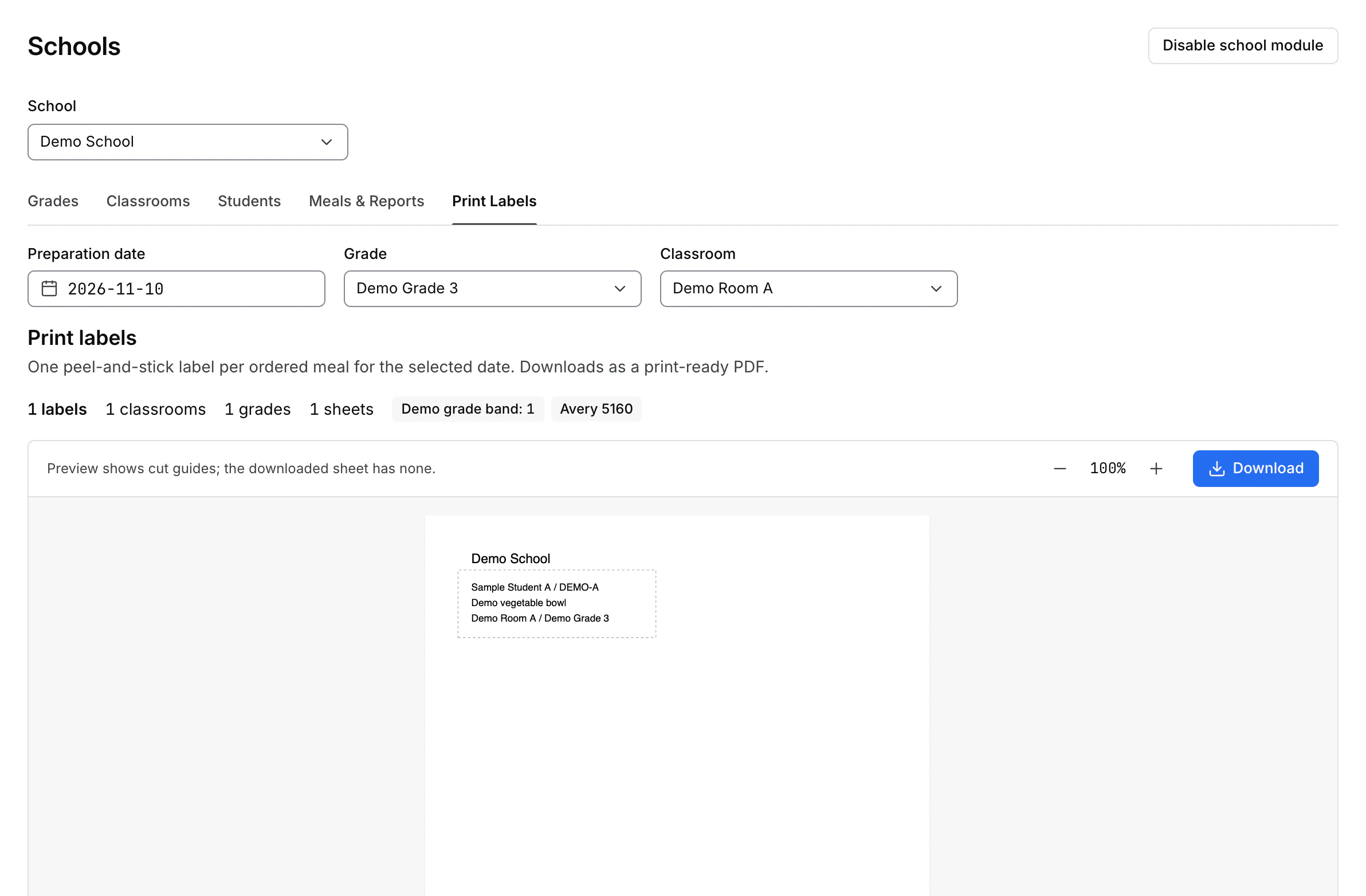
Preview and download
- Confirm the school, Preparation date, Grade, and Classroom.
- Check the counts for labels, classrooms, grades, and sheets. Review the grade bands and label template if the Dashboard lists them.
- Review the preview and use the zoom controls if needed. The preview shows cut guides. The downloaded sheet omits the guides.
- Select Download and open the print-ready PDF. Verify the selected school, date, and label layout before printing.
If the sheet is unavailable
- If there are no meals for that date, check the date and filters.
- If the label count exceeds the displayed maximum, narrow the selection by grade or classroom.
- If the count fails, choose Retry. If the preview or download fails, review the error and check the selection before trying again.
Store and share the PDF as a school record. It may contain student names, codes, or meal information.