Review school meals and download reports
Open Schools, select the school, and choose Meals & Reports. Confirm the Preparation date, which starts on your local day, and optionally filter by Grade or Classroom.
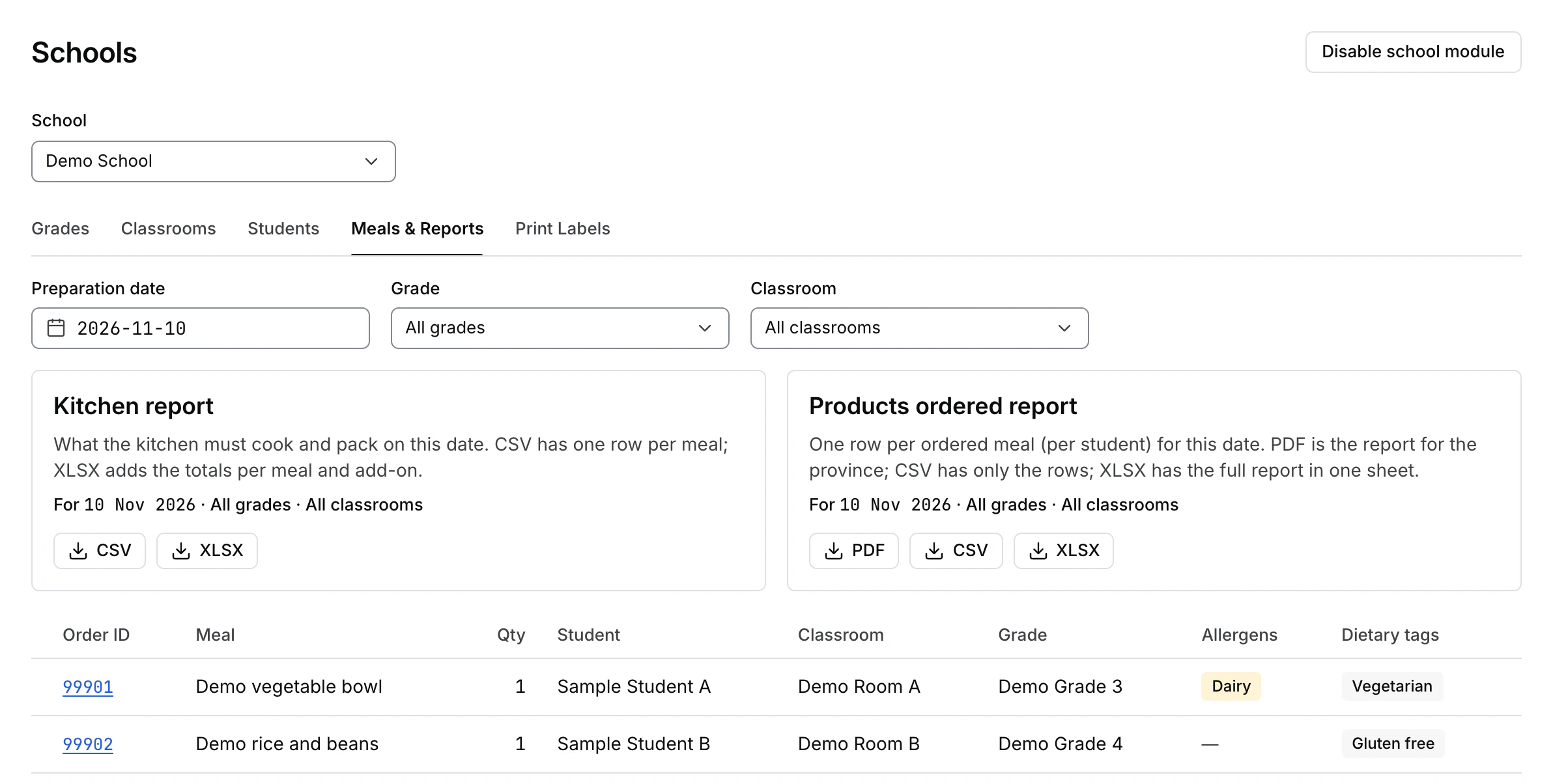
Review meals for the selected day
The list shows the meal and quantity. When available, it also shows the student, grade, classroom, allergens, and dietary tags. Select an Order ID to open the order in Orders if your account can view it. If the list fails to load, use Retry.
Download a report
Confirm the scope printed on the report card before choosing a format. The report downloads to your device.
| Report | Format | Contents |
|---|---|---|
| Kitchen report | CSV | One row per meal to cook and pack. |
| Kitchen report | XLSX | Adds totals by meal and add-on. |
| Products ordered report | Formatted report for the province. | |
| Products ordered report | CSV | The ordered meal rows by student. |
| Products ordered report | XLSX | The full report in one sheet. |
Open the downloaded file and check that its contents match the school and filters you intended. If the download fails, review the error and try again. Handle the files as school records because they may contain student or dietary information.
The preparation date, grade, and classroom carry over when you switch to Print Labels in the same school.