Manage driver invoices
Use Driver invoice to assemble an accounting document for a driver and a defined period. The document can organize fees, delivery-price shares, tips, tax, miscellaneous amounts, payment-method scope, and notes. It does not itself send money to a driver or prove that an accounting or payment workflow completed.
Driver invoice workflows can include driver identities and matching orders and can generate or download a document through a PDF-service boundary. Use a non-production or approved accounting workflow when learning this feature, and do not expose driver, order, payment, or document data in screenshots or shared material.
Open Driver invoice
Open Invoice manager, then select Driver invoice for the intended workflow.
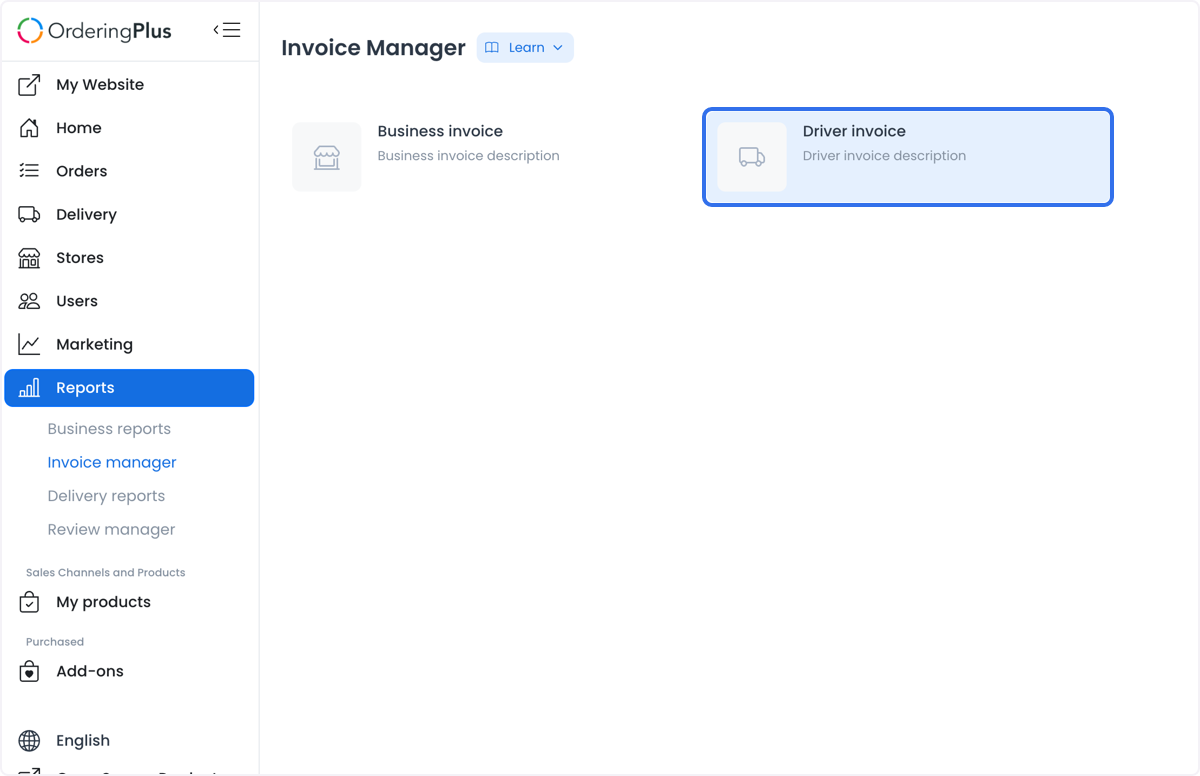
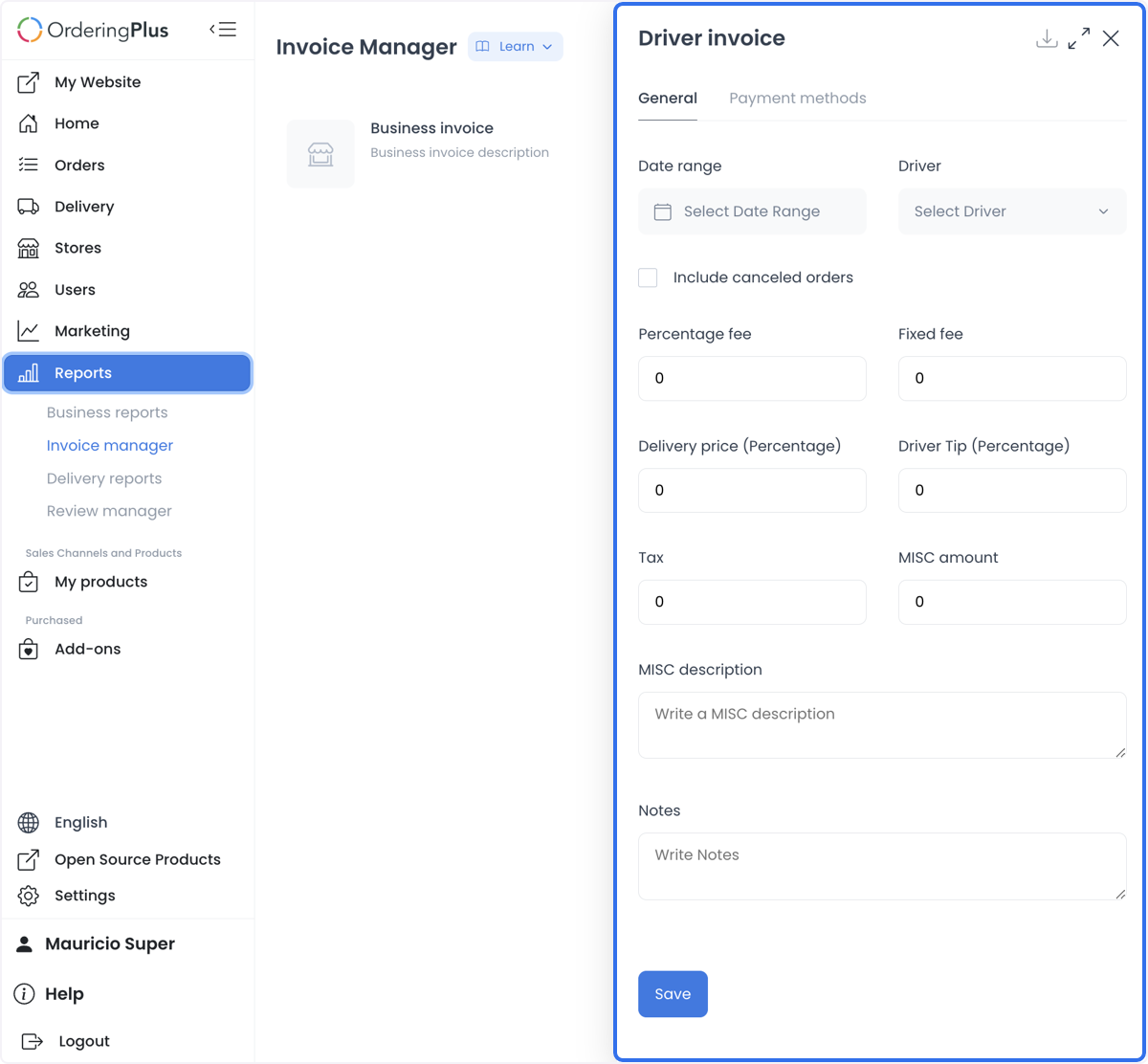
Set the invoice scope
Select the payment methods, date range, and driver that define the invoice. Confirm the selected driver and period before continuing.
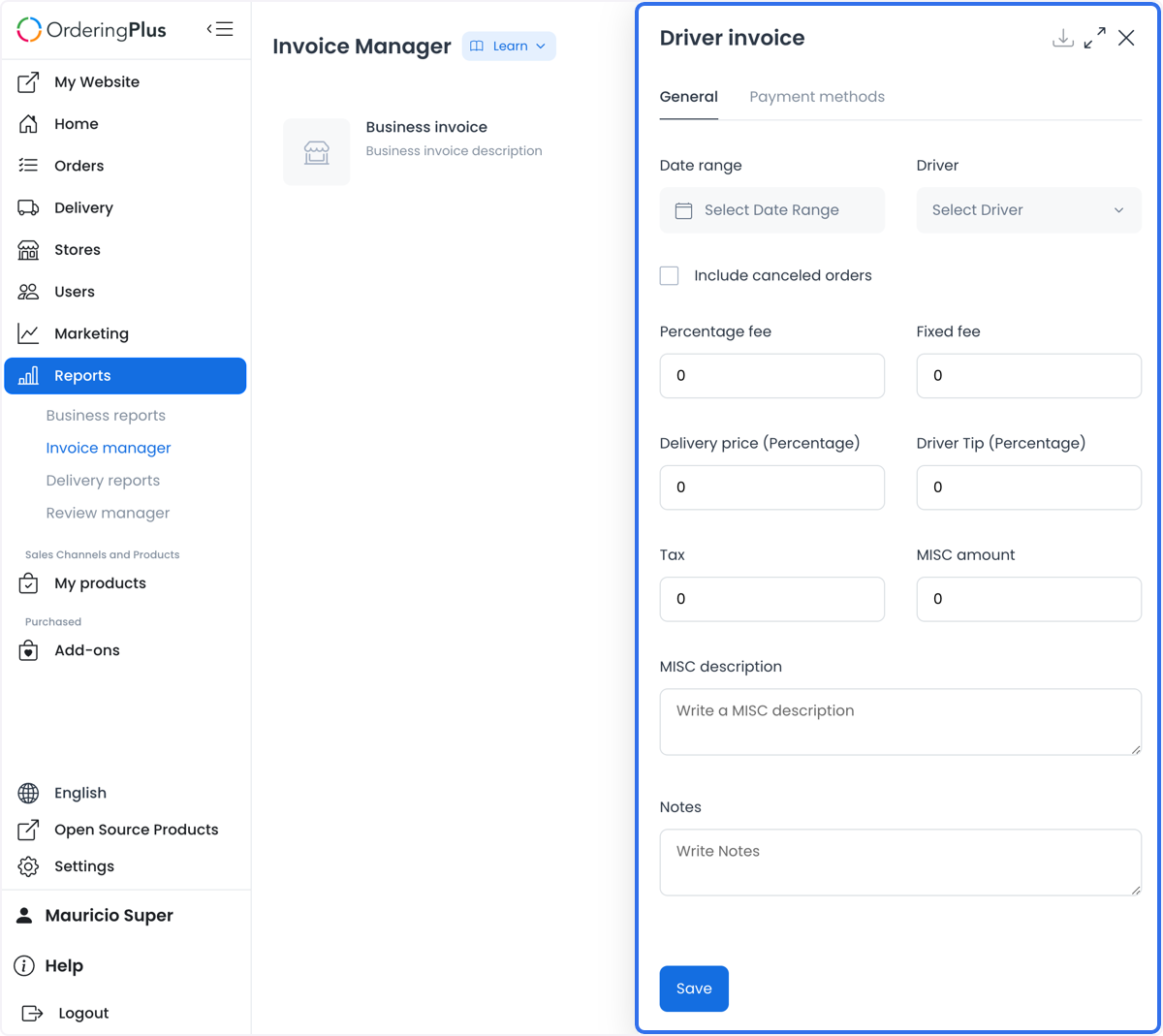
Add the financial fields required by the approved accounting policy:
- Percentage Fee and Fixed Fee.
- Delivery Price (Percentage) for the portion of delivery price assigned to the driver.
- Driver Tip (Percentage) for the portion of tips assigned to the driver.
- Tax.
- MISC Amount and MISC Description.
- Notes.
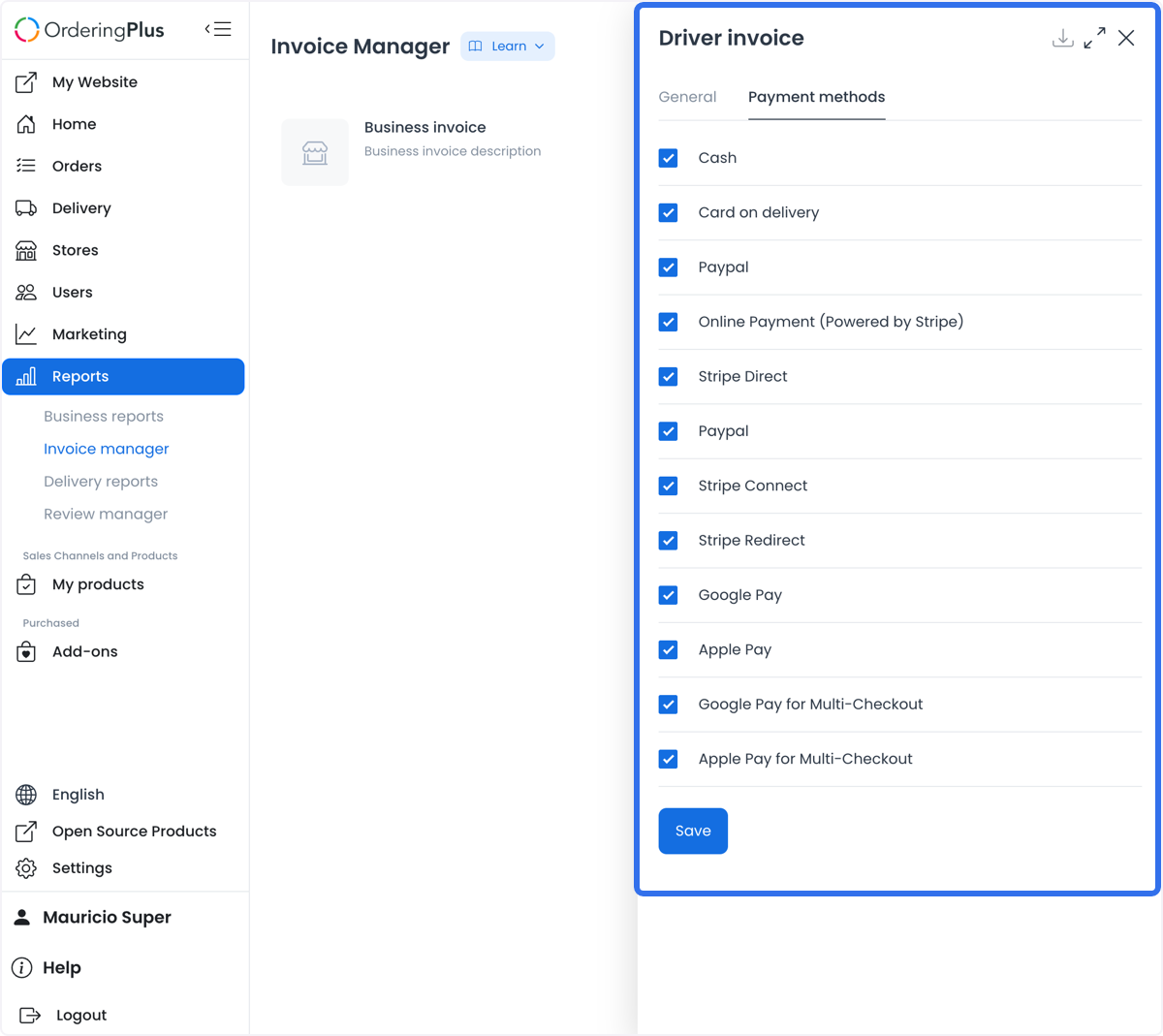
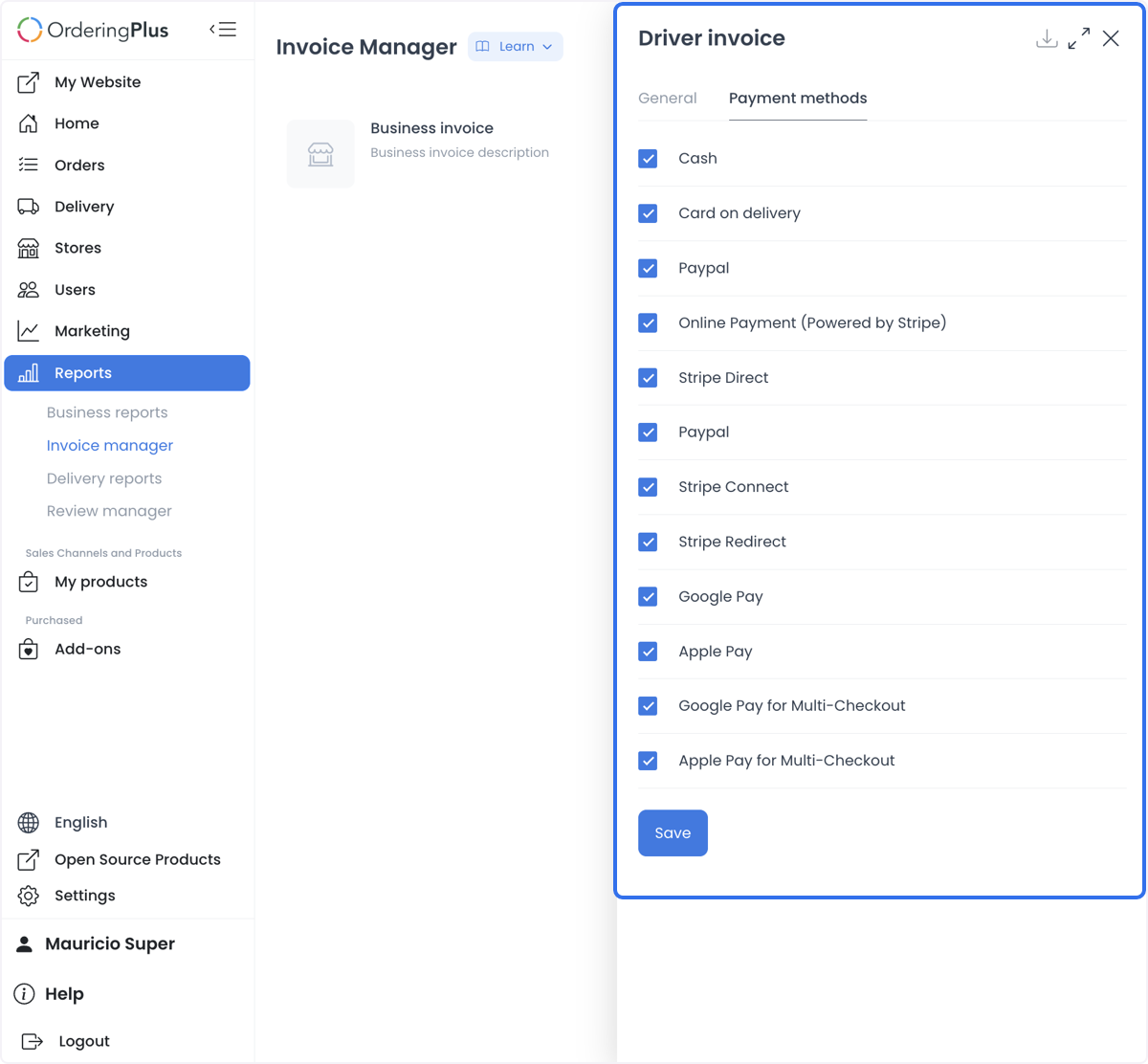
Select payment methods
The captured Driver invoice flow lists payment methods such as Cash, Card on Delivery, PayPal, Online Payment (Powered by Stripe), Stripe Direct, Stripe Connect, Stripe Redirect, Google Pay, Apple Pay, Google Pay for Multi-Checkout, and Apple Pay for Multi-Checkout. Actual options depend on the selected project and returned configuration; a visible label is not proof that a payment method is active or a payout succeeded.
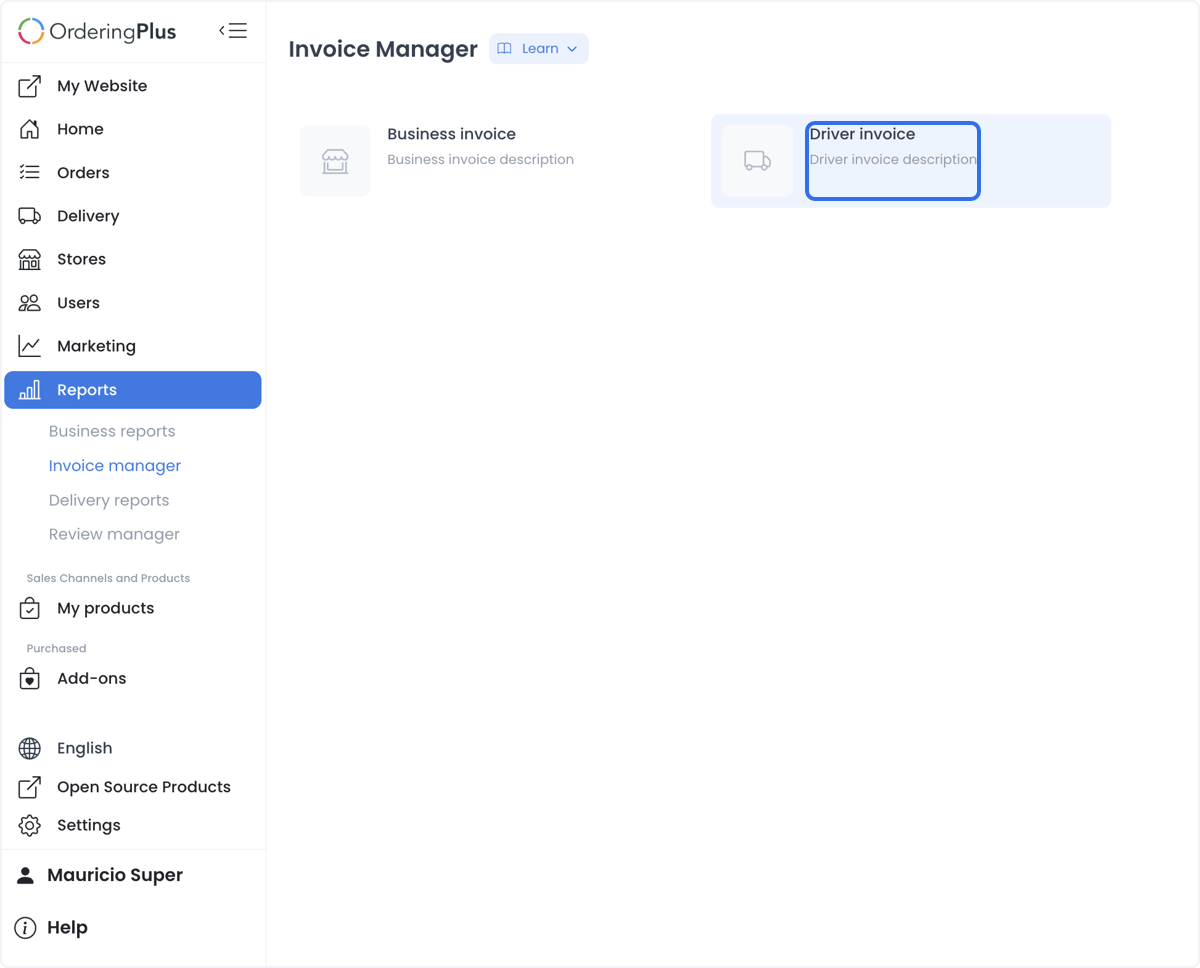
Save, export, and pay separately
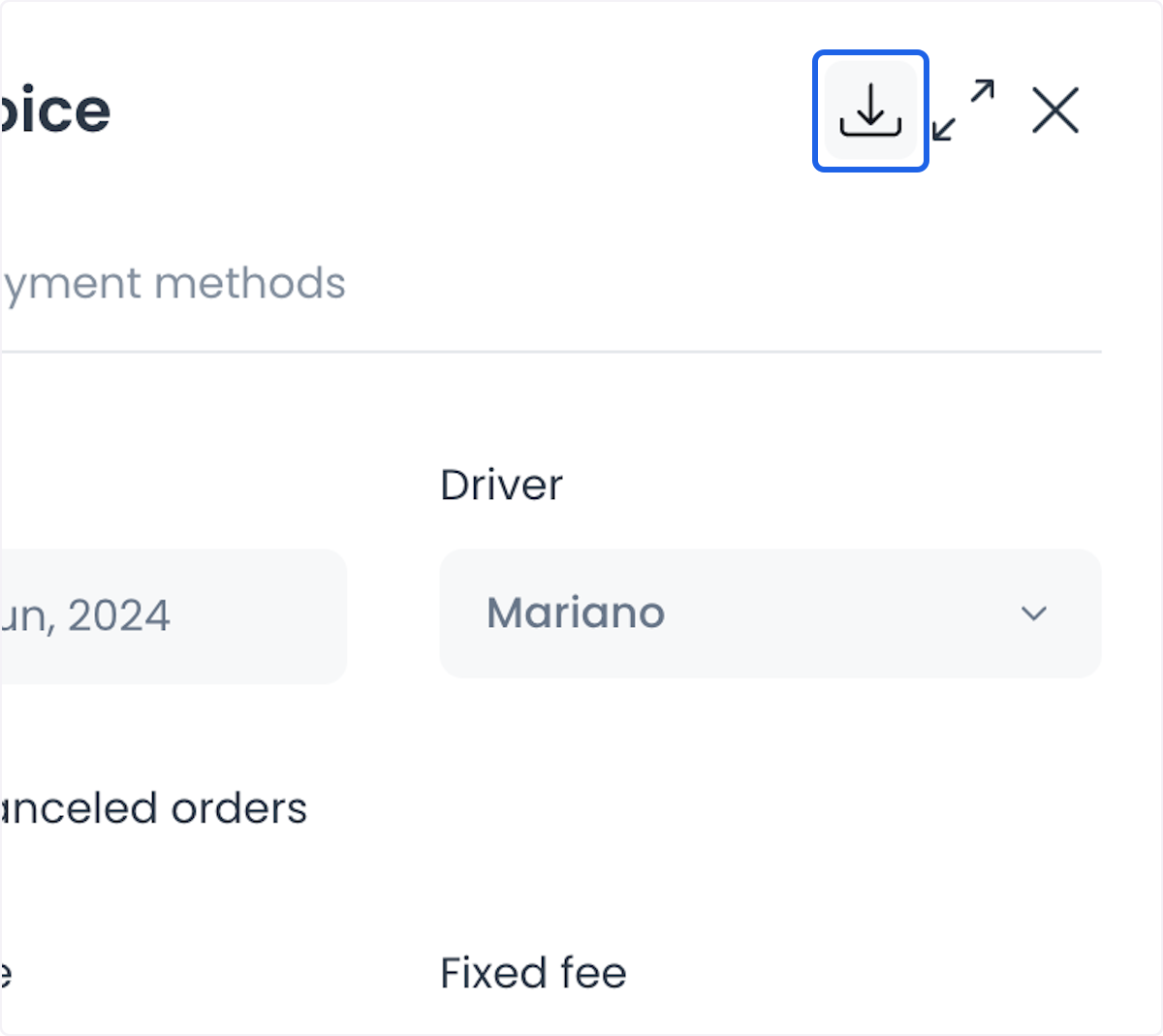
Choose Save only after reviewing the selected driver, dates, payment methods, fields, and calculation basis. Saving can make a document available for export or download, but saving or downloading does not prove that a PDF exists, totals are correct, or a driver has been paid.
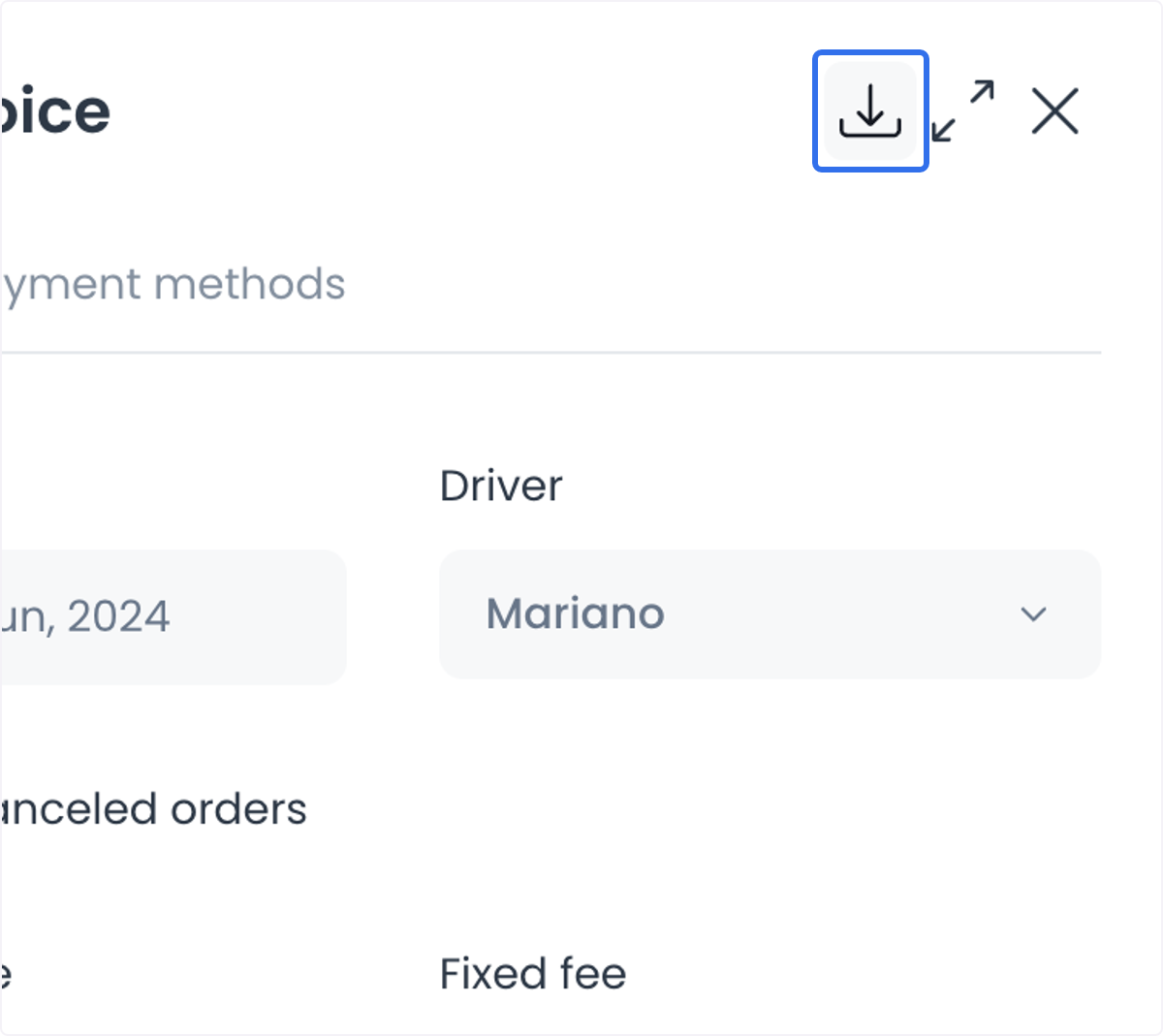
After the document is approved, the authorized accounting team handles the actual payment and reconciliation. Keep document generation, payment initiation, provider settlement, and confirmation as separate steps.
Common accounting uses
- Create a weekly record for a defined driver and date range.
- Separate invoice records by payment method when that improves reconciliation.
- Include delivery-price shares, tips, fees, and taxes only under the approved calculation policy.
- Use miscellaneous fields for documented bonuses or adjustments rather than unexplained totals.
Final review
- The selected driver, date range, payment methods, and order scope are correct.
- Each fee, tip, tax, and miscellaneous value has an approved calculation basis.
- The document is reviewed before it is shared with accounting.
- Any actual payout is processed and confirmed outside Invoice Manager through the authorized workflow.
Related guides: Invoice manager · Manage business invoices