Automate invoice creation
This automation uses an order export in Google Sheets, a scheduled Zapier workflow, and Zoho Books to prepare a sales invoice. This is a multi-provider financial-data workflow: it can read order history and business data, create records in an accounting system, and produce documents. Have finance, the integration owner, and the relevant provider documentation validate the implementation before activation.
The workflow can expose business legal names, order totals, fees, discounts, tips, tax, and invoice data to Google Sheets, Zapier, and Zoho Books. A scheduled run can create accounting records. Use non-production data and provider test environments until an authorized owner has defined the scope, credentials, retention, rollback, and reconciliation process.
Design the input sheet
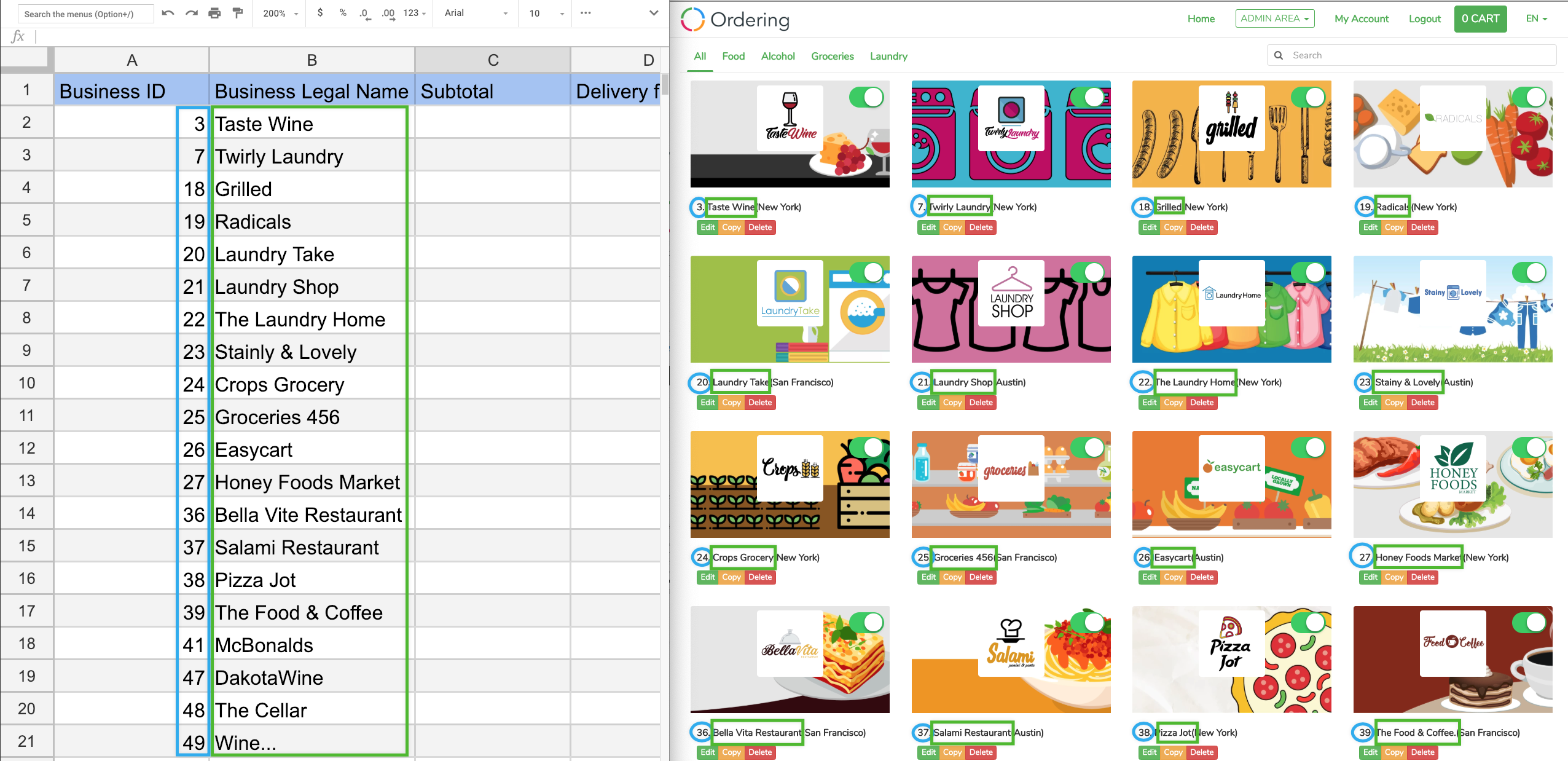
This workflow requires an approved order export before you begin. This guide does not provide the export procedure, so do not continue until your team has completed it through its approved process. Then add a sheet named Monthly Totals in the same Google Sheet, and create these headers:
- Business ID
- Business Legal Name
- Subtotal
- Delivery fee
- Service fee
- Discount Driver
- Tip Total


Enter the business identity fields only from the approved business record. The business legal name used for accounting can differ from a public-facing store name.
Use formulas only after confirming the sheet schema
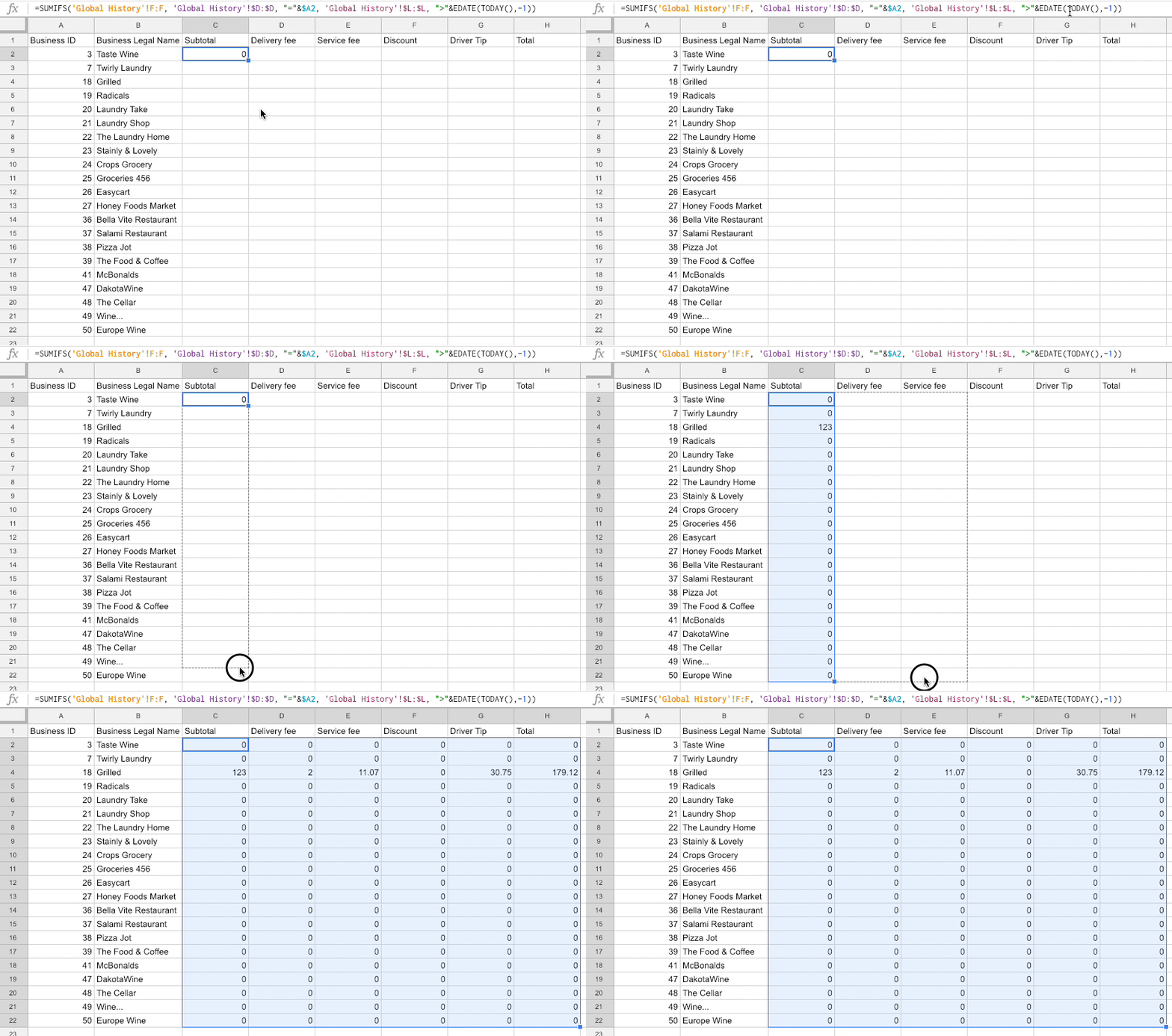
This example uses the following formula to sum the prior month’s subtotal from a sheet named Global History:
=SUMIFS('Global History'!F:F, 'Global History'!$D:$D, "="&$A2, 'Global History'!$L:$L, ">"&EDATE(TODAY(),-1))
It depends on a specific column layout and date semantics. Confirm the sheet columns, time zone, currency, business ID, and accounting period before reusing it, then fill the formula only across rows that are approved for the workflow.
Configure the scheduled workflow
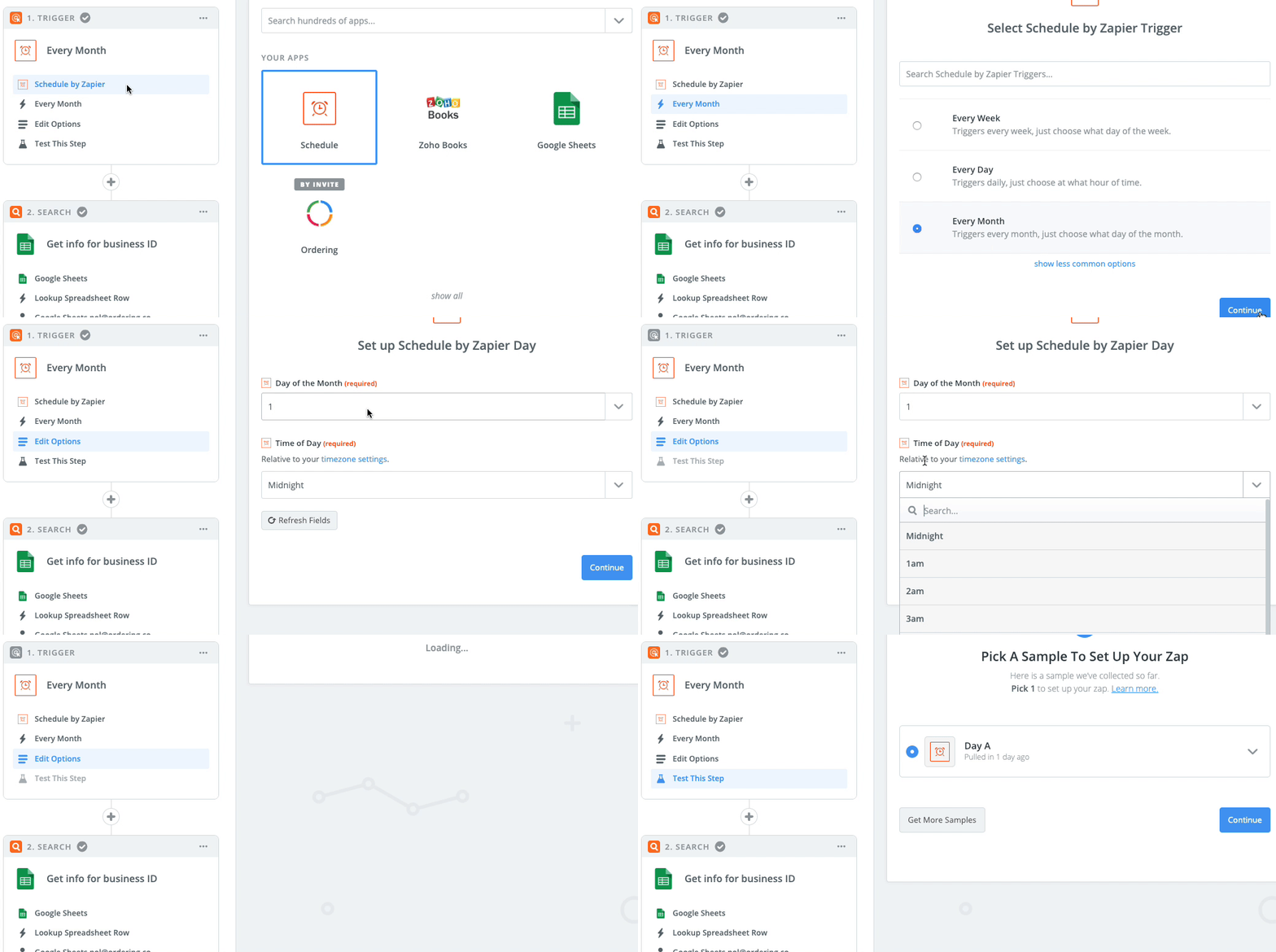
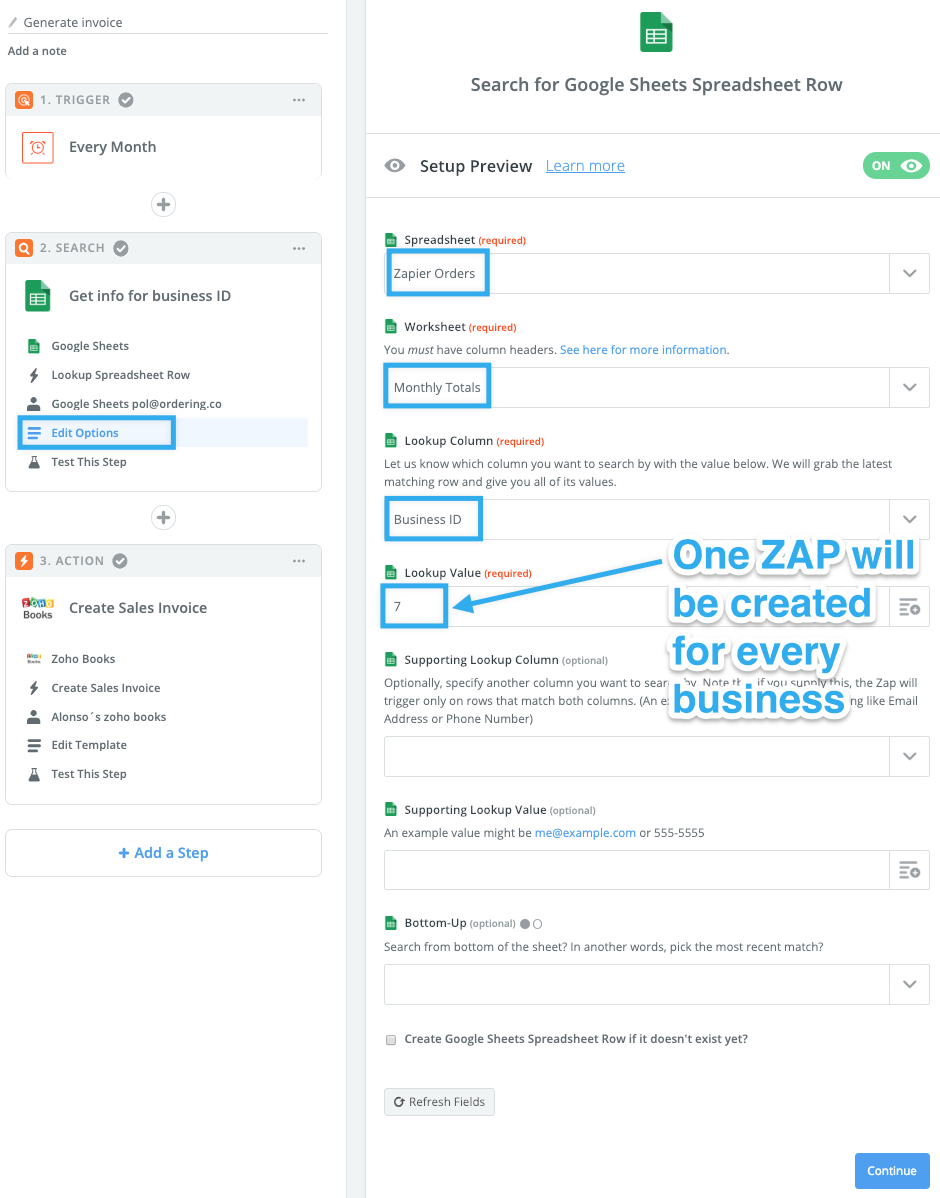
This example schedules a Zapier workflow on the first day of each month at midnight, then looks up the matching row in Google Sheets.
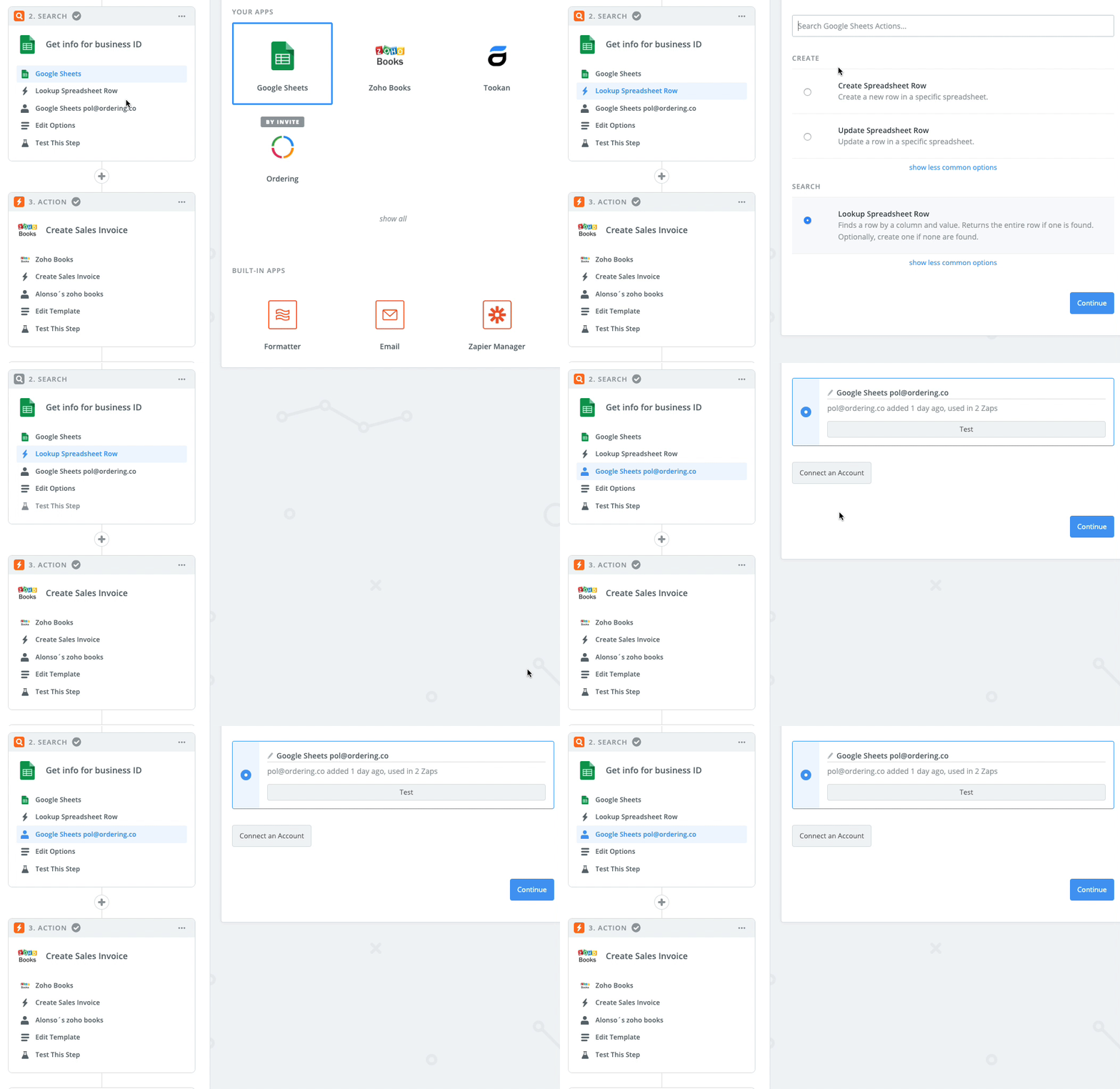
Select the intended business deliberately. A similar business name, stale row, or wrong spreadsheet can create an incorrect accounting record.
Create the accounting record
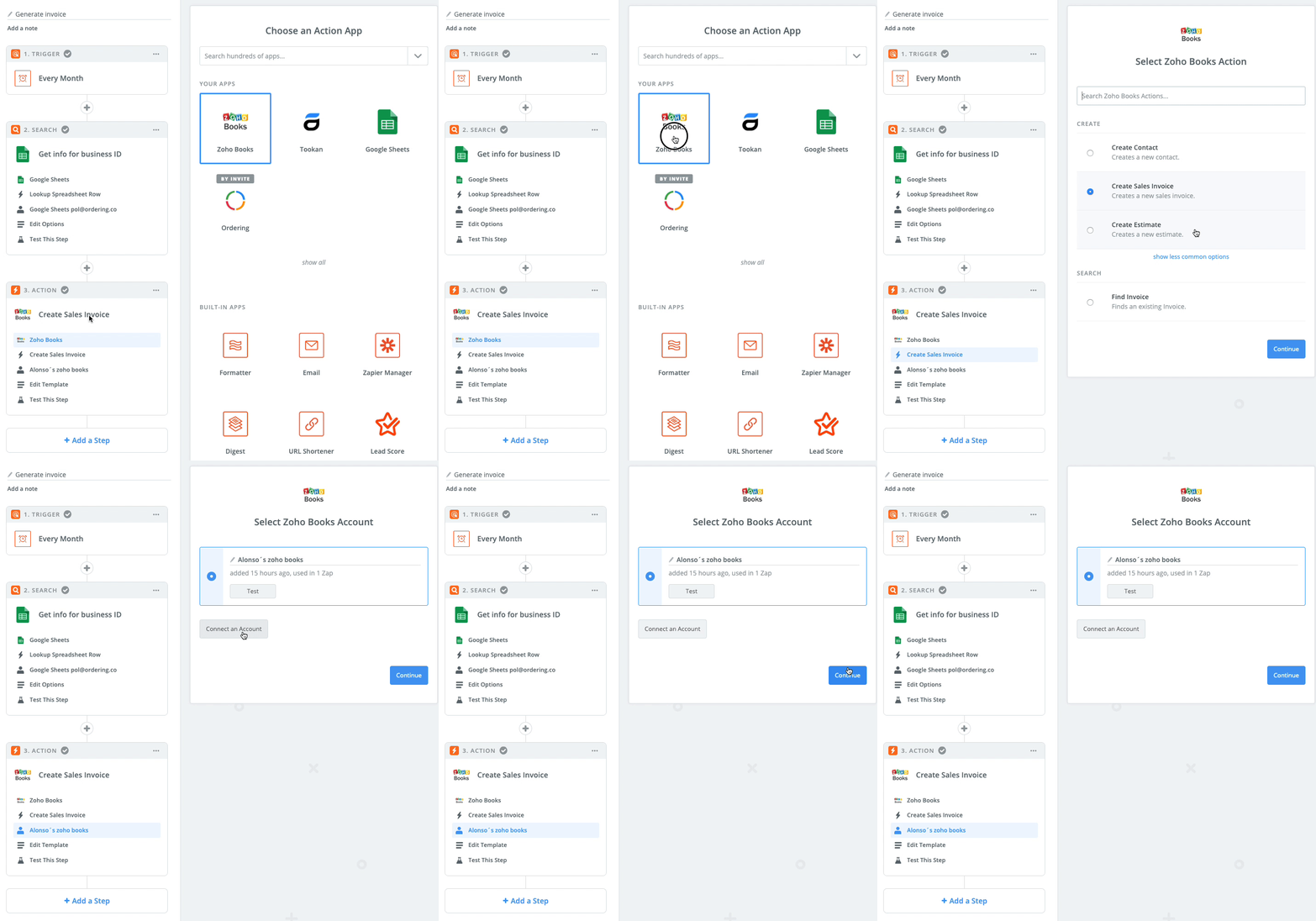
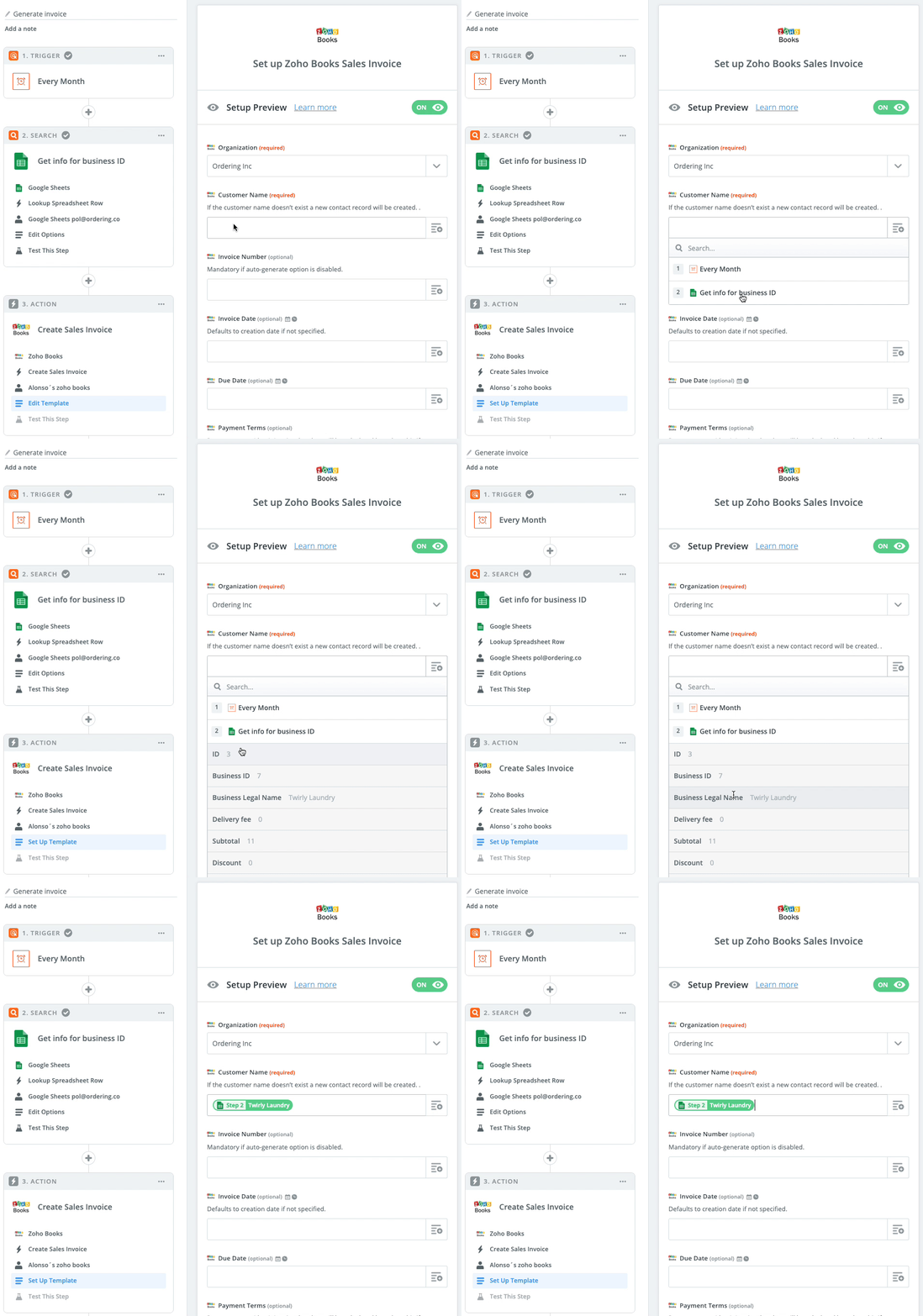
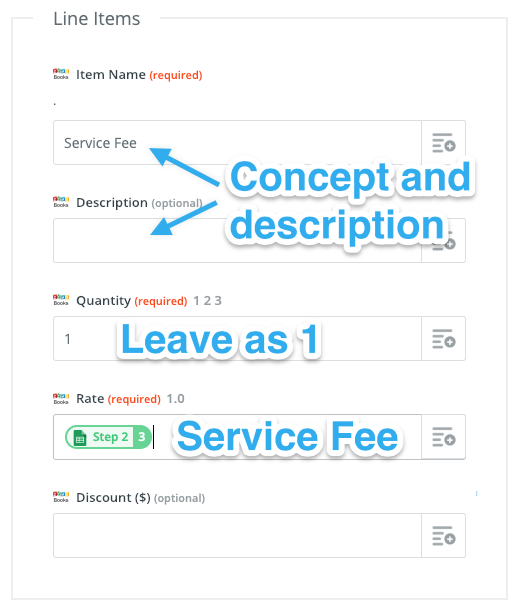
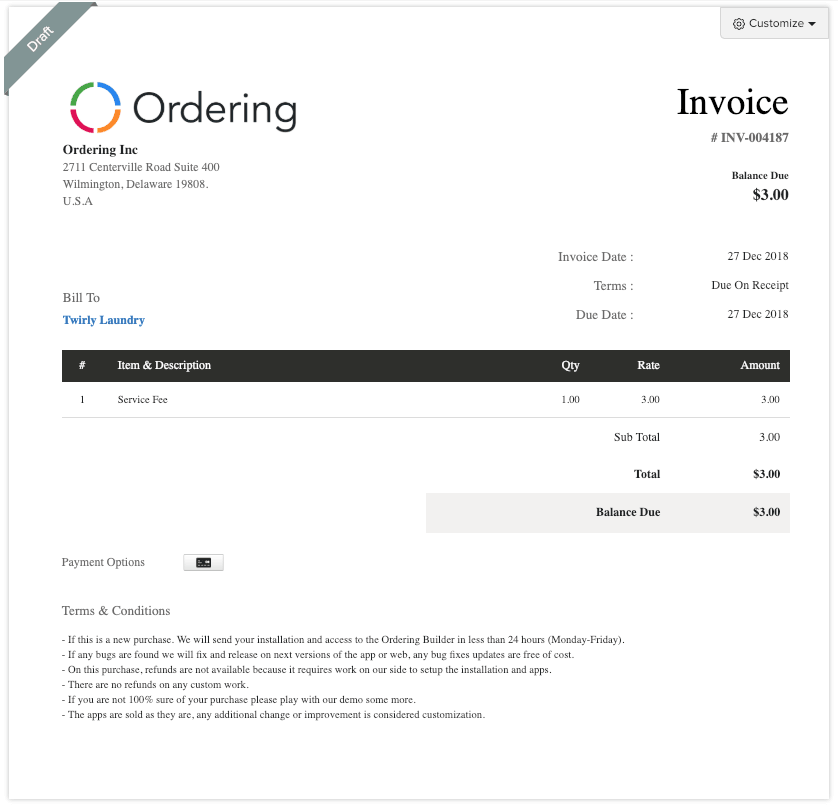
Add the Zoho Books action only after the business identity, sheet lookup, accounting organization, and line-item mapping are all verified. This example uses a sales-invoice action, maps the selected business name to the accounting-system customer, and uses the service fee as a line item.
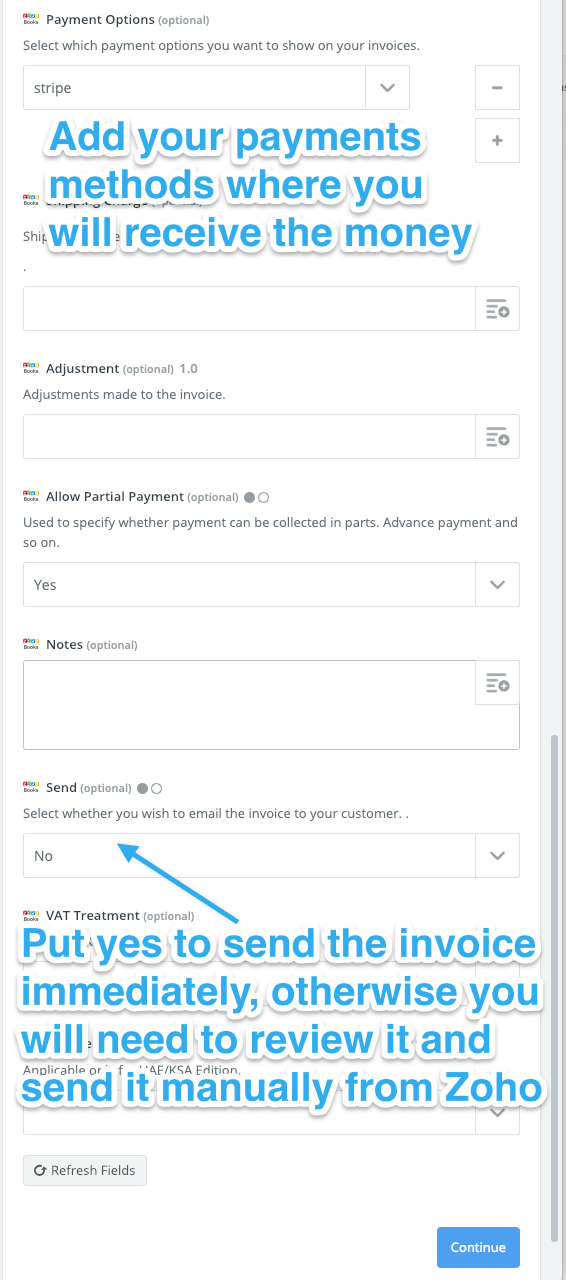
The document shown is an example output only. It is not a template to copy, a current legal document, or confirmation that a scheduled automation has created, sent, or collected an invoice.
Review before activation
- Confirm the order export, business IDs, legal names, period cutoff, currency, and formula inputs.
- Confirm the Zapier trigger, Google Sheets lookup, Zoho Books organization, customer match, and line-item mapping in a controlled test.
- Define duplicate prevention, retry behavior, error handling, record retention, and reconciliation with the accounting owner.
- Verify the document’s legal text, taxes, totals, recipient, and approval process before any customer or business receives it.
- Keep credentials, API keys, exported orders, and accounting records out of support tickets, screenshots, shared notes, and this documentation.
Related guides: Invoice manager · Manage business invoices