Profile and account sessions
Use Profile to review the identity associated with your current Dashboard session. Depending on your account and project, it can also offer Google Calendar connection or session controls.
Profile is available to Dashboard user levels 0, 2, 5, and 8. Session listing and deletion require an Enterprise project and the session-based sign-in strategy; an Enterprise account using the older strategy can instead be offered Active sessions. Google Calendar connection is shown only for level 8 accounts.
Open Profile
Select Profile at the bottom of the Dashboard sidebar.
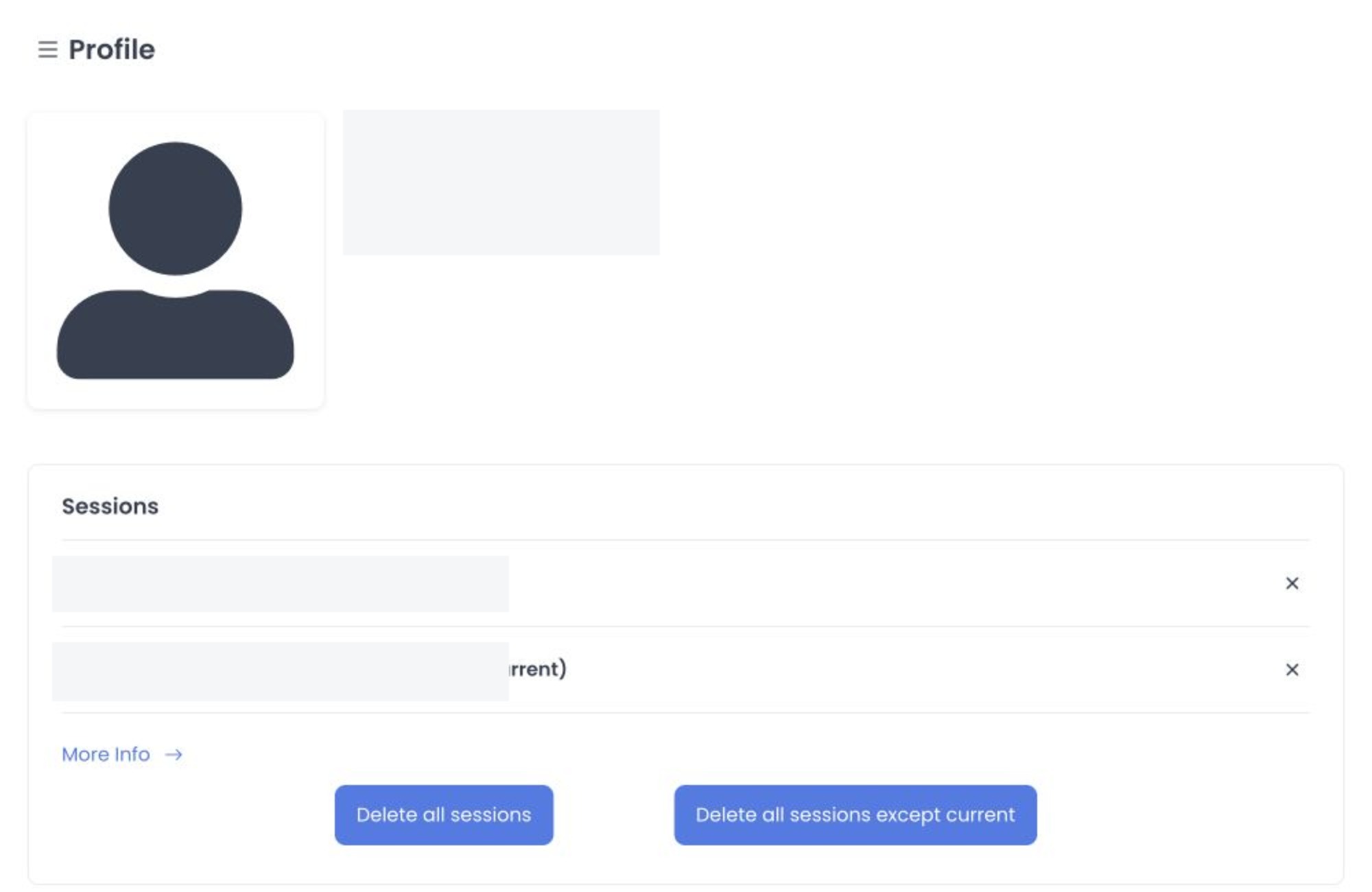
The page shows the signed-in account's photo (when available), name, email address, and mobile number (when available). Treat this as account information: do not share a screenshot containing unredacted personal details.
What you can and cannot change here
The current Profile page is a review screen. It does not include controls to edit your name, email address, mobile number, password, photo, or other personal fields.
If you need to change account data, contact the project administrator or use the organization’s established user-management process. Administrators can start with User information; that screen manages project user records and is not an edit form for every Profile field.
Manage active sessions
When active sessions are available, Profile can list the most recent valid sessions and identify the current one. Listing and deleting sessions require the session-based sign-in strategy. Select More info to review the full list.
- Select the remove control beside a session to request revocation of that individual session.
- Select Delete all sessions except current to request revocation of the other active sessions.
- Select Delete all sessions to request revocation of every active session, including the one you are using. The current client source requests logout only after the API reports success.
Session revocation is a live security action when the deployed service accepts it. Confirm the session and its device/time information before continuing. The inspected source provides no restore action; a revoked session requires a new sign-in.
If the page says sessions are not enabled, select Active sessions only if you intend to enable session-based sign-in for your account. The source is designed to keep the current session and request revocation of the other applicable sessions; this guide does not confirm a deployed outcome.
Google Calendar connection
For eligible level 8 accounts, Sync with Google calendar opens a Google authorization window. Continue only with the intended Google account and approve only the permissions your organization expects. This is an external authorization flow and can replace a previous Calendar authorization for the account.
Troubleshooting
Why can’t I edit my contact details?
Profile currently has no editable personal-data fields. Ask a project administrator to use the appropriate user-management workflow instead.
Why don’t I see active sessions?
The controls require an Enterprise project. Within an Enterprise project, Profile lists and deletes sessions only after the account uses the session-based sign-in strategy. If it is not enabled, Profile can offer Active sessions to enable that strategy for your account.
Why can Delete all sessions sign me out?
The inspected client source includes a logout branch after the API reports success for Delete all sessions or removal of the current session. A successful revocation requires signing in again, but no deployed result was tested for this guide.
Why is the Google Calendar button missing?
It is only rendered for level 8 accounts. It also needs the project’s Google authorization configuration before the external authorization can proceed.
Related guides: User information · Settings overview