View and manage an order
Open an order from Orders list in the Ordering.co Dashboard to review its current status, fulfillment information, items, and payment summary. The detail panel brings the order's information and available actions together so you can identify what needs attention and coordinate the next step.
Before you start
- Confirm that you are working in the correct Ordering.co project and have permission to access the order.
- Find the order using its status group, search, or the filters available to your project.
- Review its current state before making a change. Controls can be hidden or read-only according to your role, enabled features, project configuration, order type, and payment method.
Order details are available to administrators and other permitted operational roles. Access to the panel does not automatically grant permission to change status, assign a driver, issue a refund, or delete an order.
Open an order
- In the Dashboard sidebar, select Orders.
- Select Orders list.
- Select the order row you want to review.
The detail panel opens and the selected order is added to the current page URL. Selecting a row checkbox or an inline driver or status control performs that control's own action instead of opening the panel.
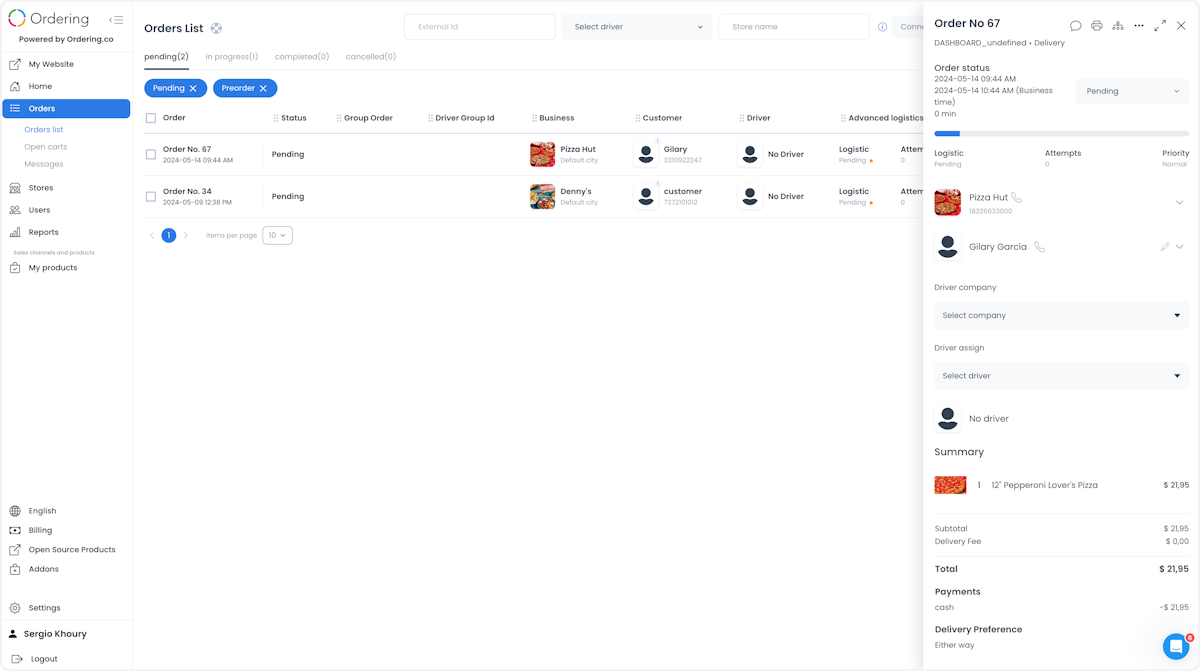
Review the order
The information displayed depends on the order and your access:
| Area | What to review |
|---|---|
| Order identification | The unique order number, payment method, and order type. Confirm the number before taking an action. |
| Date and time | When the order was placed and the timing information shown for the order. Where multiple time references appear, check their labels. |
| Order status | The current workflow state and the status selector, when editing is permitted. |
| Business | The business that received the order and its available contact information, to help coordinate fulfillment or resolve an issue. |
| Customer | The customer's name, address, and available contact controls. Use the contact action beside their details when available. |
| Driver company | The delivery company assigned to the order, or a company selector when your account can assign one. |
| Driver assignment | The driver responsible for delivery, or the driver selector when assignment is available. |
| Products | The ordered products, quantities, options, and preferences. |
| Total and payment | The breakdown of charges and the total in the displayed currency, payment information, and eligible refund controls. |
| Logistics | Fulfillment status, delivery attempts, priority, and related delivery information when applicable. |
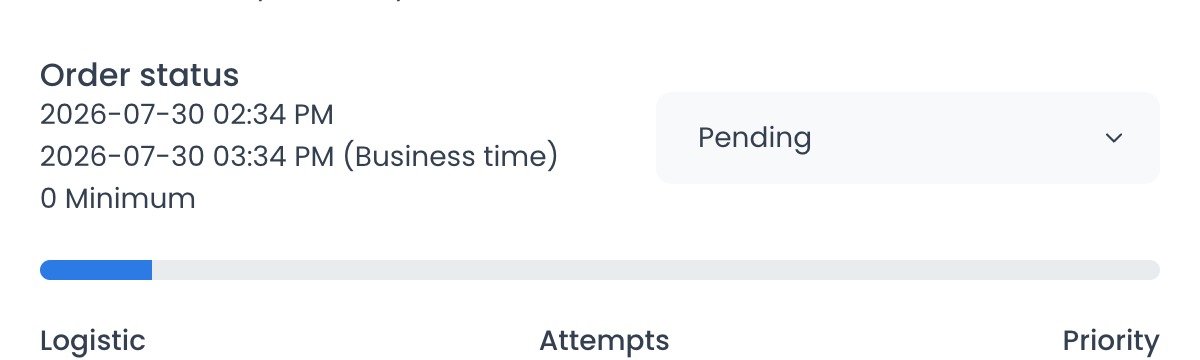
For the order retrieval request and response contract, see Get an order in API Reference.
Understand order status
Orders list organizes the current states into four groups:
- Pending — Orders waiting for the next operational step, including preorders.
- In progress — Orders being prepared, assigned, picked up, or delivered.
- Completed — Orders marked completed by an administrator, driver, or pickup customer.
- Cancelled — Orders rejected, cancelled, failed, or not picked up.
These groups contain individual API status codes. A status code is not permission to perform a transition, and the selector does not offer every status for every order. Fulfillment type, your role, the order's current state, and configuration can restrict the options. Driver-company integrations also have their own accepted update subset.
See Update an order in API Reference for the documented status values and update requirements.
Manage the order
Update a status
- Review the order number, current status, and fulfillment details.
- Open Order status when the selector is enabled for your role.
- Search for or select an available status only when you intend to change the order.
- Check the result. If an error appears or the selector returns to its previous value, treat the change as unconfirmed and read the message before trying again.
Selecting a status submits the change; there is no separate confirmation step in this selector. Read-only accounts cannot use it to update an order. See Update an order status for the full procedure and troubleshooting.
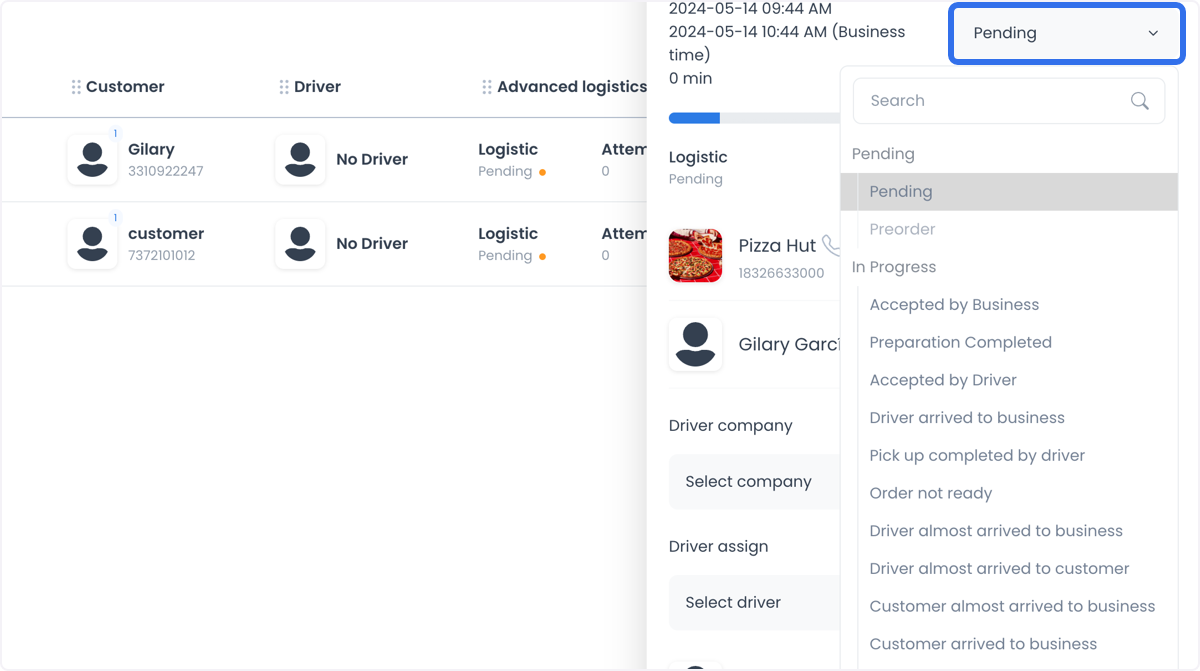
Accepted changes can trigger fulfillment actions, integrations, and notifications. Push notifications or email depend on the project's configuration, the event, and the recipient's available channels; changing a status does not guarantee that every participant receives or reads a notification.
Assign a delivery company or driver
Use Driver company to select a delivery company and Driver assign to choose a driver when those controls are available for the order. Check the current assignment before submitting a change, and confirm the result afterward.
Assignment options depend on your role, the order's state, and configured delivery services. Continue with Assign or change a driver for the detailed workflow.
Use other available actions
The header and detail controls can include messaging, printing, history, editing permitted customer or order information, cloning, custom fields, refunds, and deletion. Their availability depends on your access, configuration, order state, fulfillment type, and payment provider.
Status updates, customer or driver changes, refunds, and deletion can affect an active operation. Confirm the order and the intended outcome before completing an action. A toast, panel refresh, or live update alone does not prove that a delivery, notification, payment, or refund finished successfully.
Communicate with order participants
Open Messages from the order details to communicate within the order's context. The conversation can bring together the customer, business, driver, and permitted operational team members.
- Exchange messages with the participants available to your account.
- Share and review pictures when the attachment controls are available.
- Review signature images when they have been shared as attachments; viewing an image does not mean the panel provides a signature-capture tool.
- Review recorded location information when it is included in an accessible order event. A location attached to a past event is not a continuously updated driver position; check the event's time and context before relying on it.
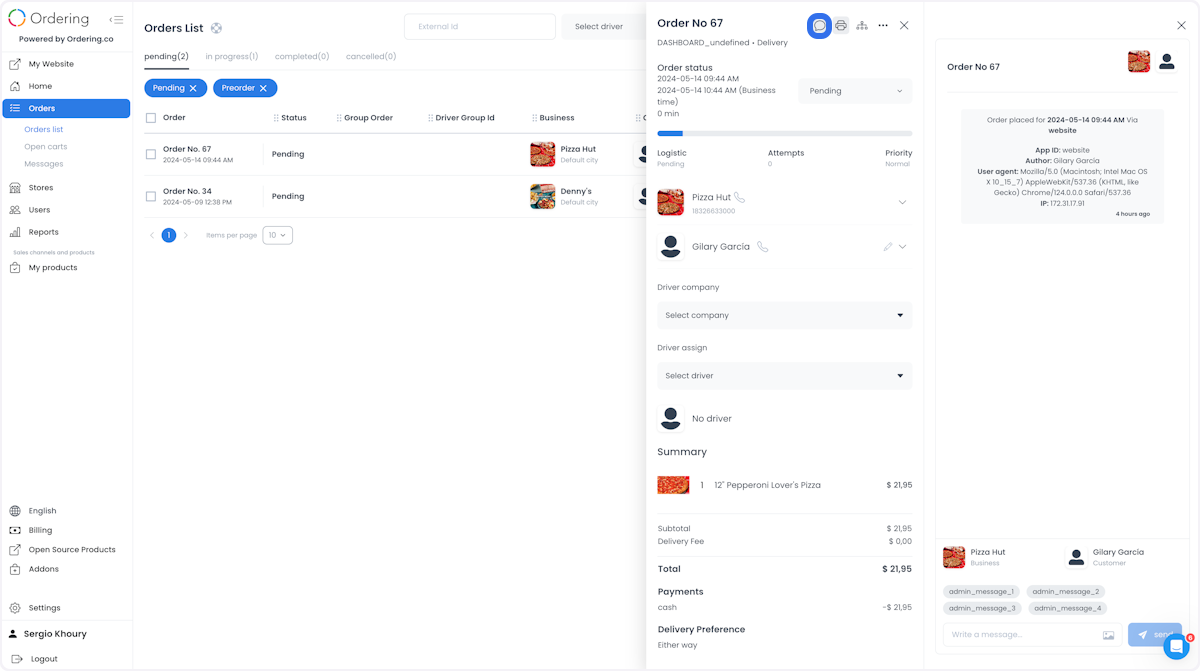
Access to messages and event details follows the order's permissions and the audience of each message. Opening the panel loads authenticated order information and can load messages; viewing an unread conversation can mark messages as read. Use the information only for the operational task you are authorized to perform.
See Messages overview for conversation access and message-handling details.
Review order history
Use the history control to open Order History and review recorded changes. History helps you follow an order's progression, identify actions associated with customers, drivers, business owners, or other authorized participants, and investigate an issue.
Review the recorded status changes, timestamps, and available author or context details. Use them to establish the sequence of events rather than assuming that the current status alone explains how the order reached that point. What is visible depends on the records returned and your access.
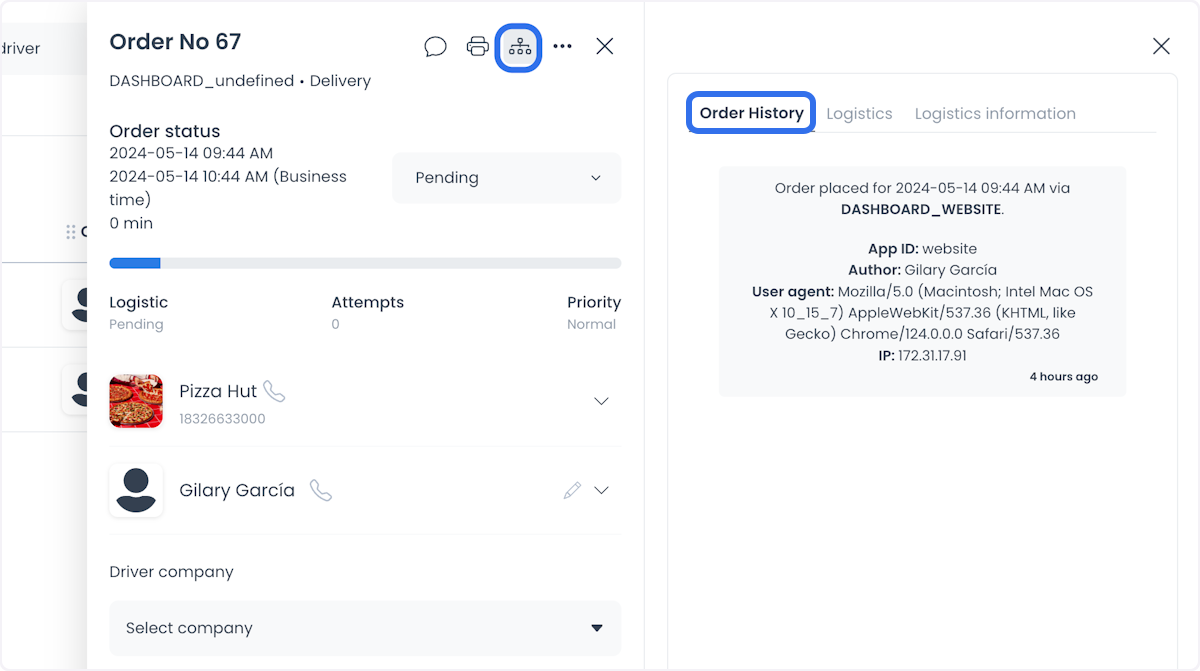
History is also useful for analyzing patterns and areas for improvement. A history entry records an event; it does not by itself prove that every downstream notification, payment, or delivery action completed.
Follow logistics and delivery attempts
When Advanced Logistics is configured, its automation can help assign orders and reduce manual coordination. The order panel lets you inspect the logistics information that is available for the order, including movement through the delivery workflow and assignment attempts.
The history area includes Logistics and Logistics information tabs:
- Logistics — Review the available logistics records for the order. Use Reload when you need to refresh that view.
- Logistics information — Review the reported distance information, queues, and attempts history when those records are available. The view can also show that there are no queues or no attempt-history records.
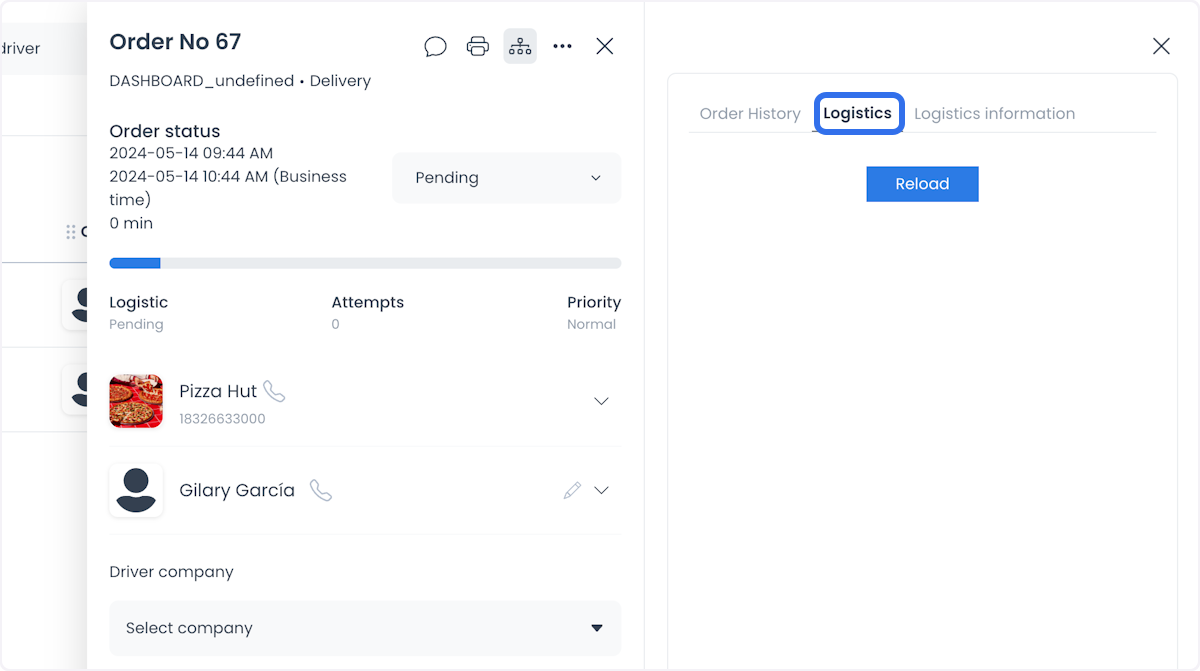
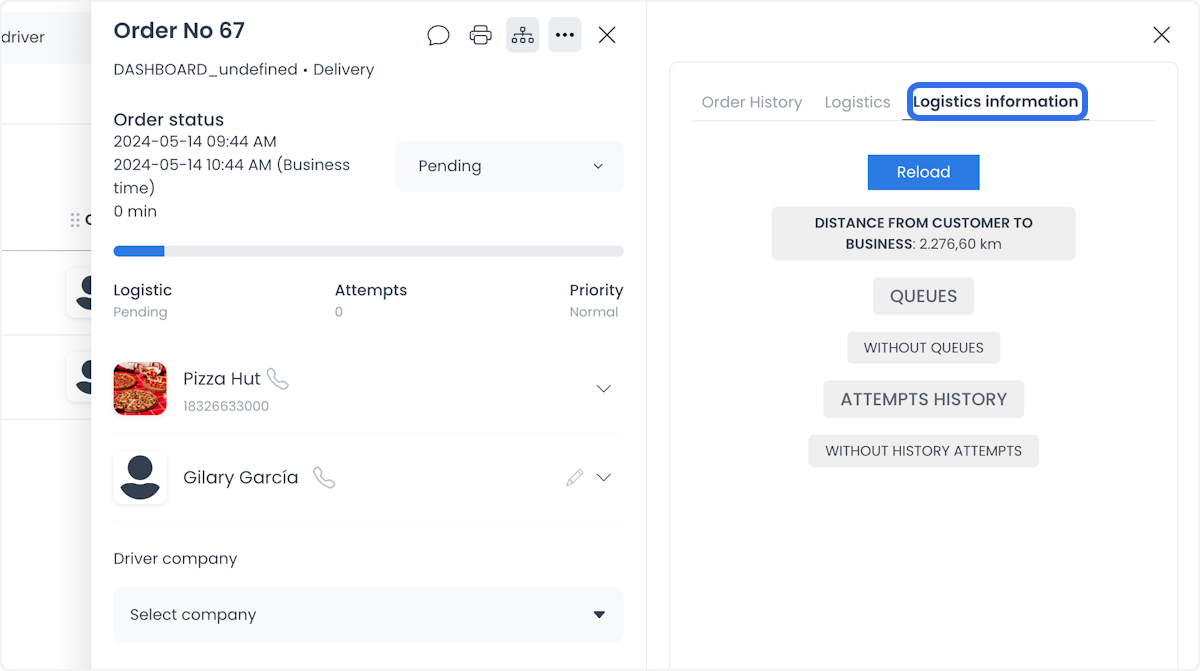
The panel's logistics status, attempt count, and priority help you decide what to investigate. A refresh requests information; it is not a guarantee that automation has assigned a driver or completed a delivery. Follow Assign and manage a delivery for the related operational workflow.
Use custom fields
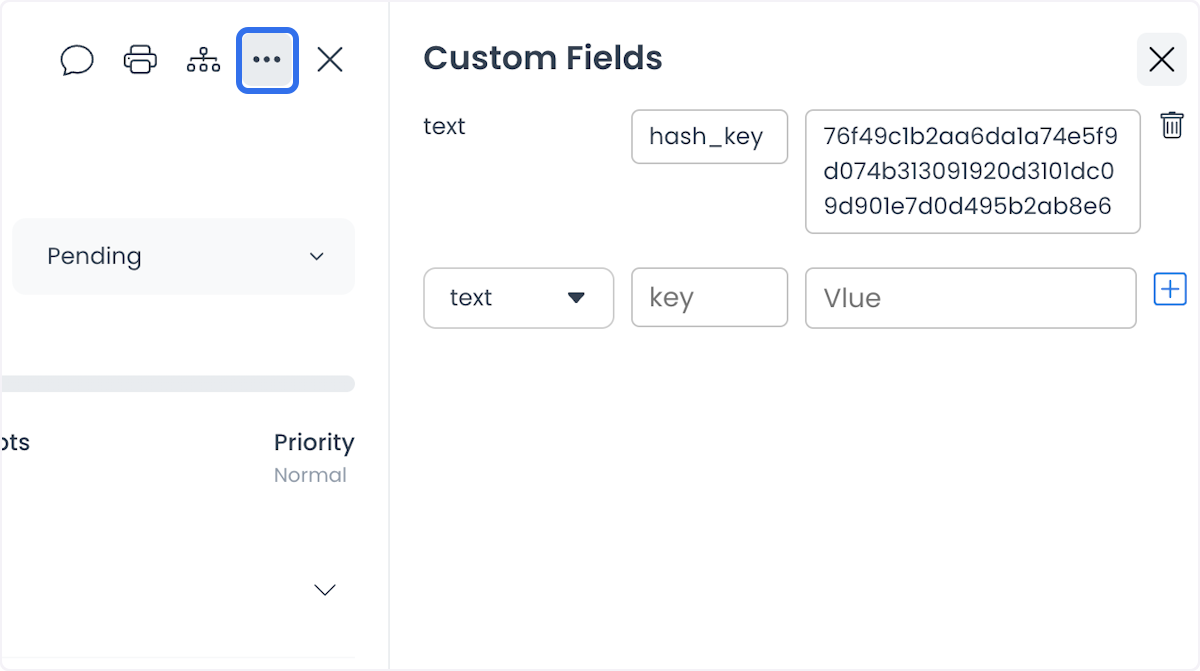
Open Custom Fields from the order's available actions to review or manage additional order metadata. These fields support business-specific information and can be used by integrations that are configured to read them.
The panel presents field types, keys, and values, with controls to add or remove fields when permitted. Its supported types include integer, decimal, boolean, text, and JSON. Confirm the intended key, value, and integration requirements before changing a field; adding a field alone does not create an external integration.
Return to the list
Select the close control in the order detail panel to return to Orders list. The Dashboard removes the selected order from the page URL. Closing a message or history panel is separate from closing the order itself.
Benefits and practical uses
- Operational efficiency — Review the essential information in one place to reduce avoidable errors, coordinate resources, and support timely fulfillment and customer satisfaction.
- Real-time monitoring and tracking — Follow status and assignment updates to identify orders that need attention and support proactive issue resolution. Recheck the current state before acting.
- Communication and issue resolution — Use the order's contact details and messages to answer customer questions, coordinate with drivers and business owners, and investigate disputes with the relevant context.
- Automated logistics — Use configured assignment automation and logistics records to reduce manual intervention and improve delivery coordination.
- Customization and integration — Use additional metadata to meet specific business needs and support connected systems as your operations grow.
- Performance analysis — Review order history to identify trends and areas for improvement, then use that evidence to guide operational decisions.
Together, the details, communication tools, history, and customization controls help your team provide informed service and manage the order through its operational lifecycle.
Troubleshooting
Why didn't selecting the row open the order?
The checkbox, driver area, and inline status control have separate actions. Select another area of the order row to open its details.
Why can't I change the order status?
The selector is disabled for read-only accounts. Available transitions also depend on your role, the order's current state, fulfillment type, and configuration. Review any returned error rather than repeatedly selecting the same status.
Why is an action missing?
Messaging, printing, history, custom fields, cloning, deletion, assignment, and refunds can vary by role, enabled features, configuration, order type, status, and payment provider. Ask an authorized administrator to check the relevant access and configuration.
How do I return to the list?
Use the close control in the order detail panel. The selected order is removed from the page URL, and you return to Orders list.
How do I confirm that a change took effect?
Reopen the order and verify its identifier, current status, and relevant fields in your organization's approved operational system. Do not rely only on a toast, panel refresh, or live update. Confirm separately any downstream result, such as a delivered message, completed delivery, or refund outcome.
Related guides: Orders — Overview · Update an order status · Order update contract in API Reference