View and manage an order
Open an order from Orders list to review its current status, fulfillment information, items, and payment summary. The actions available in the detail panel depend on the order and your account access.
Order details are available to administrators and other permitted operational roles. Editing controls can be hidden or read-only according to your role, plan, enabled features, project configuration, and the order's current state.
Before you start
- Confirm you have access to the correct Ordering project.
- Find the order using its status group, search, or the filters available to your project.
Open an order
- In the Dashboard sidebar, select Orders.
- Select Orders list.
- Select the order row you want to review.
The detail panel opens and the order is added to the current page URL. Selecting a row checkbox or an inline driver or status control performs that control's own action instead of opening the panel.
Review the order
Depending on the order, the detail panel can show:
- Status and timing — The order's current workflow state and timing information.
- Logistics — Fulfillment status, attempts, priority, and related delivery information when applicable.
- Contact and assignment — Business, customer, address, driver, or driver-company information when available.
- Items and payment — Ordered products, totals, payment information, and eligible refund controls.
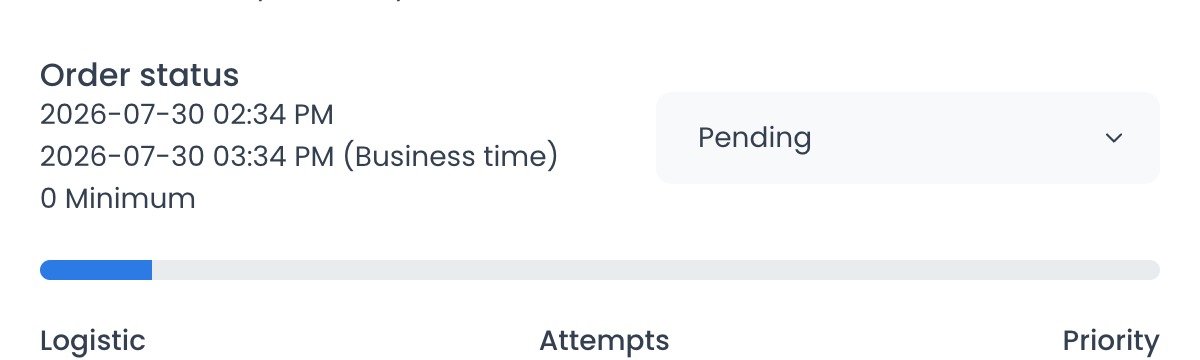
Opening the panel performs authenticated order reads and can also load messages. The current source includes a message-read request implemented with GET, so this guide does not classify opening and reading the panel as side-effect-free for runtime testing.
Understand order status
Orders are organized into four status groups:
- Pending — Orders waiting to enter or resume the operational workflow.
- In progress — Orders being prepared, assigned, picked up, or delivered.
- Completed — Orders completed by an administrator, driver, or pickup customer.
- Cancelled — Orders rejected, cancelled, failed, or not picked up.
Each group contains multiple numeric API statuses. See Order status reference for all 27 status codes and their Dashboard labels.
Manage the order
- Review the current status and the order information before making a change.
- Use the Order status selector when it is enabled for your role.
- Use the available header or detail actions for tasks such as messaging, printing, viewing history, editing permitted information, or managing fulfillment.
- Select the close control to return to Orders list.
Status updates, customer or driver changes, refunds, and deletion can affect an active operation. Confirm the order and the intended outcome before completing any action.
The detail controller also contains messaging, cloning, refund, assignment, customer-edit, and websocket update paths. Availability varies by role, configuration, order state, and payment method. No action or provider effect was executed to prepare this guide.
Troubleshooting
Why didn't selecting the row open the order?
The checkbox, driver area, and inline status control have separate actions. Select another area of the order row to open its details.
Why can't I change the order status?
The status selector is disabled for read-only accounts and can also depend on the order's state and your role.
Why is an action missing?
Messaging, printing, history, custom fields, cloning, deletion, assignment, and refund controls can vary by role, plan, configuration, order type, status, and payment provider.
How do I return to the list?
Use the close control in the detail panel. The Dashboard removes the selected order from the page URL and returns you to the list.
How do I confirm that a change took effect?
Do not rely only on a toast, panel refresh, or websocket update. Reopen the order and verify its identifier, status, and relevant fields in your organization's approved operational system.
Related guides: Orders — Overview · Order status reference