Update an order status
Use the Order status selector in an order's detail panel to request a change to the order's operational stage. The current Dashboard source filters the options by context, and the API contract validates the submitted status and caller before accepting a change.
The source disables the selector for view-only use and filters statuses by delivery type and project-specific visibility rules. The API independently limits which roles and states can submit particular transitions.
Before you start
- Confirm that you are working in the correct Ordering project and have opened the intended order.
- Check the current status, fulfillment information, and customer details before making a change.
- Do not learn this workflow on a live order. Selecting an option submits an operational write without a separate confirmation step in the inspected Dashboard source.
Change the status
- In the Dashboard sidebar, select Orders, then Orders list.
- Select the order to open its detail panel.
- In Order status, open the current-status selector.
- Search for or select an available status.
- Review the result shown by the Dashboard. Treat the change as unconfirmed if the selector resets or an error appears.
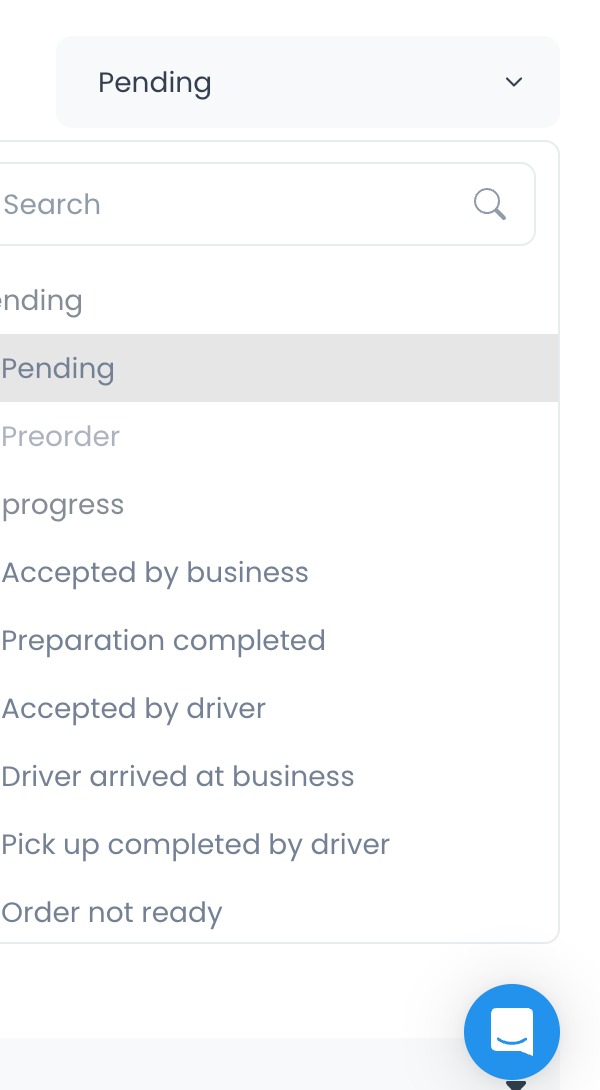
The inspected selector resets after a rejected request and can display the returned error. A successful response is required before the client updates its local order state.
What to expect
The current source groups choices into Pending, In progress, Completed, and Cancelled. Not every status is offered for every order; delivery-type filtering can hide driver-specific stages from Pickup orders.
The API source contains additional authorization, order-lock, regression, driver-location, and logistics validations. It also contains downstream jobs and hooks for some accepted transitions. Which modules or integrations are enabled in a deployed project is not established by this source-only review.
This control submits a write to an order and may enter project-dependent fulfillment paths. Do not use it merely to test the selector on a live order.
Verification checklist
- The intended order number and customer details are visible in the detail panel.
- The selected status is shown as the current Order status only after an accepted response.
- The selector did not reset to its previous value.
- No returned error is shown by the Dashboard.
Troubleshooting
Why is the status selector disabled?
The source disables the control for view-only use. The API can also reject requests outside the caller's permitted role or order scope. Ask a permitted administrator or operational manager to review the order.
Why don't I see the status I need?
The selector filters choices by delivery type and project-specific visibility rules. The API also permits different status subsets for different caller roles, so not every API status is necessarily available in this Dashboard control.
Why did the Dashboard restore the previous status?
The inspected client resets the selection when its request returns an error. API source shows possible role, order-lock, regression, driver-location, and operational validations. Review the returned message before deciding whether another attempt is appropriate.
Related guides: View and manage an order · Order status reference