Place and manage your first order
This guide follows one delivery order from the customer checkout through business and driver work to completion. The controls shown can vary with the project, order type, permissions, delivery configuration, payment methods, and enabled communication features.
What this workflow covers
- Placing an order: A customer selects an address, business, products, and checkout details on a website or app.
- Managing the order: A business reviews an incoming order, assigns a driver when applicable, and updates operational status.
- Communication and reviews: Customers, businesses, and drivers use the communication and review controls that the project makes available.
- Order summary and completion: The customer receives an order summary after delivery, and the business can review the completed order.
Customer: place an order
1. Open the website or app
The customer starts from the business website or app.
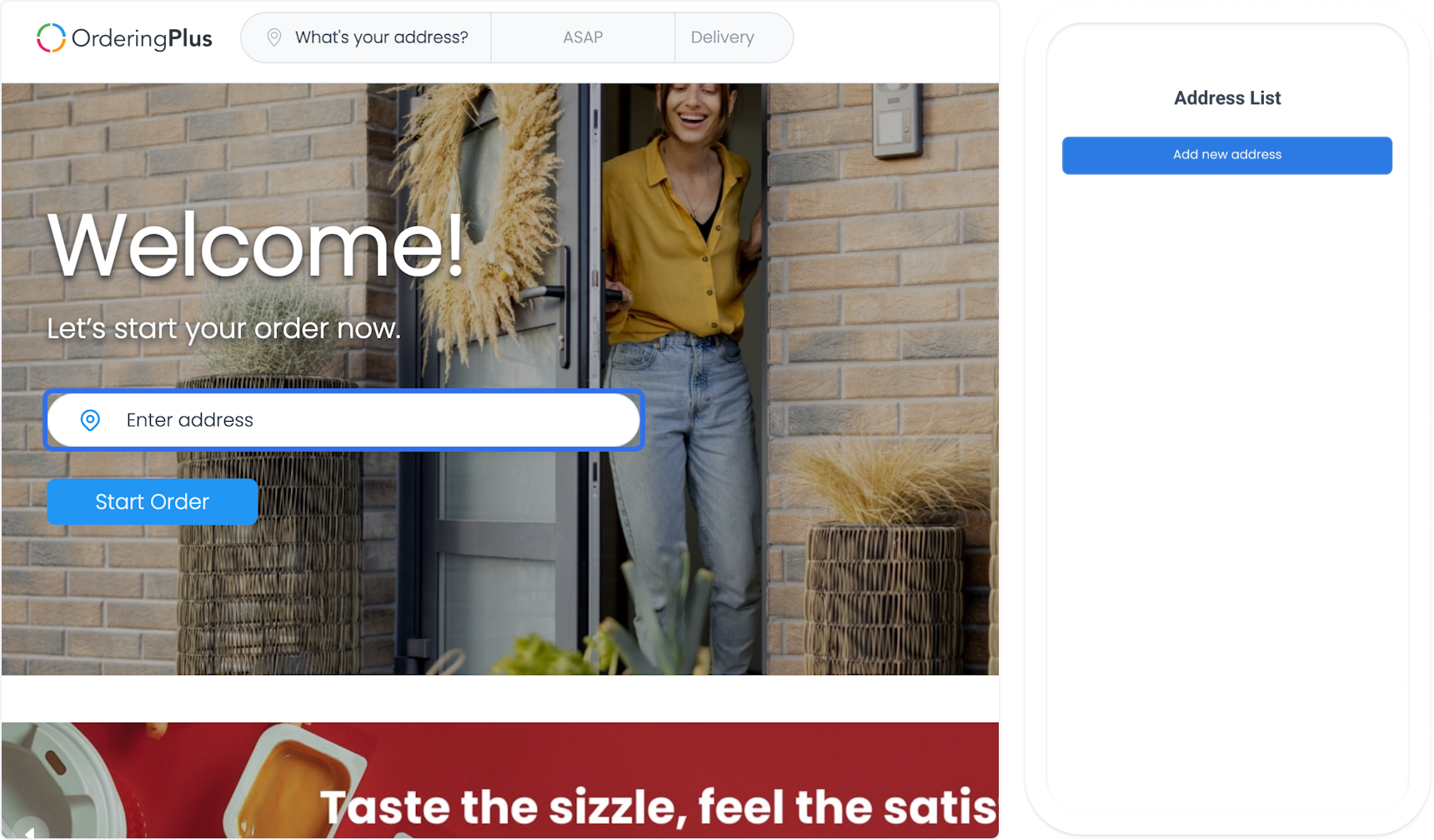
2. Enter the delivery address
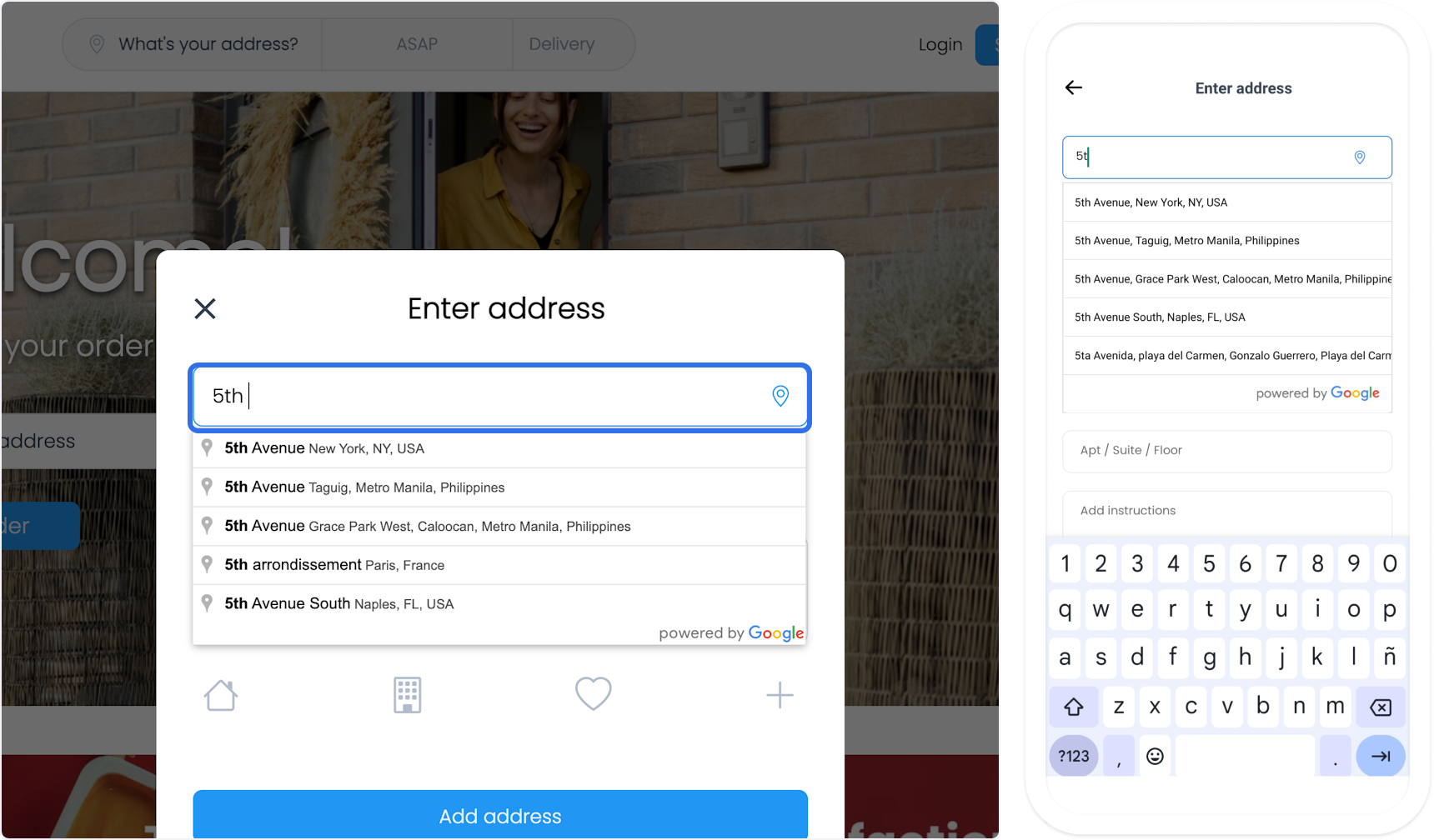
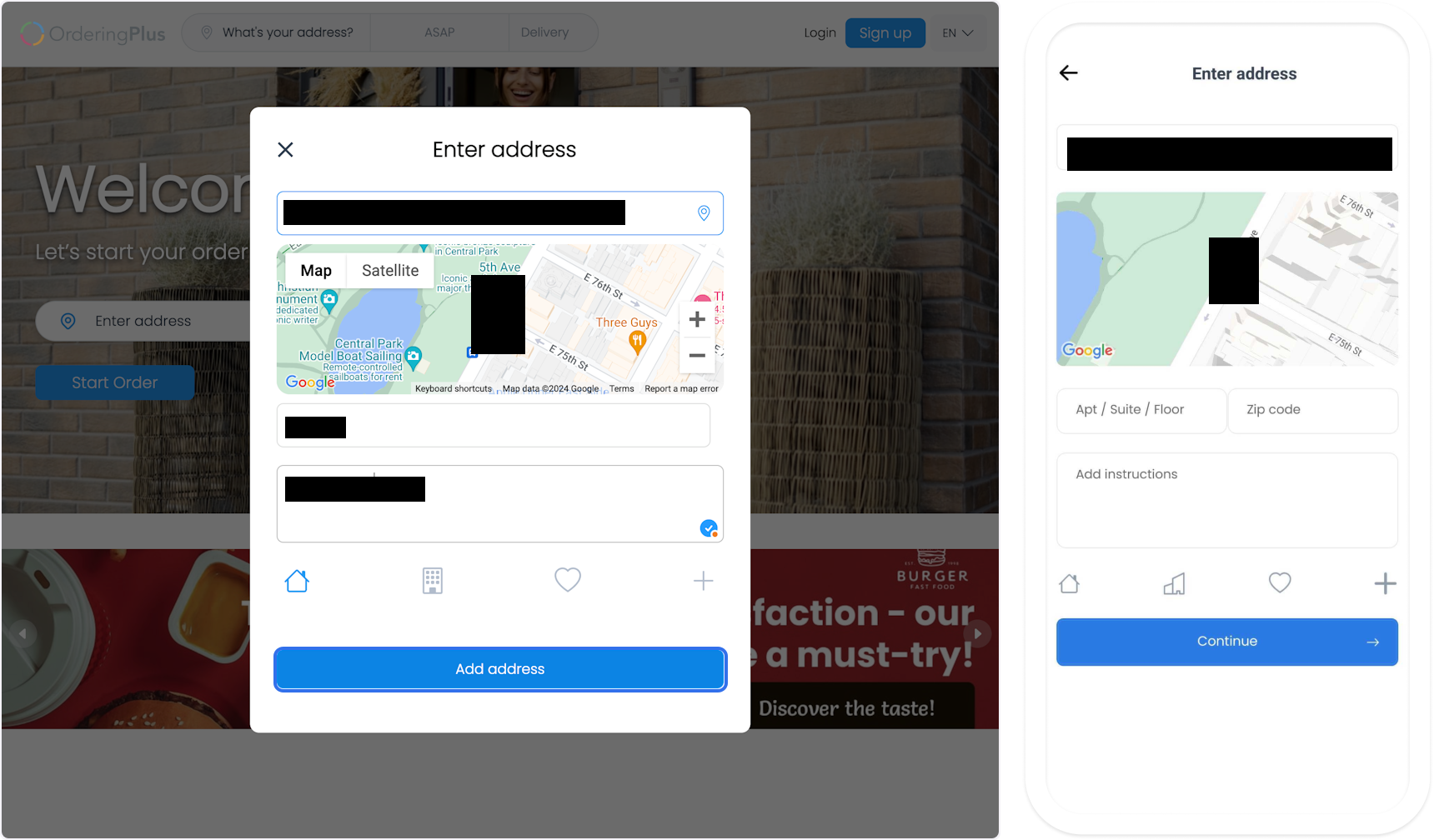
Select Enter address, then add the delivery address. When address search is enabled, Google Maps can help select the location. Add an apartment, suite, floor, postal code, and delivery instructions when they are needed for an accurate delivery.
3. Select the business
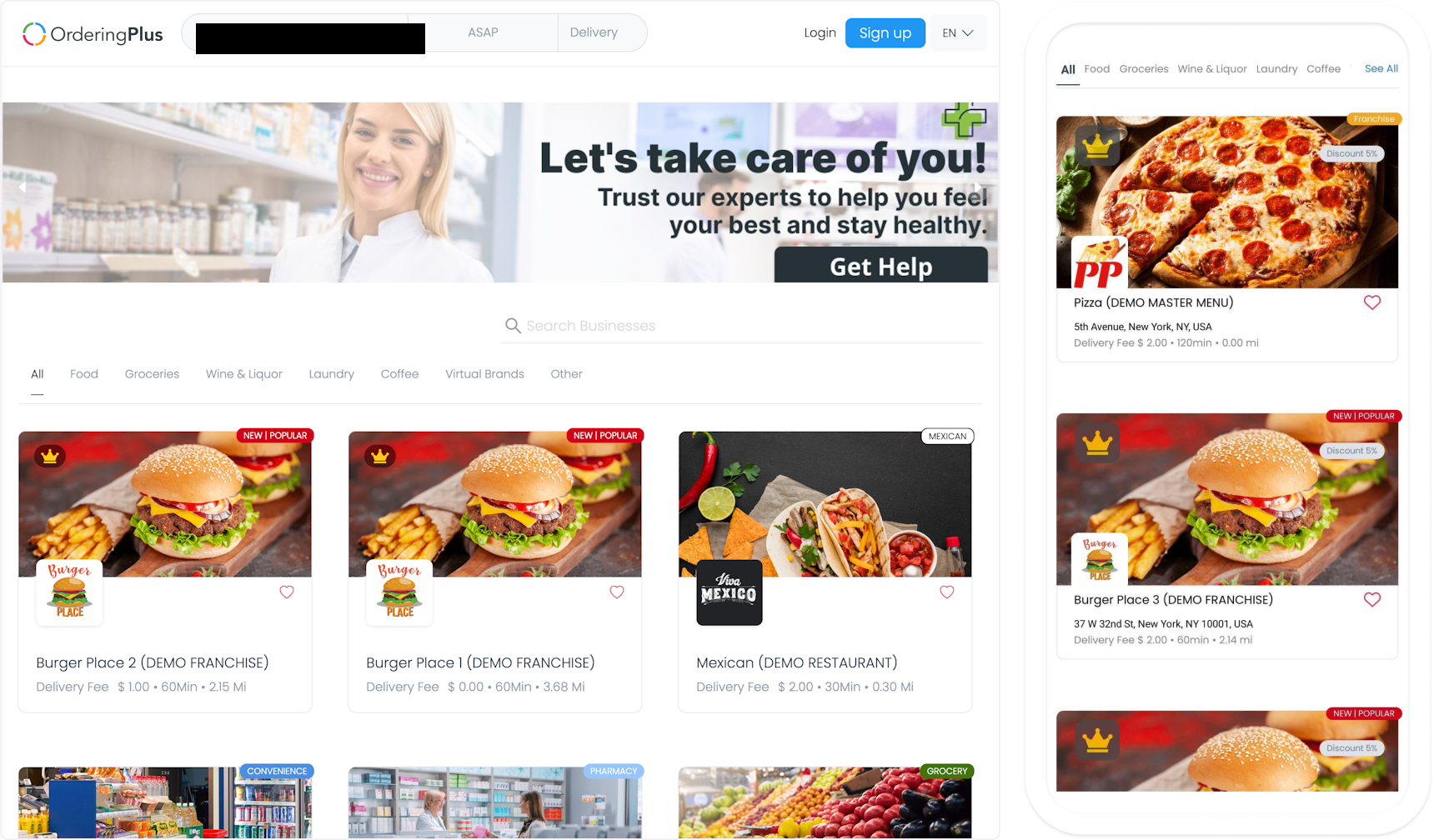
The app or website lists businesses that deliver to the entered address. The customer chooses the preferred business from the available results.
4. Select products
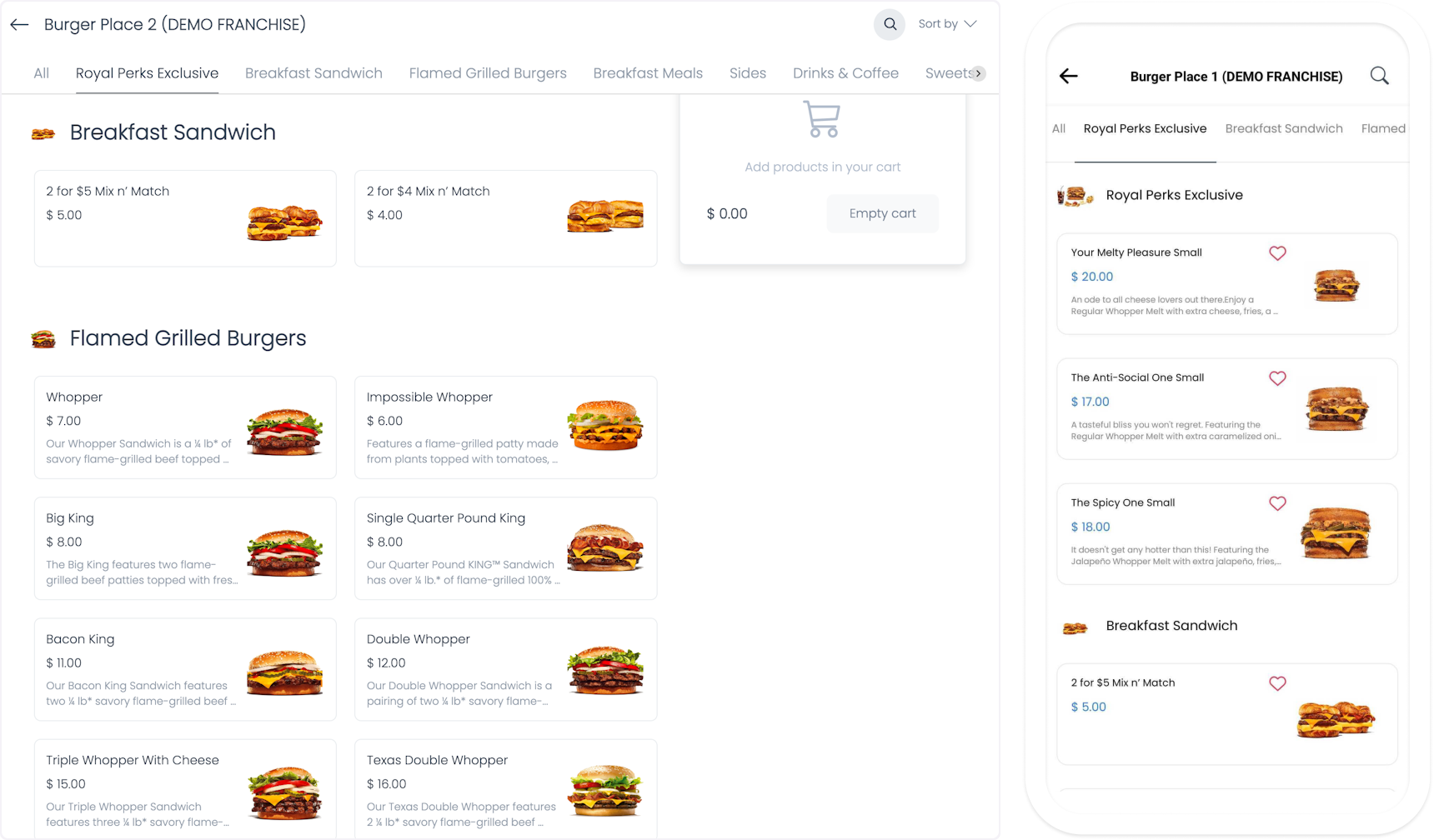
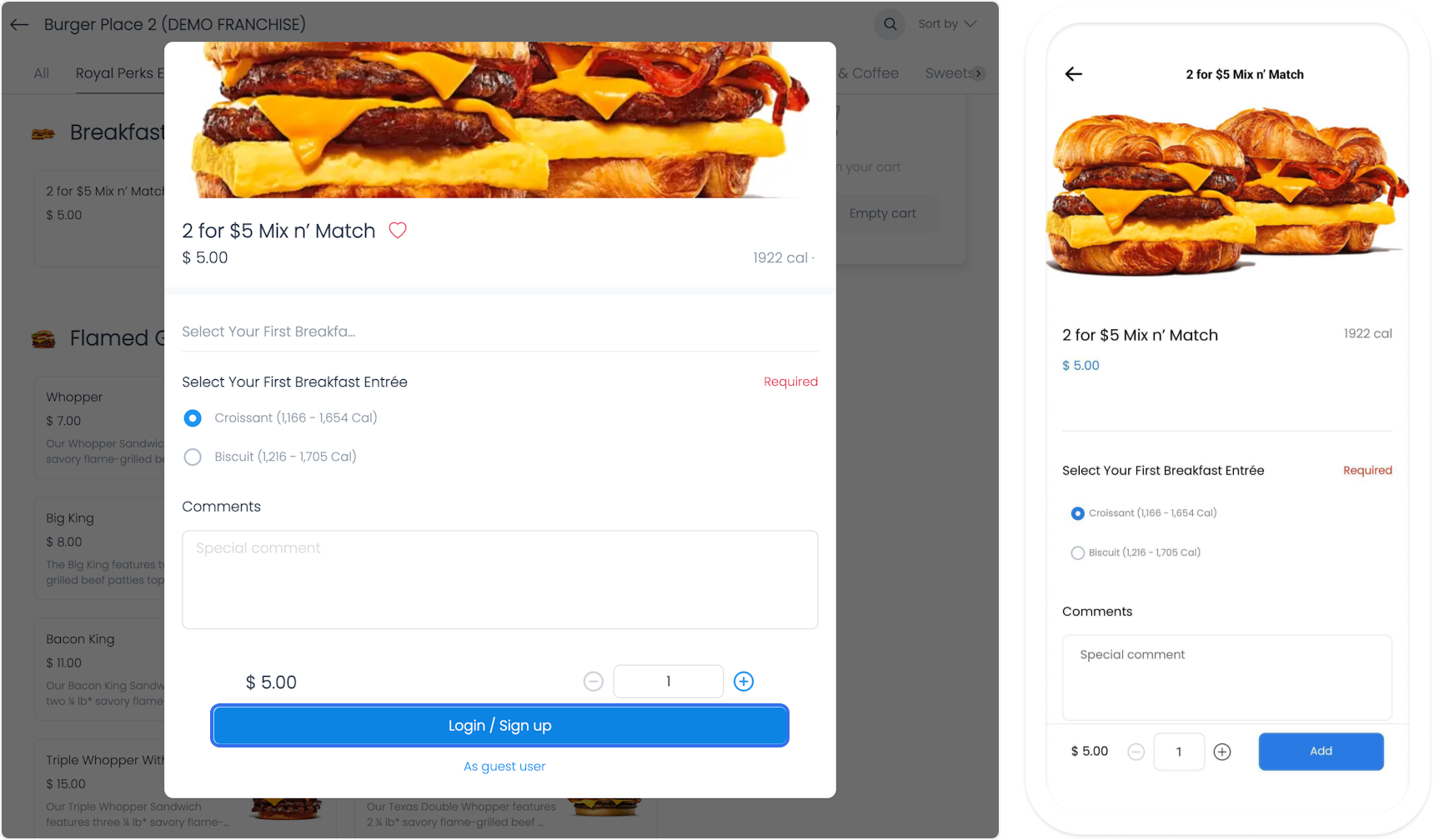
Browse the selected business menu, select products, and add special instructions for each product when required.
5. Review and confirm the cart
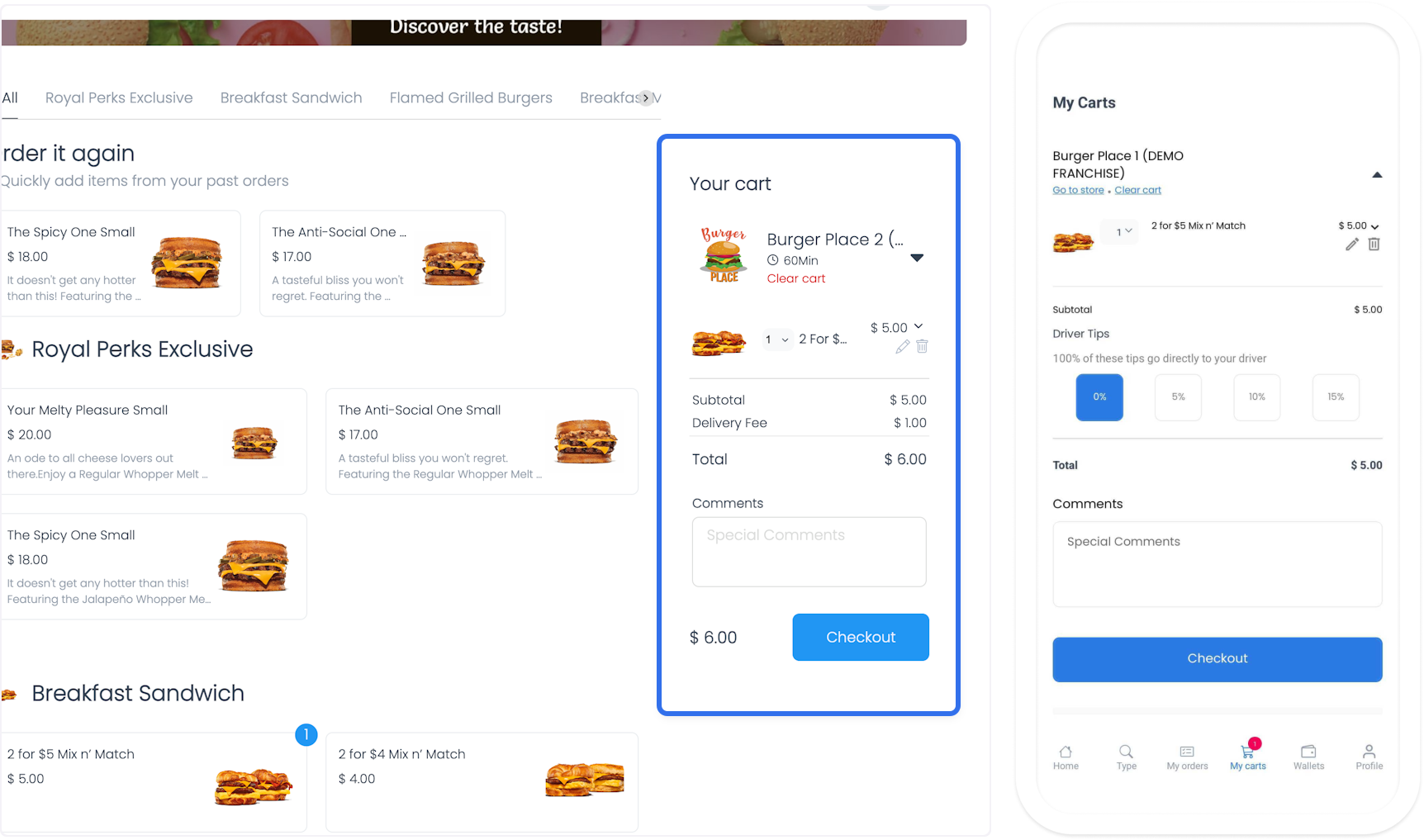
Review the selected products in the cart. On a website, select Checkout; in the app, open the cart from the bottom navigation.
6. Complete checkout
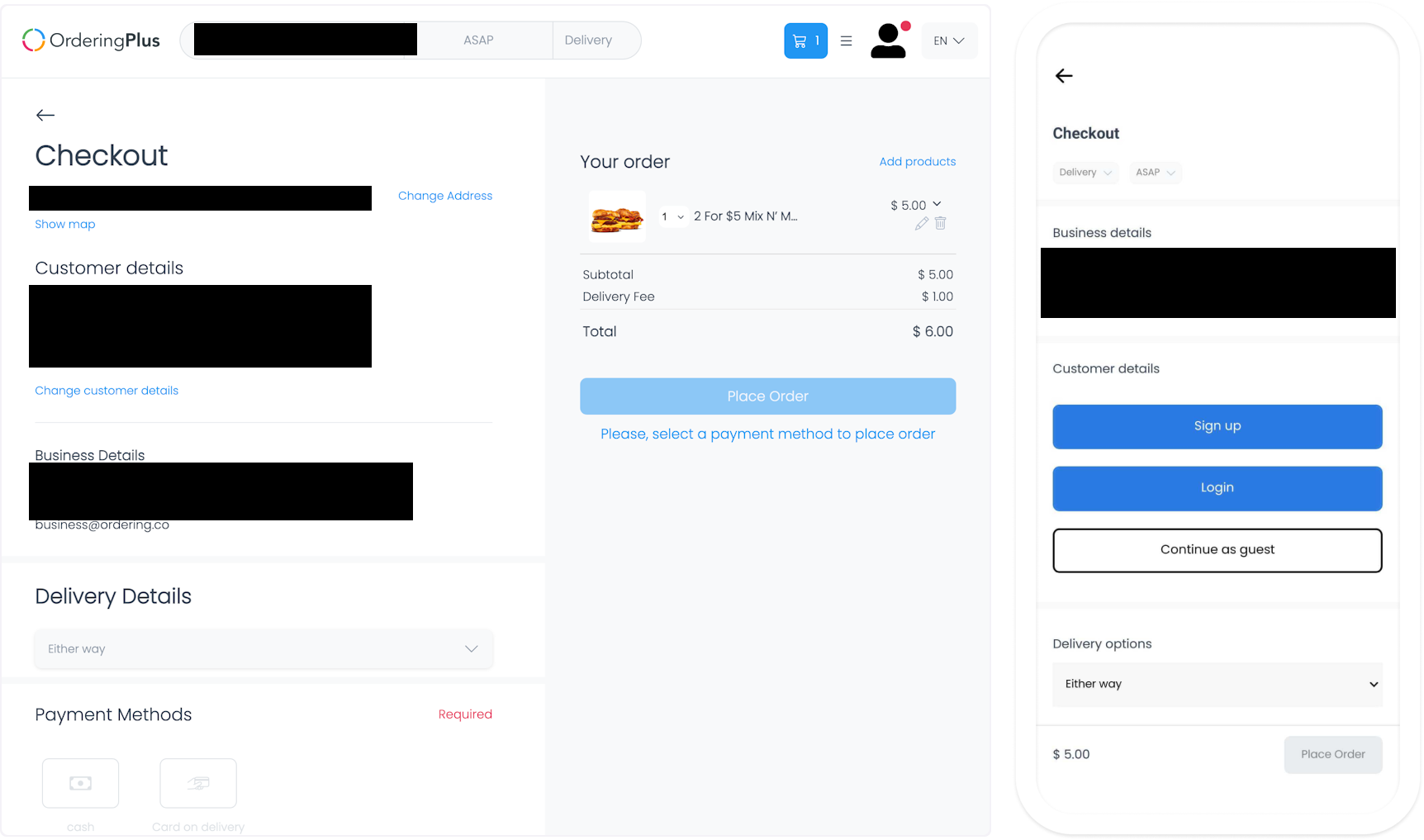
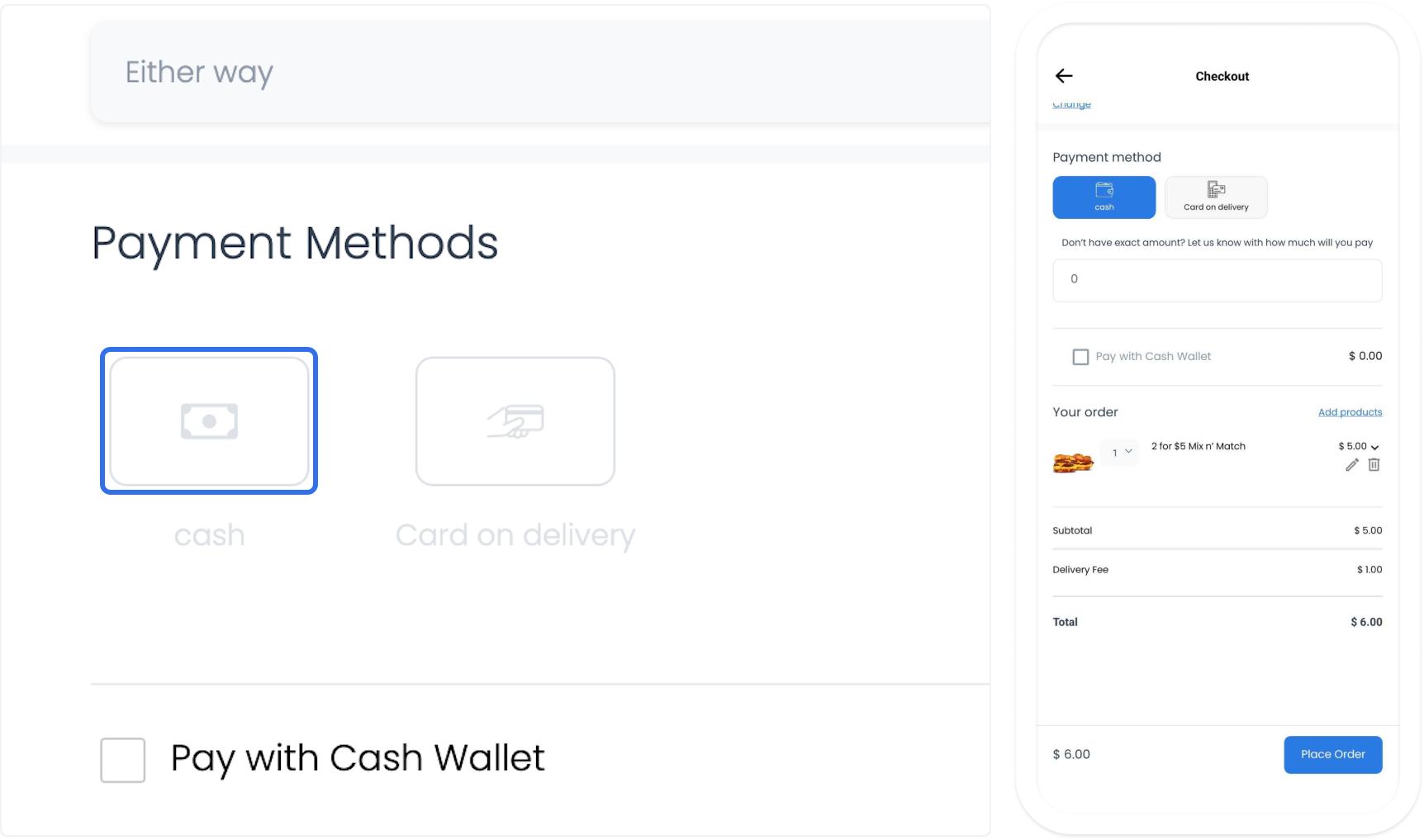
At checkout, review personal information, business details, delivery location, payment method, and a driver tip when applicable. Payment methods can include cash, card on delivery, Stripe, Stripe Connect, PayPal, and other options configured for the project.
7. Place the order
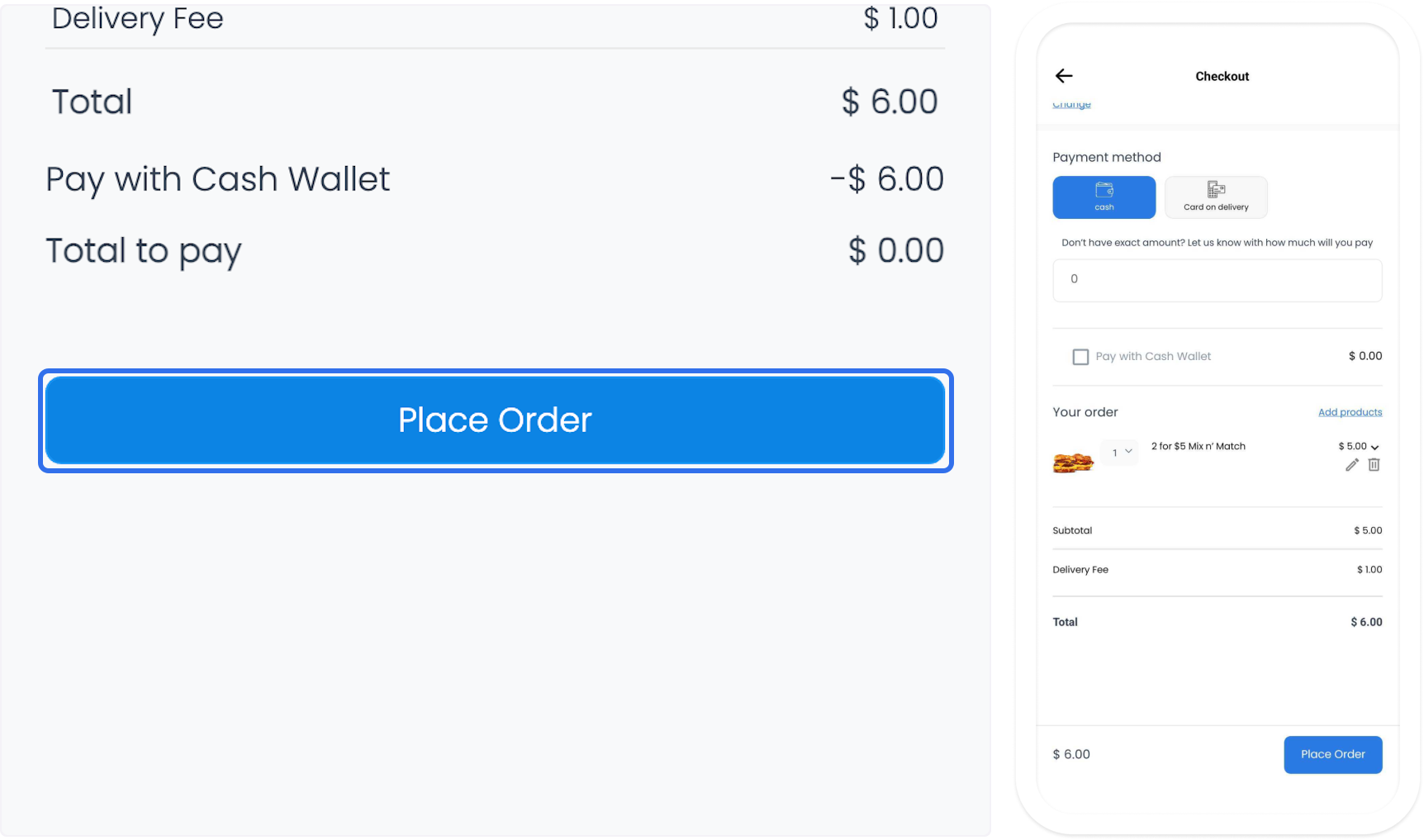
After verifying the order, select Place Order. The order summary can show the order number, status updates, business details, and a delivery-location map.
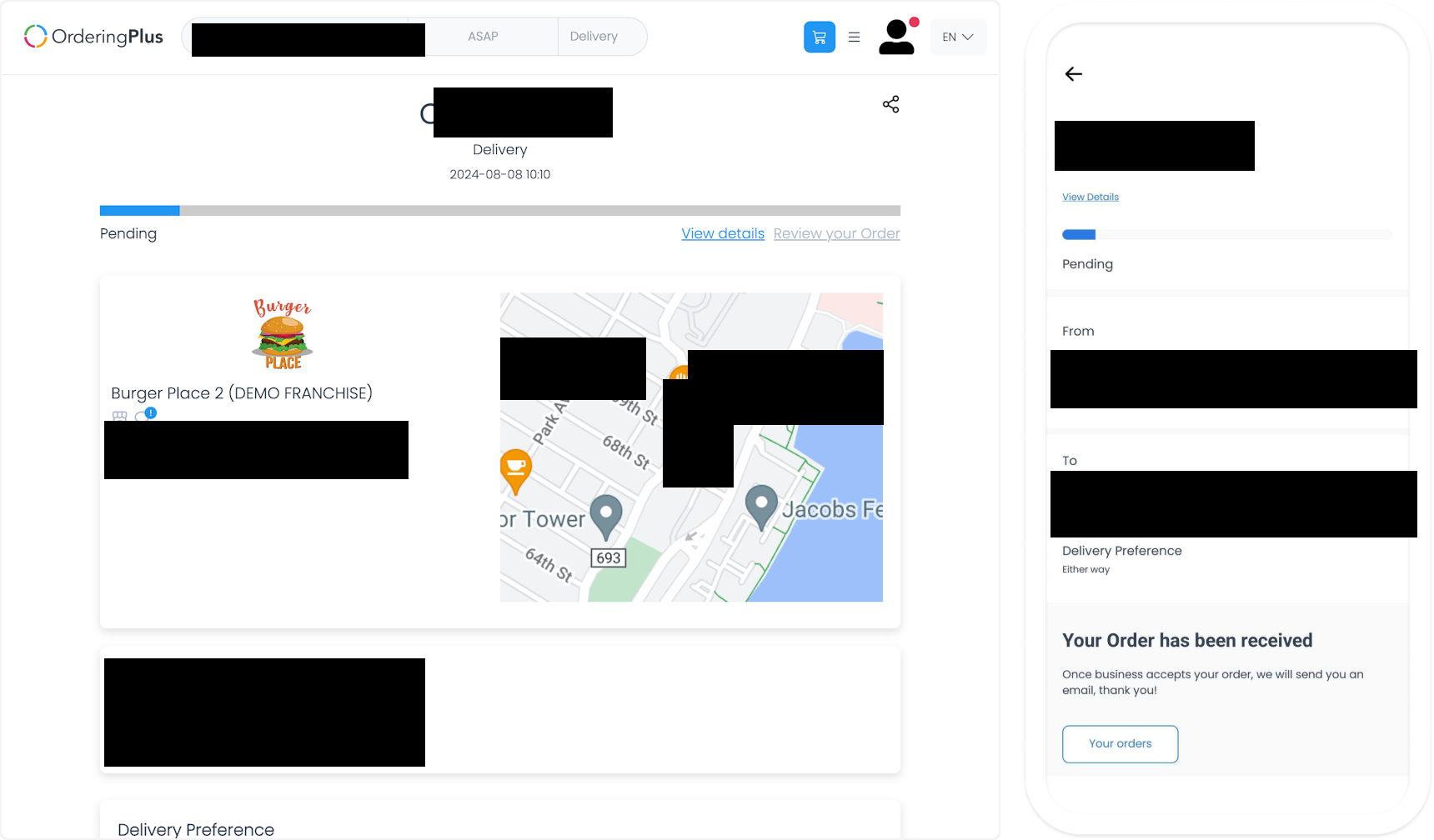
Status notifications and messages depend on the enabled channels, recipients, and device state. Confirm the project’s notification behavior before relying on a status change to reach every participant.
Business: manage the order
1. Receive the order
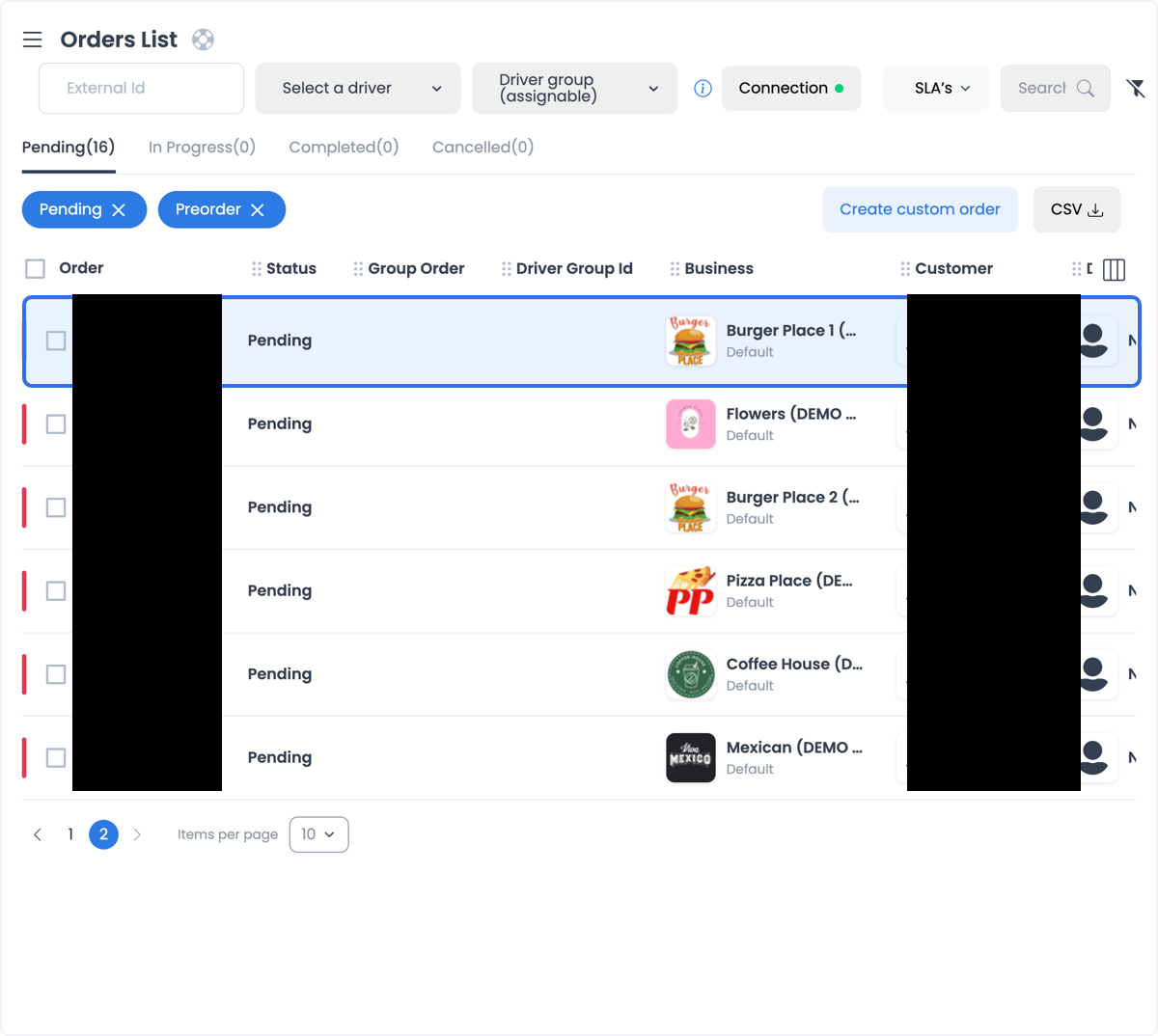
When the business Dashboard is configured to notify the business of a new order, a popup can announce it. Review the notification, then accept or close it as appropriate.
2. Review and accept the order
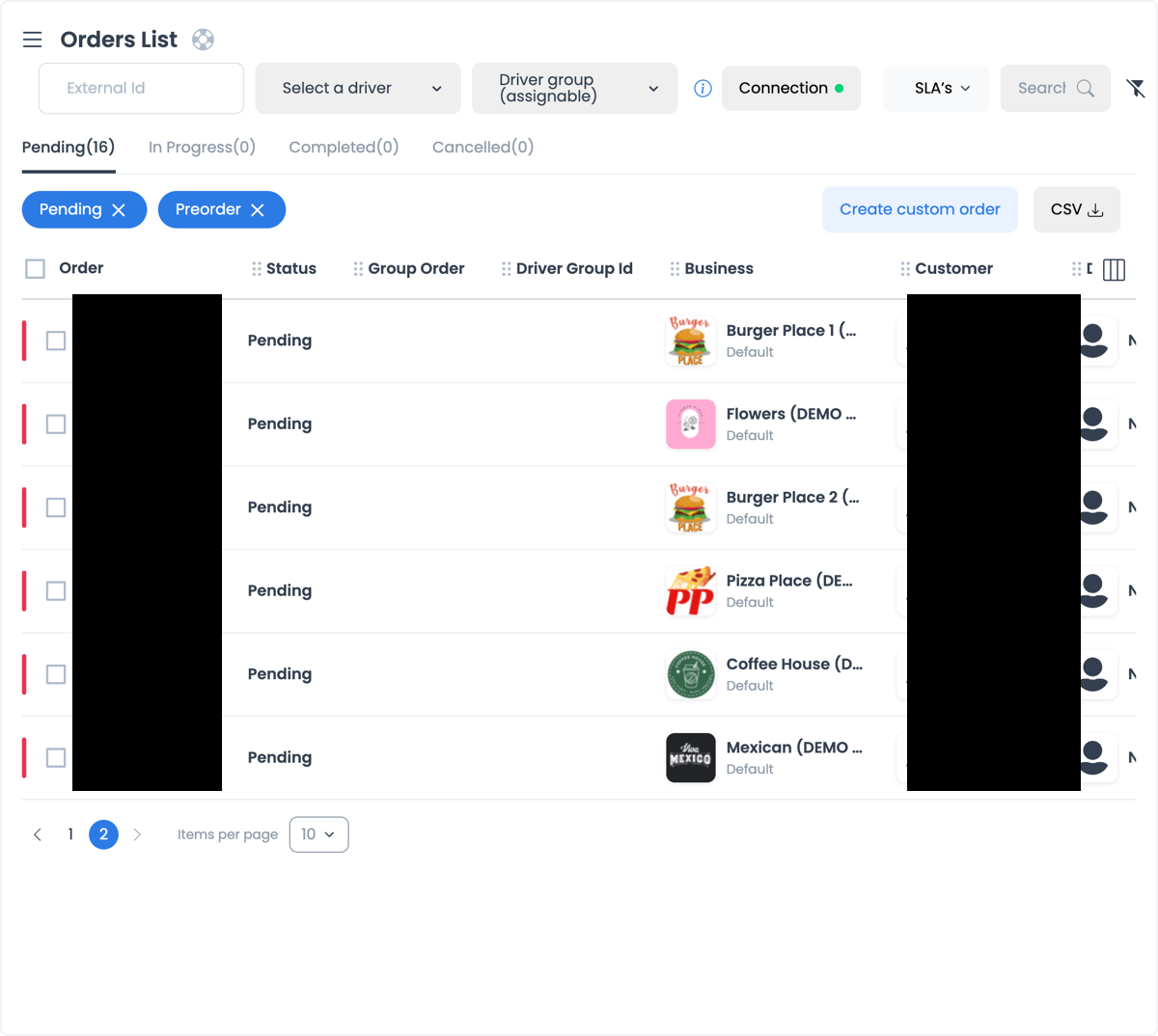
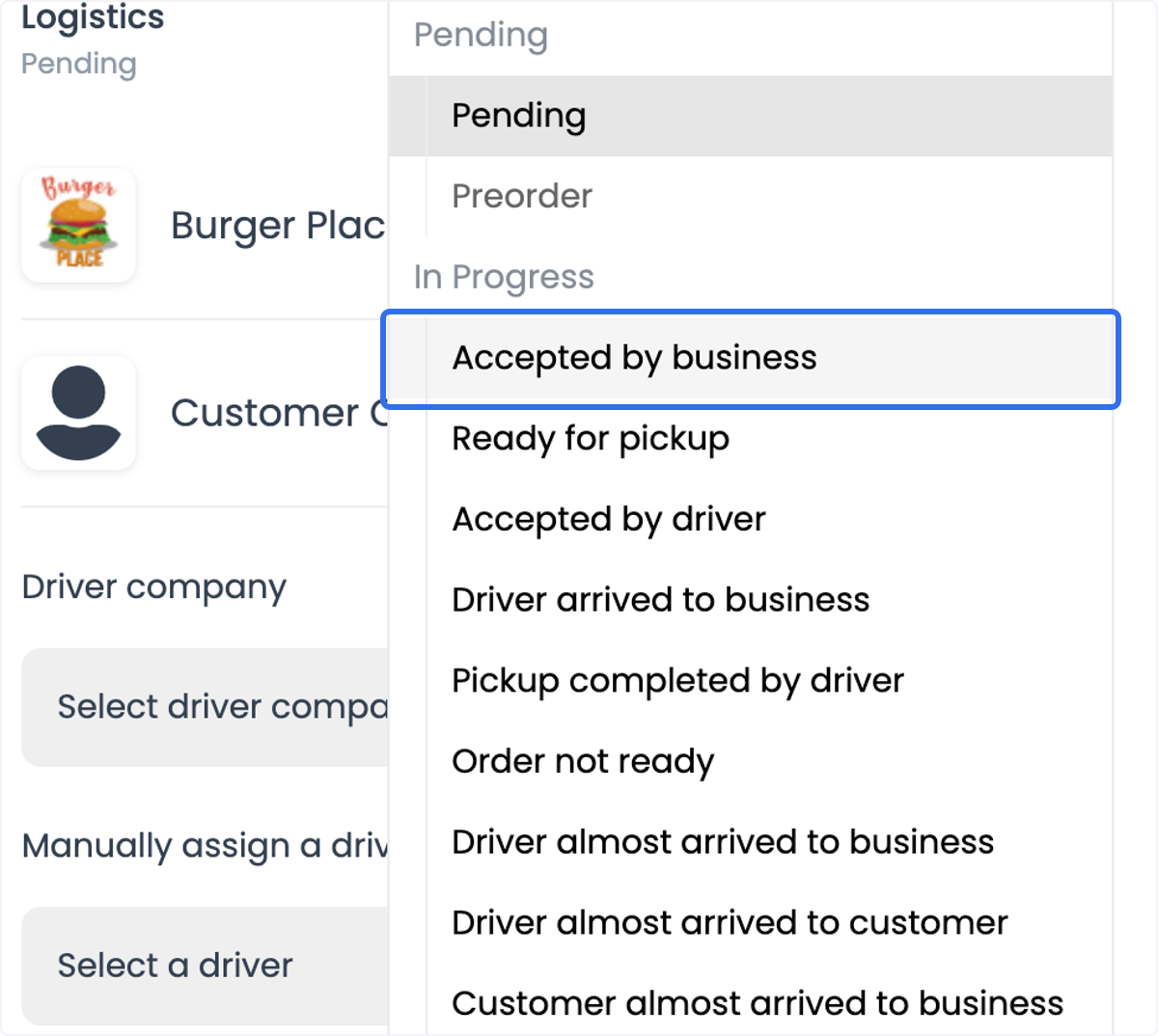
The new order appears at the top of the Dashboard. Open it to review the order details and, when that status is available, set it to Accepted by business.
3. Assign a driver
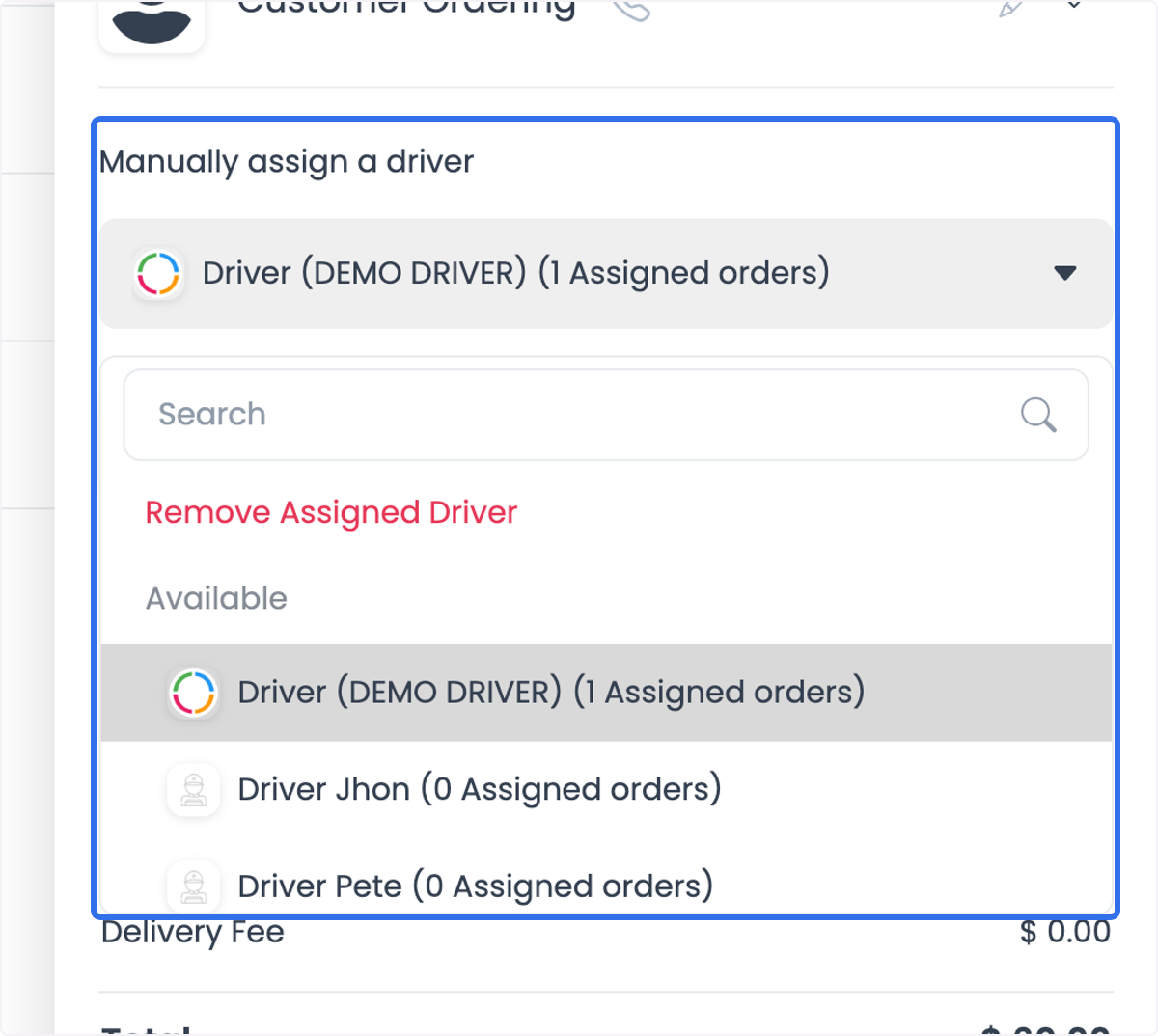
When the order requires manual assignment, select Manually assign a driver and choose an available driver.
4. Update the order status
Update the status as the order progresses so the business and driver work from the same operational state. The documented workflow includes Driver on his way and Delivery complete when those states are available.
Driver: receive, pick up, and deliver
1. Log in and receive the order
Drivers sign in with their credentials and receive a notification after an order is assigned to them.
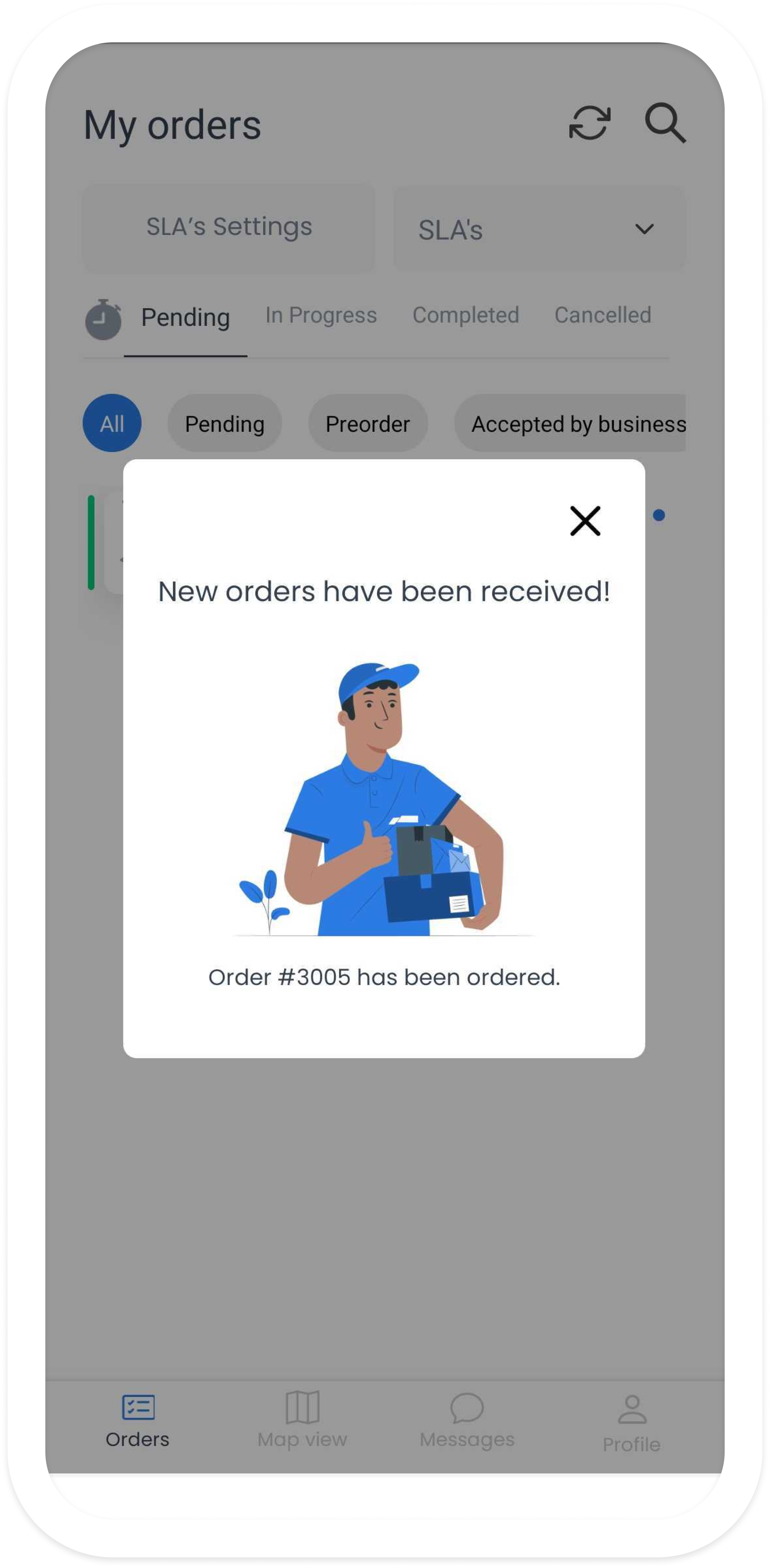
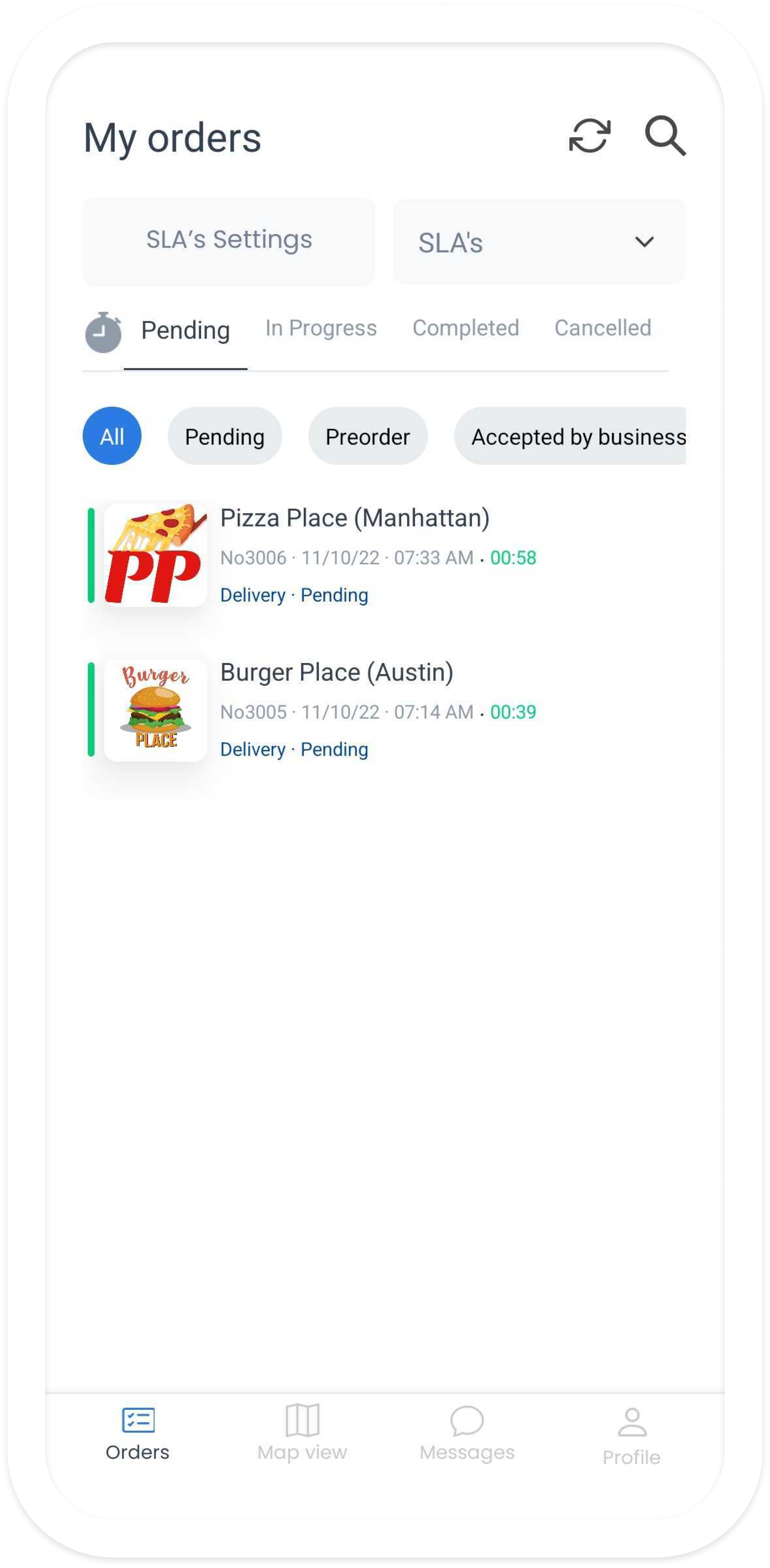
2. Review and accept the order
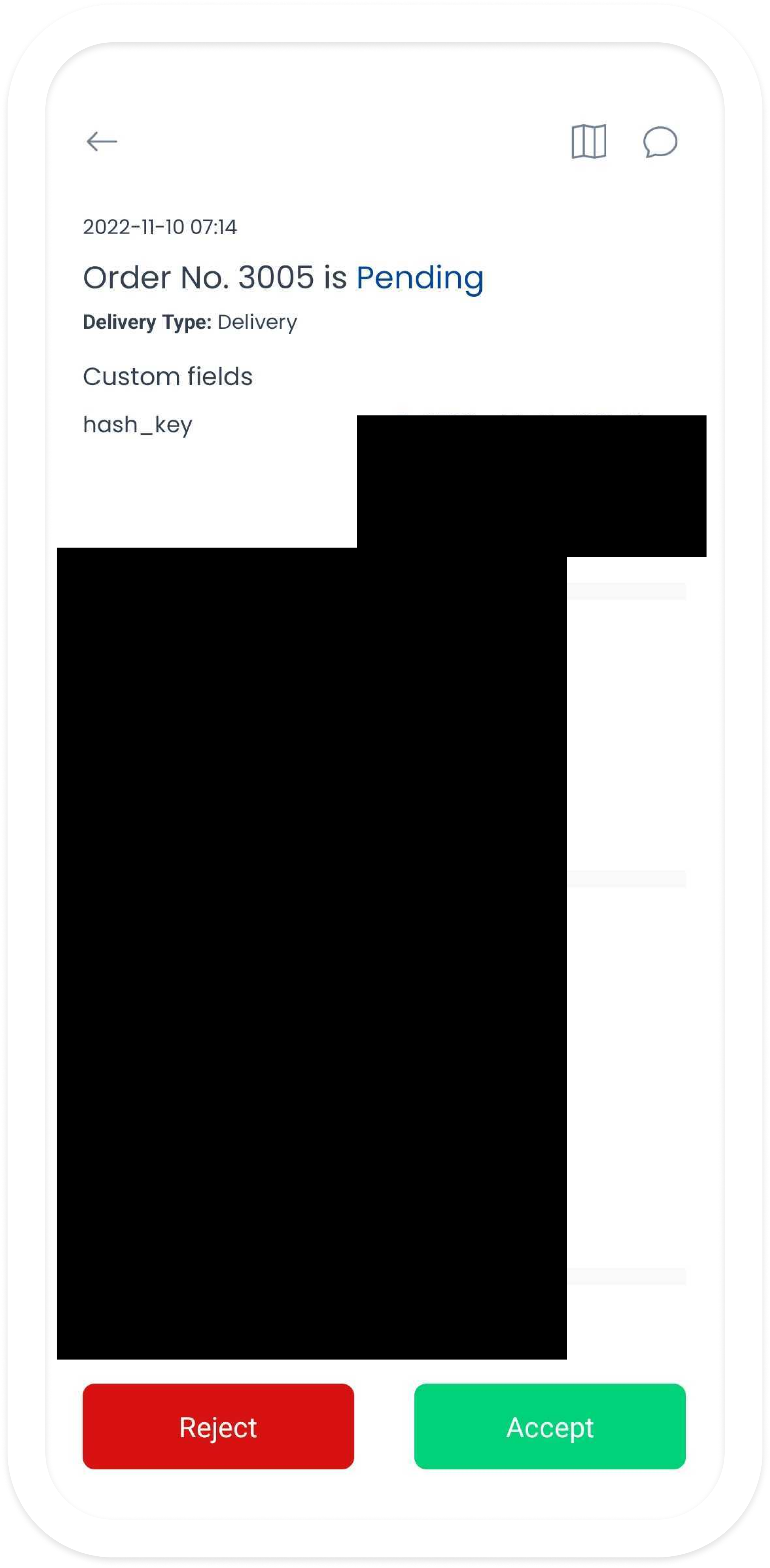
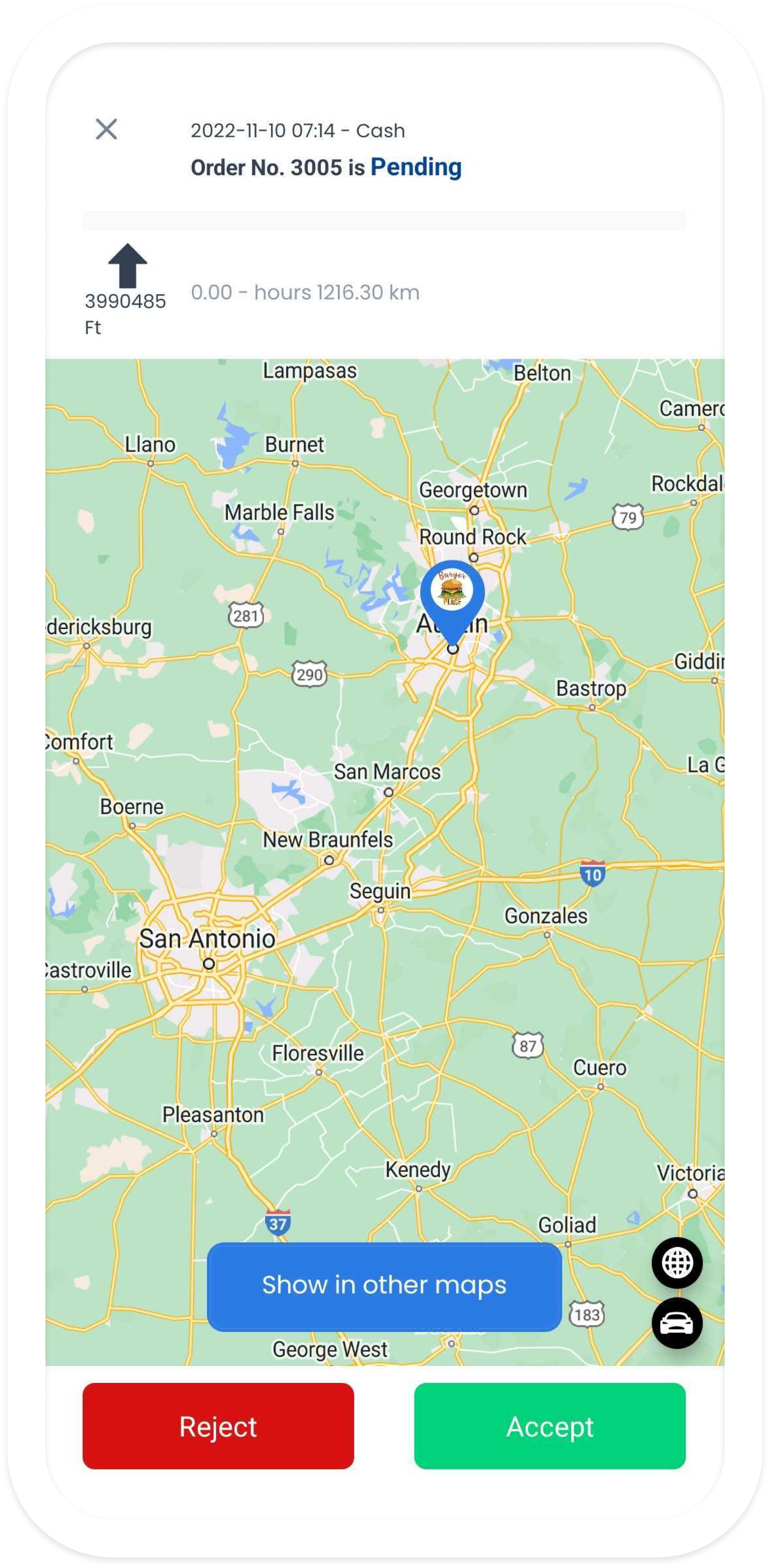
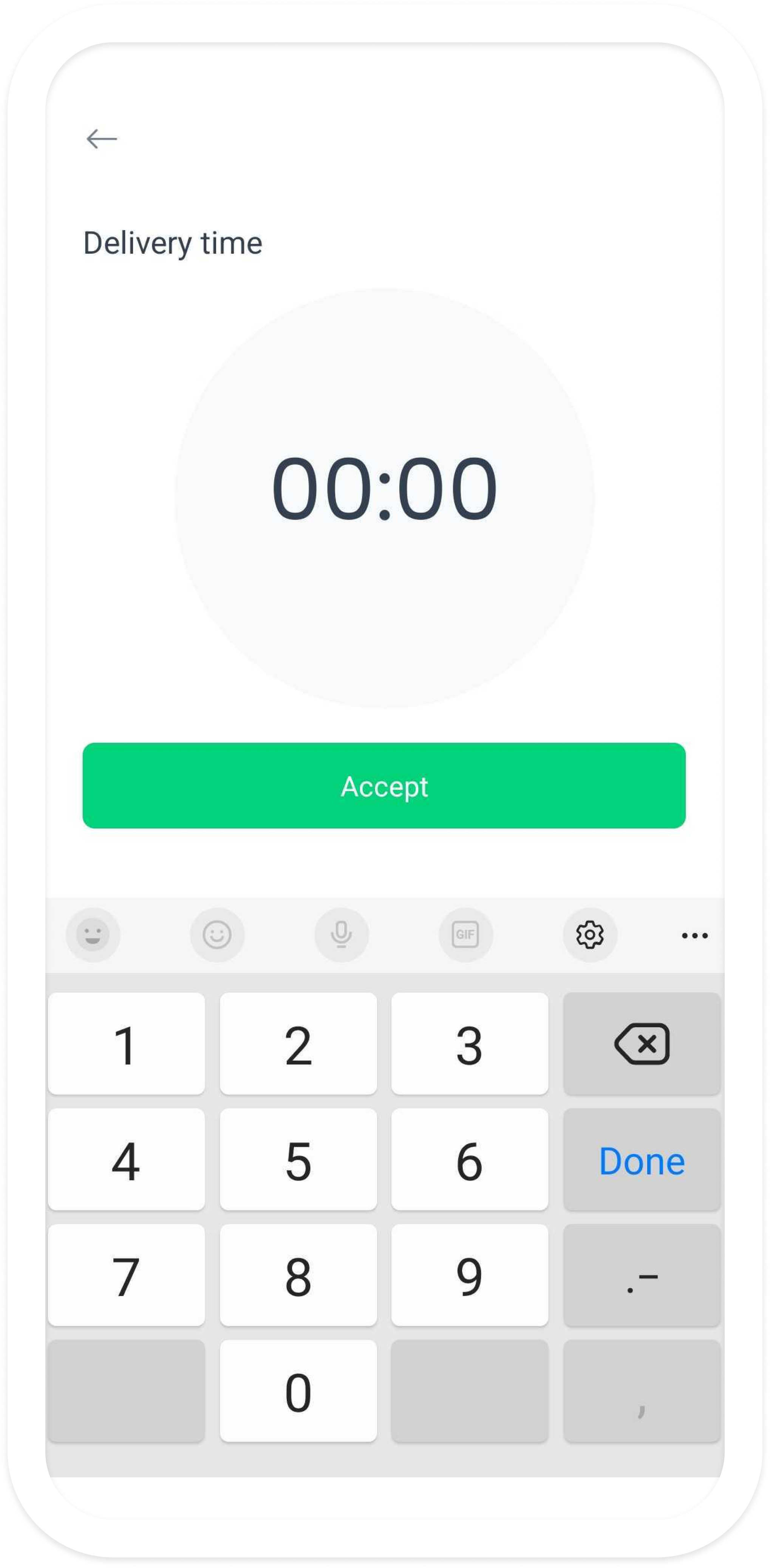
Pending orders appear on the Driver App main screen. Selecting an order opens its details. Where map directions are configured, the driver can use the map icon for directions to the business.
3. Pick up the order
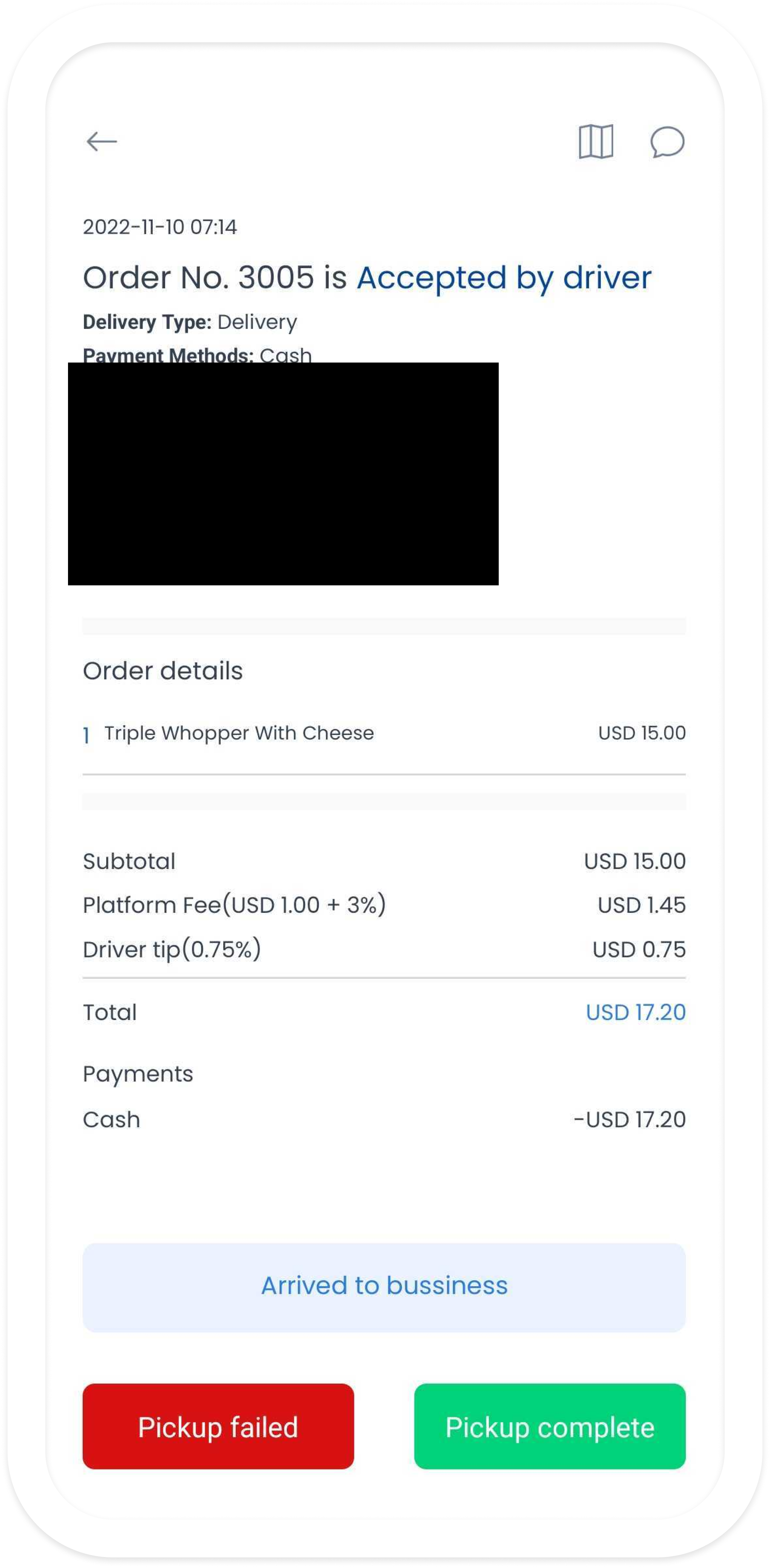
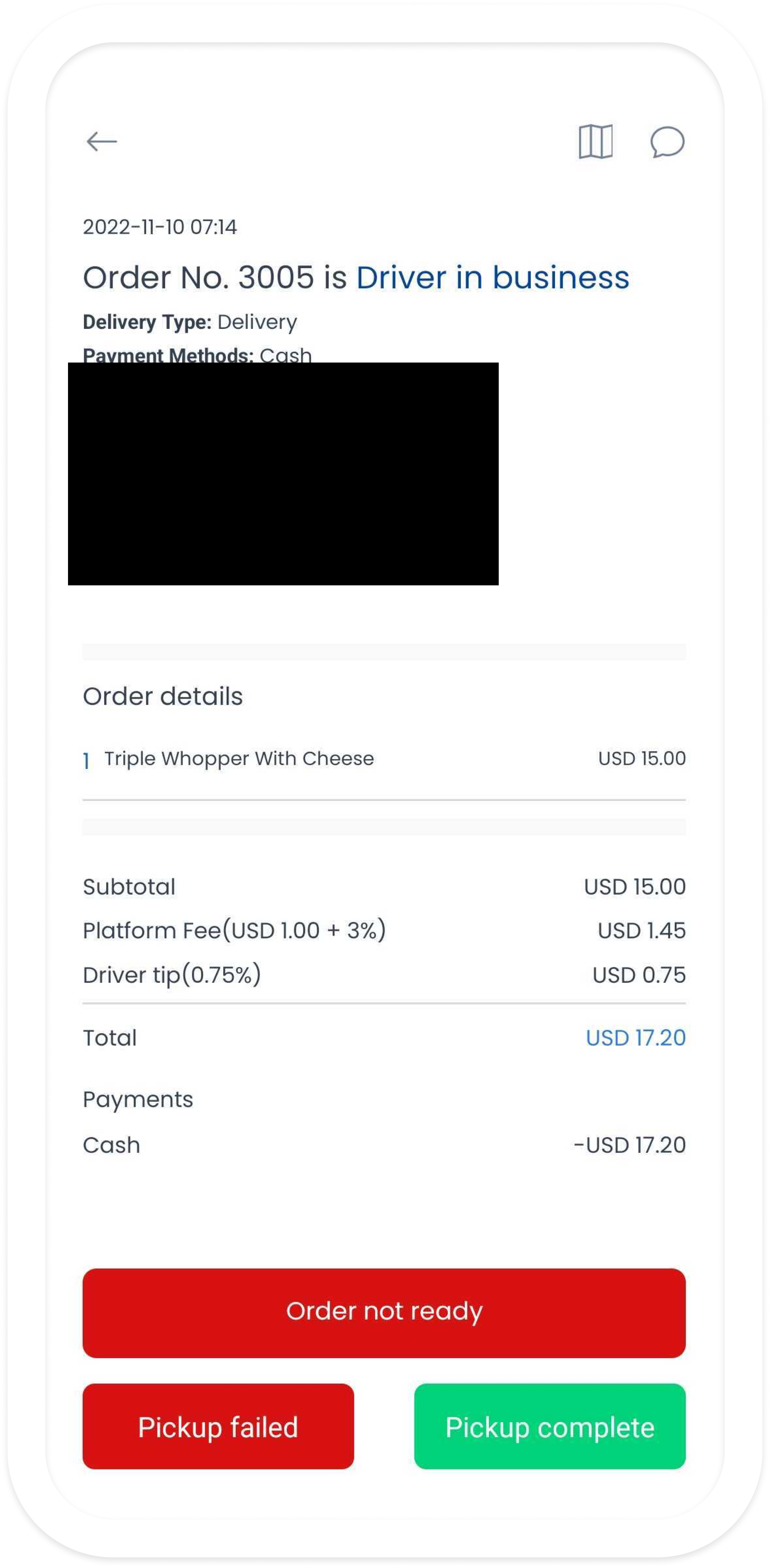
After collecting the order, select Pickup complete. If the order is not ready, select Order not ready and provide the available details.
4. Deliver the order
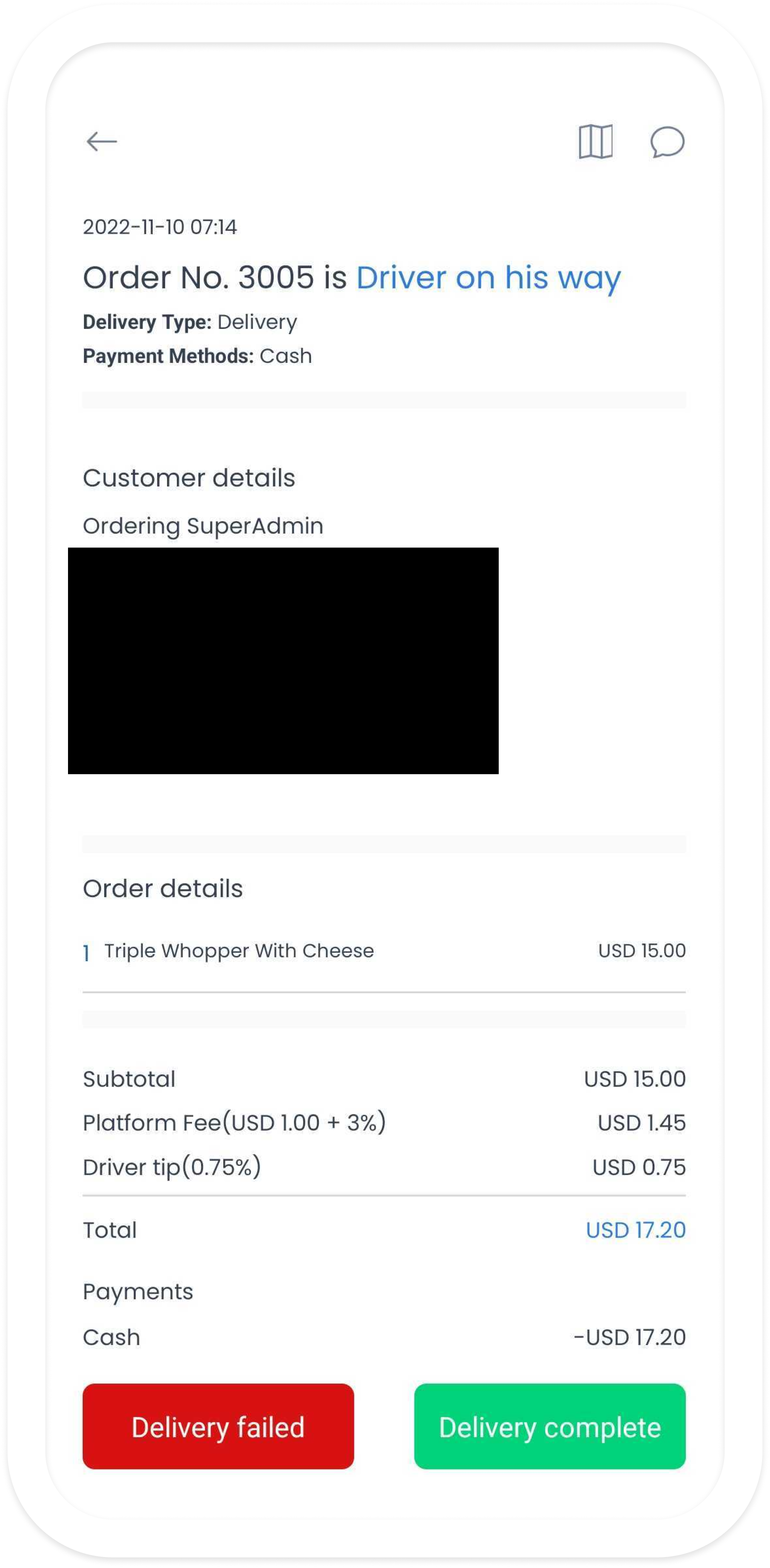
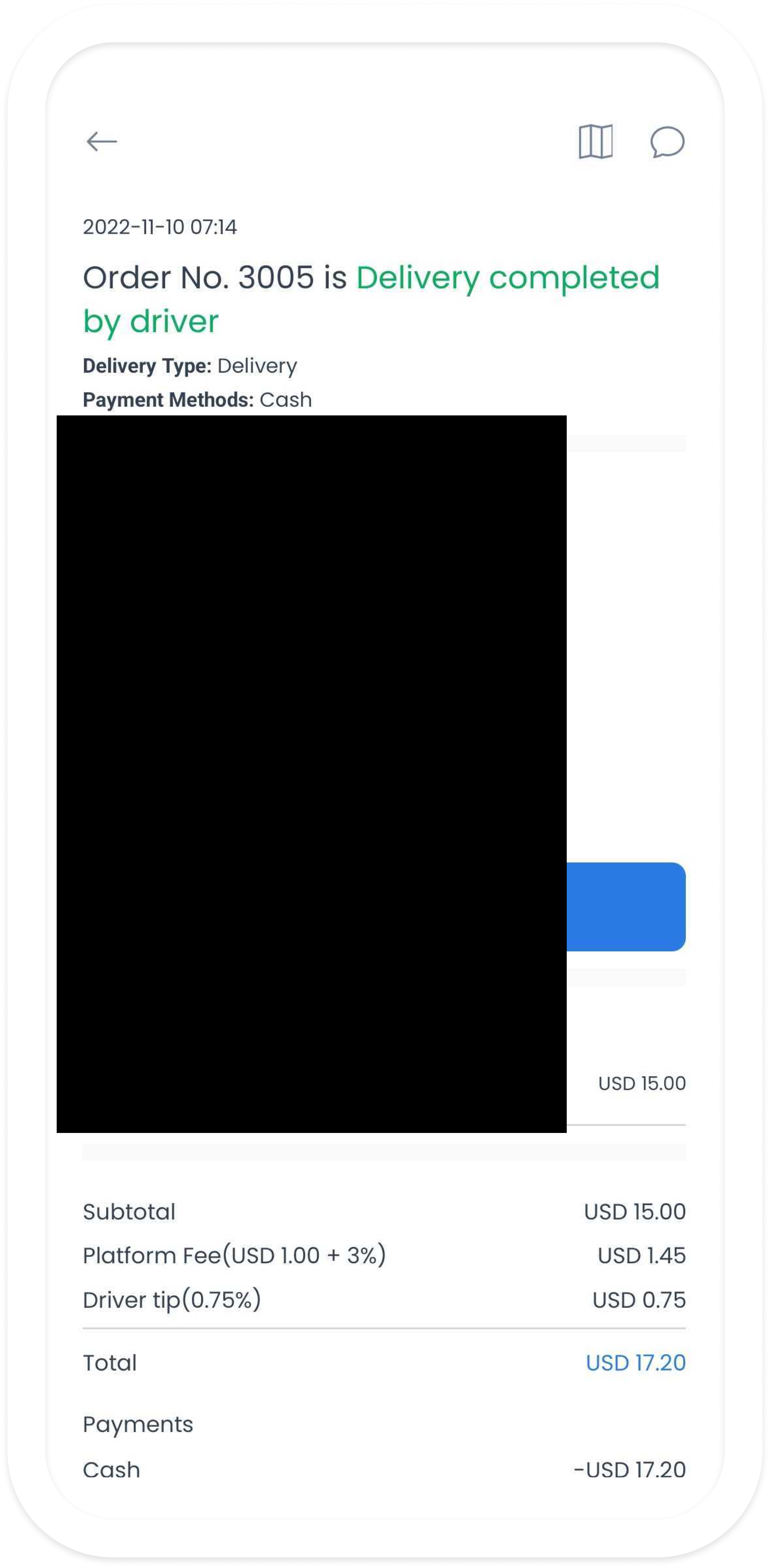
As the driver travels to the customer, the app can show Driver on his way. At the delivery location, the driver selects Delivery complete to finalize the delivery.
Communication and reviews
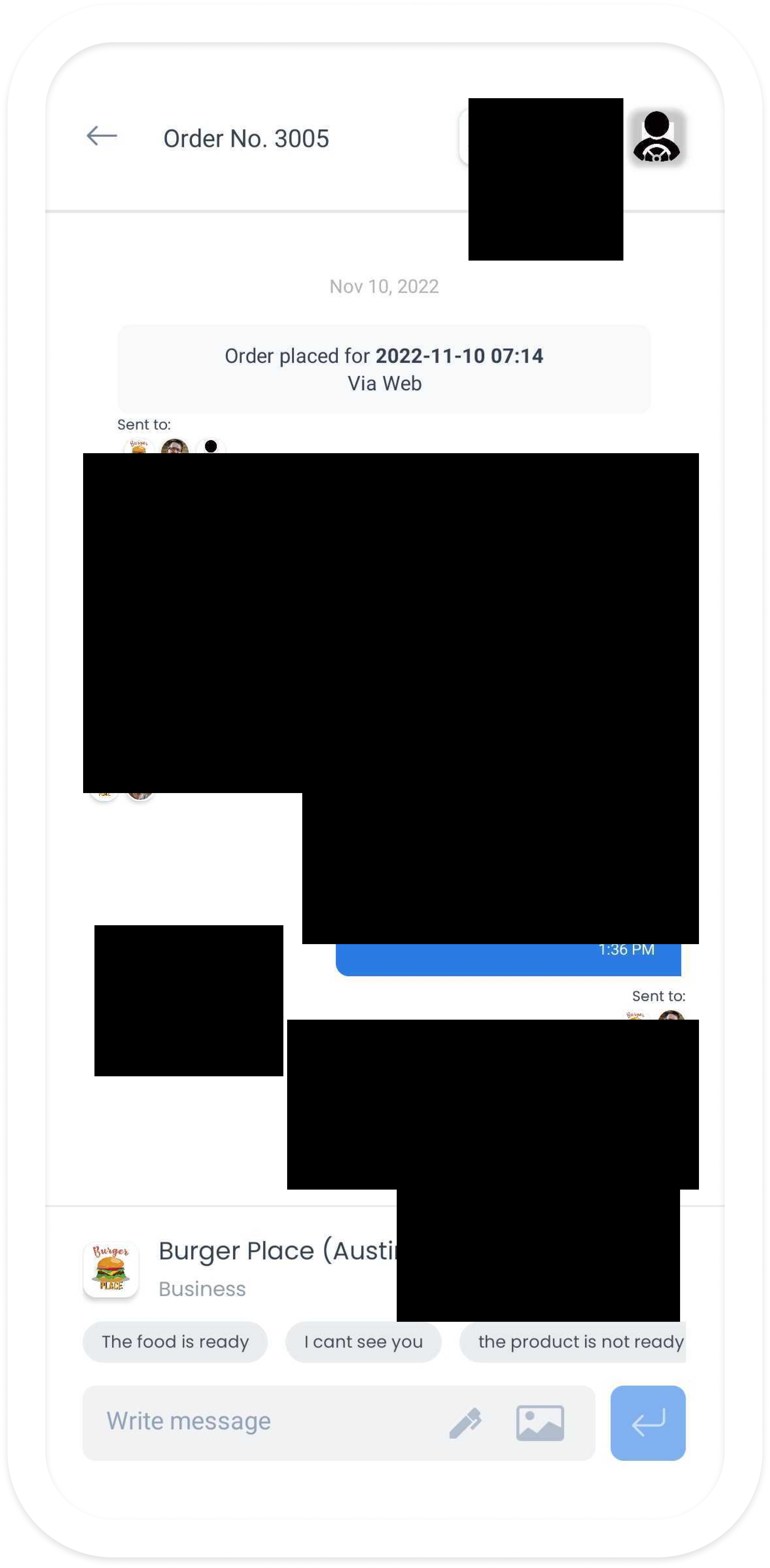
Messaging between the driver, customer, and business
When messaging is enabled, the driver, customer, and business can use it to share updates and resolve delivery questions.
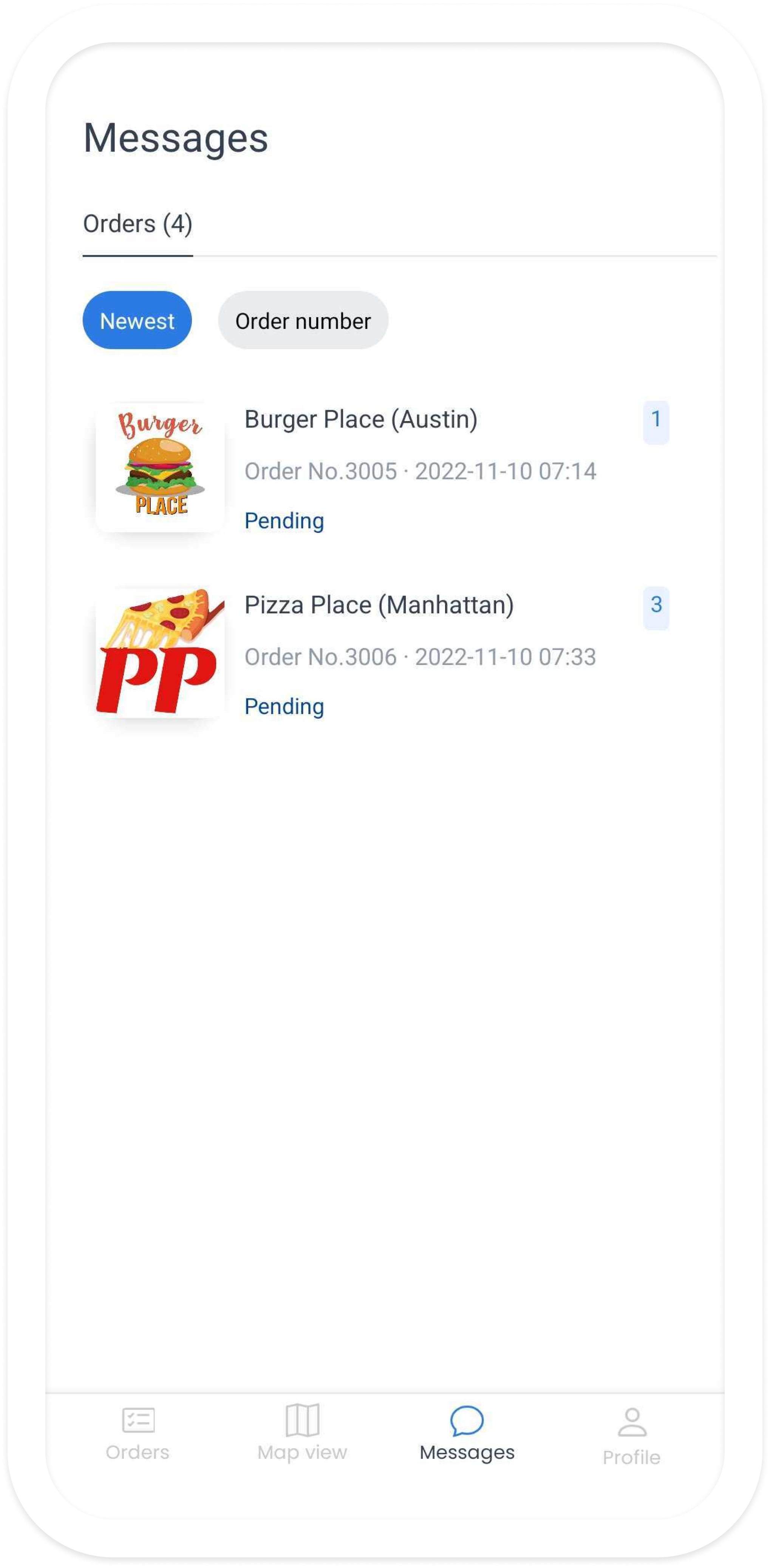
Driver messaging
Drivers can send messages to the customer and business for status updates, delays, or delivery instructions.
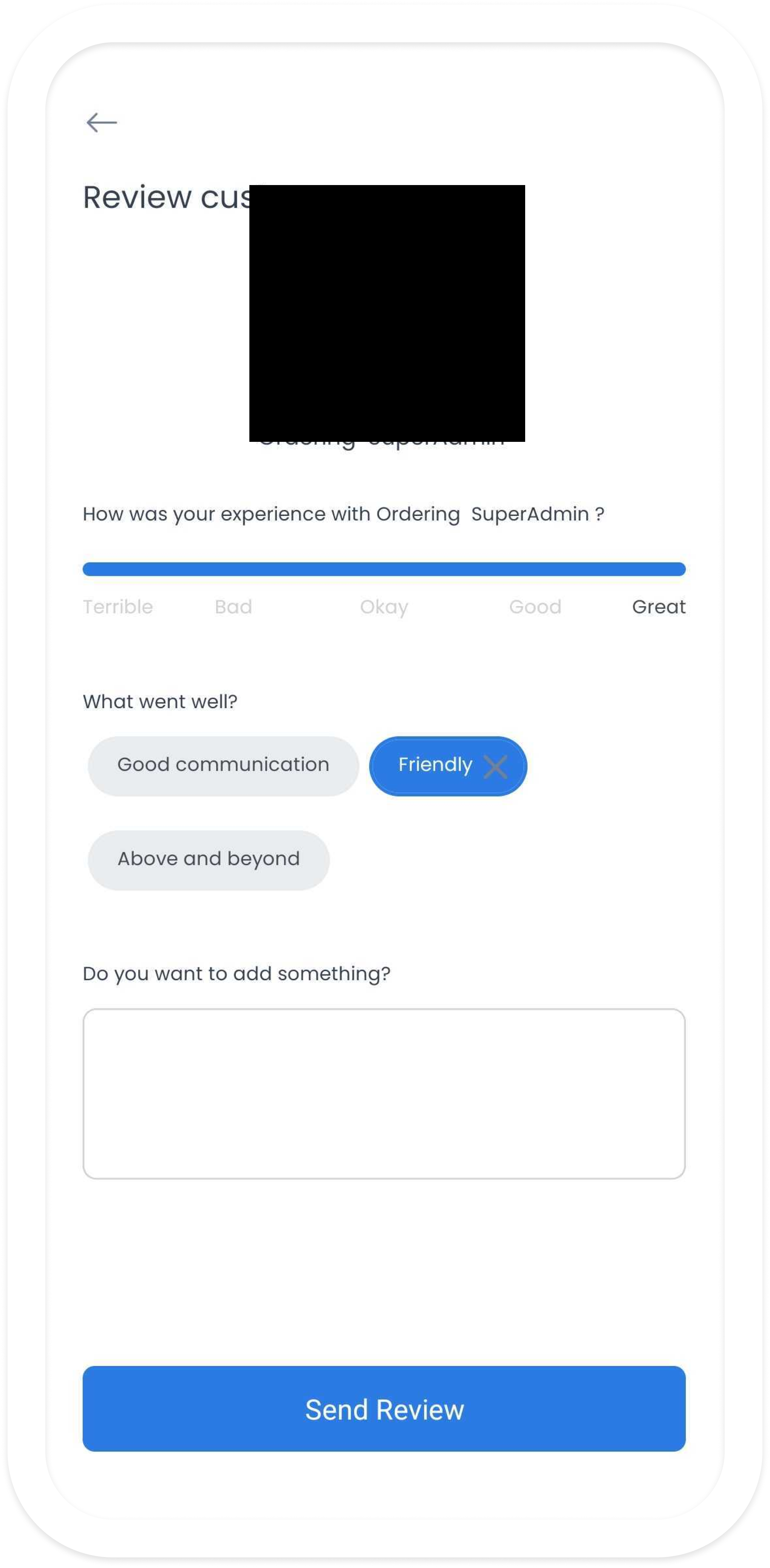
Driver reviews
After delivery, drivers can rate the customer and add comments about the delivery process when that review workflow is enabled.
Customer tracking and reviews
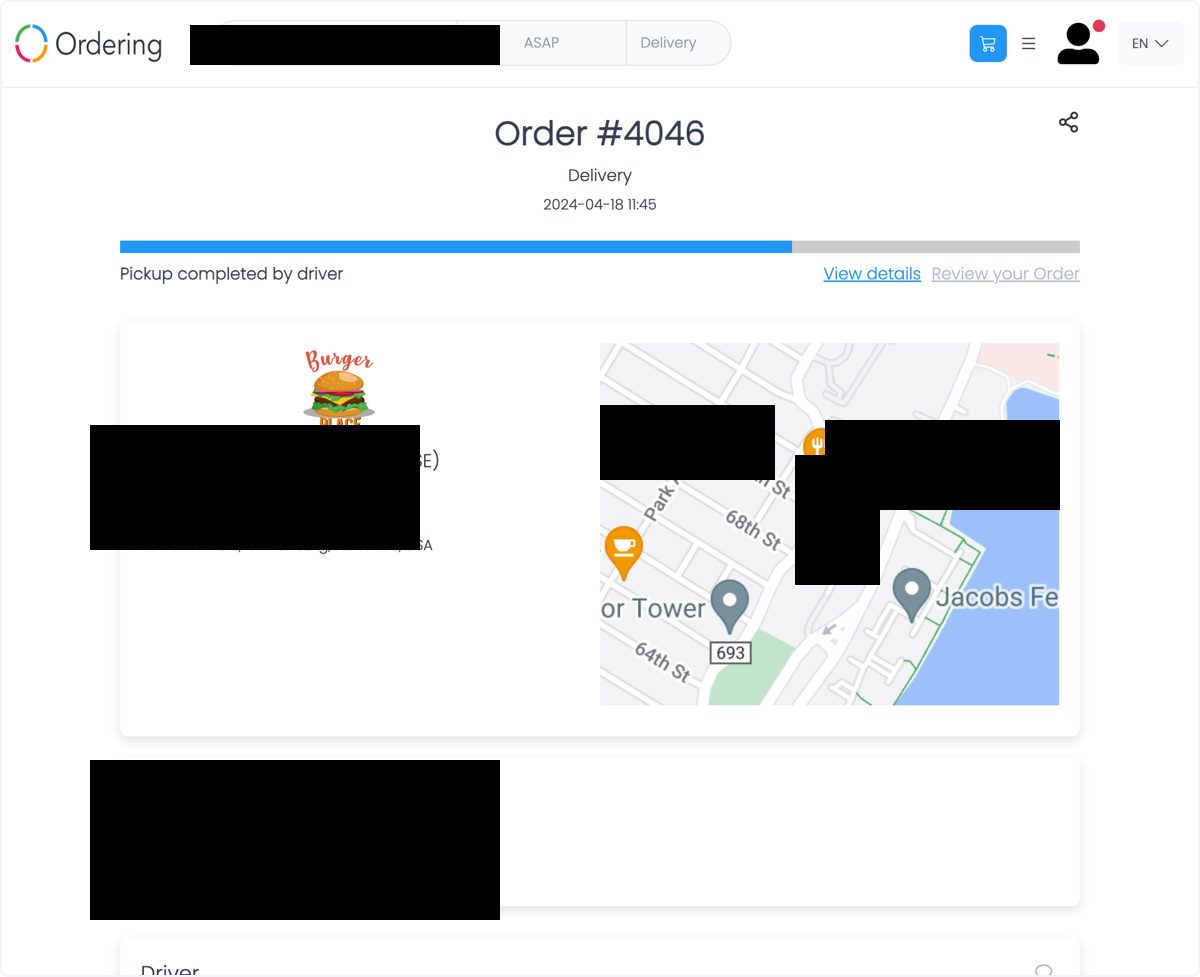
1. Track the order
Customers can track the order status in the app or website. When the tracking feature is configured, the view can include the driver’s current map location.
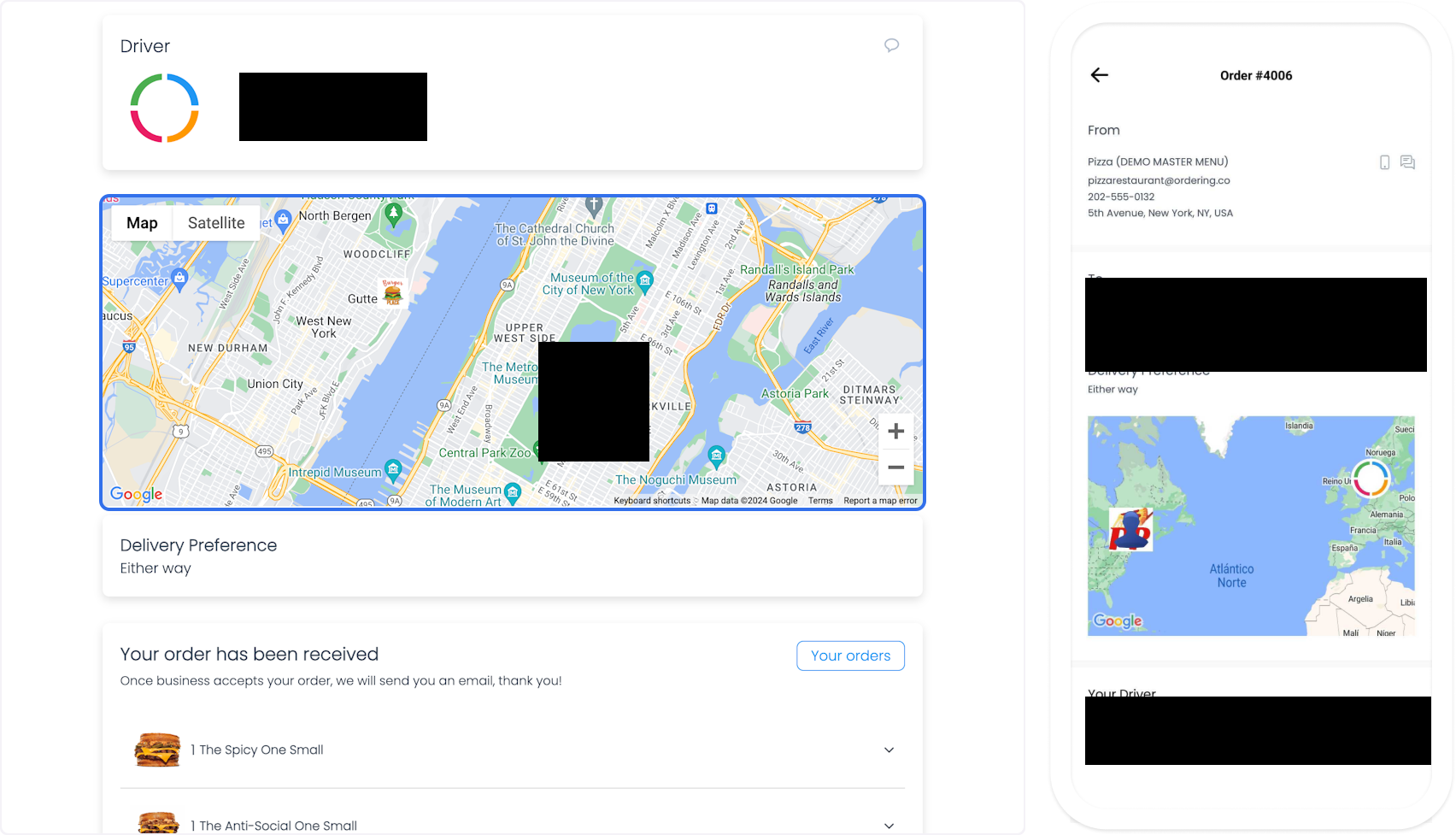
2. View the driver map
While the driver is en route, the customer can view the route map when tracking is available.
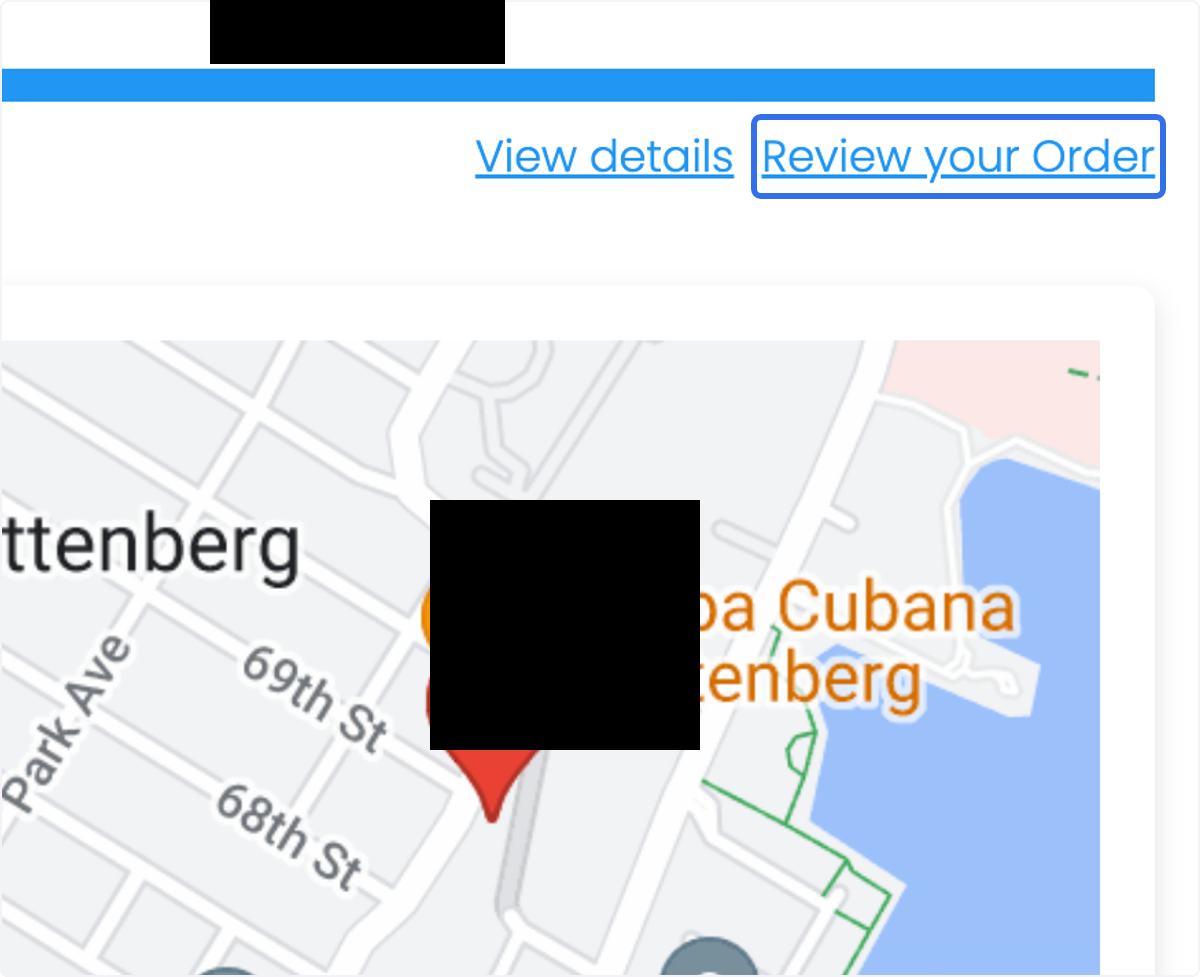
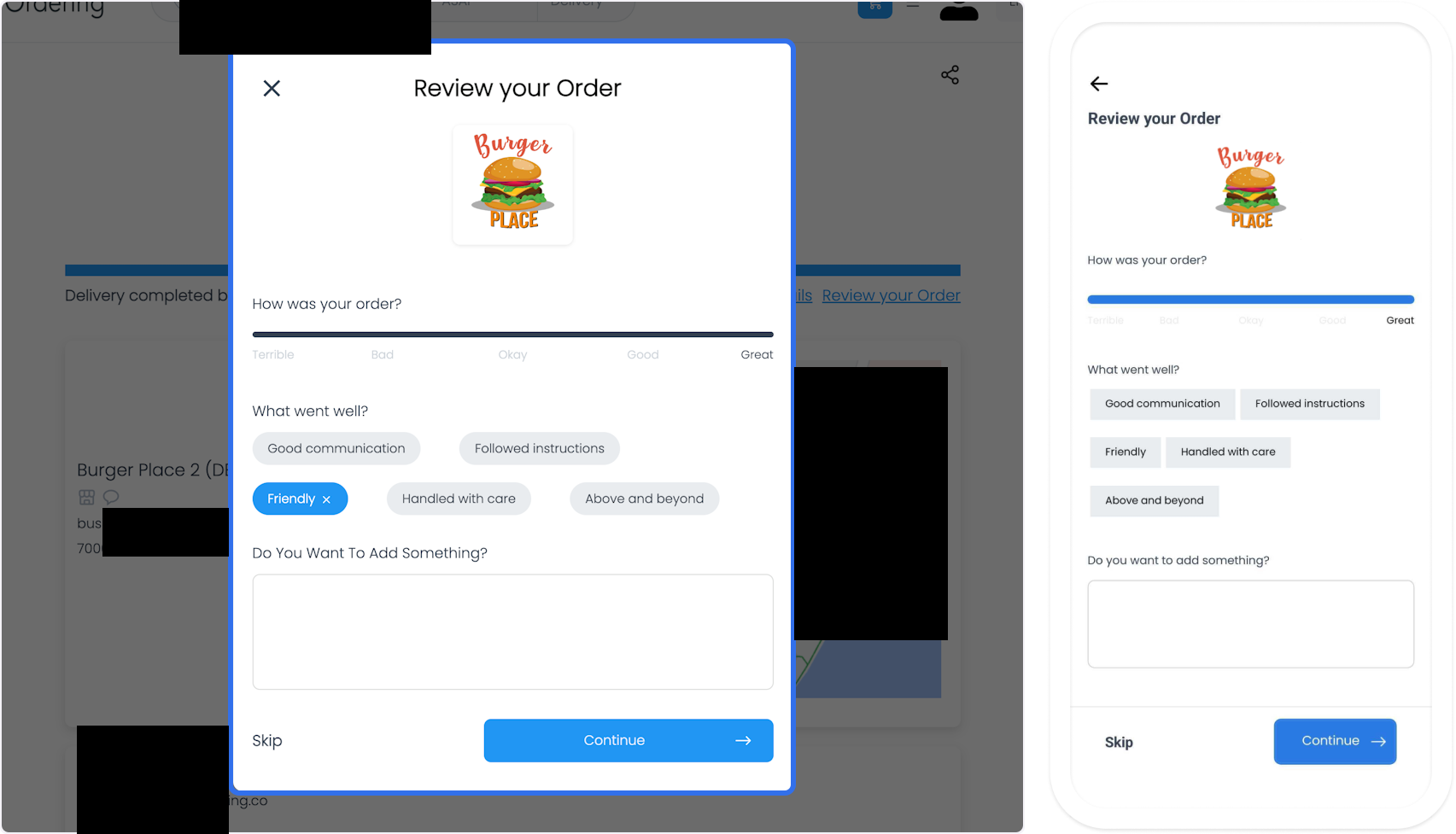
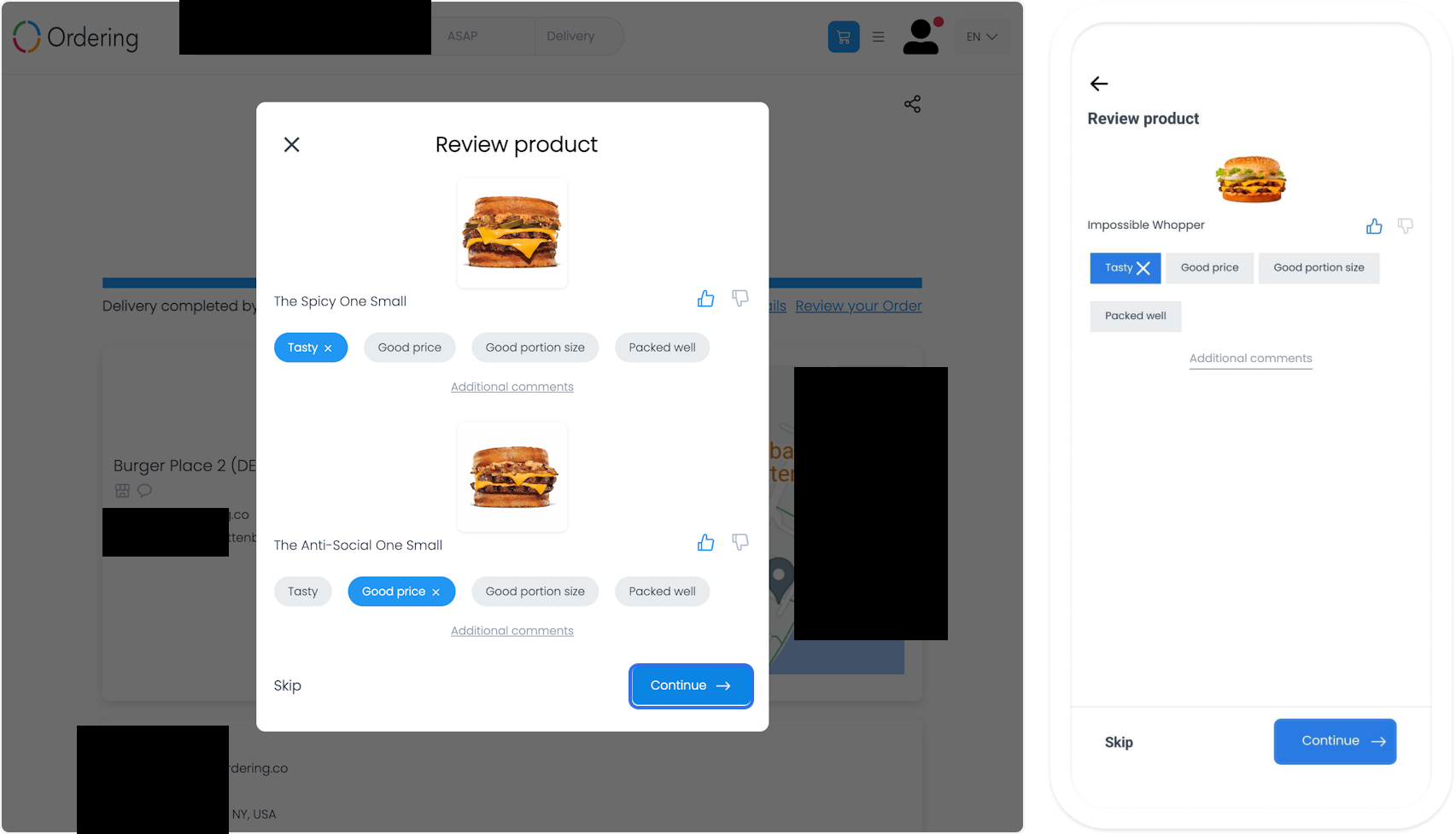
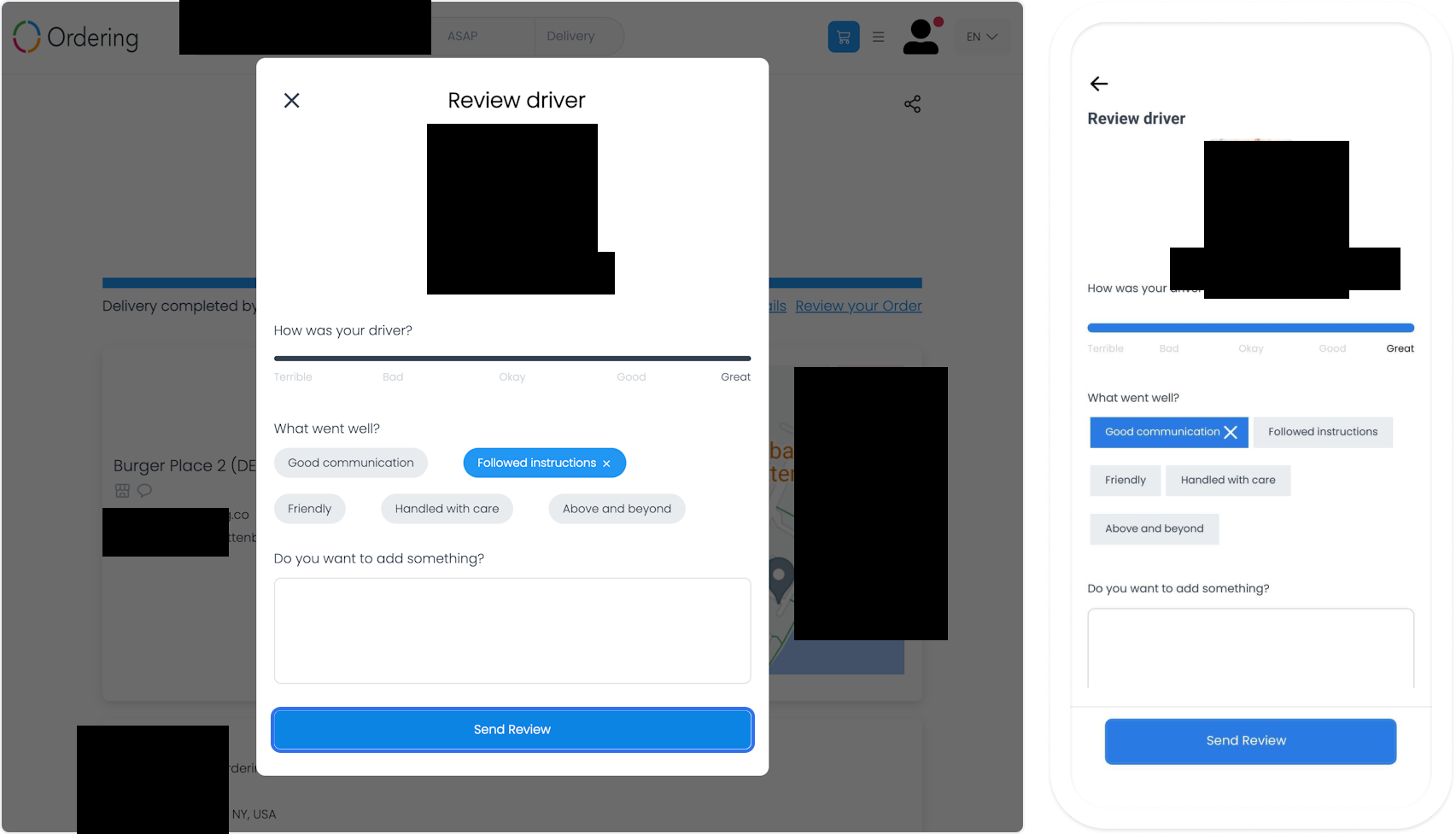
3. Leave ratings and reviews
After receiving the order, customers can review the order, products, and driver when the project enables reviews.
Order summary and completion
After delivery is complete, the customer sees the final order summary. The completed order also appears in the Completed section of the business Dashboard.