Order status reference
Ordering uses a numeric status code to represent the current stage or outcome of an order. Orders list organizes those statuses into four display groups: Pending, In progress, Completed, and Cancelled.
The four groups help you filter Orders list. The individual statuses below describe the actual state of an order and are the values returned by the Orders API.
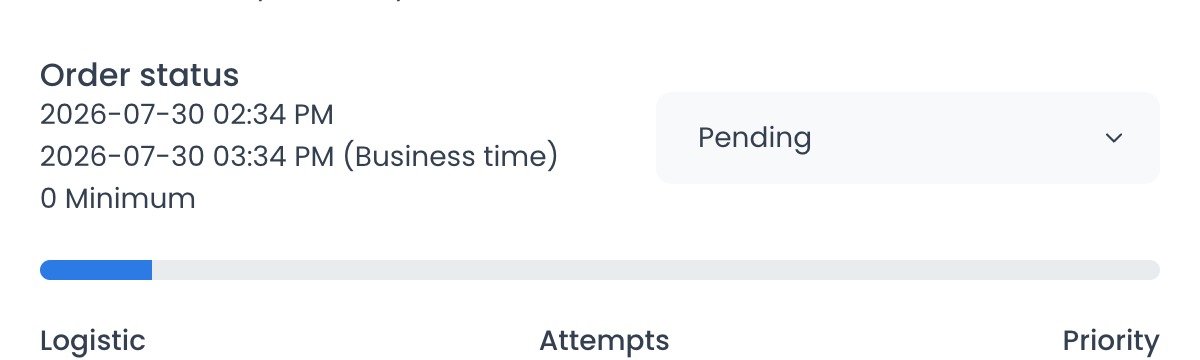
Not every status is available for every order. The options shown in the Dashboard depend on delivery type, role, plan, enabled features, and project configuration. A transition can also be rejected according to the order's current state. Some statuses are applied by the customer, driver, driver company, or an integration instead of manually in the Dashboard.
This reference reflects the current Dashboard selector source. A project-specific hidden-status list, a view-only account, or an order-level control can narrow the options further. Treat the selector shown for the specific order as authoritative for the attempted action; the table is not permission to force a transition.
Pending
| API code | Dashboard status | Meaning |
|---|---|---|
0 | Pending | The order is waiting for the next operational action. |
13 | Preorder | The order is marked as a preorder and remains in the Pending group. This status is informational in the generic status selector. |
In progress
| API code | Dashboard status | Meaning |
|---|---|---|
7 | Accepted by Business | The business accepted the order. |
4 | Preparation Completed | The business marked preparation as complete. |
8 | Accepted by Driver | A driver accepted the order. |
3 | Driver arrived to business | The driver arrived at the business. |
9 | Pick up completed by driver | The driver collected the order from the business. |
14 | Order not ready | The order is not ready for the next pickup step. |
18 | Driver almost arrived to business | The driver is approaching the business. |
19 | Driver almost arrived to customer | The driver is approaching the customer. |
20 | Customer almost arrived to business | The customer is approaching the business. |
21 | Customer arrived to business | The customer arrived at the business. |
22 | Looking for driver | The platform is searching for a driver. |
23 | Driver on way | The assigned driver is on the way. |
24 | Driver waiting for order | The driver is waiting for the order. |
25 | Accepted by driver company | A driver company accepted the order. |
26 | Driver arrived to customer | The driver arrived at the customer's location. |
Completed
| API code | Dashboard status | Meaning |
|---|---|---|
1 | Completed by Admin | An administrator marked the order as completed. |
11 | Delivery Completed by Driver | The driver completed the delivery. |
15 | Pickup completed by customer | The customer completed the pickup. |
Cancelled
| API code | Dashboard status | Meaning |
|---|---|---|
2 | Rejected by Admin | An administrator rejected the order. |
5 | Rejected by Business | The business rejected the order. |
6 | Rejected by Driver | The driver rejected the order. |
10 | Pickup Failed by Driver | The driver could not complete the pickup. |
12 | Delivery Failed by driver | The driver could not complete the delivery. |
16 | Cancelled by customer | The customer cancelled the order. |
17 | Not picked by customer | The customer did not complete the pickup. |
Change an order status
- Open the order from Orders list.
- Review the current status and fulfillment information.
- Open the Order status selector.
- Select an available status and confirm any additional information requested by the Dashboard.
The current client submits a status update through the order update contract. When regression validation is enabled, a backward transition can require an additional reason before the client retries it. If the request is rejected, the Dashboard restores the previous selection and displays the returned error.
Changing an order status can trigger notifications, fulfillment actions, integrations, payment or refund workflows, and reporting changes. Confirm the order and intended outcome before selecting a new status.
The source trace establishes the client request and possible downstream effect classes only. It does not prove which API build is serving an environment or that any transition, notification, integration, payment, or refund succeeded.
Frequently asked questions
Why don't I see every status in the selector?
The selector filters statuses according to the order's delivery type and your access. Event-driven statuses can also be set by a customer, driver, driver company, or integration.
Why can't I select Preorder?
Preorder appears in the status reference and Pending filter, but it is disabled in the generic status-change selector.
Are the four Orders list groups API statuses?
No. They are Dashboard filter groups that contain the individual numeric statuses listed on this page.
Related guide: View and manage an order