Open carts overview
Open carts lists carts that have a business and at least one product but have not been completed. Use it to locate an unfinished cart and review its details before an approved customer-service, recovery, inventory, or fulfillment process.
An open cart is not an order. Viewing an open cart does not confirm that a payment was made, an order was placed, a delivery was fulfilled, or the displayed information is updating in real time. The page gives your team information to use in a separate approved workflow; it does not send a recovery message, create a recommendation, reserve inventory, or change the cart.
Open carts is intended for Dashboard administrators with access to Cart recovery. If the item is missing from the sidebar, ask a Dashboard administrator to review your access.
Why review open carts
An open-cart record can help your team:
- Identify shoppers who may need assistance before they complete a purchase.
- Review customer and product information in one place when handling an approved support or recovery workflow.
- Check the products, amounts, discounts, fees, taxes, and delivery details that a customer selected.
- Use the information as an input to product, campaign, or inventory decisions without assuming that the cart represents a placed order or current demand.
Find an open cart
- In the Dashboard sidebar, select Cart recovery, then Open carts.
- Use Search to look for a cart ID or city name.
- To narrow the list further, select the filter control.
- In the Filter dialog, use the criteria you need:
- Cart ID
- Business
- Customer
- City
- Delivery date range
- Select Accept to apply the criteria, or Clear to remove them.

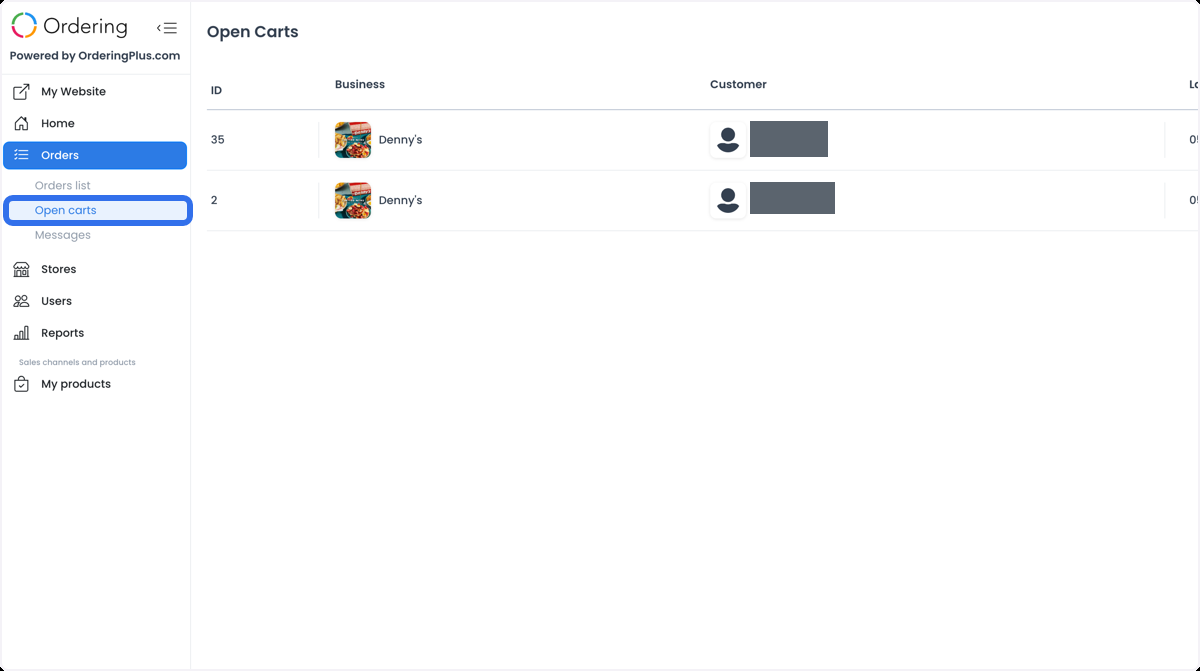
The list is ordered by cart ID with the newest entries first and loads results in pages. If you do not see an expected cart, clear the search and filters before deciding that it is not present.
Open carts can contain customer contact details, addresses, location information, products, prices, and business information. Verify the cart ID before discussing it, and use the data only in approved operational channels.
Use open-cart information in a workflow
- Cart recovery campaigns: Review the cart and contact context before using a separately approved email, SMS, or other recovery process. The Open carts page does not send a message or prove that a customer received one.
- Customer support: Use the cart details to understand a question about an unfinished purchase, then respond through your approved support channel. Selecting a cart does not contact the customer.
- Product recommendations and inventory planning: Cart contents can inform a manual follow-up or planning decision. The page does not generate recommendations, reserve stock, adjust inventory, or prioritize fulfillment.
- Operational analysis: Compare recurring cart patterns with your campaign, product, and service decisions. An open cart is a point-in-time record, not a fulfillment or delivery tracker.
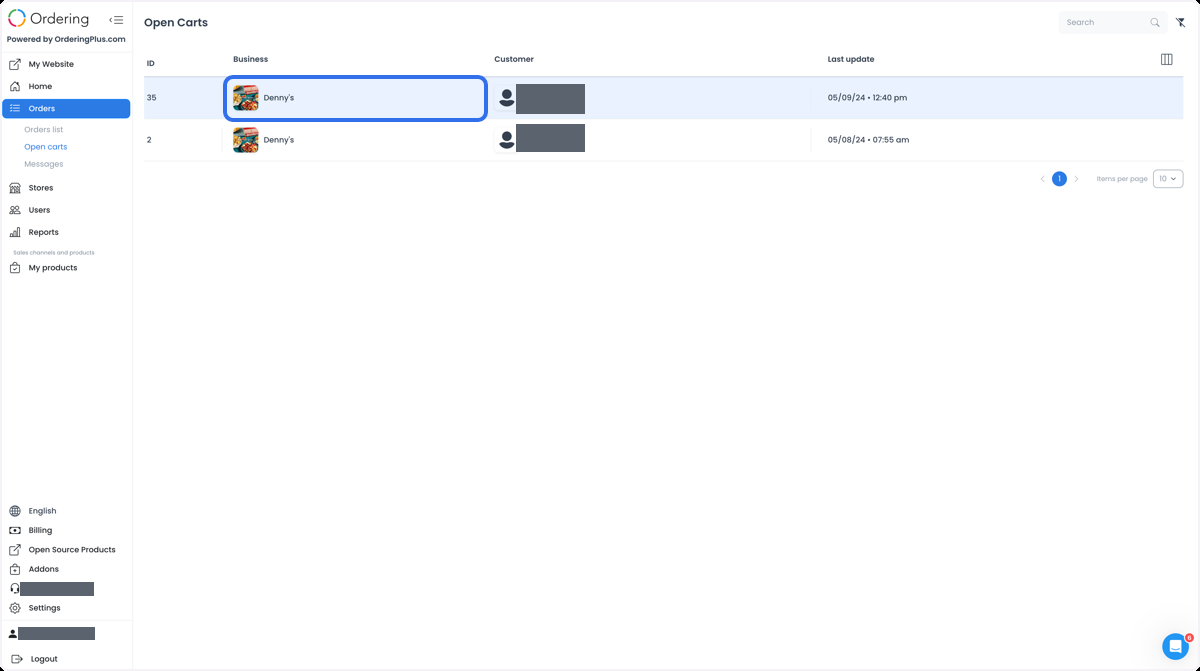
Review cart details
Select a cart to open its detail panel. The panel shows the cart ID and Last updated, then the available business and customer contact information, order details, products, and bill. Depending on the cart, the bill can include the subtotal, discounts, taxes, fees, delivery charge, tip, payments, total, and a customer comment.
What the detail view can support
The detail view brings the available cart information together so an operator can:
- Check the items and customer information before taking a separate operational action.
- Respond accurately to a customer question about an unfinished cart.
- Review the selected products and amounts when planning a manual follow-up.
- Use the record as context for inventory or service decisions.
It does not verify an order, track delivery progress, or complete a fulfillment action.
Review the details safely
- Select the cart from the list.
- Confirm the cart ID and Last updated value.
- Review the business and customer sections, products, and bill only for the operational purpose you are handling.
- Use the relevant approved process for any follow-up, recovery, inventory, support, or fulfillment action.
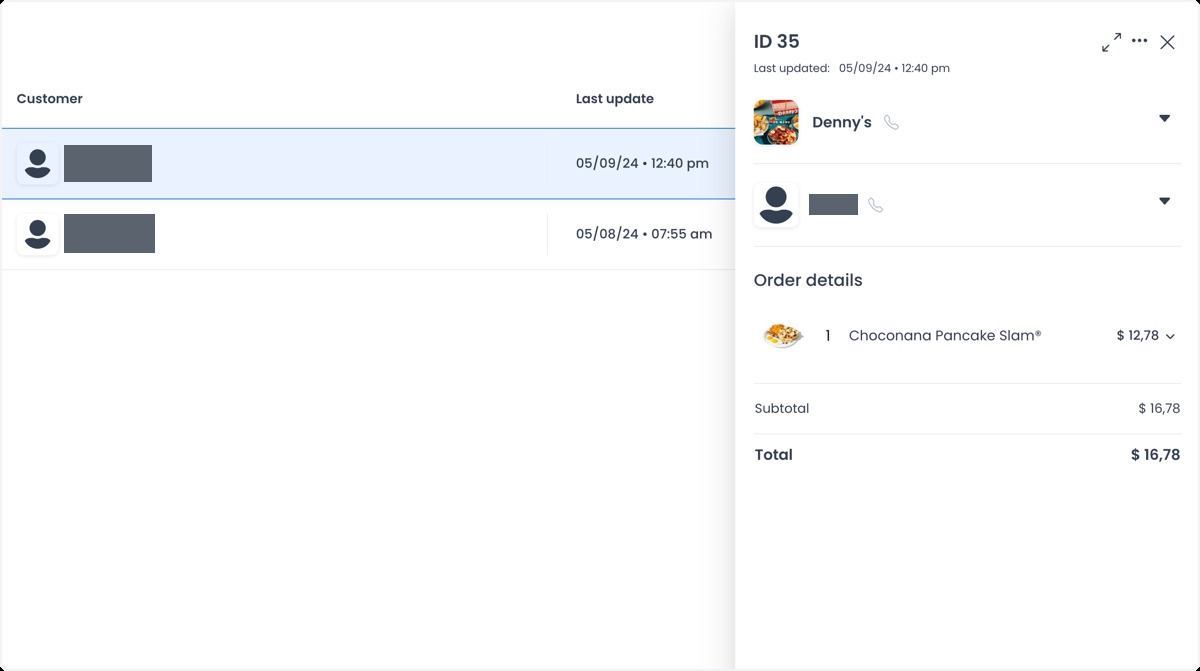
The detail menu includes Delete, which changes cart data. This guide covers reviewing open carts only. Do not select Delete while inspecting a cart; follow an approved operational process if a cart must be cleared.
Practical use cases
- Order verification context: Confirm what a customer selected before a separate, approved action. An unfinished cart does not establish that an order was placed.
- Customer-service context: Review the available contact, item, and price information to address a question without promising a message, a payment result, or a delivery outcome.
- Customization opportunities: Use the chosen items as context for a manual recommendation or promotion through an approved channel.
- Inventory context: Review products across carts as one input to a planning decision, while confirming actual stock and placed-order demand elsewhere.
Work from the cart's actual state
Open carts helps your team understand unfinished purchase activity and make better-informed operational decisions. Keep the distinction between a cart and an order clear, protect the customer information you view, and use the appropriate separate workflow whenever you need to contact a customer, change inventory, recover a cart, fulfill an order, or clear data.
Troubleshooting
Why is Open carts missing from my sidebar?
The page requires the appropriate Dashboard access. Ask a Dashboard administrator to review your access if you expect to use it.
Why is the list empty?
Search text or filters may exclude the carts you expect. Select Clear, then review the list again. Only unfinished carts with products and an associated business are included.
Why can’t I find a cart by customer name in Search?
The Search control matches a cart ID or city name. Use the Customer selector in Filter when you need to narrow the list by customer.
Related guides: Search and filter orders · View and manage an order