Messages overview
Messages brings together order conversations so an operator can review context, respond to a customer inquiry, coordinate with a driver, communicate an approved order update, or address an issue. It supports communication around an order; it does not make message delivery, recipient receipt, read state, status changes, or fulfillment a single event.
Messages is available only when the Dashboard authorizes the account to view the order conversation. Sidebar visibility and available actions can depend on the account role, read-only status, order, and project configuration.
Find the order conversation
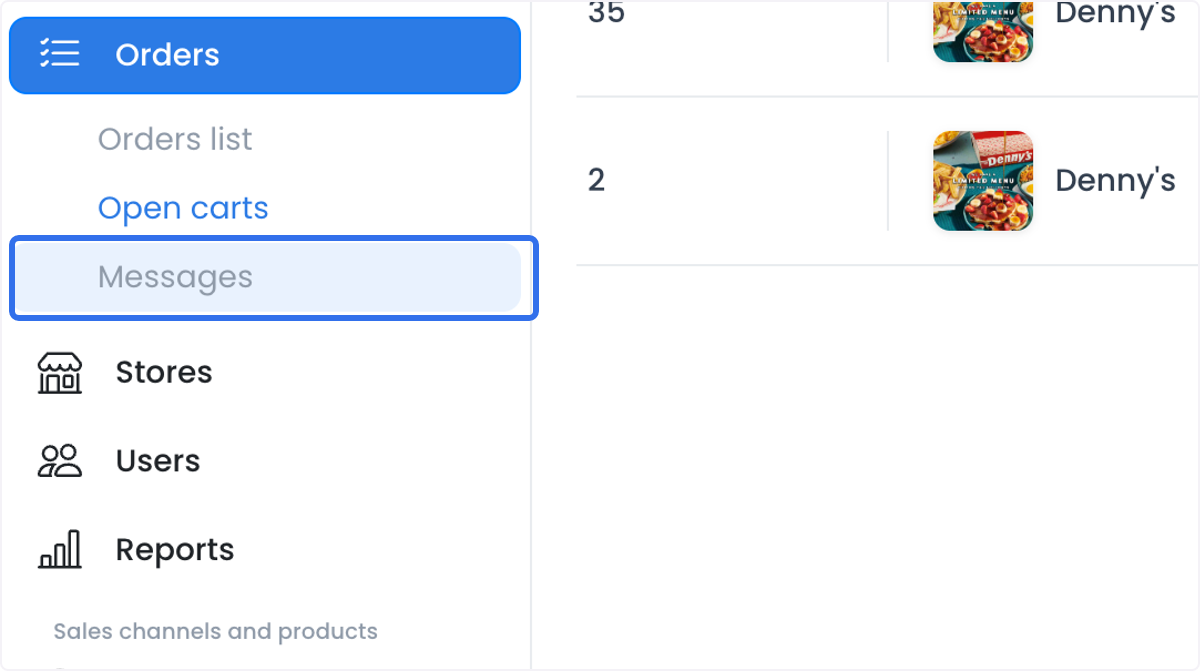
- In the Dashboard sidebar, select Orders, then Messages.
- Use Search or the filter control to narrow the order list.
- Choose Newest to prioritize the latest direct-message activity, or Order number to sort by order number.
- Select an order only when you need to review or act on its conversation.
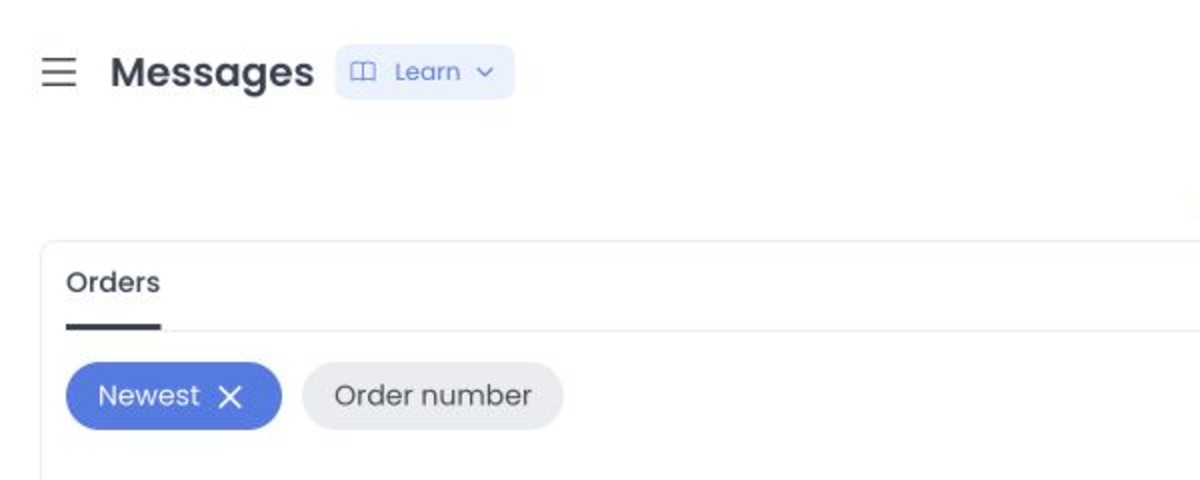
The active tab is Orders. Select an order to load its conversation; the page can also open the selected order's detail panel when you choose the order-detail action.
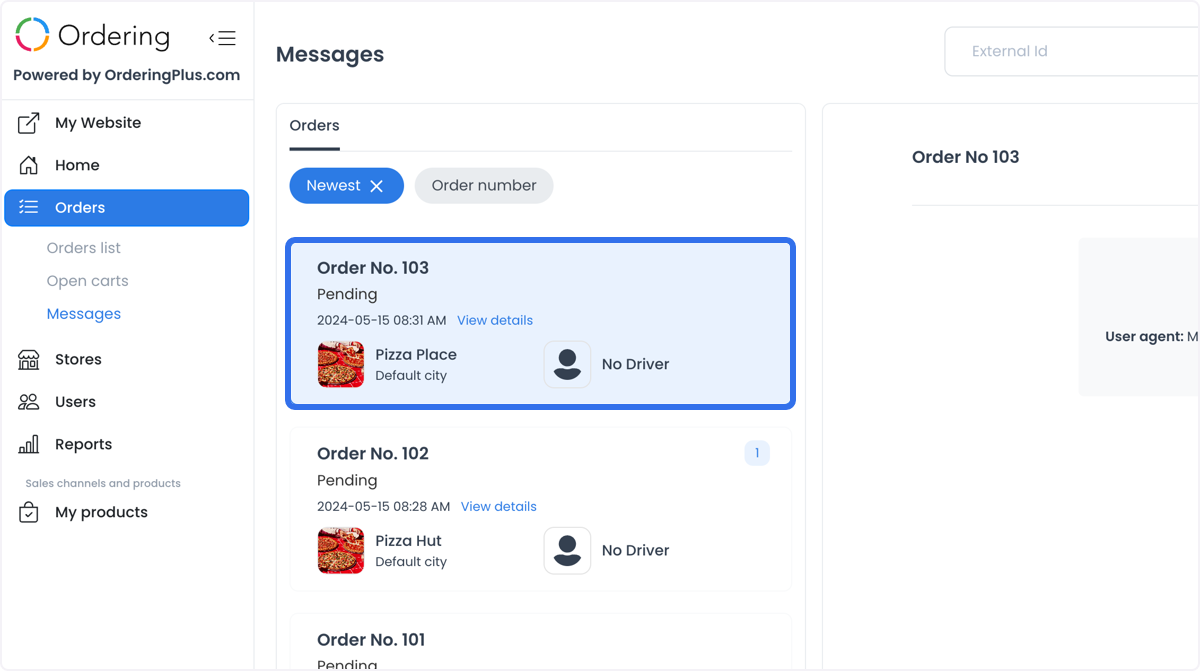
Changing the order-list search can leave an already loaded conversation visible. Do not assume an empty filtered list has cleared the conversation panel or its sensitive contents.
Review the conversation context
The conversation and its order context can include customer, driver, business, and administrator information; message text and images; status, timing, refund, location, technical device or network data, and author context when available to your account.
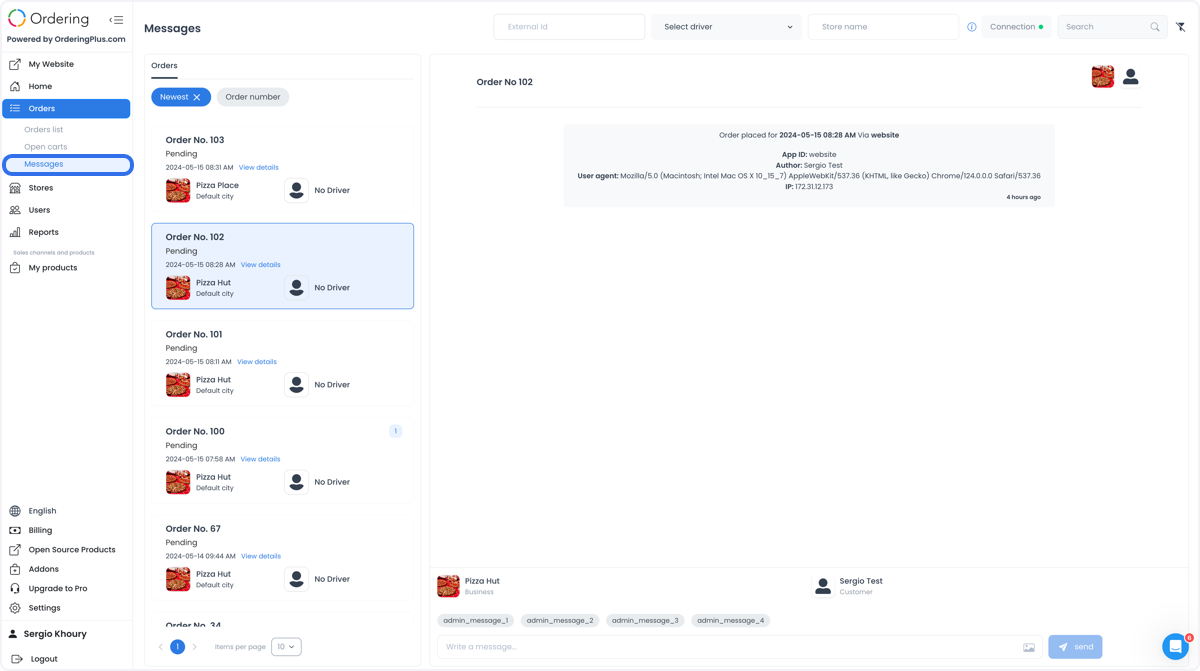
Use the minimum information necessary for the operational task. Do not copy message content, attachments, addresses, locations, customer details, or technical context into an unapproved channel. Use a scrubbed, non-production conversation for training or screenshots.
Compose and request a message
Each order conversation is a group chat with the customer, the business, the driver, and an administrator. An administrator can message everyone in the conversation or a single participant — the driver, the customer, or the business — and sees every message in it. The business can message the customer or the driver, and the driver can message the customer, the business, or an administrator. There is no chat between drivers or between businesses.
Before using the composer, confirm the order, the recipients who can see the conversation, and the exact message or image you intend to send. The composer can create an order-scoped request for text or image content. Select send only as part of an approved operational workflow; do not use a real conversation or composer to test the page.
A finished order can disable sending. If the control is unavailable, confirm the order state and your access instead of trying to work around the restriction.
Keep provider delivery and notification separate
After the Dashboard sends a message request, any provider or channel delivery and any notification are separate from the request itself. A visible composer result, a list refresh, or a notification indicator does not demonstrate that a message was delivered to, received by, or acted on by a customer, business, driver, or administrator.
The Dashboard can show a notification indicator on an order card to direct attention to a message or a status change in the order context.
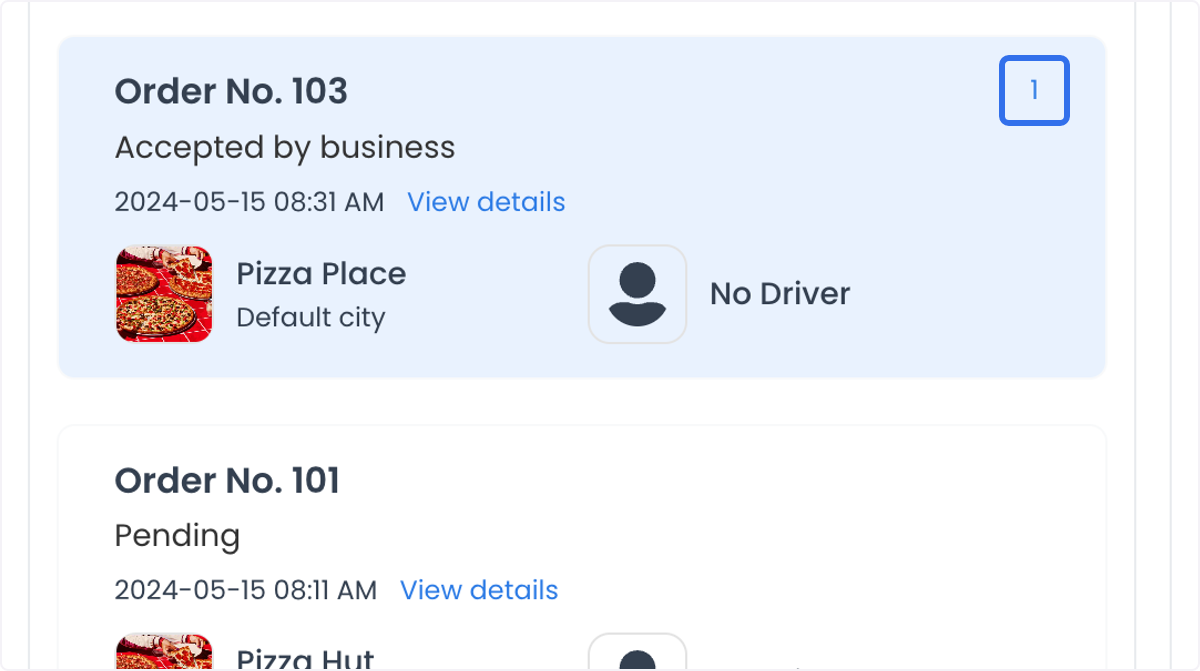
Treat that indicator as a reason to inspect the approved order context, not as confirmation of a recipient outcome. A driver status change and a message are separate events; neither an alert nor a visible update proves that the other event occurred or completed.
Separate recipient receipt and read state
Opening or focusing an unread message can send a read acknowledgement and update the Dashboard's local unread state. A read request can use a GET route, so do not presume that opening a conversation is effect-free.
The Dashboard loads a selected conversation and listens for updates while it is open. This does not confirm provider delivery, recipient receipt, saved read status, or realtime success. Opening an unread conversation may mark it as read, so do so only when needed for an authorized task.
Act on the conversation
Use the conversation only for the approved next action. Common examples include:
- Responding to a customer inquiry about an order, delivery timing, or product availability.
- Communicating an approved order update, such as a delay or substitution.
- Coordinating delivery instructions or logistics with the driver and business.
- Collecting the context needed to resolve an approved issue, such as a missing item, incorrect order, or delivery delay.
Sending a message does not change an order status by itself. If the task also requires an order update, follow the status workflow separately and confirm its result in the order record.
Use Messages in the Driver App
The Driver App can show a chat icon at the top of an order. Where that control is available, a driver can view and send messages in the order conversation with the customer and business.
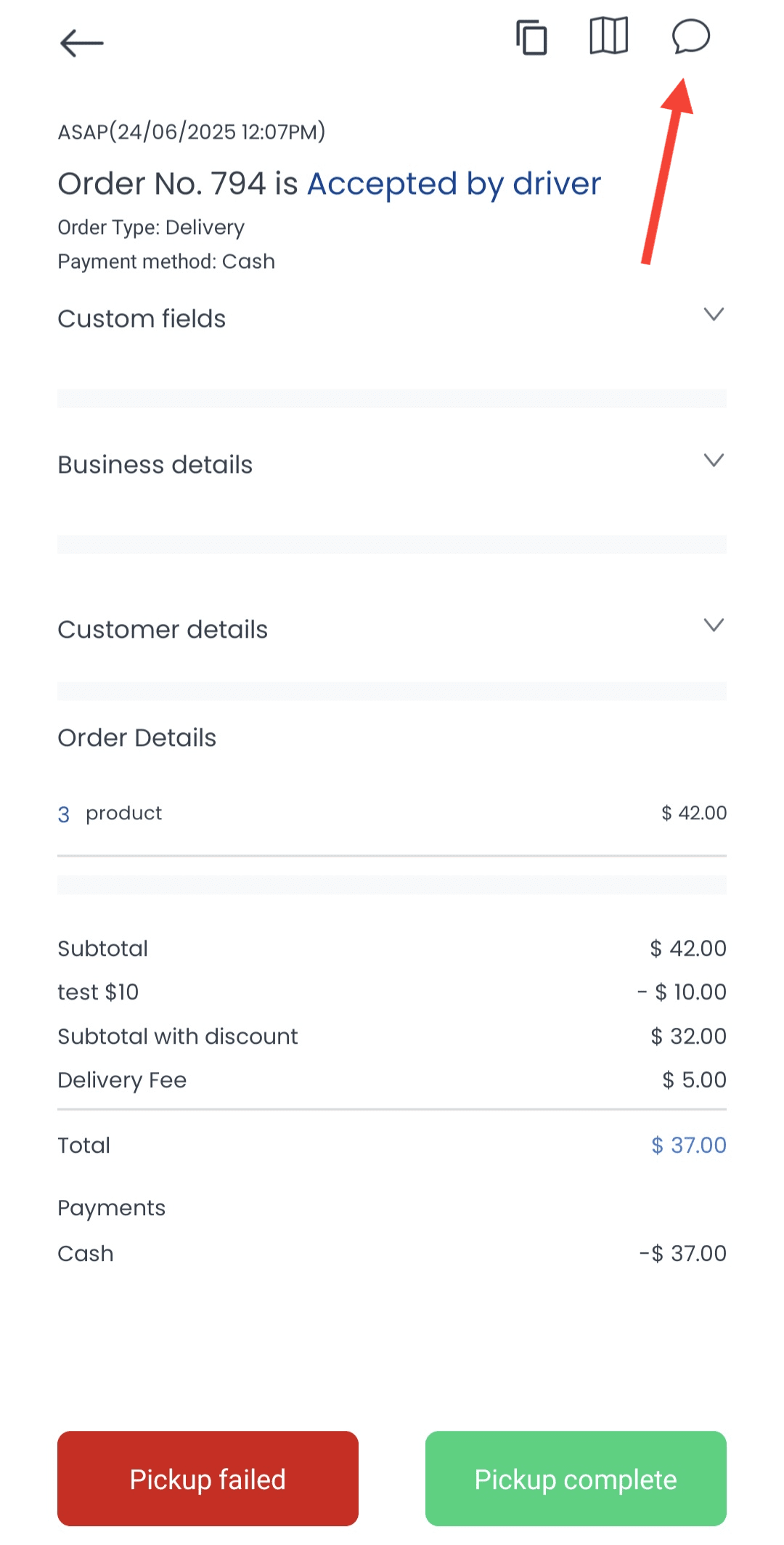
The visible chat control does not prove that a send request, delivery, receipt, or read outcome completed. Confirm any required operational outcome in its appropriate record.
Use Messages in the Business App
The Business App can show a chat icon at the top of an order. Where it is available, the business can use the conversation to contact the customer and driver.
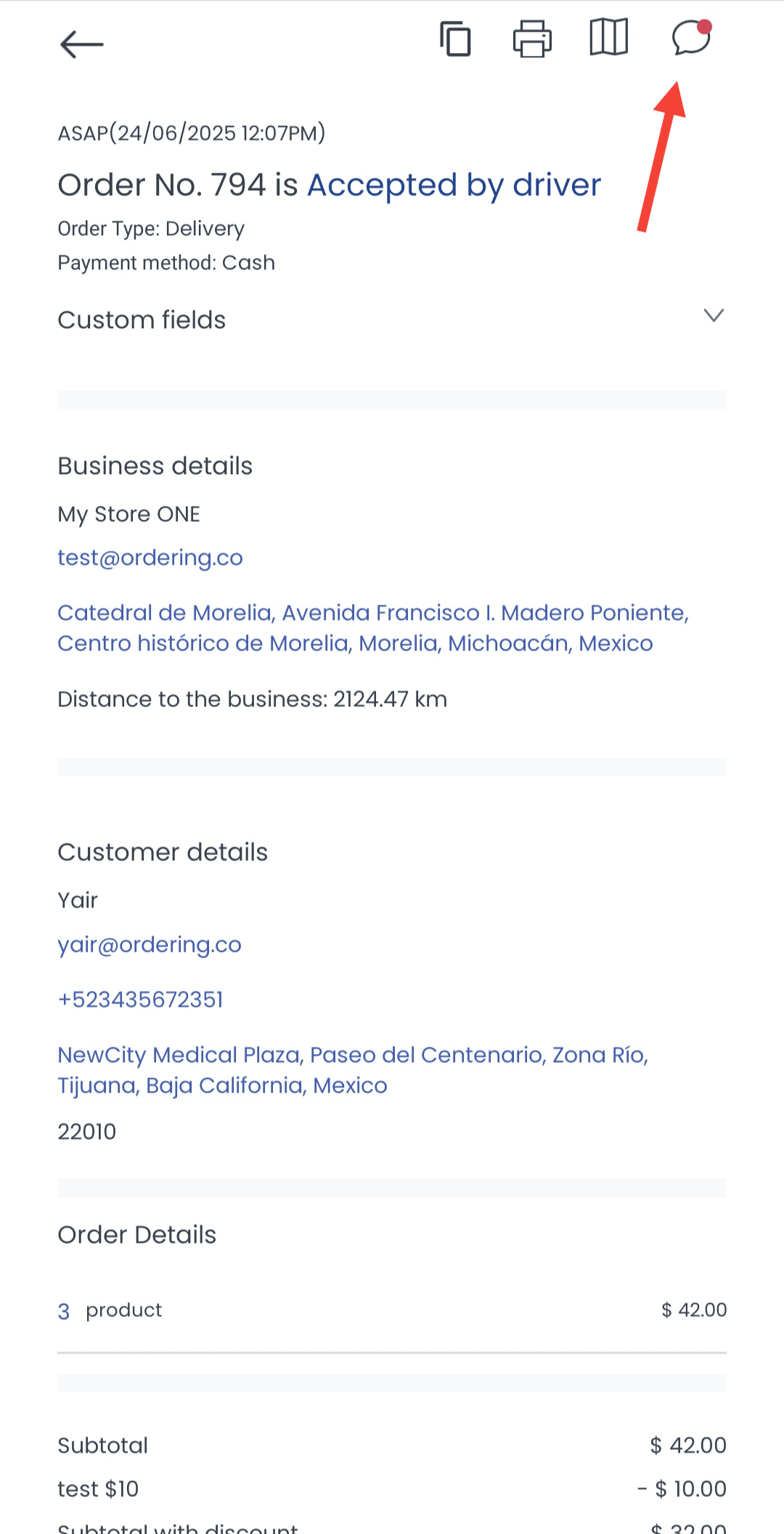
The order, role, and current state can limit which conversation actions are available. Verify the intended audience and order before acting.
Troubleshooting
Why is Messages missing from my sidebar?
The Messages item can be hidden by your role, read-only status, or project configuration. Ask an administrator to confirm whether Messages is enabled for your account.
Why is an order conversation unavailable?
Message access is filtered by the order and the audience allowed for each message. For example, a business manager can be limited to orders in businesses they own. Confirm that you opened the correct order and have the required access.
Why did the unread count change?
Viewing an unread message can mark it as read. Open real conversations only when needed for an authorized task; use a test conversation for demonstrations.
Why can't I send a message?
Confirm that you selected the intended order, that the conversation is available to your account, and that the order state still permits sending. Do not infer delivery or recipient receipt merely because the Dashboard accepts a send request.
Related guides: Search and filter orders · View and manage an order · Update an order status