Messages overview
Messages brings together order conversations so you can review the context for an order. It uses the same order search and filter controls as the Orders area, then displays a conversation when you select an order.
Messages is available to supported administrator and business-manager accounts. Sidebar visibility can also depend on your project plan, configuration, and whether the account is read-only. Your account only receives messages that it is allowed to see for the order.
Find a conversation
- In the Dashboard sidebar, select Orders, then Messages.
- Use Search or the filter control to narrow the order list.
- Choose either Newest to prioritize the latest direct-message activity or Order number to sort by order number.
- Select an order only when you need to review its conversation.
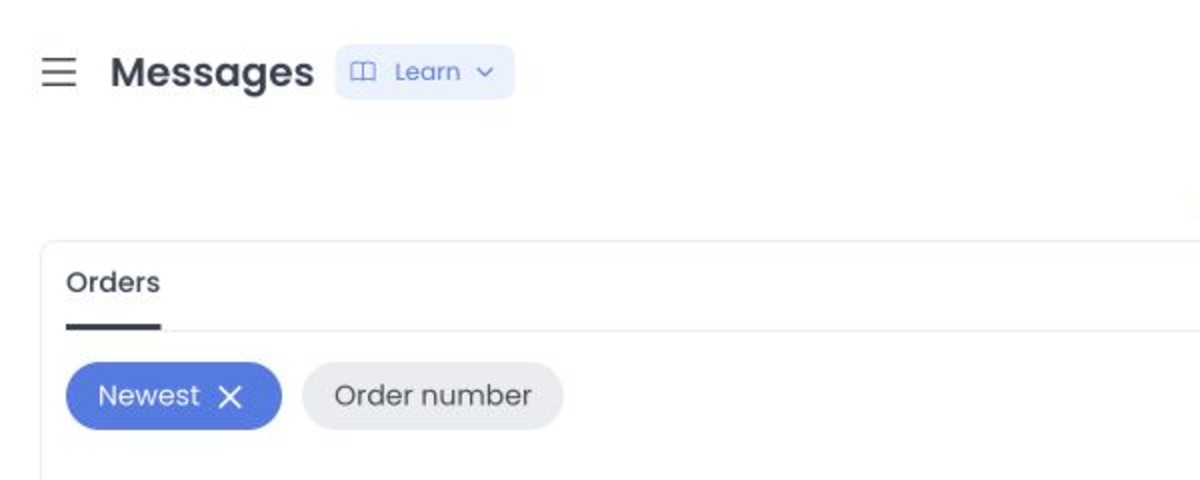
The active tab is Orders. The page can also open the selected order’s detail panel when you choose the order-detail action.
Protect message privacy
Order conversations can include customer, driver, business, and administrator information; message text and images; order context; and operational-history details. Depending on your permissions, an order history can also expose technical data such as location, IP address, or user-agent information.
Use the minimum information necessary for the operational task. Do not copy message content, attachments, addresses, locations, or customer details into an unapproved channel. Use a scrubbed, non-production conversation for training or screenshots.
Important: opening and sending can change state
Opening or focusing an unread message can mark it as read and update the order’s unread state. Sending text or an image posts the message immediately and can notify the selected customer, administrator, business, and/or driver recipients. Do not open real unread conversations or use the composer merely to test the page.
Changing the order-list search can leave an already loaded conversation visible. Do not assume an empty filtered list has cleared the conversation panel or its sensitive contents.
If you need to send a message as part of an approved operational workflow, confirm the order, recipient visibility, and message content before selecting send. A finished order can disable sending.
Request and realtime boundaries
The current controller loads a selected conversation from the order messages
contract and posts text or image content to the same order-scoped contract.
Its read acknowledgement uses a GET URL ending in /read, then updates the
local unread state. This is a concrete example of why GET must not be presumed
effect-free.
The controller also joins an order- and user-level websocket room and listens for new-message events while the conversation is mounted. The history renderer can show status, driver, timing, refund, location, IP, user-agent, and author context when those fields are present and the account level allows them. Do not open a real conversation, join its realtime channel, or use its composer for documentation work.
These source paths establish possible requests and effects, not the deployed backend version, message delivery, notification delivery, read persistence, or realtime success.
Troubleshooting
Why is Messages missing from my sidebar?
The Messages item can be hidden by your role, read-only status, plan, or project configuration. Ask an administrator to confirm whether Messages is enabled for your account.
Why is an order conversation unavailable?
Message access is filtered by the order and the audience allowed for each message. Business managers are limited to orders in businesses they own. Confirm that you opened the correct order and have the required access.
Why did the unread count change?
Viewing an unread message can record that it has been read. This is expected behavior, so avoid using real unread conversations for documentation, demonstrations, or casual review.
Related guides: Search and filter orders · View and manage an order