Export orders to CSV
Use the CSV control in Orders list to submit an Orders report request for your permitted scope. Current source queues report generation and defines email delivery to the address on your profile; it does not define an immediate browser download.
The Orders list is available to supported administrator, business-manager, and driver-manager accounts. Your project, role, and the orders you are allowed to access determine what can be included. Business managers and driver managers receive reports limited to their authorized business or driver-group scope.
Before you request a report
- Confirm that your profile has an email address. The Dashboard cannot request the report without one.
- Treat the report as sensitive operational data. It can include customer and business contact details, addresses and locations, payment and order data, products, totals, drivers, internal comments, and—when enabled by your project—messages and custom metafields.
- Apply only the filters and status groups you need. A smaller, purposeful scope is safer and easier to review.
Choose what to export
- In the Dashboard sidebar, select Orders, then Orders list.
- Select CSV.
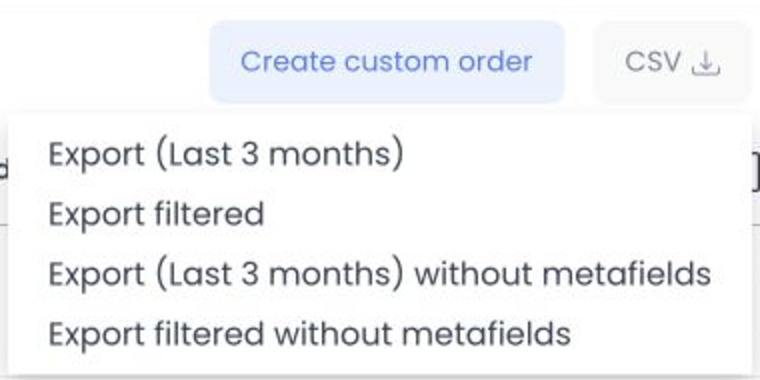
- Choose one of the available options:
- Export all requests orders in your permitted scope, subject to the server-defined date-range limit.
- Export filtered lets you choose the status groups to include and applies the current order filters.
- Export all without metafields omits custom metafield columns.
- Export filtered without metafields combines the selected status groups and current filters while omitting metafield columns.
When you choose Export filtered, select one or more of Pending, In progress, Completed, and Cancelled in Select tabs to export, then select Export. The currently selected Orders status group is selected first.
The current UI does not state a date window in the option labels. The API source applies a configured maximum date range and can reject a request that exceeds it.
The filtered report uses the current Orders controls. Depending on your project, those can include order or external ID, status, delivery date, business, driver, delivery type, payment method, city, customer information, assignment, logistics, country, currency, administrator, offer, coupon, and brand scope.
Receive and download the report
After you select an export option, the Dashboard source displays the API result or an error. The API source defines a background job, email delivery, and a temporary link with a 24-hour expiry; this guide does not claim that any request, job, email, or download completed.
The maximum delivery-date range is configured by the API environment. Source also defines one active Orders report job at a time for the same user and project, plus a possible wait after a large report. Read the returned message rather than assuming a request was queued.
If an approved report email arrives and its link has expired, submit a new request rather than forwarding or reusing the old link.
Handle the file safely
- Download it only to an approved, access-controlled location.
- Share the minimum necessary data with people who are authorized to see it.
- Do not paste customer, payment, address, location, message, or internal-comment data into tickets or chat conversations without following your organization’s privacy process.
- Select a “without metafields” option when custom fields are not required for the task.
Troubleshooting
Why did the Dashboard not start my export?
Check that your profile has an email address, that no report is already being generated for your account and project, and that the selected date range is within your project’s limit. Read the Dashboard error before trying again.
Why is the file not in my browser downloads?
The source-defined flow uses background generation and email delivery. The CSV control does not define an immediate browser download; check the API message and your approved email channel without assuming delivery succeeded.
Why are some orders missing?
The report follows your selected filters, status groups, and role-based scope. Review the active Orders filters and confirm that your account is authorized for the expected business or driver-group data.
Related guides: Search and filter orders · View and manage an order