Edit customer contact information on an order
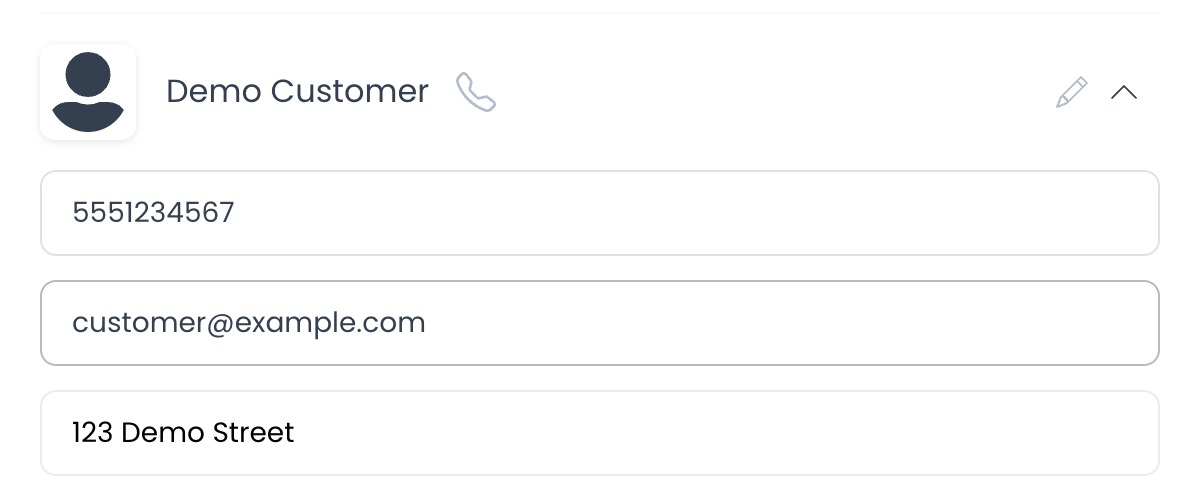
Use the customer section of an order's detail panel to request corrections to the contact and delivery information carried in that order. The current Dashboard source merges the edited fields into the order's customer object and submits that object to the order update endpoint.
The inspected client sends these fields through the selected order's update request; it does not call the user-profile update API from this workflow. It does not submit order items, payment fields, or status from this editor.
Before you start
- Open the intended order from Orders list.
- Confirm the customer details before editing them.
- Have the corrected phone number, email, address, and delivery notes ready.
- Do not learn this workflow with real customer data. Selecting Save submits customer information through an authenticated order write.
Edit the customer details
- In the order detail panel, expand the customer section.
- Select the pencil icon next to the customer information.
- Update the available fields:
- Phone / Mobile
- Address
- The delivery marker on the map, when you need to correct the location
- Notes
- Select Save.
- Review the confirmation or error shown by the Dashboard, then verify the fields displayed for the same order.
The source supplies the project's Google Maps configuration to the address and map controls. Moving the marker changes the location included in the next submitted customer object; this review did not contact the map provider or a deployed API.
This workflow submits customer contact and location data. Verify the intended order and corrected values before saving, and follow your organization's privacy and data-handling policy.
Verification checklist
- The customer section belongs to the intended order.
- The phone number, email, address, location, and notes are correct.
- The map marker is correct when a delivery location was changed.
- The Dashboard shows Customer info updated only when the inspected client receives a response without an error.
- The updated values are visible for the same order; if the request returned an error, treat the original values as authoritative.
Troubleshooting
Why don't I see the pencil icon?
The inspected source hides the editor for read-only business-owner access. API source allows the customer object to be processed for administrator, business-manager, or driver-manager callers, subject to the order-scope and update validations.
Why can't I save the address or map location?
Address suggestions and the marker depend on the project's map configuration in the current client source. This source-only review does not establish provider availability. If the control is unavailable, contact your project administrator without entering data into an unverified alternative.
Does this update the customer's profile for future orders?
The inspected Dashboard workflow targets the order update endpoint and does not call the user-profile update API. Use the separately documented customer-management workflow for a global profile change.
Can I edit products, payment, or status here?
No. This editor is limited to the customer contact information saved with the order. Use the relevant order controls for status and other available operational actions.
Related guide: View and manage an order