Create a custom order
Use Create custom order when an authorized team member needs to record an order for a customer from the Dashboard. Build the order from a store's configured products, or record an approved custom total. This workflow can help with special requests, high-volume orders, urgent requests, and approved promotional orders.
Creating the draft, submitting it, processing a payment, notifying a customer, and fulfilling an order are separate stages. Complete and verify each stage in the operational system that owns it.
The Create custom order action is available to administrator-level accounts. The fields and options shown depend on delivery type, store availability, payment methods, checkout rules, and project configuration.
Before you start
- Confirm that you are working in the correct project.
- Have the customer's phone number and delivery or pickup address available.
- Confirm that an eligible store is open for the selected address and order type.
- Use only customer information you are authorized to access. Do not copy customer, address, or location information into unapproved tickets or chat conversations.
- Decide whether the order should be built from products or represented by a custom total before you begin.
Open the custom-order panel
- In the Dashboard sidebar, select Orders.
- Select Orders list.
- Select Create custom order.
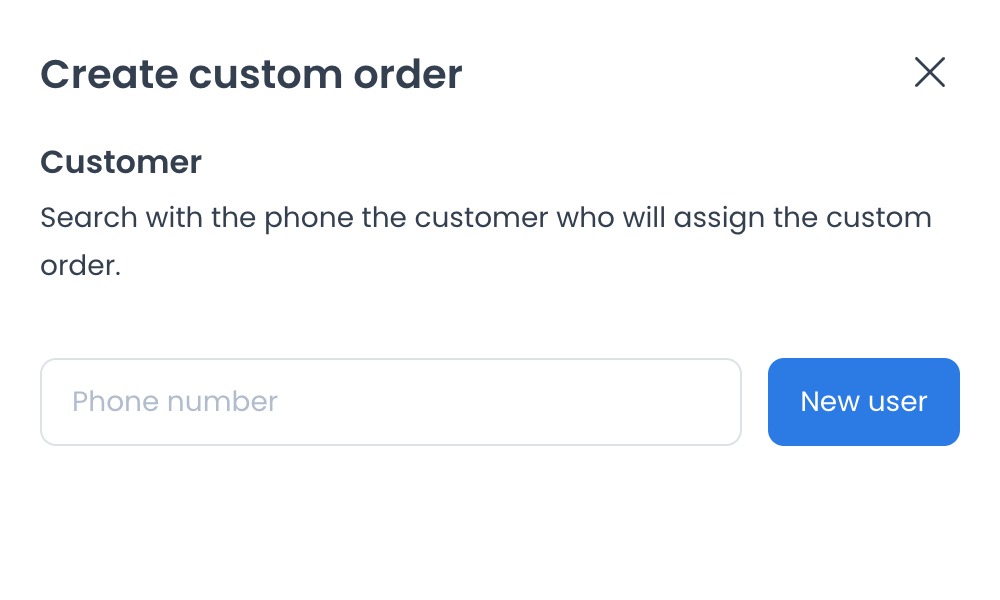
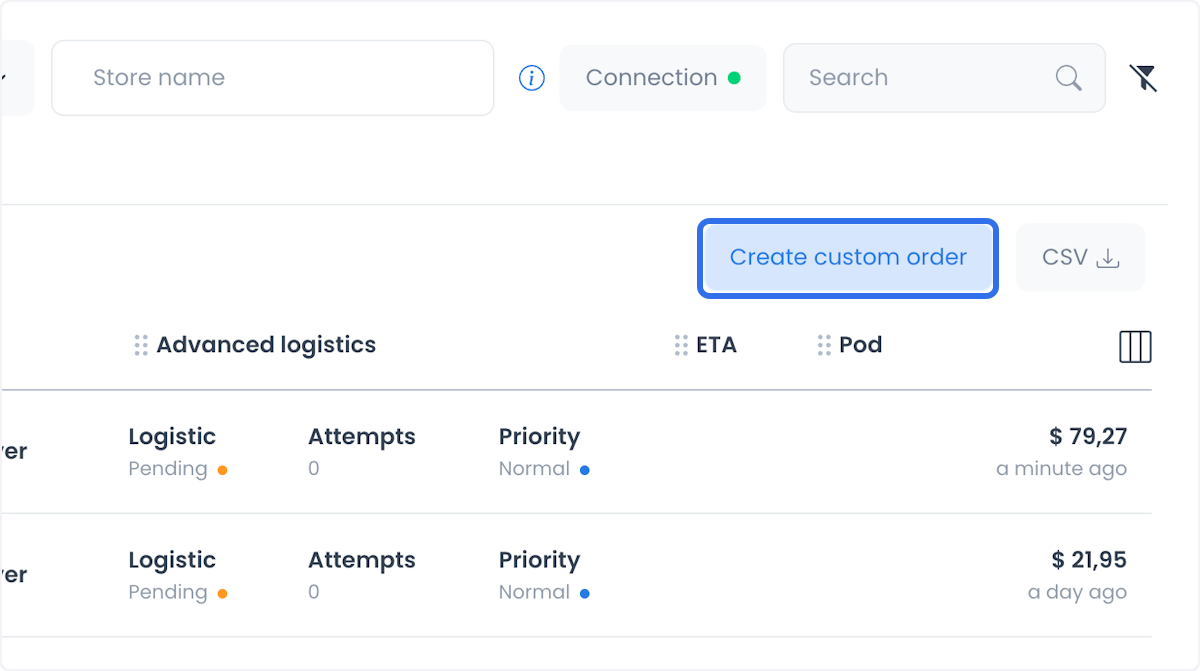
Build the customer and address draft
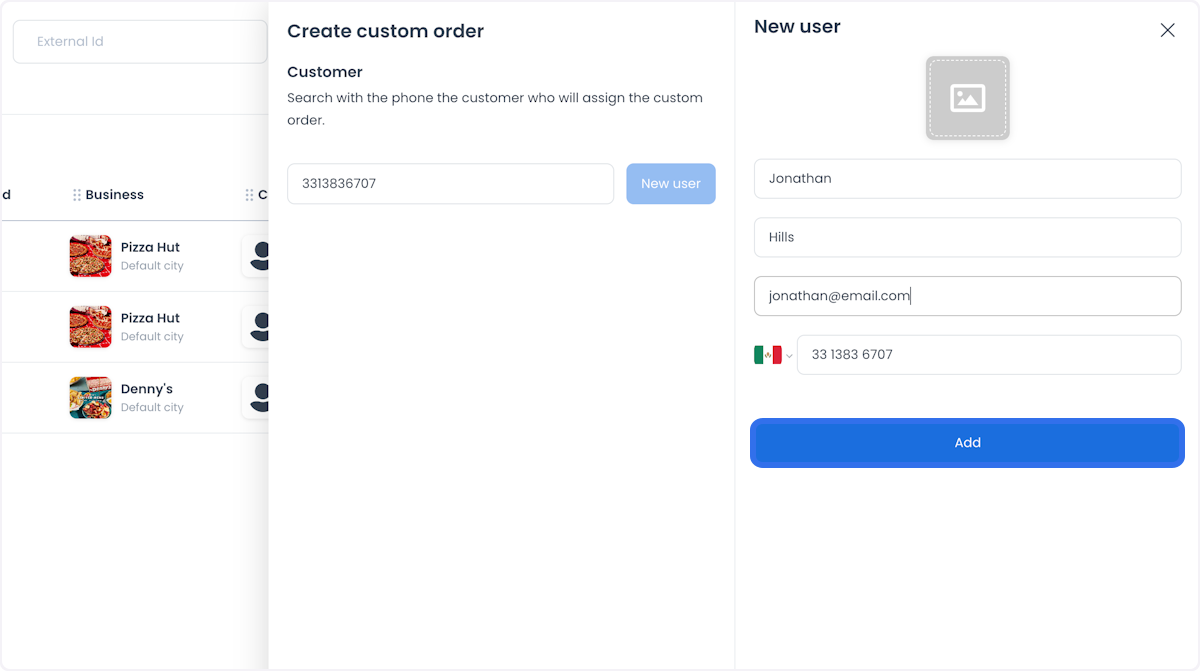
- Enter at least seven digits of the customer's phone number to search enabled customers.
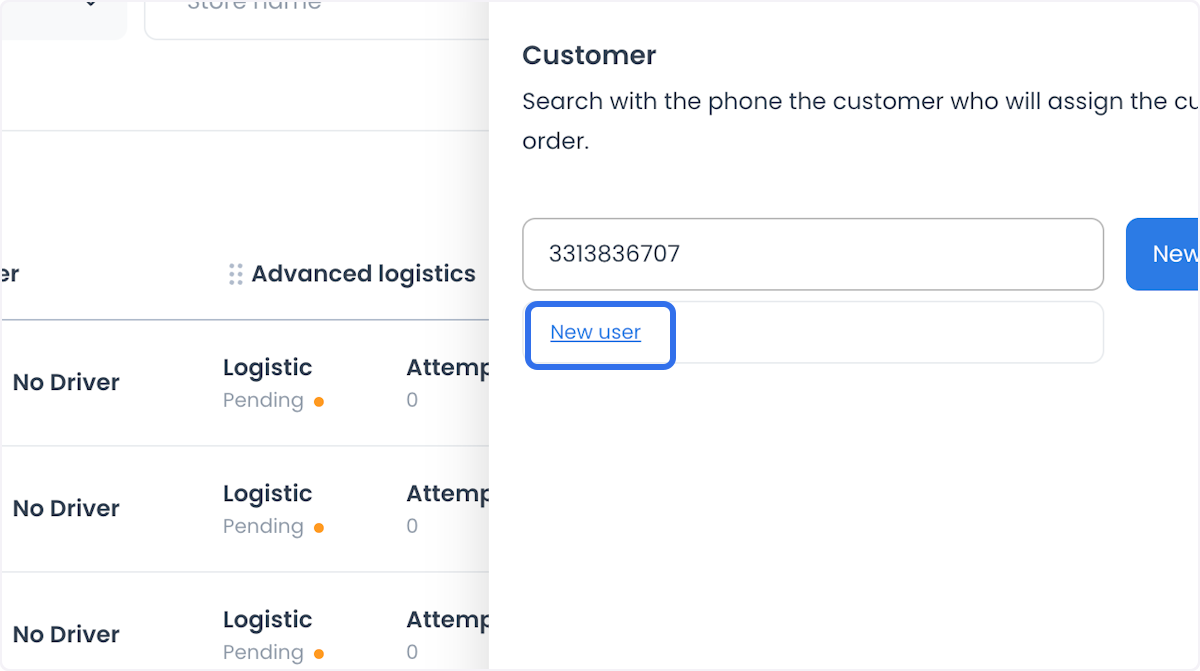
- Select the matching customer, or select New user to create one.
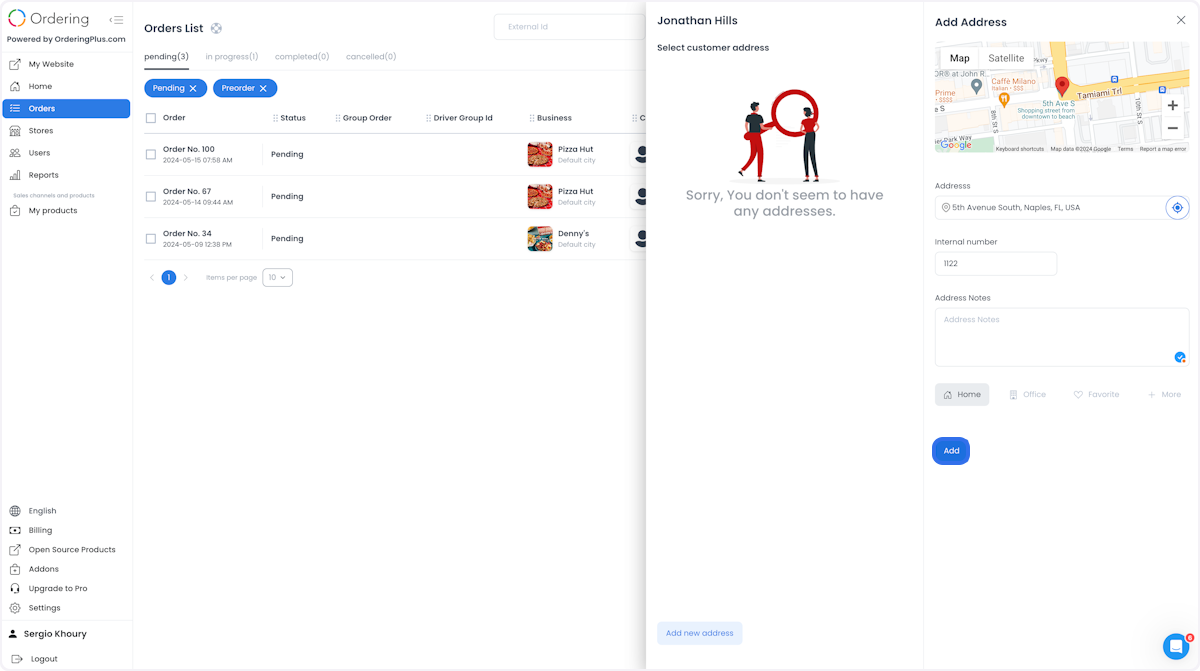
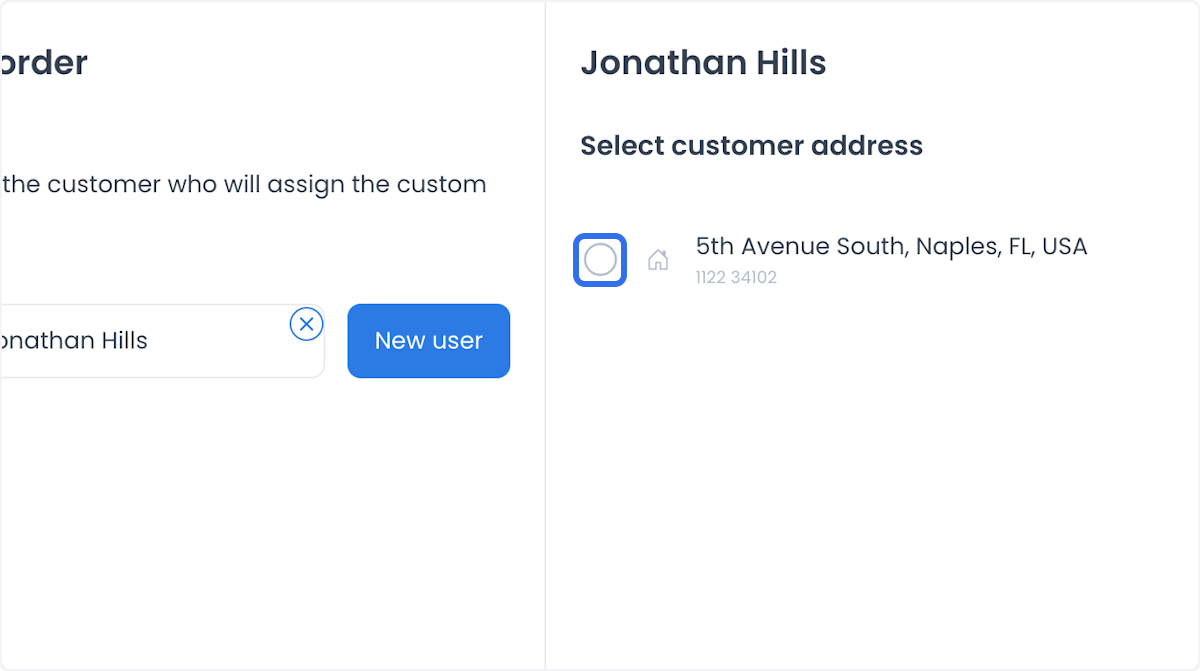
- Select an existing customer address, or select Add new address.
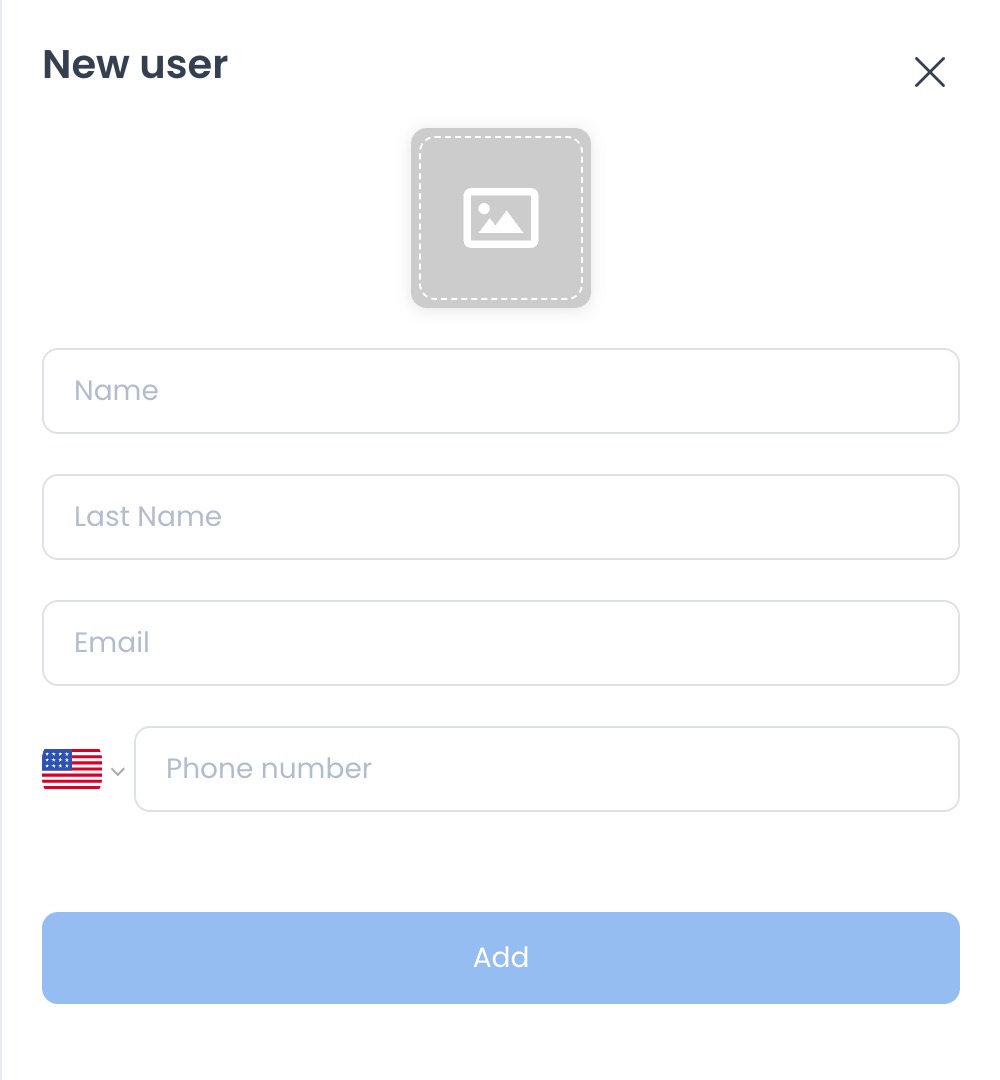
The New user panel provides fields for name, last name, email, phone number, and a profile image. Complete the fields required by your project's customer configuration, then select Add.
When you add an address, provide the relevant address information, review the map location, and select Add to save it to the draft.
Select the intended address before continuing. The rest of the form appears after the selected address includes a map location.
Choose fulfillment and a store
- Select the available order type. Depending on project configuration, options can include Delivery, Pickup, Eat in, Curbside, and Drive thru.
- Select an eligible open business for the customer's location and the order type.
- Review the map to confirm the customer and business locations.
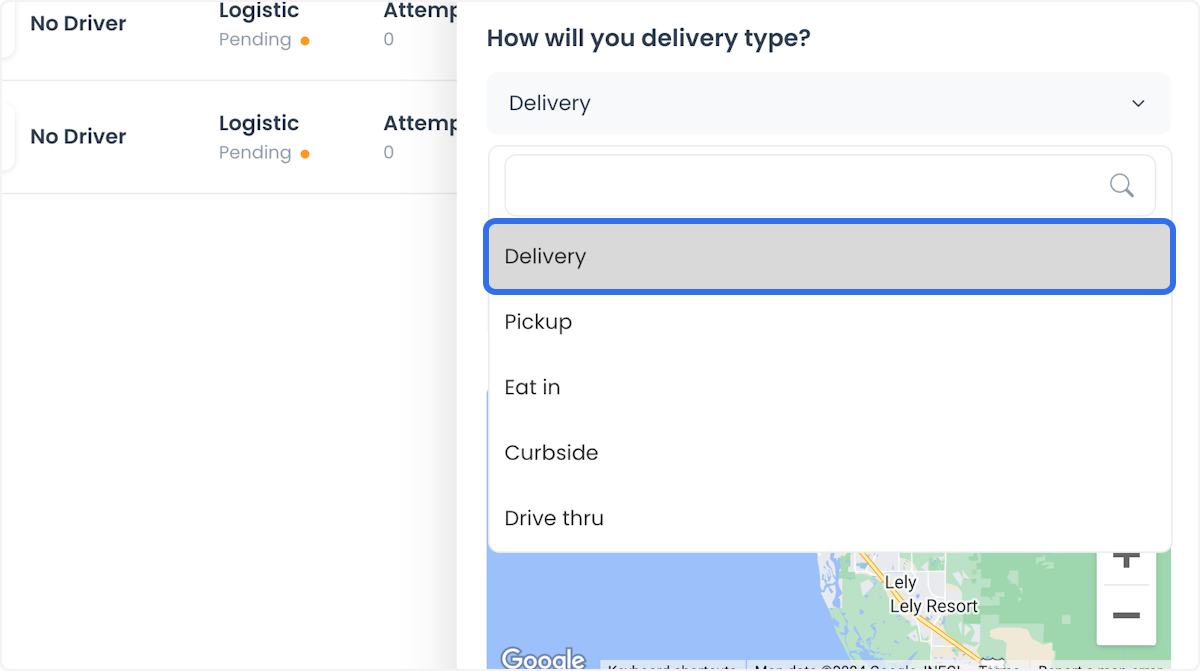
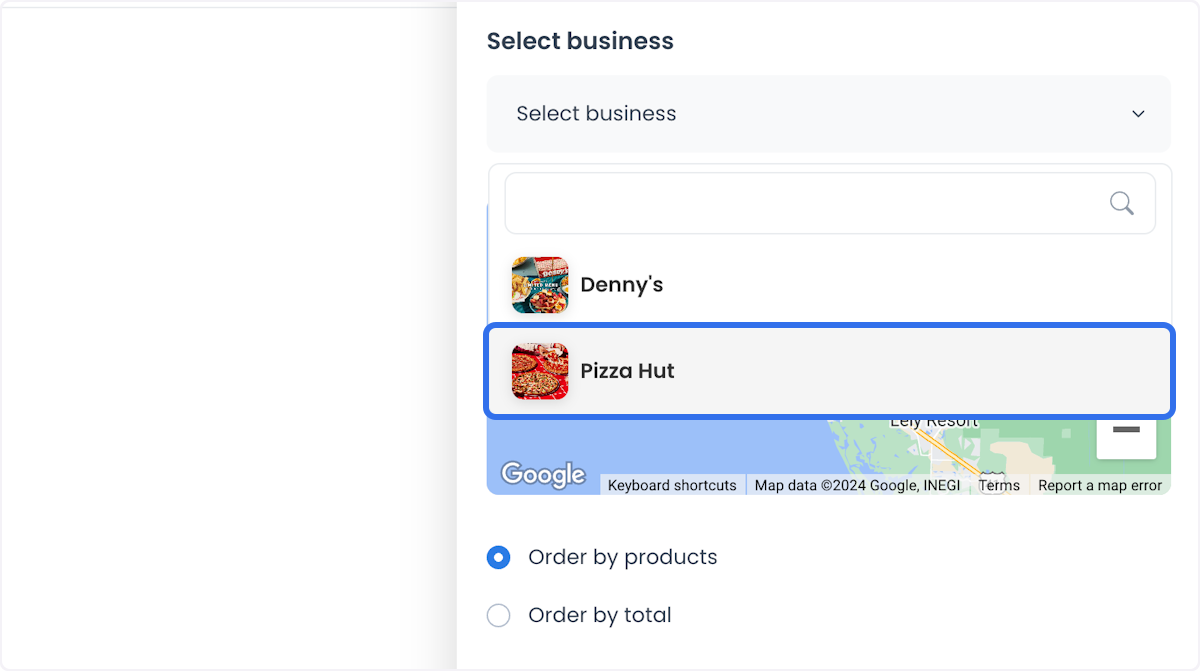
If no business appears, review the selected address, order type, store schedule, and service area. A visible business or map location does not confirm that the order is eligible for submission.
Build the draft with products
Order by products is selected by default.
- Select a product from the chosen business.
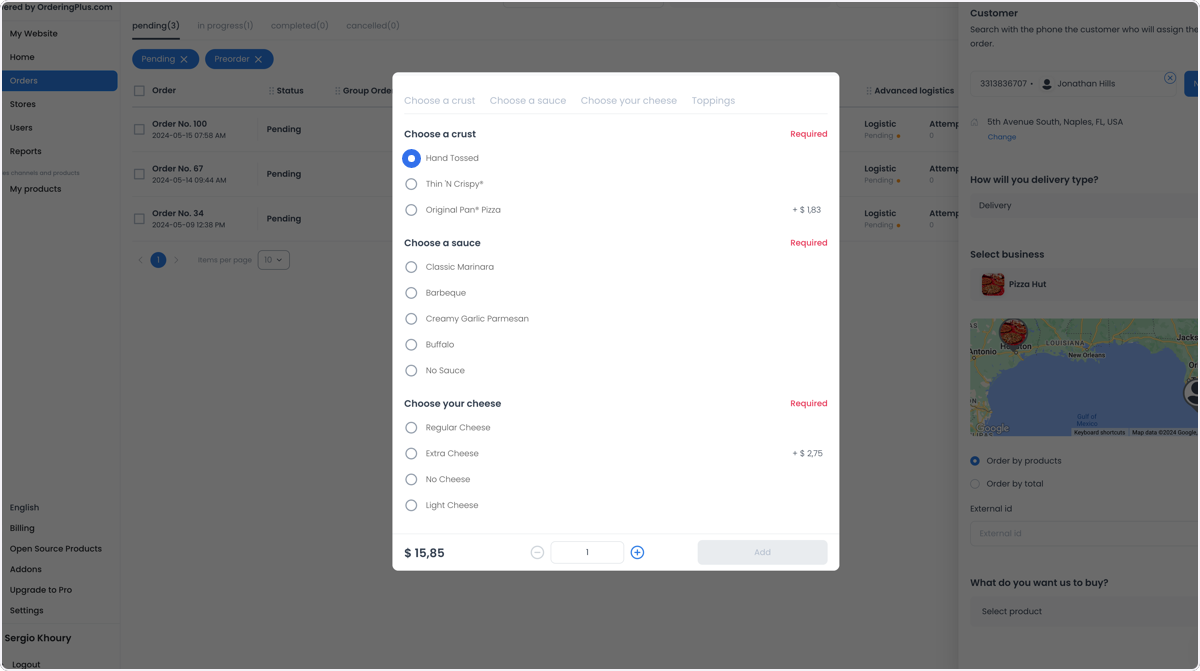
- Complete any required options or ingredients.
- Set the quantity, then select Add.
- Repeat for additional products.
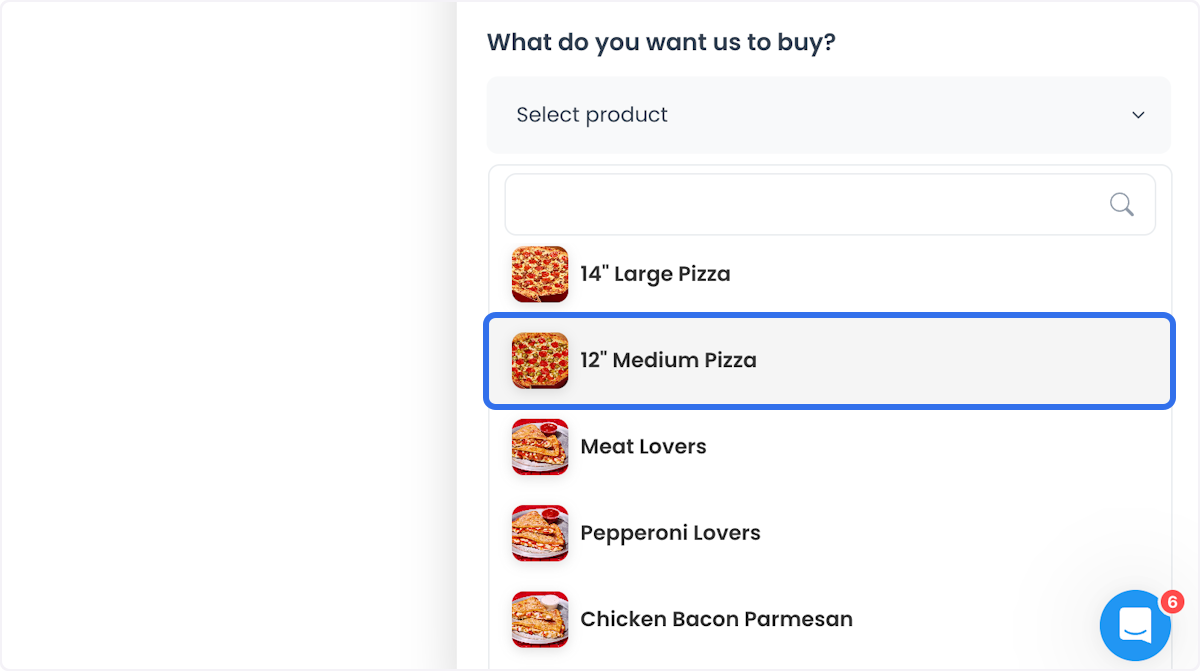
Open a product to complete its required choices before adding it to the draft.
You can edit, remove, or change the quantity of products before submitting the order. Product availability, required options, and minimum or maximum quantities can be validated again during checkout.
Or record a custom total
Use Order by total when the order is represented by a custom amount instead of configured products.
- Select Order by total.
- Enter the Total.
- Enter a Comment when your checkout configuration requires one.
- Optionally enter an External id.
Product mode and total mode are alternatives; do not submit both product items and a custom total in the same custom-order draft. The total flow uses the cash order path described in the Dashboard. Confirm the payment method shown for the order before submitting it.
Review payment and provider state
Review the order summary, available payment method, and any driver tip before submitting. The Dashboard can show a payment choice and amount as part of the draft.
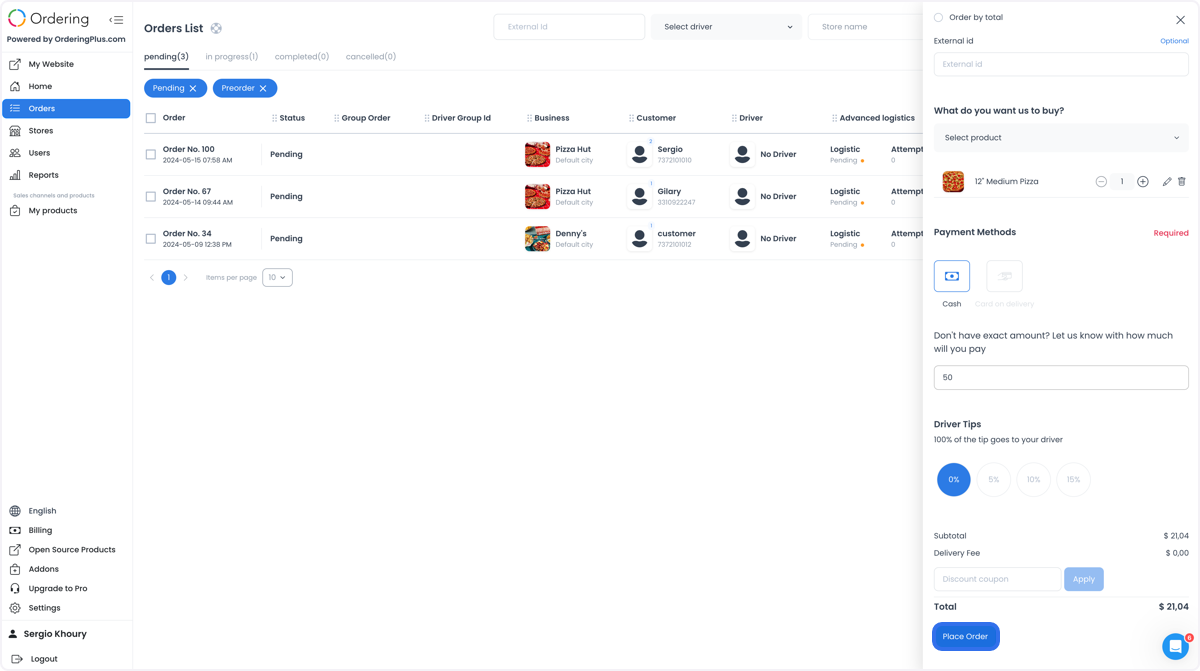
The displayed payment method and total are input to the submission request. They do not confirm payment authorization, capture, settlement, a provider response, or a later refund outcome. Verify those outcomes only in the record or system that owns them.
Validate before you submit
Review the customer, address, order type, business, products or total, payment information, and every warning shown by the Dashboard. Depending on project configuration, checkout can require a payment method, valid customer phone, table or spot number, driver tip, comment, card ZIP code, valid products and address, valid preorder time, or compliance with minimum and maximum subtotal rules.
Resolving visible warnings prepares the request; it does not bypass server-side or provider validation. If the Dashboard reports an error, read it, correct the applicable draft input, and submit again only when your operational process authorizes it.
Submit the order request
- Recheck the customer, address, order type, business, products or total, payment information, and any tip.
- Resolve every checkout warning.
- Select Place Order.
Place Order sends a consequential live-order request. It can involve payment handling, customer communication, store workflows, delivery assignment, and integrations. Verify every field before selecting it.
When the Dashboard accepts a response, it can close the panel and open the returned order. An error can remain available for review. A panel change or confirmation dialog is a UI result, not proof that payment, notification, delivery, or another downstream operation completed.
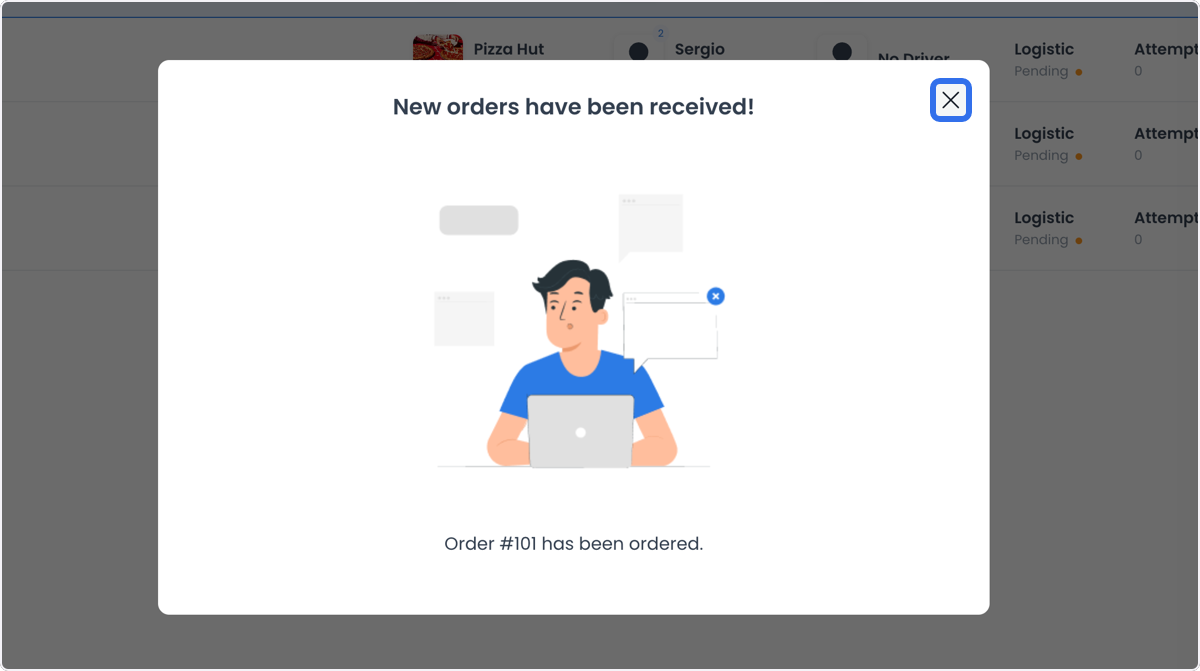
Verify order creation separately
After the request returns, reopen Orders list and use your organization's approved operational checks to match the order identifier, customer, business, total, payment state, and current status. A matching order shown after a refresh supports that the Dashboard is displaying an order record; it does not settle payment, customer notification, fulfillment, or integration effects.
If the order cannot be found, do not repeat the request based only on the panel state. First review the returned message and the approved operational record to avoid creating an unintended duplicate.
Keep customer notification separate
The returned order can expose a Messages action for its order conversation.
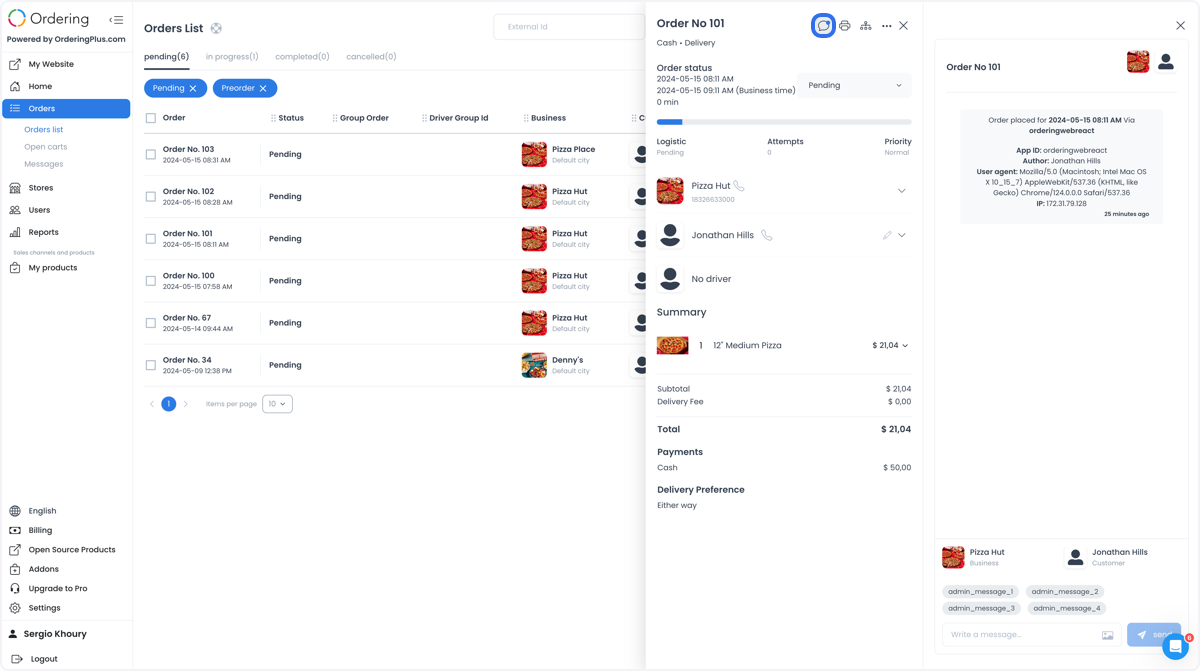
Use Messages overview only when an approved workflow requires a conversation. Opening a message or sending one can change its read state or create a live communication request. A dashboard confirmation, an order record, or a visible conversation does not prove that a customer notification was delivered, received, or read.
Track status and fulfillment separately
Creating an order does not assign a driver, advance an order status, complete pickup, or complete delivery. Review the order in the appropriate operational view, then use only the visible actions your role and the order's current state allow. Confirm each status or fulfillment result separately after any applicable refresh.
Common use cases
- Record an approved special request, including dietary or other customer preferences that the selected business can fulfill.
- Prepare a high-volume order for an event, party, or corporate customer when the business and checkout rules support it.
- Handle an approved last-minute request without treating speed as a reason to skip validation.
- Record an approved promotional order while preserving the same customer, payment, and fulfillment checks as any other order.
Troubleshooting
Why can't I find the customer?
Enter at least seven phone-number digits. Confirm that the customer is enabled, or use New user to create the customer.
Why don't I see the rest of the form?
Select a customer and an address with a valid map location. The order-type and business sections remain hidden until that location is available.
Why don't I see a business?
Only eligible businesses that are open for the selected location and order type are listed. Review the address, service area, order type, and store schedule.
Why is Place Order disabled?
Review the warnings shown in checkout. Common causes include a missing payment method, invalid product or address, an unmet subtotal rule, a required checkout field, a card validation issue, or an unavailable schedule.
How do I verify that the order was created?
Do not rely only on the confirmation or panel change. Reopen Orders list and use your approved operational checks to confirm the order identifier, customer, business, total, payment state, and current status. Verify payment, notification, and fulfillment outcomes in their separate records.
Related guides: View and manage an order · Messages overview · Order status reference