Assign or change a driver
Use an order's detail panel to request a manual driver assignment, change, or removal. The current Dashboard source separates drivers by availability, and the API contract independently validates the selected driver and order.
The inspected source shows the manual driver controls only for Delivery and Catering delivery orders when its plan and feature conditions are met. It hides or replaces controls for read-only business-owner access, service orders, and some driver-company states.
Before you start
- Open the intended delivery order from Orders list.
- Confirm that the order does not have a driver company assigned.
- Review the driver's availability and current assigned-order count.
- Do not learn this workflow on a live order. Selecting a driver can submit an operational write from the current Dashboard source.
Assign a driver
- In the order detail panel, find Driver assign.
- Open Select driver.
- Optionally use Search to find a driver.
- Under Available, select the driver you want to assign.
- If the Dashboard asks for a manual assignment comment, enter the required comment and select Accept.
- Review the result shown by the Dashboard and any returned error. Do not infer assignment from the selection alone.
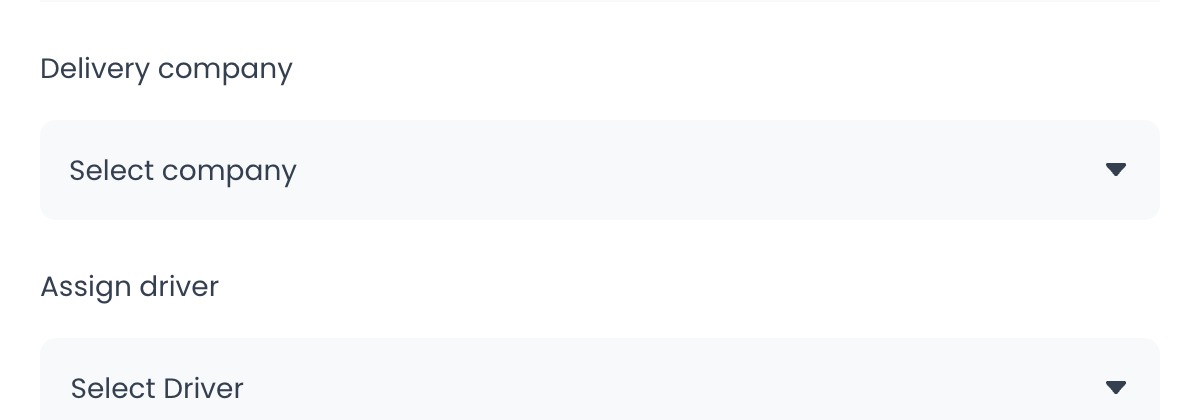
The current selector separates drivers into Available, Busy, and Not available. Its source disables busy or unavailable choices. The API performs its own checks, including driver role, enabled group coverage for the order's business, and current busy state.
Change or remove the driver
- Open Driver assign on the order.
- To change the assignment, select a different driver from Available.
- To remove the current assignment, select Remove assigned driver.
- Review the driver card and any returned error after the request finishes.
This control writes driver_id on an order. The API source contains assignment history, logistics, job, and notification paths, but their deployed execution is not established here. Confirm the order and driver before selecting an option.
Verification checklist
- The order is a Delivery or Catering delivery order and does not have a driver company assignment.
- The order and intended driver were checked before the request.
- The driver card and selector show the expected state only after an accepted response.
- If the source-presented comment flow was required, no validation error remains.
- No returned error is shown by the Dashboard.
Troubleshooting
Why don't I see Driver assign?
The inspected source gates the control by delivery type, plan/configuration, service-order state, read-only business-owner access, and driver-company state. A project's deployed configuration has not been verified by this source-only review.
Why is a driver listed but unavailable to select?
The selector source disables busy and unavailable entries. The API can still reject a selected driver if the driver's current state or enabled group coverage no longer satisfies its validation.
Why was the assignment rejected?
The API source can reject a driver who is invalid, busy, or outside an enabled driver group for the order's business. Review the returned error and current order state before deciding whether to retry.
Why am I asked for a comment?
The current UI source contains a manual-assignment comment flow and submits the comment with driver_id. Whether the flow is required in a particular deployed project has not been verified here.
Related guide: View and manage an order