Orders — Overview
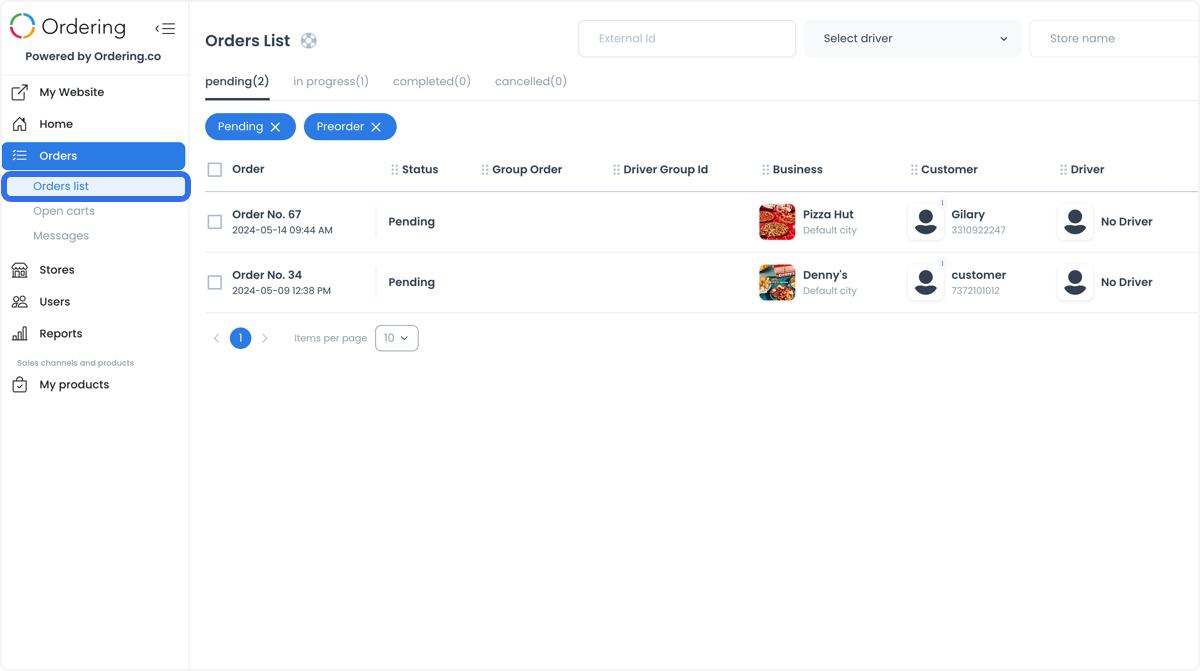
Orders list, inside the Dashboard's Orders section, brings together the orders your account can access. Use it to identify individual orders, monitor their progress, and open their details. Its search, filtering, manual-order, and export tools help you manage the queue and review your business's operations.
Benefits for your business
- Enhanced order visibility — Review incoming orders in one place to plan work and allocate resources.
- Improved efficiency — Track detailed order statuses and access essential order information to streamline processing.
- Custom order creation — Create orders manually from the Dashboard to accommodate customer requests when your account has access to that action.
- Data export capabilities — Export order data for analysis and reporting to support business decisions and improve operations.
Availability and permissions
Orders list is available to administrator, business-manager, and driver-manager accounts. The orders, filters, columns, and actions you see depend on your role, enabled features, plugins, and project configuration.
Create custom order is restricted to administrator-level accounts. Actions on selected orders have their own role and configuration checks; access to the list does not automatically grant access to every action.
Open Orders list
- In the Dashboard sidebar, select Orders.
- Select Orders list.

Main areas
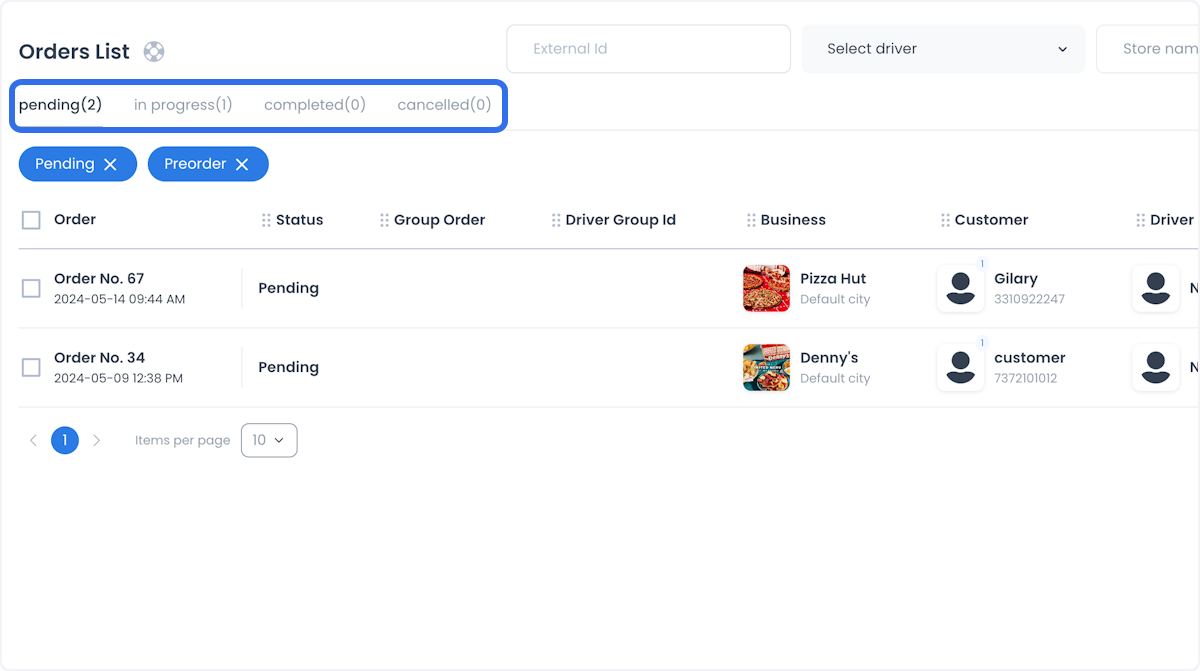
- Status groups — Move between pending, in-progress, completed, and cancelled orders to review the relevant part of the queue.
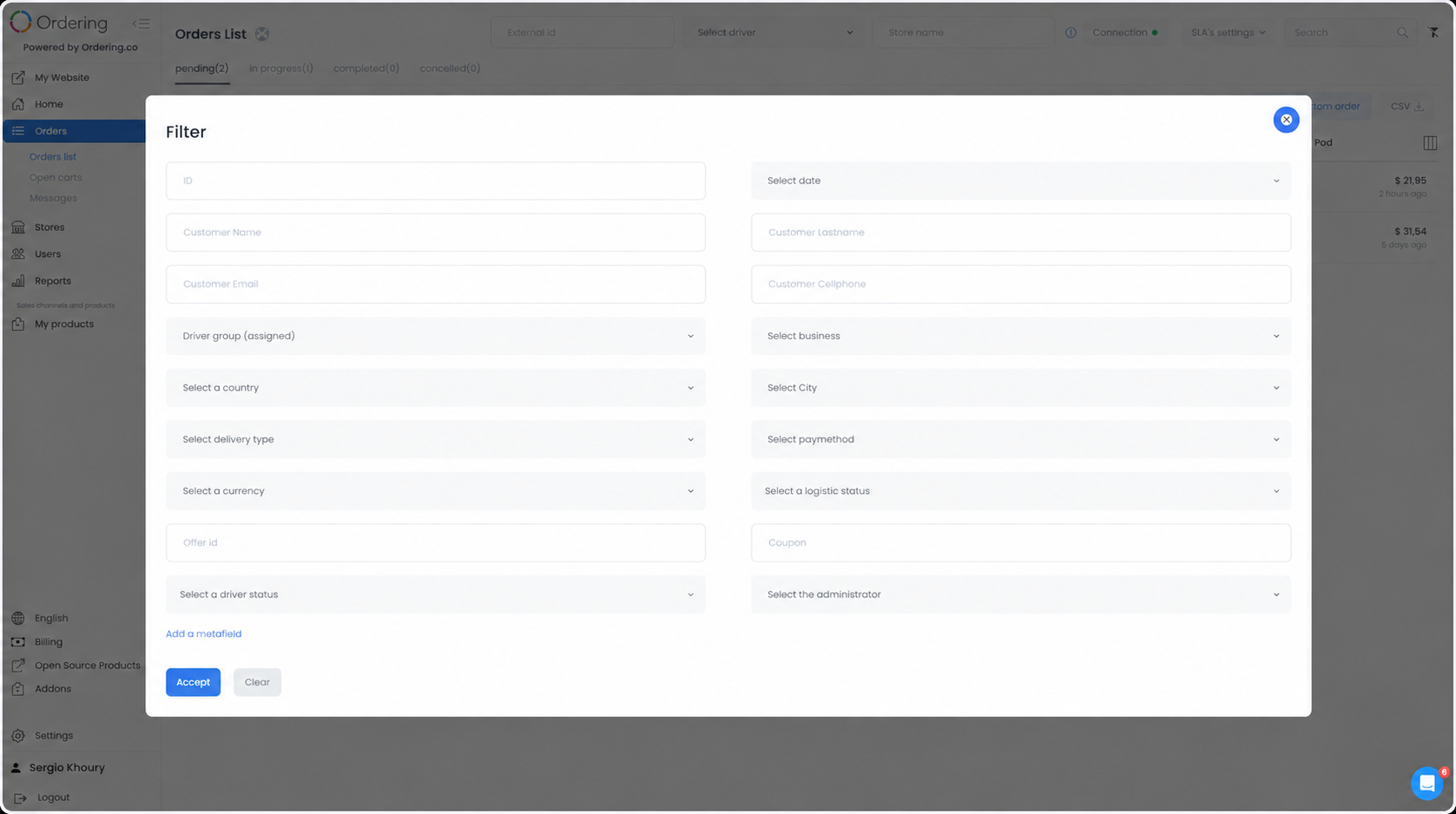
- Search and filters — Narrow the list using the controls available to your project.
- Orders table — Review the matching orders and their identifying details. Select a row to open an order's detail view.
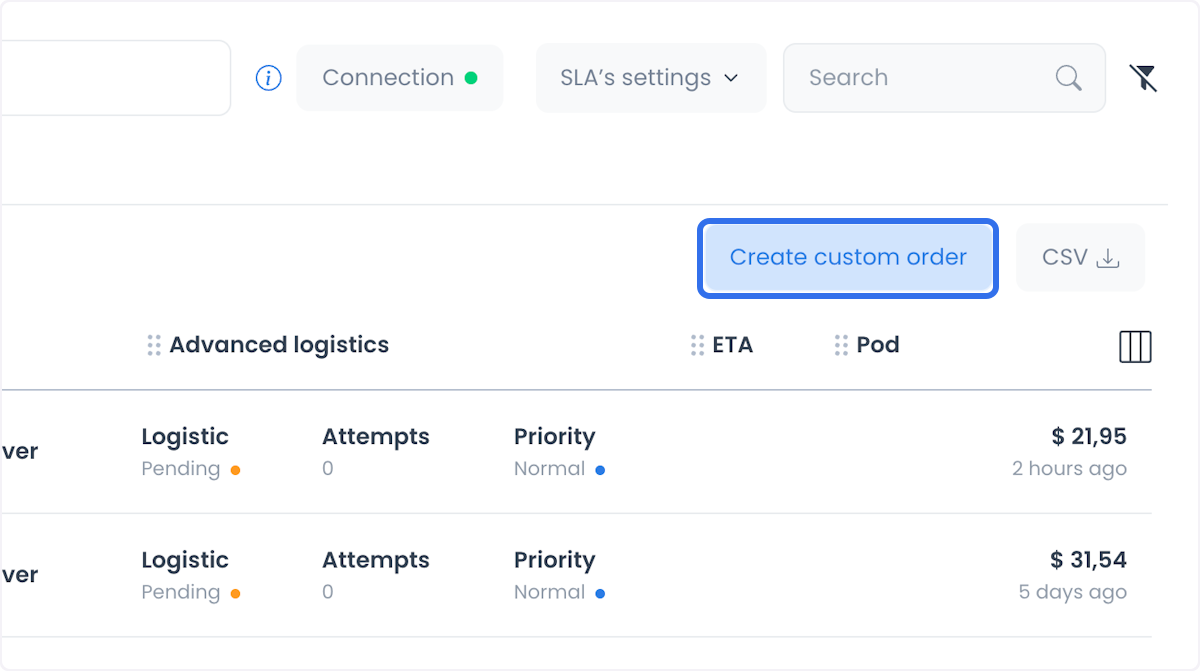
- Page actions — Depending on your access, controls can include CSV export, custom orders, columns, and actions on selected orders.
Order statuses and substatuses
Orders list groups orders into Pending, In Progress, Completed, and Cancelled. Within those groups, more specific statuses describe progress through preparation, assignment, pickup, delivery, completion, or an unsuccessful outcome.
Each order has a numeric status code. The four groups organize the list; they are not additional status codes. The tables below cover the 27 codes in the documented Ordering.co API order-status catalog.
Pending
| API code | Dashboard status | Meaning |
|---|---|---|
0 | Pending | The order is waiting for the next operational action. |
13 | Preorder | The order is marked as a preorder and remains in the Pending group. This status is informational in the generic status selector. |
In progress
| API code | Dashboard status | Meaning |
|---|---|---|
7 | Accepted by Business | The business accepted the order. |
4 | Preparation Completed | The business marked preparation as complete. |
8 | Accepted by Driver | A driver accepted the order. |
3 | Driver arrived to business | The driver arrived at the business. |
9 | Pick up completed by driver | The driver collected the order from the business. |
14 | Order not ready | The order is not ready for the next pickup step. |
18 | Driver almost arrived to business | The driver is approaching the business. |
19 | Driver almost arrived to customer | The driver is approaching the customer. |
20 | Customer almost arrived to business | The customer is approaching the business. |
21 | Customer arrived to business | The customer arrived at the business. |
22 | Looking for driver | The platform is searching for a driver. |
23 | Driver on way | The assigned driver is on the way. |
24 | Driver waiting for order | The driver is waiting for the order. |
25 | Accepted by driver company | A driver company accepted the order. |
26 | Driver arrived to customer | The driver arrived at the customer's location. |
Completed
| API code | Dashboard status | Meaning |
|---|---|---|
1 | Completed by Admin | An administrator marked the order as completed. |
11 | Delivery Completed by Driver | The driver completed the delivery. |
15 | Pickup completed by customer | The customer completed the pickup. |
Cancelled
| API code | Dashboard status | Meaning |
|---|---|---|
2 | Rejected by Admin | An administrator rejected the order. |
5 | Rejected by Business | The business rejected the order. |
6 | Rejected by Driver | The driver rejected the order. |
10 | Pickup Failed by Driver | The driver could not complete the pickup. |
12 | Delivery Failed by driver | The driver could not complete the delivery. |
16 | Cancelled by customer | The customer cancelled the order. |
17 | Not picked by customer | The customer did not complete the pickup. |
A status in this catalog is not automatically an action you can select. Available transitions depend on the order's fulfillment type, current state, your role, and project configuration. Some statuses are set by a driver, driver company, customer flow, or integration. Driver-company integrations have a separate, narrower set of accepted updates.
Preorder is displayed in the Pending group but cannot be selected manually in the generic status selector. Driver arrived to business (3) and Driver arrived to customer (26) identify different destinations. A returned Cancelled by customer status (16) does not establish that a cancellation button is available in the current Customer App.
For API status values and update requirements, see Update an order in API Reference.
Search, filter, and review orders
Use search and filters to locate a particular order within a large queue or focus on orders that need attention.
- Choose the relevant status group.
- Apply the search or filter controls available to your project to narrow the results.
- Select a matching order to open its detail view.
- Confirm the order number and current status before using an action that changes the order.
For detailed instructions, see Search and filter orders and View and manage an order.
Additional features
Create custom orders
Use CREATE CUSTOM ORDER to manually generate an order directly from the Dashboard. This supports customer requests that need an order entered on their behalf. The action requires administrator-level access.
Continue with Create a custom order for the complete procedure.
SLAs — Service level agreements
Use SLA’s settings to review the timing indicators and delayed threshold for orders. The panel displays tabs for Delivery, Pickup, Eat In, Curbside, and Drive Thru, but its Delayed threshold is a shared setting, not a separate value for each tab. It explains three timing indicators:
- Ok — Uses the business's expected fulfillment time as the reference.
- At risk — Identifies the interval between that expected time and the delayed threshold.
- Delayed — Indicates that the configured delayed threshold has been exceeded.
These indicators help your team identify orders that need attention and coordinate timely fulfillment. They describe order timing, not customer-support ticket response or resolution times. Changing a threshold does not itself complete an order or guarantee an on-time delivery.
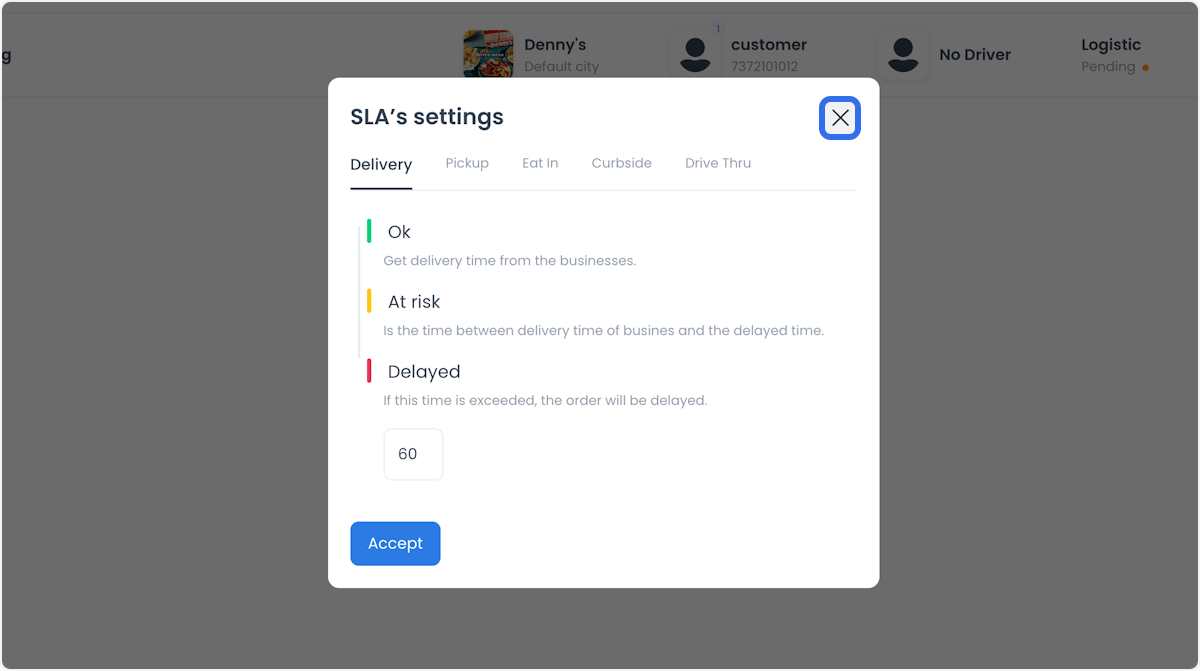
Check the displayed threshold before making a change; switching fulfillment tabs does not create an independent threshold for that type. See Order SLAs for the related order-deadline settings and reporting context.
CSV export
Use CSV, when available for your account, to request an order report for analysis and reporting. Choose Export all for your permitted scope or Export filtered to use the selected criteria. Report generation runs in the background and uses email delivery; selecting CSV does not immediately download a file.
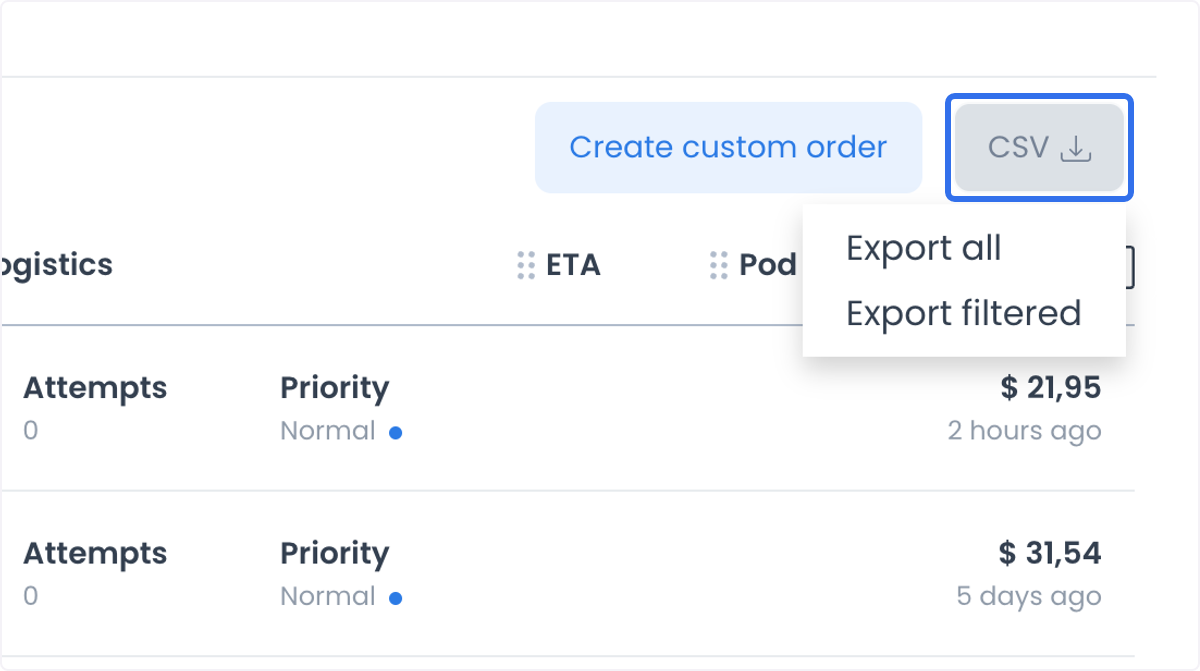
See Export orders to CSV for the detailed procedure and report-delivery behavior. Access and available options depend on your account and project.
Connection status and order updates
Select Connection to inspect the live-update connection and its Last update date and time. The panel distinguishes these states:
- Ok — The live-update connection is established.
- Connecting — The Dashboard is attempting to connect.
- Disconnected — The live-update channel is disconnected, so the list may not receive changes.
Use Update to reload the Dashboard and recheck the connection. If the problem continues, contact Customer Support. A connected indicator describes the update channel; it does not confirm that an order action completed successfully.
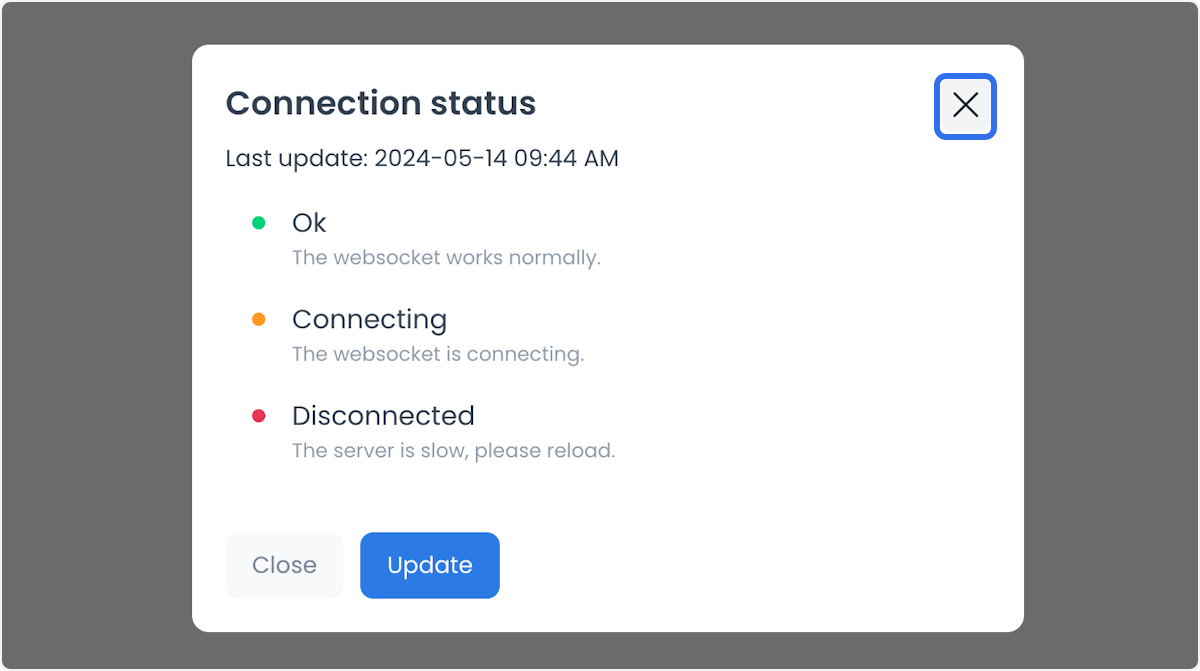
Orders list listens for order and assignment updates and keeps orders that match the selected status and filters. An updated order may therefore move or disappear from your current view. Confirm the order number and current status again before taking an action that changes the order.
Practical use cases
- Real-time order tracking — Use the status groups and detailed statuses to follow order progress and coordinate timely fulfillment and delivery. Check the current state before acting on earlier information.
- Order management — Review and update order statuses through the actions available to your account, helping teams communicate and coordinate their work. Use manual order creation when a customer's request requires it and your role permits it.
- Data analysis — Export order data to identify trends, review performance, make informed business decisions, and optimize operations.
Together, tracking, search and filtering, manual order creation, and export tools support efficient order management and help your team respond to customer needs.
Frequently asked questions
Why is a filter, column, or action missing?
Orders list adapts to your permissions and the project's plugins, enabled features, and configuration. Custom-order creation and actions on selected orders can have additional access requirements.
Why is the list empty?
The selected status may have no matching orders, or an active search or filter may be limiting the results. Review the current criteria or clear the filters.
Why did an order move or disappear from the current group?
The list receives order and assignment updates and keeps only orders that still match the selected status and filters. Recheck the other status groups and clear active criteria before concluding that an order is missing.
Keep order information current
Orders list and the detail view request order information using your signed-in account. Opening an order can load additional order and message data. Treat this as access to operational information, rather than a static preview, and use an account authorized for the orders you need to review.
Before changing an order, confirm its number and current status. Recheck the result after the action; opening a detail panel or receiving a live update does not by itself confirm that a change, delivery, payment, or refund succeeded.