Upgrade an Ordering.co product version
Use this guide when a website or mobile app needs a new build after a product-version change. Version fields are project-specific. Do not copy a version value, build value, domain, or app setting from another project.
Update a website version
The documented website version format uses the first three number groups for releases and the final number group for subversions. Change a value only through the release process that applies to your project.
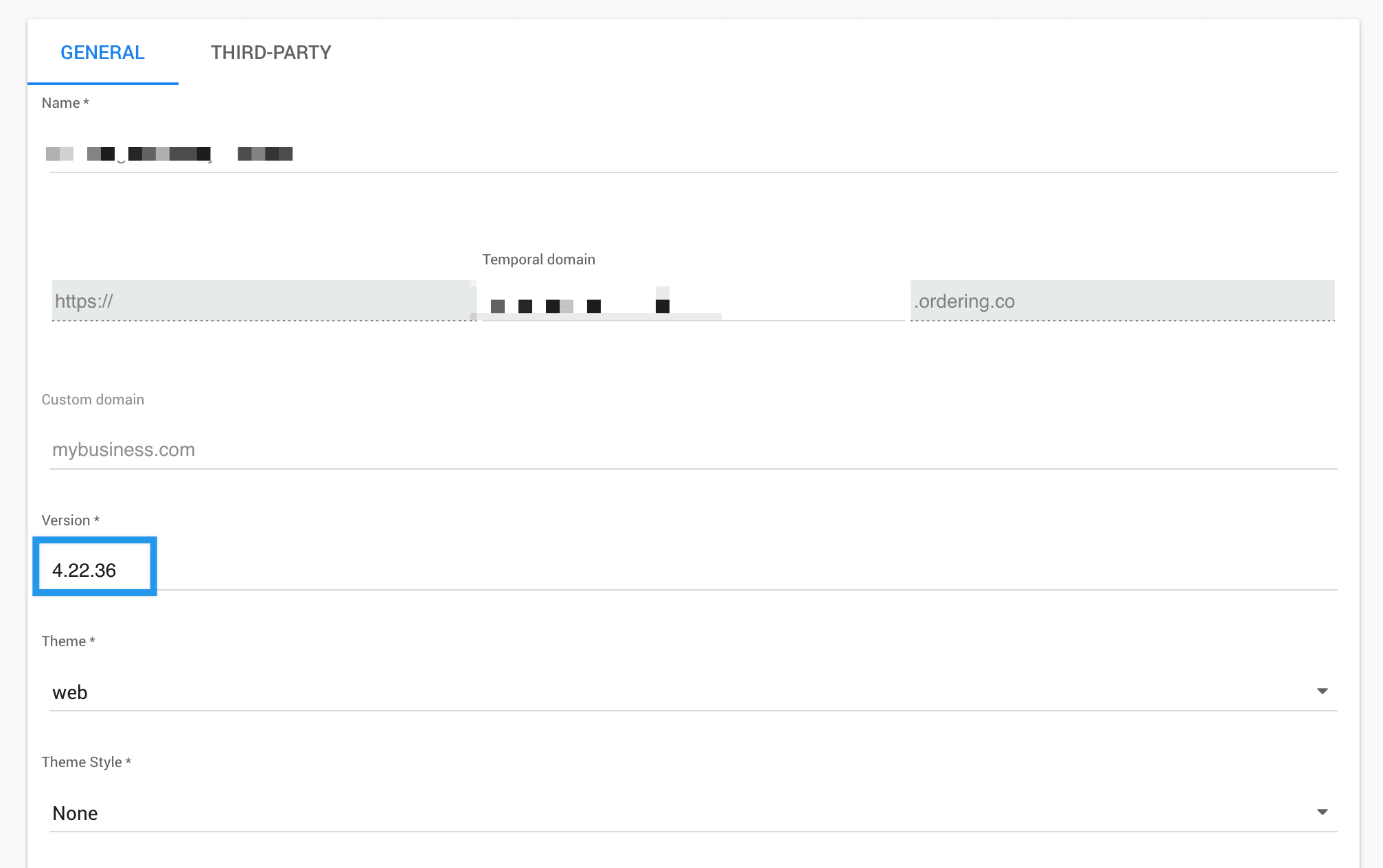
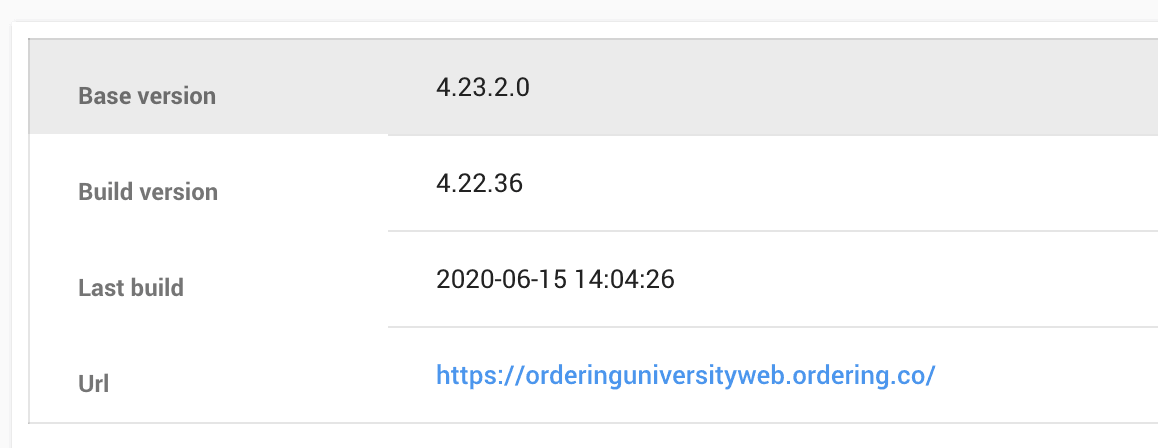
Compare the base and build versions
Before you select Update in the Builder, compare Build Version and Base Version. The documented guidance says that the build version should match the base version or be higher when the website includes changes. The captured example is a visual reference only: its values do not establish a reusable comparison rule. Confirm the required relationship for the project before building.
Verify the website update
After updating, check the website again in a new incognito window or after clearing the browser cache and history. Cached content can make an updated website appear unchanged. Close any existing private windows before opening a new one, and advise customers who still see an earlier version to clear their cache as well.
Each website or app update requires a new build so the changed information is included in the released version. The browser-cache video remains available as an additional reference. For website-building guidance, use the website-building reference.
Update a mobile app version
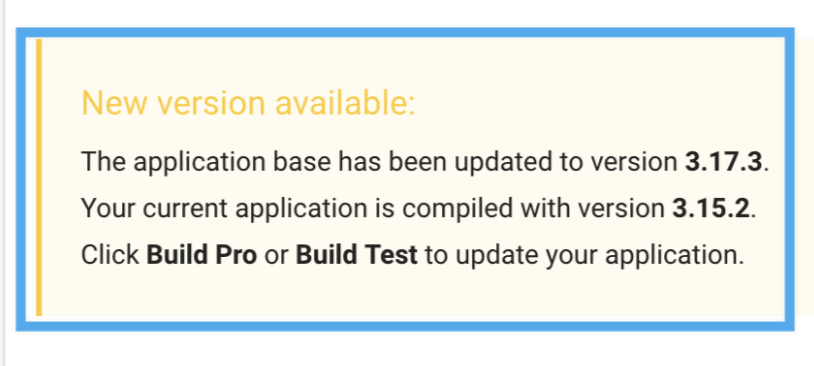
When the app displays a message that its application base has been updated, update the app version in its settings to the base version shown in that message. Then create a new app build through the approved workflow.
To make the changed app available to customers, upload the resulting release to the appropriate store: