Configure the Ordering Widget
Ordering Widgets let an eligible website present an ordering surface without sending a customer through a separate entry path. Choose the placement that fits the website’s layout and customer journey, then follow the embed instructions shown for the selected widget.
The widget control is conditional. It can appear when the selected site is not a forced site or franchise view, so confirm that the selected site exposes Ordering Widgets before planning an integration.
An embed can affect a customer-facing website. The examples below describe the available placement patterns; they do not prove that a given website, menu, checkout, payment method, or ordering flow is deployed, reachable, or approved.
Choose a widget type
Button with modal style
This option opens the ordering website in a popup after the customer selects a button. It can keep a landing page focused while making the menu and ordering experience available from a clear call to action.
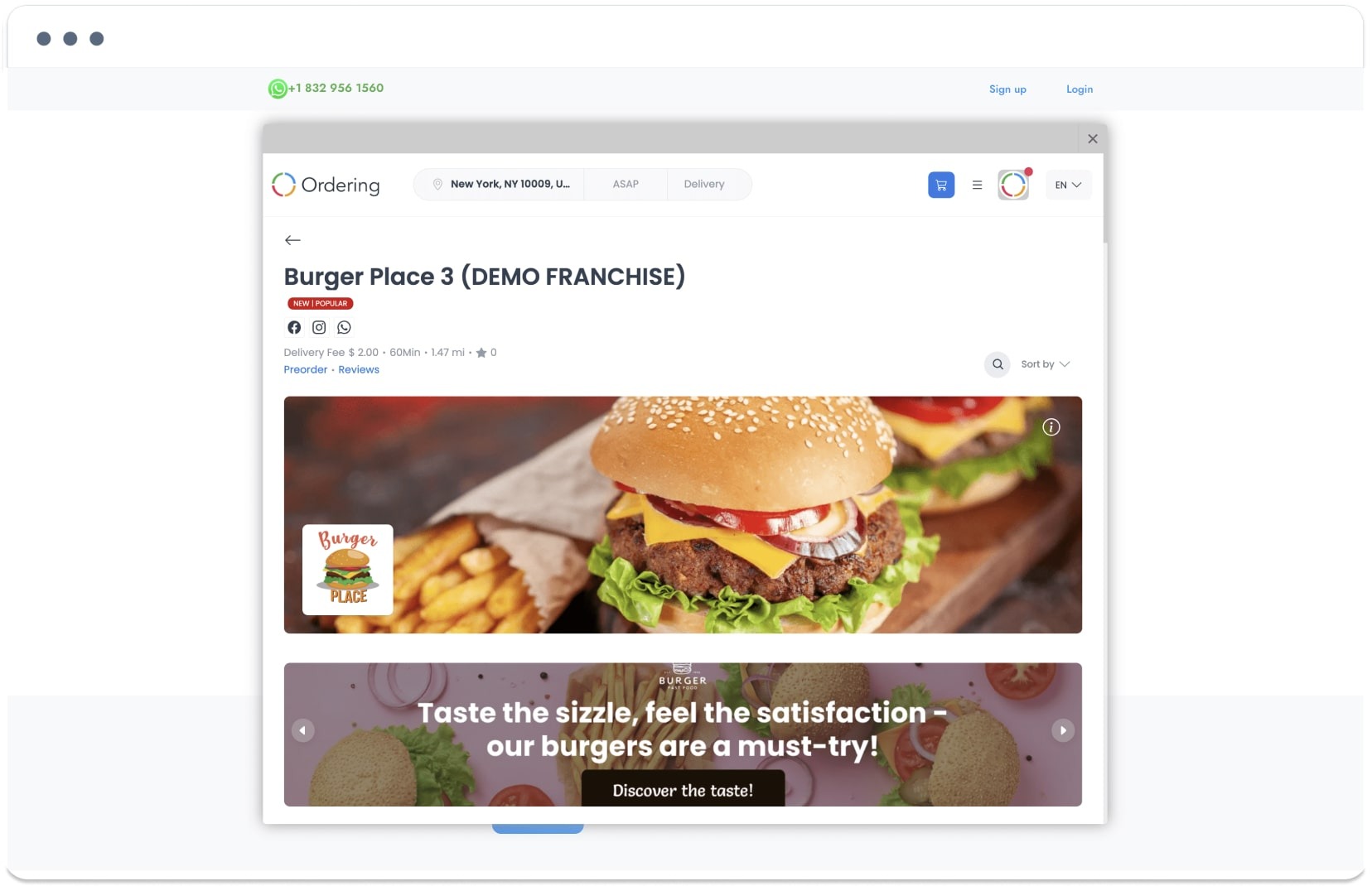
In My Products → Ordering Widgets, choose Button with Modal Style, configure the button shown by the editor, and use the provided embed instructions on the destination website.
Chat-style integration
This option uses a compact chat-sized window associated with a bubble. A customer can select the bubble to open the ordering surface.
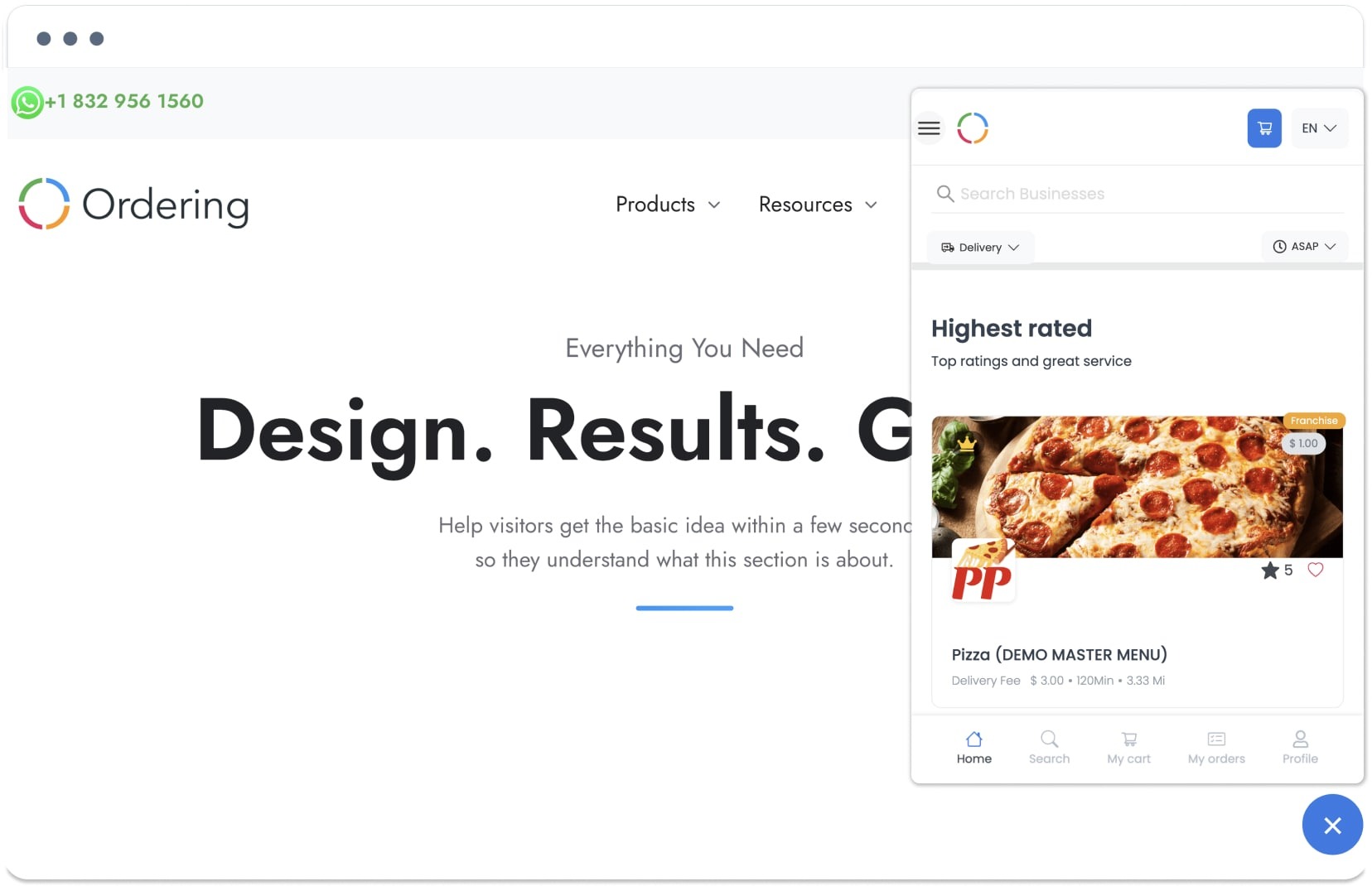
In My Products → Ordering Widgets, choose Chat Style Integration, then follow the editor’s instructions to configure and embed the bubble.
Inline integration
This option displays the ordering website within a designated area of a landing page. It can make the menu and ordering surface part of the page layout rather than a separate popup or bubble.
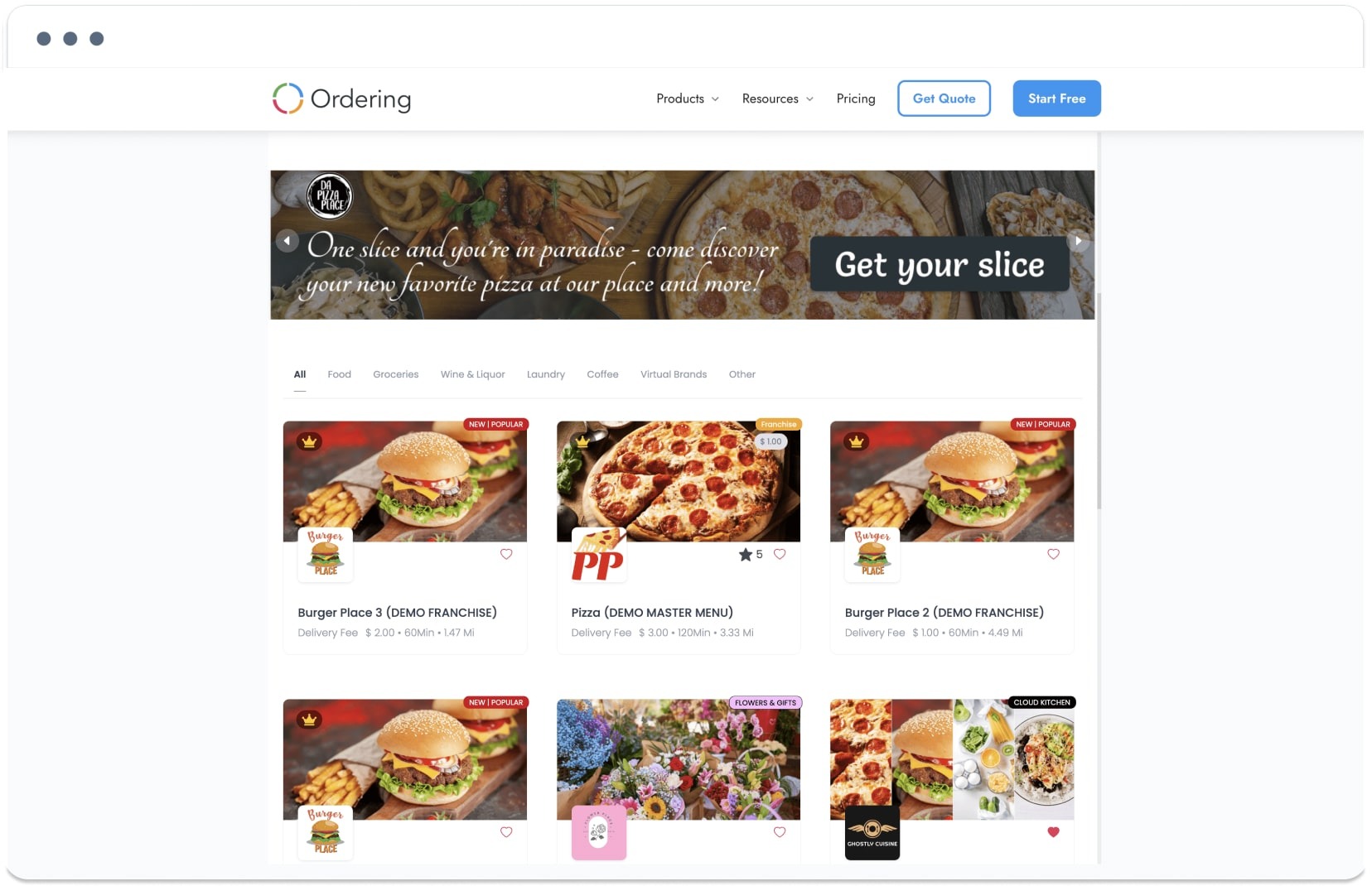
In My Products → Ordering Widgets, choose Inline Integration and place the generated integration where the page’s layout can support it.
Select the placement for the customer journey
- Use a modal button when a restaurant or store site needs a direct, visible way to open ordering without filling the page with the ordering surface.
- Use a chat-style widget when a compact, persistent entry point fits the site’s navigation and does not obscure essential content.
- Use an inline widget when a dedicated landing page should show ordering alongside contextual content, such as a catering offering or campaign page.
These patterns can improve the path back to ordering when they are configured and tested for the website. They do not by themselves establish menu availability, pricing, checkout completion, payment acceptance, or order delivery.
Validate the embed safely
- Confirm the selected site exposes the widget option.
- Use an approved non-production website or fixture for the integration check.
- Confirm the placement remains usable on desktop and mobile without hiding navigation, legal content, or another important action.
- Verify the destination URL and visible content before sharing the embed with customers.
Related guides: Manage Ordering Website · Use the website PWA