Use the website PWA
A Progressive Web App (PWA) is a website that a browser can present with an app-like experience. It can let customers open a saved website from a home-screen icon instead of first navigating through a browser tab. The actual install prompt, offline behavior, notifications, and performance depend on the browser, device, deployed site configuration, and permissions.
A PWA can provide cached offline content, push notifications, and other capabilities when the deployed site and the customer’s browser support and enable them. Confirm which capabilities are available for the site and browser you use.
Add the website to an iPhone or iPad home screen
Use Safari to open the website. If the browser offers a home-screen action for the site, follow the prompt shown by the device.
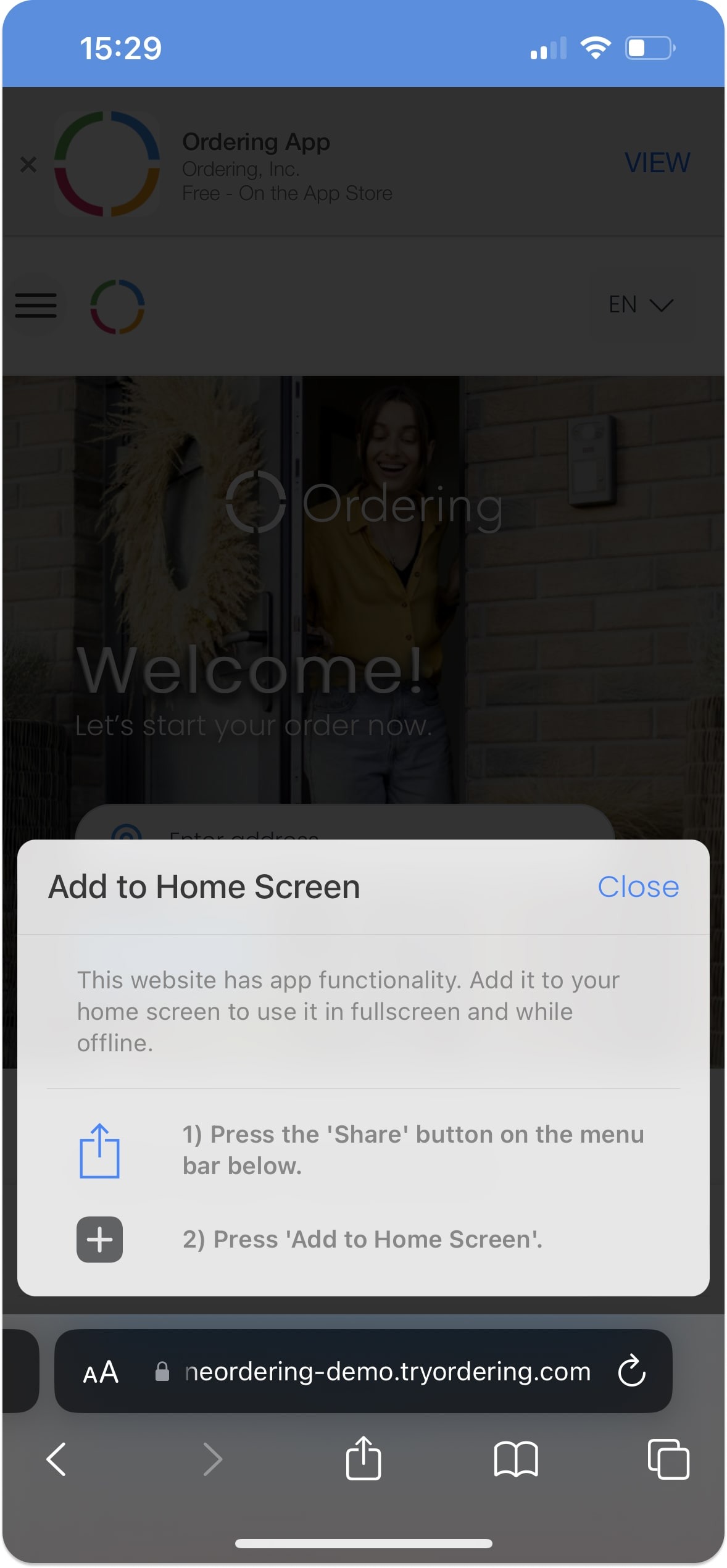
Choose the action to add the website to the home screen.
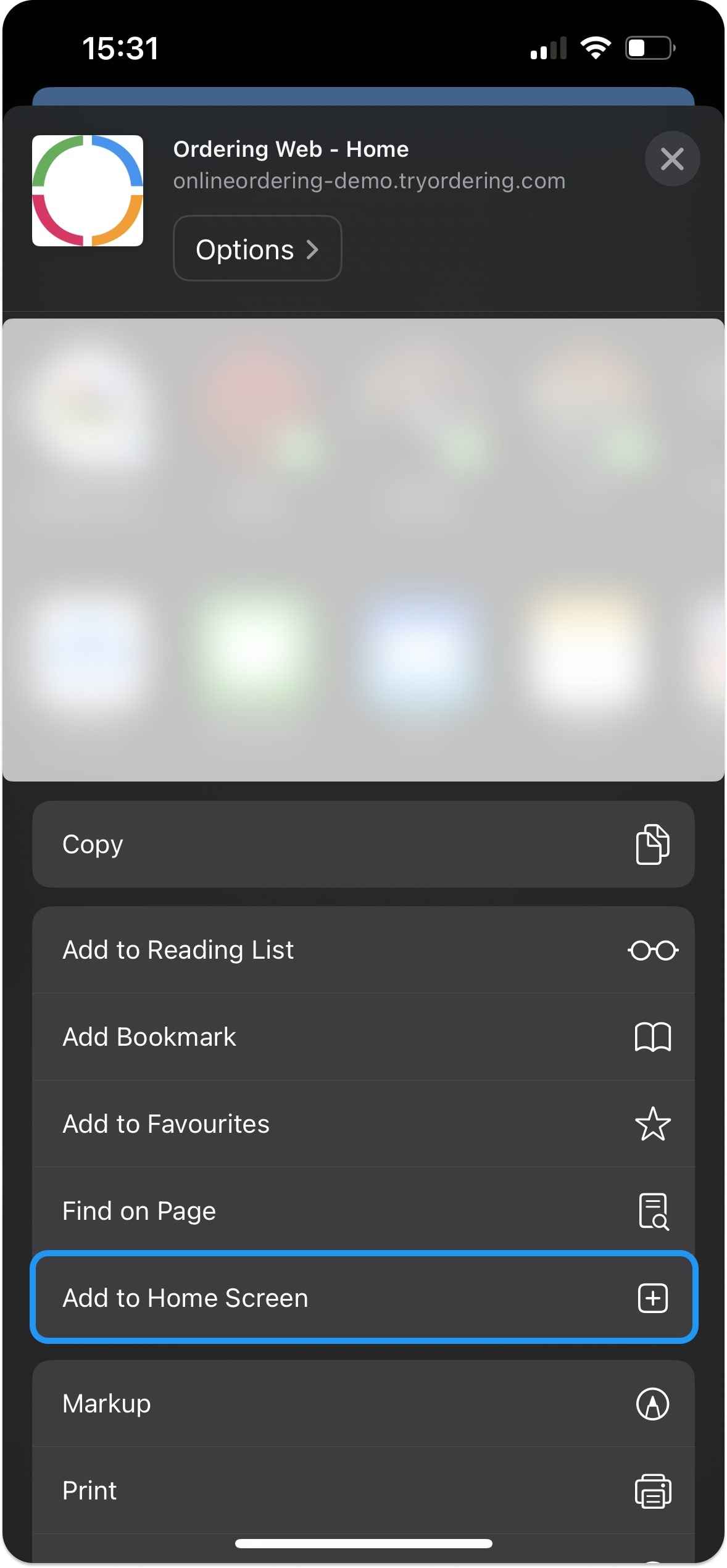
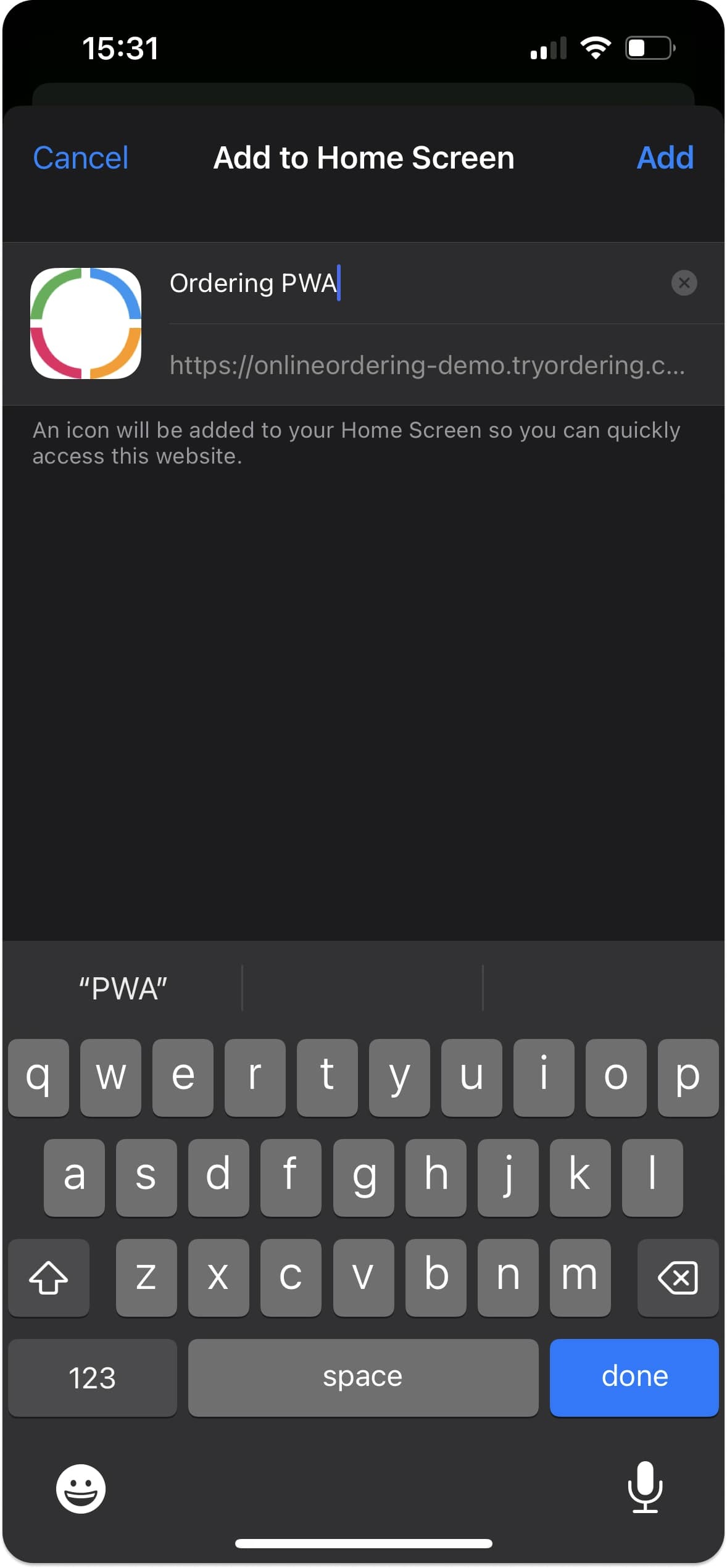
Name the shortcut before confirming it.
The device adds an icon to the home screen when the action succeeds.
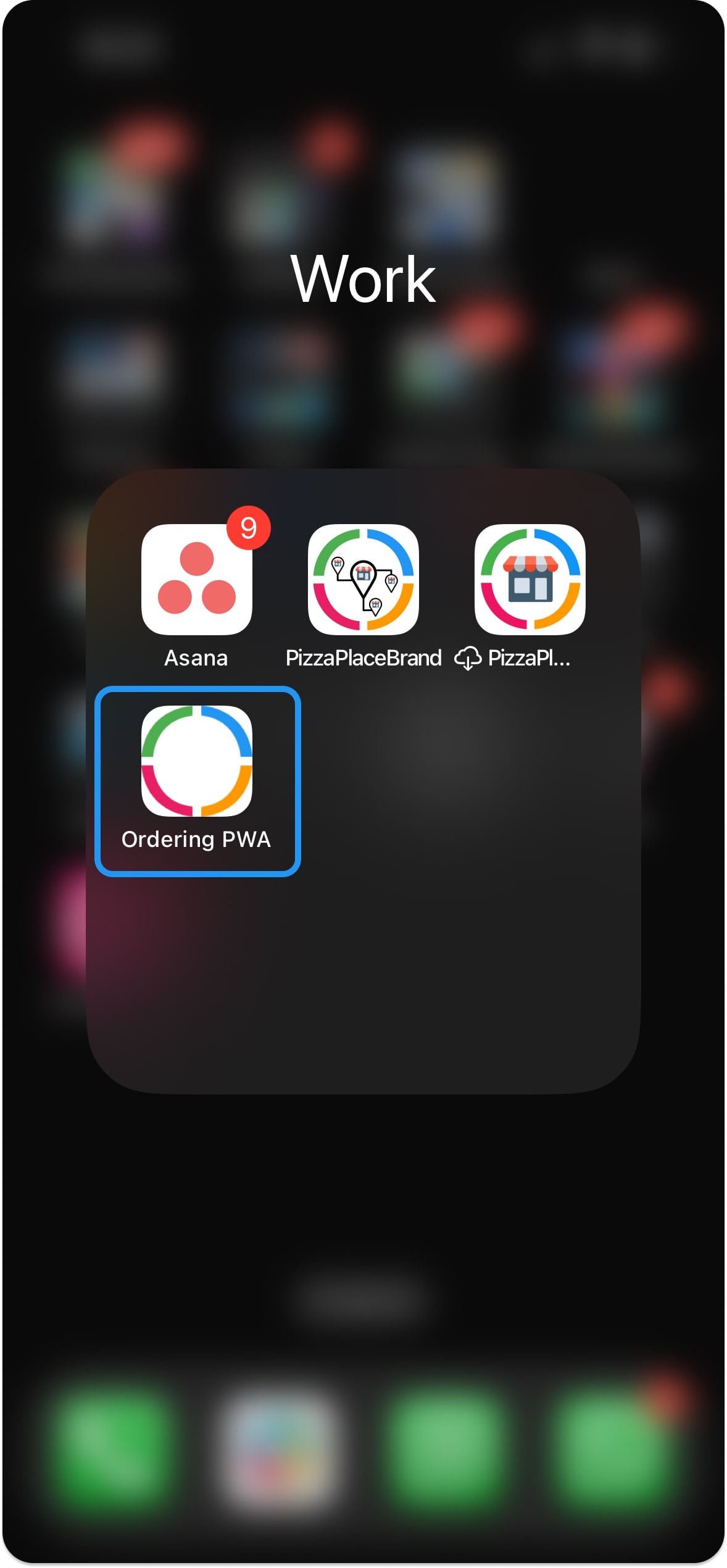
Open the icon to return to the website.
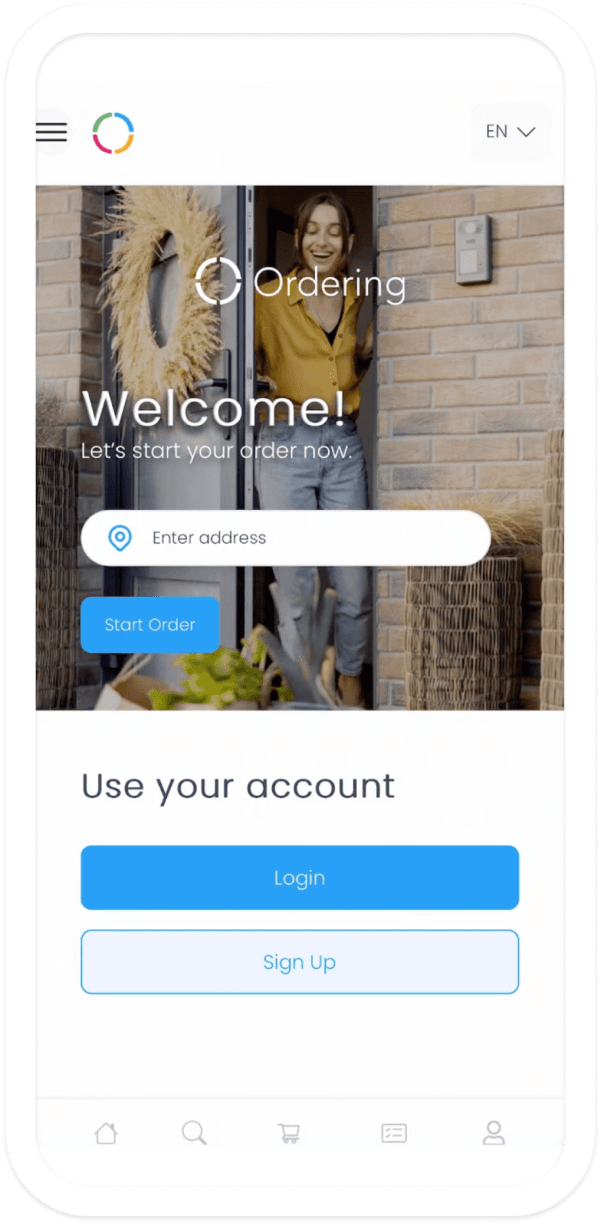
Android browsers offer a comparable install or add-to-home-screen flow, but labels and the exact sequence vary by browser and device.
What a PWA can provide
When the deployed site is configured for it and the browser supports it, a PWA can provide:
- Fast access: a customer can open the site from a saved icon instead of locating it in a browser.
- Cached or offline content: a service worker can make selected resources available when the device has limited connectivity. Do not assume that every page, catalog, cart, or order action works offline.
- Notifications: a site can request browser notification permission where its configuration and the customer’s browser allow it; permission and delivery are not automatic.
- An app-like surface: the saved website can reduce the steps needed to return to the ordering experience.
- Browser-based installation: customers can save the website without downloading a native app from an app store when their browser exposes that option.
Where it can help
- An online retailer can use an app-like website experience to make returning to its catalog more direct.
- A restaurant group can use a saved web shortcut to make returning to its ordering site easier; offline menu browsing still requires a verified caching configuration.
- A delivery service can pair a PWA with its customer experience, but order tracking and updates require their own verified product and notification flows.
Review before sharing the flow
- Open the approved non-production website in the target browser and device.
- Confirm that the browser offers the installation or home-screen action.
- Check the icon name, brand presentation, starting URL, and the pages customers can reach after opening it.
- If you intend to describe offline use or notifications, verify those behaviors separately for the deployed site and permission state.
Related guides: Manage Ordering Website · Configure the Ordering Widget