Set up a custom domain
Connect a domain you control after confirming the selected site, registrar access, and current DNS request. Adding, changing, or removing a custom domain can affect a customer-facing website. Validate the configuration in a test site before applying it to production.
Before you start
- Have a custom domain or subdomain that you control through its DNS provider.
- Confirm the website and project that should receive the domain.
- Decide whether the canonical address will use the root domain or
www. - Keep access to the DNS provider until validation and certificate status are complete.
A custom-domain request can be pending validation, issued, error, revoked, cancelled, or expired. The final website and certificate are ready only after the displayed state and the customer-facing address have both been verified through the approved process.
1. Configure the DNS records
The reviewed website controller uses cname.my-sites.app as its custom-domain CNAME target. The configuration shown in the captured DNS example uses two CNAME records:
| Host | Type | Target |
|---|---|---|
www | CNAME | cname.my-sites.app |
@ (root) | CNAME | cname.my-sites.app |
Use the record type supported by your DNS provider for the root domain and follow the current domain request if it specifies an ALIAS, ANAME, or CNAME-flattening alternative. For the DNS configuration shown here, leave the provider proxy disabled so the record is DNS-only.
2. Request or change the domain in Ordering Website
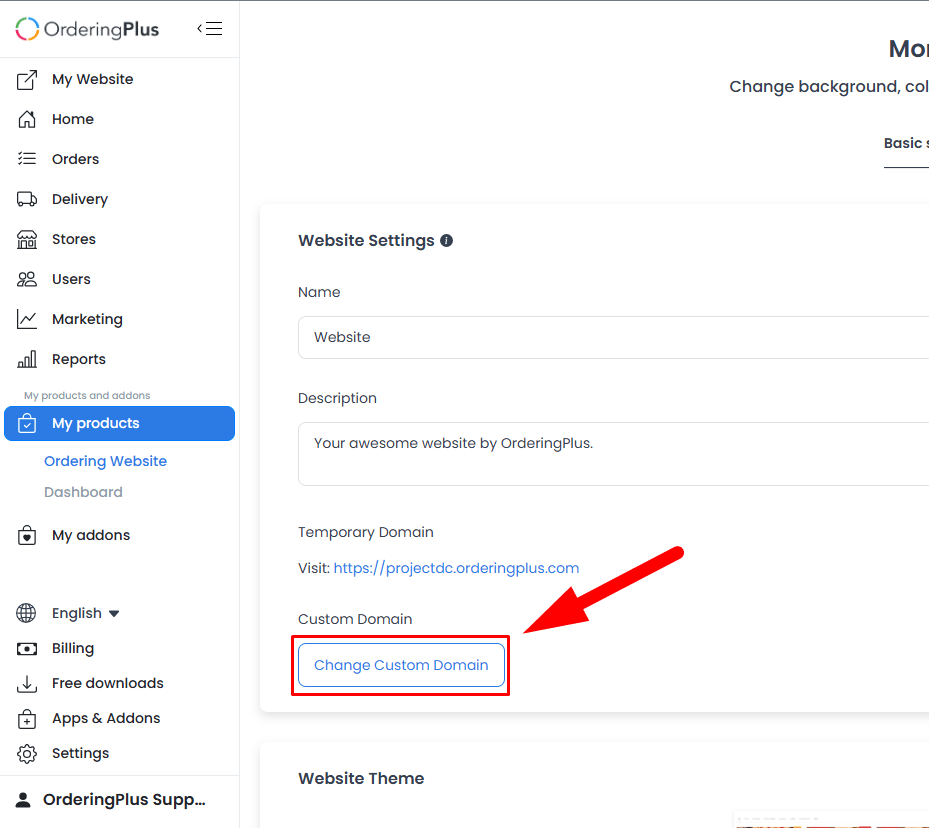
Open My Products → Ordering Website, then use the custom-domain control for the selected site. Enter the domain or subdomain without a protocol or slashes—for example, example.com or www.example.com—and save the request.
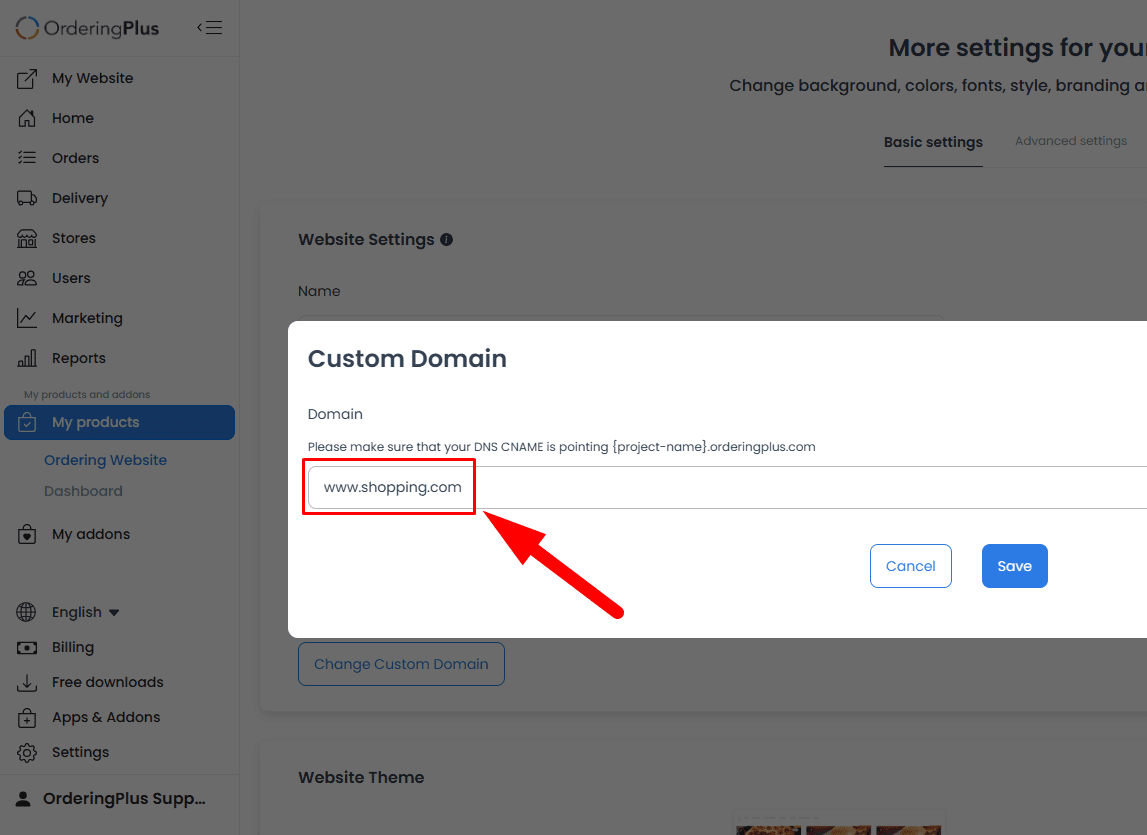
Confirm that the entered domain belongs to the selected website before saving. The request itself does not establish that DNS, certificate issuance, or customer traffic has completed.
3. Choose the canonical address
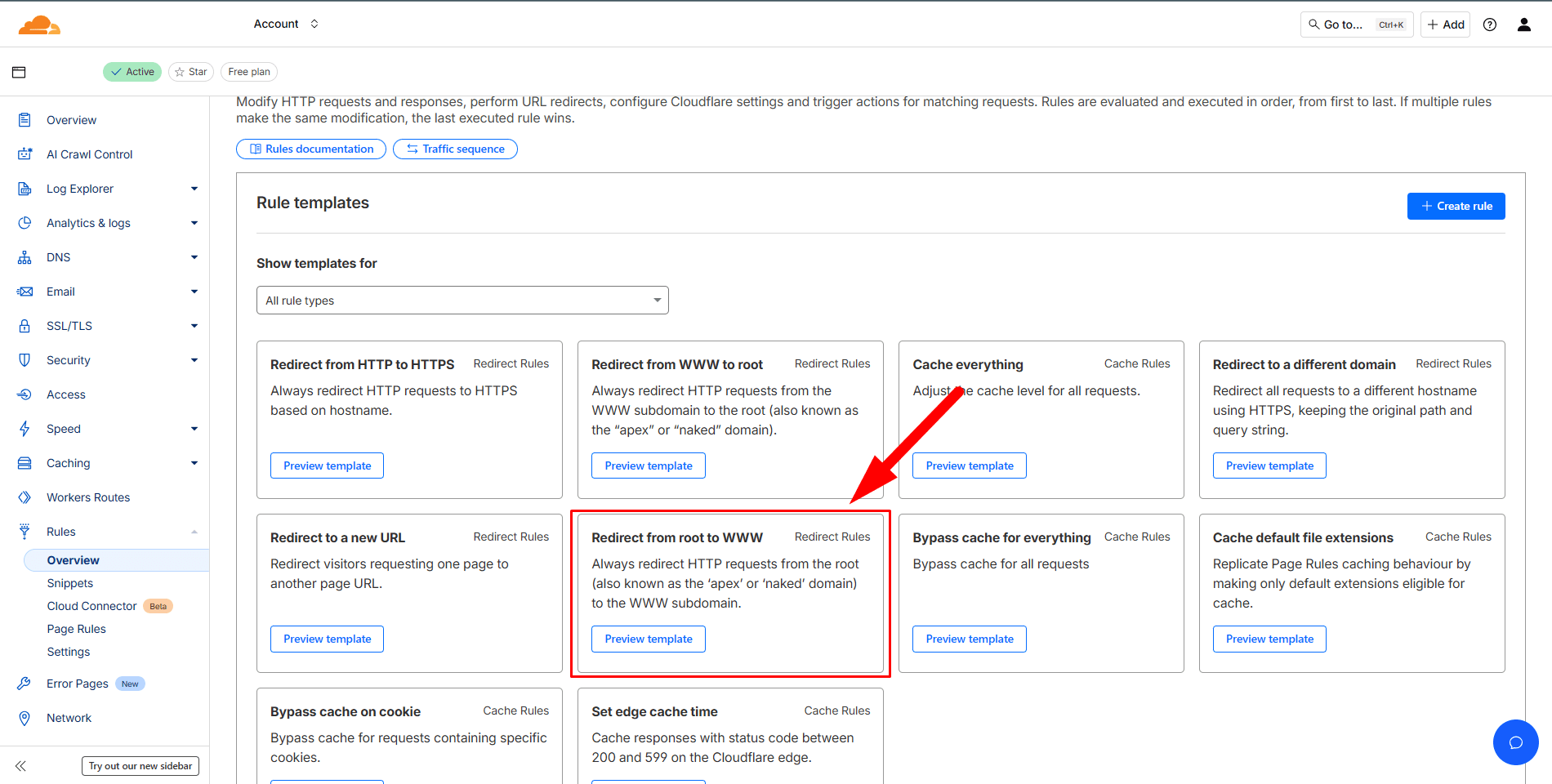
If the website should use www, create the provider redirect from the root domain to www. For example, a visitor to example.com should be redirected to www.example.com when that is the address chosen for the website.
DNS propagation and domain validation can take time. Do not promise an exact completion time; use the lifecycle state shown in the dashboard and the approved validation check instead.
Cloudflare notes
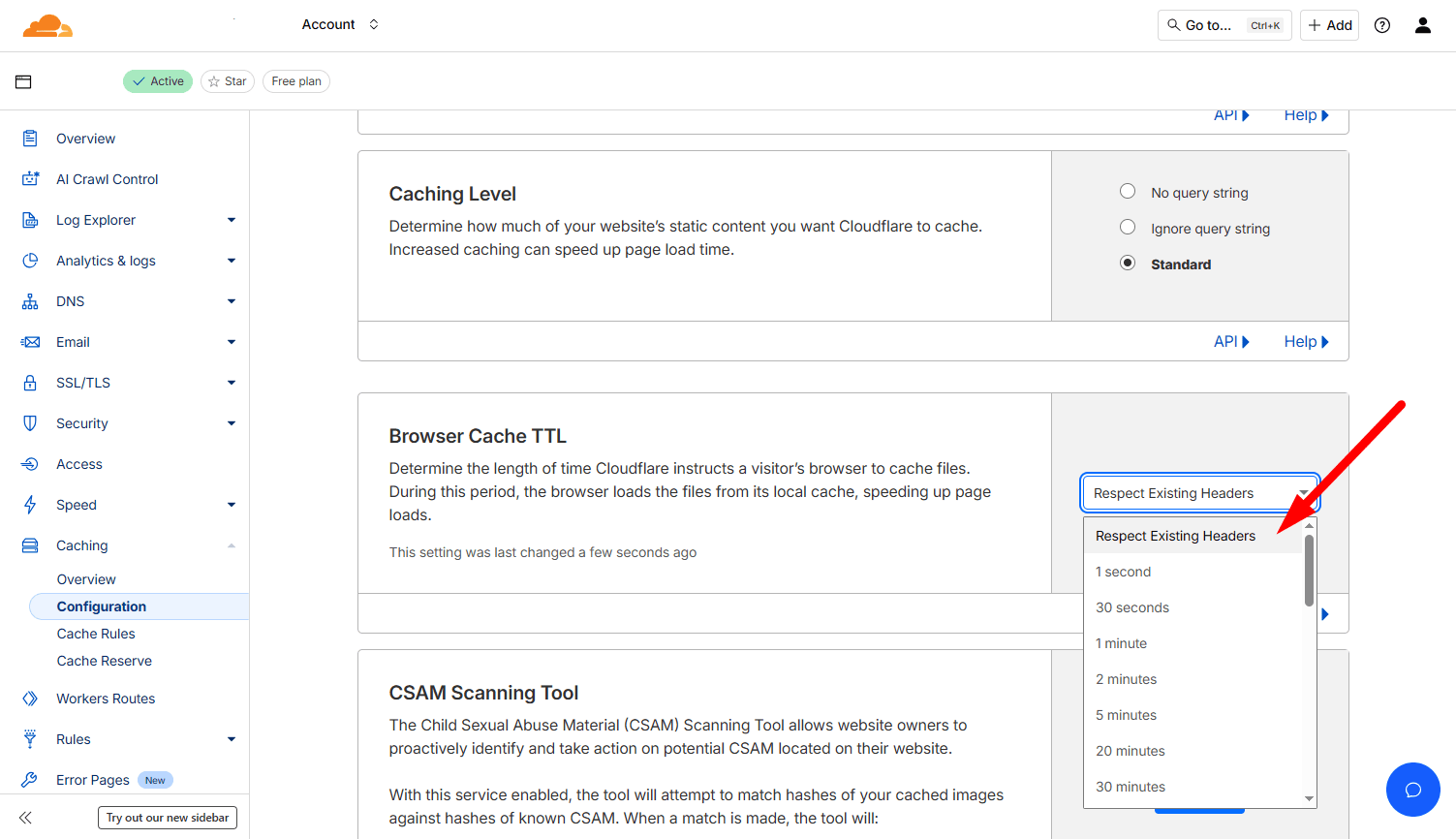
When Cloudflare manages the DNS, the captured configuration also calls for a cache-purge rule and Respect Existing Headers in the caching settings. Keep the redirect and caching behavior aligned with the current domain request; provider screens and options can change.
Troubleshooting
- The domain is pending: wait for the displayed validation state to change, then recheck the configured records through the approved process.
- The domain shows an error: verify the selected website, the hostname entered without a protocol or slash, and the DNS records required by the current request.
- The site has a certificate warning or does not load: treat this as a DNS or certificate issue, not evidence that the website itself is unavailable.
- You need to remove or change the domain: confirm the selected site and customer impact before using the persistent action.
Related guides: Manage Ordering Website · Configure website settings