Move an existing website to Builder
Open Catalog → My products and select your existing Ordering website. The Dashboard shows the migration option when it is available for your project and site. If you need a new website, open Builder to create it.
Check the site before moving it
- Confirm the project and website you intend to move. Review the published pages, storefront and custom domain so you know what to check afterward.
- If the Dashboard shows a DNS requirement, use the record shown for that domain in your provider's DNS settings. Return to the website editor after the record takes effect and check whether the migration option is available.
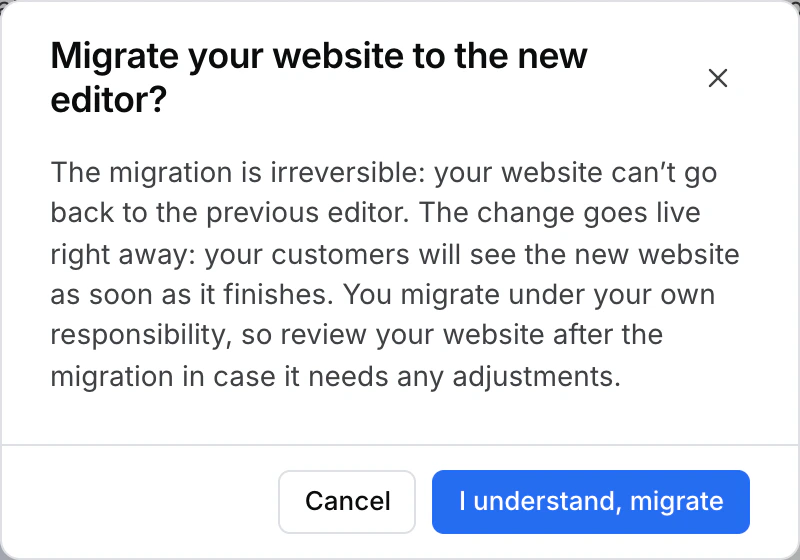
- When the site is eligible, select Migrate website and read the confirmation. Moving the site is irreversible and the new website goes live as soon as the migration finishes. Choose I understand, migrate only when you are ready for that change.
Find the site in Builder
After the move, open Builder or use Open in Builder from the migrated-site message when the button appears. If the message offers View website, open it and verify the live storefront, links and pages. Check the website before making further edits.
| Time since the move | What the previous My products entry can do |
|---|---|
| Before seven days | Show the migrated-site message with Open in Builder when the site is linked to a Builder product. |
| From seven days | Open the linked Builder product directly. |
| From fifteen days | Leave the My products menu. Find the website under Builder. |
If the option is unavailable
If the editor still opens the existing website without a migration action, continue using that editor until the project and site are eligible. If the Dashboard reports a DNS or migration error, read the message and confirm the site state before retrying.