Update store listing images
Update the screenshots shown on the Google Play or App Store product page. These listing images describe the app to potential customers; they are separate from images displayed inside the app.
Update Google Play screenshots
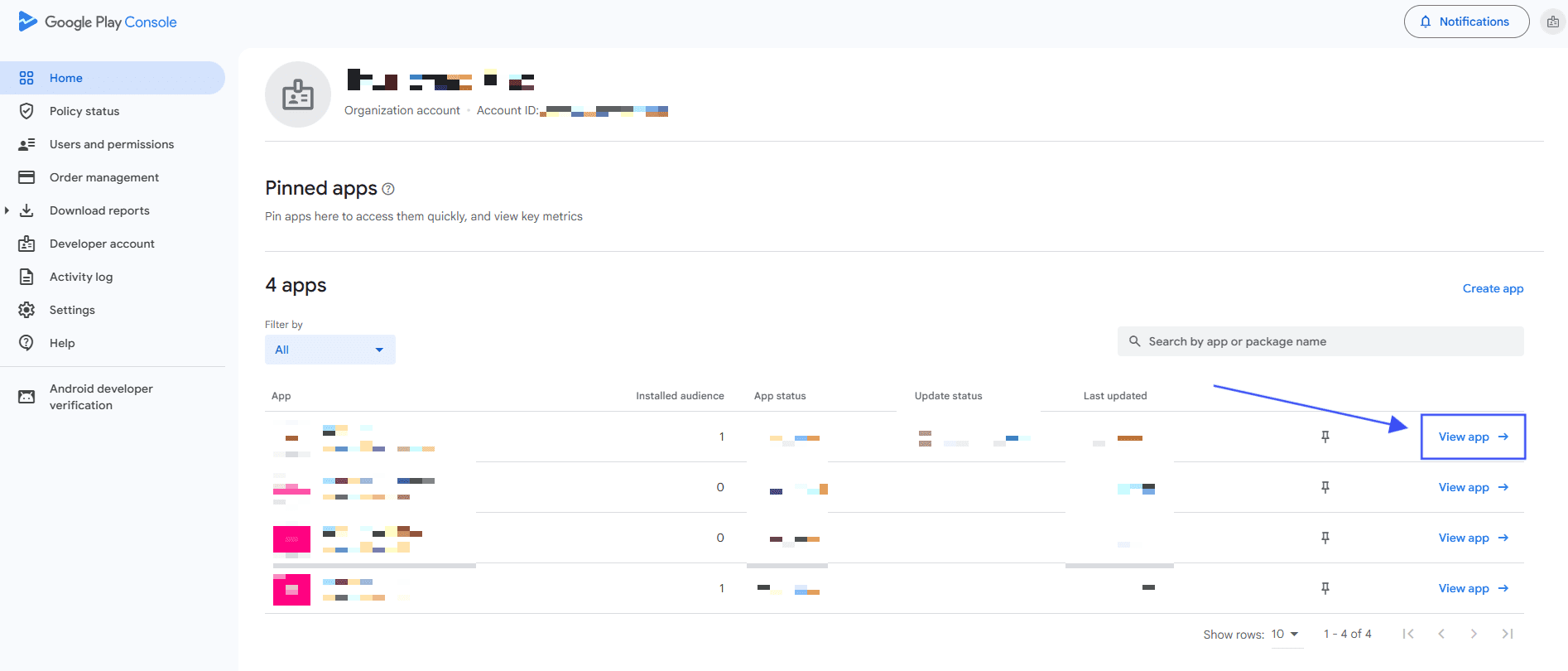
- Sign in to Google Play Console, select the app, and open its app page.
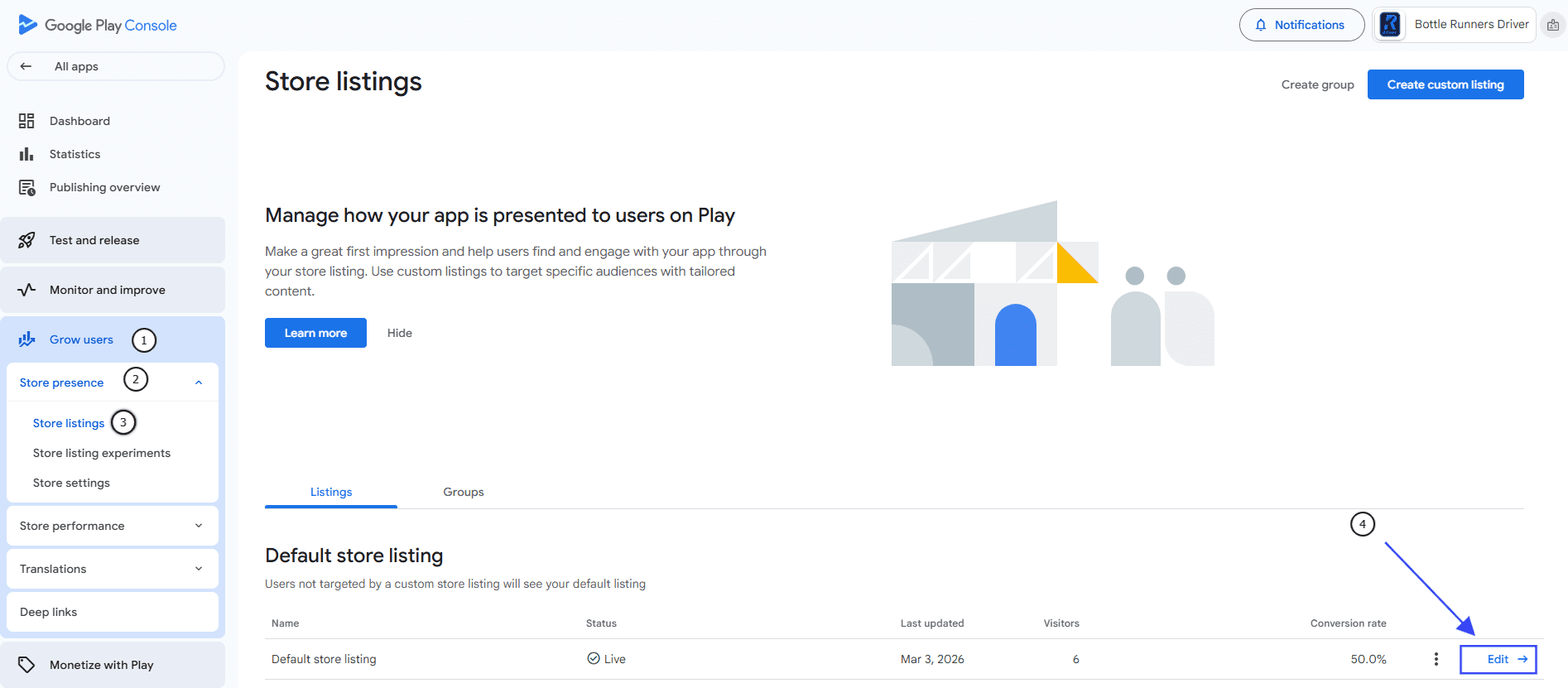
- Go to Grow users → Store presence → Store listings, then select Edit for the listing.
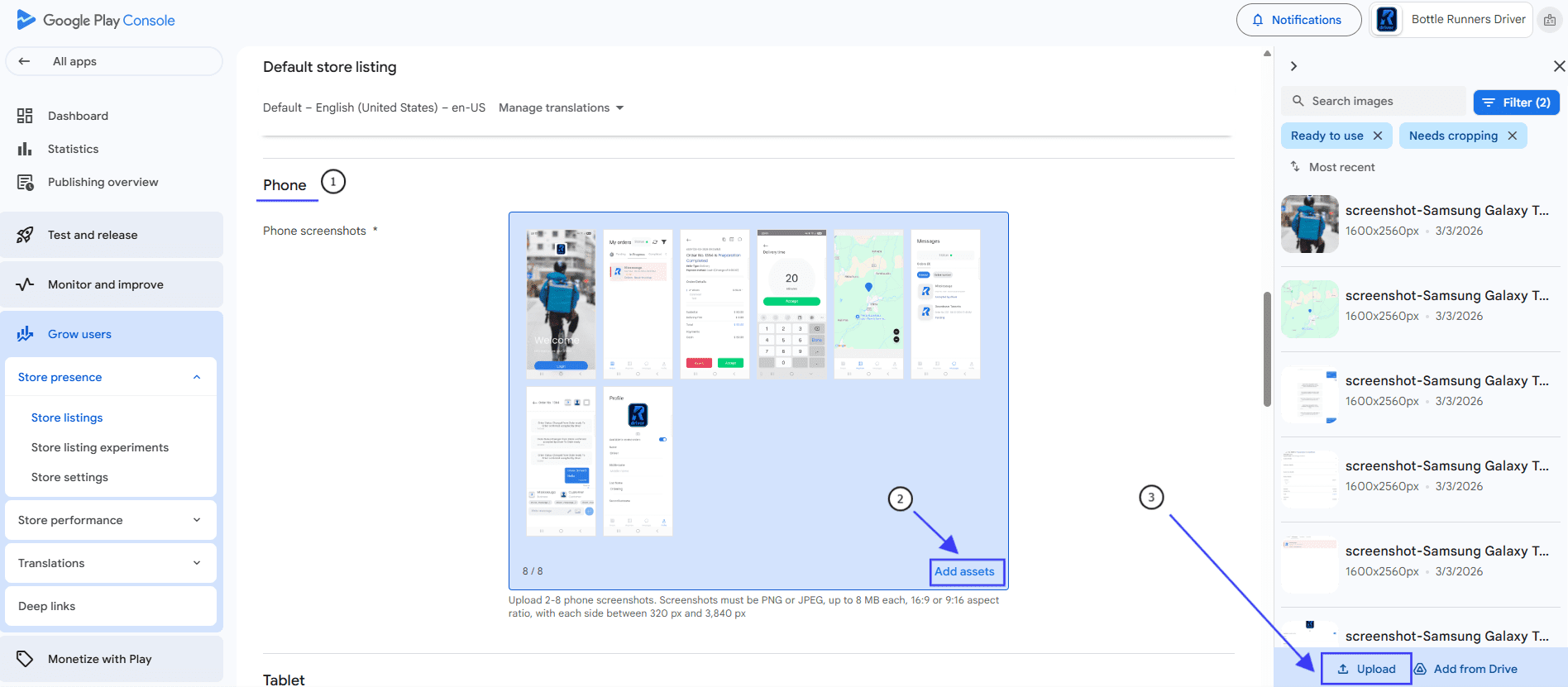
- In the Phone section, select Add assets → Upload.
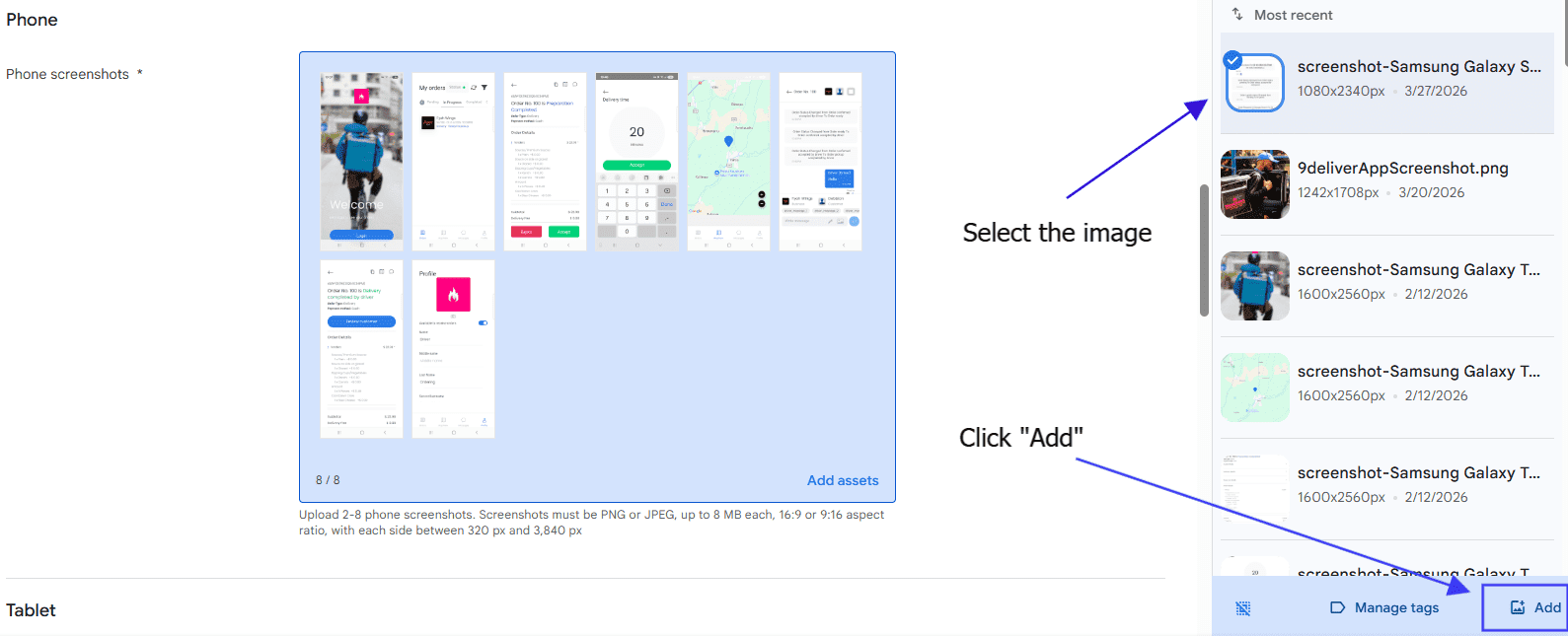
- Select one or more replacement images and choose Add.
- Repeat the upload for the 7-inch and 10-inch tablet sections when your app supports those device types.
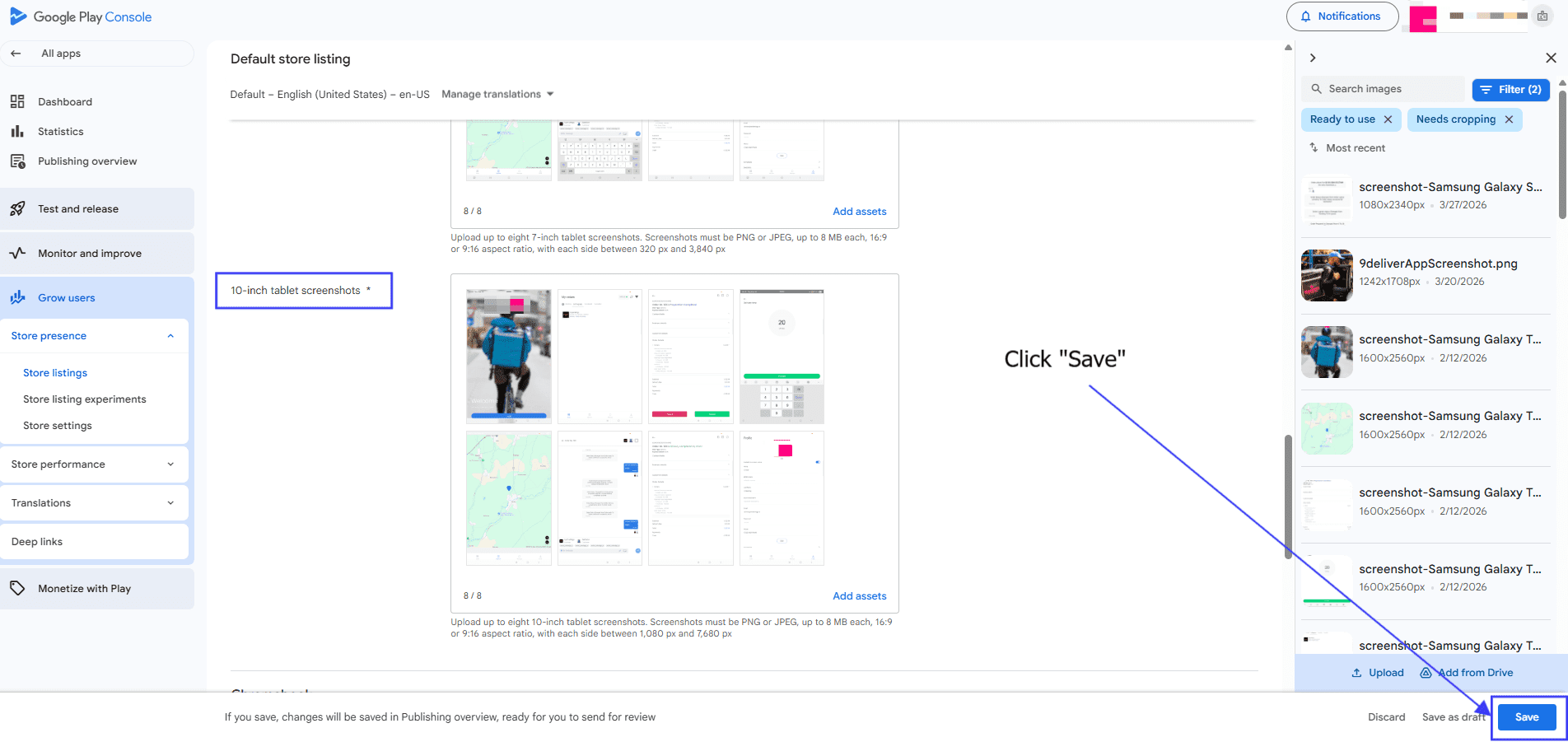
- Save the listing changes.
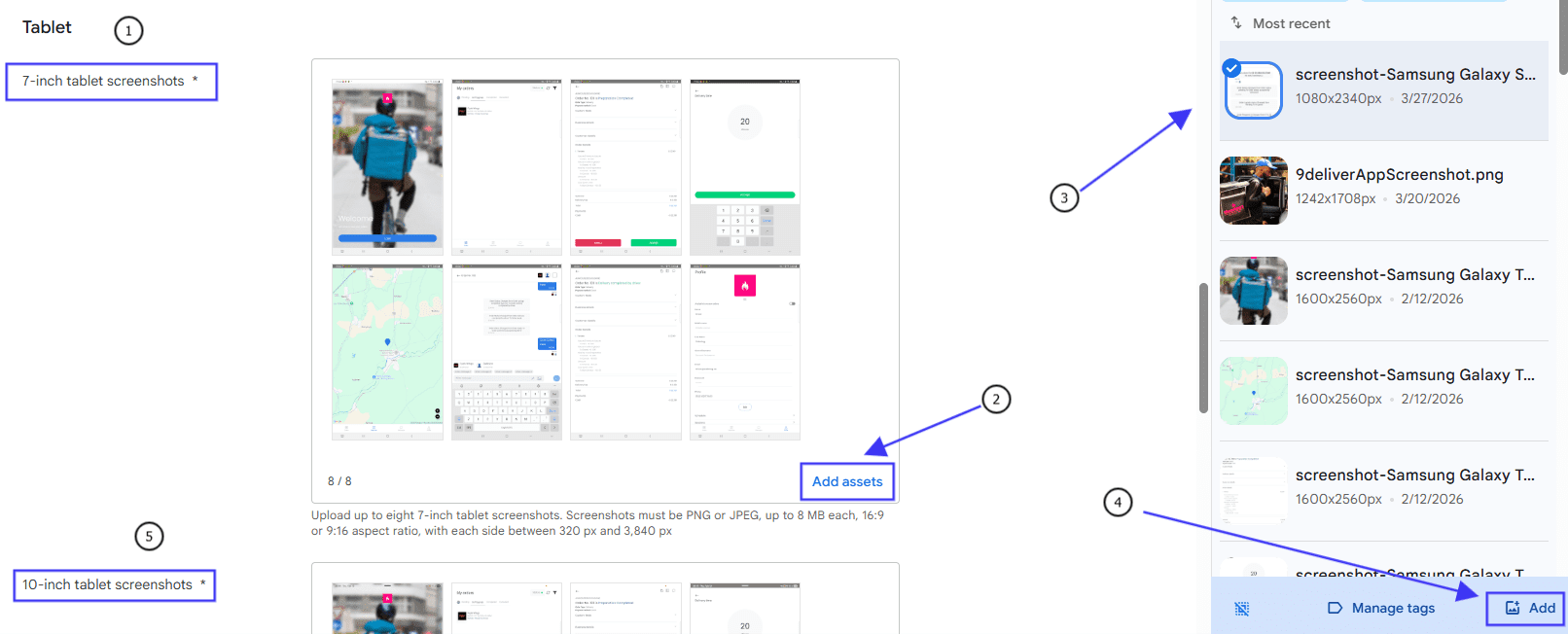
Google Play screenshot references
Use these planning values, then confirm the current requirements in Play Console before upload:
| Device type | Format and dimensions | Quantity and reference resolution |
|---|---|---|
| Phone | JPEG or 24-bit PNG without transparency; 320–3,840 px on either side; 9:16 portrait or 16:9 landscape | 2–8 screenshots; 1080 × 1920 px or 1440 × 2560 px recommended; up to 8 MB each |
| 7-inch tablet | JPEG or 24-bit PNG without transparency; 320–3,840 px on either side; 16:9 landscape recommended | 2–8 screenshots; 1200 × 1920 px portrait or 1920 × 1200 px landscape recommended; up to 8 MB each |
| 10-inch tablet | JPEG or 24-bit PNG without transparency; 1,080–7,680 px on either side; 16:9 landscape recommended | 2–8 screenshots; 1600 × 2560 px portrait or 2560 × 1600 px landscape recommended; up to 8 MB each |
Make sure the screenshots accurately show the submitted app version. Use Google Play’s preview-asset requirements for the current constraints.
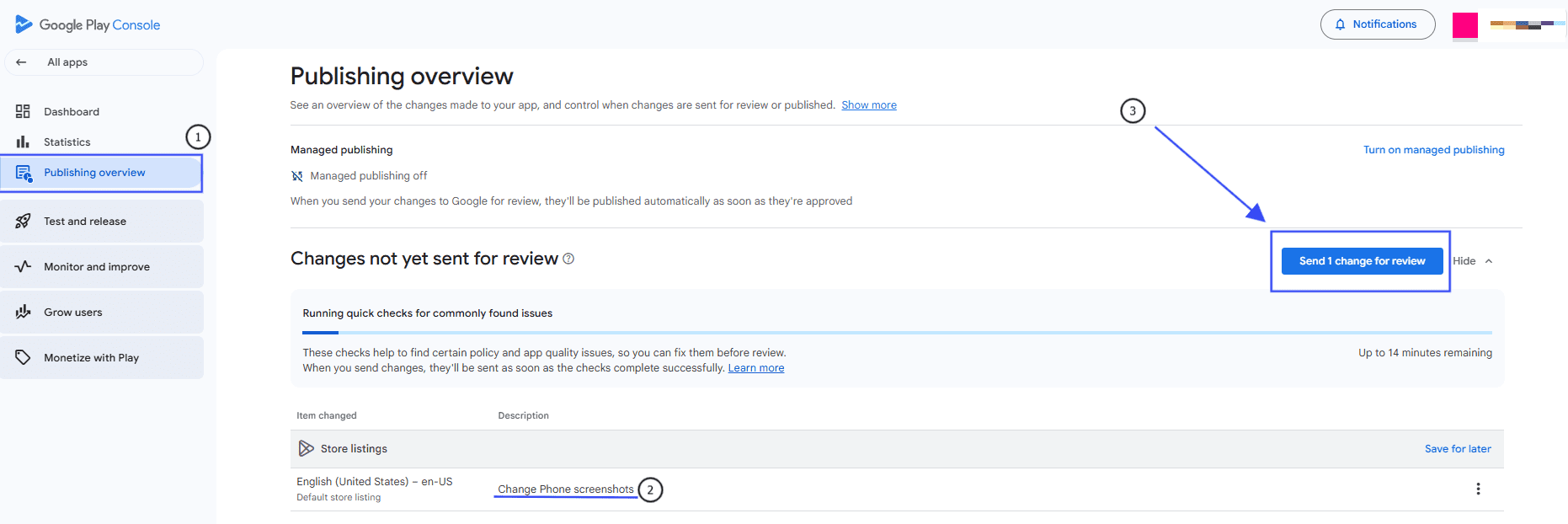
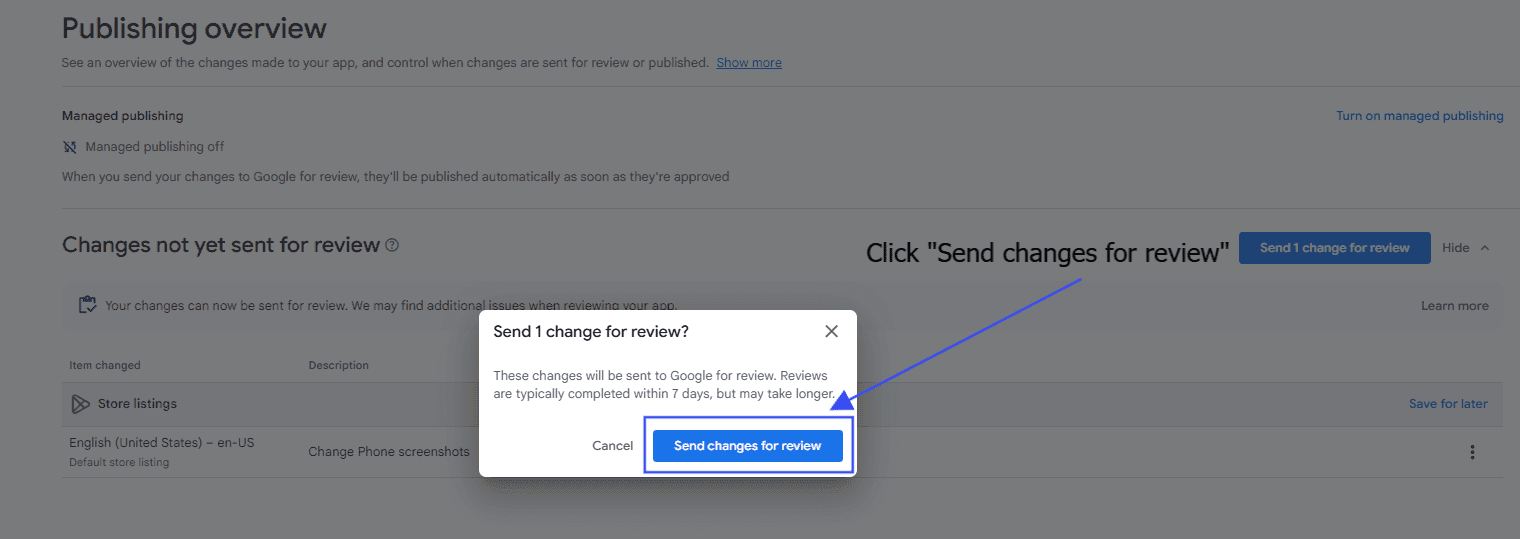
Send listing changes for review
Open Publishing overview, confirm that the pending changes are the intended phone or tablet screenshots, and submit the changes for review when ready. Managed Publishing controls whether approved changes publish automatically or await the owner’s release decision.
Update App Store screenshots
Use App Store Connect to update the screenshots on the App Store product page:
- Sign in to App Store Connect, open Apps, and select the app.
- Select an editable version under the applicable platform. If the current version is already approved, create a new version before you change its screenshots.
- Choose the listing language, then open iOS Previews and Screenshots.
- Select the iPhone or iPad tab and upload the replacement screenshots.
- Use View All Sizes in Media Manager to manage other device sizes or localizations.
- Save the changes, then complete the applicable version submission and review flow. Uploading images alone does not make them live immediately.
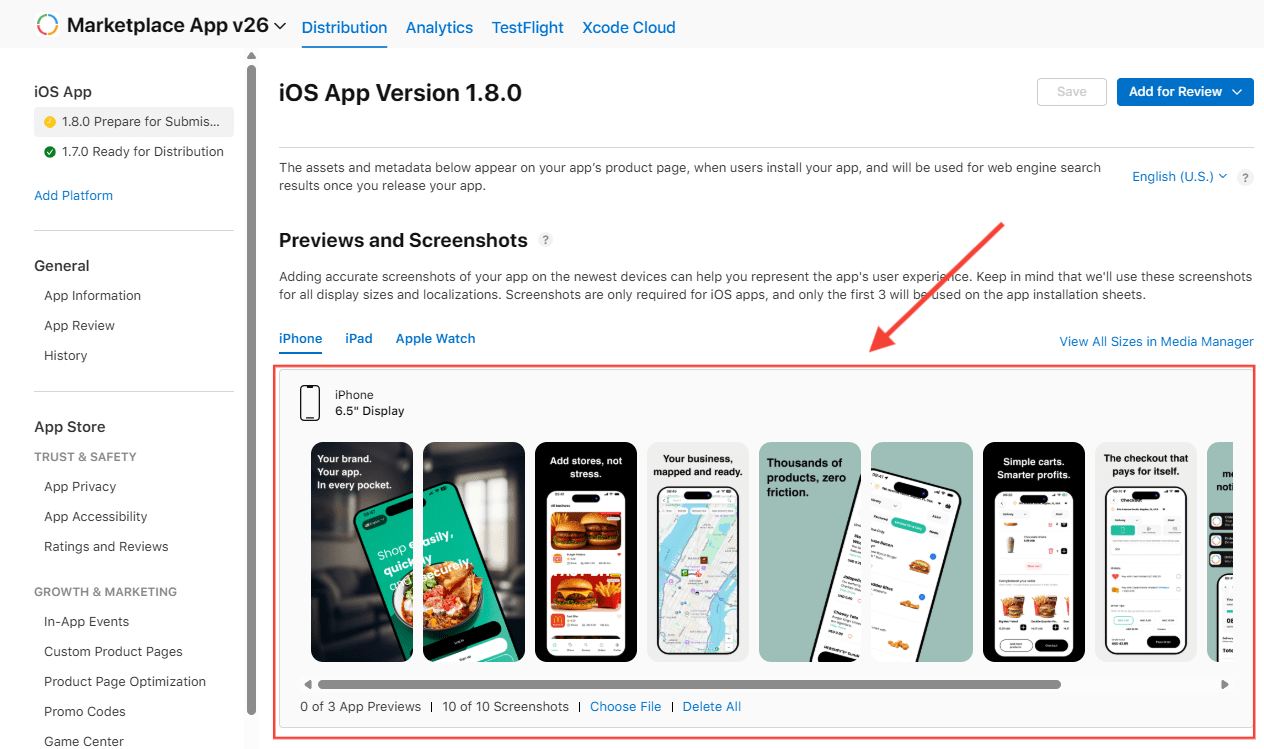
Apple accepts one to ten screenshots in .jpeg, .jpg, or .png format. Screenshot sizes vary by current Apple device display, and Apple can scale a high-resolution set to smaller compatible displays. Use Apple’s upload guide and screenshot specifications before submission.
Final review
Before you submit listing-image changes, confirm that every screenshot is current, factual, and appropriate for the selected store and locale. Review the pending changes and release state with the account owner; do not treat an uploaded image as a published change.