Test an iOS app on a registered device
Register an iPhone or iPad with the Apple Developer team when you need to install a development or ad hoc build directly on that device. The device needs a name, its Unique Device Identifier (UDID), and a provisioning profile that includes it.
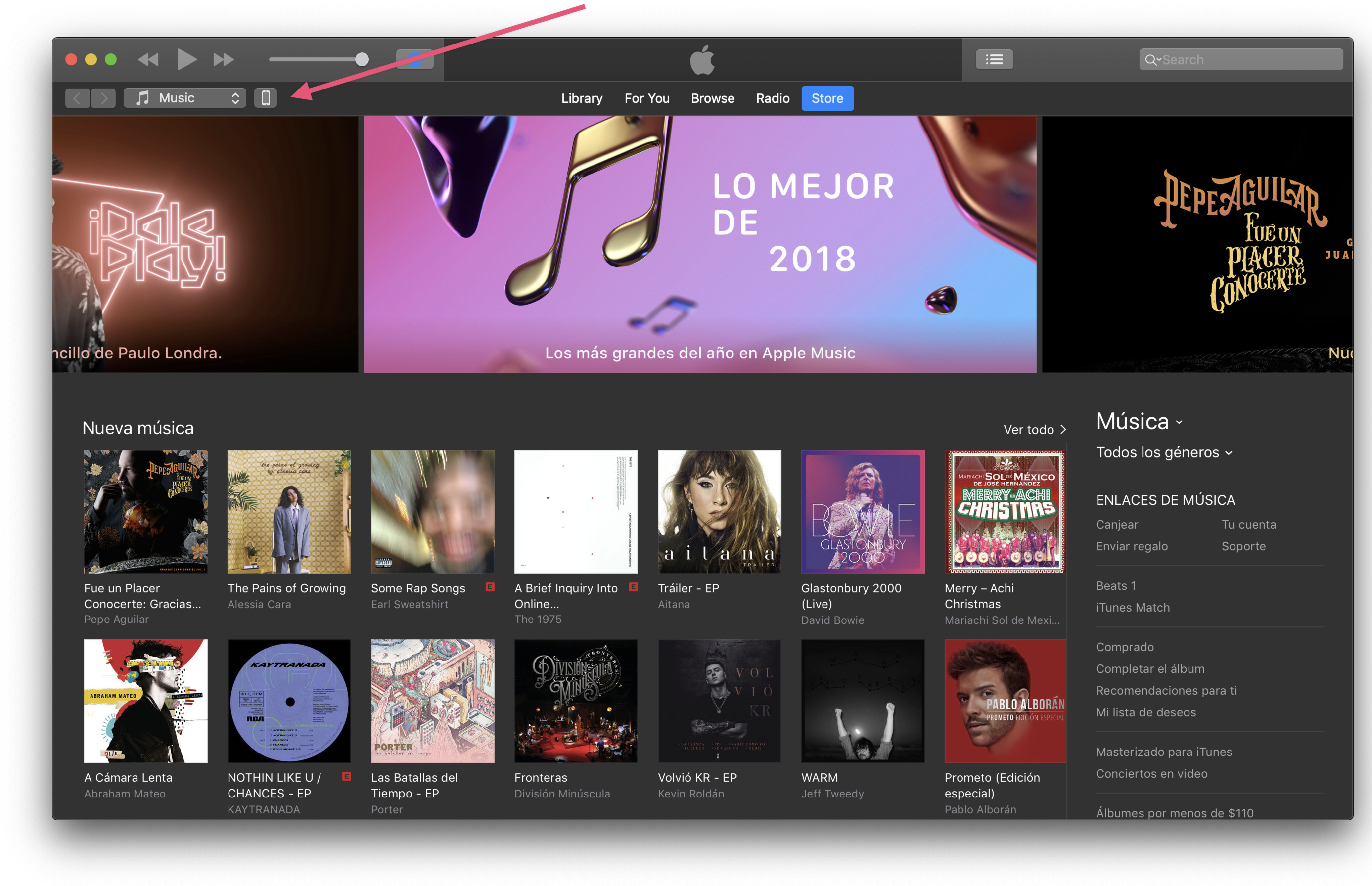
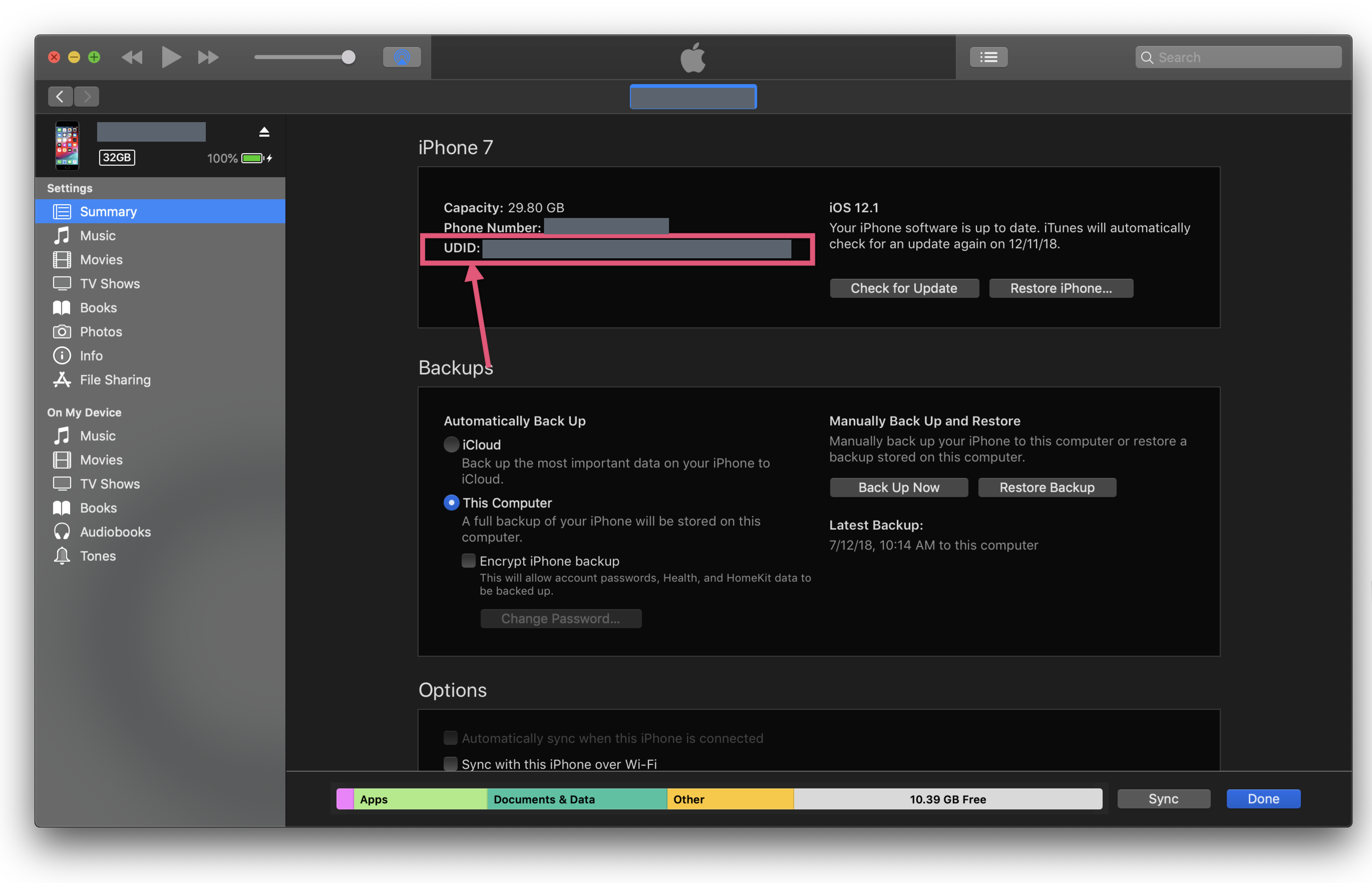
Find the device UDID
Use a current Apple-supported method to find the device identifier:
- Connect the iPhone or iPad to a Mac and select Trust if the device asks.
- In Finder, select the device under Locations. Click the label under the device name until it displays the UDID, then Control-click to copy it.
- Alternatively, in Xcode, choose Window → Devices and Simulators, select the device, and copy the value labeled Identifier.
Older workflows used iTunes to show the UDID. Use Finder or Xcode when available, because the current device-management interface can differ from the older interface shown in the screenshots.
Register the device in Apple Developer
An Apple Developer Account Holder or Admin can register the device:
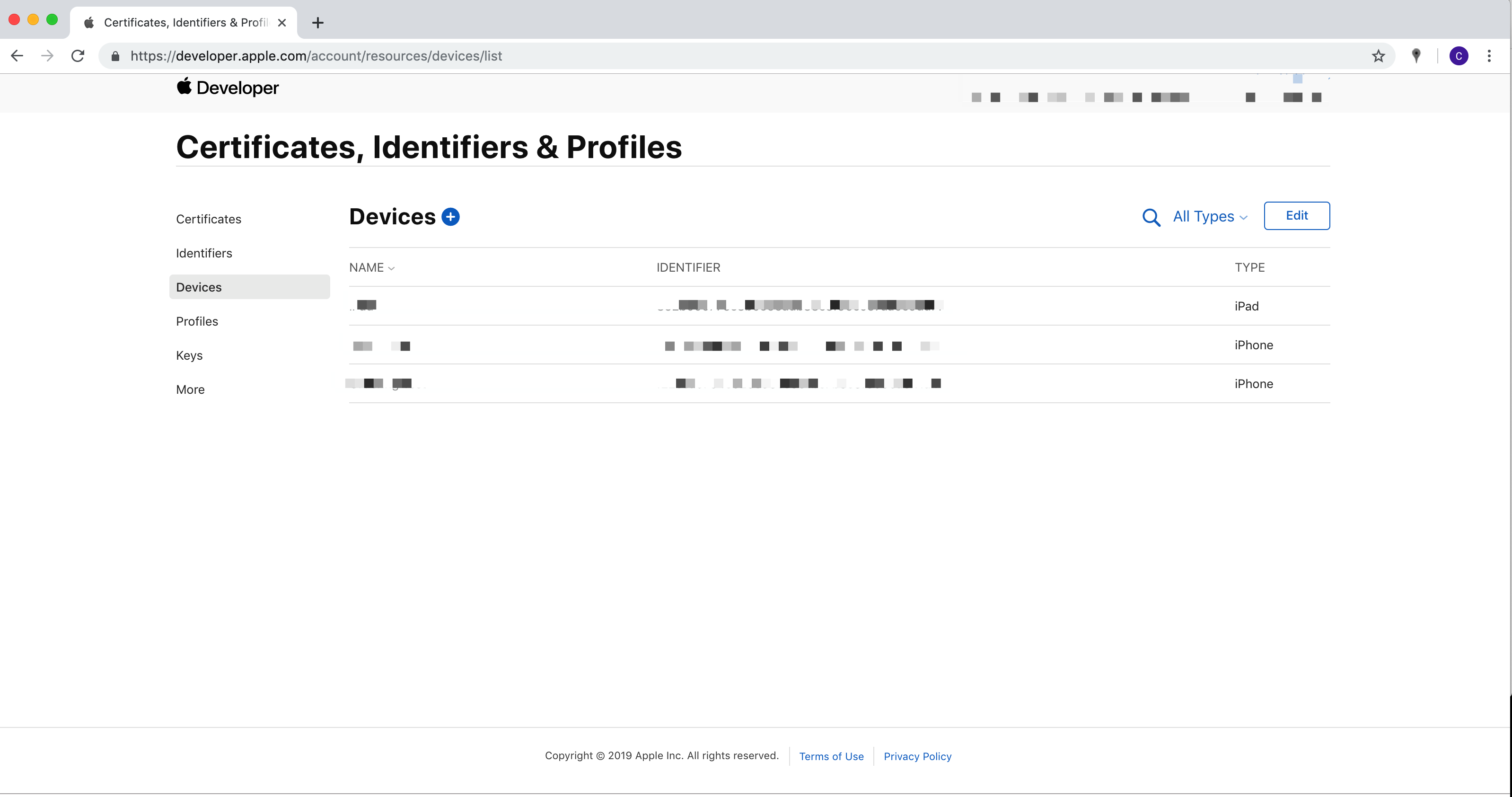
- Sign in to Certificates, Identifiers & Profiles.
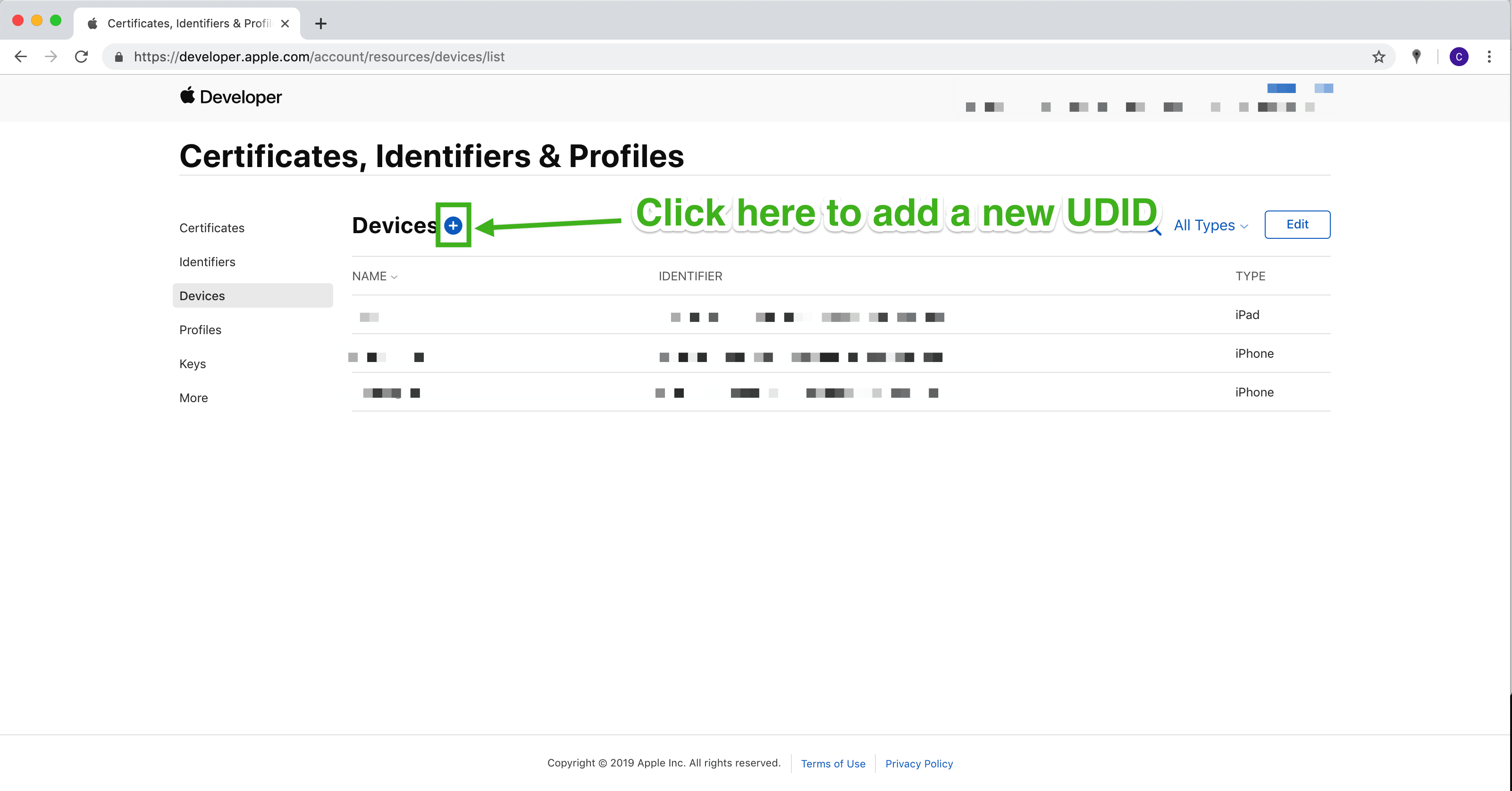
- Select Devices and click Add (+).
- Choose the platform, enter a recognizable device name, and paste the UDID.
- Select Continue, review the device, and select Register.
- Update or regenerate the provisioning profile so that it includes the new device, then create a new test build if the signing workflow requires it.
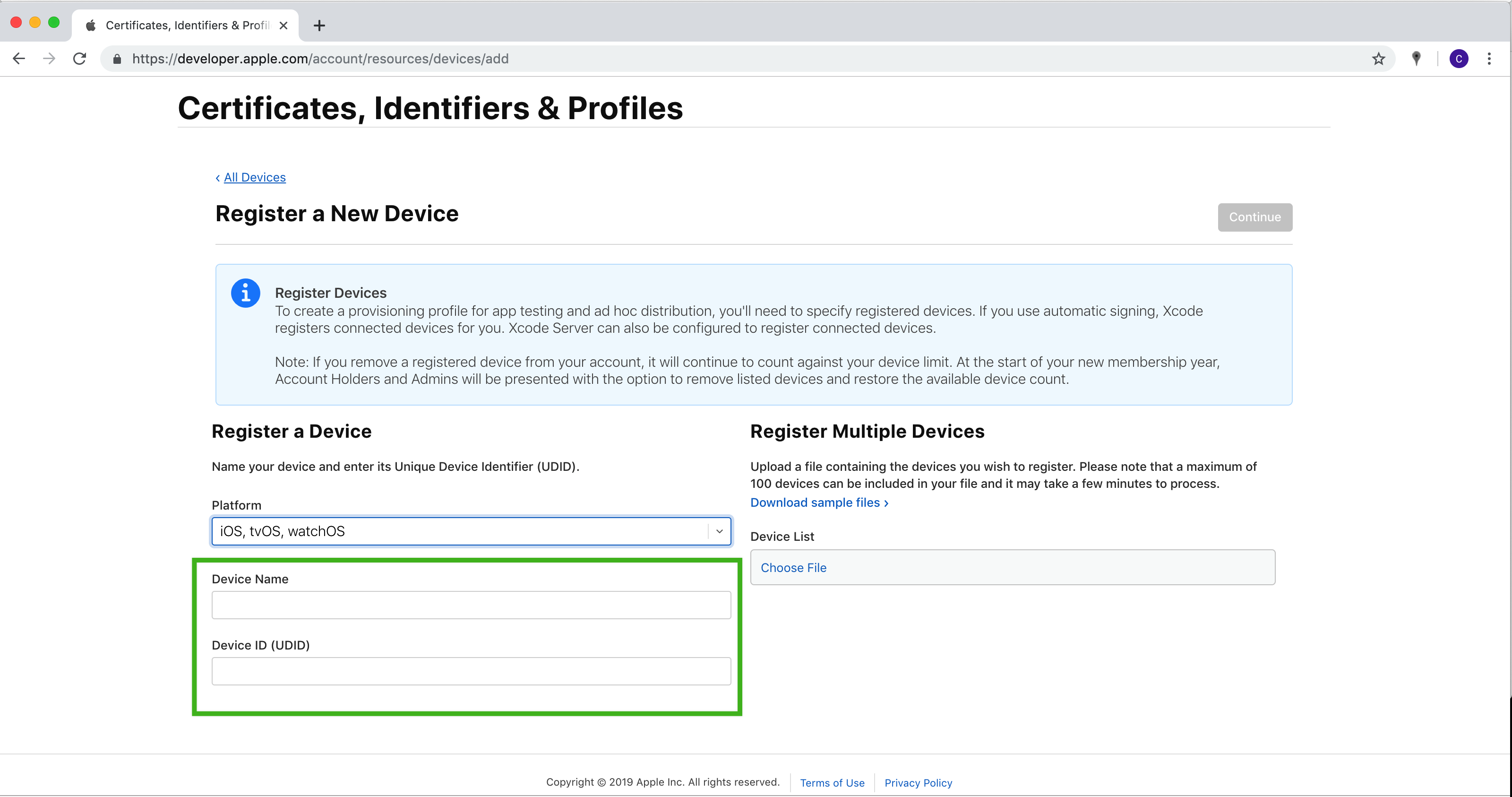
Apple can also register a connected device automatically through Xcode when automatic signing is enabled. Apple Developer Program and Enterprise Program memberships have a device-registration limit of up to 100 devices per product family per membership year. Disabling a device does not restore a slot during the current membership year.
For the current workflow, see Apple’s single-device registration guide, device overview, and registered-device distribution guide.
Install and test the build
After registration and signing are complete, use the current build workflow to install the test build on the registered device. Enable Developer Mode on the device when the distribution method requires it. Test the customer-facing flows before public submission, then continue with Test and publish app releases.