Publish an app to Google Play
Use Google Play Console to create the app, upload a release, complete the store listing and App content declarations, choose countries or regions, and submit the release for review. Google controls policy review, rollout availability, and the final publication state.
Prepare the release and listing assets
Before opening Play Console, prepare the final app bundle, current store copy, required images, privacy-policy URL, reviewer access, and any policy evidence required by the app’s permissions.
Prepare a versioned Android build
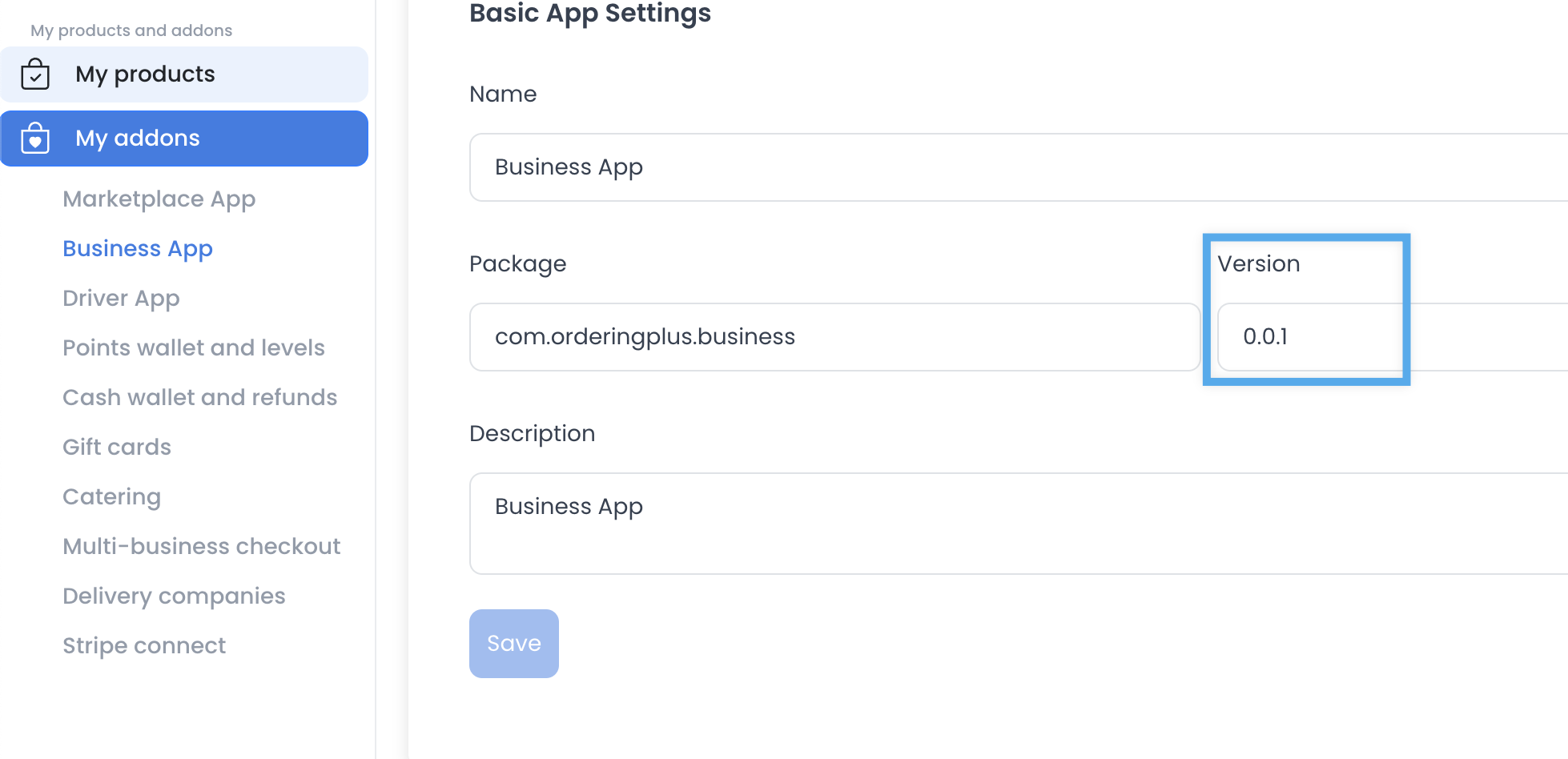

Each upload needs a version that is higher than the prior release. Update the version configuration in the app build workflow before generating a new package; for example, a new display version can move from 0.0.1 to 0.0.2 when that matches the release plan.
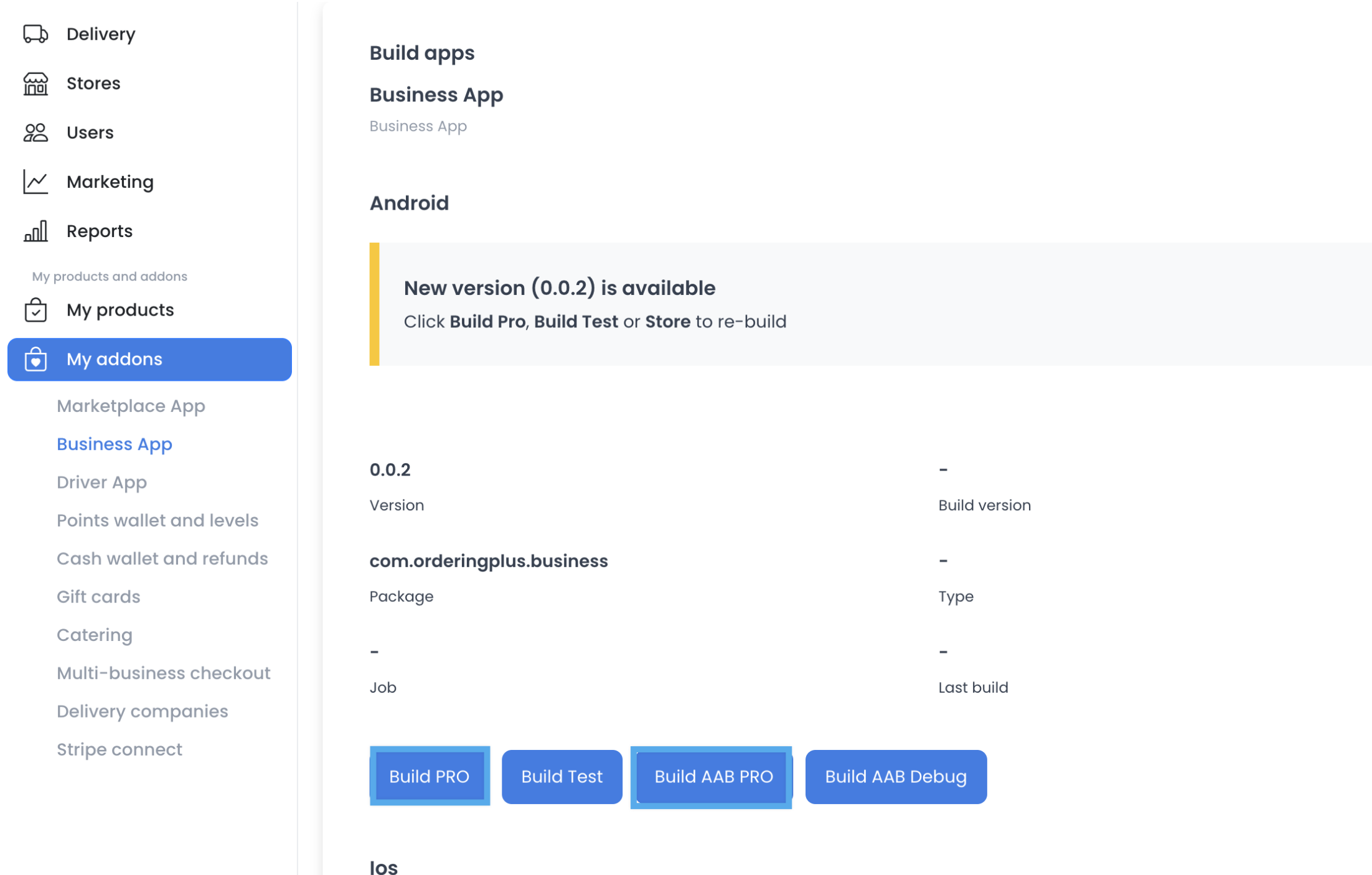
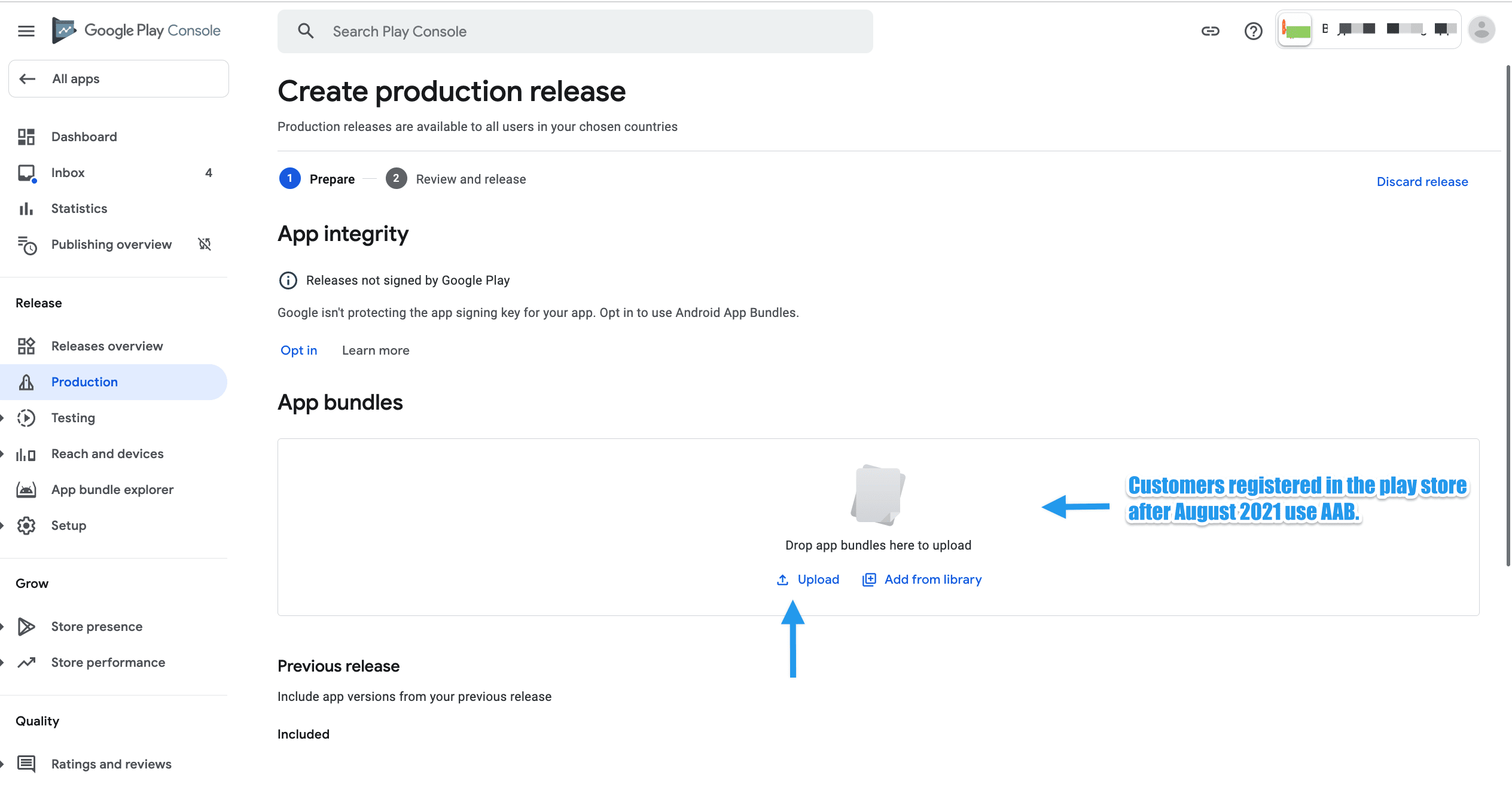
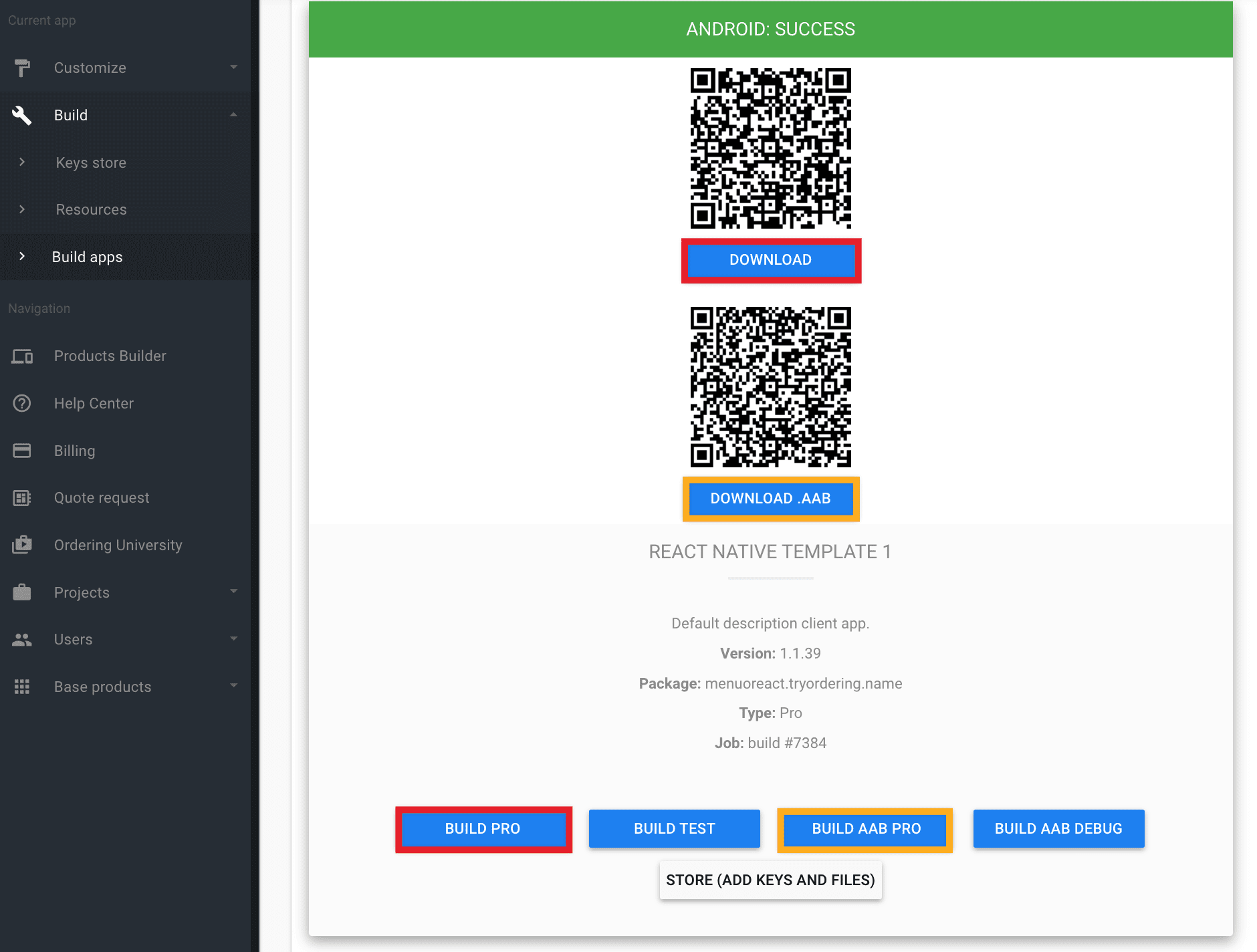
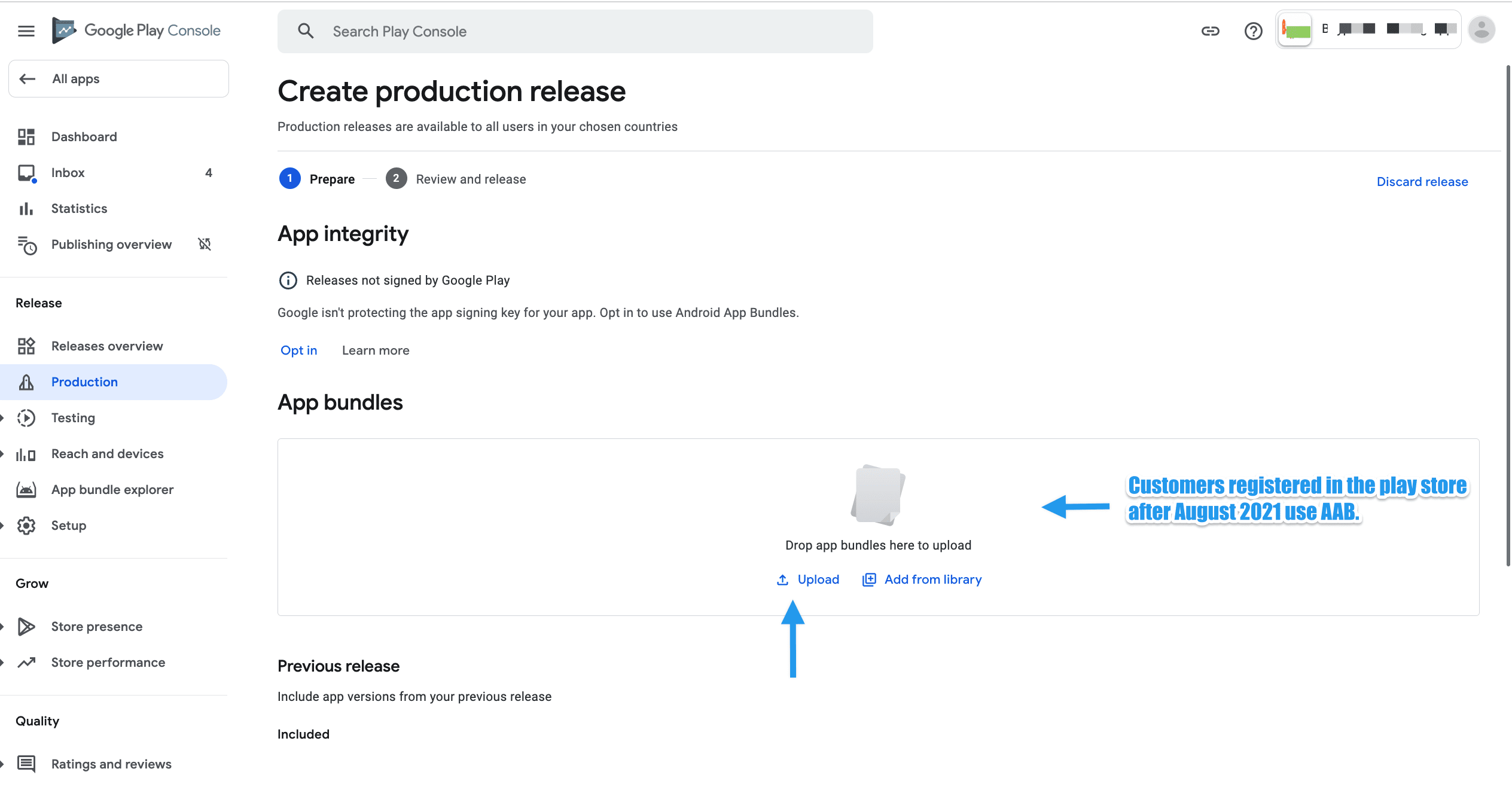
Use the literal Dashboard build controls that apply to the release, including Build PRO or Build AAB PRO. For new Google Play apps, use an Android App Bundle (.aab); Google requires AAB for new apps published after August 2021. APKs can remain relevant only for eligible older app records.
Prepare the required visual assets
Use these asset specifications as a planning reference. Confirm the current values in Play Console before upload because Google can change listing requirements.
| Asset | Planning reference |
|---|---|
| App name | Up to 30 characters |
| Full description | Up to 4,000 characters |
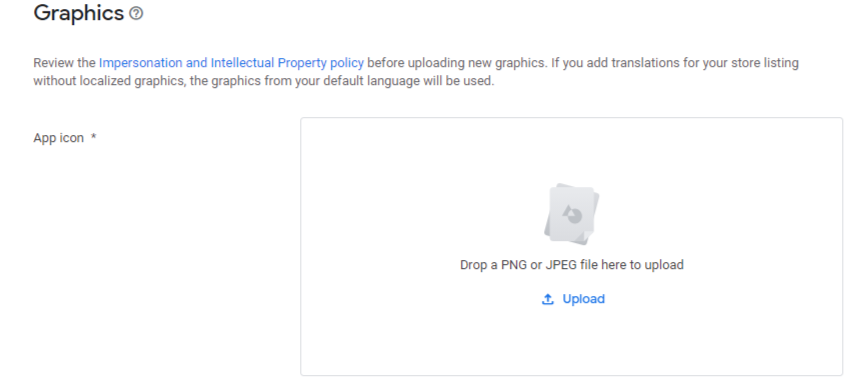
| High-resolution icon | 512 × 512, 32-bit PNG with alpha |
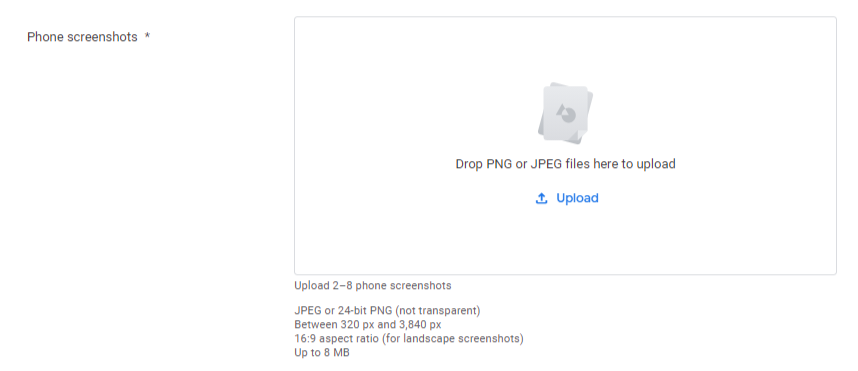
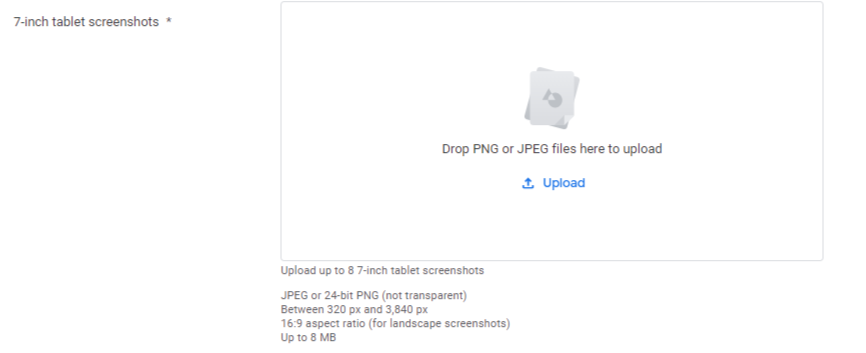
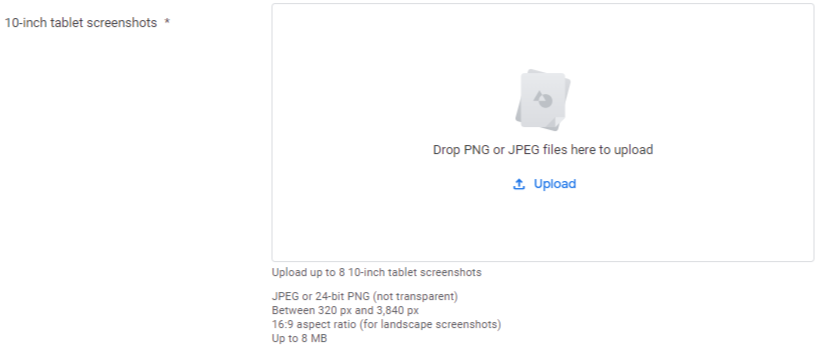
| Screenshots | At least 2 overall; up to 8 per device type; JPEG or 24-bit PNG without alpha; 320–3,840 px on either side |
| Promo text | Up to 80 characters, if used |
| Promo graphic | Legacy reference: 180 × 120 JPG or 24-bit PNG without alpha, if used; verify the current console requirement |
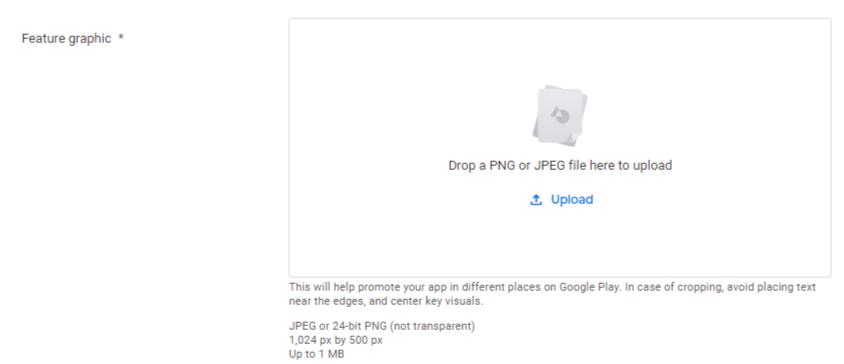
| Feature graphic | 1,024 × 500 JPG or 24-bit PNG without alpha |
Device types can include phone, 7-inch tablet, and 10-inch tablet. Make each image accurately represent the version submitted for review.
The listing asset template pack can help you prepare source images. Verify every asset against the current Play Console requirements before upload.
Create the app in Play Console
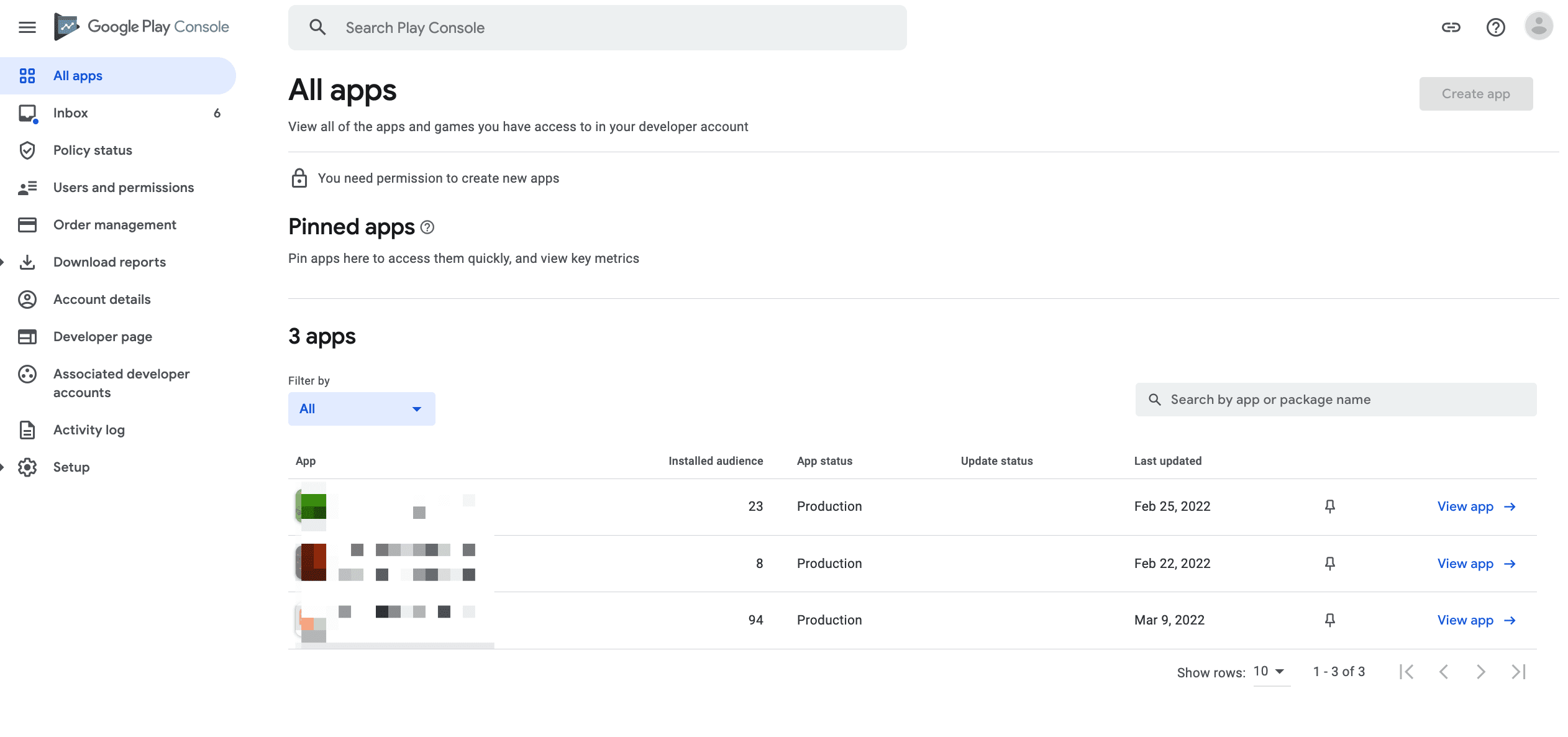
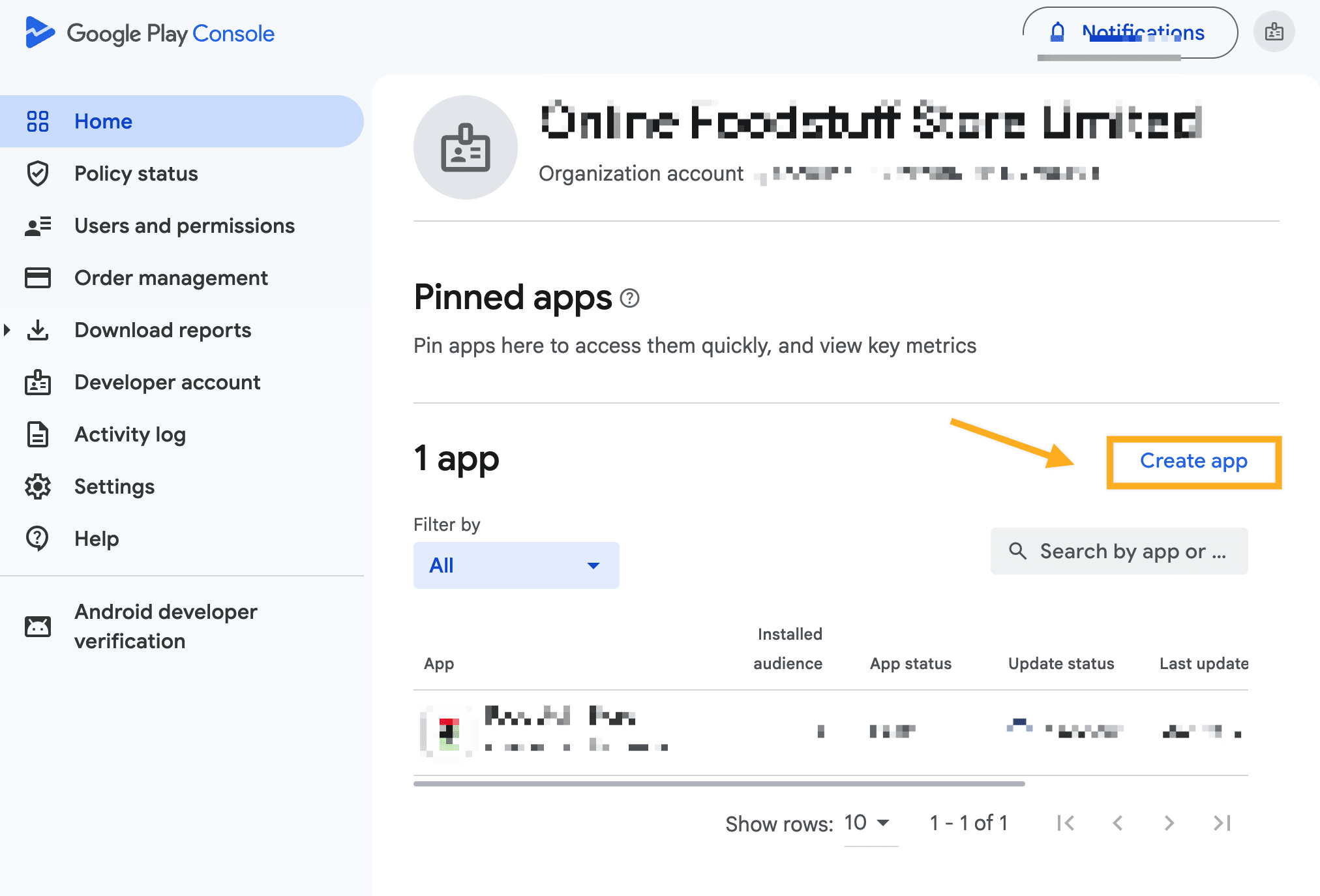
In Google Play Console, choose Create app and complete the required app setup.
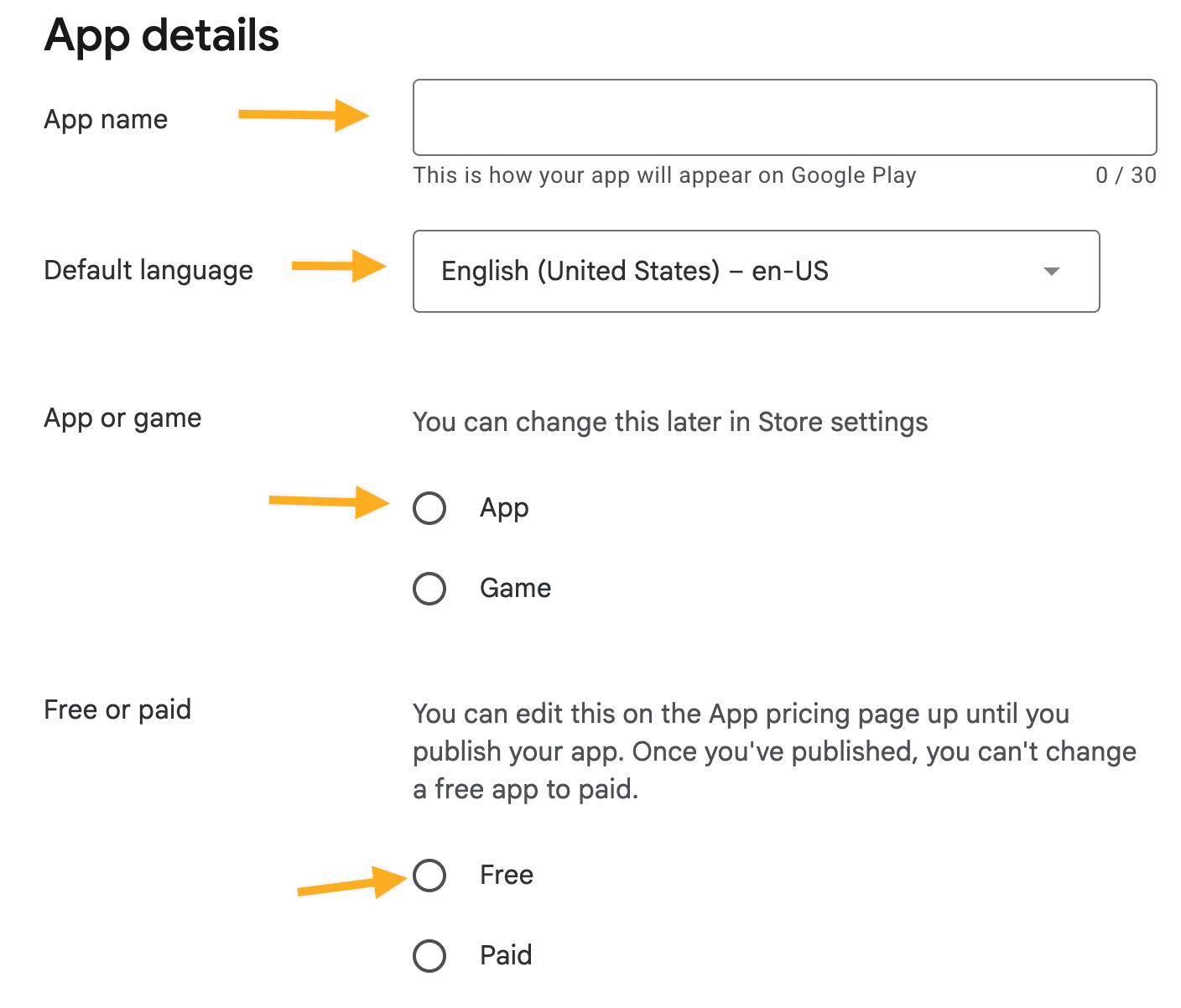
Enter app details
Set the app name, default language, app type, and monetization choice according to the account owner’s decision. Do not choose a price or app classification just to complete the form.
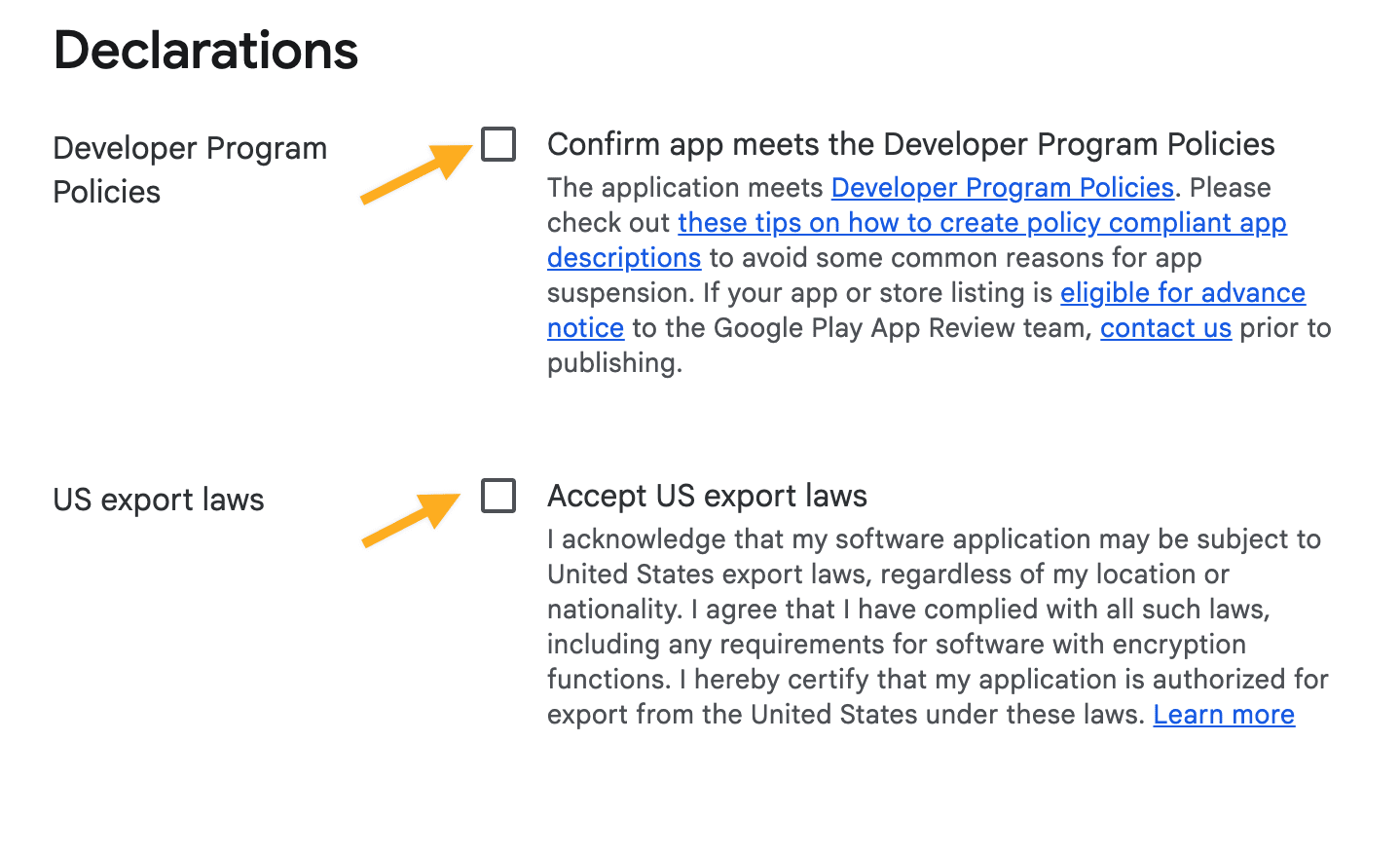
Complete declarations
Read and confirm the provider-policy and export-law declarations only when the account owner can make those confirmations. Then create the app record.
Upload a production release
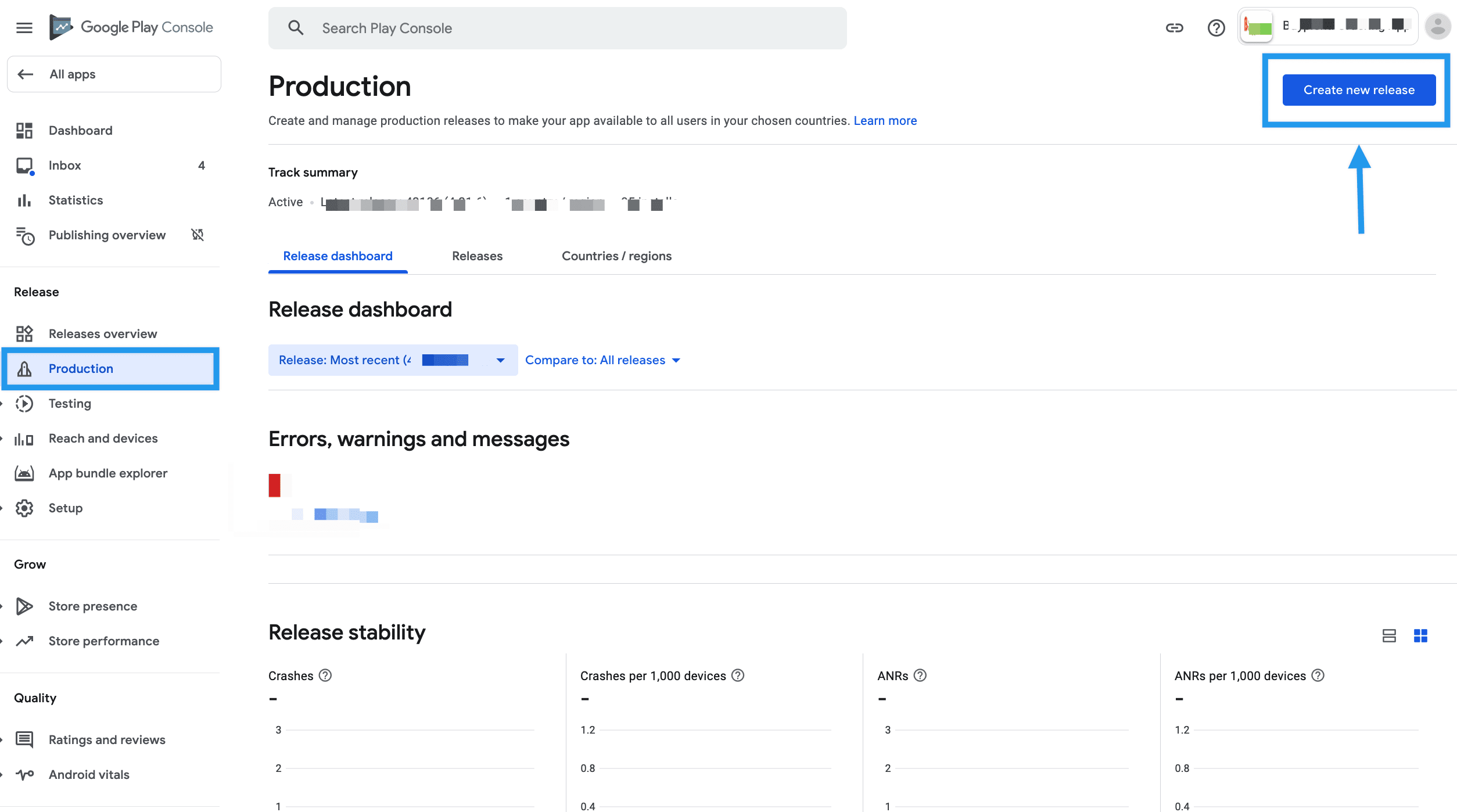
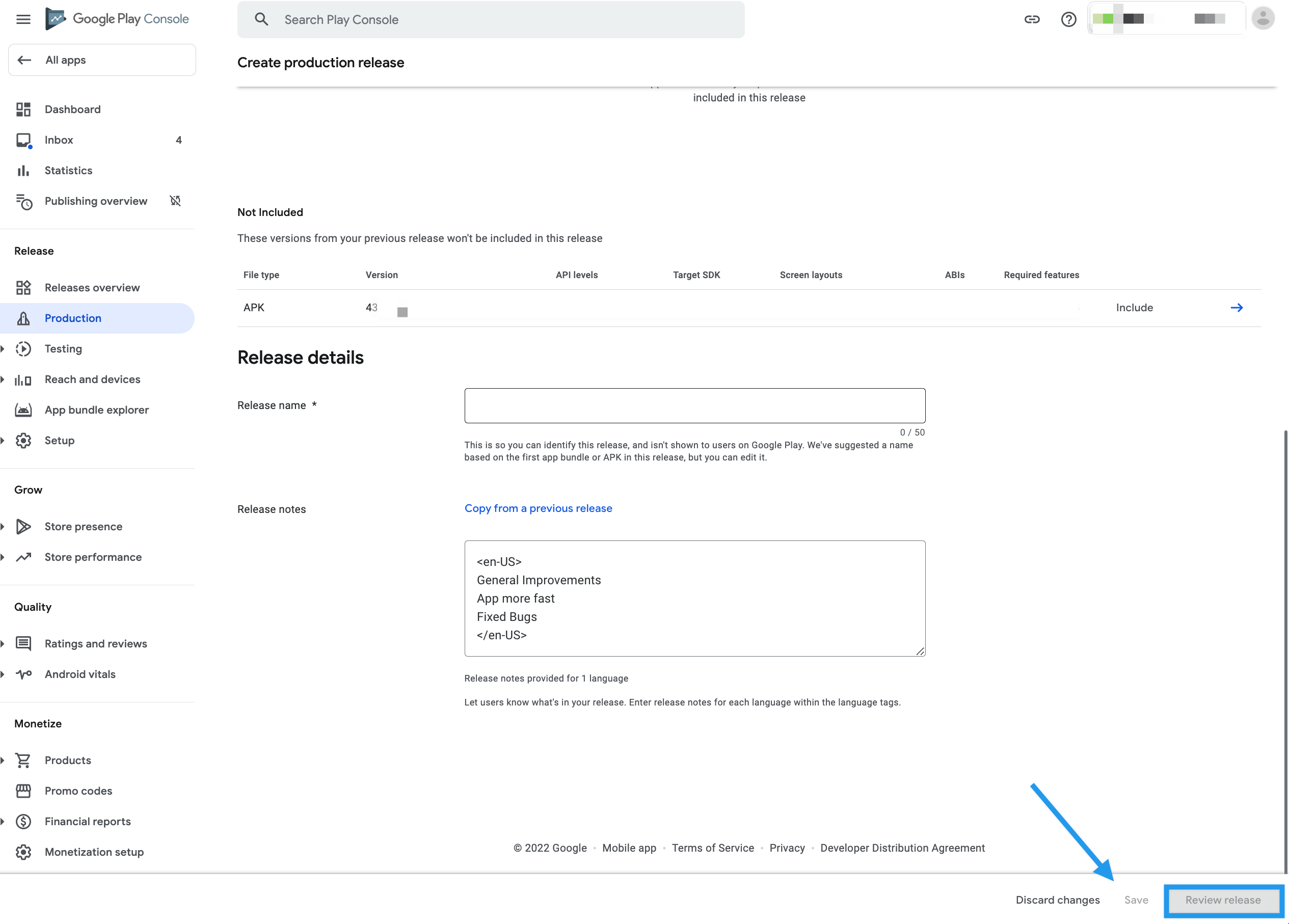
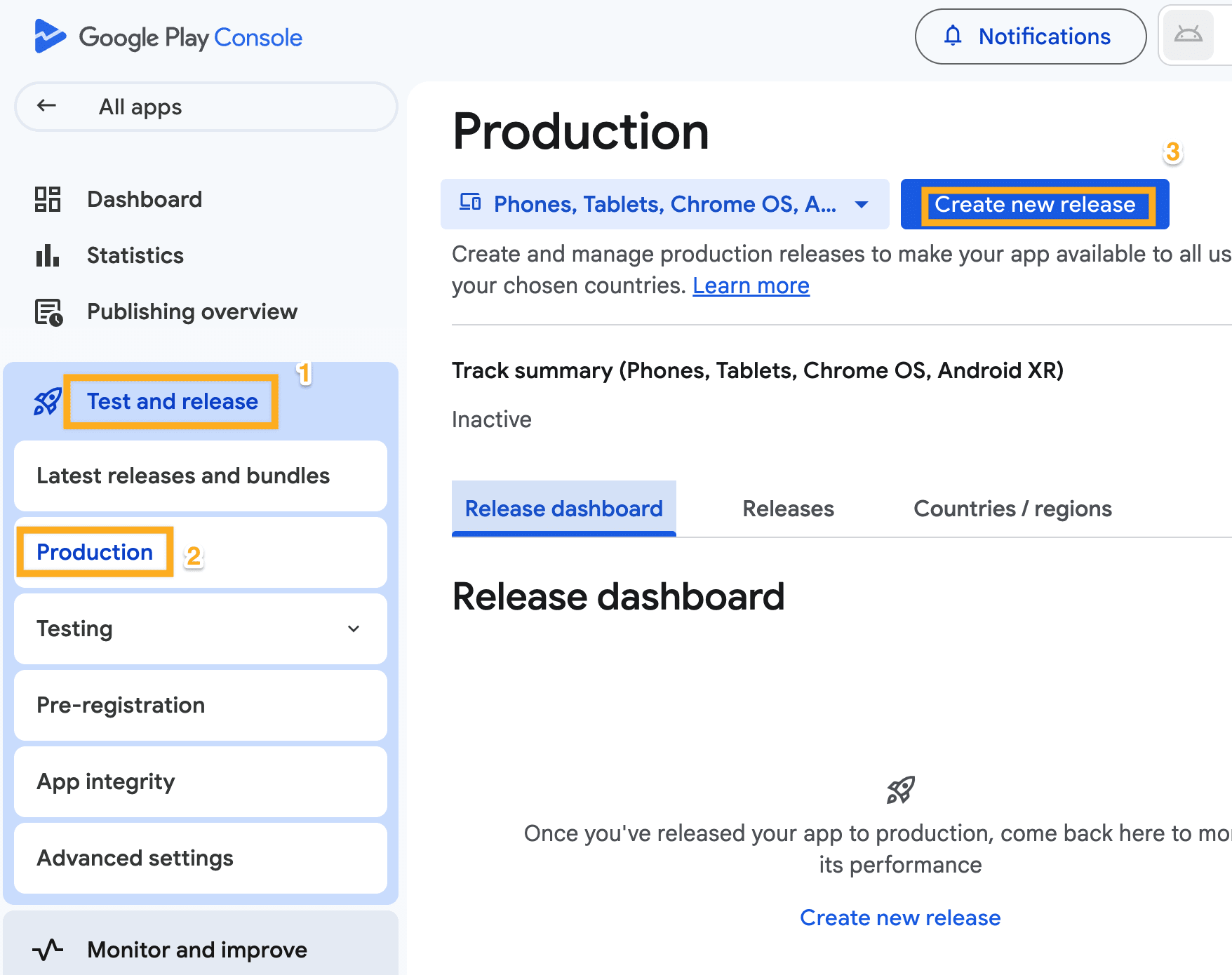
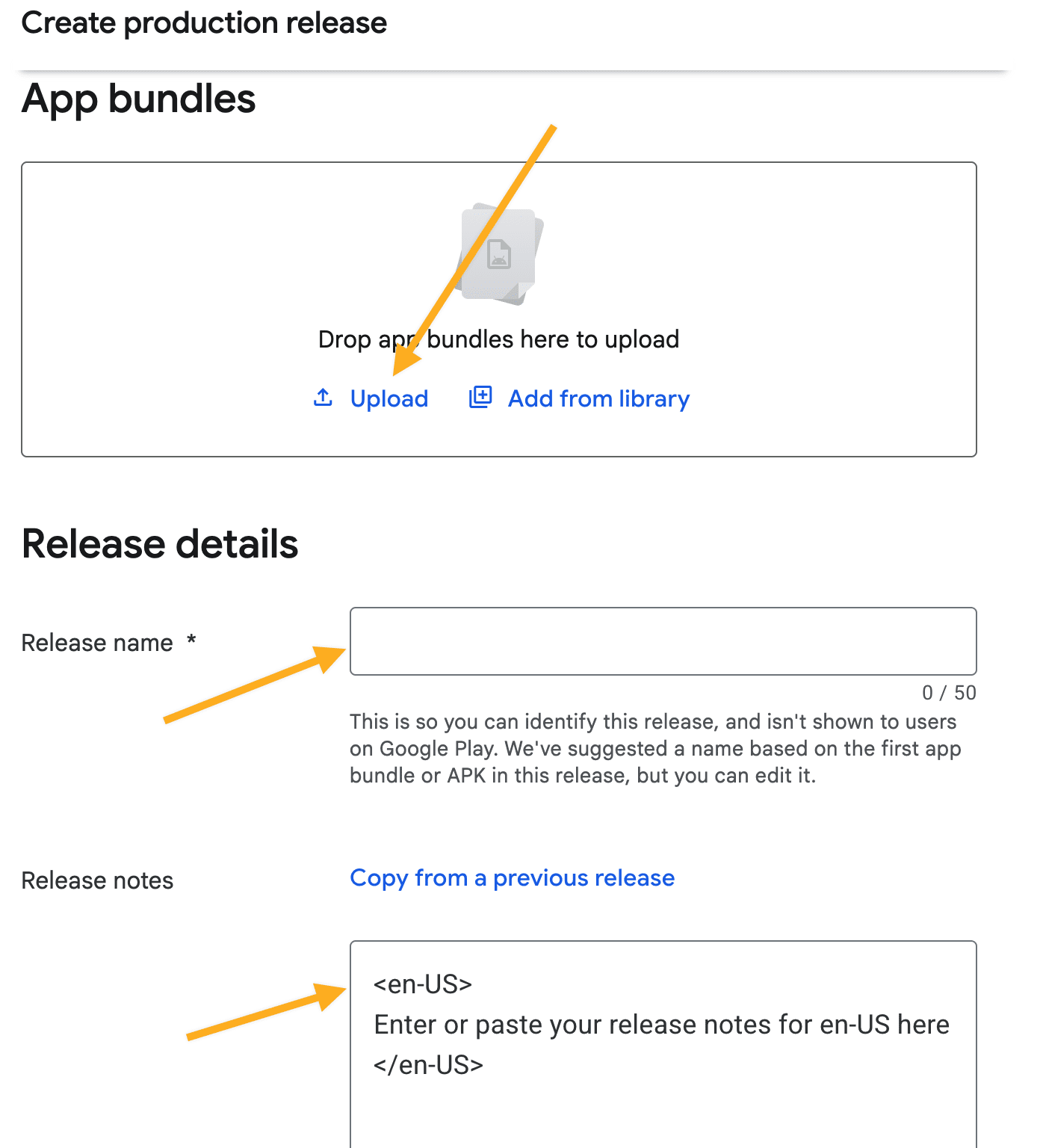
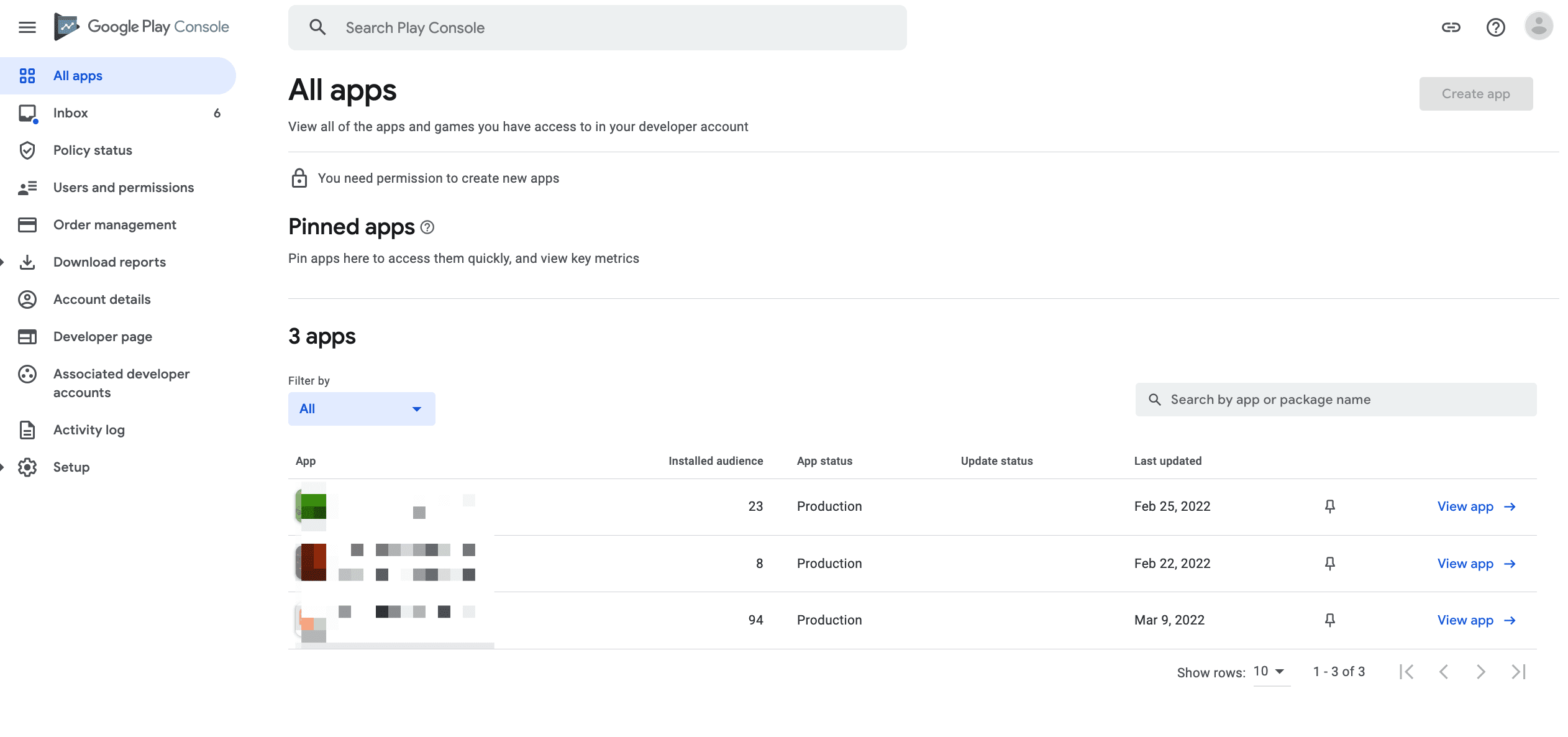
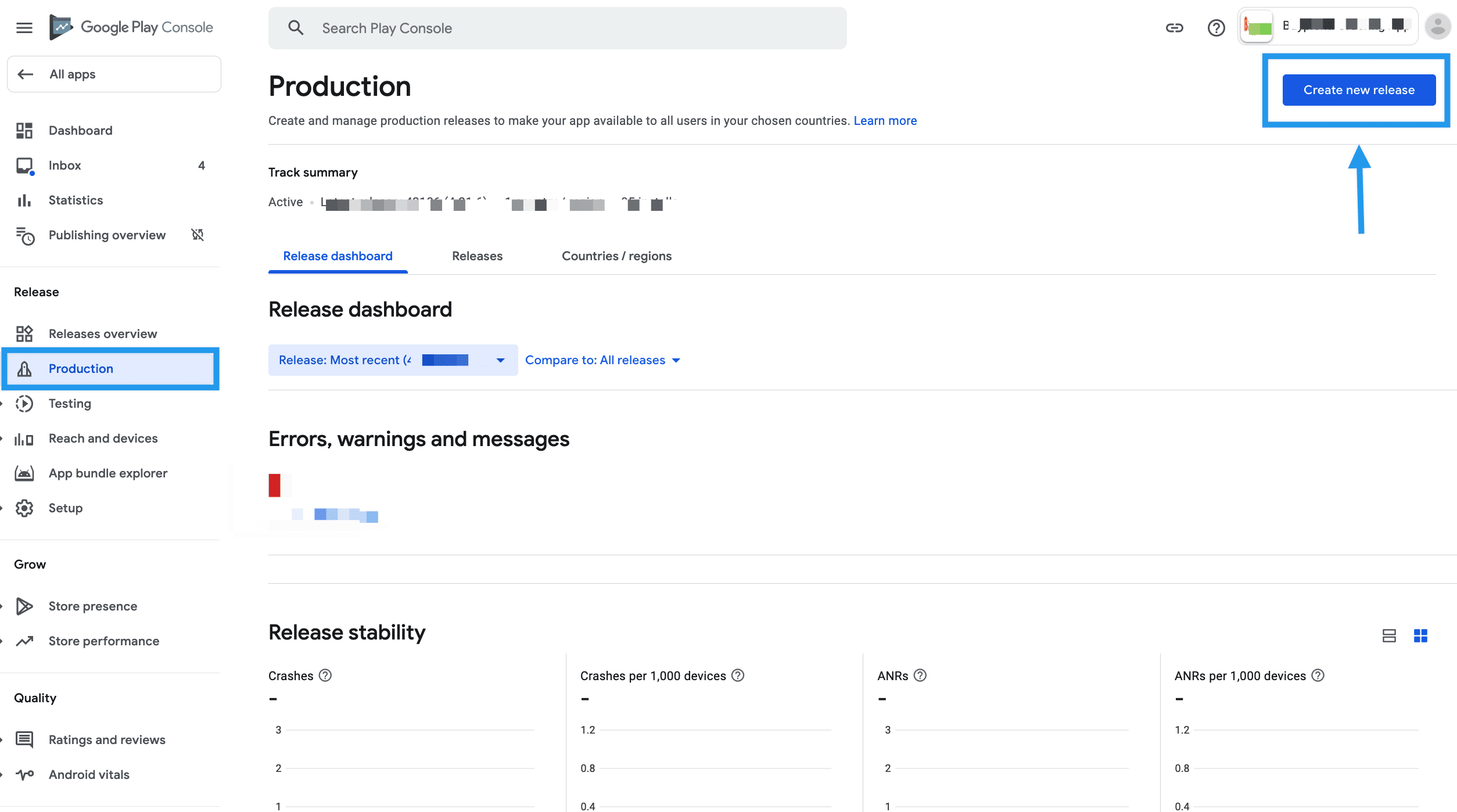
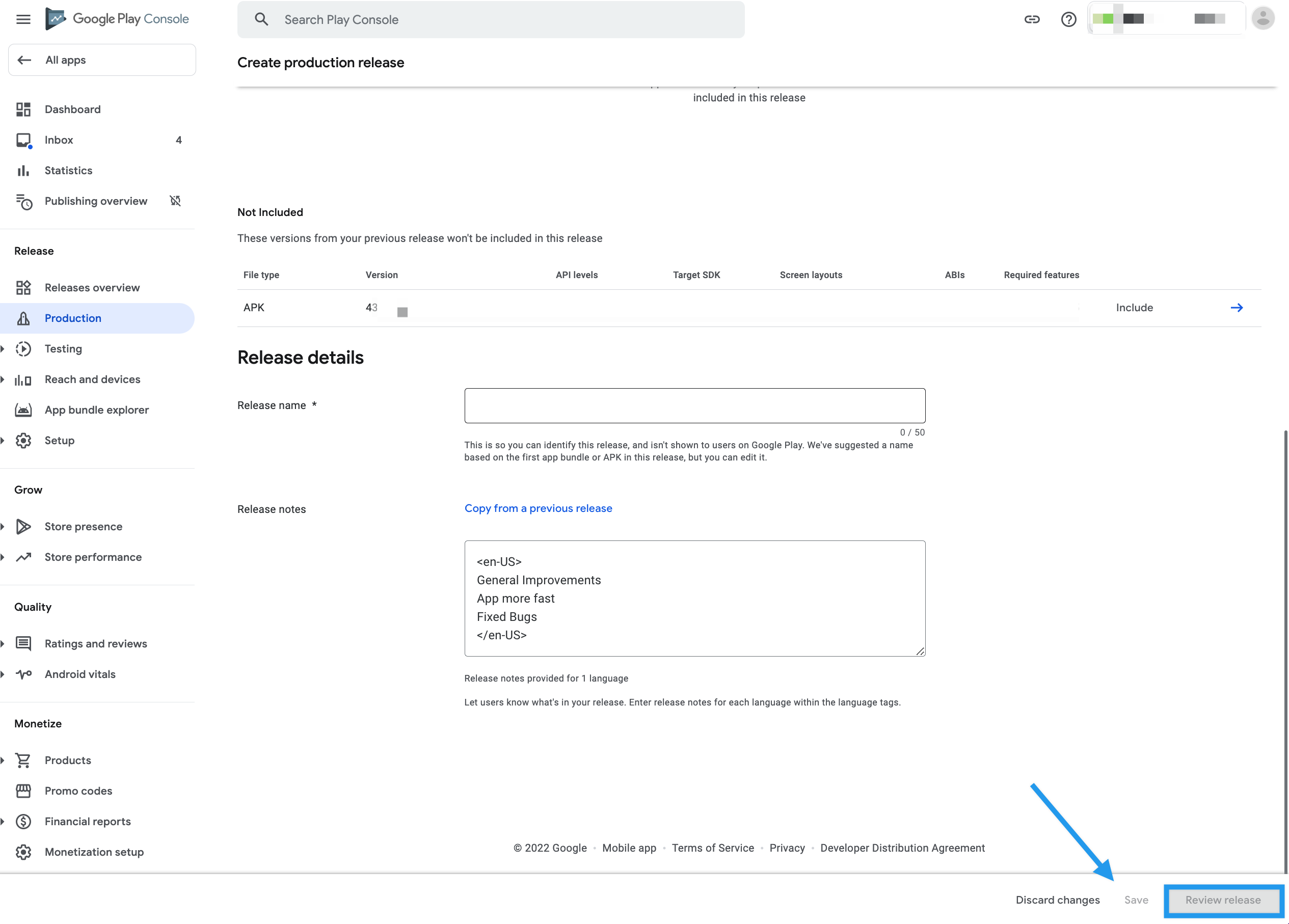
Sign in to Play Console, select the app, and open Test and release → Production. Create a release, upload the .aab (or an eligible APK for an existing app), enter a release name and useful release notes, save, and review the release before rollout.
Use Google’s release guide as the current authority for track behavior, permissions, and rollout steps.
Personal-account testing requirement
Personal developer accounts created after November 13, 2023 must meet Google’s applicable testing requirements before production release. Confirm the current closed-testing requirement and keep the test evidence with the release work.
Create the default store listing
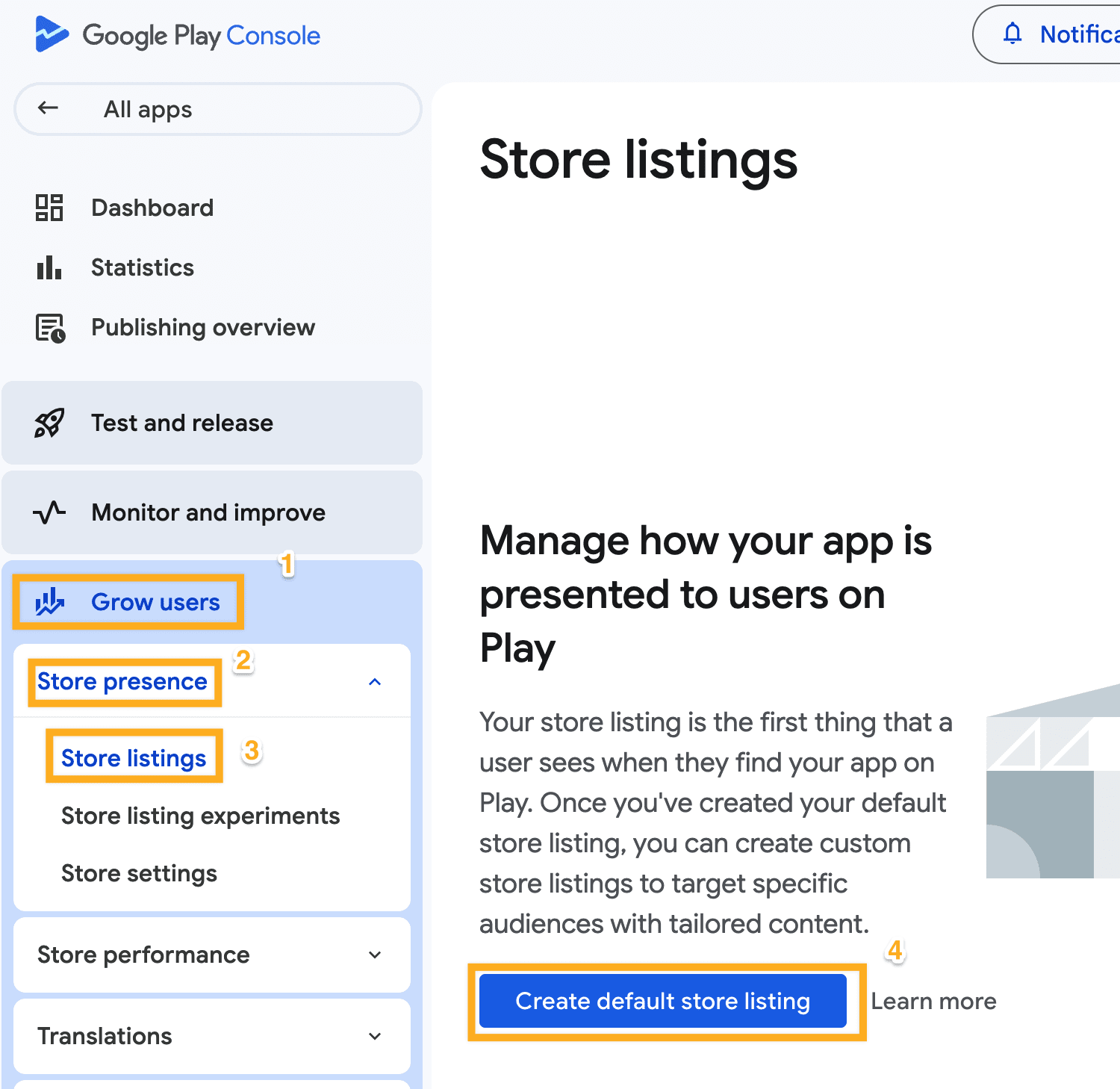
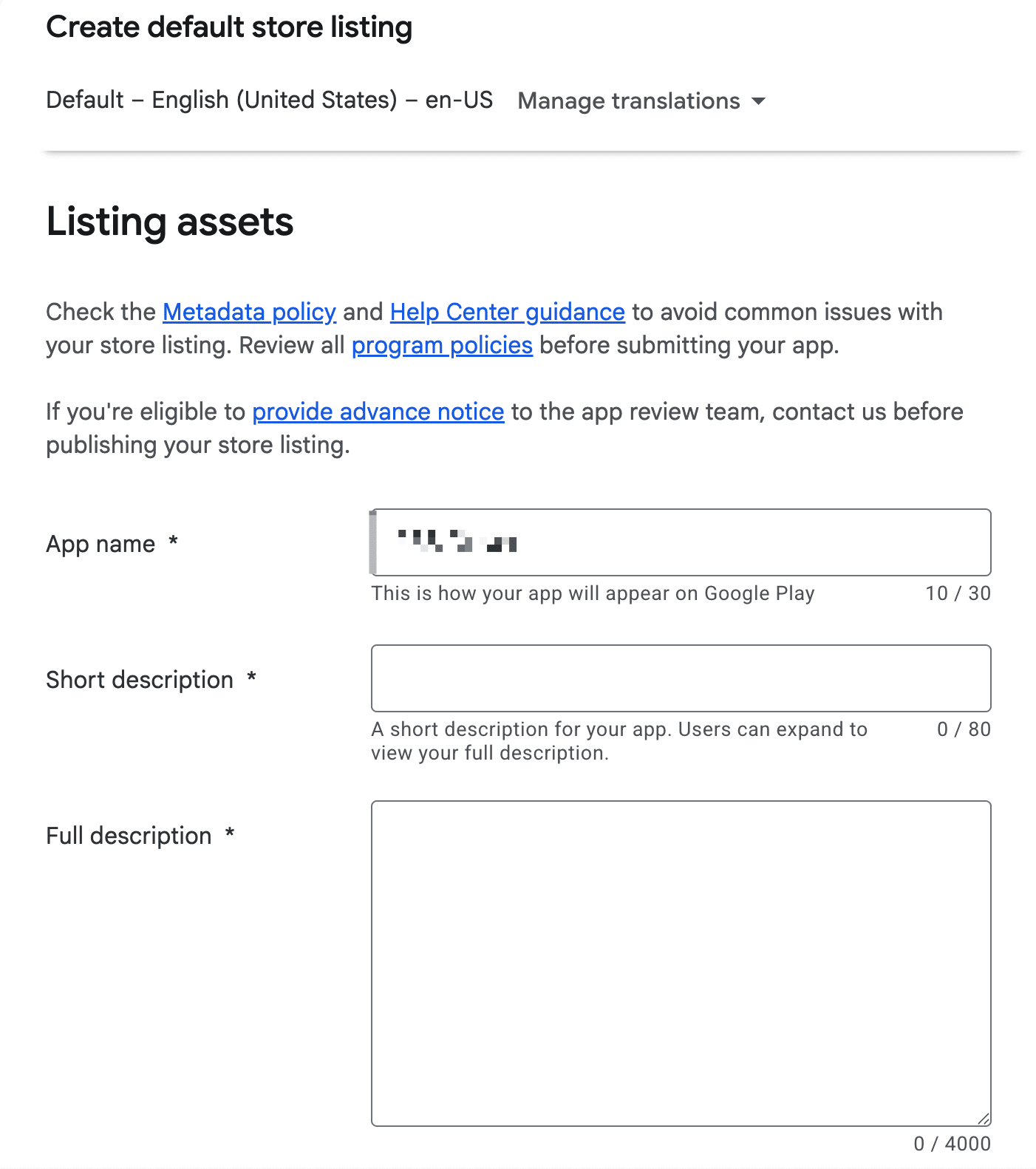
Open Grow users → Store presence → Store listings, then create or complete the default store listing.
Add listing text
Verify the app name, short description, full description, contact details, and website. Store copy must describe the app actually submitted.
Add graphics and screenshots
Upload the high-resolution icon, feature graphic, phone screenshots, and tablet screenshots for every device type you support. Tablet screenshots can use the same visual set when it truthfully represents that tablet experience.
Complete App content
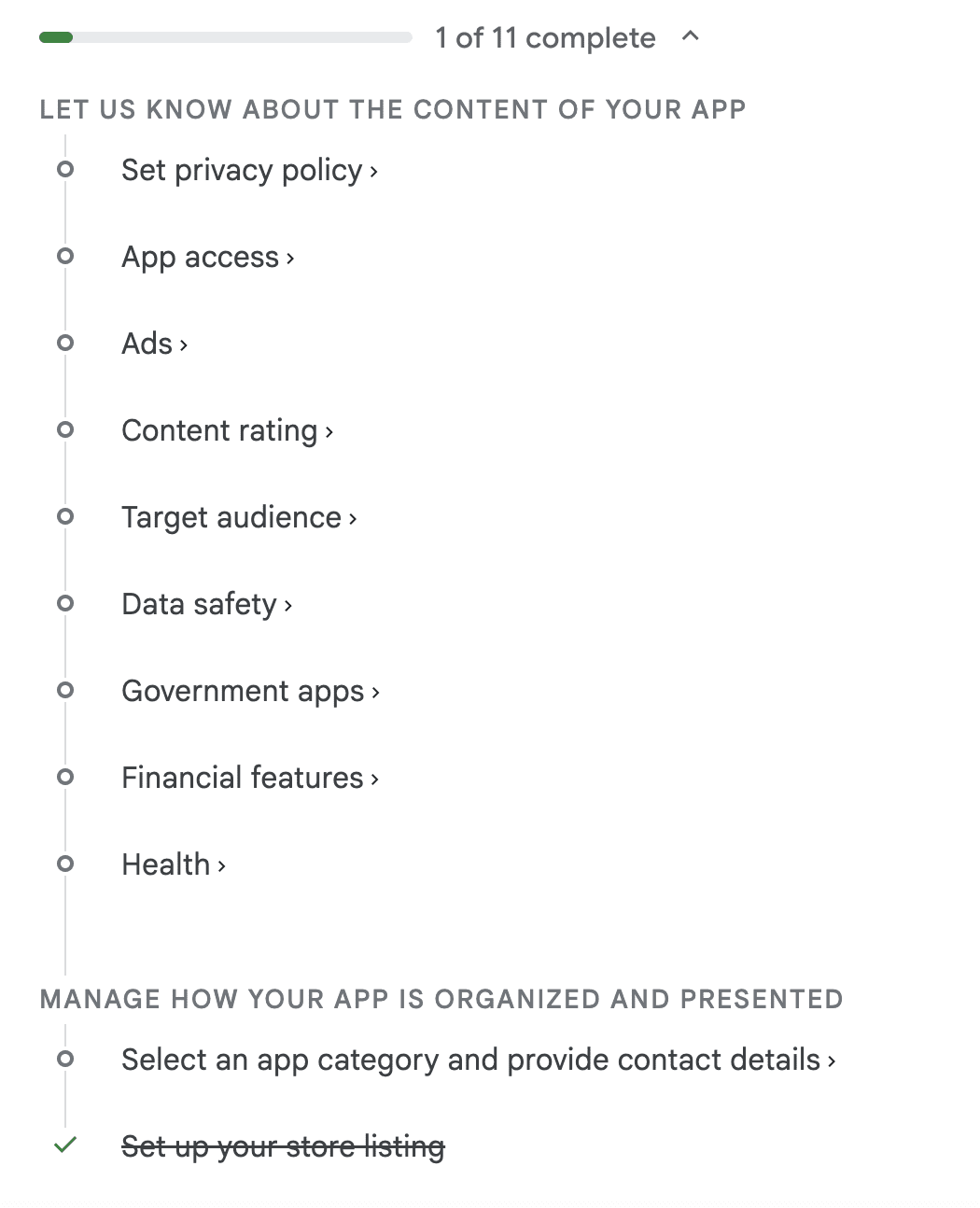
Play Console presents policy declarations in App content. Complete the declarations from the actual behavior of the submitted app and the code or services it integrates. Do not use a default “No” or “Yes” answer because it appeared in an earlier app’s workflow.
Privacy policy
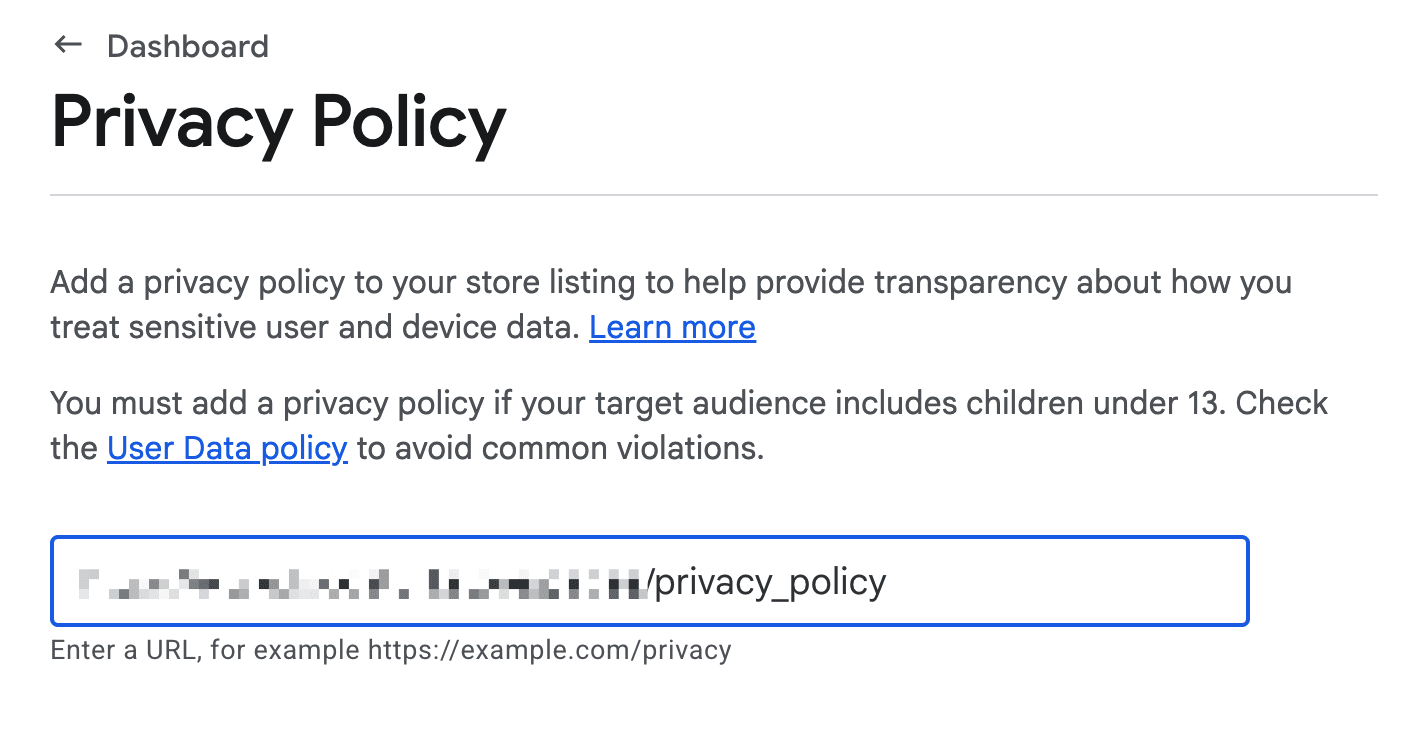
Add an active public privacy-policy URL that applies to the app and describes how it collects, uses, and shares data. If the app requests sensitive permissions or data, make the policy available both in the app and on its store listing.
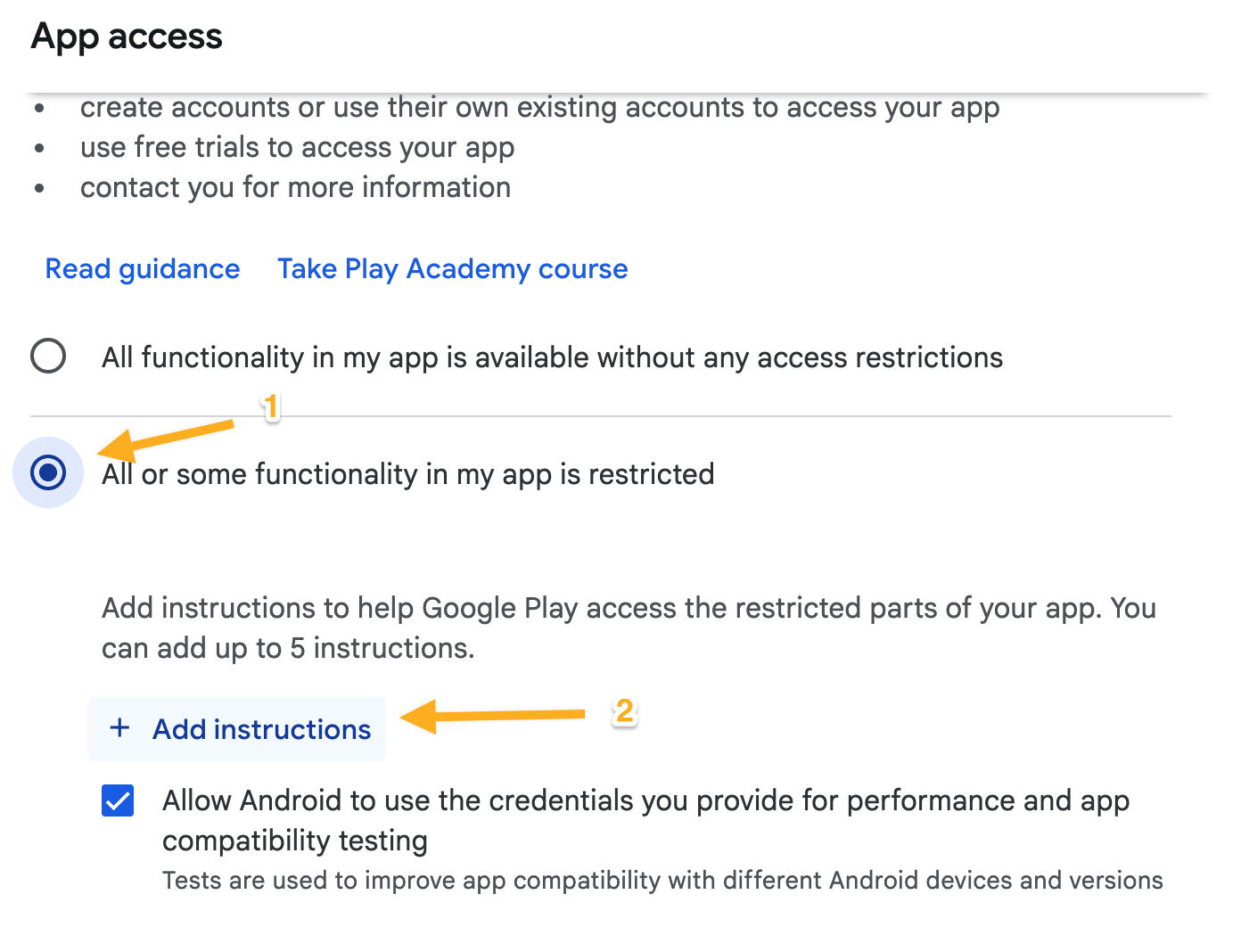
App access
If the app requires sign-in, provide reviewer instructions and a dedicated test account:
- For a Customer App, use a test account with a usable address so reviewers can find stores.
- For a Driver App, provide a test driver with an order to manage.
- For a Business App, provide a test business, an active business record, and orders to review.
Keep reviewer credentials in Play Console’s access instructions. Do not disclose real customer accounts, passwords, or private keys in this guide or elsewhere.
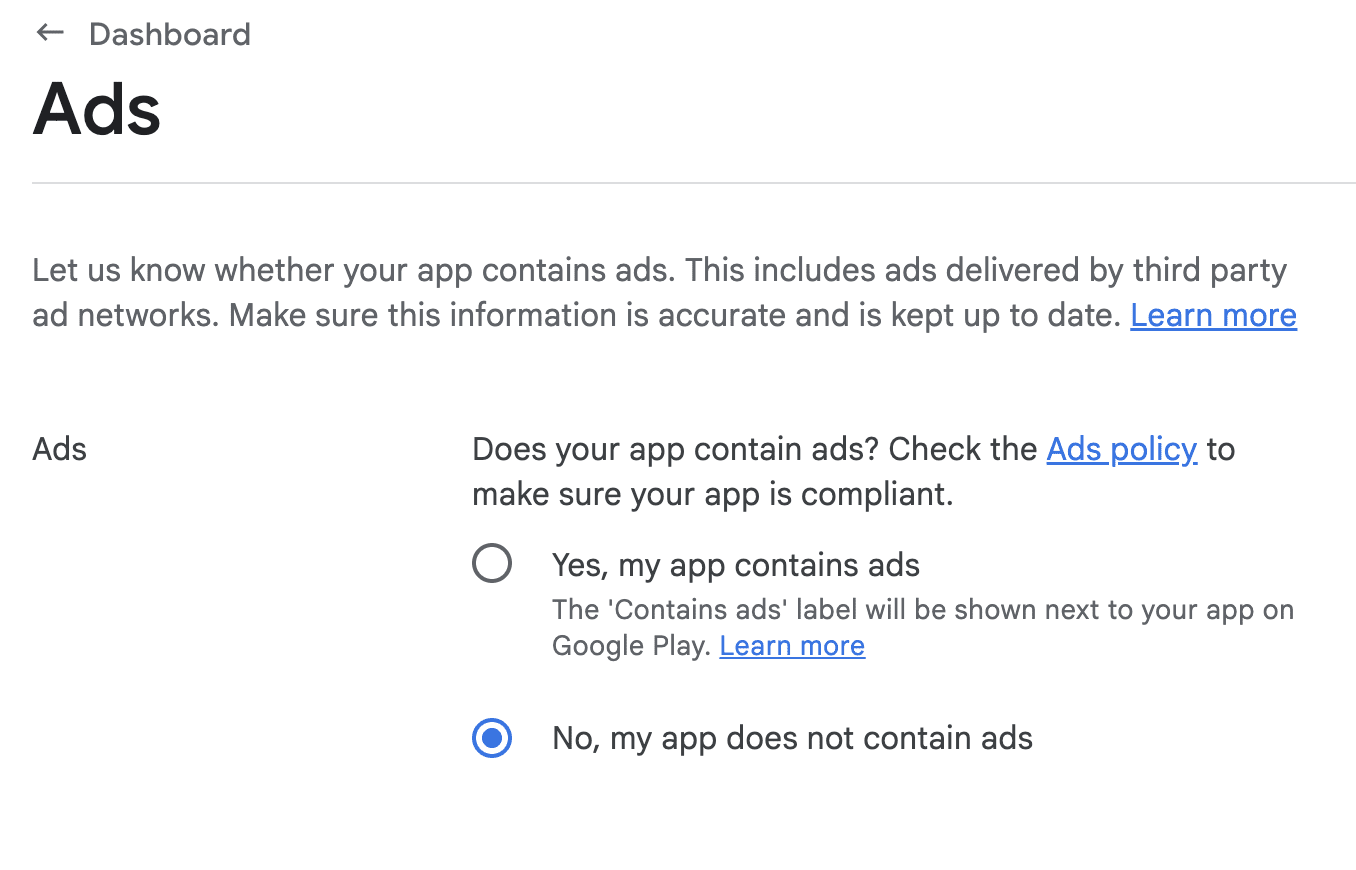
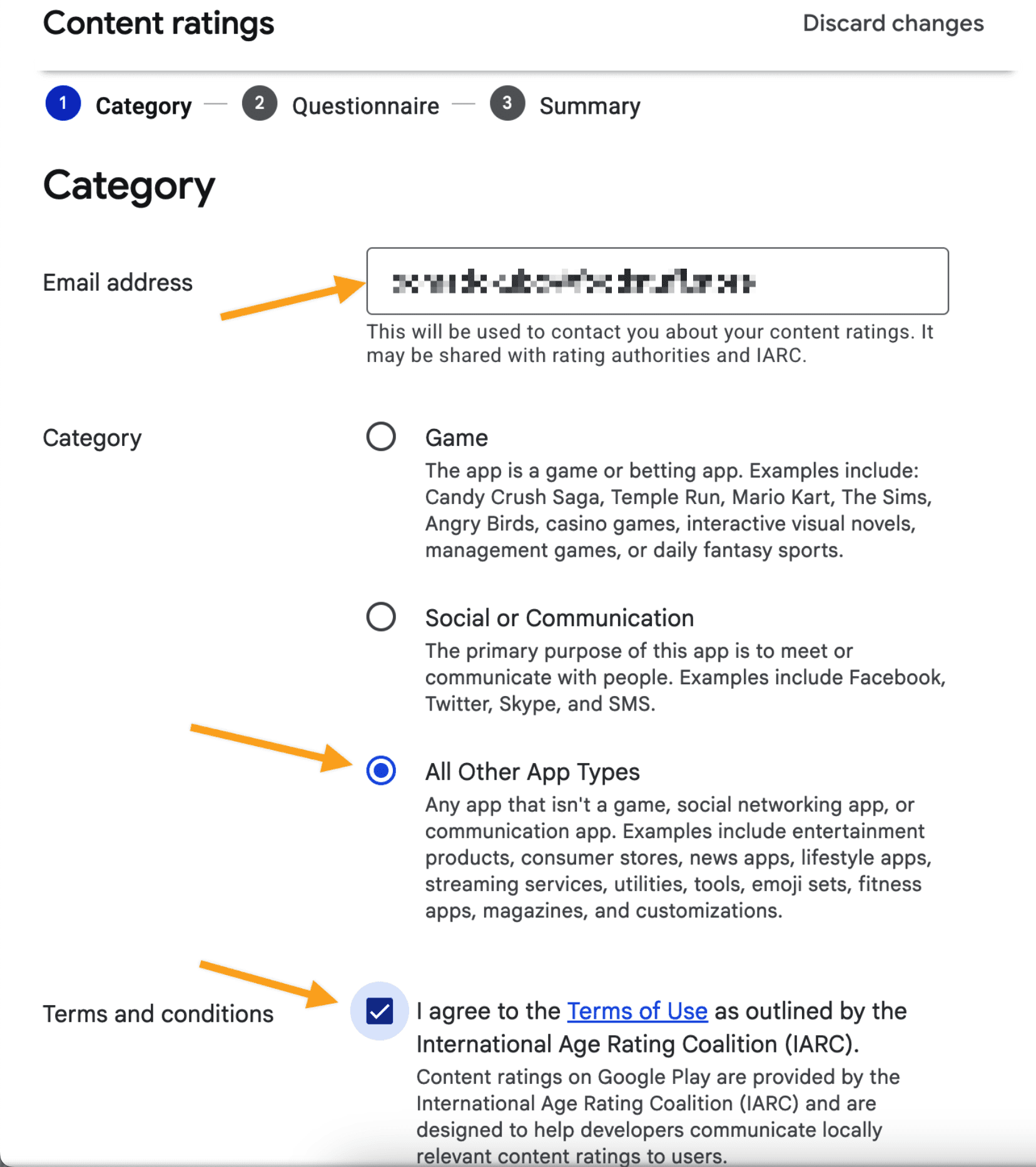
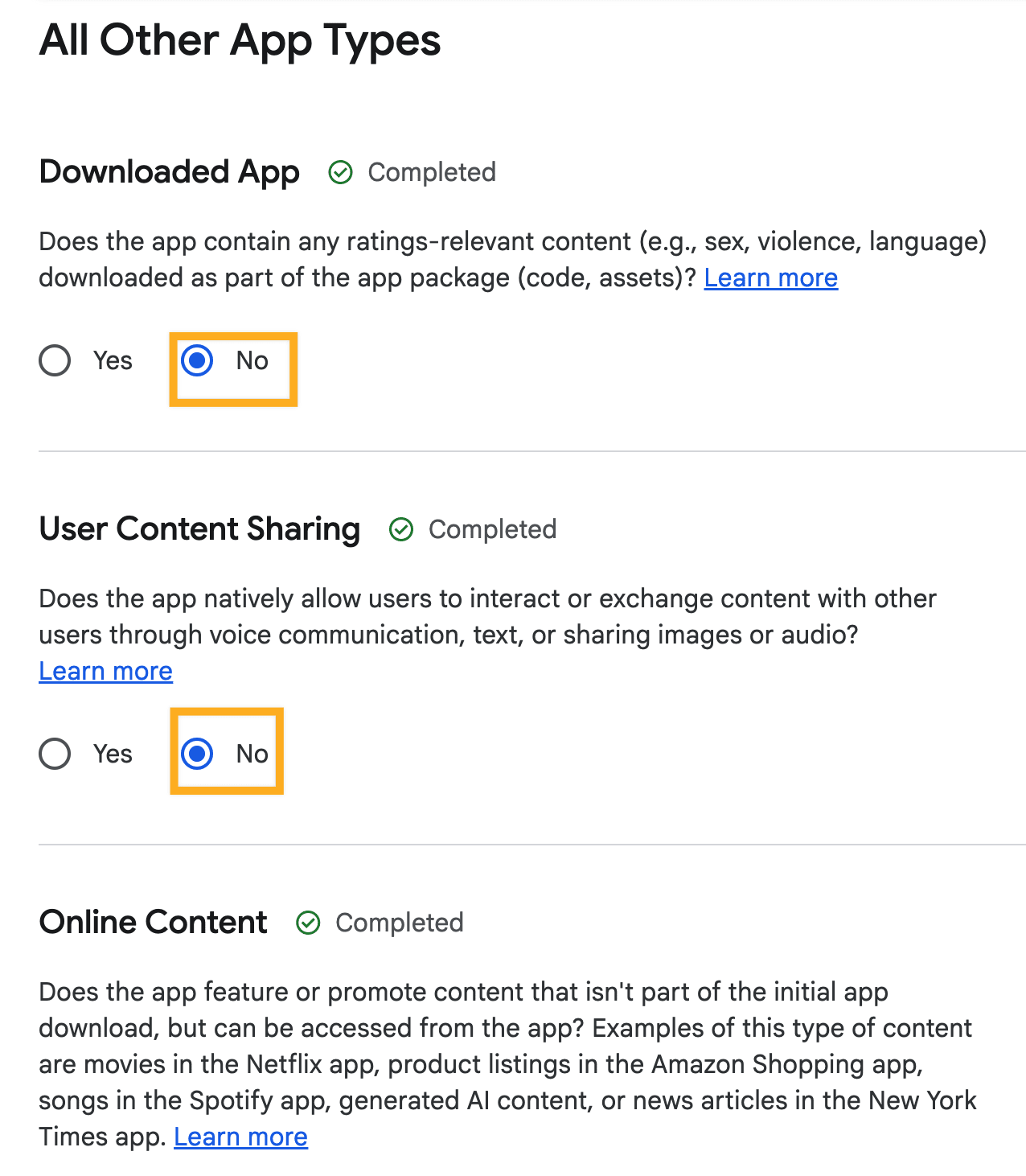
Ads, content rating, and target audience
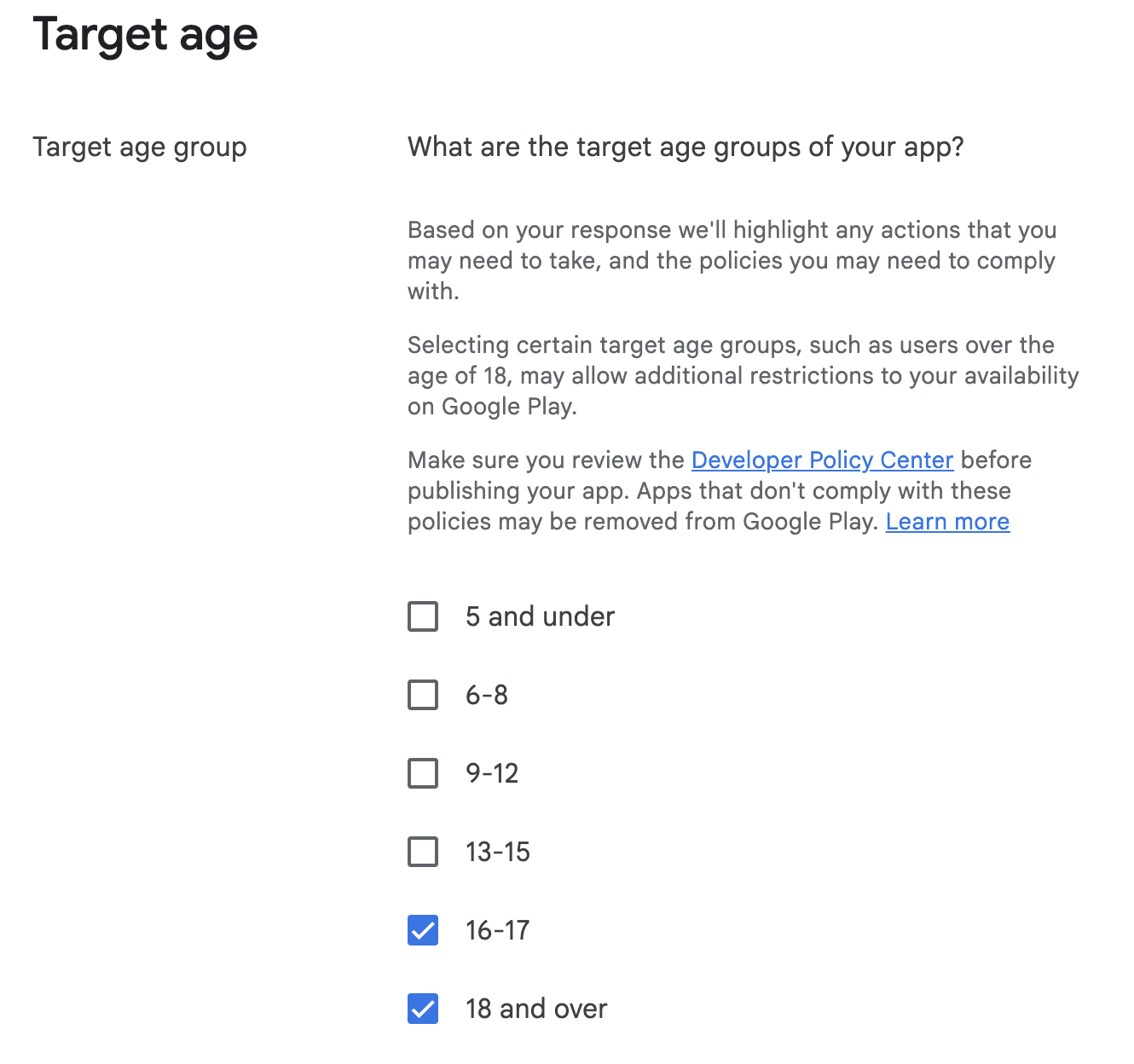
Declare ads only if the app actually contains ads. Complete the content-rating questionnaire from the app’s actual content, then select the real target audience and content classification. Do not assume that every question should be answered “No,” or that 16–17 and 18+ are the right target-age bands for every app.
Data safety
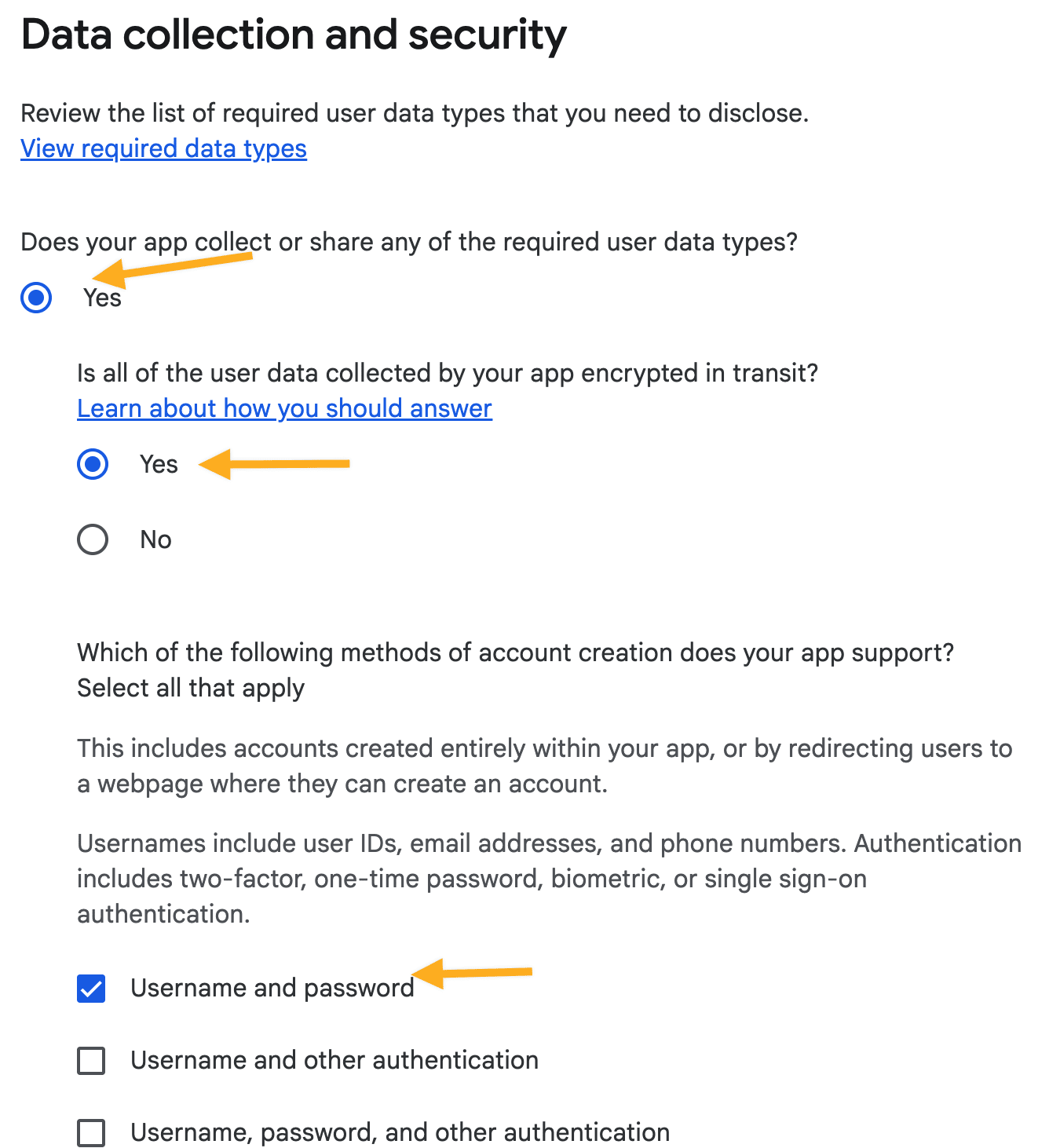
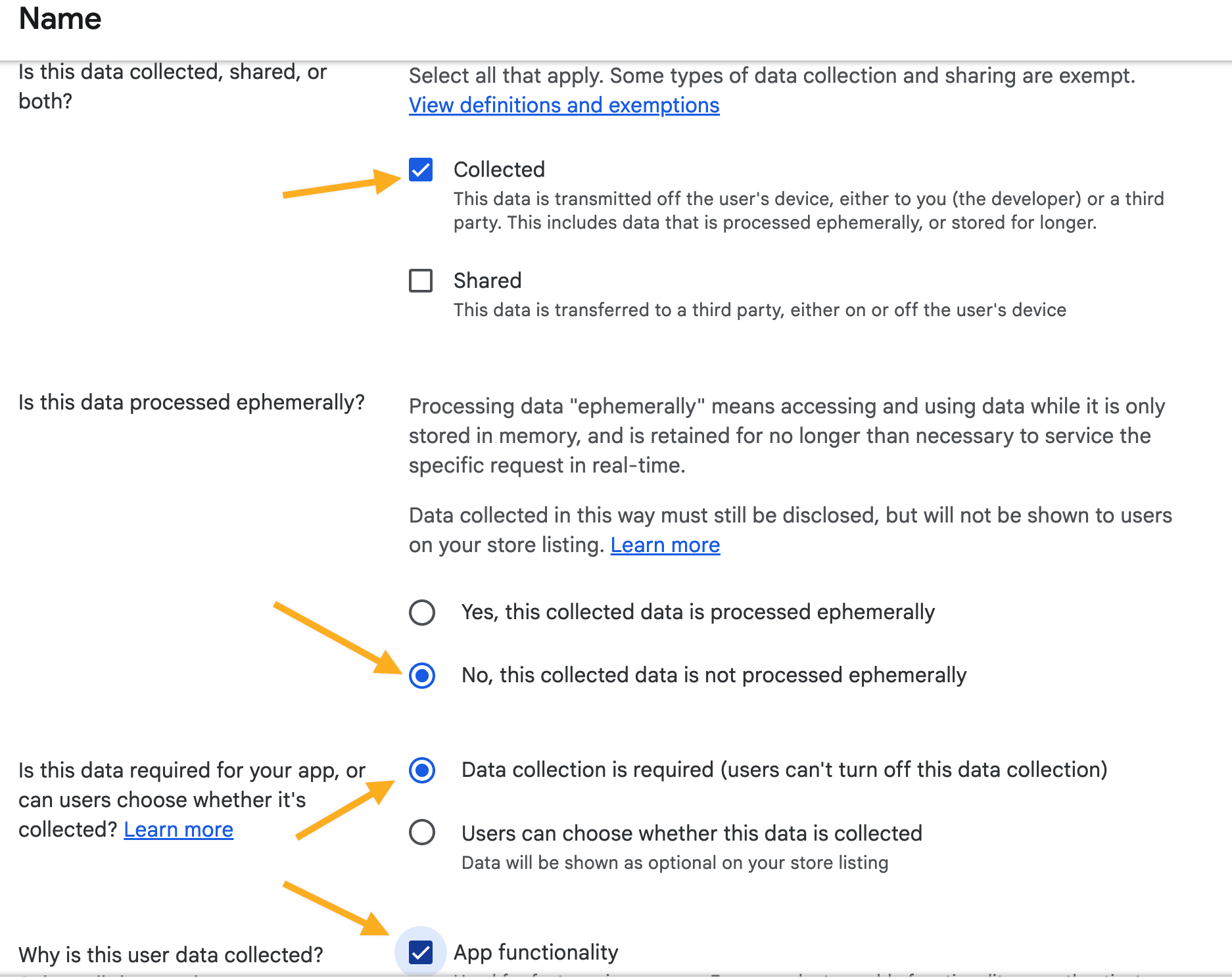
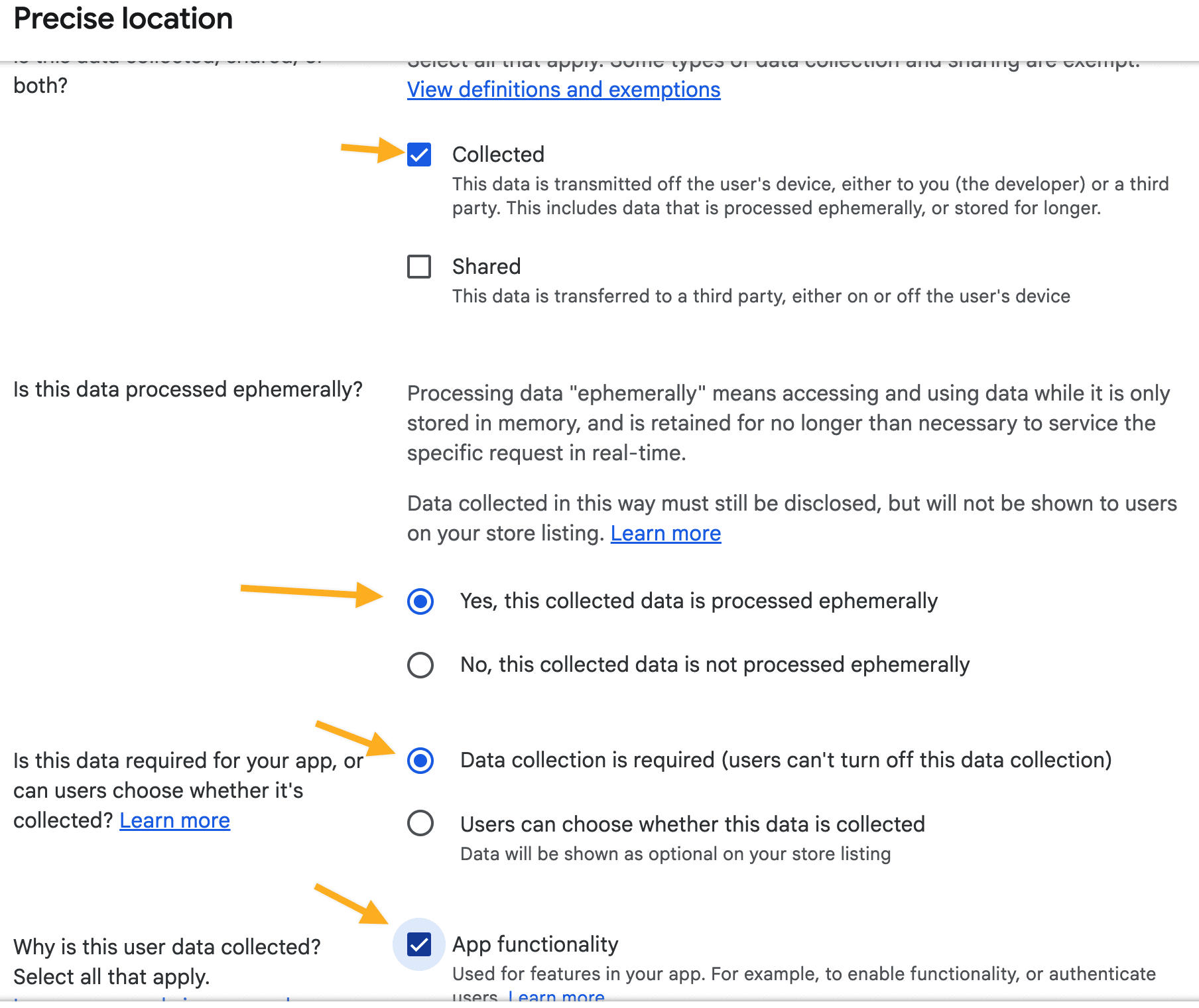
Complete Data safety from a current data inventory. Answer whether the app collects or shares required data types and whether transmission is encrypted based on the app’s actual behavior. If users can create accounts, supply a valid web URL for account-and-data deletion when Google requires it.
For the app types documented in this guide, review these data categories before deciding what to declare:
- Authentication information for apps that use user sign-in.
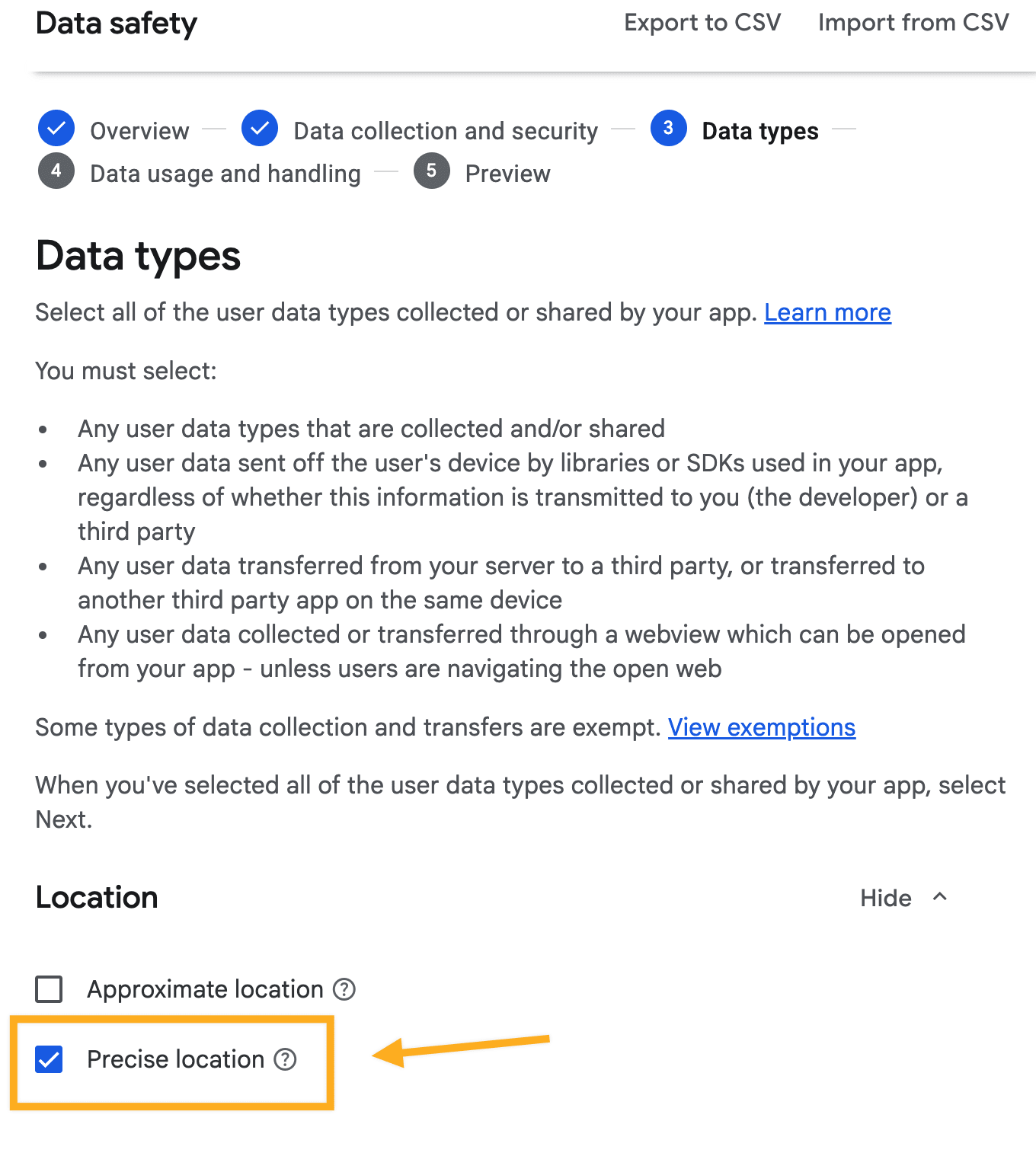
- Precise location when any app actually collects it, including the Driver App when it uses it.
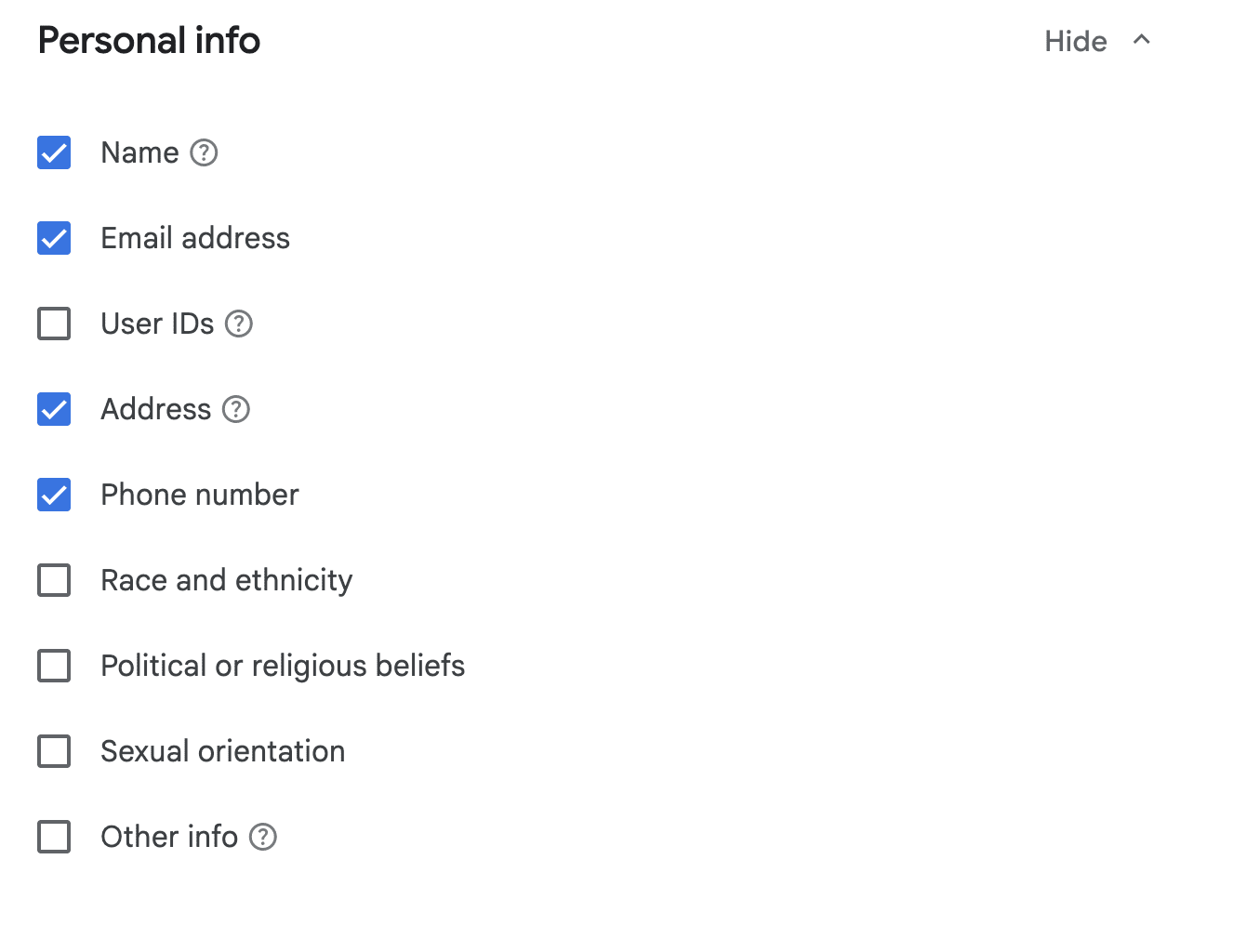
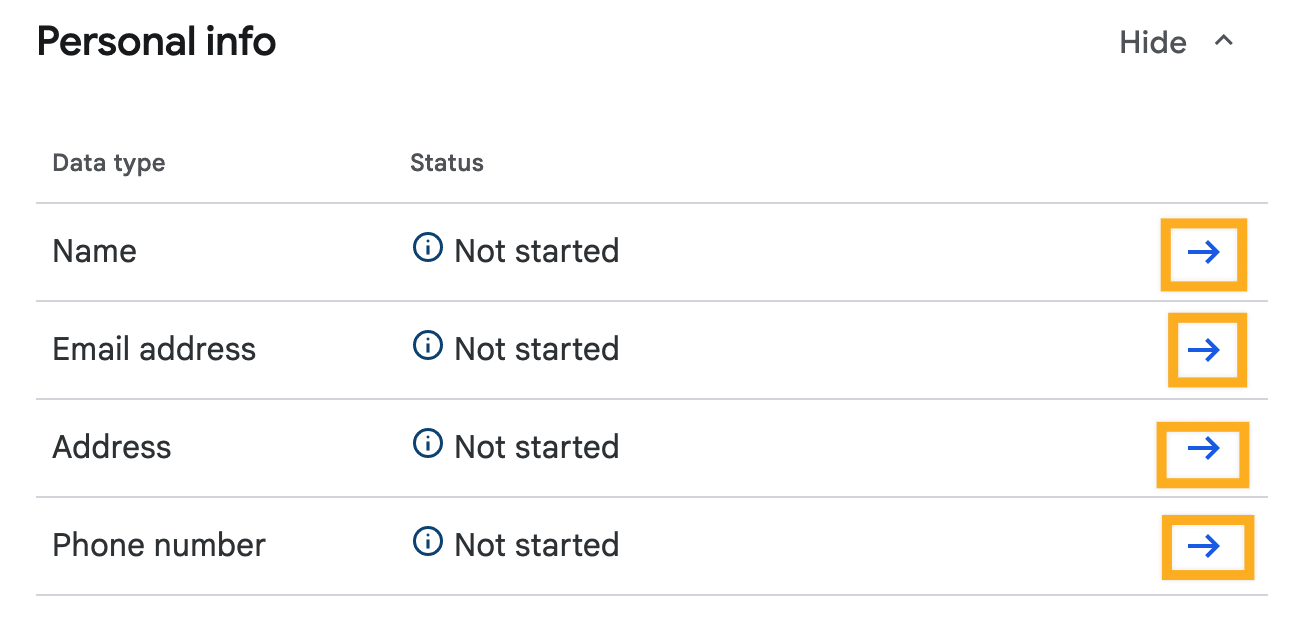
- Personal information that the app collects, such as name, email address, address, and phone number.
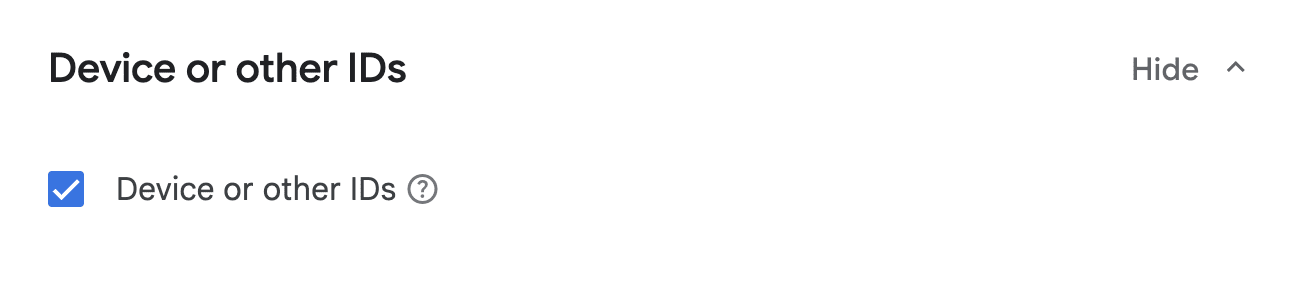
- Device or other IDs only when the app or its integrations collect them.
Do not add or omit a category based on another app’s answers. Complete every data-use and handling question for each selected category.
Government, financial, and health features
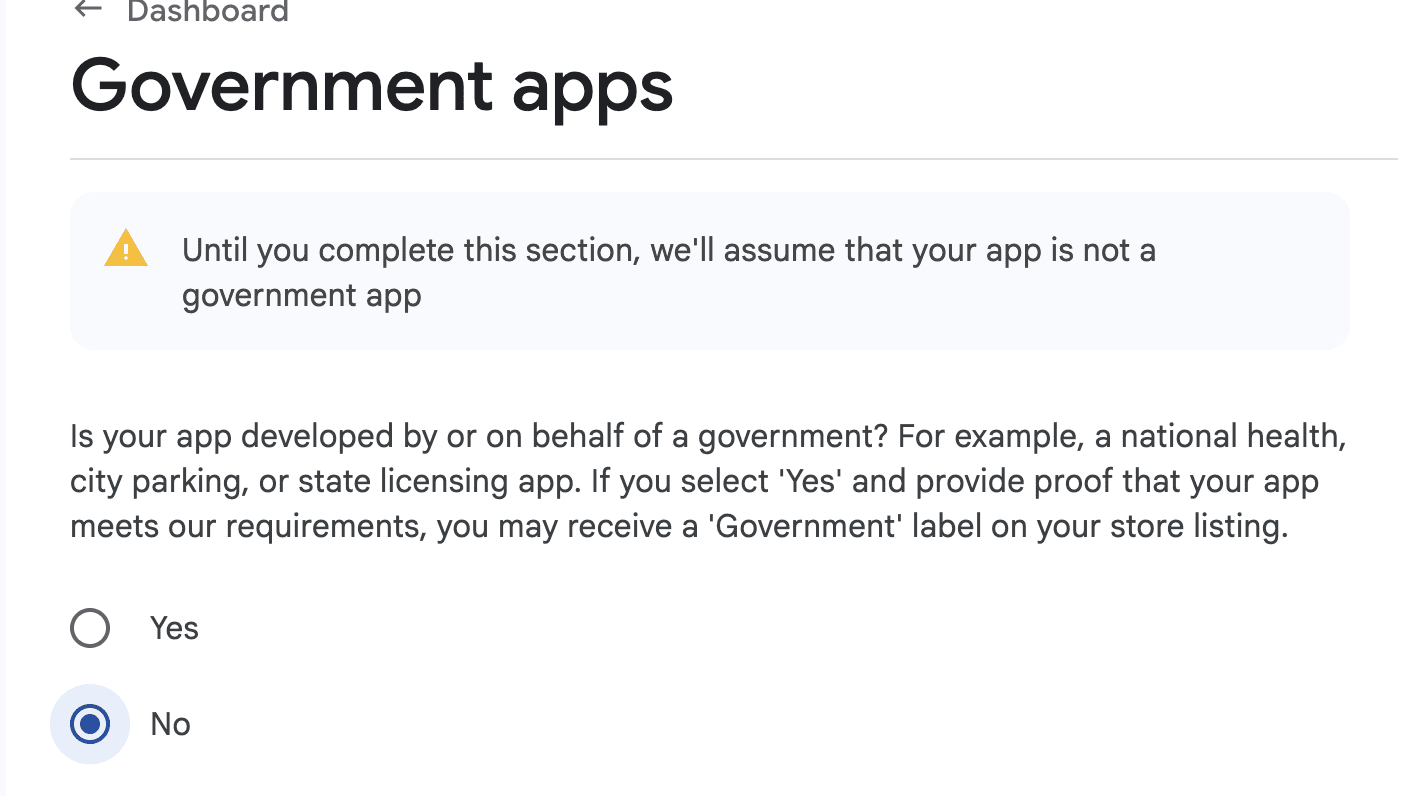
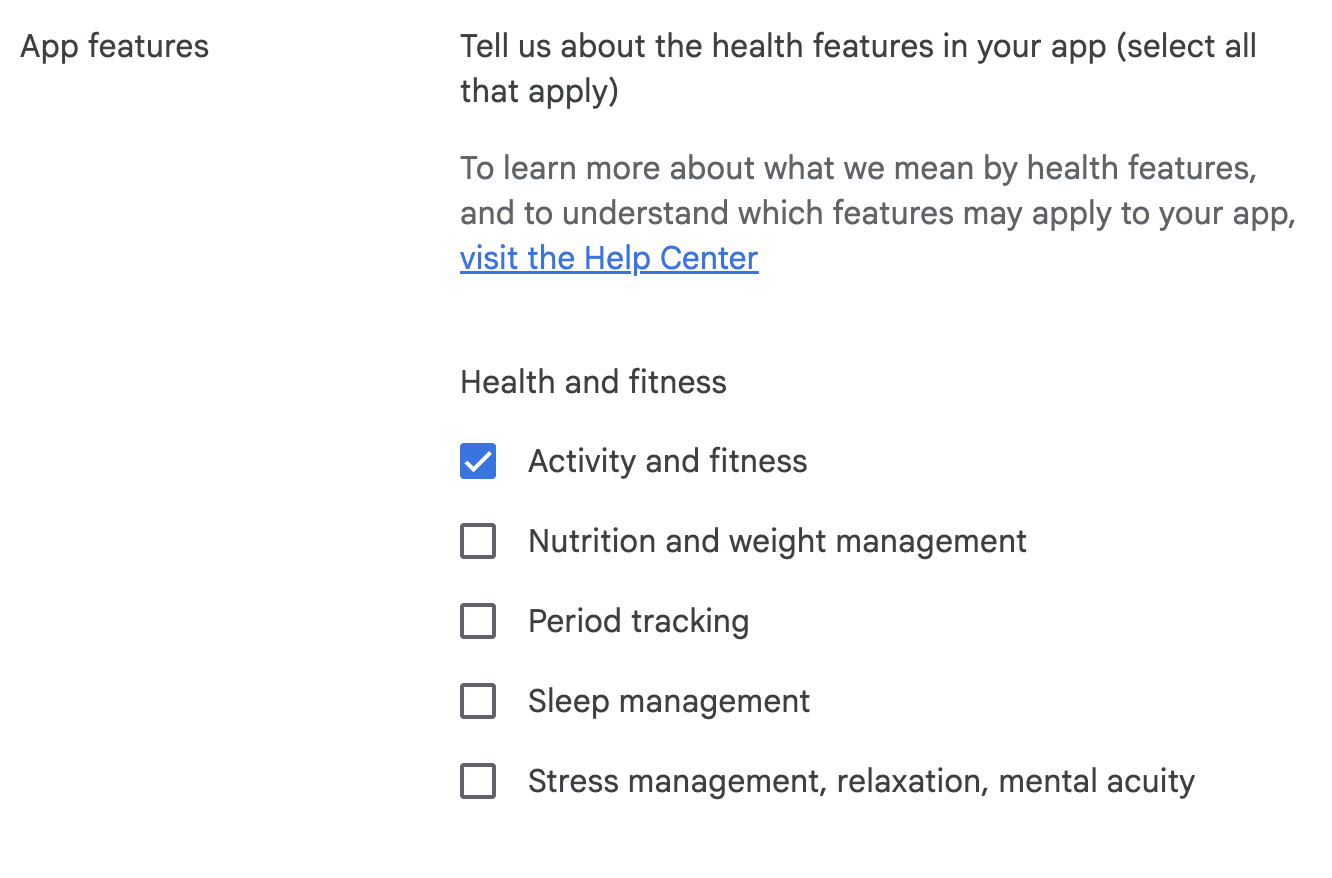
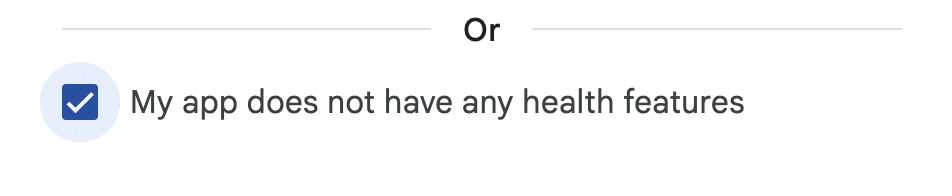
Answer the Government apps, Financial features, and Health declarations from the functionality in the submitted app. Select “no” only when the feature truly is absent.
If a Driver App genuinely uses activity-recognition or activity-and-fitness data, describe the actual feature and use in the declaration. Identify the delivery-related action, when the app accesses the data, whether it is shared or used for advertising, and only behavior demonstrated in the submitted build. Do not promise navigation, tracking accuracy, or delivery outcomes based only on a permission or configuration.
Do not select a health feature just to use this text, and do not declare that no health feature exists if the app actually uses one.

Category, contact details, advertising ID, and news
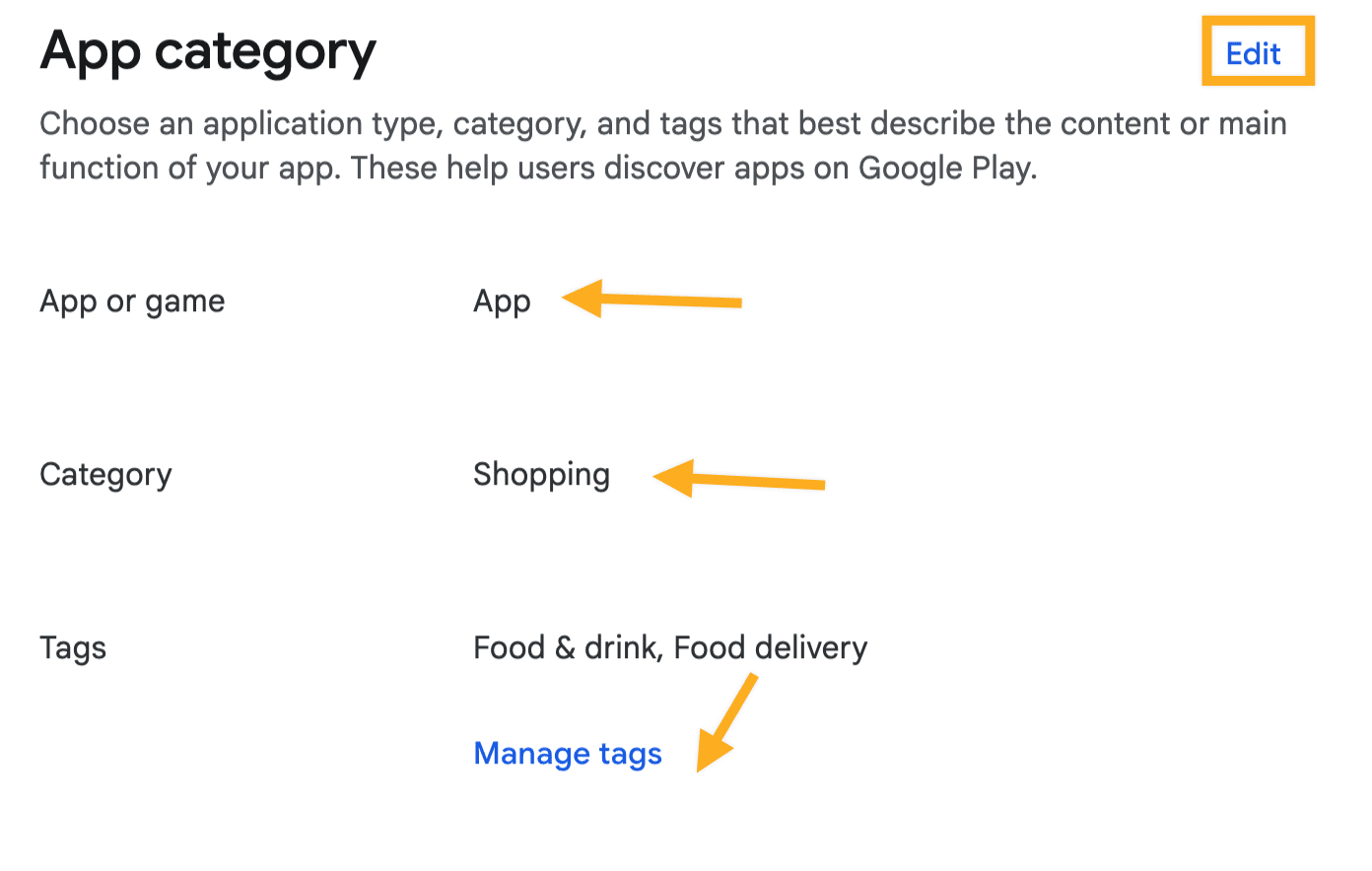
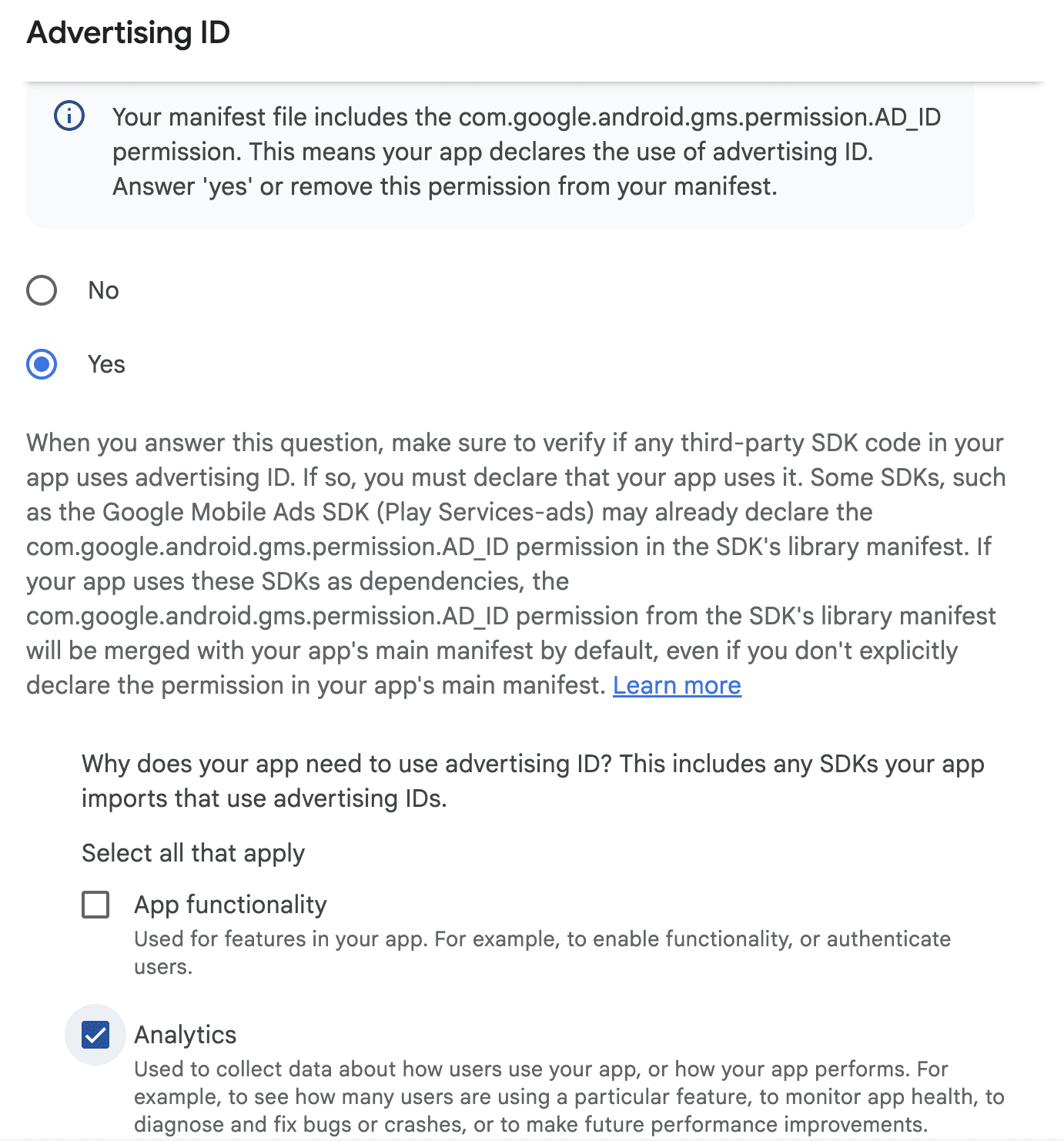
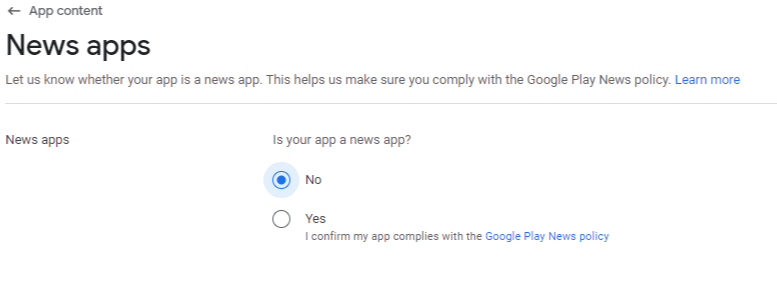
Choose App rather than Game when that represents the product, then select a category and tags that accurately describe the app. Provide current support email, phone number, and website. Declare Advertising ID use and News-app status from the actual application behavior.
Select countries and regions
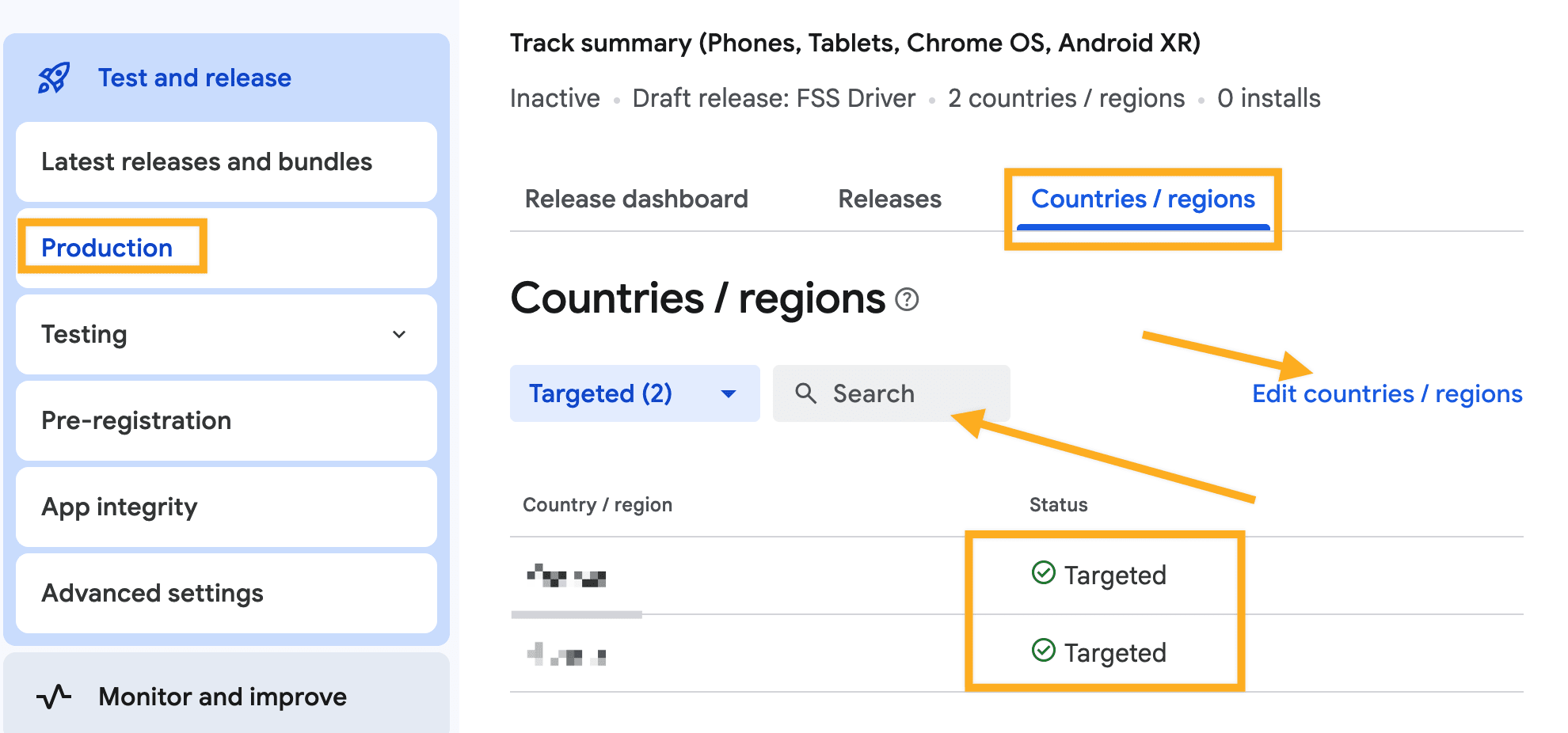
Open the production track’s Countries/regions section and select only the markets where the account owner intends to make the app available and can support it.
Complete Driver App foreground-service declarations
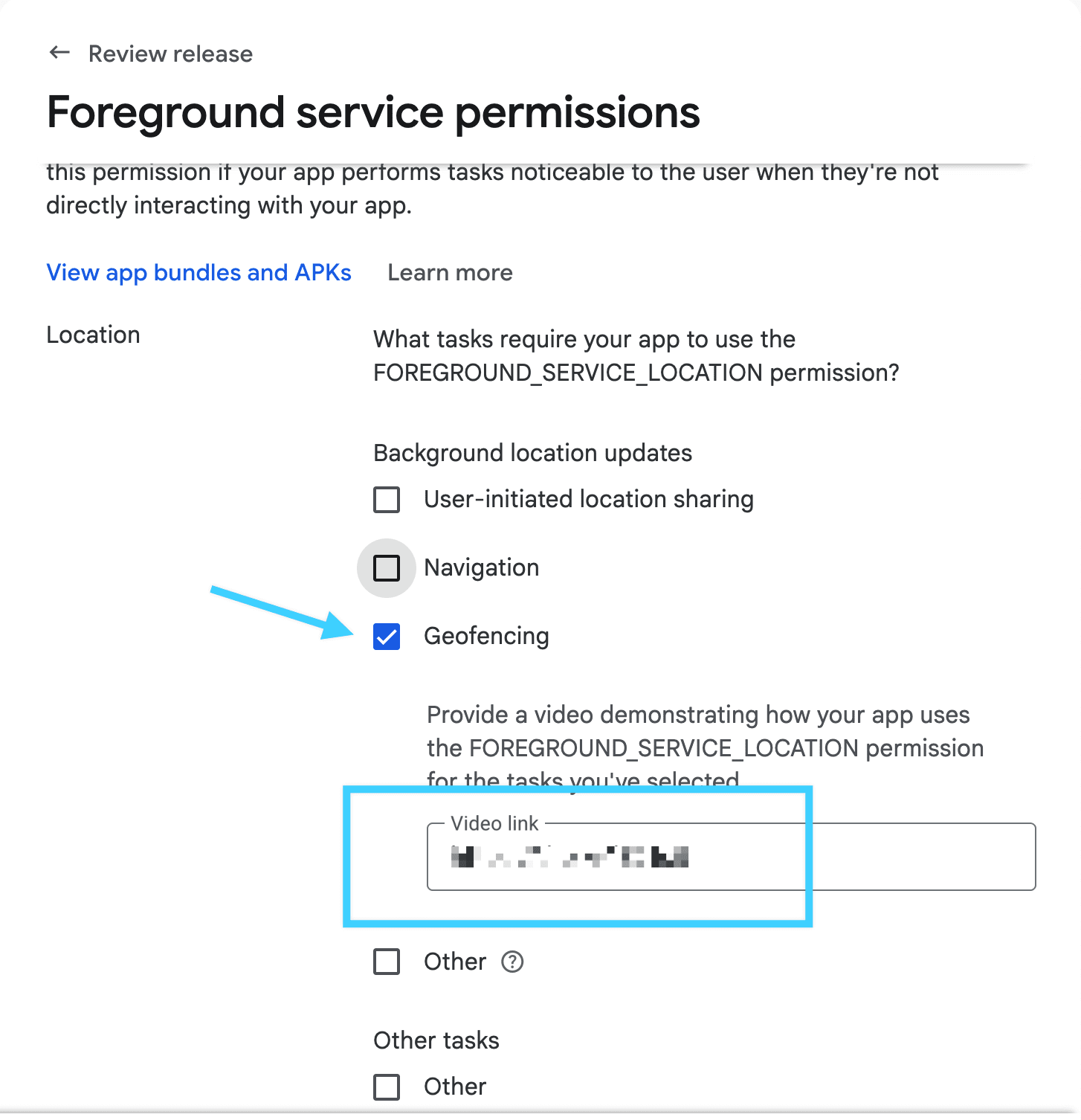
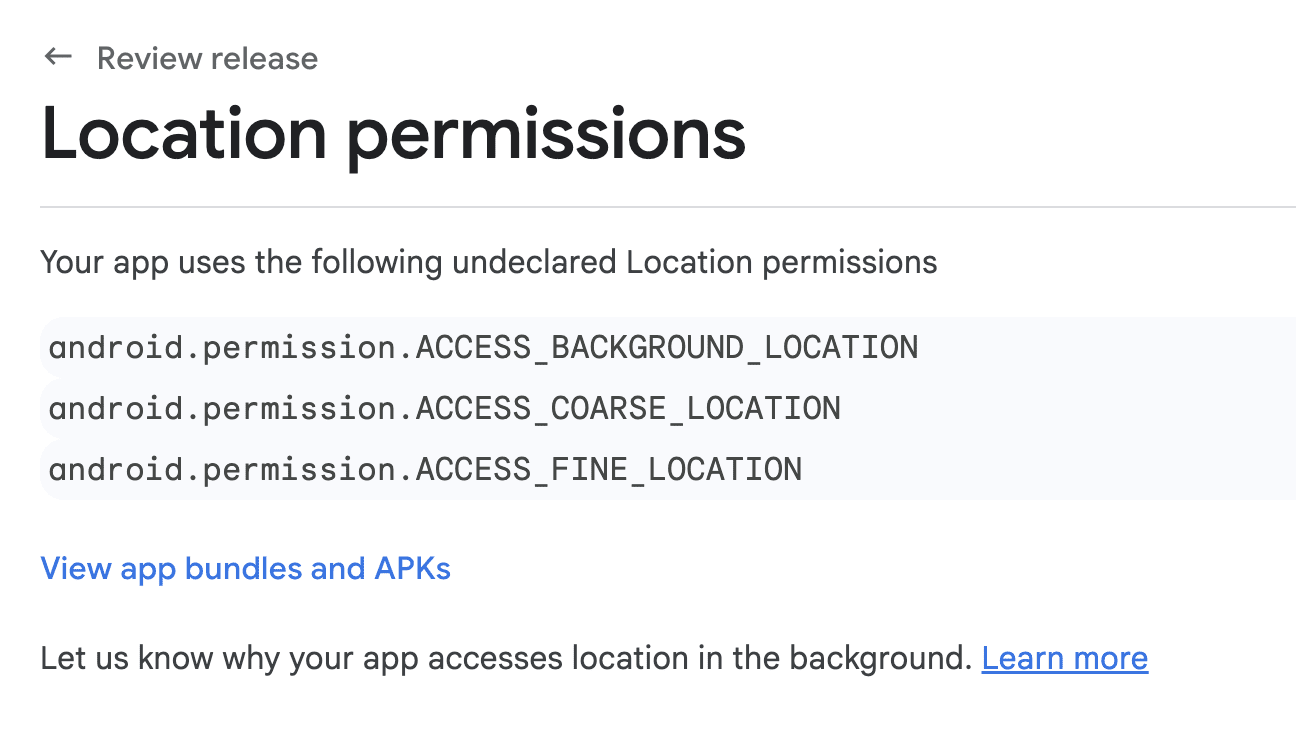
If the Driver App uses foreground services or location while drivers complete deliveries, complete the applicable App content declaration. Google requires Android 14+ apps to declare the foreground-service types used and can require a feature description, user-impact explanation, and a video that demonstrates the feature.
Provide a video that shows the real Driver App flow, including an order assignment, order management, and the map/location functionality when applicable. Do not submit a decorative or unrelated video.
Complete the following fields from behavior demonstrated in the submitted build and video. A configured location field or permission does not, by itself, demonstrate GPS, navigation, tracking, or delivery results.
App purpose: Identify the delivery users and order-management actions demonstrated in the submitted build.
Location-based feature description: If the app collects location, identify when location is collected, the delivery-related action it supports, and the behavior shown in the submitted build. Do not claim real-time navigation, route tracking, tracking accuracy, or delivery efficiency unless that behavior has been demonstrated for the submitted release.
Review Google’s App content guidance, permissions declaration guide, and foreground-service requirements before submission.
Update an existing Google Play version
For an update, generate a build with a higher version configuration, download the .aab from the approved build workflow, and open the app in Play Console.
Create a production release, upload the new package, and write release notes that explain meaningful changes for users.
Choose manual publication when needed
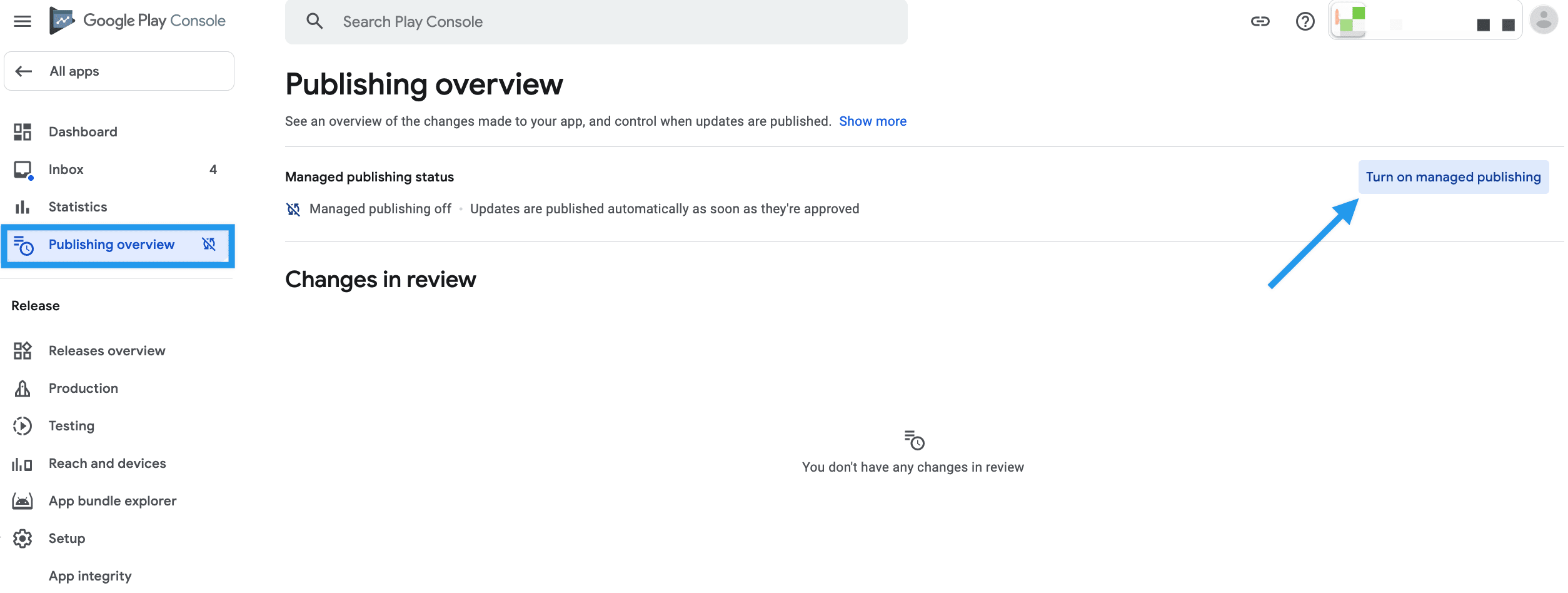
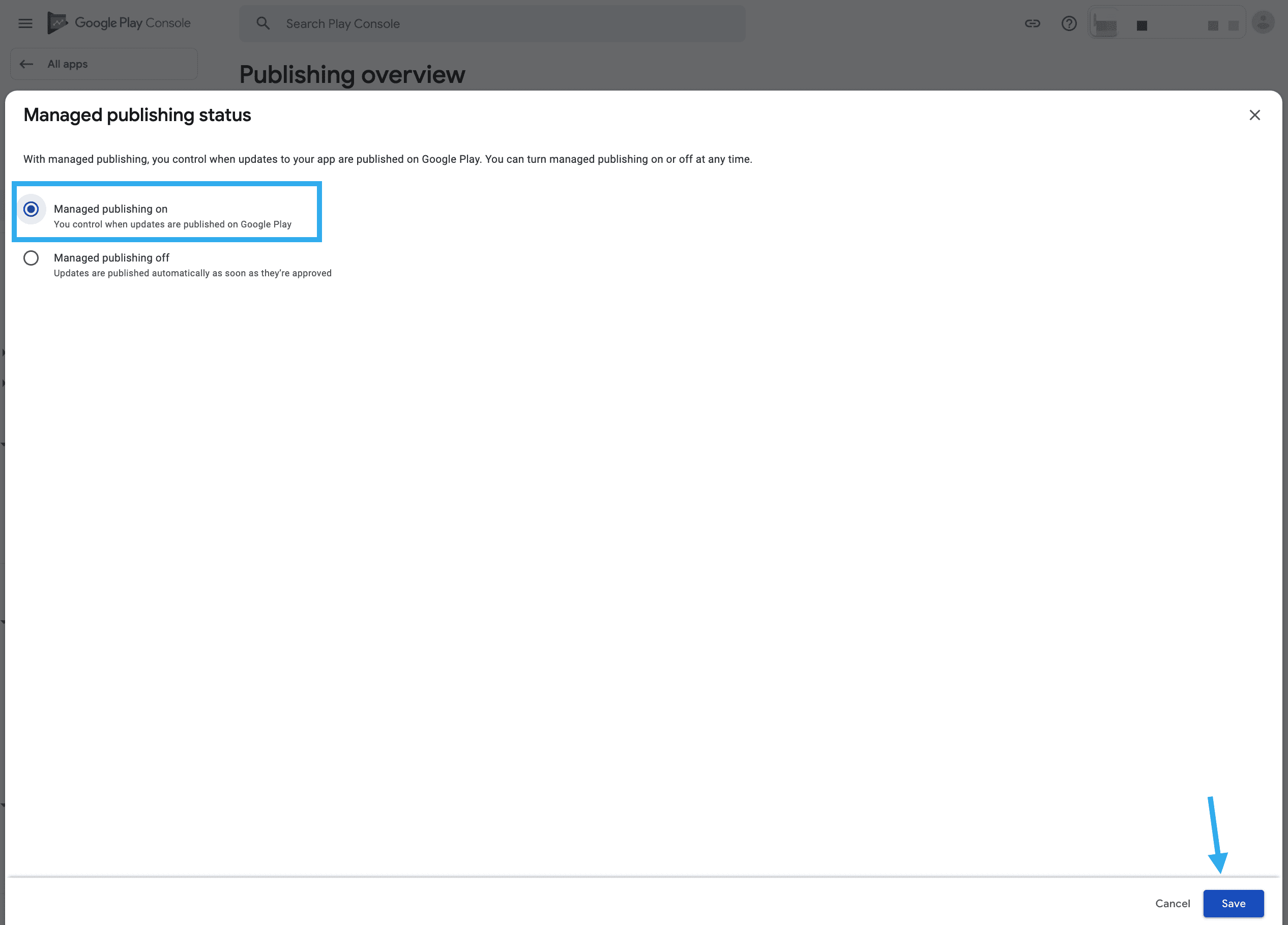
Use Play Console’s current publishing controls if the account owner wants to decide when an approved update becomes available. Do not assume a legacy Pricing & distribution switch controls every current account; verify the current Managed Publishing state and the release status.
Review and start the rollout
Review the release and all App content requirements, then select the applicable review and rollout action. A first production rollout can make the app available in the selected countries or regions. Google may require review before publishing, and a rejection or policy issue must be resolved before retrying.
Next steps
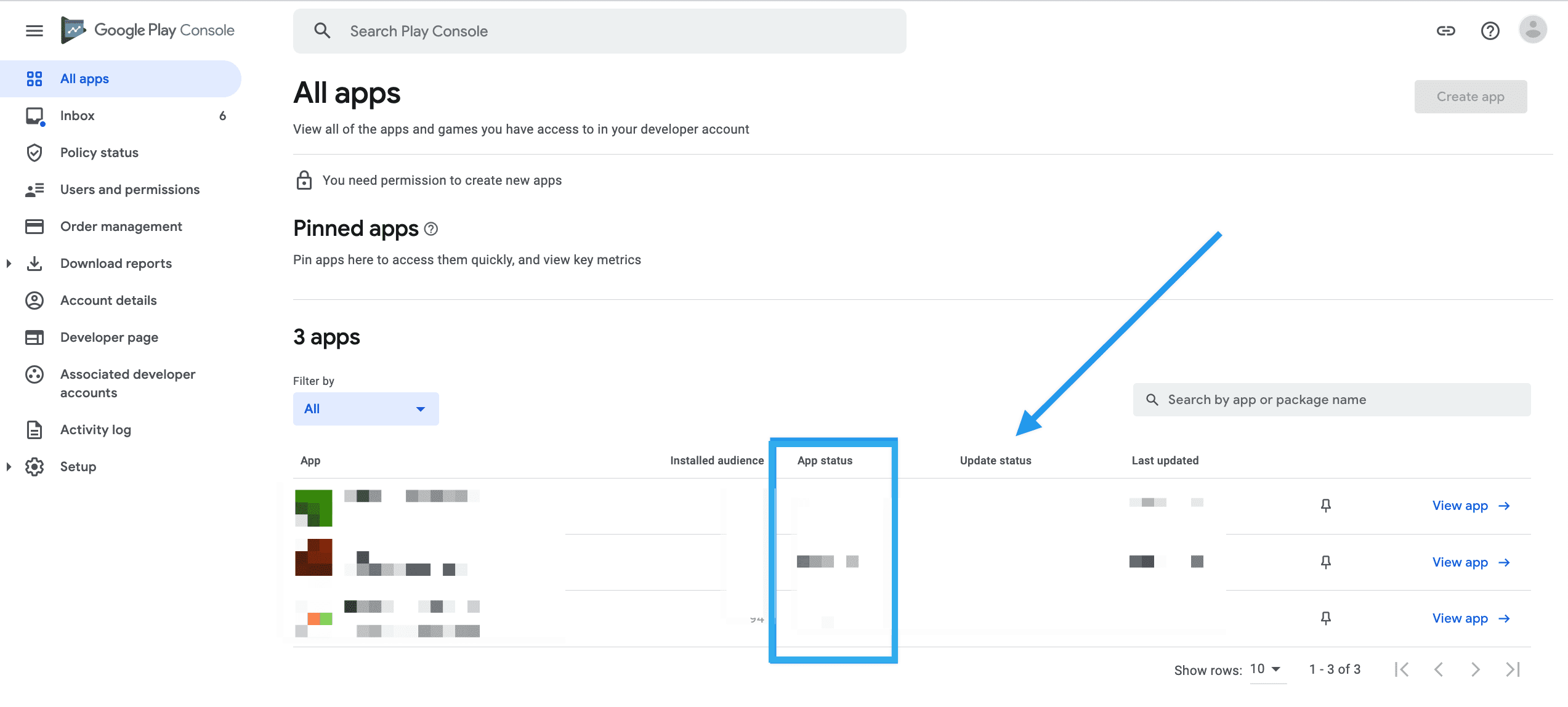
After Google approves and the owner publishes the release, verify the selected countries or regions and the live store listing. For the wider release checklist, see Test and publish app releases.