Publish an app to the App Store
Use App Store Connect to create the app record, prepare the product page, upload and select the build, complete review information, and submit the version to App Review. Apple controls processing, review, and release availability.
Prepare before you start
Gather the items that apply to the release:
- The signed iOS app build, such as the
.ipasupplied through the approved build workflow. - Store-listing images and current product-page copy.
- An active Apple Developer Program account for public App Store distribution. The Apple Developer Enterprise Program is for private internal distribution, not a public App Store listing.
- A Mac with a supported upload tool available. Apple supports Xcode and Transporter; Keychain Access can be needed for credential management.
- A public privacy-policy URL and accurate information about app data practices.
- A test account and reviewer instructions, when the app requires sign-in.
Create the App Store Connect record
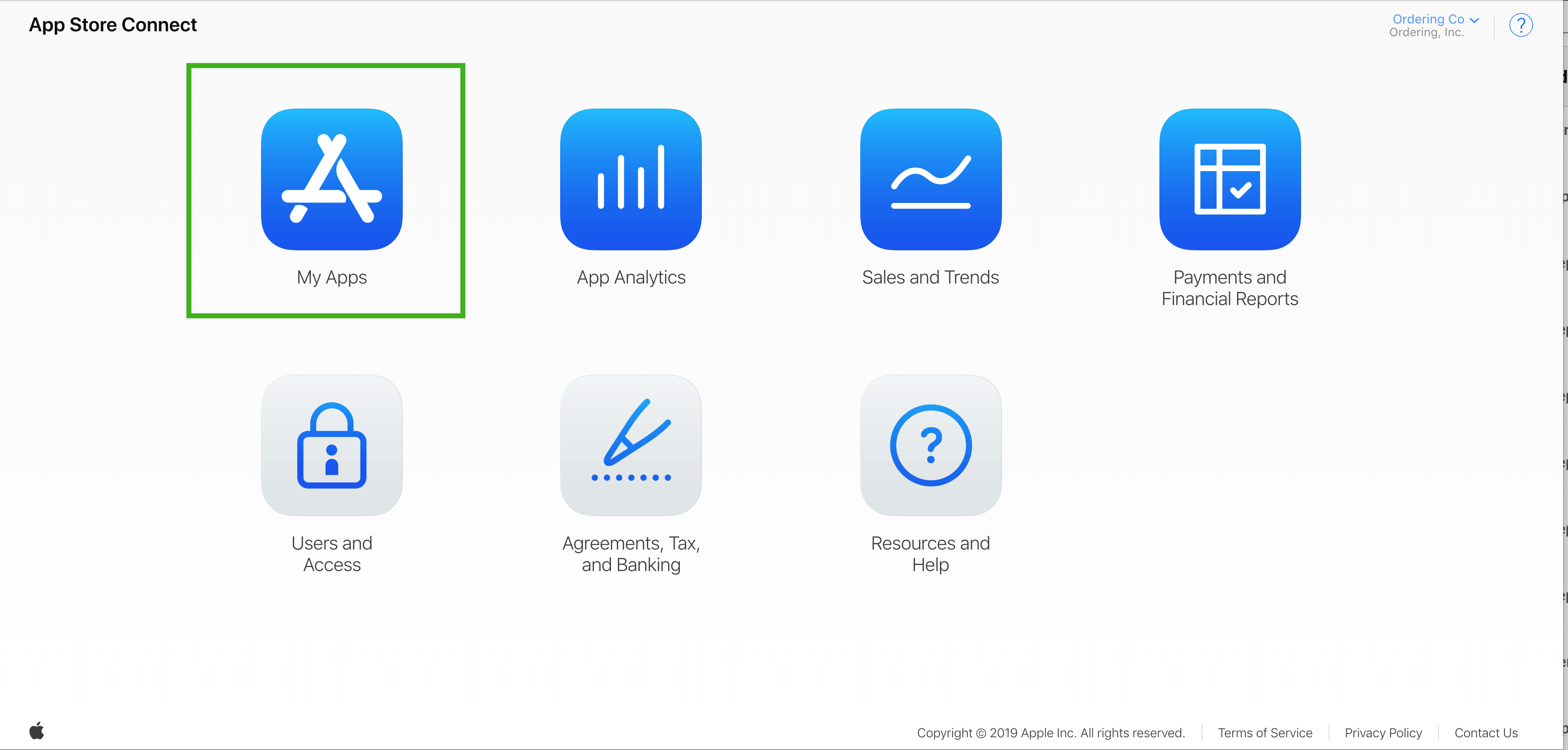
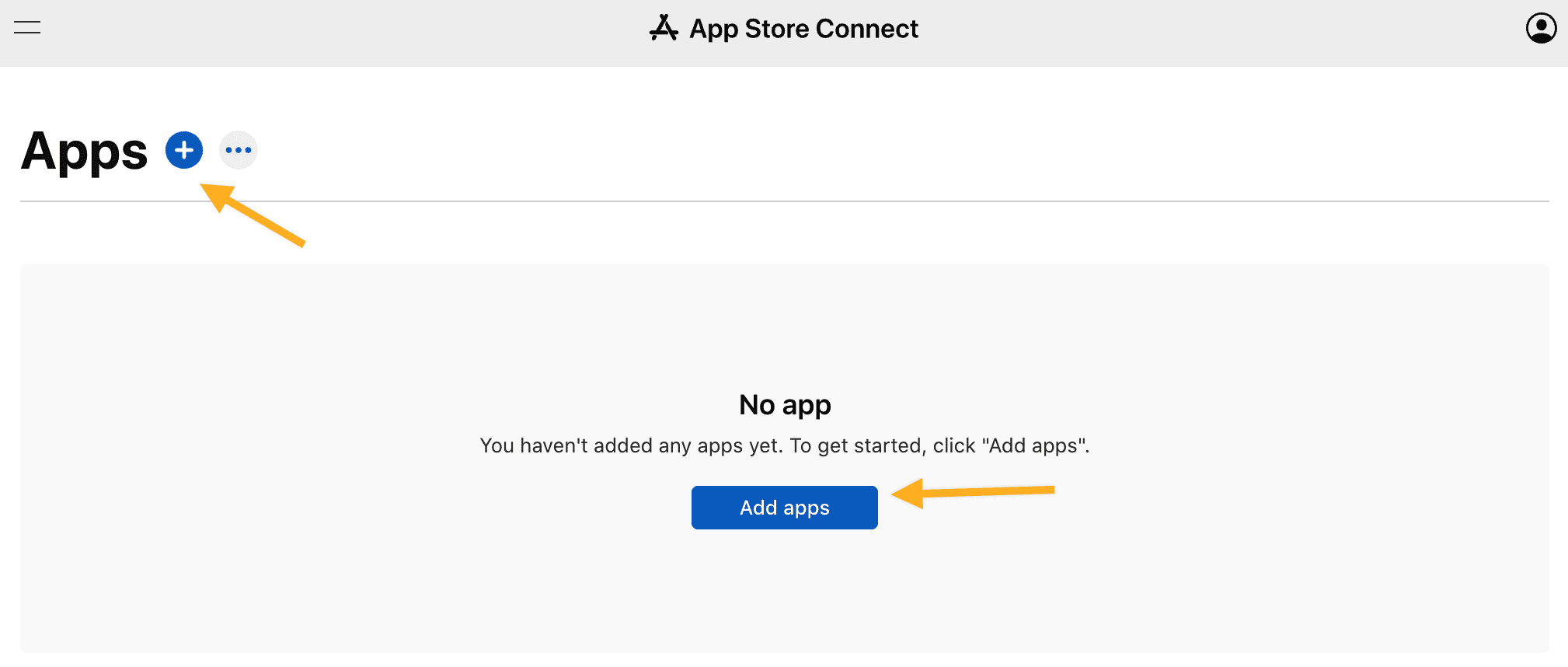
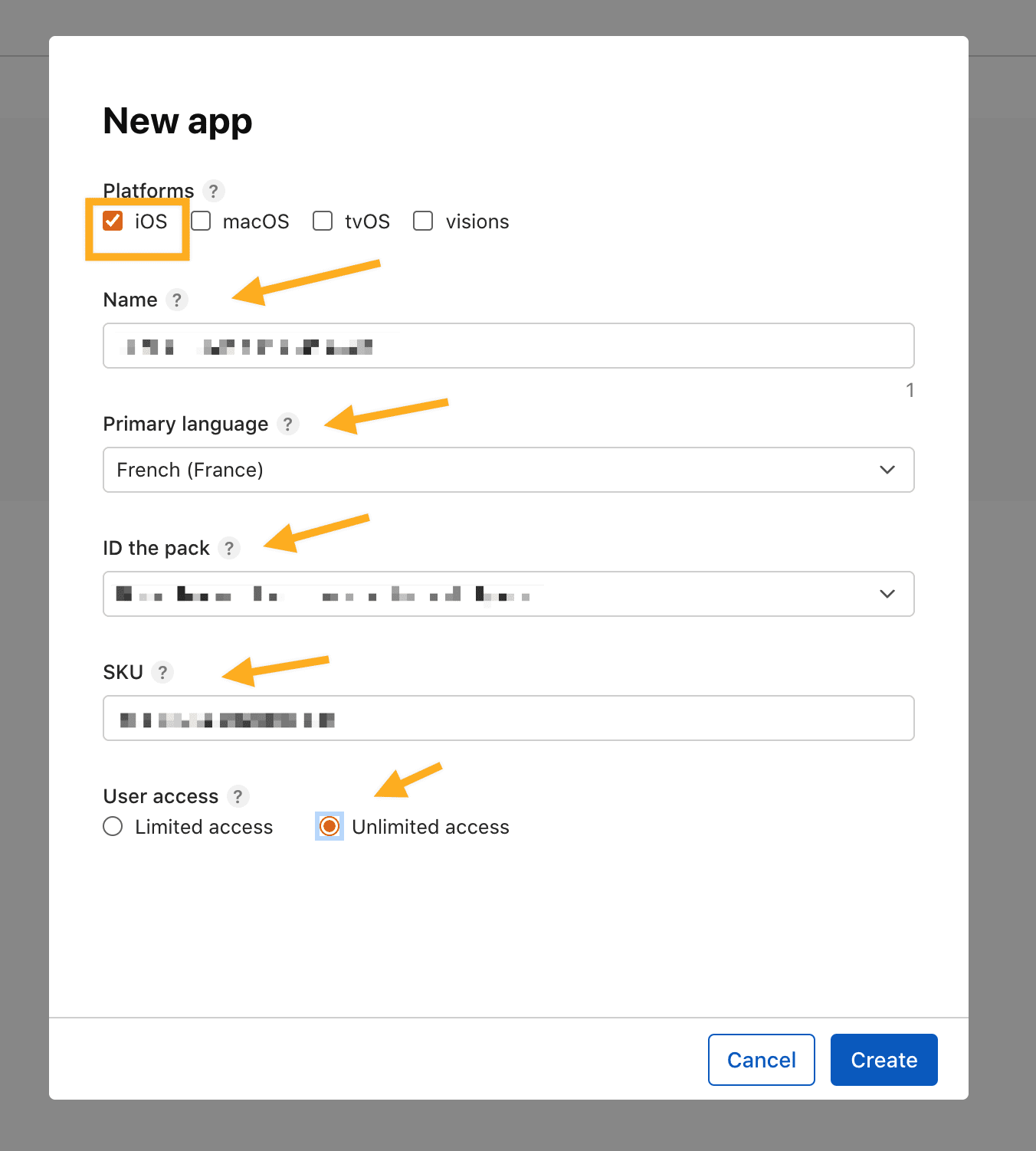
In App Store Connect, open Apps, select Add (+) → New App, then enter the record details:
- Select the applicable platform.
- Enter the app name and primary language.
- Choose the bundle ID that matches the signed build.
- Enter an SKU that your team can use to identify the app. A value based on the bundle identifier can make reconciliation easier.
- Choose Full Access or Limited Access for the App Store Connect users who should access this app record.
- Select Create and resolve any required fields shown by App Store Connect.
Apple’s new-app-record guide is the current authority for roles and fields. Create the record before you upload a build.
Complete the product page and version details
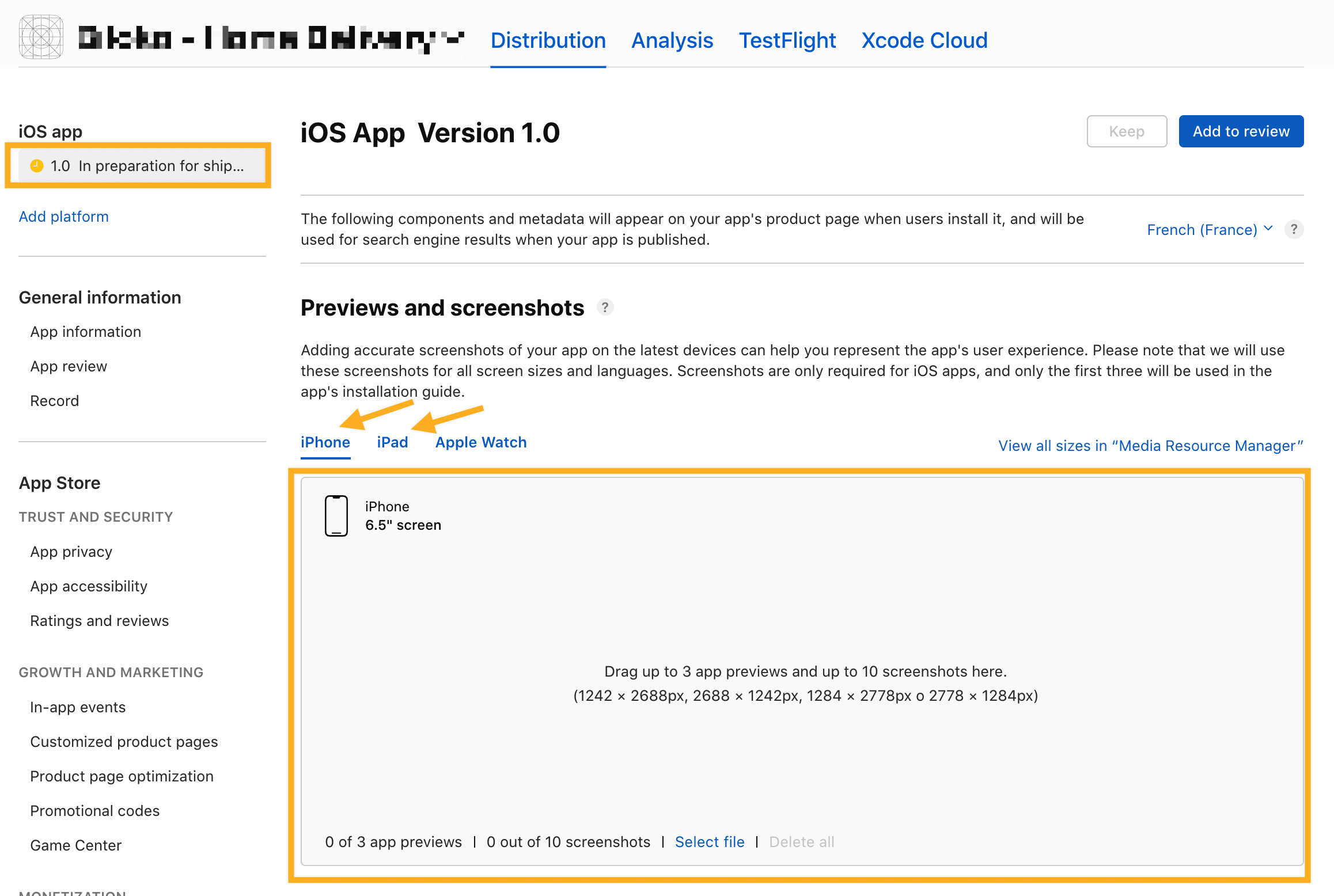
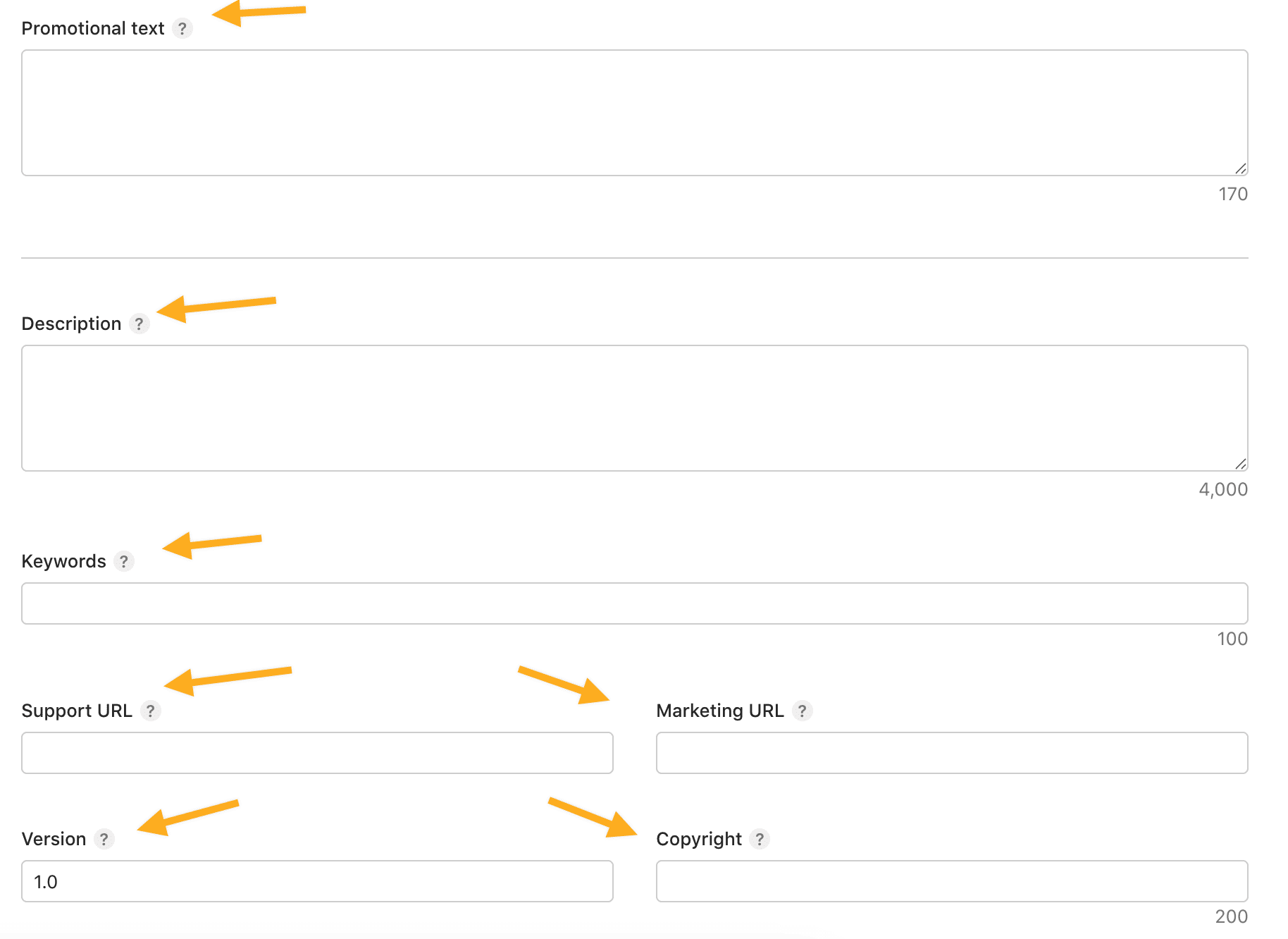
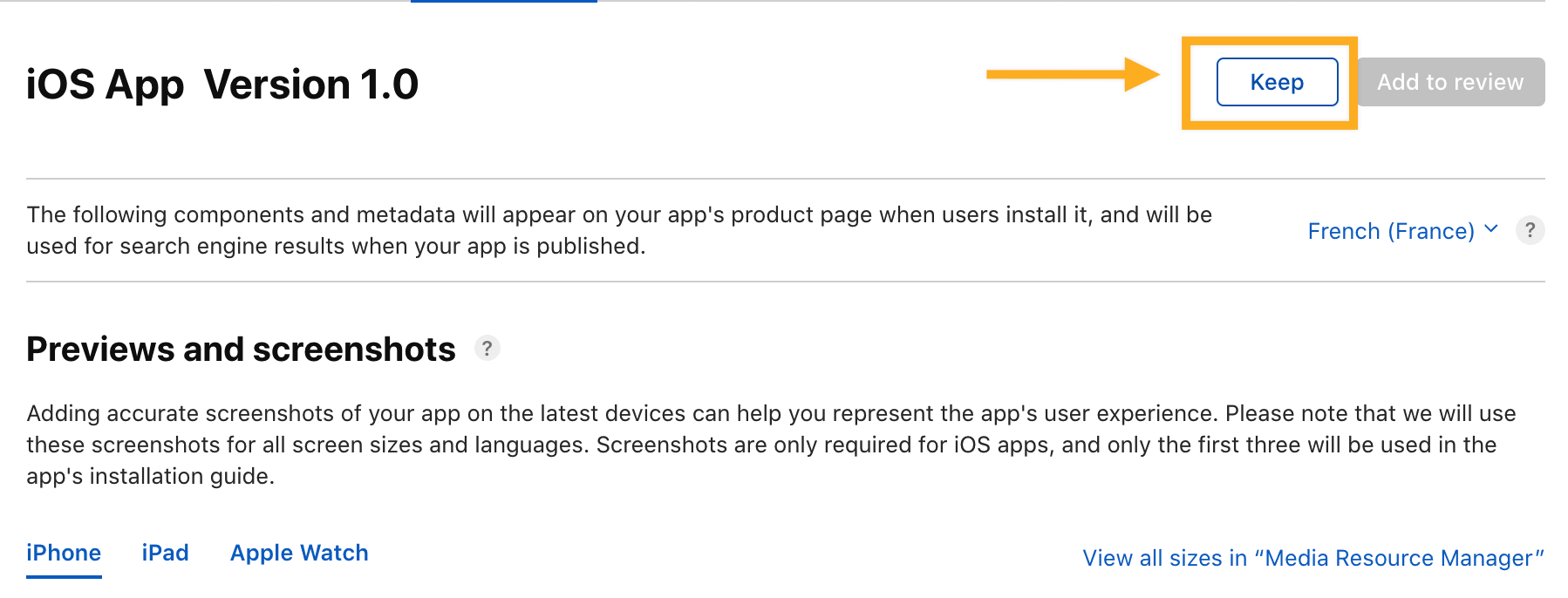
In the app version that is ready for submission, provide the required store content:
- Screenshots and previews for the device families your app supports.
- Promotional text, description, and keywords that accurately describe the app.
- Support, marketing, and website URLs that are current and reachable.
- The version number that matches the release plan and build.
- Copyright information using the appropriate legal owner or project name.
Do not publish placeholder, demo, or misleading store content. Review Apple’s current product-page requirements before submission.
Upload and select the build
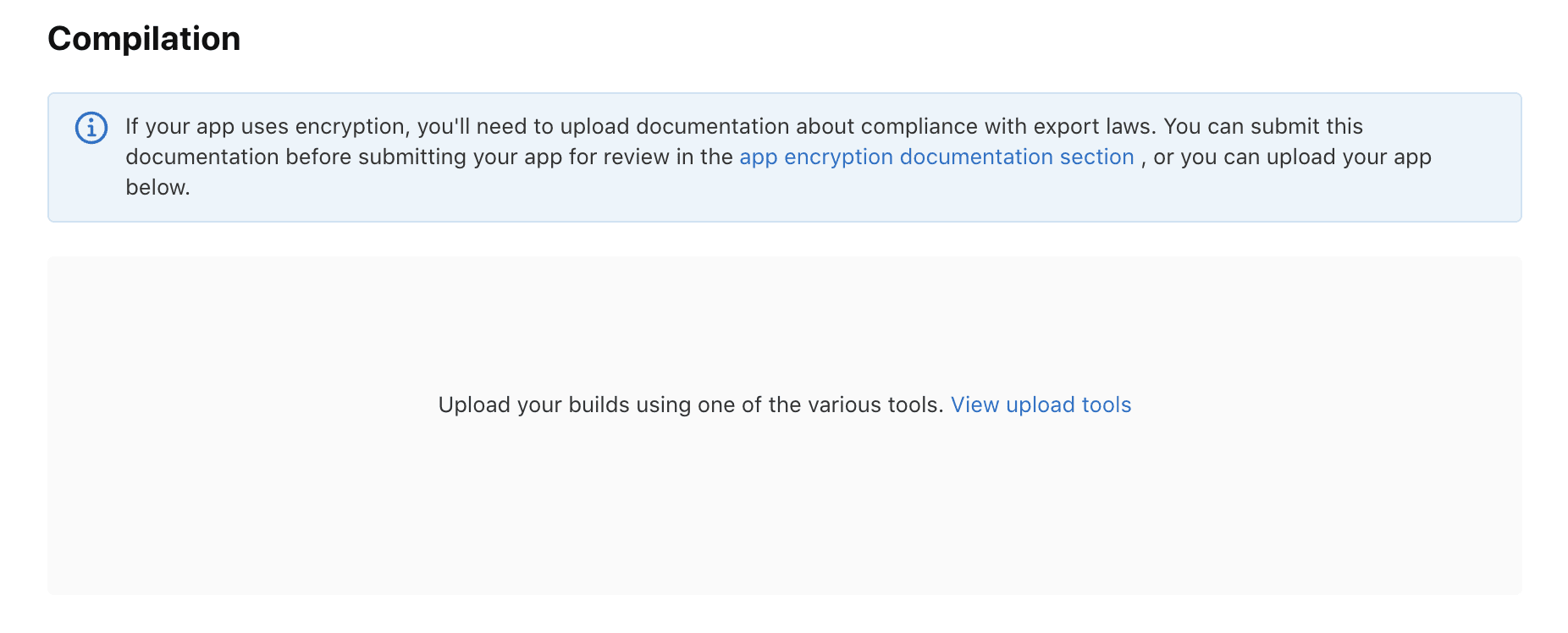
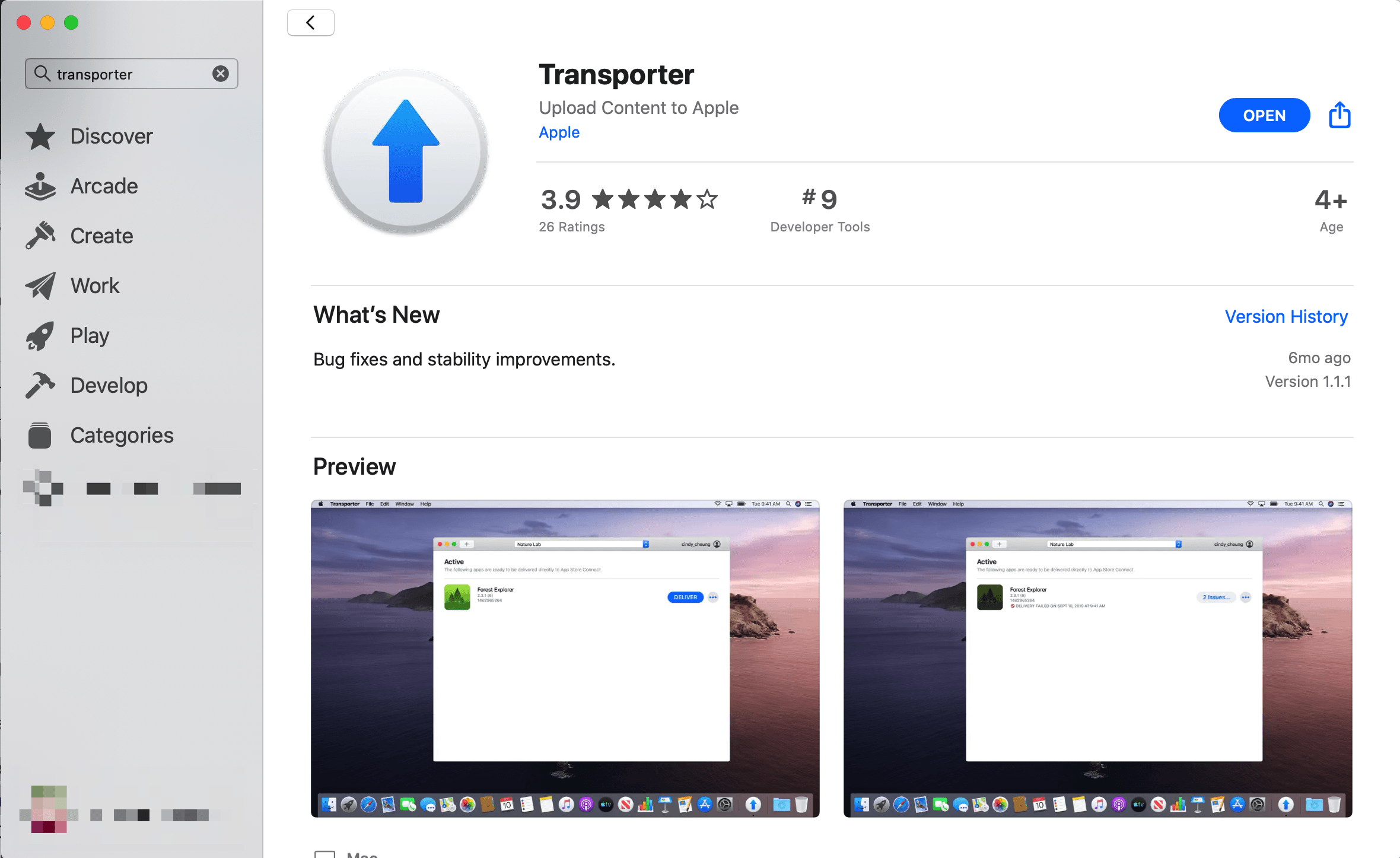
Upload the signed build using a supported Apple delivery path. Transporter is one supported macOS option; Xcode and other Apple-supported workflows may also be available. After upload, wait for Apple to process the build before it can appear in App Store Connect.
- Upload the
.ipaor the build artifact produced by your approved workflow. - Wait for the processing result and resolve delivery errors.
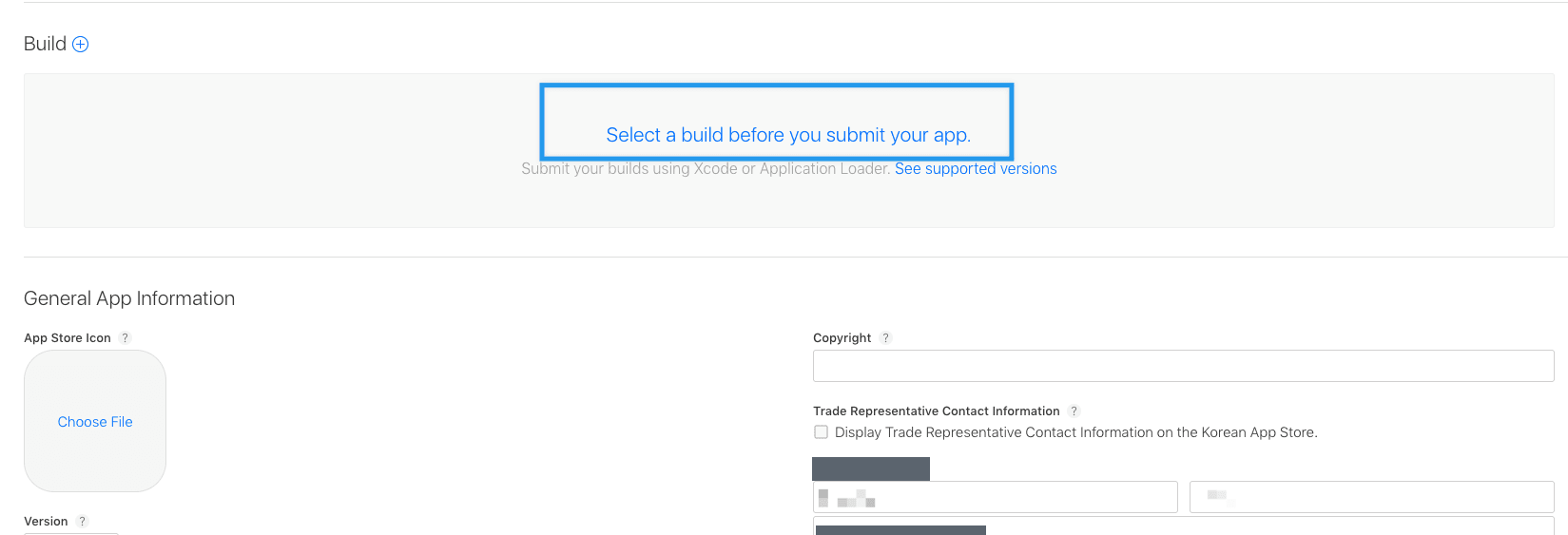
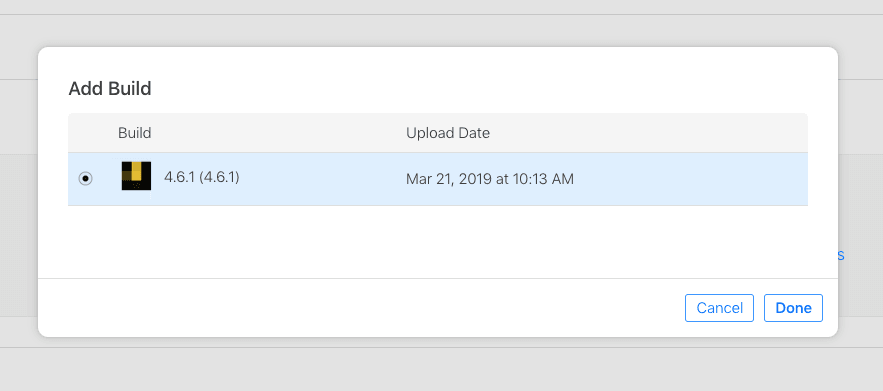
- In the version record, select the processed build in Build or Select a build before you submit your app.
- Confirm that the selected build’s bundle ID, version, and build string are the intended ones.
Use Apple’s build-upload guide for supported tools and current upload requirements.
Complete export compliance accurately
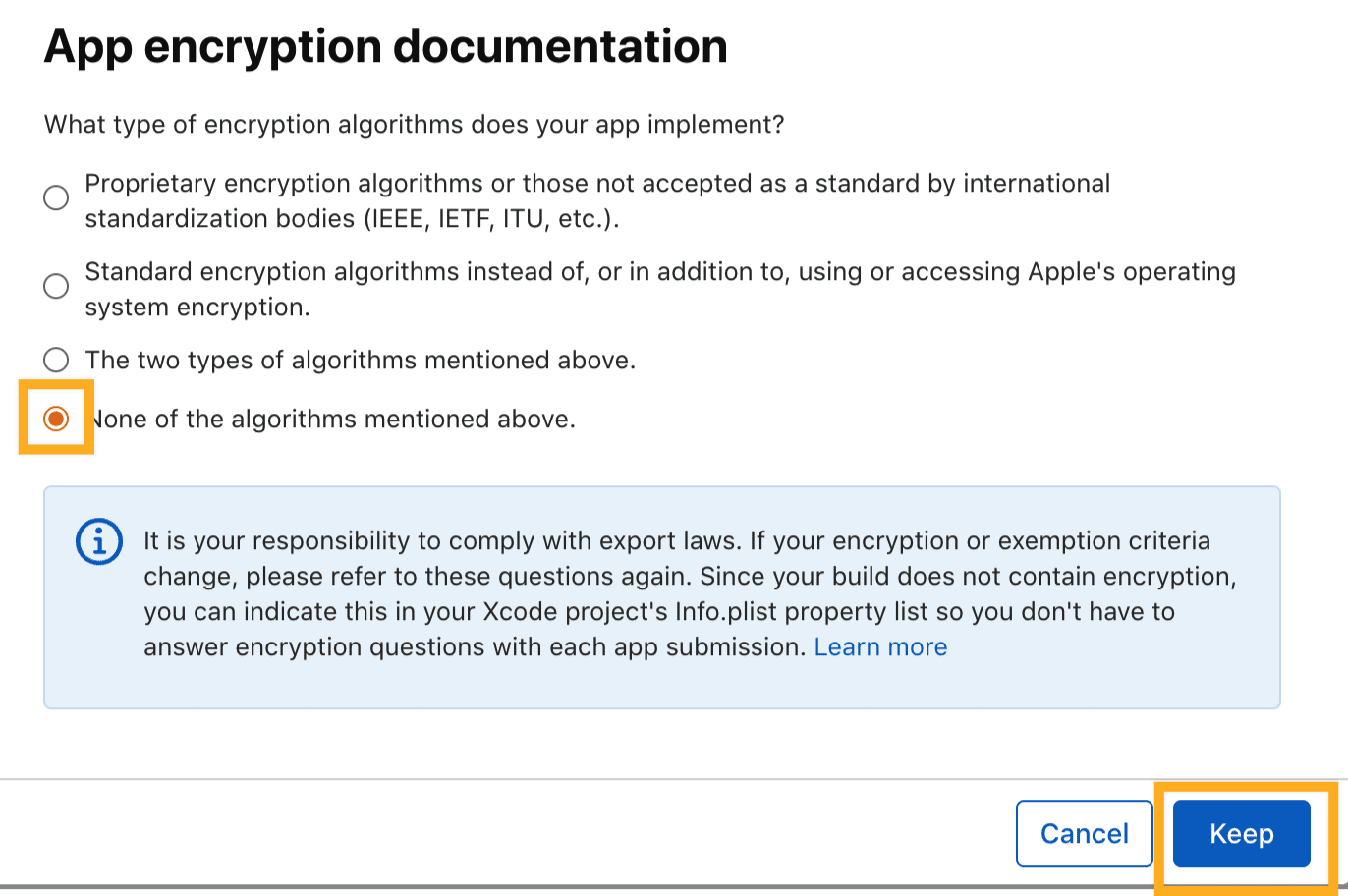
Do not choose “none” for encryption by default. Answer export-compliance questions based on the app’s actual encryption use, including any relevant system or third-party cryptography. Apple’s export-compliance overview explains when a determination is required.

Provide App Review information
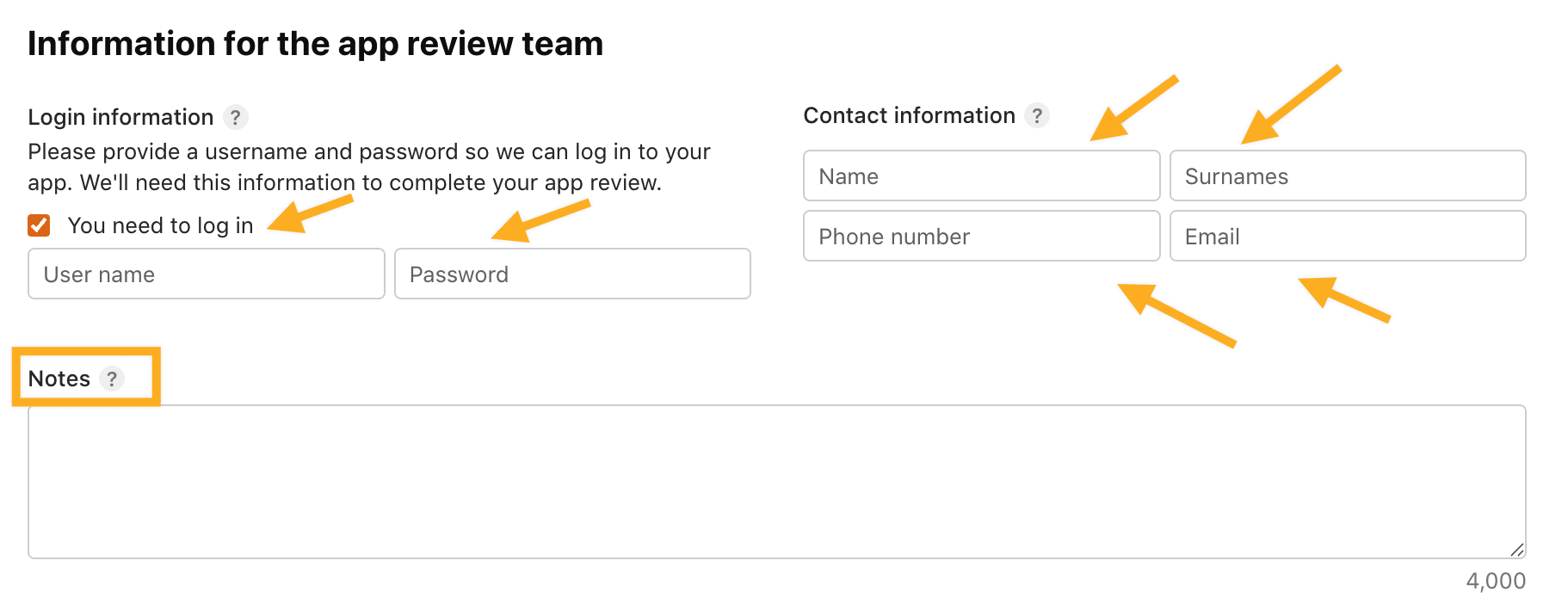
Enter a contact name, phone number, and email that can answer Apple’s review questions. If the app requires sign-in, provide a dedicated reviewer account and clear instructions in App Store Connect.
Prepare the reviewer account so it can reach the required workflow:
- For a Customer App, use a test account with a usable address.
- For a Driver App, give the test driver an order to review.
- For a Business App, give the test business an active business and orders to review.
Use test data only. Do not provide real customer credentials, operational account passwords, API keys, or secrets in the review notes.
Choose the release behavior
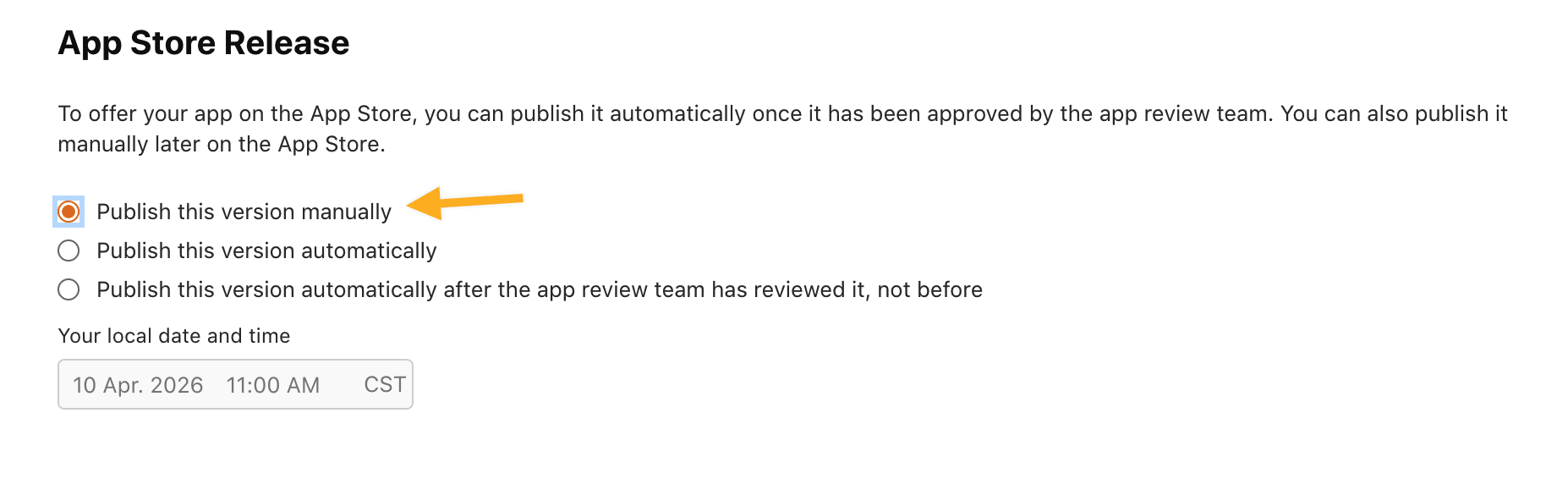
Choose the release behavior that the account owner approves:
- Manual release: the owner releases the version after Apple accepts it.
- Automatic release: the version becomes available when Apple accepts it.
Save the version after reviewing all required information.
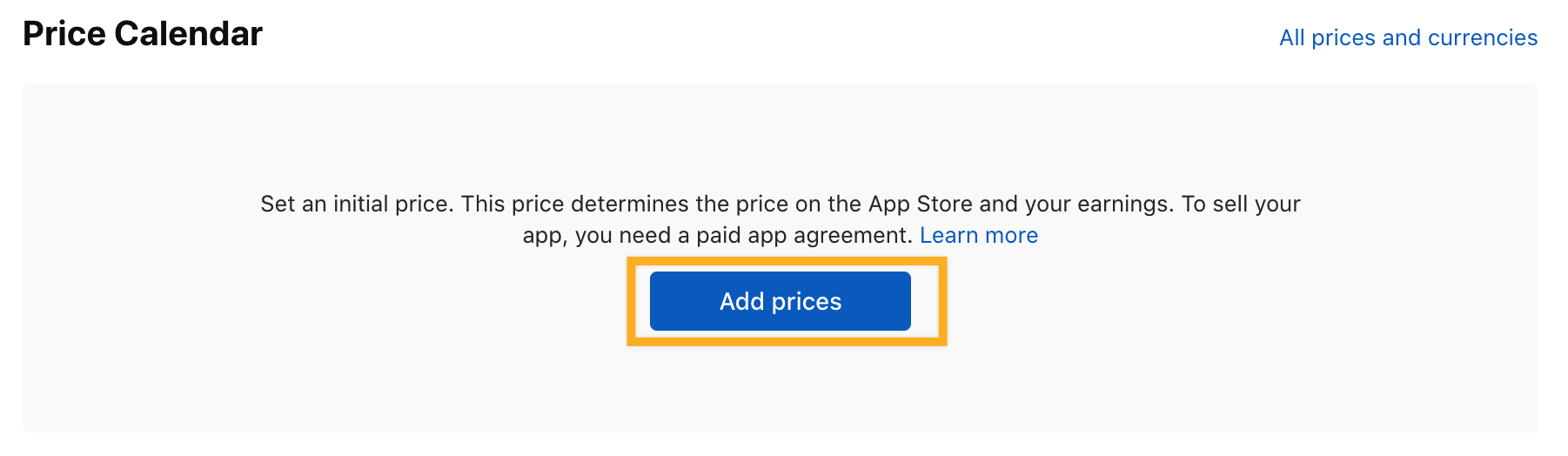
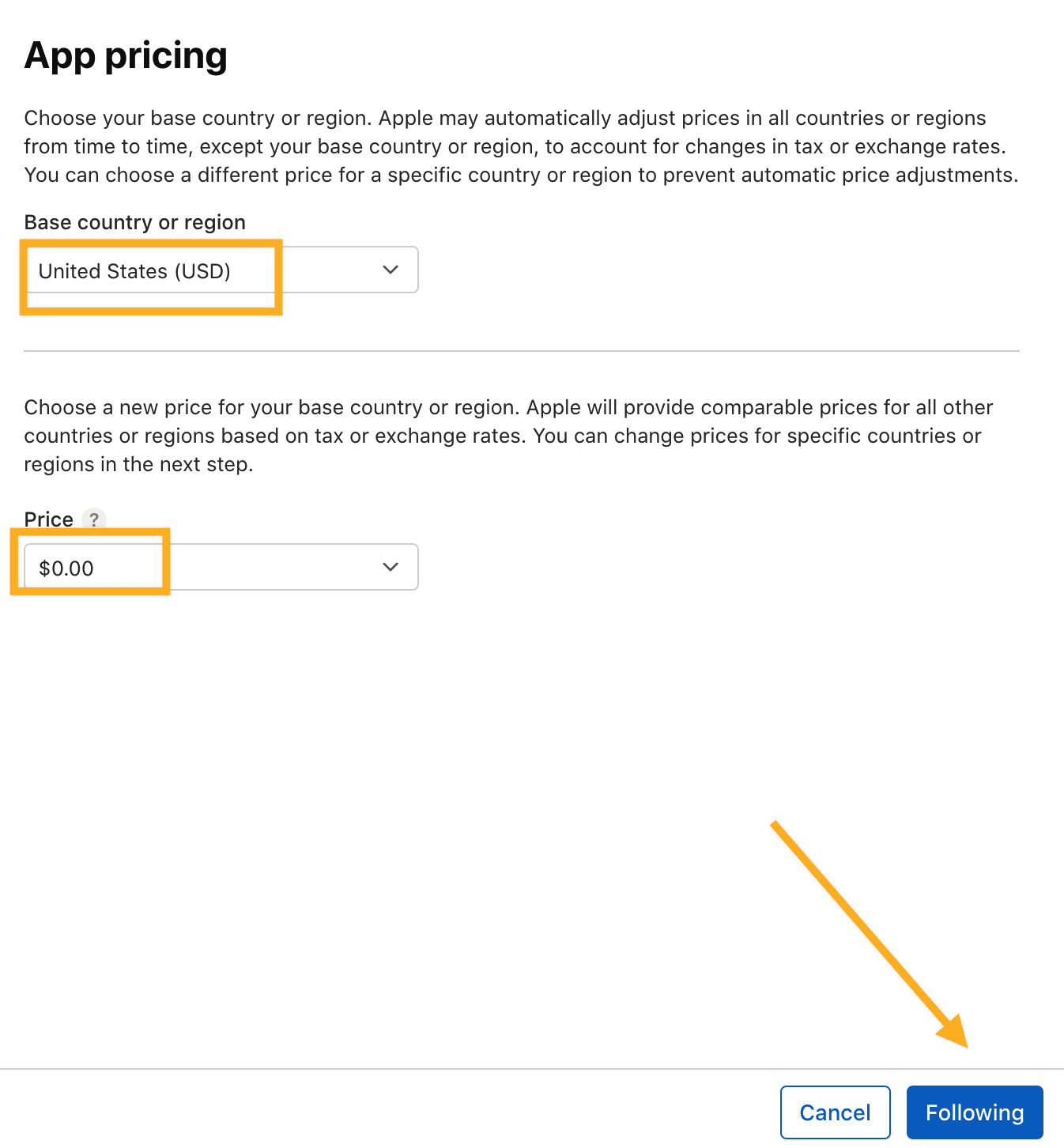
Set price and availability
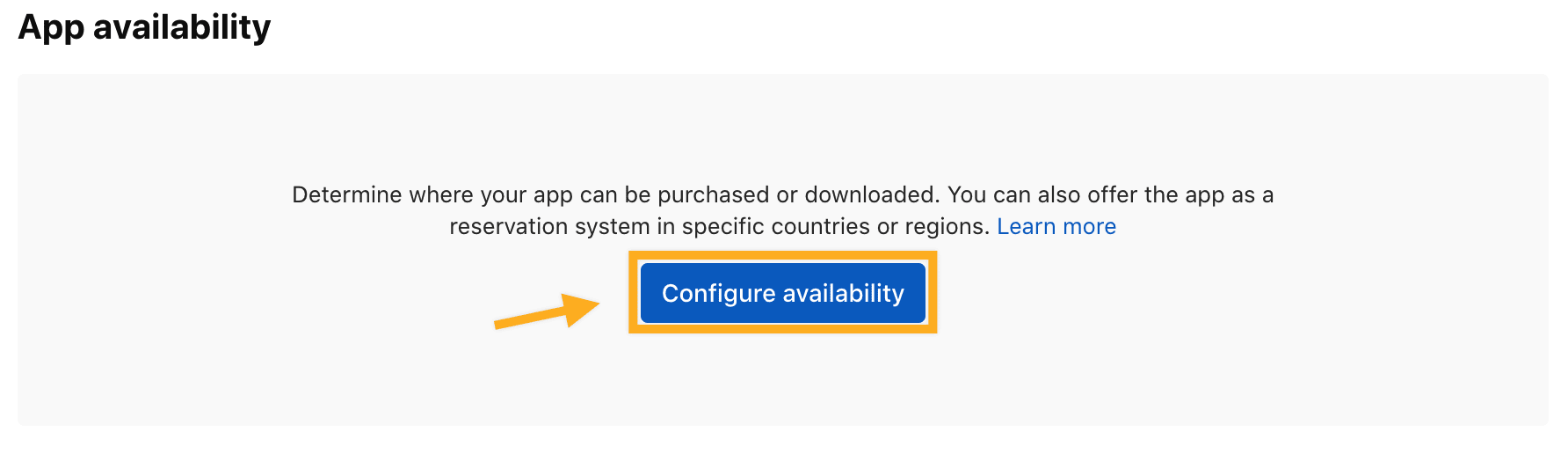
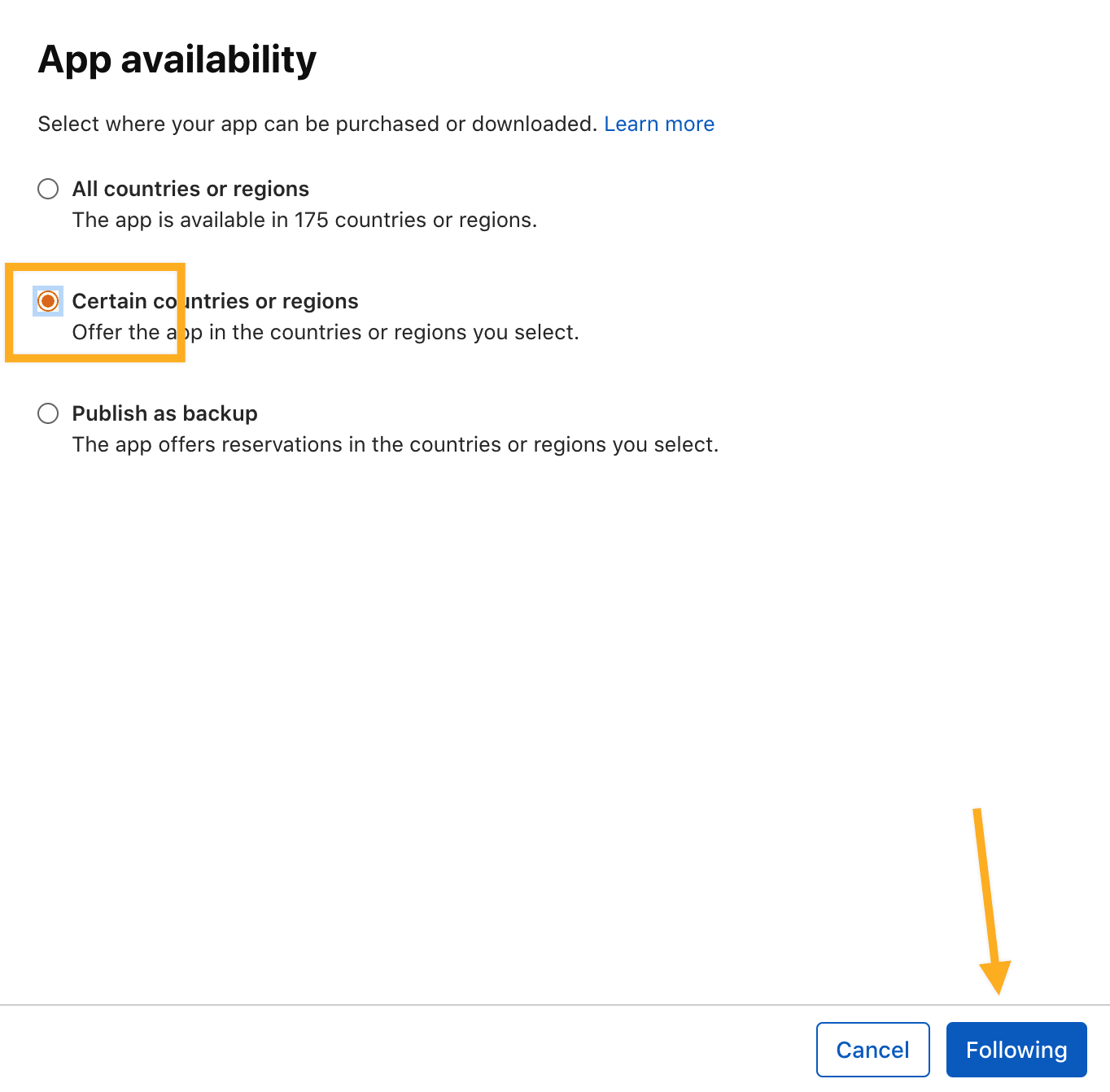
Set the price and countries or regions according to the account owner’s distribution decision. If the app is intended to be free, set its price to 0.00; do not change pricing or availability without owner authorization. Select the countries and regions where the business intends to operate and can support the app.
Complete App Privacy
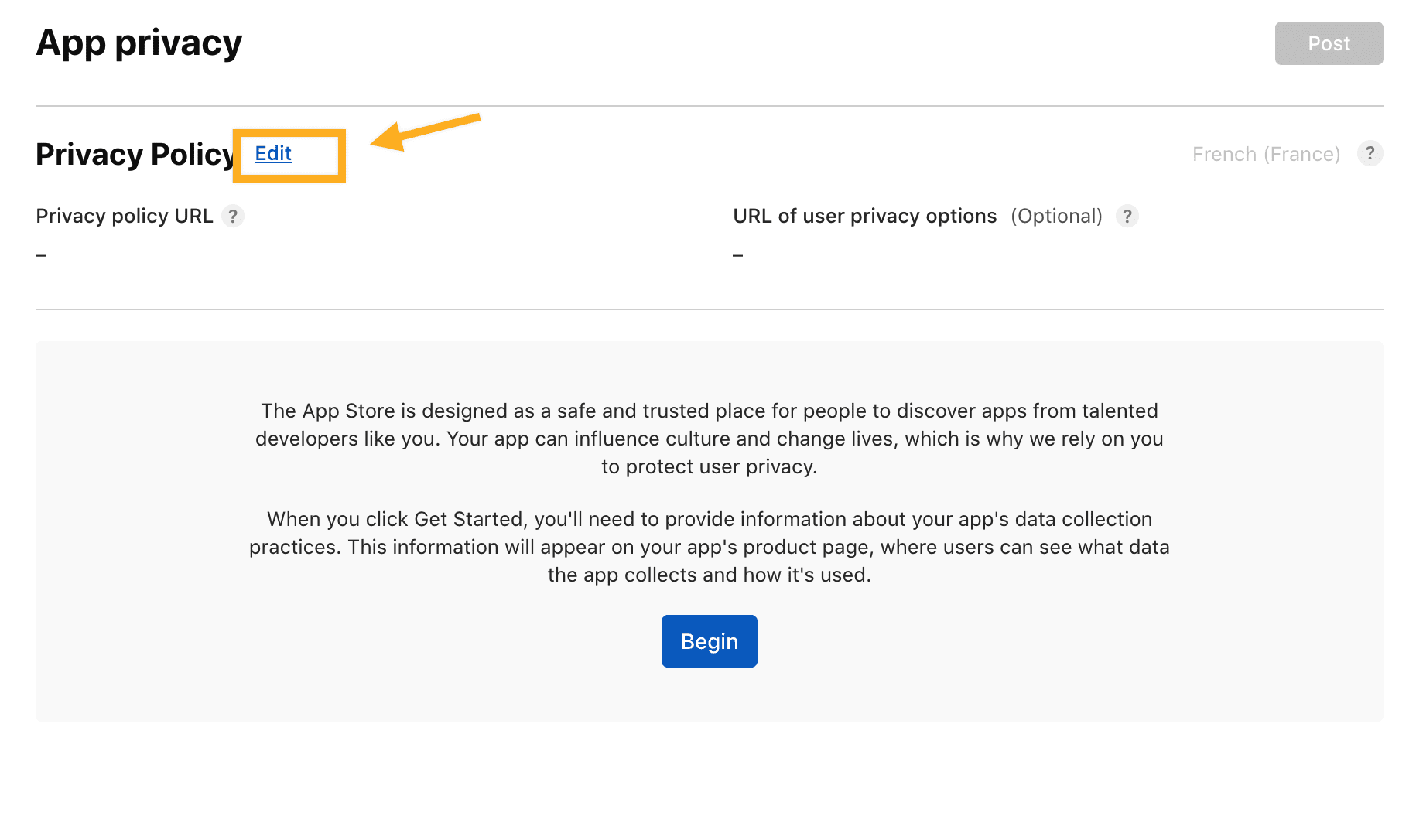
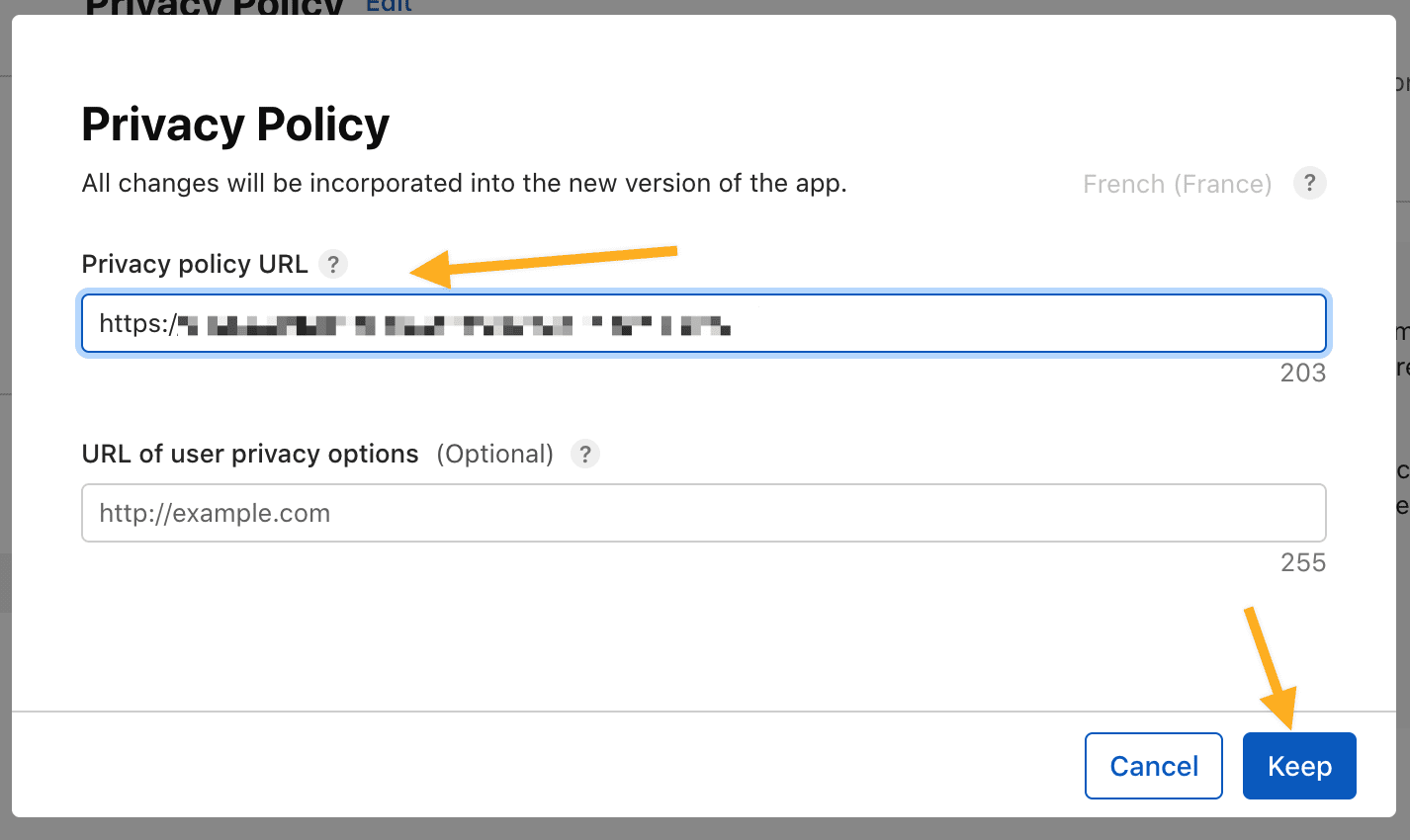
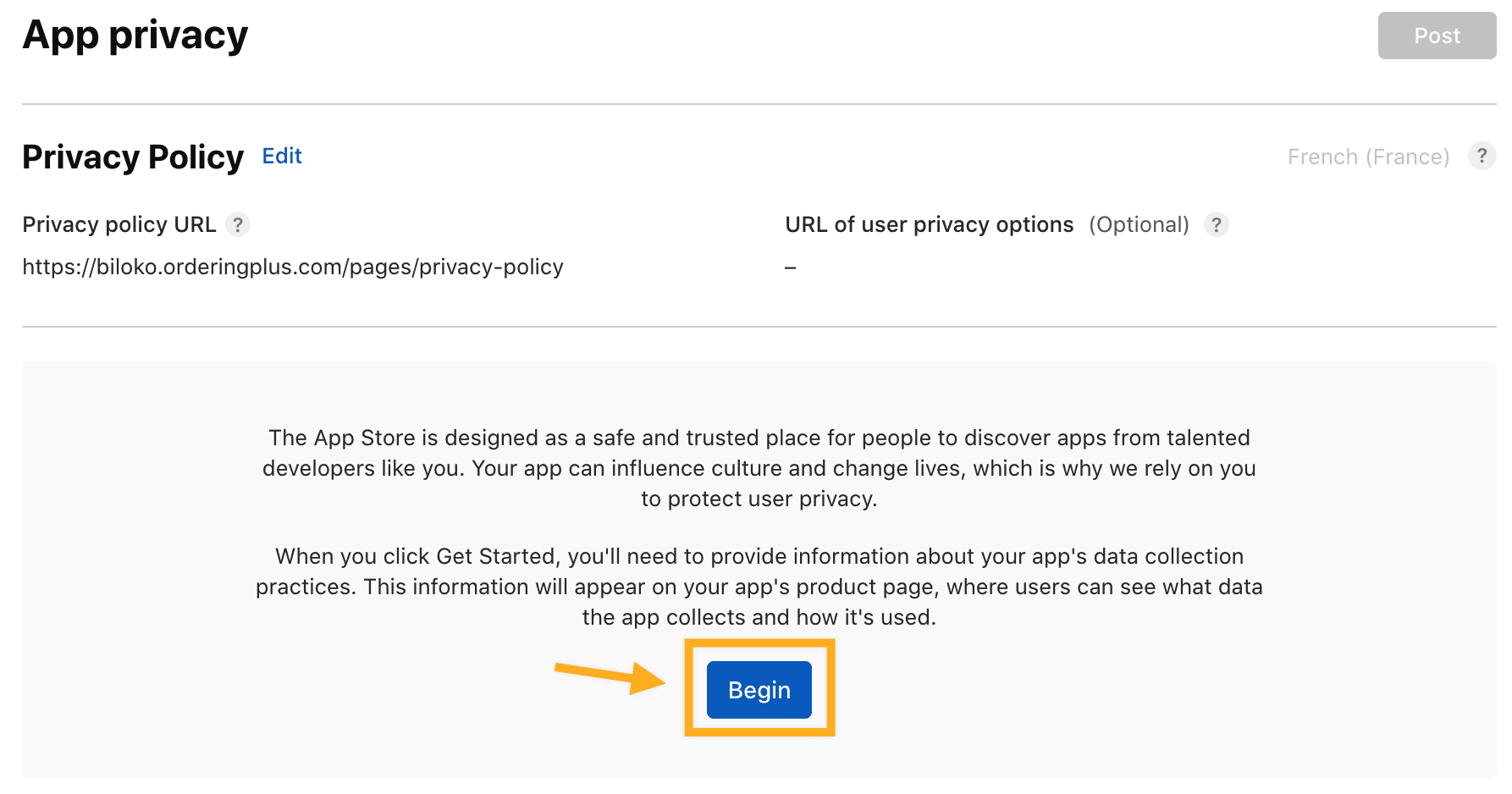
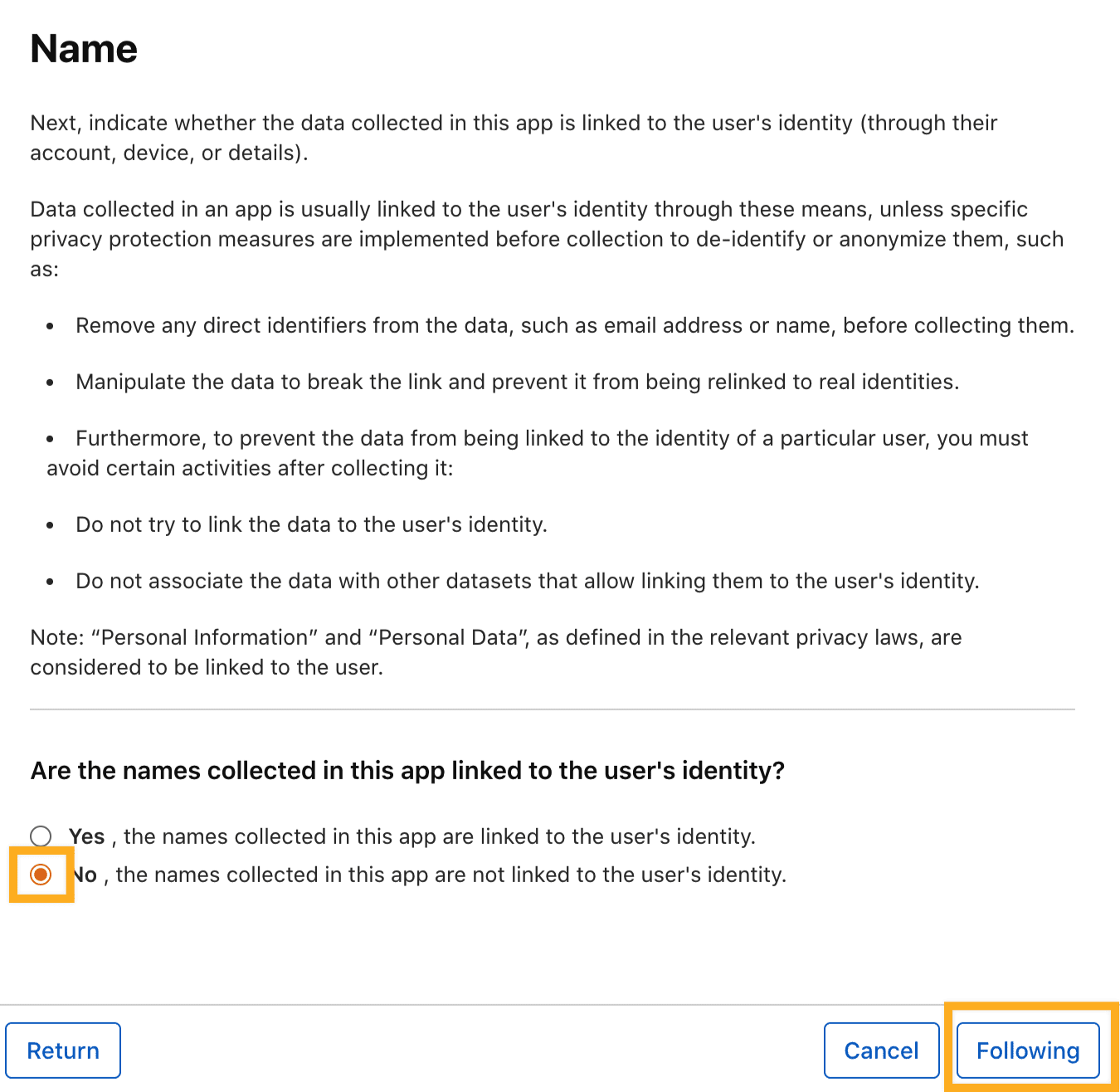
Add the public privacy-policy URL in App Privacy and complete the privacy questions for the real data practices of the app and its integrated third parties. Apple requires a privacy-policy URL for iOS apps, and the answers must remain accurate as the app changes.
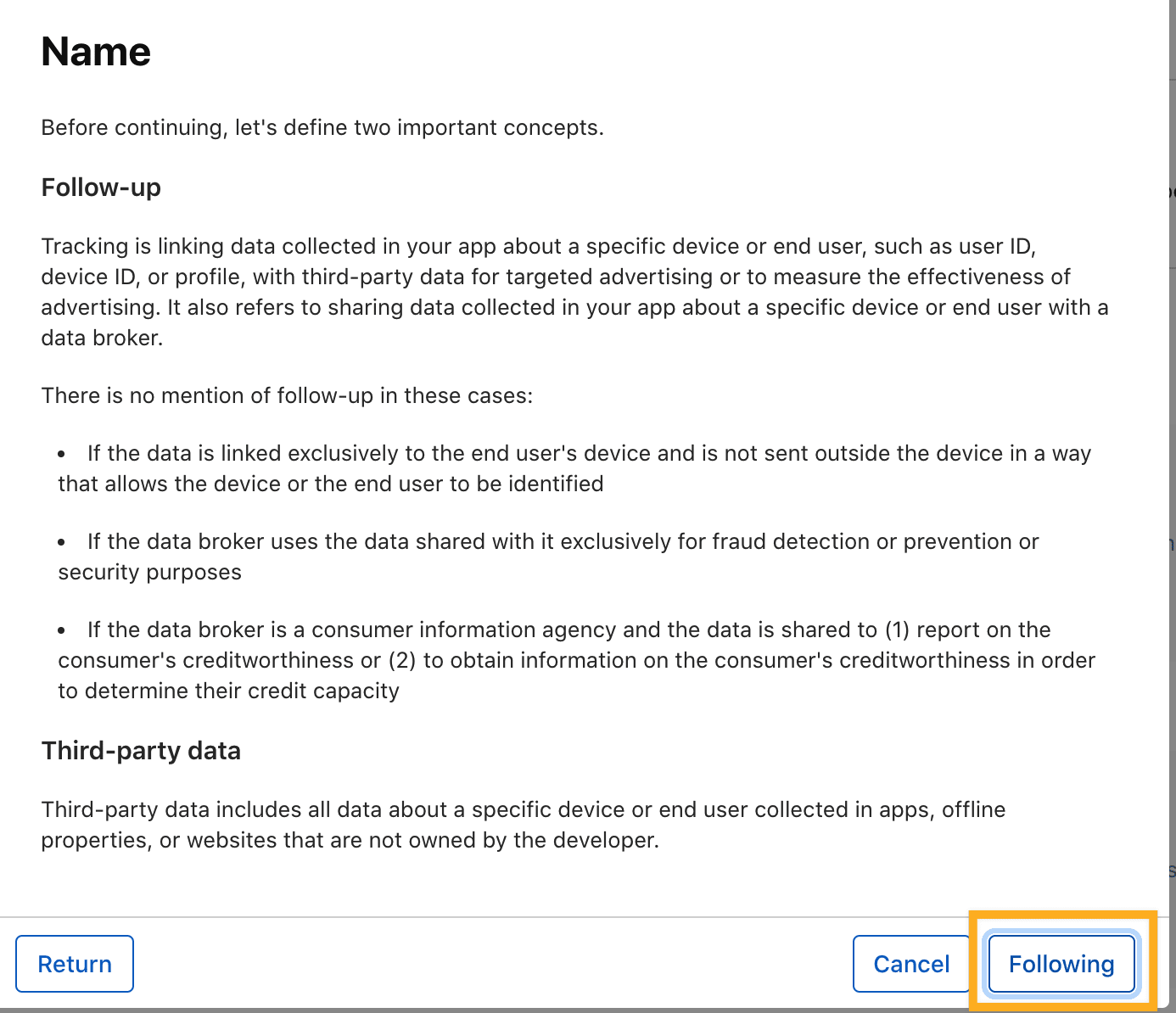
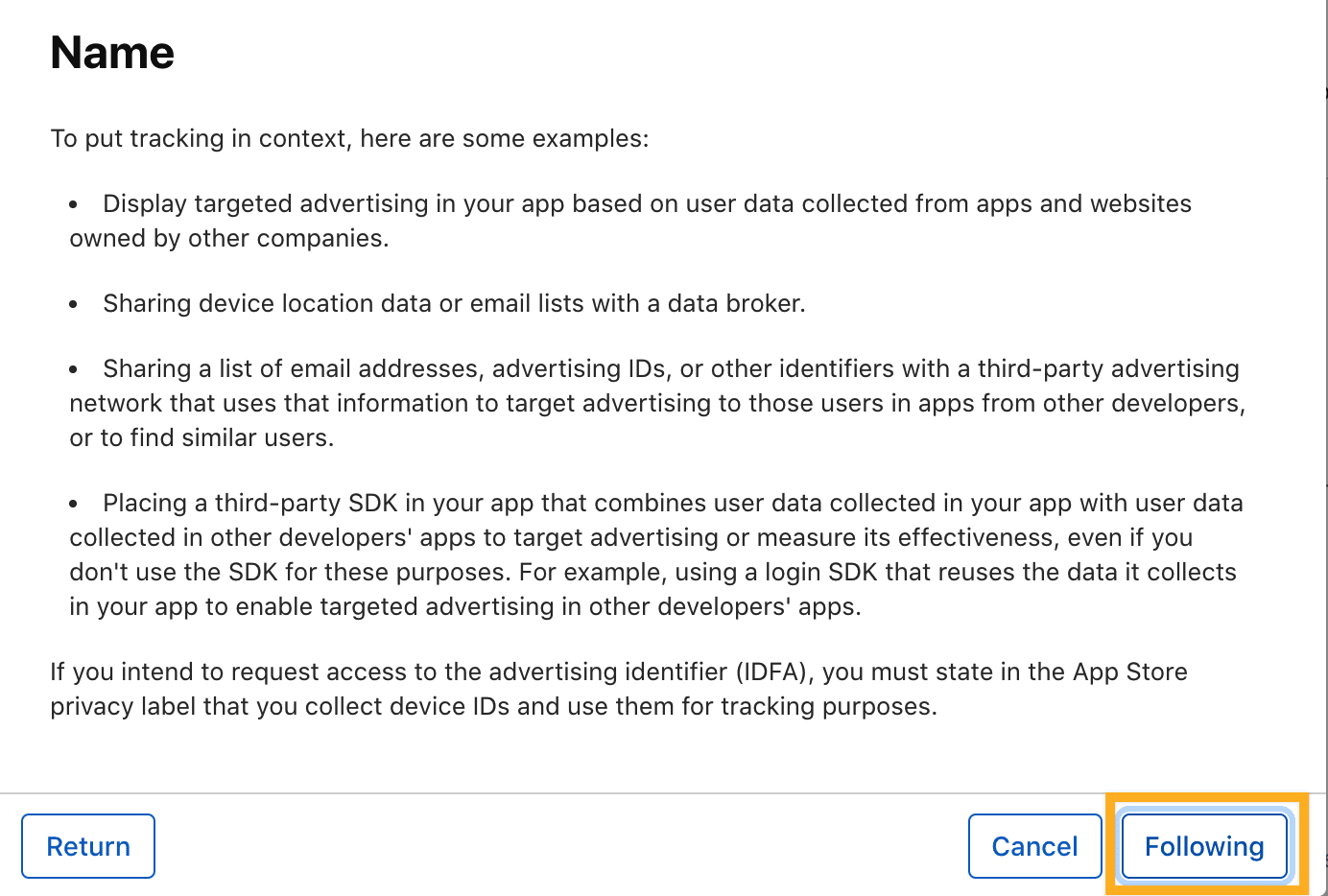
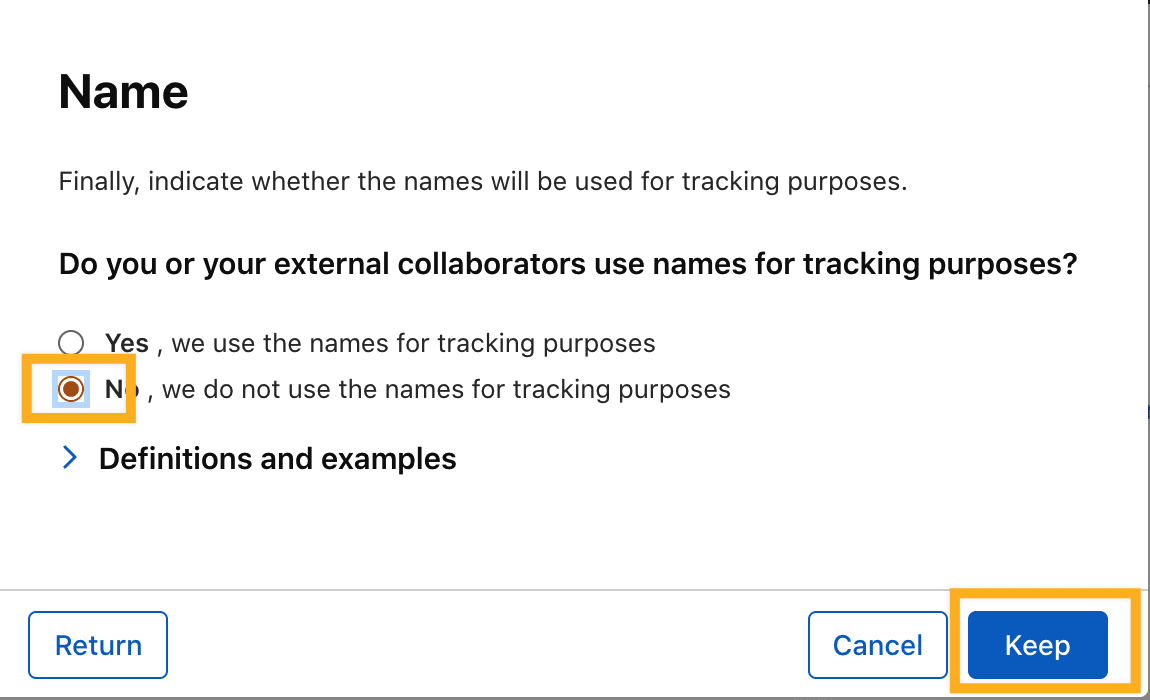
Do not reuse generic answers such as “not linked to identity” or “not used for tracking.” Select those answers only when they are true for the specific data type and the actual app behavior. Use the App Privacy guide as the current authority.
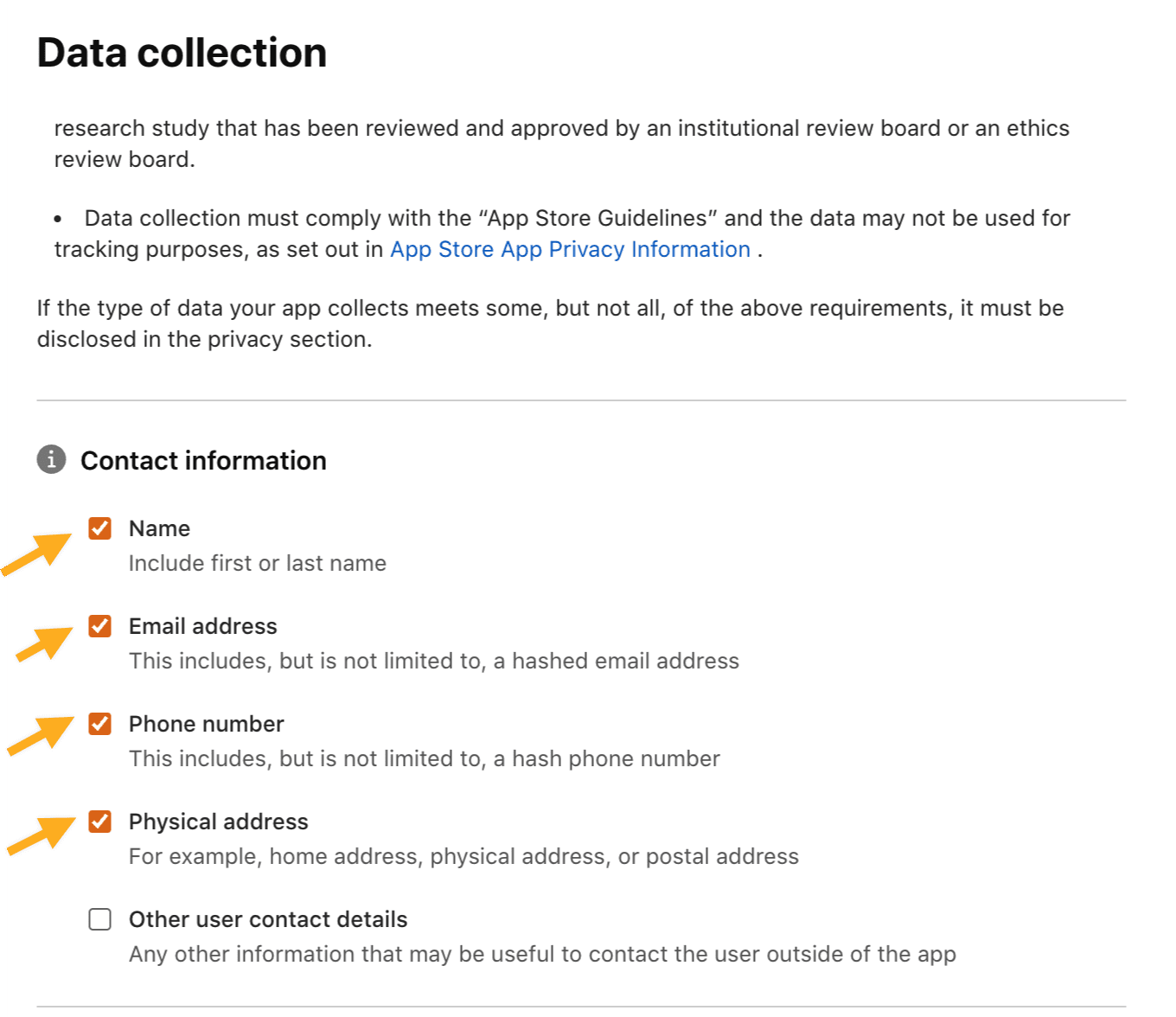
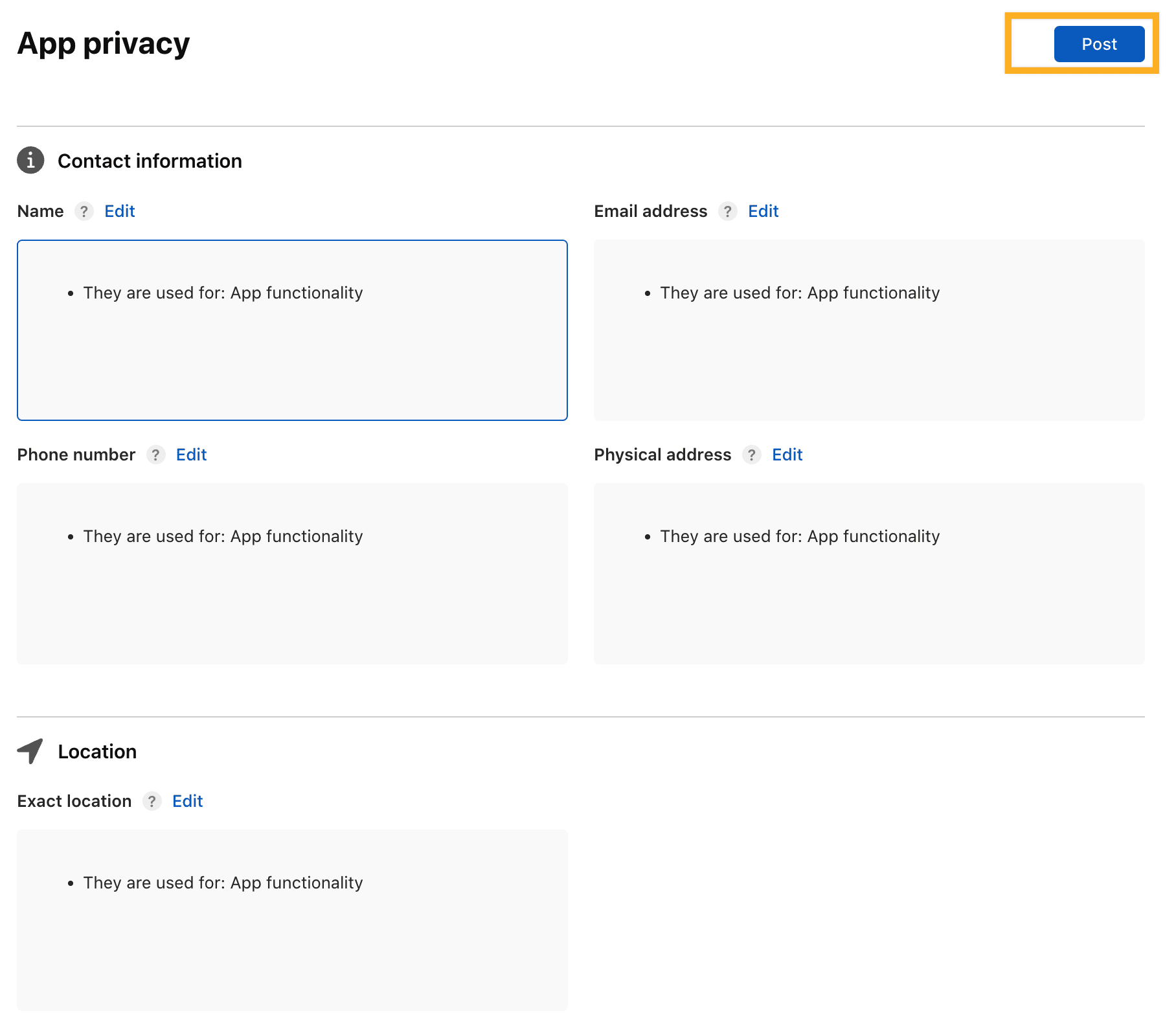
Customer App data categories
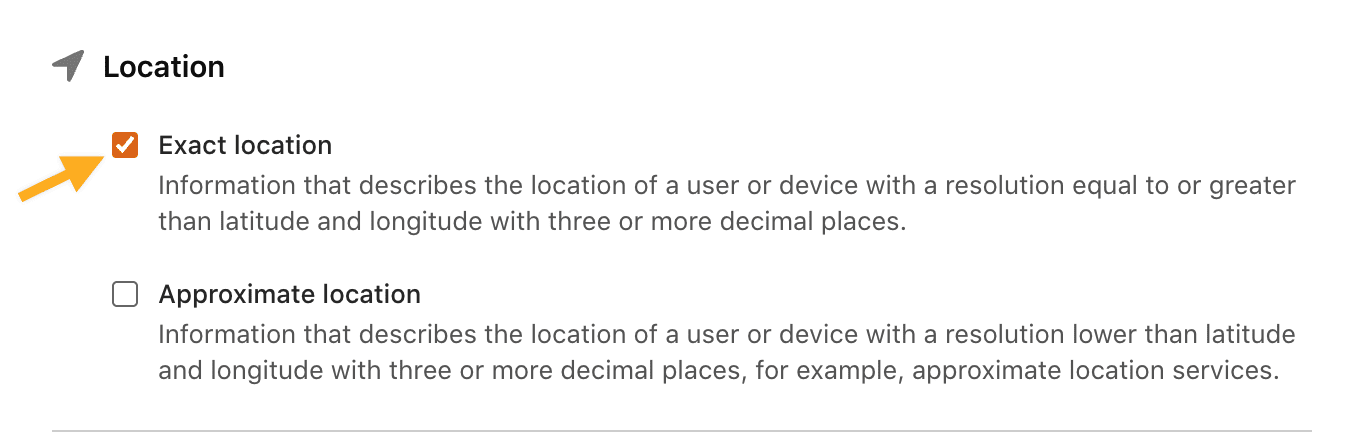
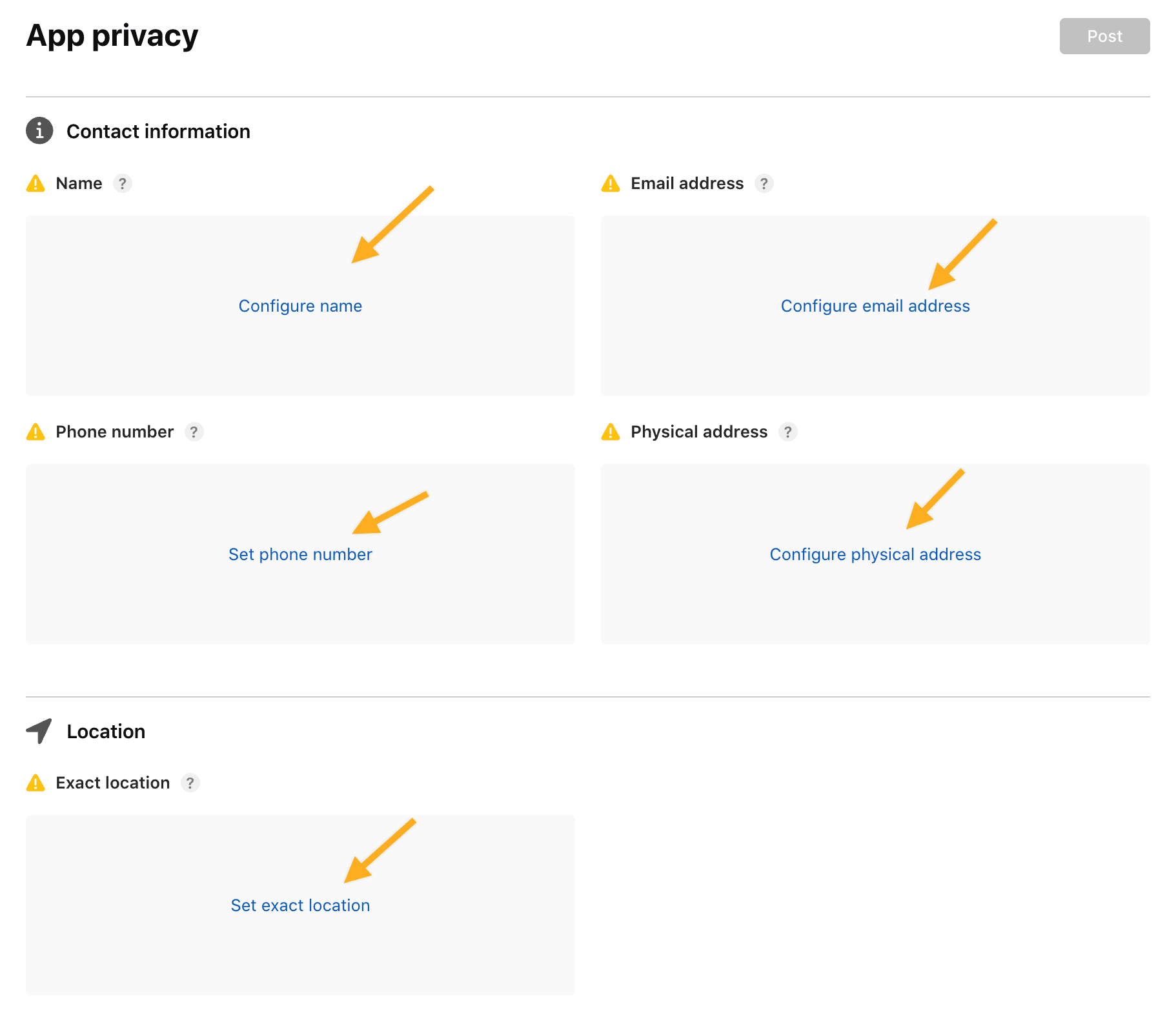
Review whether the Customer App actually collects the following categories before declaring them:
- Contact information: name, email address, phone number, and physical address.
- Exact location.
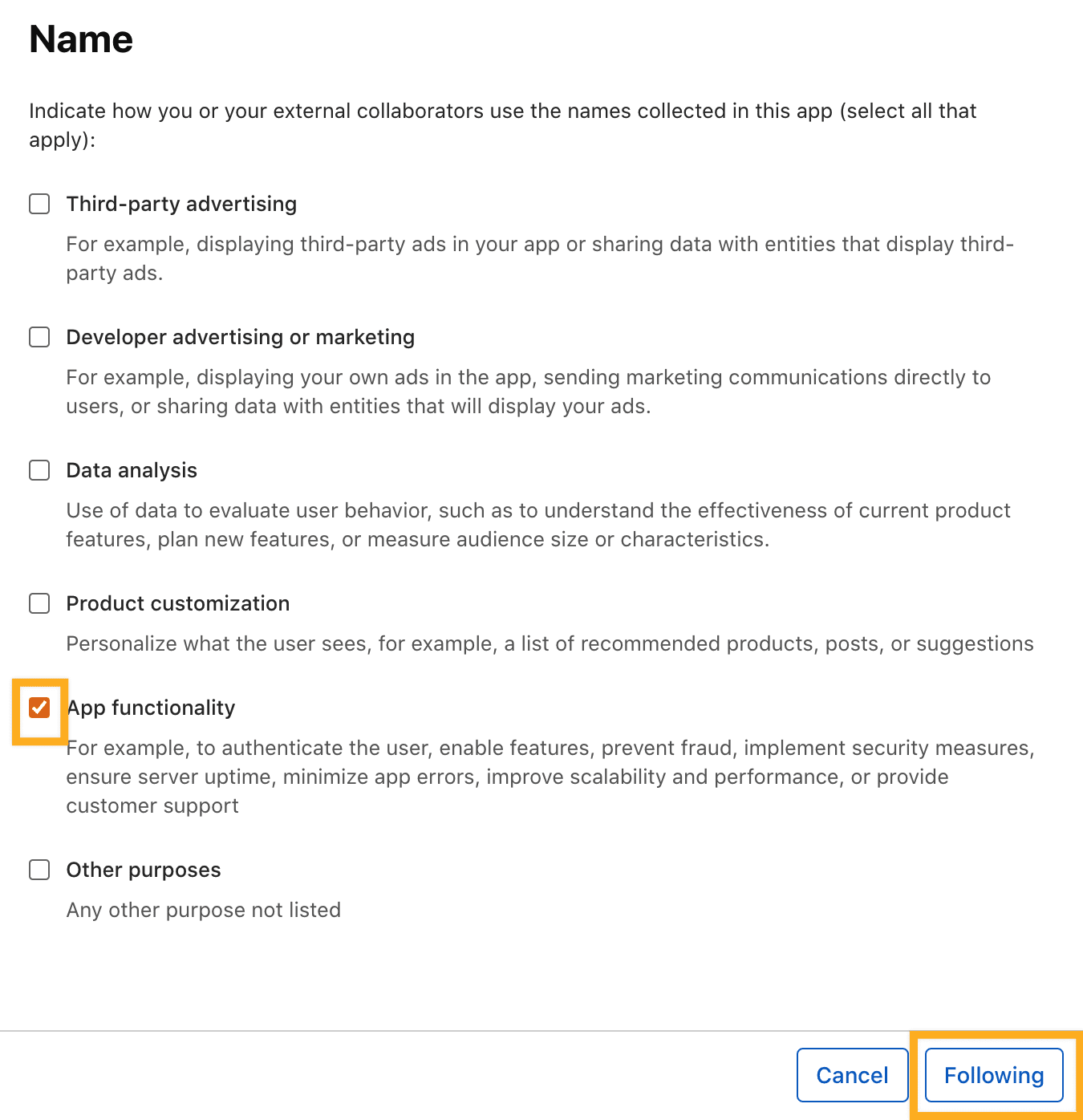
Complete each data-type questionnaire with the real collection purpose, identity linkage, tracking status, and third-party use.
Driver App data categories
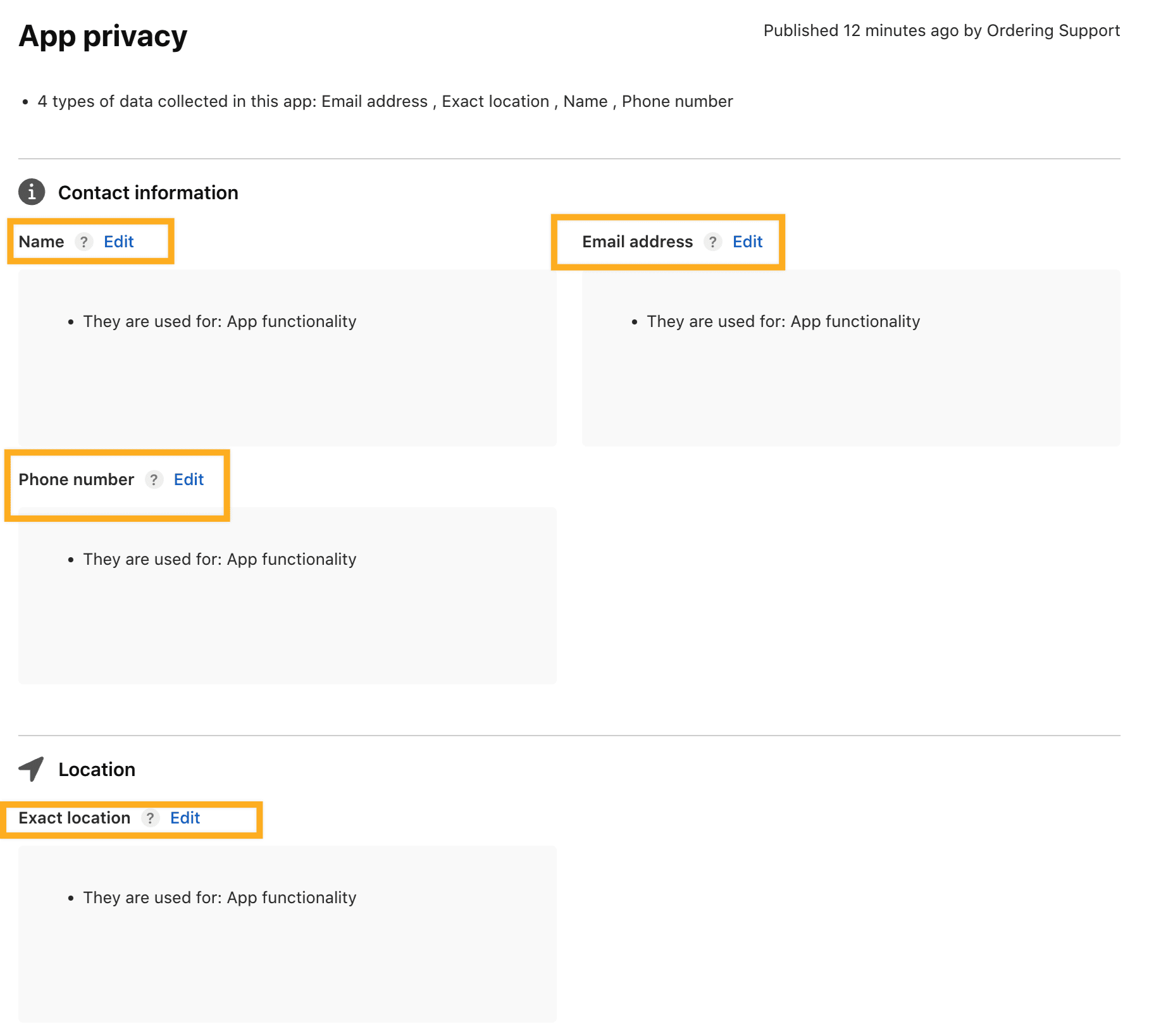
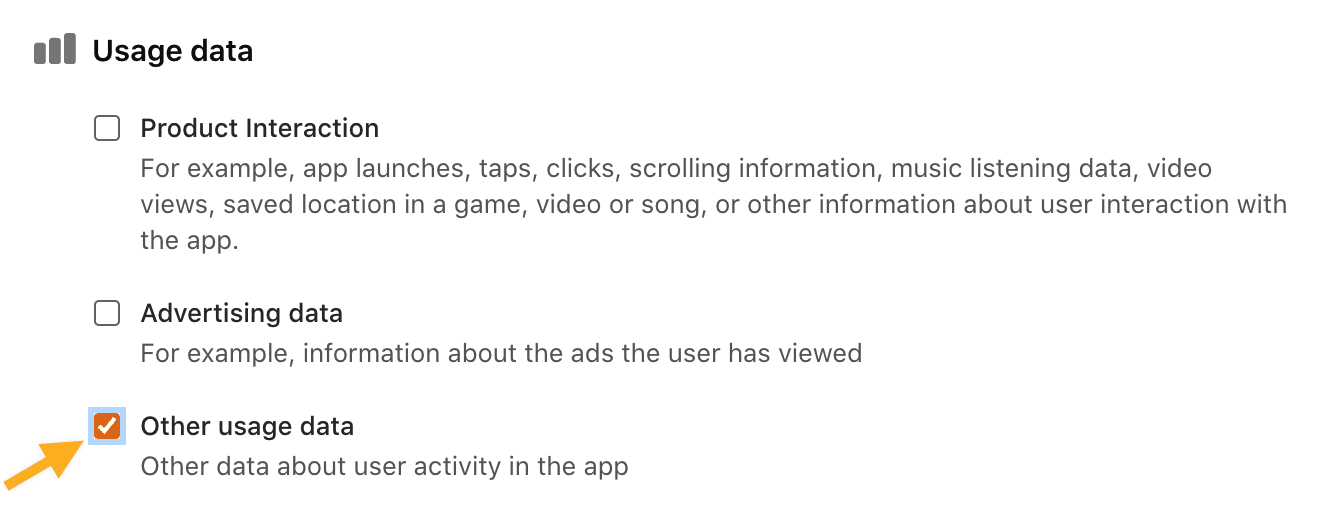
Review contact information (name, email address, and phone number) and exact location for the Driver App. Include Other Usage Data only when the app actually collects it. Confirm every declaration against the production behavior and integrated code.
Business App data categories
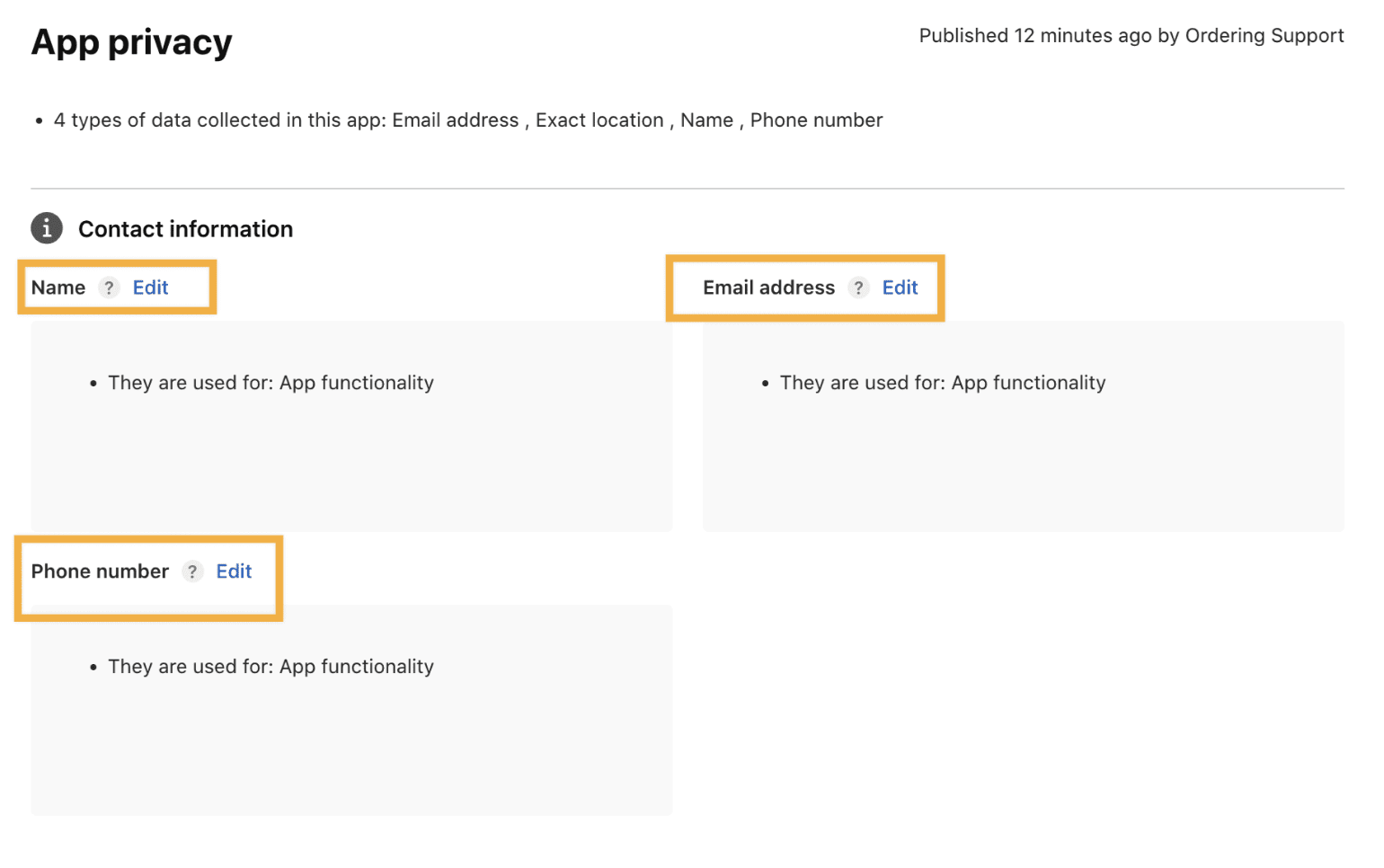
Review contact information (name, email address, and phone number) for the Business App, then include any other data types only when the app or a third-party integration actually collects them.
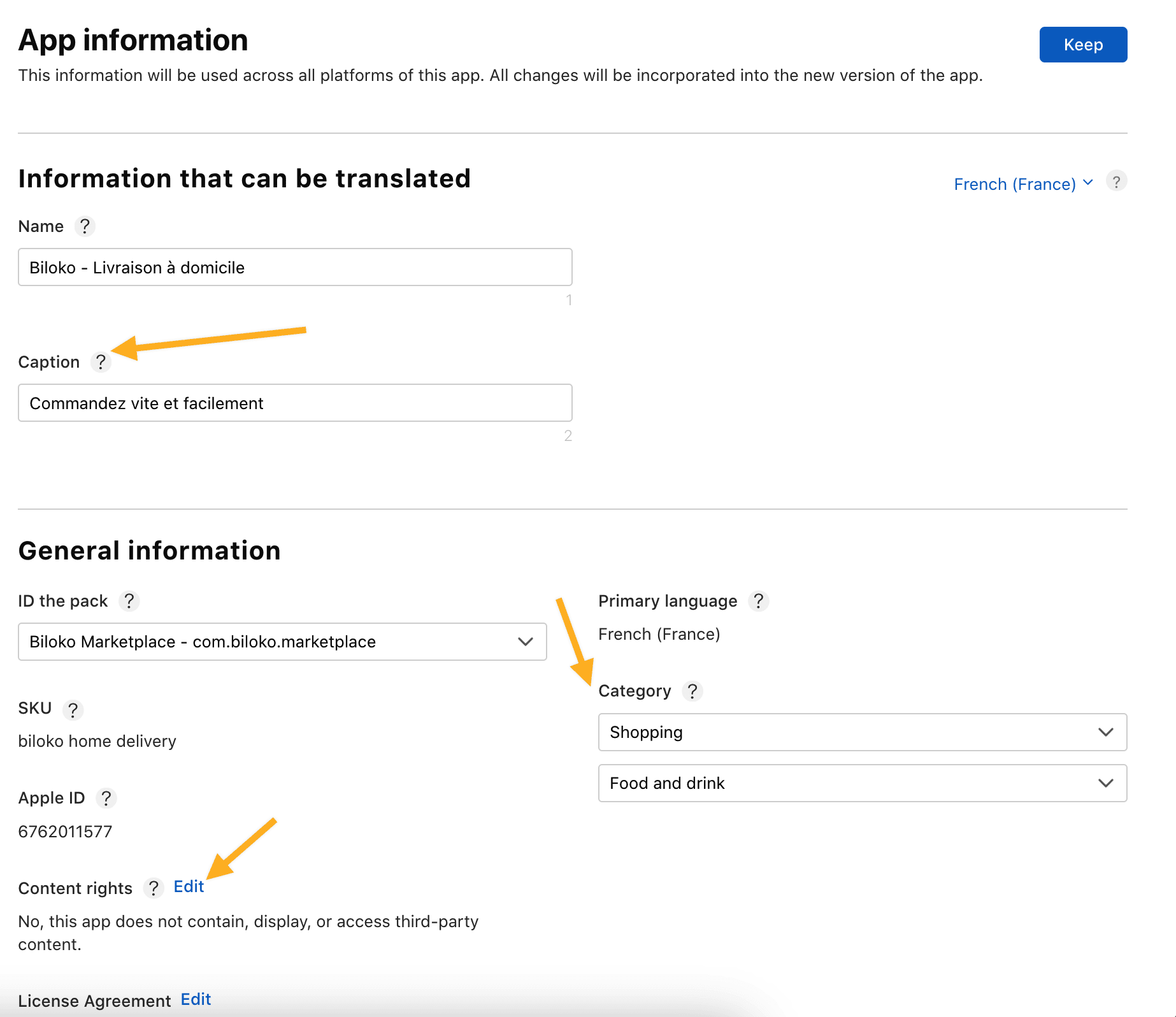
Complete App Information
Complete the required app information using the actual product:
- A clear subtitle or summary.
- One or two categories that fit the app.
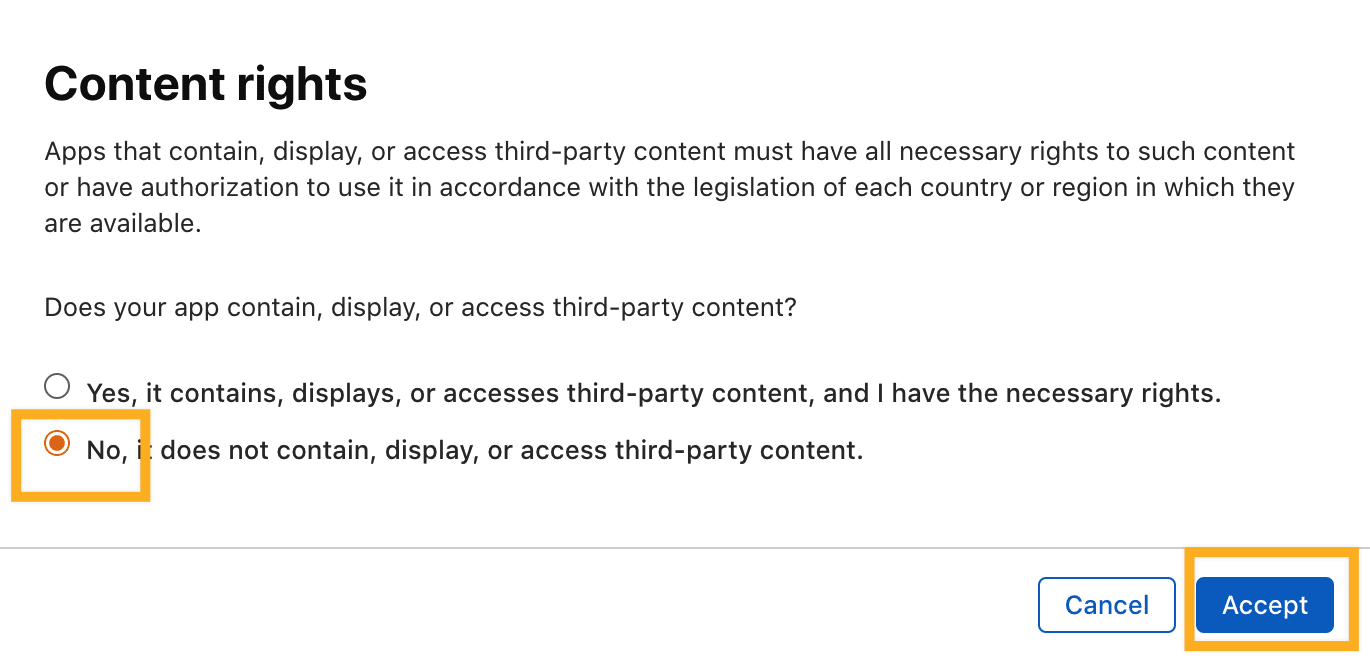
- Accurate content-rights information.
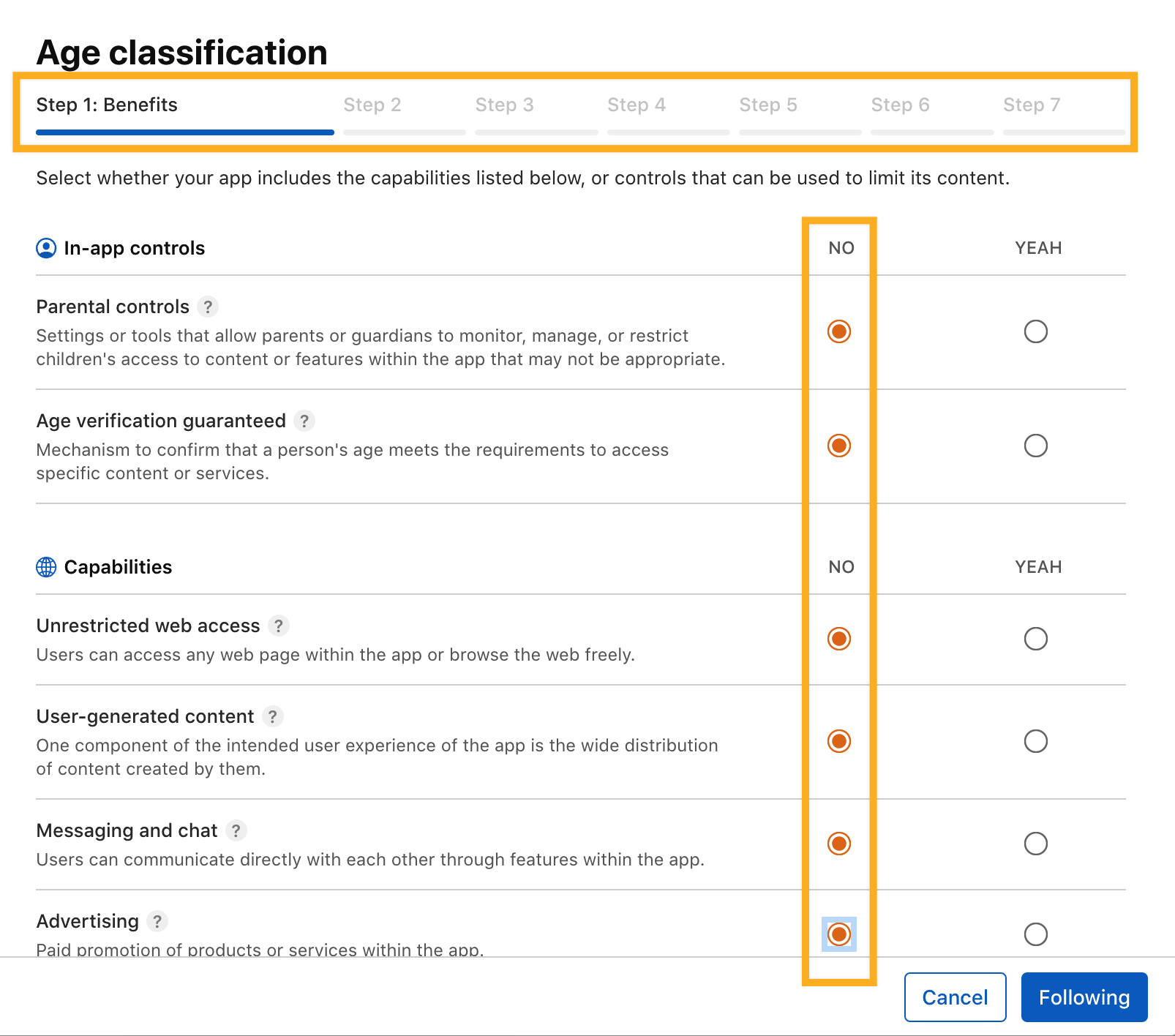
- An age rating based on the app’s real content and features.
Do not select a generic “no third-party content” answer or default age-rating answers unless they are true. Read each App Store Connect question and answer it for the submitted app.
Driver App background-location disclosure
If the Driver App uses background location, include the required product disclosure in its description and verify Apple’s current review guidance. Use this disclosure when it accurately describes the app: “Continued use of GPS running in the background can dramatically decrease battery life.”
Submit for App Review
Before submission, confirm that required metadata is complete, the right build is selected, the App Privacy responses match the app, and the reviewer can sign in. In App Store Connect, add the version to review and then select Submit for Review.
Apple reviews every submission. If Apple rejects the version, review the Resolution Center notes, correct the app or version information, upload a new build when needed, and resubmit. Do not promise an approval or release date.
Use Apple’s submission guide for the current final steps.
Next steps
After Apple accepts the version, follow the release behavior selected by the account owner and confirm that the intended App Store listing is available. For the full lifecycle, see Test and publish app releases.