Manage Google Play closed-test testers
Use a Google Play closed test to share a release with selected testers before production. Add the testers to the track, send the opt-in link, and publish any pending track changes before asking testers to install the app.
Add testers to a closed test
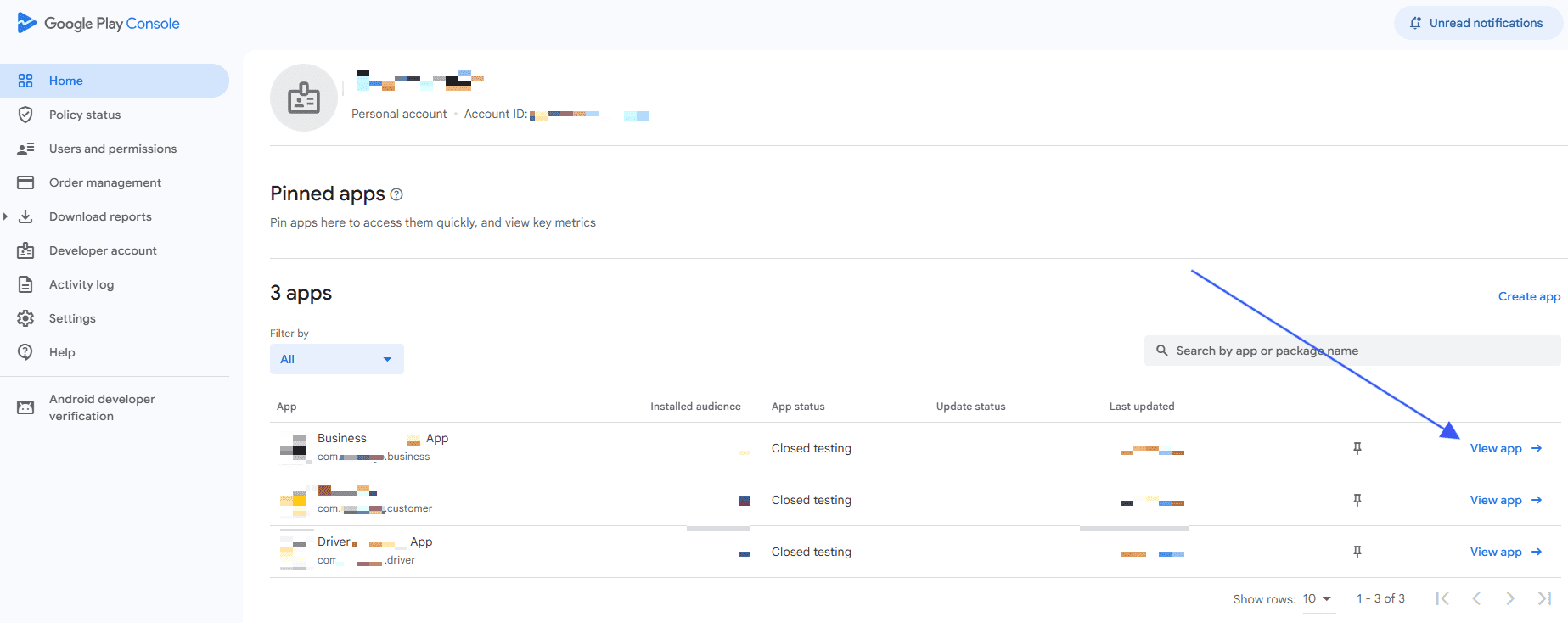
- Sign in to Google Play Console and select the app.
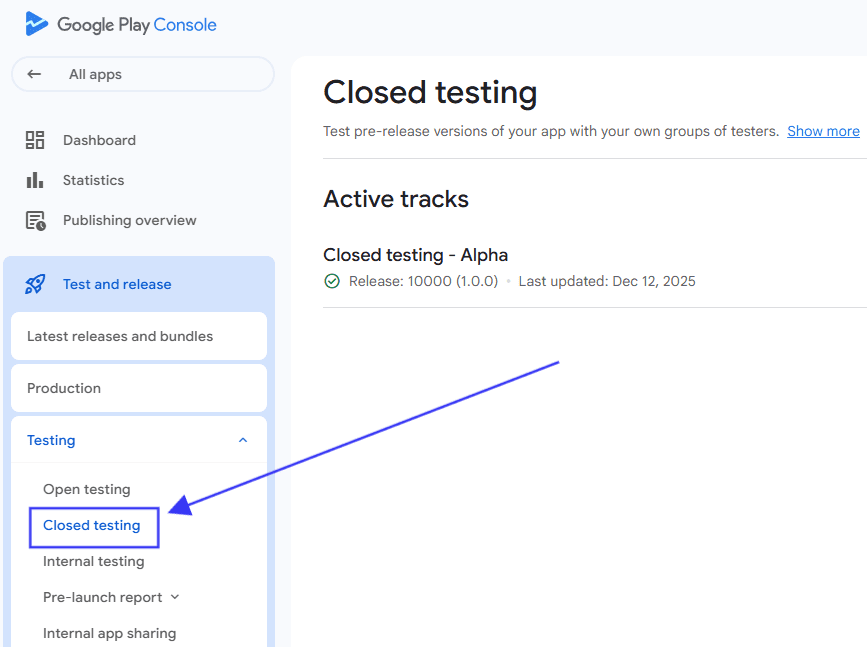
- Go to Test and release → Testing → Closed testing.
- Open the applicable track with Manage track. Do not rely on a specific track name; it may be custom or differ from older labels.
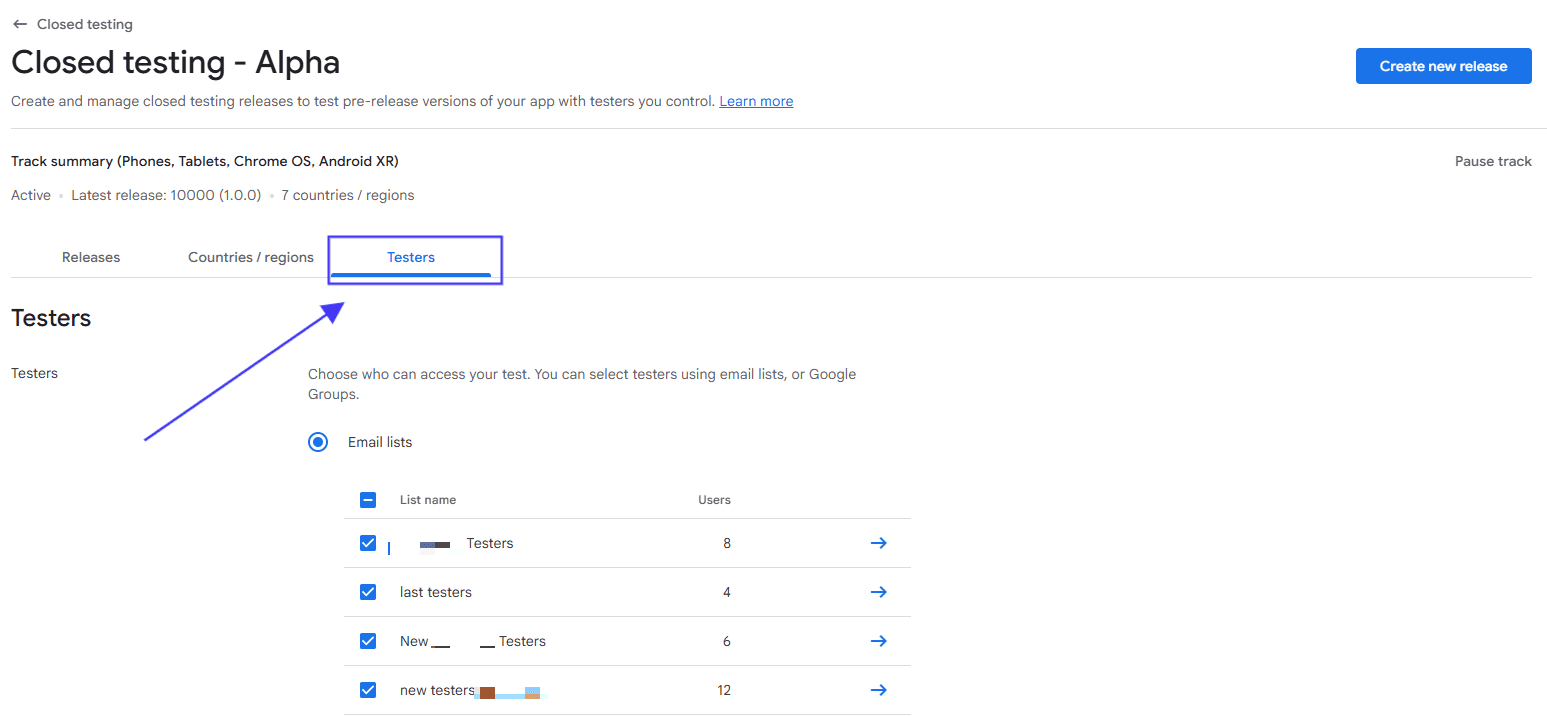
- Select the Testers tab.

Create or select the tester list
Under Testers, choose Email or Google Groups as the access method. To create an email list:
- Select Create email list.
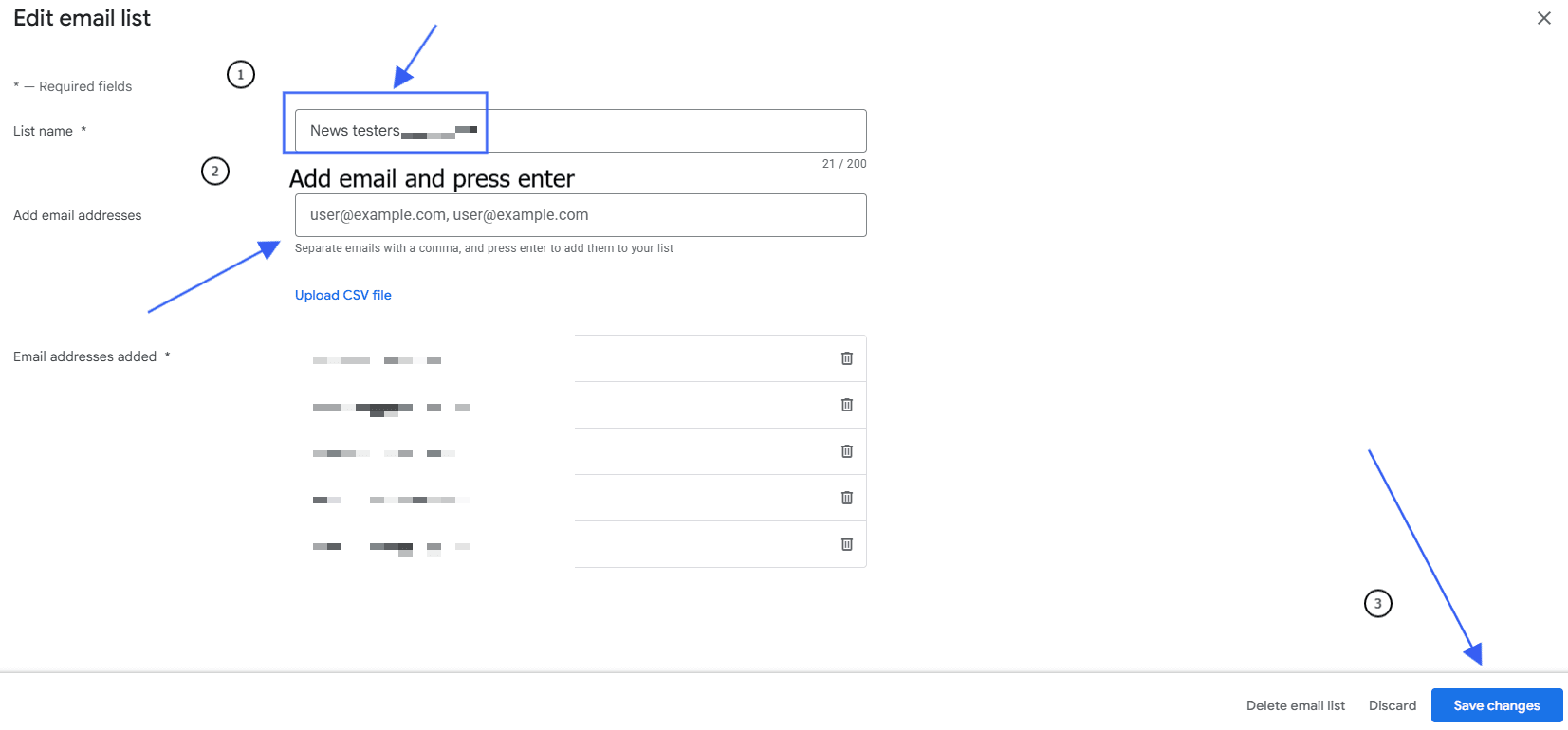
- Give the list a name that identifies its purpose, such as
Internal Team. - Add tester email addresses separated by commas, or upload a CSV file with one address per line.
- Select Save changes, then create the list.
- Select the list for the track.
Use the same list for later tests when the audience is still appropriate. If you upload a CSV file, Google Play can replace previously entered addresses, so review the list before saving.
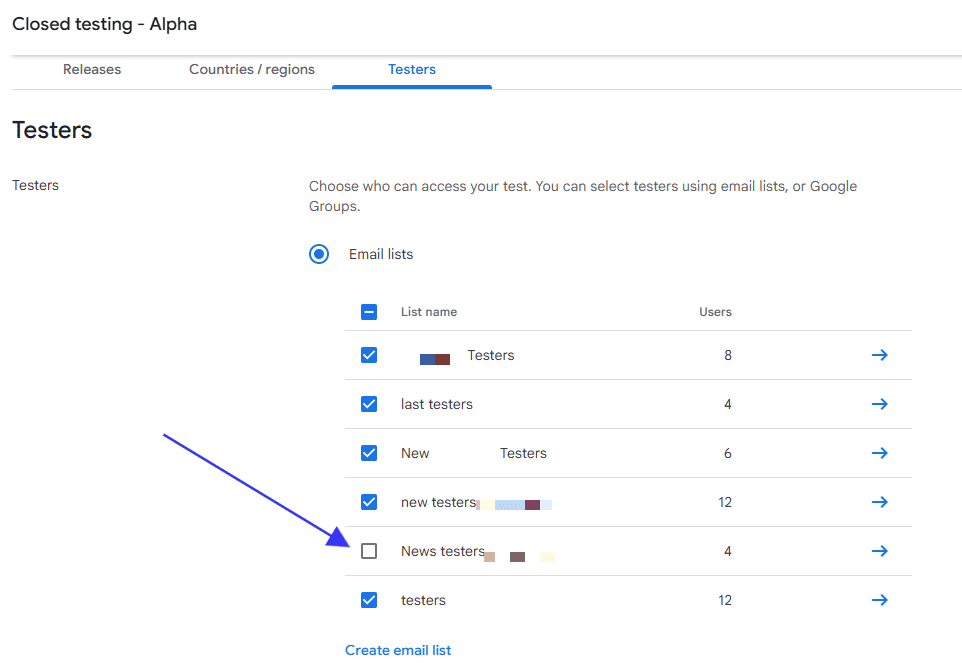
Google’s current closed-test guidance also supports Google Groups and lets you set a feedback email address or URL for the test. Choose the access method and feedback channel that fit the test team.
Share the opt-in link
Adding an email address does not install the app for a tester. In the Testers tab, find How testers join your test, then copy the Join on Android or Join on the web link.
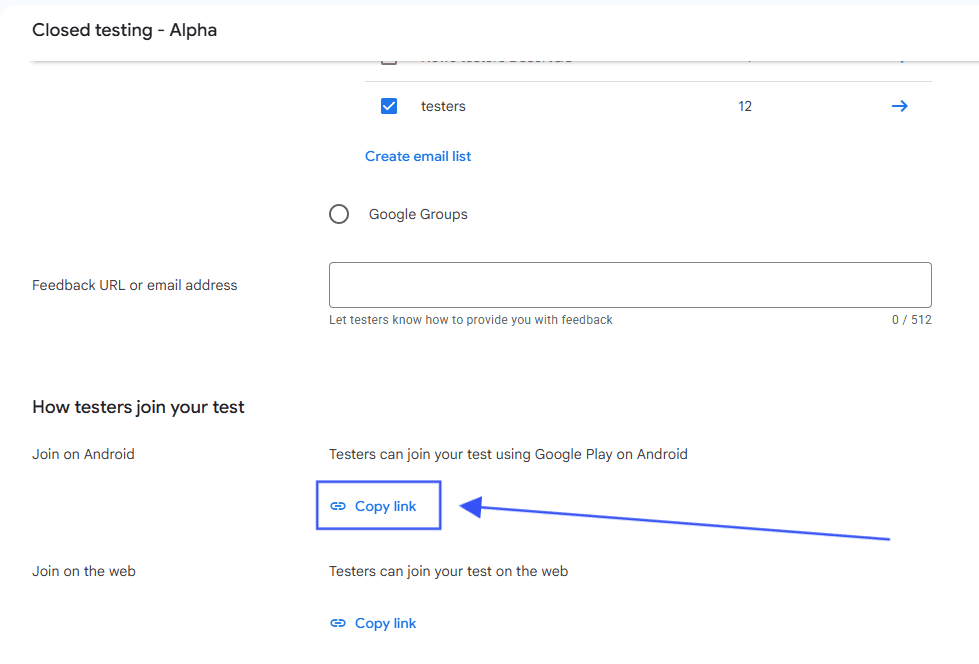
Send that link to the selected testers. Each tester must:
- Open the link while signed in with the same Google Account added to the tester list or Google Group.
- Opt in to the test.
- Install the available test release.
Send the opt-in link directly instead of asking testers to rely on Google Play search. After a test is first published, the link can take time to become available, so confirm the track status before escalating an installation issue.
Publish tester and track changes
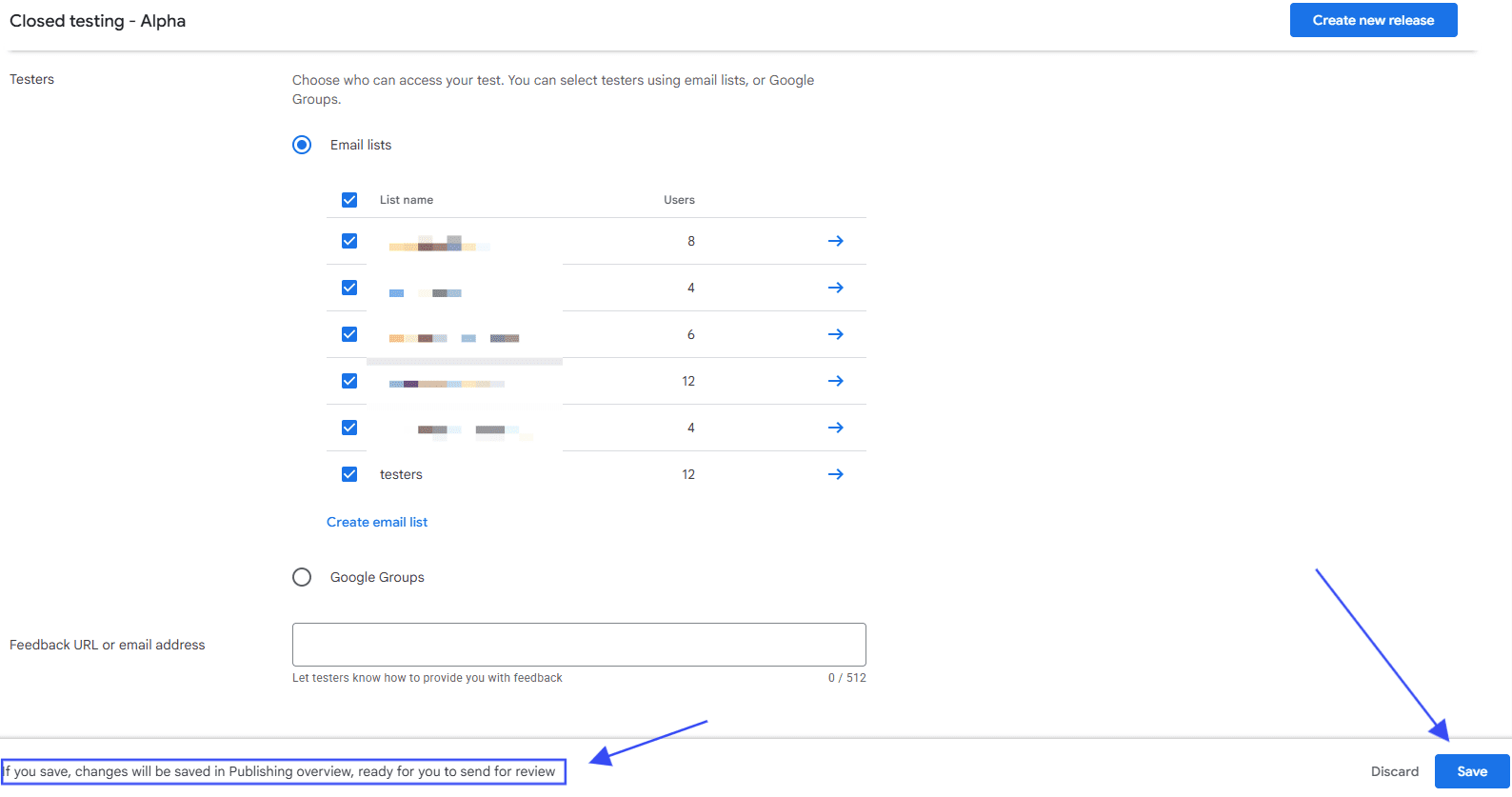
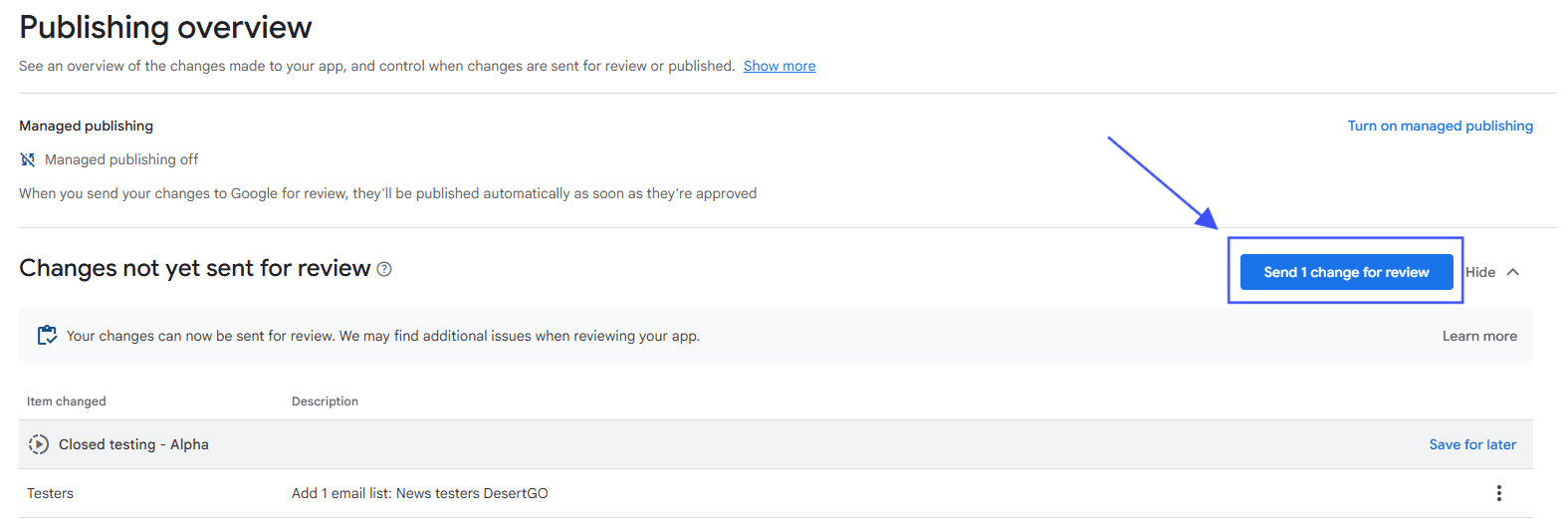
After updating testers or track settings, save the changes and review the track summary. When the console shows pending changes:
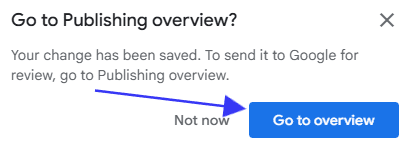
- Open Publishing overview in the left sidebar.
- Review the pending changes.
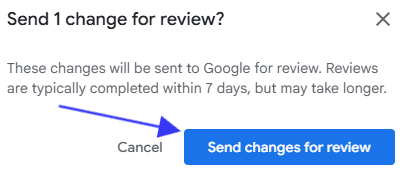
- Select Send for review when the changes are ready.
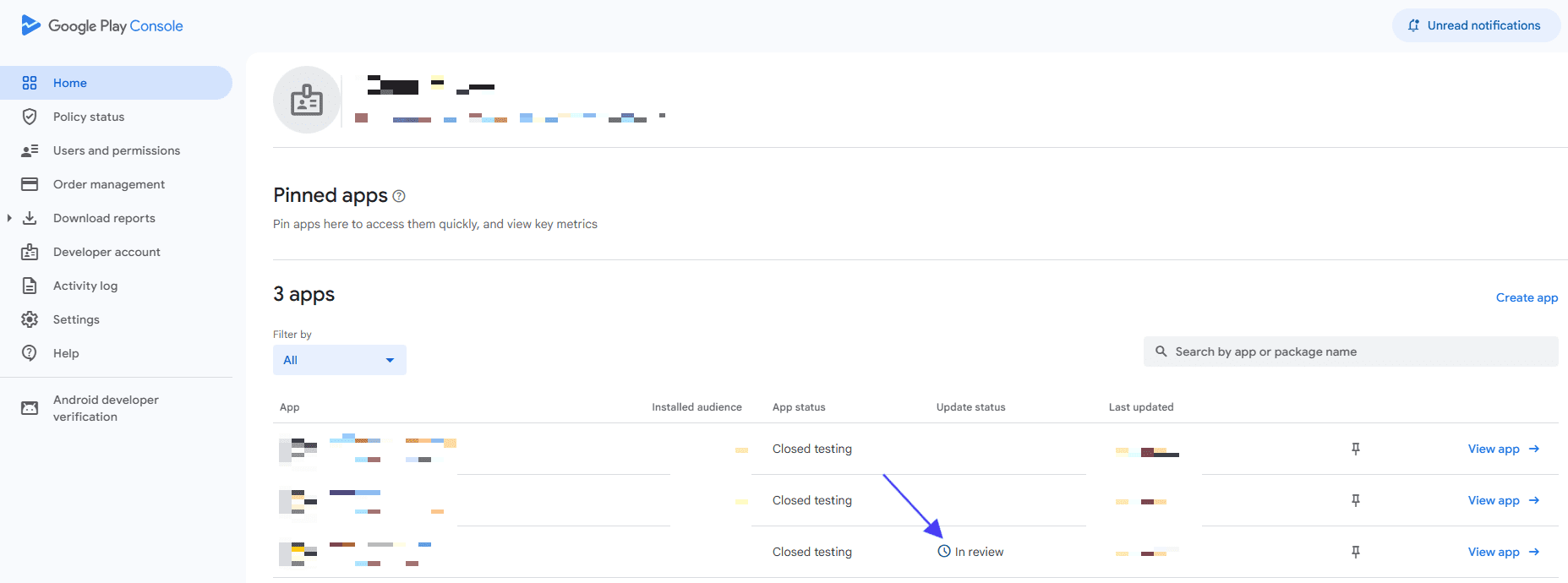
Google can review changes before they become available. Managed Publishing controls what happens after approval: when it is on, you choose when to publish approved changes; when it is off, approved changes publish automatically. Do not promise that a tester-list change or a new release will become live at a particular time.
Resolve a “URL not found” result
Check these conditions before you send a new link:
- The tester is using the same Google Account that is on the selected email list or Google Group.
- The email list or group is selected on the closed-test track.
- The track has a release that is available to testers.
- Any pending publishing action or Google review has completed.
- The tester used the current copied opt-in link.
If the issue continues, capture the track name, tester-account context, and the exact provider message for the support request. Do not ask the tester to share their Google password.
Next steps
After testers install the release, collect their feedback and fix the issues found. When the app and store content are ready, continue with Publish an app to Google Play.