Prepare a promotion with Quick Offers
Quick offers brings promotion templates into one form. The template defines some rules; you complete the benefit, purchase requirements, date range, and scope. Review the configuration and test it in an authorized environment before offering it to customers.
Before you start
You need authorized access to your project's promotions. Availability depends on configuration and permissions. Decide on the goal, businesses, dates, and benefit budget.
This guide follows the Dashboard's English control labels; they can vary with its language.
Choose Quick offers or Advanced offers
From Marketing → Advanced offers, the promotion workspace provides two tabs:
| Tab | When to use it |
|---|---|
| Quick offers | Start with a template and configure its fields on one screen. |
| Advanced offers | Review the detailed list and use the advanced editor's rules and conditions. |
Both work with the project's promotions. Review an existing offer's configuration before changing it. See Advanced offers and Create or edit an advanced offer for the detailed editor.
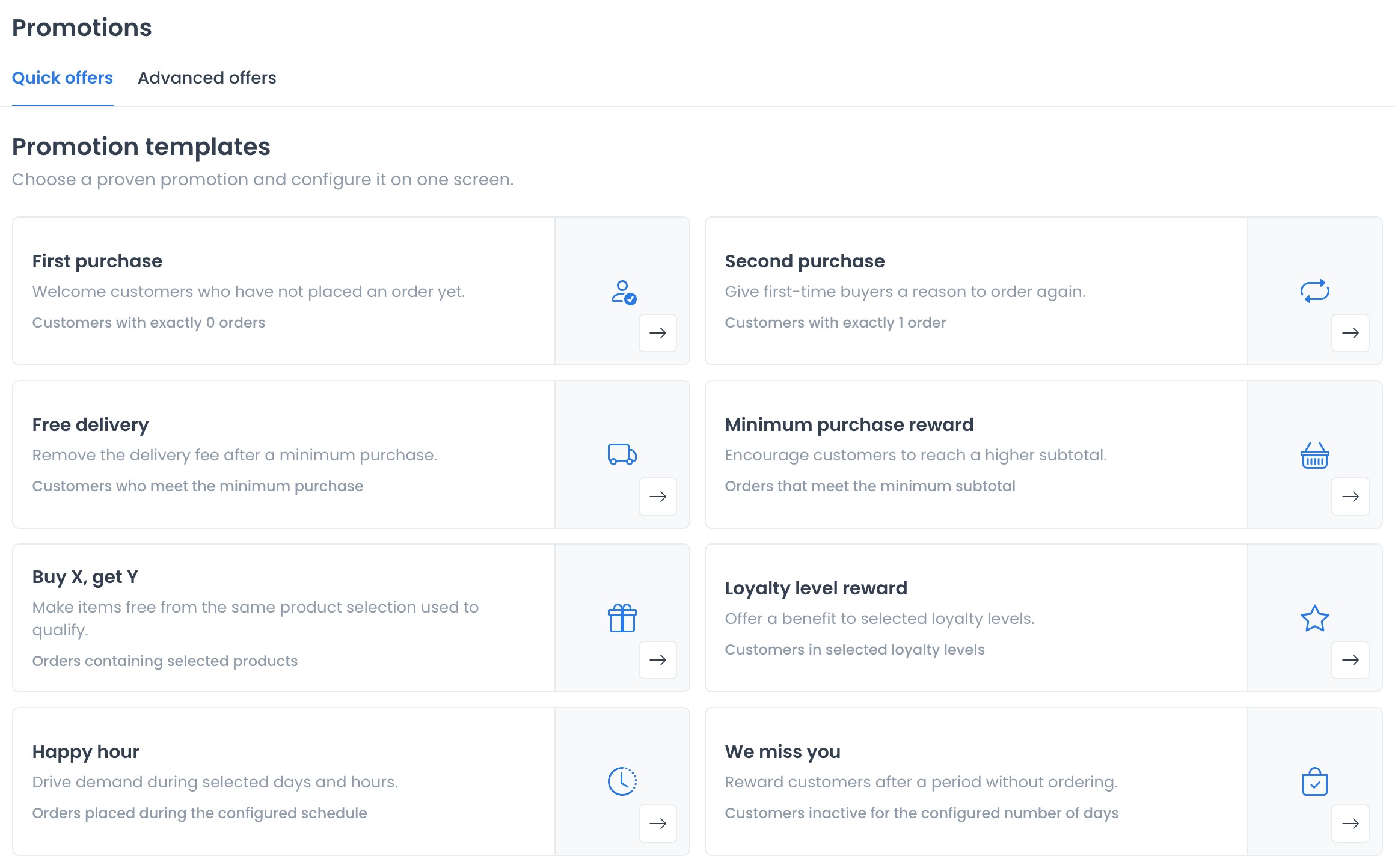
Start with a template
In Quick offers, select the card that matches your goal. Opening a template prepares a form; it does not save a promotion yet.
| Template | Focus |
|---|---|
| First purchase | Customers with exactly zero platform orders. |
| Second purchase | Customers with exactly one platform order. |
| Free delivery | A benefit on the delivery fee with a minimum purchase. |
| Minimum purchase reward | A benefit subject to a minimum purchase. |
| Buy X, get Y | Free units from the same product selection used to qualify. |
| Loyalty level reward | Selected loyalty levels; requires available Loyalty Levels. |
| Happy hour | Configured days and hours. |
| We miss you | Customers with previous orders and a configured inactivity period. |
Each template exposes its own fields. Do not assume they share the same benefit, limit, or conditions.
Complete and review the form
- Review Name. It identifies the offer customers see at checkout.
- Complete the benefit and minimum required by the template. Percentage offers other than Free delivery require Maximum discount limit; entering a percentage alone is insufficient.
- Review Product options when shown: decide whether the discount includes product-option charges.
- Under How it's going to be applied?, choose Automatic offer or Coupon. If you choose Coupon, enter Coupon code. A new template form starts in Automatic offer; change it explicitly if your case requires a code.
- Complete Start Date and End date. The end must be after the start. Check the times too.
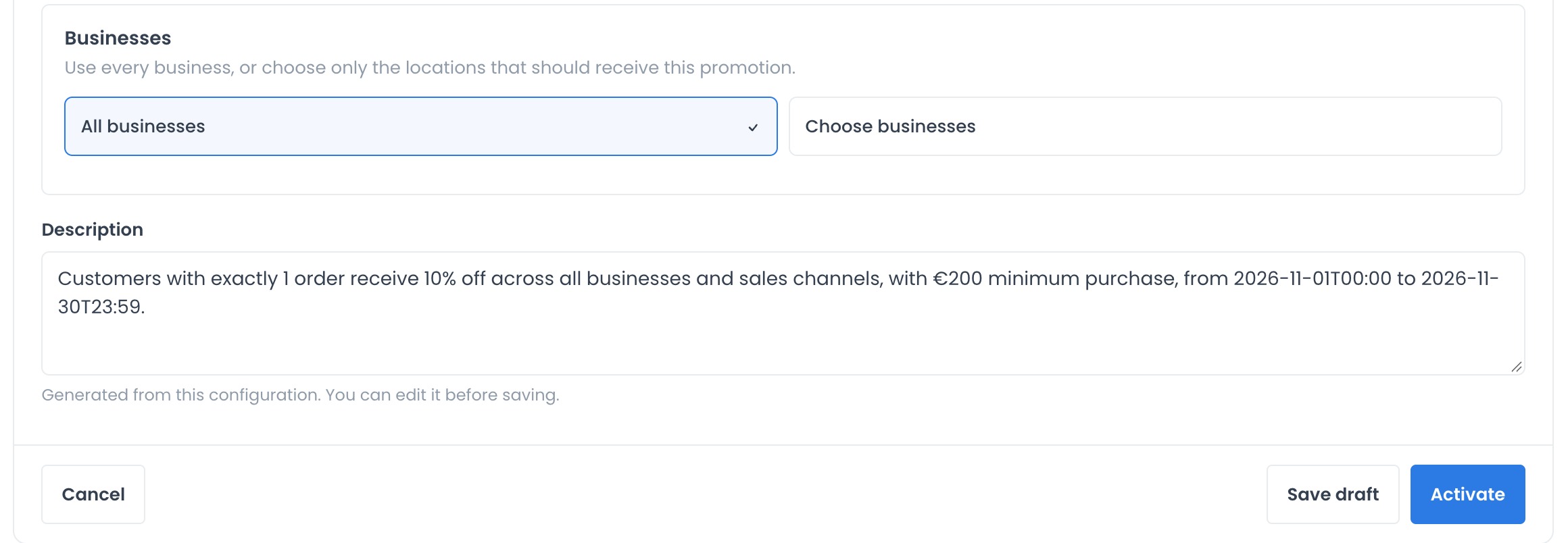
- Review Businesses: use All businesses or Choose businesses for your intended scope. A new form initially selects all loaded businesses and sales channels; check whether that scope fits.
- Read Description, generated from the configuration, and adjust the text if needed. It does not replace reviewing fields or testing checkout.
For a complete example covering audience, minimum, and one use, follow Turn a first purchase into a second visit.
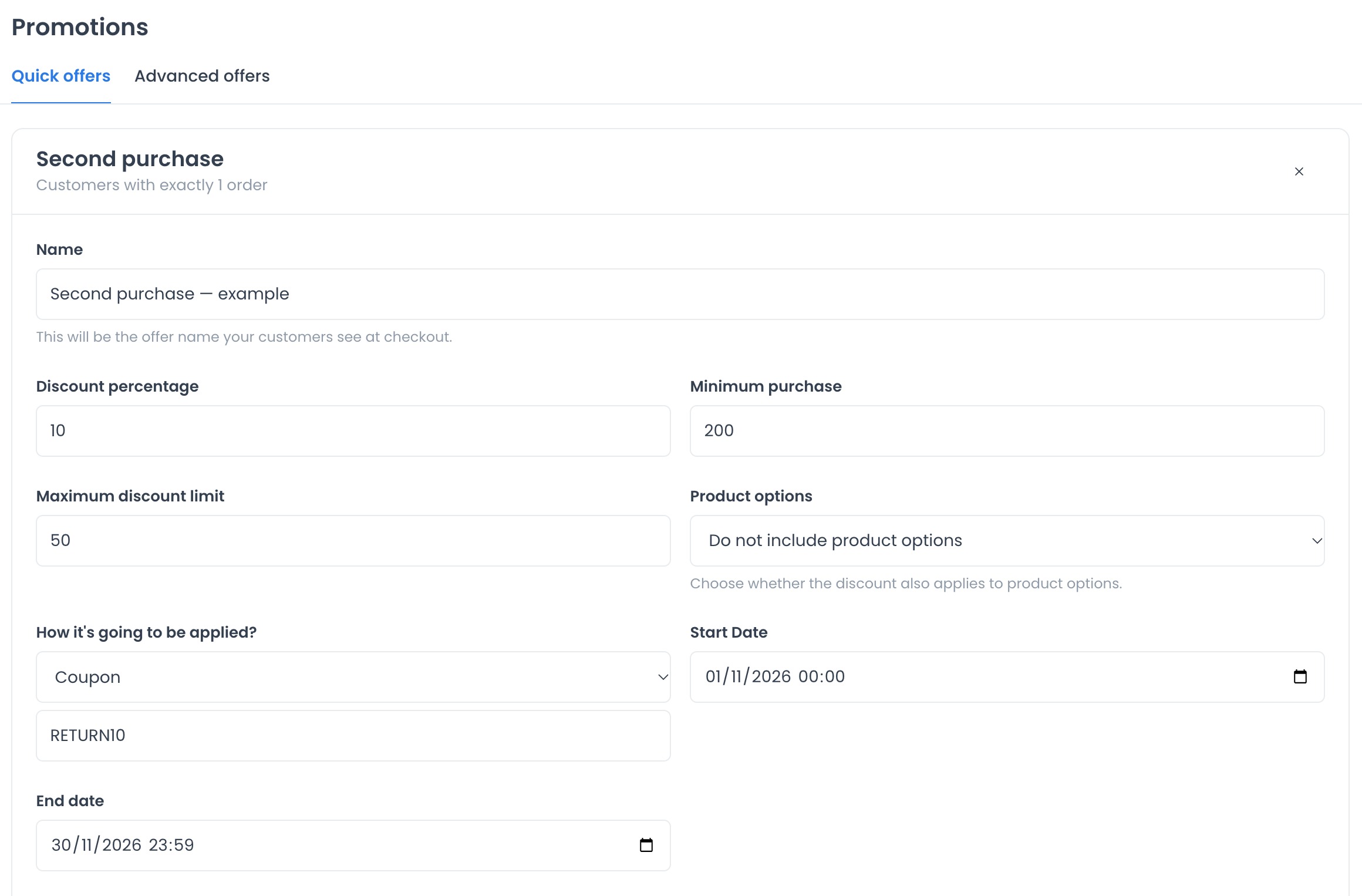
Unsaved example form. Screenshots use the Dashboard’s English labels.
Save a draft and activate
Save draft saves a new promotion disabled. Activate saves and activates the promotion. Both write project configuration; opening or filling out the form does not replace either action.
Before activating, review the audience, benefit, minimum, maximum, options, dates, code, and businesses. Use an authorized test environment to check eligibility and the final calculation. A description or active state does not confirm that a particular cart qualifies.
When editing an existing offer, the action can appear as Save changes and preserves its current enabled state. Do not assume that action disables an active offer.
Review existing promotions
Your promotions shows project promotions with Draft or Active status and Edit promotion. Review the rules before changing status or deleting a promotion: those controls modify configuration. Some configurations need the Advanced offers editor; use the detailed guide for those conditions.
Limits and checks
- Automatic offer describes benefit application; it does not send emails, SMS, push messages, or reminders.
- The order count for First purchase and Second purchase is platform-wide. Choosing a business does not turn that condition into a count for that branch.
- If required fields, businesses, or sales channels are missing, resolve the notice before saving. Do not switch templates to bypass a requirement.
- Check the final amount, interactions with other offers, and customer eligibility in your project.
Related guides: Advanced offers · Create or edit an advanced offer · Discovery Ordering