Create or edit an advanced offer
Use this guide to prepare or update an advanced offer with an authorized account. The controls configure an offer record; they do not guarantee that an offer is visible, eligible, or applied at checkout.
Advanced offers depends on the project configuration and your permission to manage offers. Sites and Loyalty levels can appear only when the relevant project capability is available. A visible tab does not establish a customer-facing result.
Before changing an offer
Use an account that is authorized to manage offers. For practice or verification, use a test business, catalog, audience, and cart with no customer traffic. Record the existing configuration before changing a live offer, and do not use customer data merely to test a rule.
Opening Advanced offers or an existing row can show offer details. Selecting Add or editing a tab prepares a changeable form.
General settings
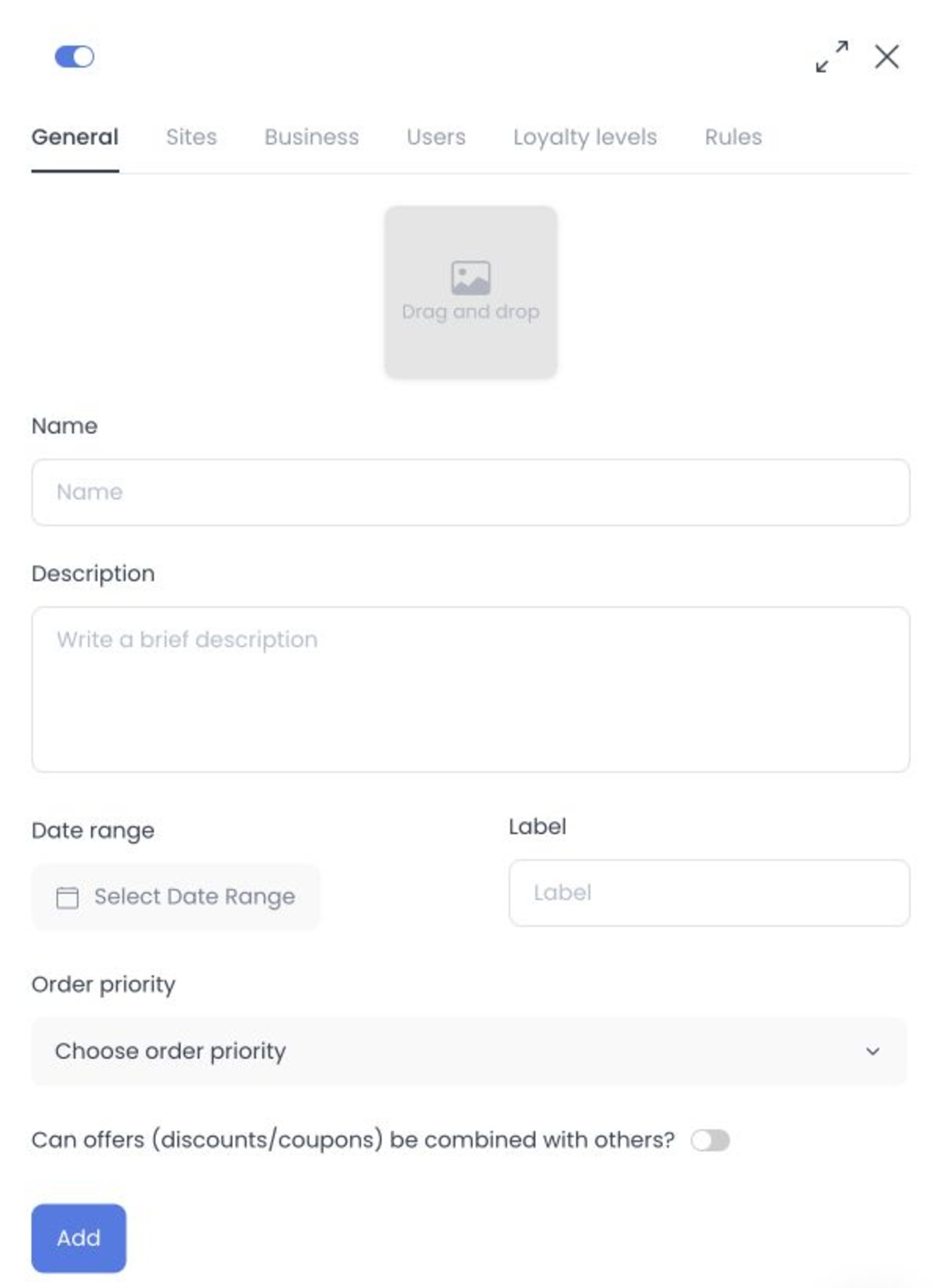
- Name is required.
- Description and Label are optional.
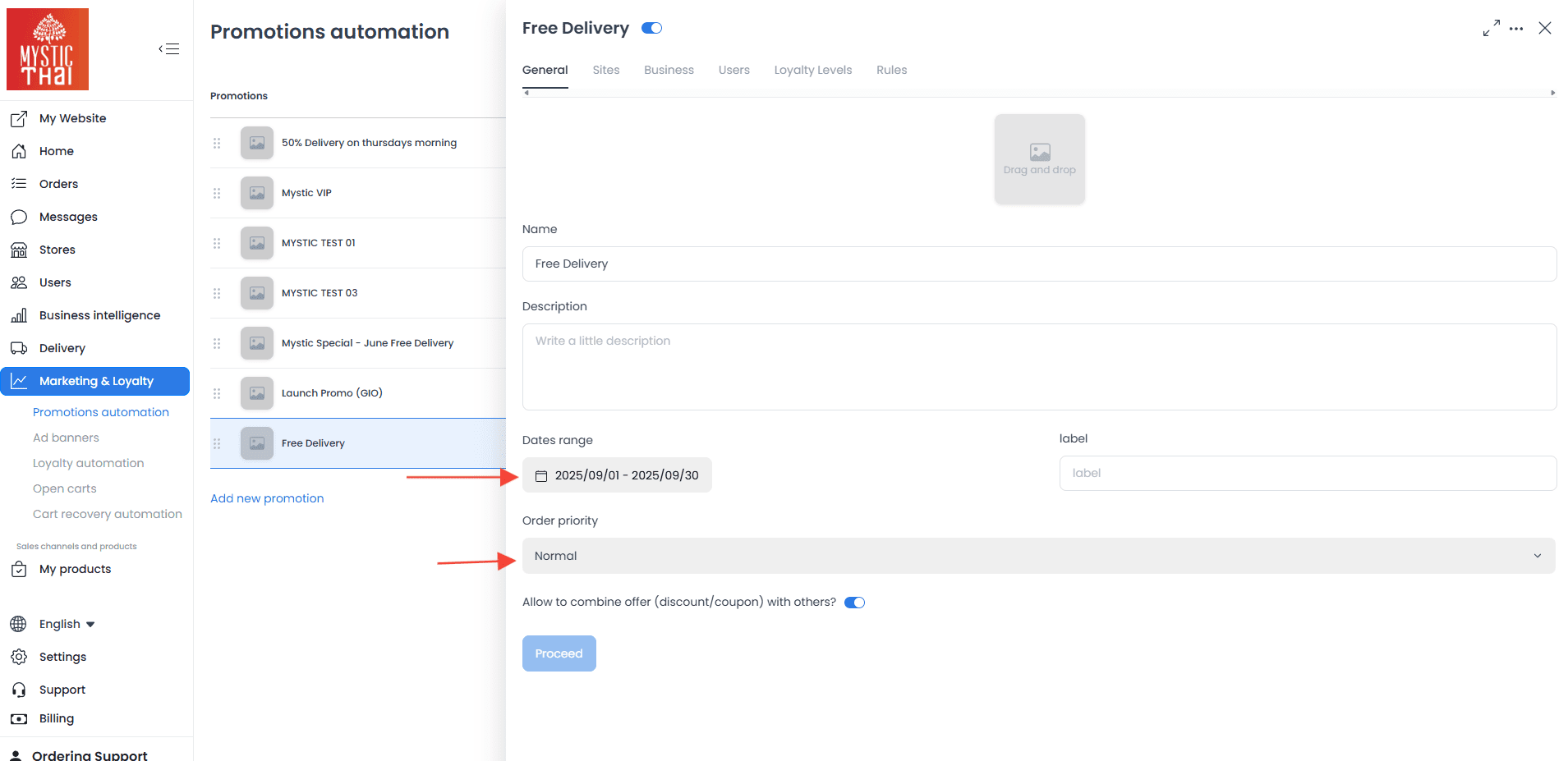
- Select a Date range. The end date cannot be before the start date.
- Optionally set Order priority and whether the offer can combine with other offers.
- Use the header Enable switch to set the configuration state.
- If image upload is available, follow the file requirements displayed by the editor and review the final image after saving.
What a change means
| Event | What it can change | What it does not prove |
|---|---|---|
| Selecting a tab or field | The values currently shown in the editor | That a value is saved or that an offer applies to a cart |
| Selecting Add, Save, Enable, a rank control, upload, or Delete | Offer configuration or related selections | A complete customer-facing result, coupon use, discount calculation, or eligibility |
| Reviewing a saved row or detail panel | The state displayed by the Dashboard | That every condition was met in a checkout |
If an action reports an error or ends unexpectedly, do not assume earlier changes were undone. Reopen the offer, review its saved state, and reconcile the affected scope before retrying. Do not change a live offer only to test a configuration.
Related guides: Advanced offers · Marketing overview
Configure a promotion
Use this flow in an authorized test environment. It describes the available configuration controls and the separate confirmation needed after a change.
1. Open the configuration panel
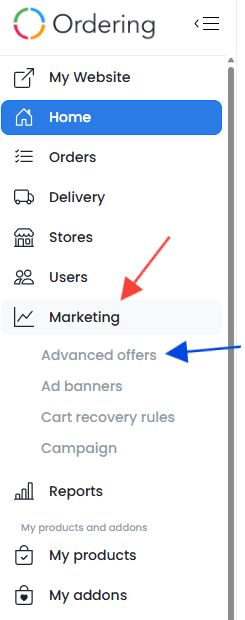
- In the Dashboard sidebar, select Marketing and then Advanced offers.
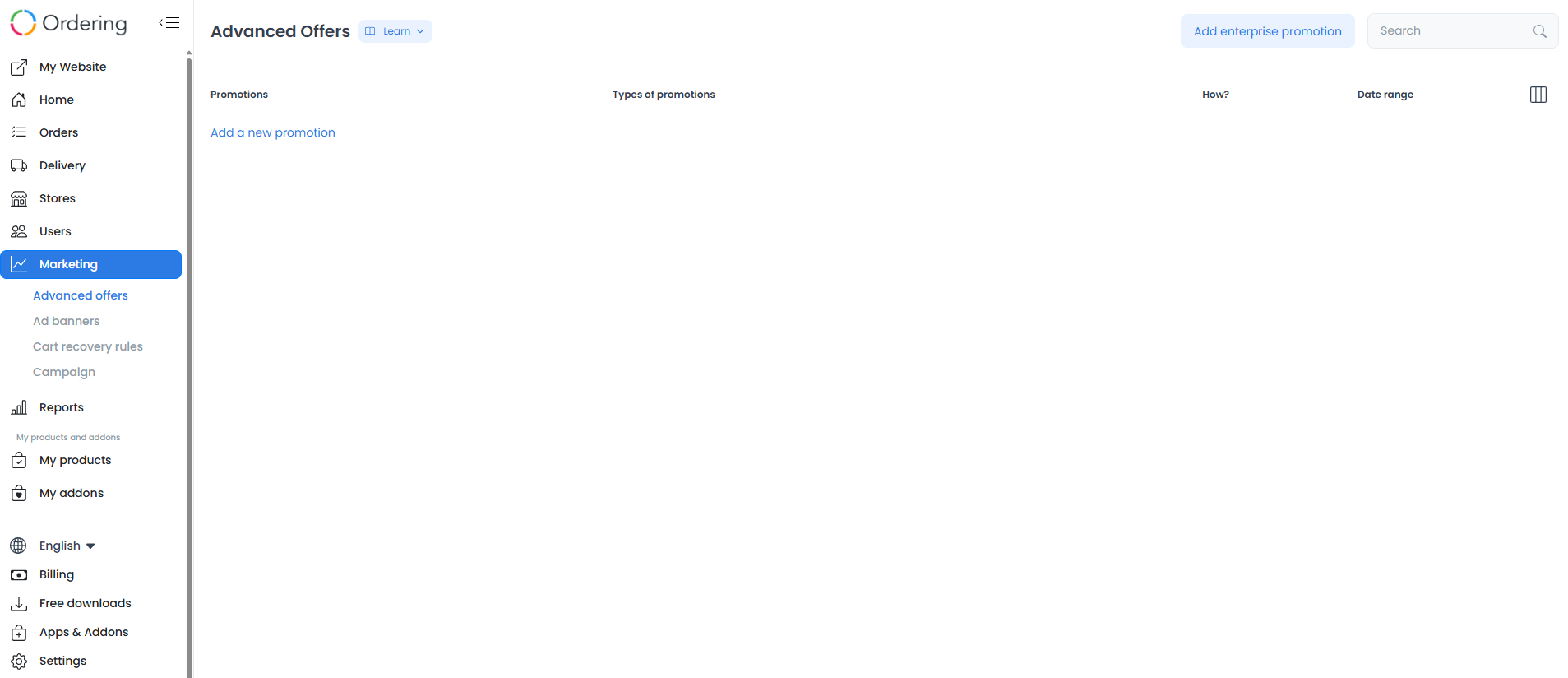
- Review the offer list, then select the add action or an existing offer only when you are authorized to change it.
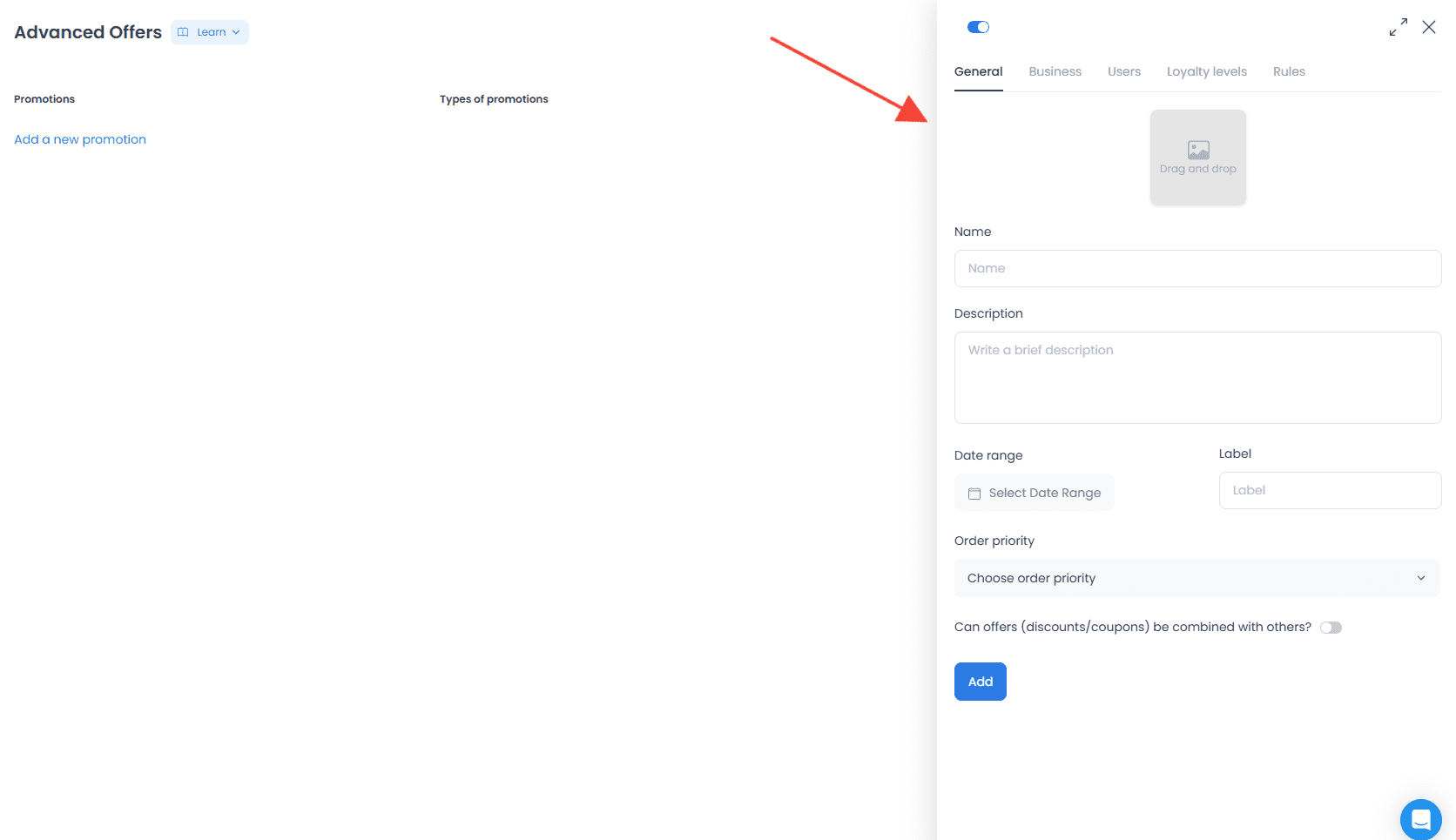
- The editor opens the available configuration tabs. Enter the General values required by the form, including the name, description, date range, label, and priority. A visible form does not establish that an offer has been created or saved.
2. Choose the offer scope
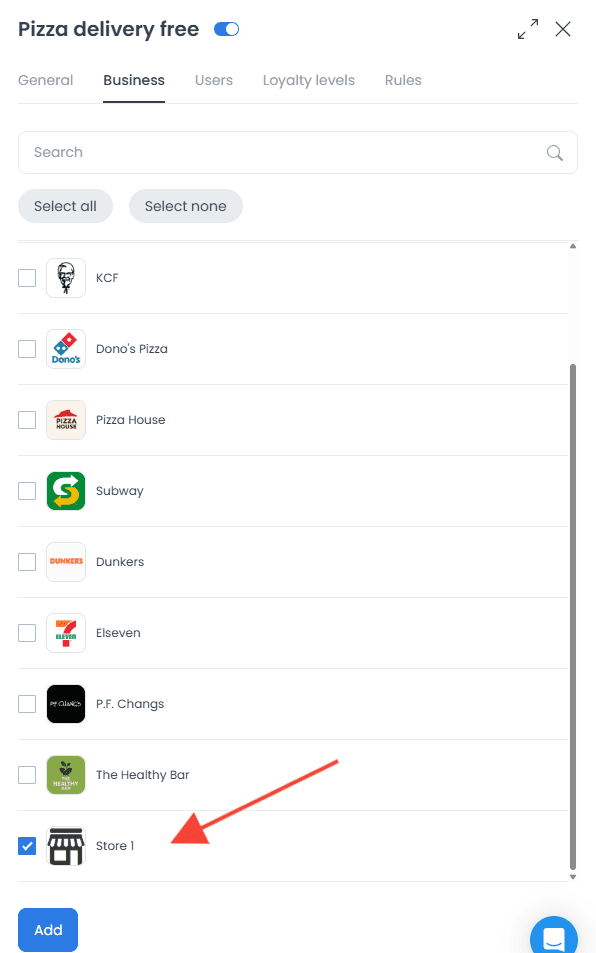
- In Business, select the stores that should be in scope. Review every selected row before saving.
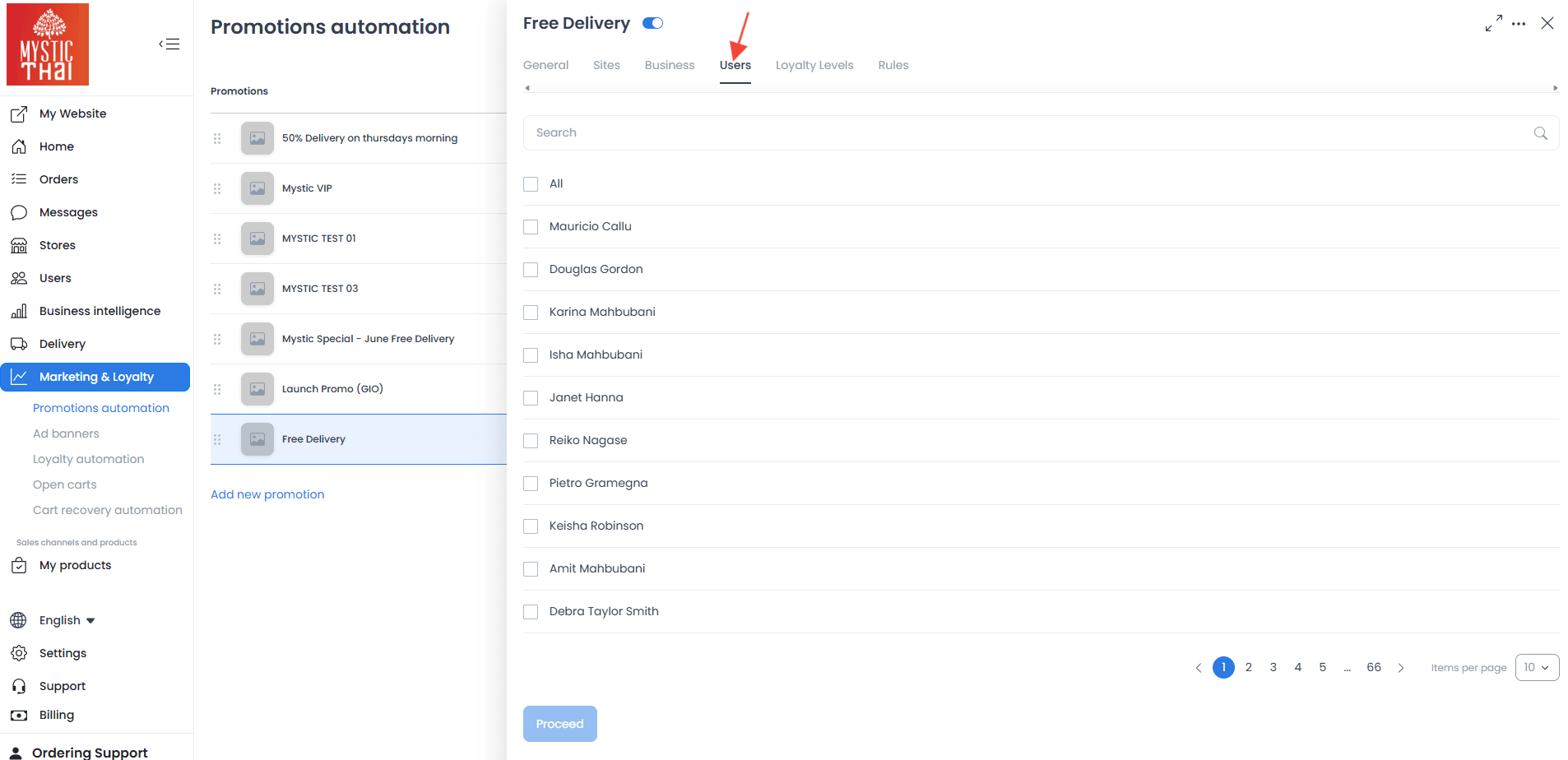
- In Users, select the customer group or records allowed by the project. Do not interpret an All checkbox as proof of customer eligibility.

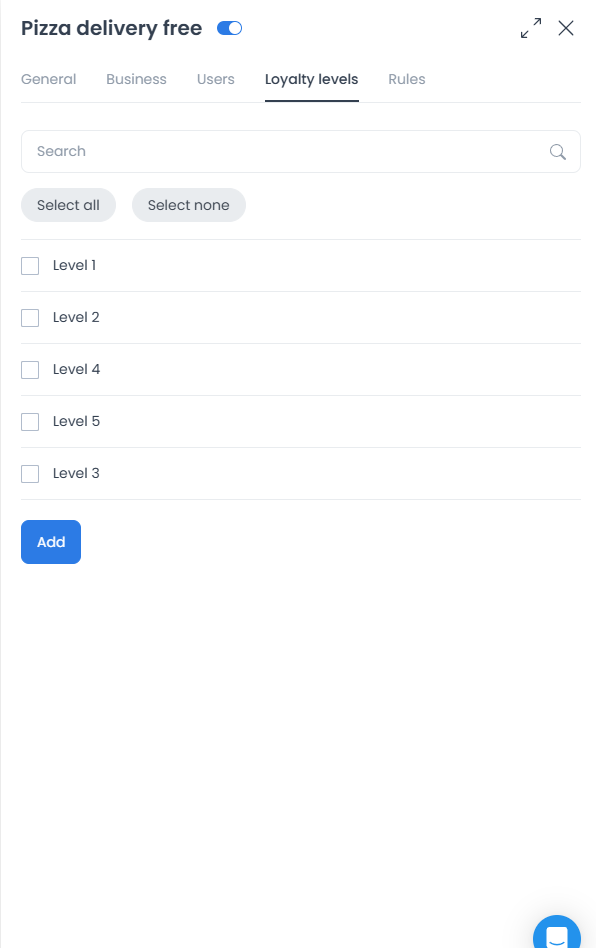
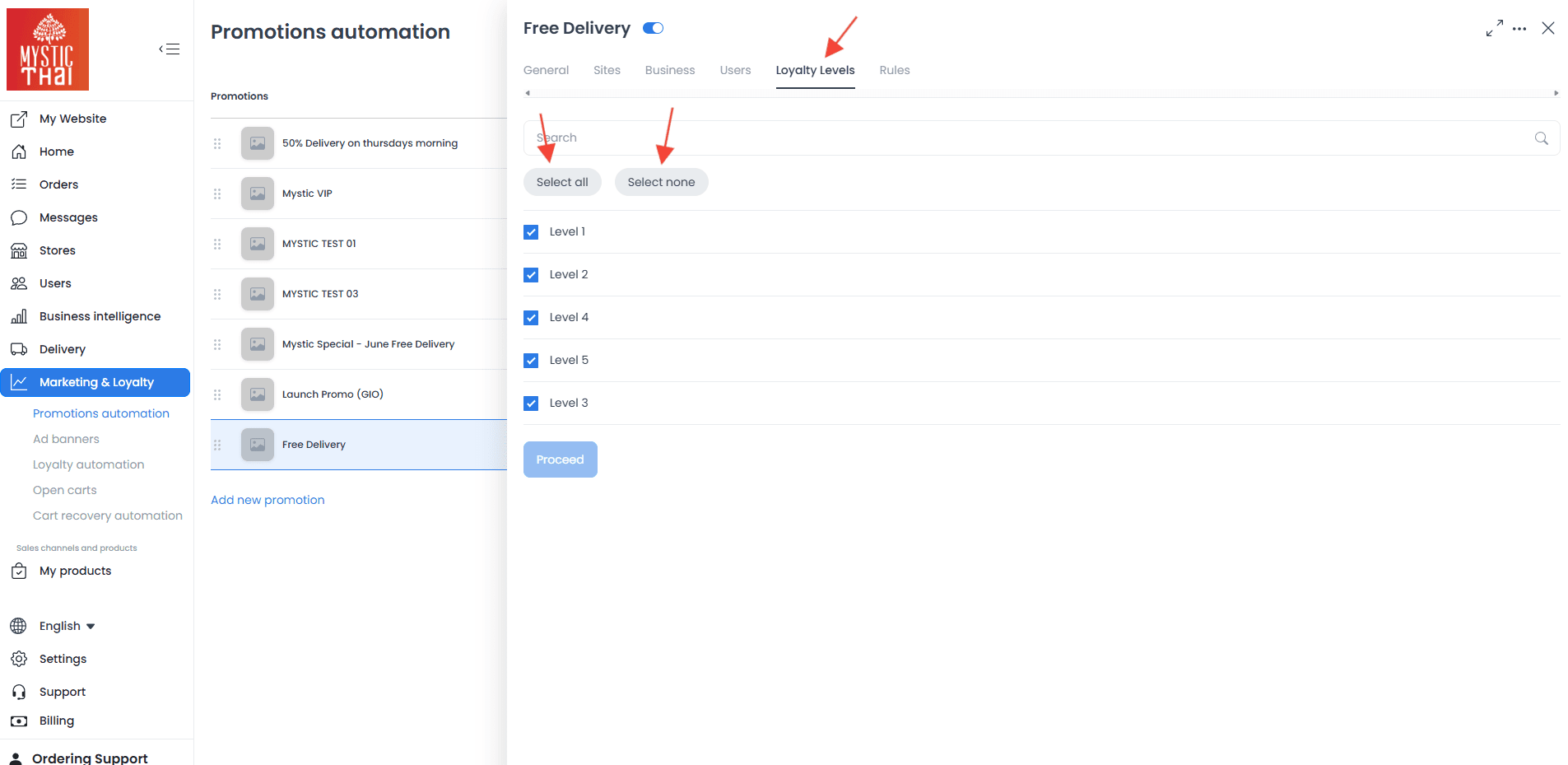
- In Loyalty levels, select applicable levels when the tab is available. This setting is conditional on the project's loyalty configuration.
3. Define the rule
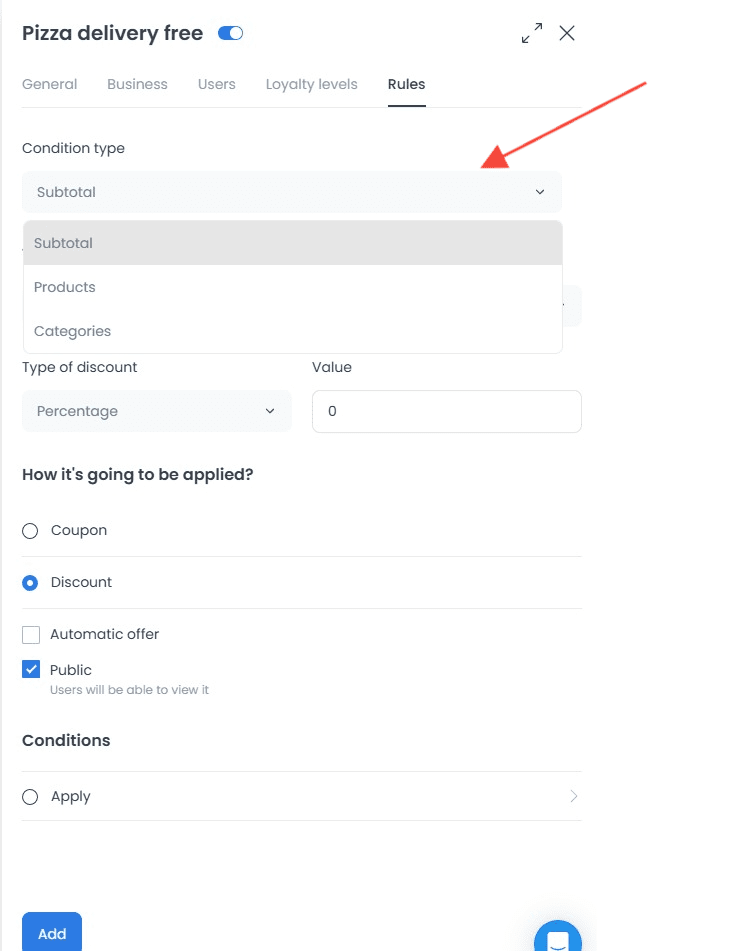
- In Rules, choose the condition type available for the offer, such as subtotal, products, or categories.
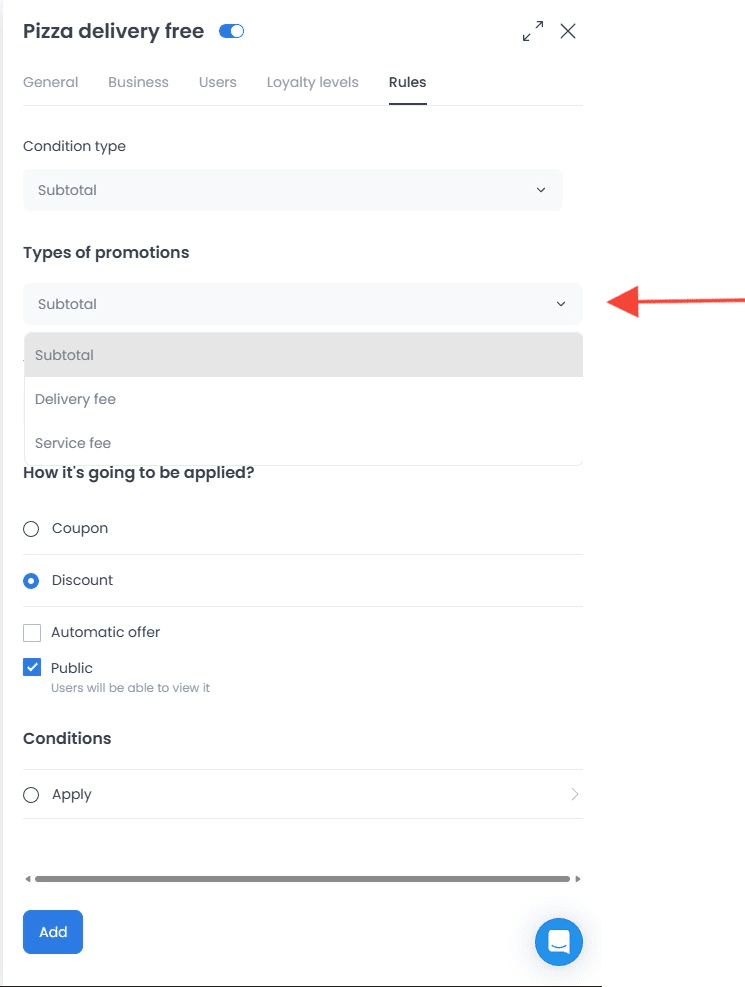
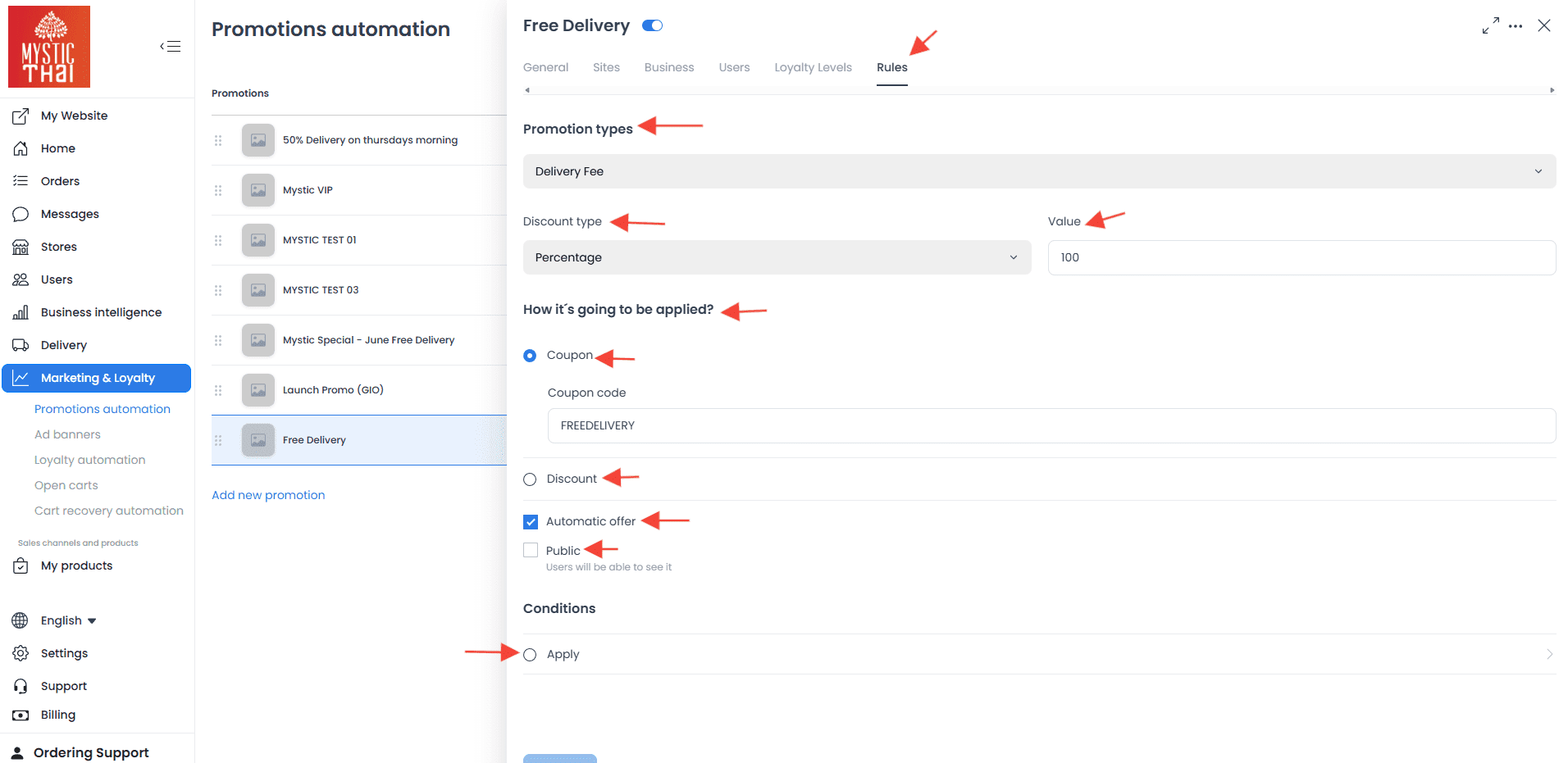
- Select the promotion target, such as subtotal, delivery fee, or service fee, when the editor shows those options. The target is a configuration value, not a confirmed checkout effect.
- Select a discount type and enter its value. A percentage or price value describes the configured rule and does not itself verify the calculation.
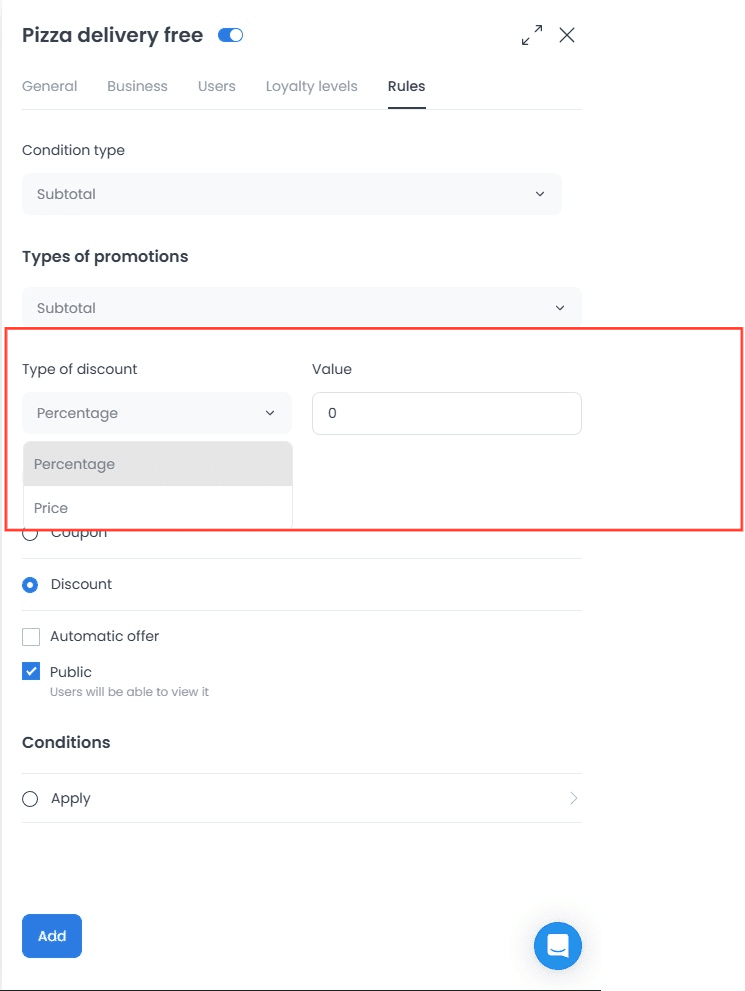
- Select Coupon or Discount, then review any automatic or public controls shown by the editor. The controls describe the offer configuration and do not guarantee a customer-facing result.

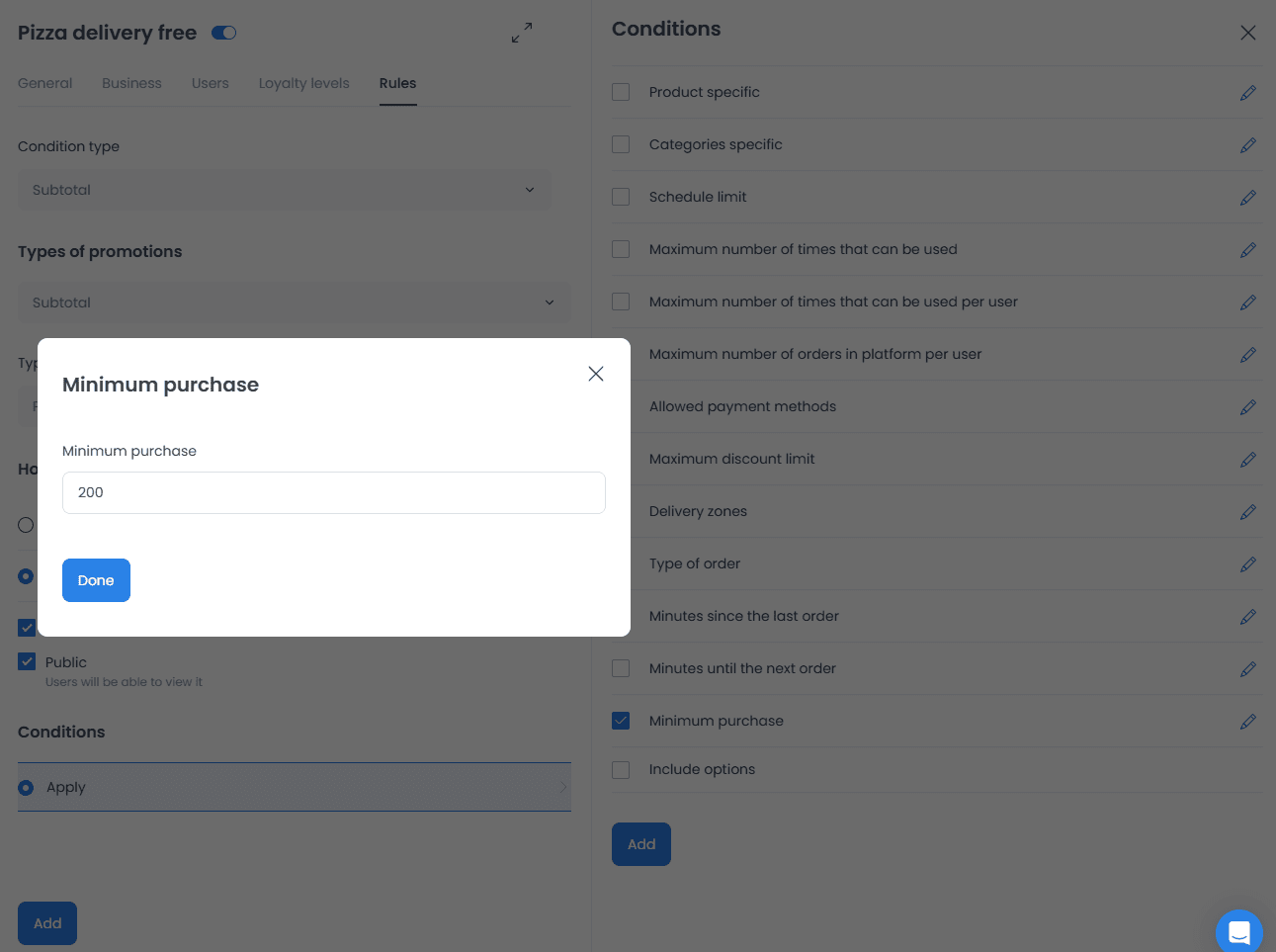
- Add only the conditions needed for the test or intended configuration. For example, a minimum-purchase value is a threshold setting; it does not by itself demonstrate that an offer will apply.
- When a product-specific condition is available, select the business and include or exclude the product records shown by the dialog.

4. Review coupon-related settings
For a coupon configuration, review the date range, priority, combination setting, and the applicable scope before submitting. These examples show the relevant controls; their visibility and effect depend on the project configuration.
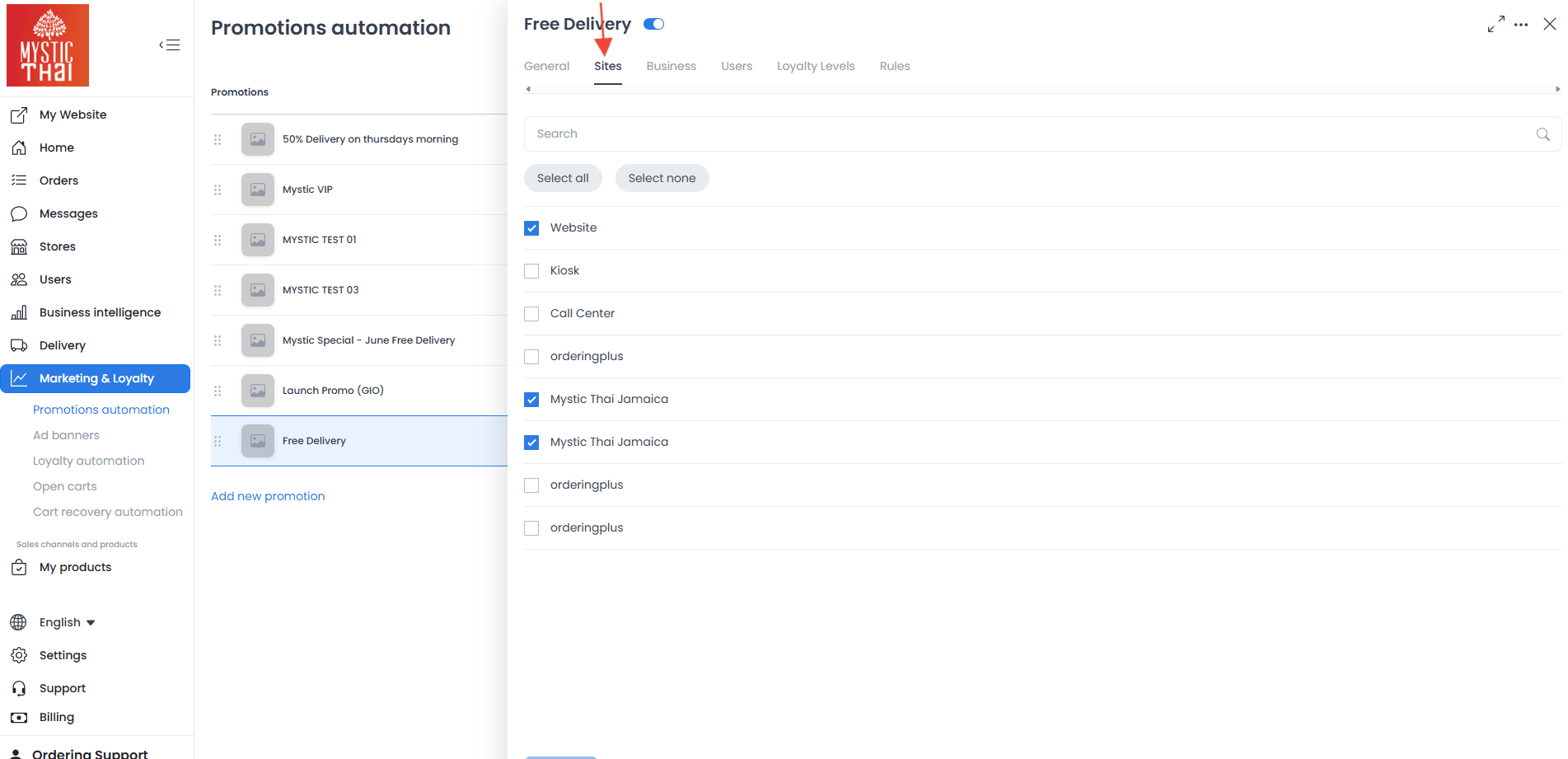
Use Sites only when the tab is available, and select the site records that belong in the intended scope.
Use Business to review the selected store records.
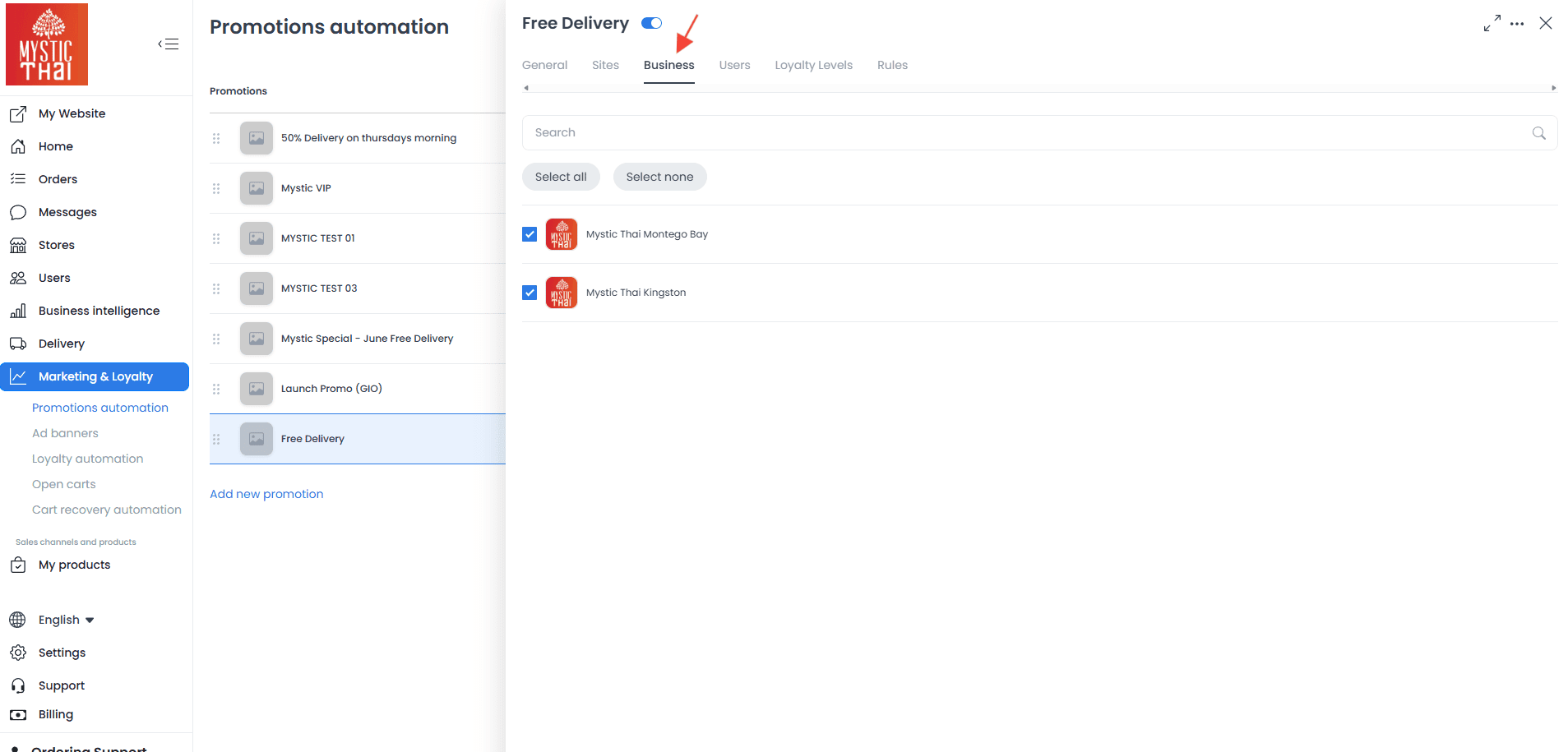
Use Users only with the required authorization and privacy safeguards.
Use Loyalty levels when the project exposes the feature and you intend to scope the configuration to those levels.
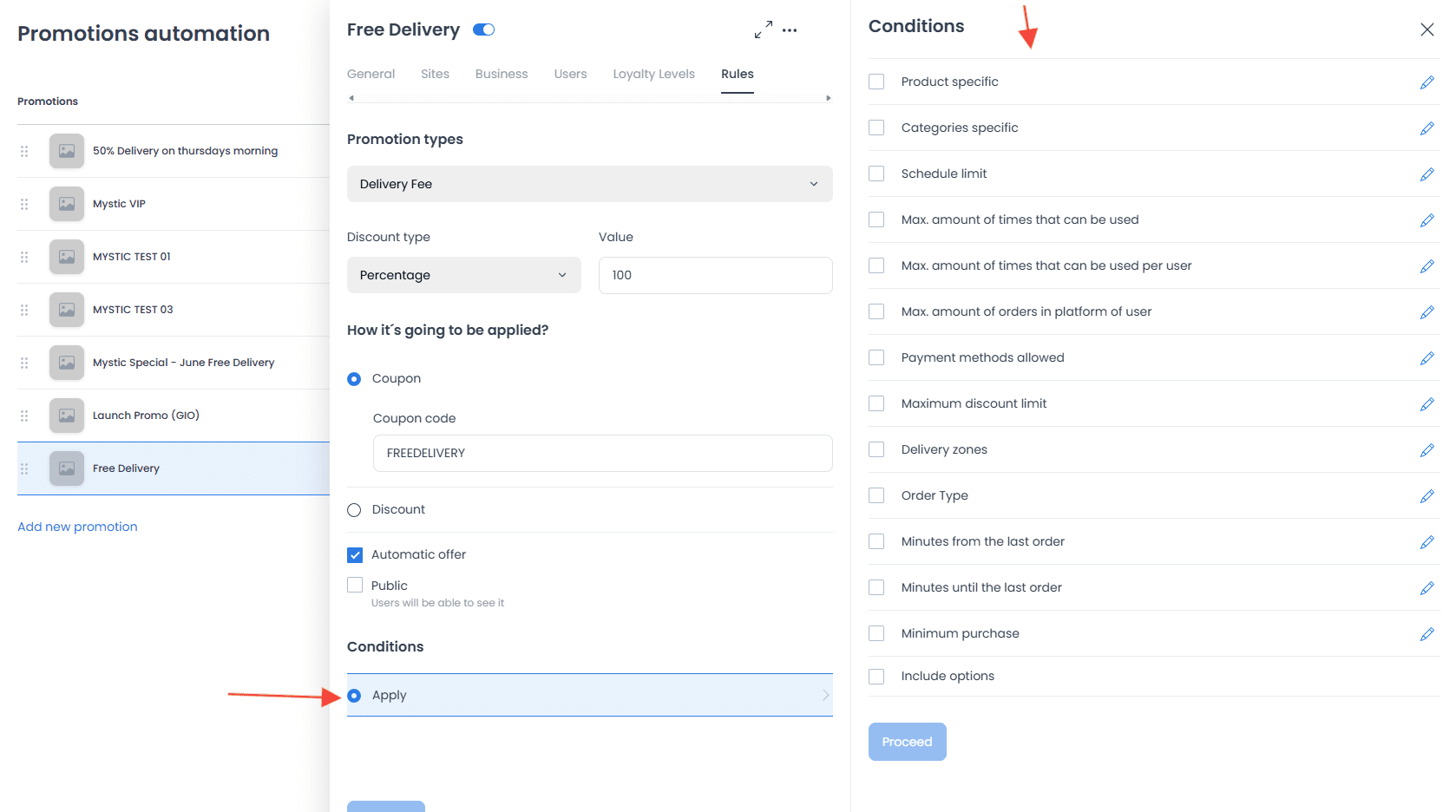
In Rules, review the promotion target, discount type, value, application method, and available condition controls as one complete configuration.
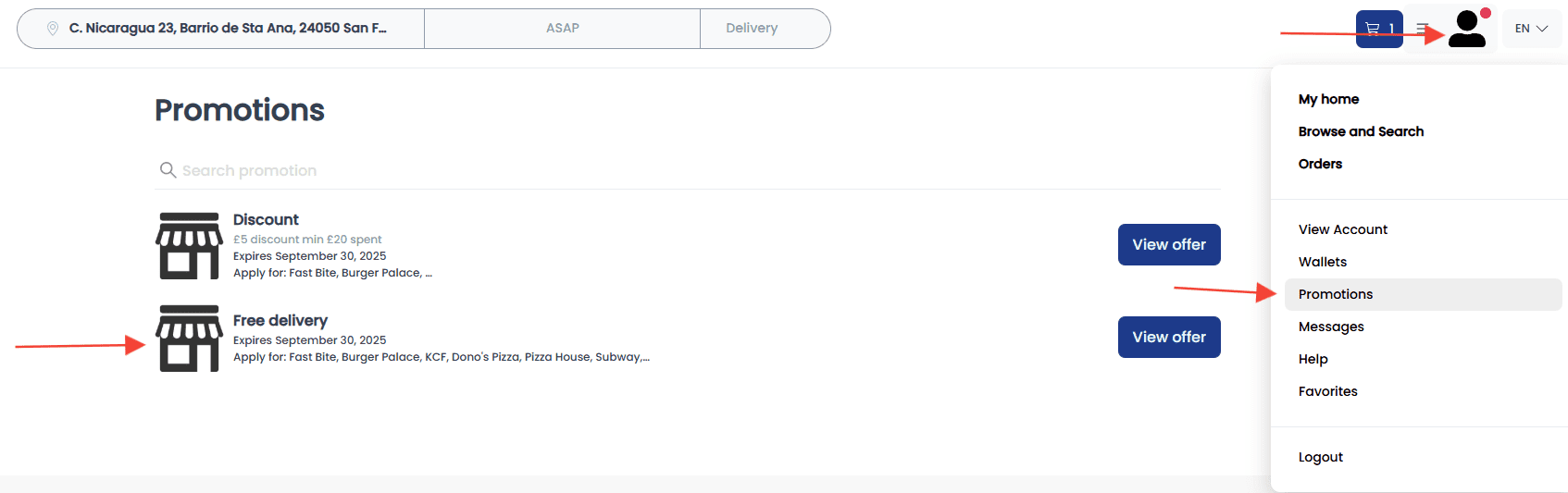
The customer-facing surface can present promotion information separately from the editor. A visible offer card does not establish that the offer is eligible for a particular cart.
Use the Conditions panel to review the selected product, category, schedule, usage, payment-method, delivery-zone, order-type, timing, minimum-purchase, and option conditions together.
Confirm the result separately
- Select the form's confirmation action, such as Add, Save, or Proceed, and review the saved offer record in the list or detail panel.
- Verify the complete rule set with an authorized test cart whose business, catalog, customer scope, dates, and conditions are known.
- Record the observed result and its conditions. If the result is unexpected, stop and reconcile the saved configuration before trying another change.
Example configuration goals
- Seasonal configuration: Set an authorized date range and selected businesses for a time-bound offer.
- Loyalty-level scope: Define an offer for selected loyalty levels when the feature is available.
- Time-bound product scope: Select products, conditions, and dates for a controlled test configuration.
- New-item configuration: Define a project-specific rule for selected items and review its complete scope before enabling it.