Cart recovery rules
Use Cart recovery rules in the Ordering.co Dashboard to configure recovery actions for carts that meet the rule's recorded condition. A saved action and notification record configuration; they do not, by themselves, establish that an event matches the condition, a schedule runs, a message is sent, a provider accepts it, a recipient receives it, a customer opens it, a cart remains available, or an order is completed.
Before you start
- Confirm that your Dashboard role and project allow you to access Marketing and manage recovery actions. If an action is unavailable, ask the workspace owner to verify access and configuration.
- Decide who owns the recovery message, its timing, its audience, and any follow-up before you create or enable a rule.
- Use content and contact practices that meet your applicable privacy, consent, messaging, and provider requirements. A visible channel option does not confirm eligibility or delivery.
- Treat creating, editing, enabling, or deleting an action or notification as a write. Use synthetic data and blocked outbound delivery paths when testing is required.
The screenshots are retained as step illustrations. Your Dashboard can show different labels, layout, or records. Use the controls and data available in your workspace when completing a change.
Understand the recovery action
The Cart recovery rules screen can list and search existing recovery actions, show their enabled state, and provide an Add recovery action control.
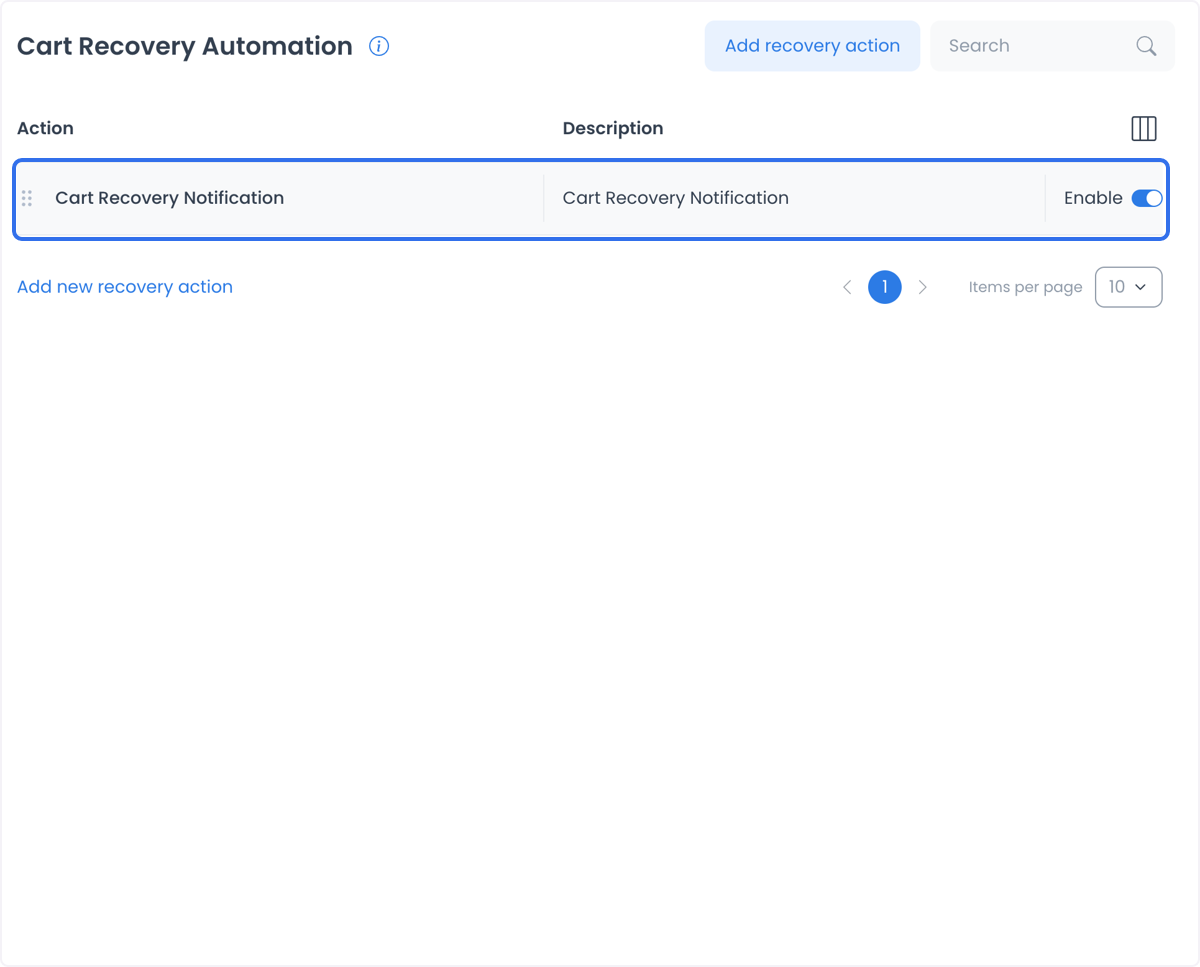
Each action has two areas:
- General contains the action name, description, enabled state, and the condition labeled Last time cart was opened. The condition can use a time value or a number of days.
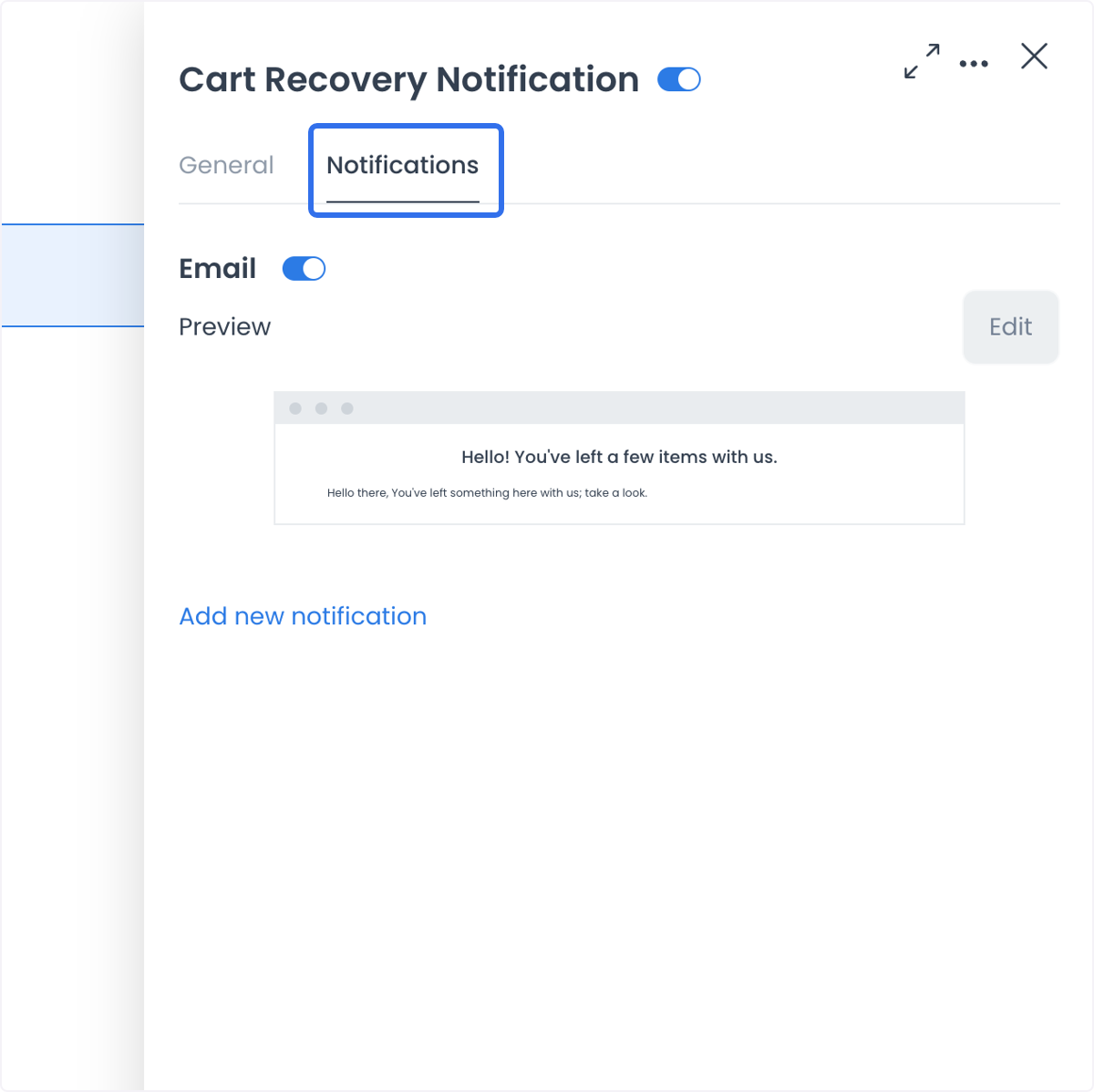
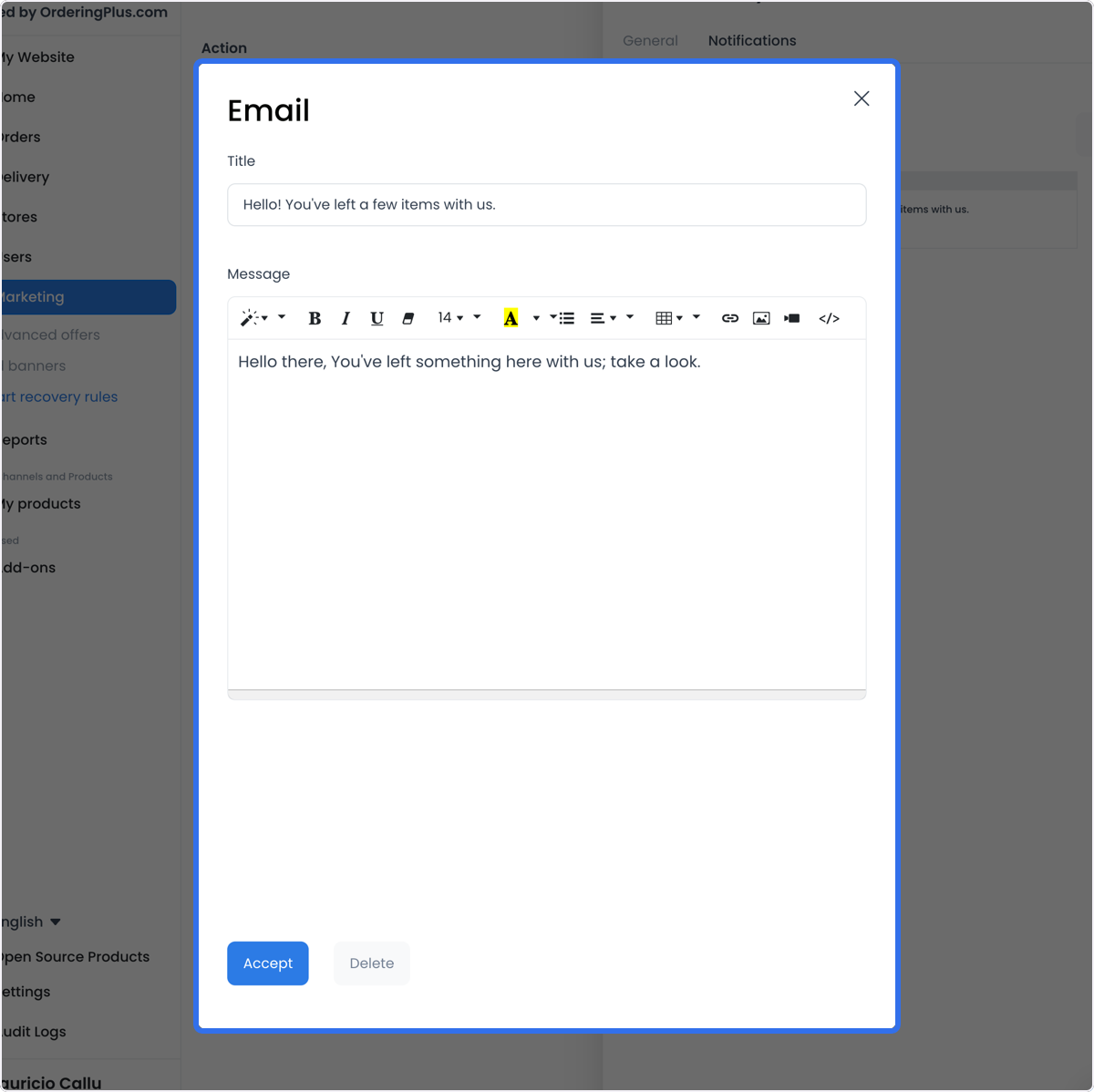
- Notifications contains the notification title, channel, and message. The form presents Email, SMS, and Push notification as channel choices. Email uses an HTML editor; the other channel choices use a message field.
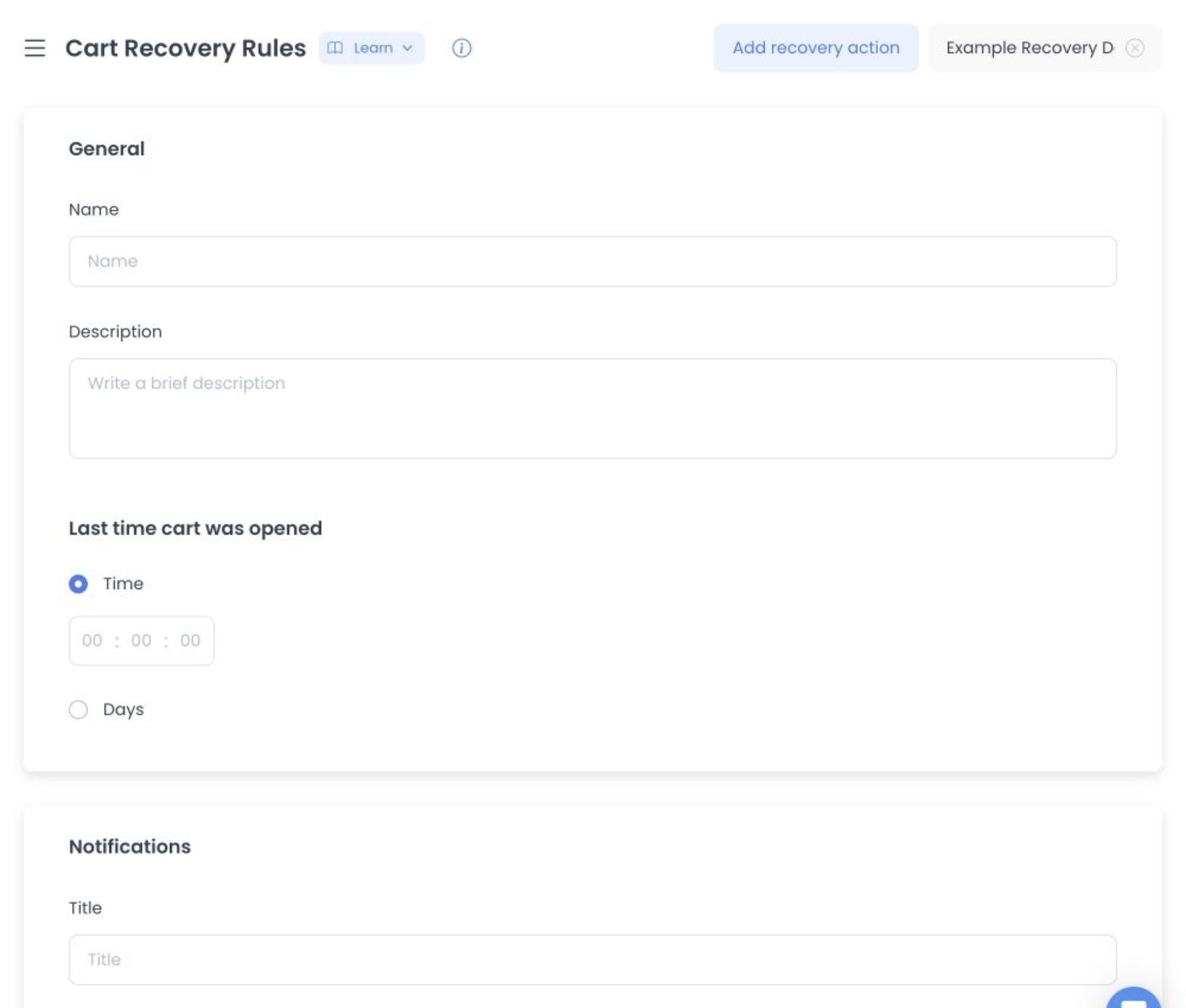
The condition and channel settings define requested configuration. They are not proof of a delivery schedule, recipient consent, provider result, message delivery, click, or recovery outcome.
Create a recovery action
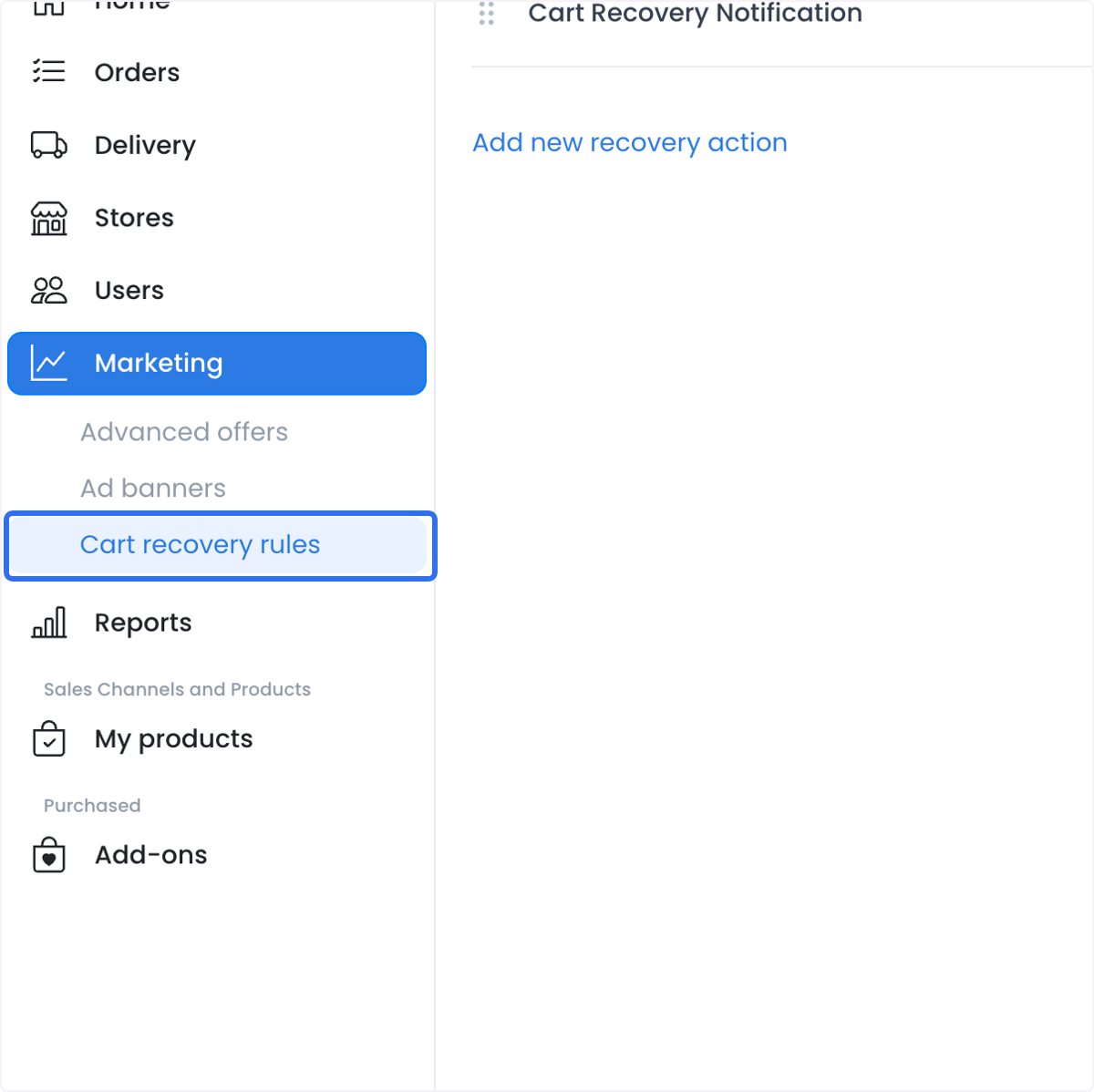
- In the Dashboard, open Marketing and select Cart recovery rules.
- Select Add recovery action.
- In General, enter a clear action name and, if useful to your team, a description. Use names that distinguish the rule's purpose and timing without placing sensitive customer data in the label.
- Under Last time cart was opened, choose Time or Days, then enter the value that defines the action's condition. This setting does not prove an exact execution time or that an abandoned cart will be identified.
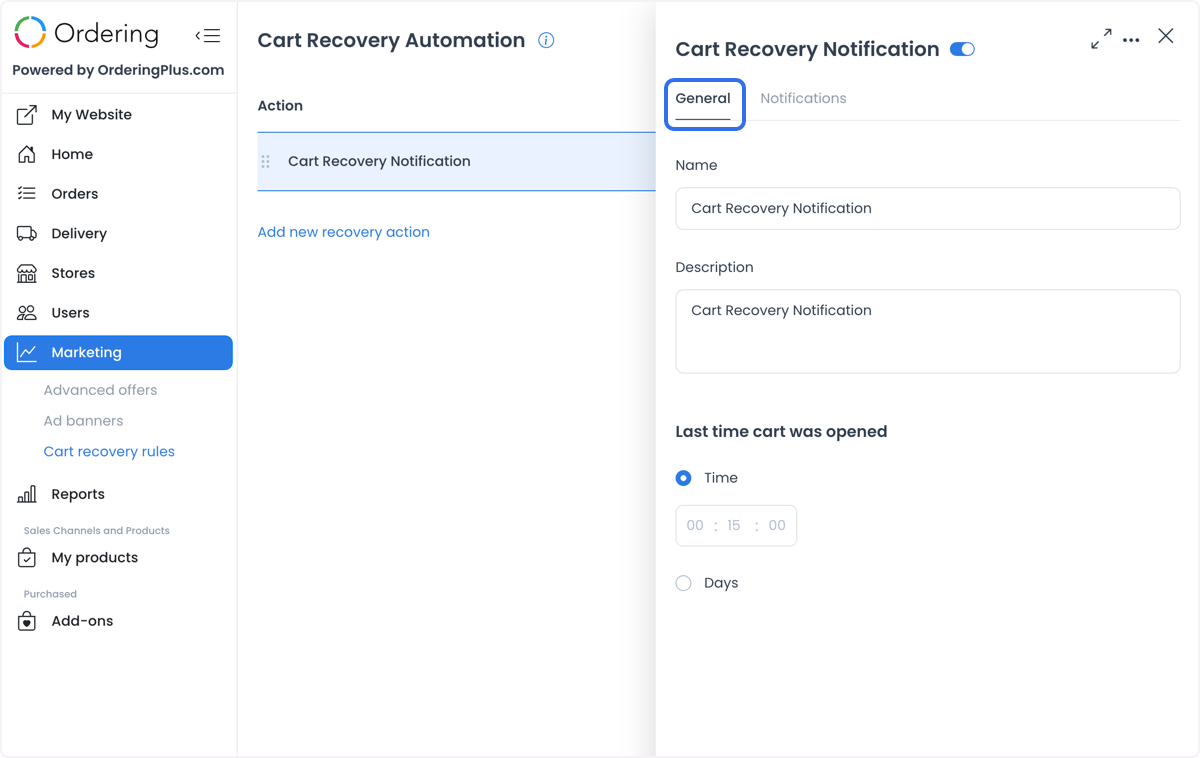
- In Notifications, enter a title, select a channel, and write the message. Keep the message concise, accurate, and appropriate for the channel and the recipient's consent status.
- Review the action, condition, title, channel, and message before saving. Saving is a write; it does not establish that any later outbound effect occurs.
Add or edit notifications
Save the recovery action before you work with the Notifications tab. The Dashboard separates the action from its notification records, so saving the action and saving a notification are separate operations.
- Open the saved recovery action and select Notifications.
- Select an existing notification to edit it, or add a notification where the action provides that control.
- Set the title and channel. For Email, use the editor to prepare the message body. For SMS or Push notification, enter the message in the available field.
- Review the content, then save the notification deliberately. Do not treat an editor preview as proof that a provider will send, render, or deliver the message.
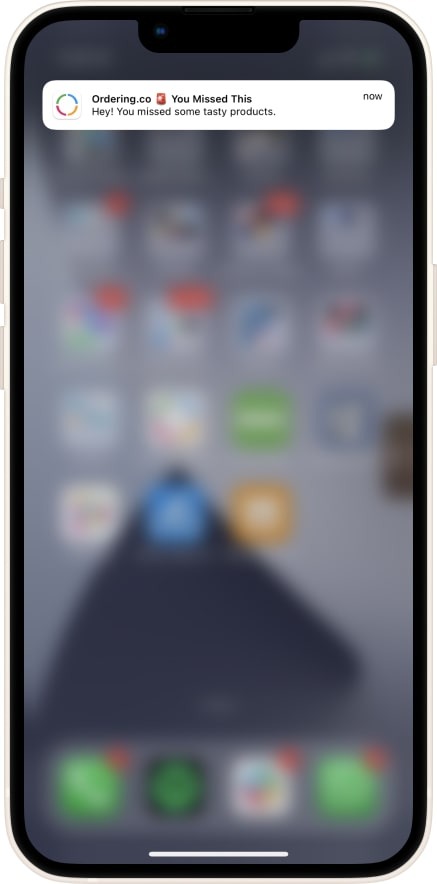
The following image illustrates a push-notification presentation. It is an example of message content, not proof that a push notification is registered, sent, delivered, or opened.
Enable, update, or delete deliberately
The enabled switch changes the configured state of a recovery action. Treat it as a potentially outbound-effecting write, not as a safe way to preview content. Before changing it, confirm the action's condition, notifications, audience controls, and operational approval.
Action and notification writes can complete separately. For example, an action can be saved before a notification is added or updated. If a later notification save does not complete, review the action list and its notification records before retrying; do not assume the configuration rolled back or remained unchanged.
The action and notification controls also include update and delete paths. Confirm the exact record you intend to change or remove, and use an approved test environment or change process for any verification that could trigger external effects.
Use recovery rules with clear boundaries
Recovery rules can help a team structure messages for carts that have not been completed. Common uses include:
- preparing a reminder that refers to items left in a cart;
- aligning a message with a separately approved offer or campaign;
- preparing a product reminder for seasonal or distinctive items, while checking current availability independently; and
- reviewing message timing and content in an approved test workflow before a production change.
A recovery setting does not create a discount, apply an offer, preserve an abandoned cart, personalize content, segment customers, measure opens or conversions, or guarantee any revenue or retention result. If you need those capabilities, verify them through the separate approved workflow that owns them.
When a recovery message includes a return link, it can be intended to take a recipient to a website or app. Configuring a channel does not prove that a link is present, opens successfully, retains a cart, or returns a customer to a website or app. Test that behavior only with synthetic recipients and an approved non-production setup.
Troubleshooting
I cannot see Cart recovery rules or the add action
Verify your Dashboard role, project access, and workspace configuration with the workspace owner. Do not infer access or availability from a screenshot or another user's workspace.
Why can I not add a notification yet?
Save the recovery action first. The Dashboard makes notification management available after the action exists.
The action exists, but the notification is missing or incomplete
Review the action and its Notifications tab. Action and notification writes are separate, so a successful action save does not confirm that a notification was added or updated. Correct the specific record through your approved change process.
Can I assume an enabled rule sends a message or returns a customer to a cart?
No. Enabled state is configuration evidence only. It does not prove event matching, scheduling, consent, provider acceptance, delivery, recipient behavior, cart availability, or an order outcome.
Related guides: Ad banners · Create or edit an ad banner · Open carts overview