Advanced offers
Advanced offers lets authorized operators review promotion configurations and prepare changes. It can display offer records and actions that affect them. Use a safe test environment when practicing or verifying a change.
Availability depends on the project configuration and the operator's permissions. Seeing Marketing does not by itself grant access to manage advanced offers.
Promotions: Quick offers and Advanced offers
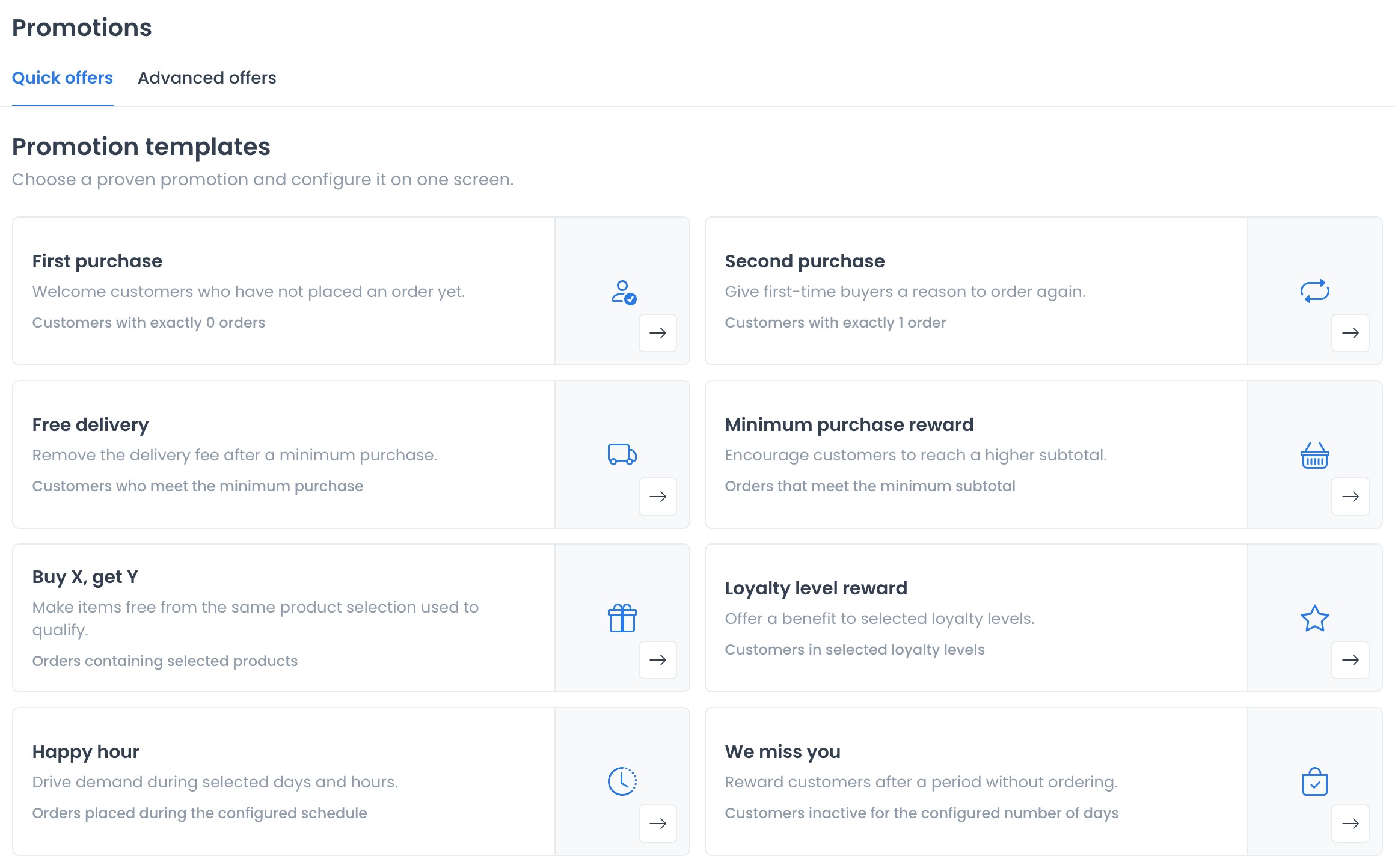
The Marketing → Advanced offers entry opens the Promotions workspace, with two tabs:
| Tab | What it is for |
|---|---|
| Quick offers | Prepare a promotion from a template, such as Second purchase, in one form. |
| Advanced offers | Review the detailed list and edit offer rules, scope, and conditions. |
For templates and their draft and activation actions, see Quick Offers. For the repeat-purchase goal, follow Turn a first purchase into a second visit. This page covers the Advanced offers list and controls.
Open Advanced offers
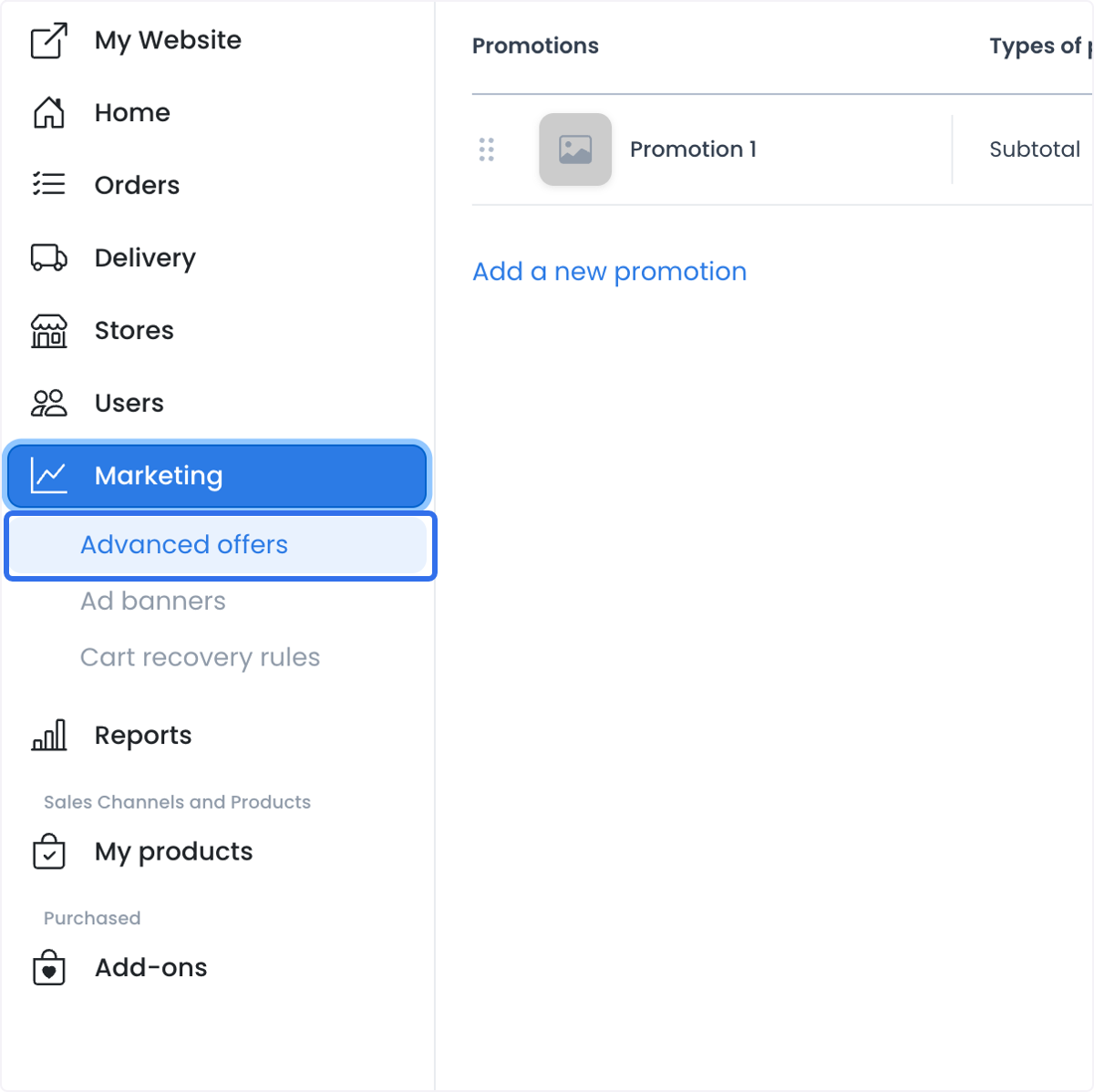
- In the Dashboard sidebar, select Marketing.
- Select Advanced offers in navigation, then the Advanced offers tab in Promotions.
- Use Search to find an offer by name or description, or use the page controls to browse the list.
Selecting a row opens its detail panel. The selected offer, current page, and page size can be reflected in the page URL.
Read the offer list
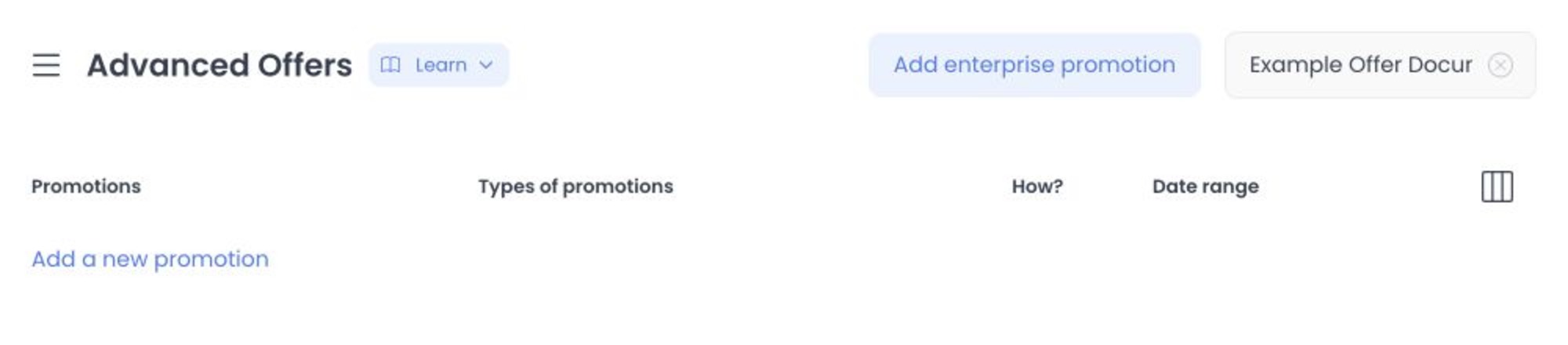
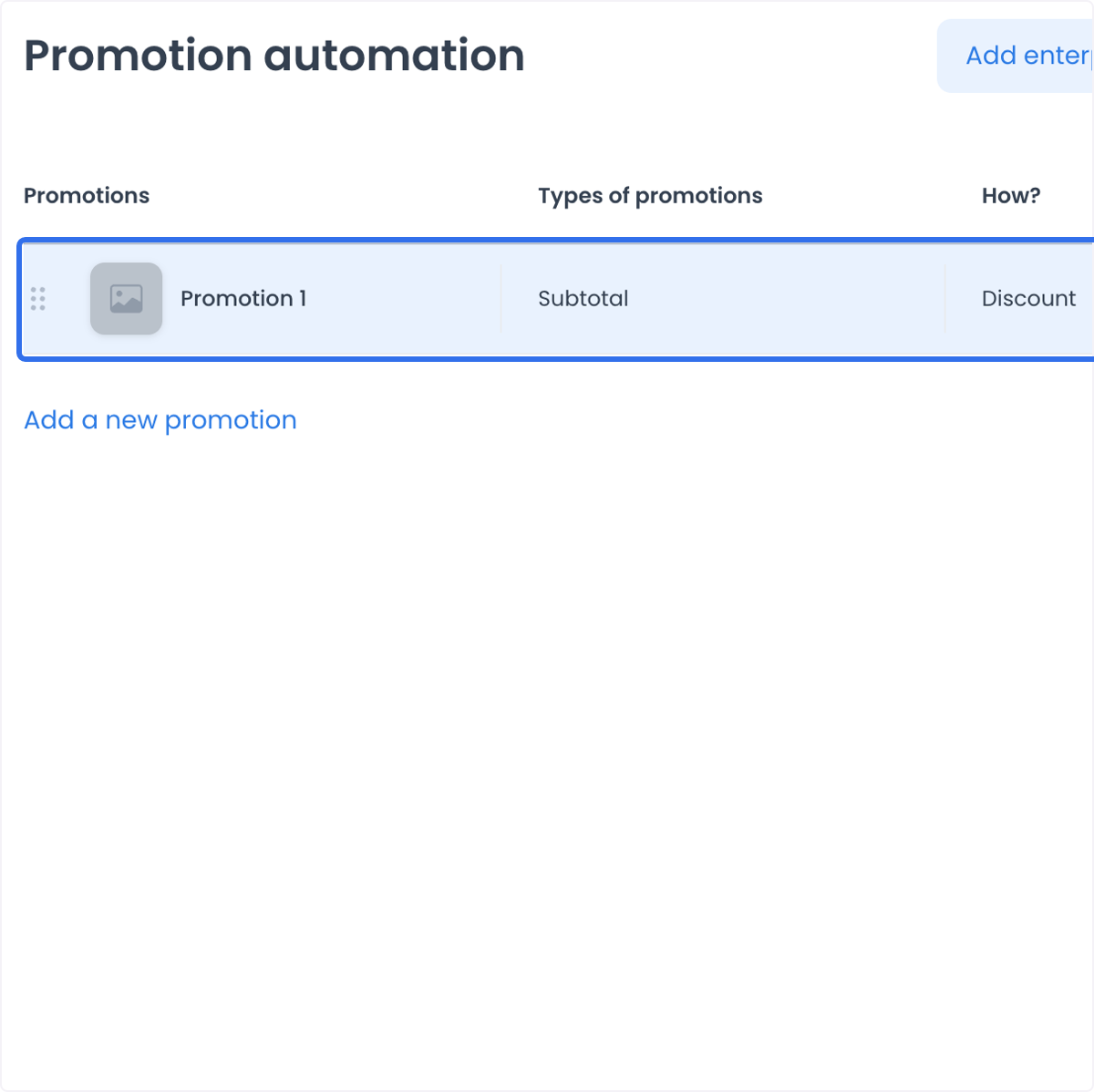
The list can show offer names, descriptions, images, coupon settings, dates, catalog relationships, and customer conditions. Treat this information as sensitive business or customer data, and use only an account authorized for the project.
The list can display these columns:
| Column | What it shows |
|---|---|
| Promotions | The offer name and optional image. |
| Promotion types | The offer target: Subtotal, Delivery fee, or Service fee. |
| How? | Whether it is a Discount or Coupon and whether it is marked Automatic. |
| Date Range | The configured start and end dates. |
| Enable | The offer’s saved enabled state. |
Use the column control to show or hide the available columns. The list sorts offers by their stored rank; the displayed order alone does not tell you whether an offer is eligible for a particular cart.
Live actions in the list
Changing Enable or a row's rank changes offer configuration. Make those changes only with the required authority and in a safe test context. Saving a control does not by itself prove cart eligibility or a checkout result.
Dragging a row changes its rank. Opening Add promotion, selecting a row, or deleting an offer moves into a workflow that can change offer configuration.
Select Add promotion to open a new offer panel. To edit an existing offer, select its row. See Create or edit an advanced offer before saving a live change.
Delete an offer
Deleting an offer changes its configuration and can make related promotion or coupon settings unavailable. Confirm the intended scope before you act.
Confirm the offer’s businesses, coupon or discount behavior, dates, and current use before you delete it. Do not rely on deleting an offer as a way to test a configuration.
Troubleshooting
Why is the list unavailable or are its actions disabled?
Confirm that the project exposes Advanced offers and that your account is authorized to manage it. A visible Marketing entry alone does not enable offer management.
Why doesn’t the list order prove which offer applies first?
Rank controls the stored ordering, but cart eligibility also depends on enabled state, dates, business availability, customer and order conditions, and the offer’s own rules.
Why is an offer not applied after I enable it?
Enabled state is only one configuration value. Review the date range, businesses, public or automatic setting, and every applicable rule or condition in the offer panel. Verify the intended scenario with an authorized test cart instead of assuming that enabling a control proves eligibility.
Related guides: Create or edit an advanced offer · Marketing overview
Configure offer rules
Use Marketing > Advanced offers to review a promotion's scope, settings, and rules. These controls prepare a configuration; the final eligibility of a cart still depends on the saved conditions and the project context.
Understand the available scope
Advanced offers can let an authorized operator scope a promotion by site, business, customer group, delivery zone, payment method, order type, and other available conditions. Which controls appear, and how a cart is evaluated, depend on the project configuration and the saved rules.
Configure available settings
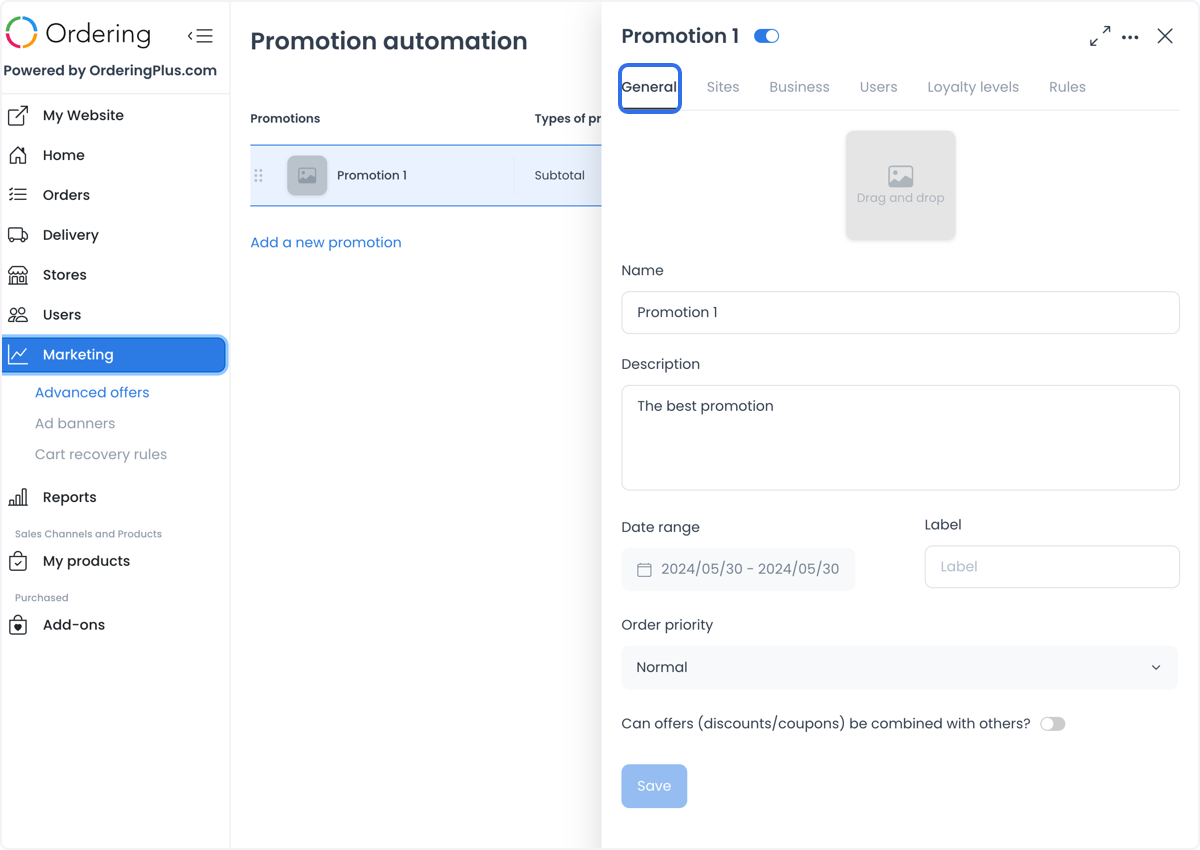
- General: Enter the offer name, description, date range, label, and order priority shown by the editor. Use names and labels that help authorized operators identify the configuration. If image upload is available, use a supported file and verify its final presentation after saving. The combination setting and priority are configuration choices; neither one alone proves a checkout result.
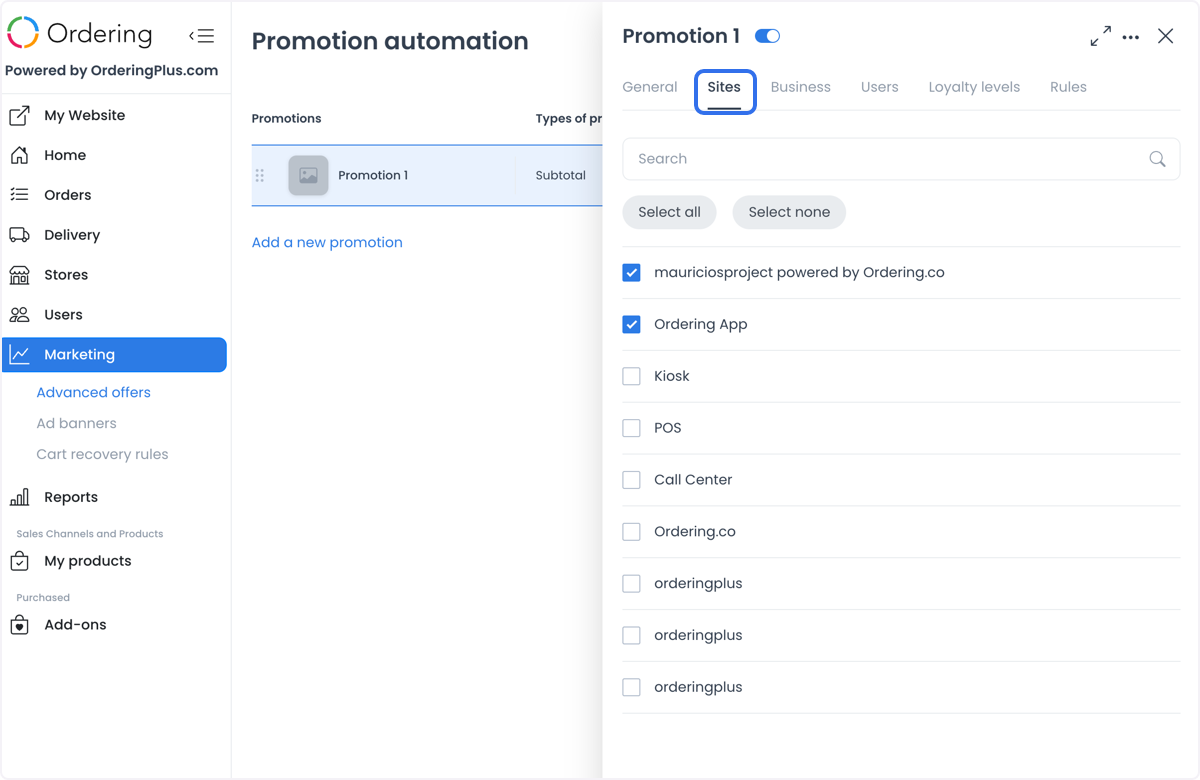
- Sites: Select the sites shown by the editor when the tab is available. A selected site is part of the saved configuration, not proof that an offer is visible in every customer surface.
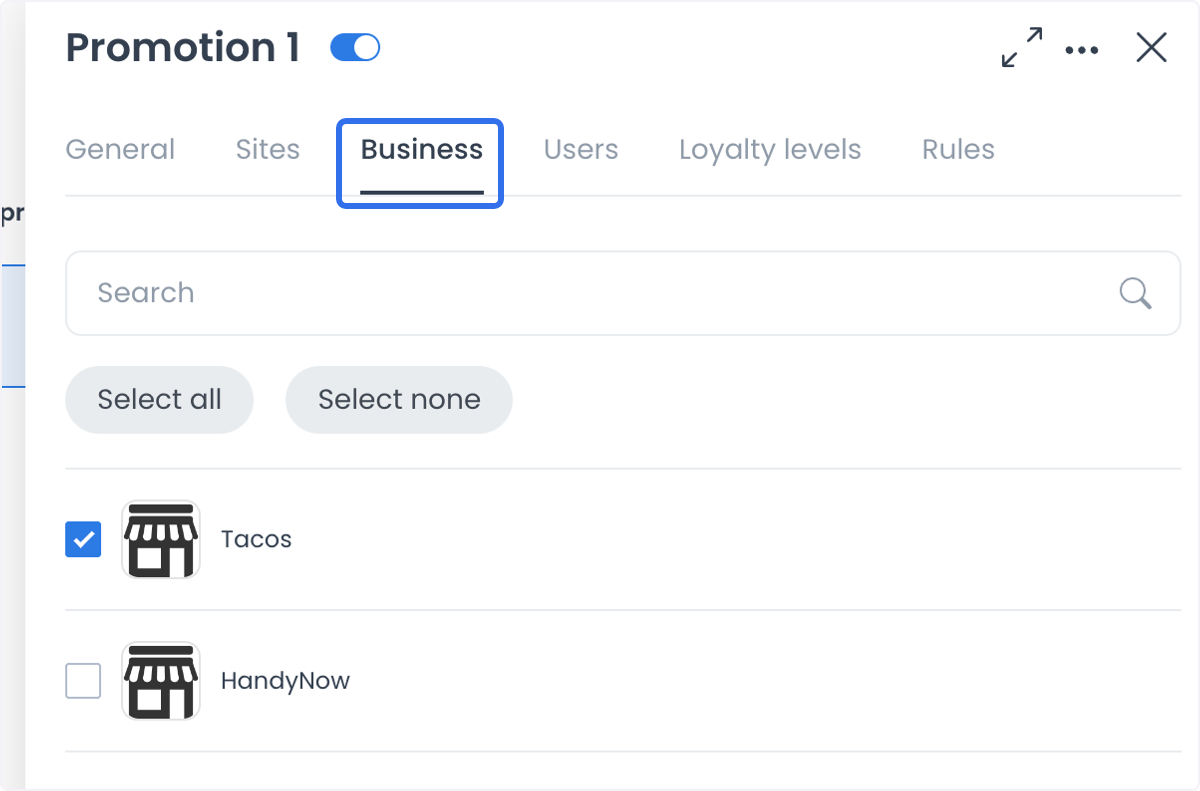
- Businesses: Select the businesses that should be part of the offer's scope. Review each selection before you save.
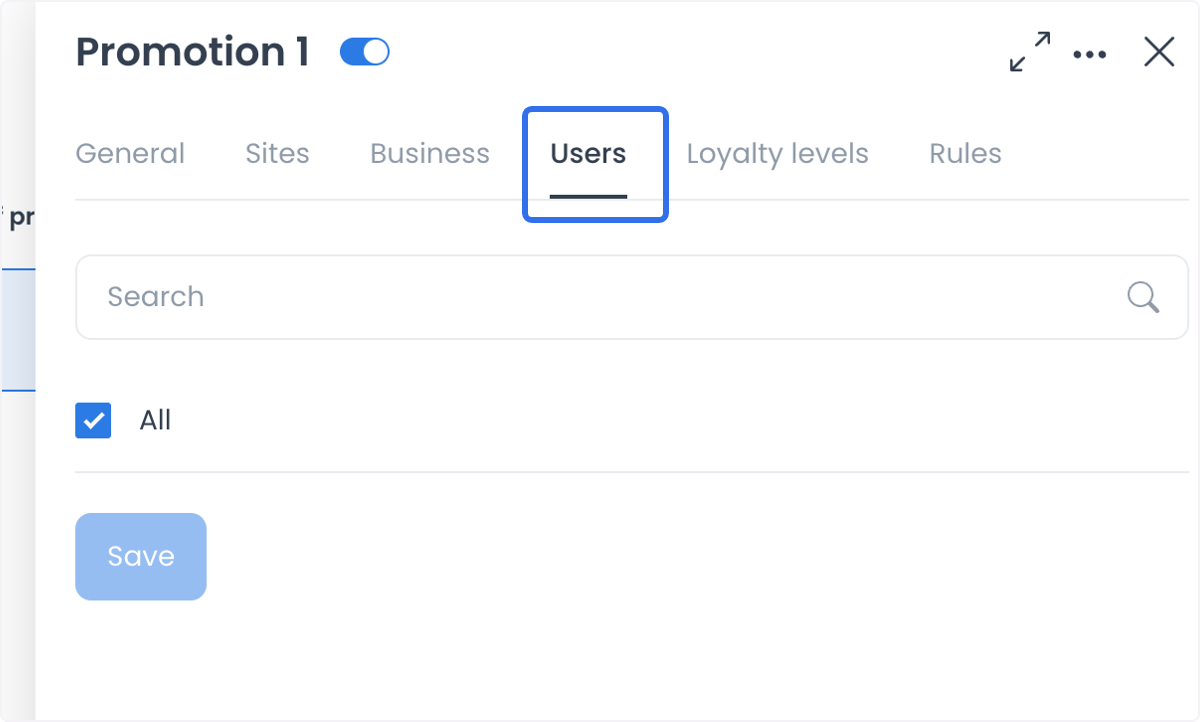
- Users: When this tab is available, select the customer records or group shown by the editor. Handle those records according to the project's privacy and access rules.
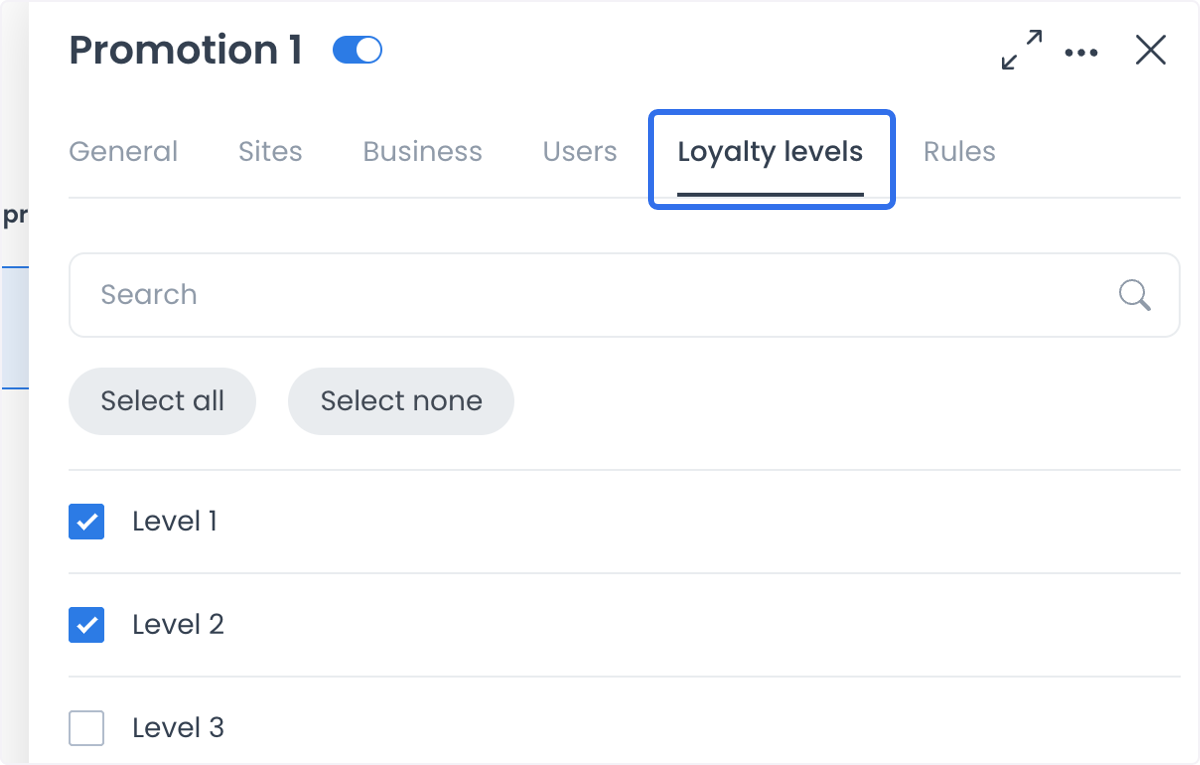
- Loyalty levels: When this tab is available, select the applicable levels. See Loyalty levels for that feature's separate configuration.
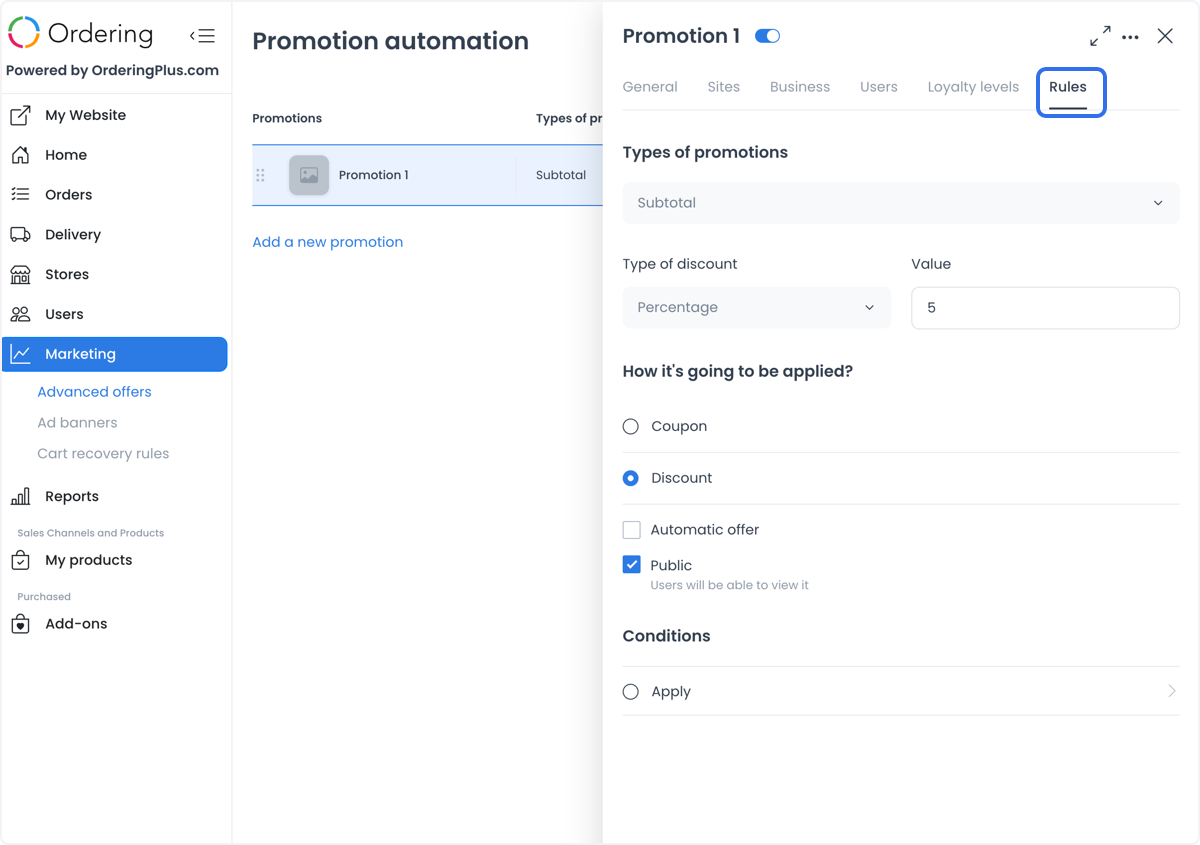
- Rules: Choose the promotion target, discount type, value, application method, and conditions that are available for the project. Each choice narrows or describes the intended configuration; verify the complete rule set in an authorized test scenario.
- Promotion Types
The available targets can include Subtotal, Delivery fee, and Service fee. Select the target that the offer is intended to affect; a stored target does not demonstrate a calculated checkout effect.
Subtotal: Configures an offer intended for the order subtotal.
Delivery fee: Configures an offer intended for the delivery-fee portion of an order.
Service fee: Configures an offer intended for the service-fee portion of an order.
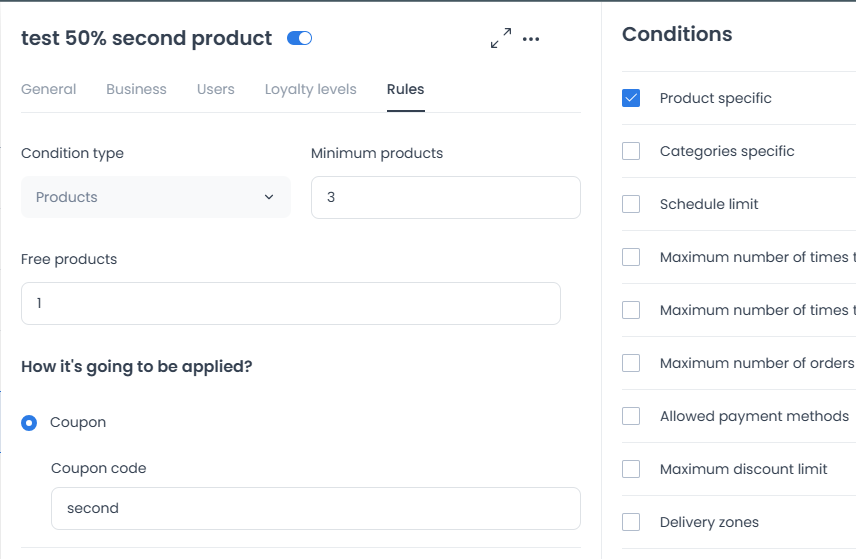
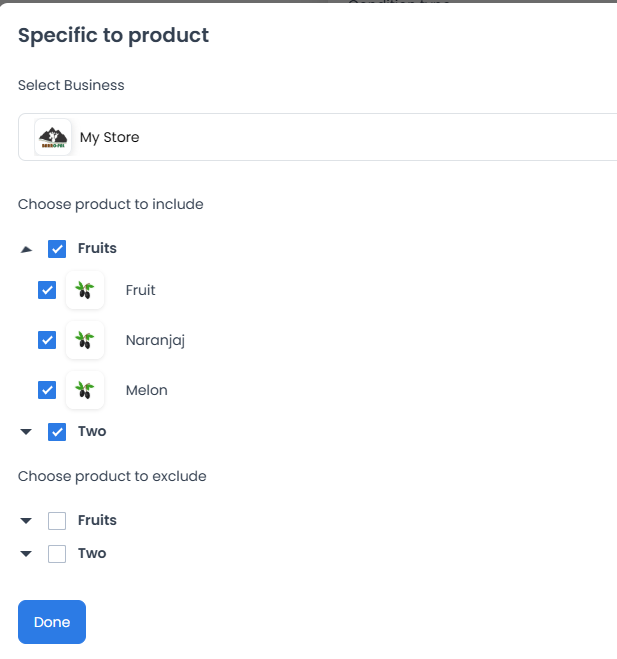
Product: Configures a product-based rule. When the editor exposes these fields, define the minimum product quantity, the number of free products, and the included products. The saved configuration still needs an authorized test scenario before it is relied on.
Discount Types
Choose the available discount type and value. A value is a configuration input, not confirmation of a calculated result.
Percentage: Configures a percentage value.
Price: Configures an amount value in the applicable project currency.
Choose an application method
Choose Coupon or Discount when the option is available. The selection describes the offer configuration; it does not by itself confirm display, eligibility, or use.
Coupon
If you select Coupon, enter and review the coupon code shown by the editor. Whether and where a code appears, and whether it can be used, depend on the customer surface and the complete saved rule set.
Discount
If you select Discount, review its associated automatic, public, and condition controls. A control state is not proof that the discount will apply to any particular order.
Conditions
Conditions narrow an offer's intended scope. Saved conditions should be reviewed together in an authorized test context; no single value confirms an outcome.
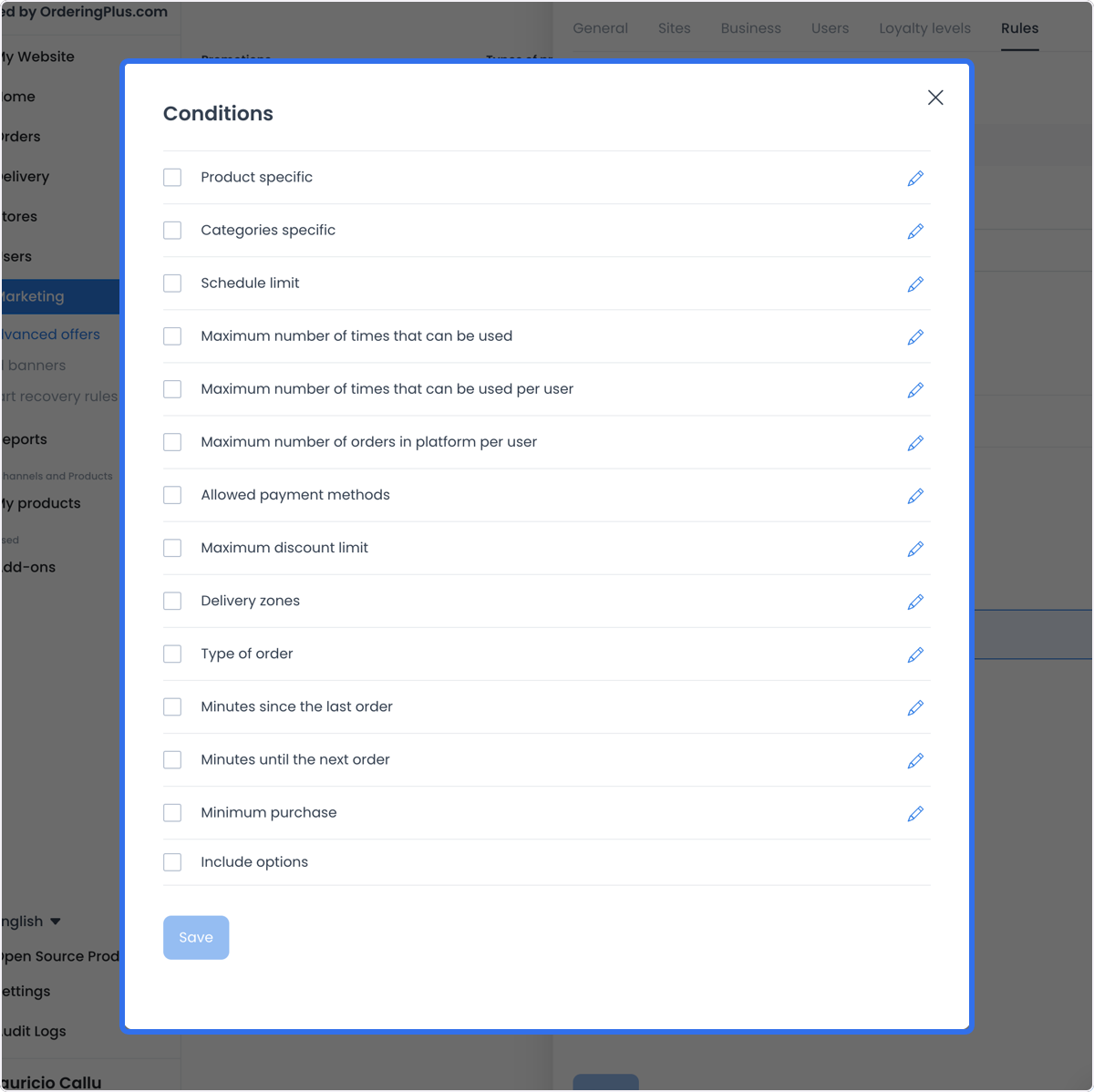
Product Specific
· Selects the specific product records that are part of the configuration.
Categories specific
· Selects the category records that are part of the configuration.
Schedule limit
· Sets a schedule boundary when that control is available.
Max. amount of times that can be used
· Sets a configured limit for total uses.
Max. amount of times that can be used per user
· Sets a configured limit for uses associated with one user.
Max. amount of orders on the platform of the user
· Sets a configured limit based on a user's order count.
Payment methods allowed
· Selects the payment-method conditions shown by the editor.
Maximum discount limit
· Sets a maximum discount value in the configuration.
Delivery zones
· Selects the delivery-zone conditions shown by the editor.
Order Type
· Selects the order-type conditions available for the project, such as pickup, delivery, curbside, drive-thru, or eat-in.
Minutes from the last order
· Sets a time interval after a prior order when the control is available.
Minutes until the next order
· Sets a time interval until a subsequent order when the control is available.
Minimum purchase
· Sets a minimum-purchase condition.
Include options
· Selects applicable product-option conditions when the control is available.
Configuration goals
-
Audience scope: Define the businesses, user group, or loyalty levels that are part of a promotion configuration.
-
Offer value: Define a target, discount type, value, and conditions for an intended promotion.
-
Central review: Review dates, scope, rules, priority, and enabled state from the Advanced offers workspace.
-
Loyalty-level scope: When available, create a configuration intended for selected loyalty levels.
Example configuration goals
-
Product launch: Set an authorized date range, business scope, and product conditions for a project-specific promotion.
-
Segment-specific discount: Define a selected customer group or loyalty level when those controls are available.
-
Geographic scope: Select one or more delivery zones as an offer condition.
-
Minimum-purchase rule: Set a minimum-purchase condition for an intended offer.
-
Order-timing rule: Set a time-based condition when the project exposes that control.
Conclusion
Advanced offers in the Ordering.co Dashboard gives authorized operators one place to configure audience, rule, and discount choices for a promotion.
Review each saved condition, target, date range, and enabled state before relying on an offer at checkout. A saved configuration does not by itself confirm eligibility or a checkout result.