Advanced offers
Advanced offers is a level-0 source route for listing and changing advanced offer records. Opening it starts authenticated reads; do not use the page to inspect a live project for documentation.
The route is level 0 and has no equivalent client-side Advanced Offers module gate in the reviewed EnterprisePromotion source. Marketing sidebar reachability separately requires Pro or Enterprise and excludes three read-only classifications. API offer contracts apply advanced_offers_module project-feature logic; none of these source gates proves deployed availability.
Open Advanced offers
- In the Dashboard sidebar, select Marketing.
- Select Advanced offers.
- Use Search to find an offer by name or description, or use the page controls to browse the list.
Selecting a row opens its detail panel. The selected offer, current page, and page size can be reflected in the page URL.
Read the offer list
Page source requests offers and supporting site, payment-method, and business records. Search and pagination can repeat authenticated offer or business reads. Returned names, descriptions, images, coupon state, dates, catalog relationships, and customer conditions are commercial or potentially personal data.
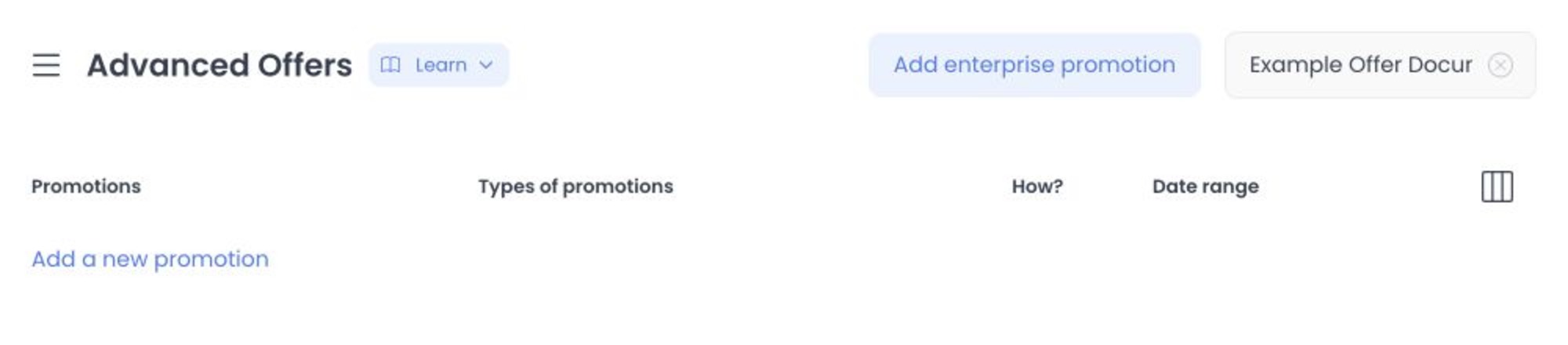
The list can display these columns:
| Column | What it shows |
|---|---|
| Promotions | The offer name and optional image. |
| Promotion types | The offer target: Subtotal, Delivery fee, or Service fee. |
| How? | Whether it is a Discount or Coupon and whether it is marked Automatic. |
| Date Range | The configured start and end dates. |
| Enable | The offer’s saved enabled state. |
Use the column control to show or hide the available columns. The list sorts offers by their stored rank; the displayed order alone does not tell you whether an offer is eligible for a particular cart.
Live actions in the list
Changing Enable or dropping a ranked row is wired to an offer update request. Source-defined state changes can affect cart eligibility and priority, but no deployed or successful effect is claimed here. Do not interact with either control during documentation review.
Dragging and dropping a row constructs a rank update. Opening Add enterprise promotion, selecting a row, or deleting an offer crosses into write-capable detail workflows and is outside this source-only guide.
Select Add enterprise promotion to open a new offer panel. To edit an existing offer, select its row. See Create or edit an advanced offer before saving a live change.
Delete an offer
Delete is wired to the offer delete contract. API source implements a soft-delete path and can alter coupon-code state, but no runtime deletion or resulting customer behavior was tested.
Confirm the offer’s businesses, coupon or discount behavior, dates, and current use before you delete it. Do not rely on deleting an offer as a way to test a configuration.
Troubleshooting
Why is the list unavailable or are its actions disabled?
Advanced offers needs the project’s Advanced Offers module. Confirm that module and your administrator access. An eligible Marketing plan alone does not enable offer management.
Why doesn’t the list order prove which offer applies first?
Rank controls the stored ordering, but cart eligibility also depends on enabled state, dates, business availability, customer and order conditions, and the offer’s own rules.
Why is an offer not applied after I enable it?
Enabled state is only one requirement. Review the date range, businesses, public/automatic setting, and every applicable rule or condition in the offer panel.
Related guides: Create or edit an advanced offer · Marketing overview