Ad banners
Use Ad banners in the Ordering.co Dashboard to configure creative for supported web and app placements. A saved banner records its placement, name, images, and any configured association. It does not, by itself, confirm that the banner is published, rendered, shown to a particular audience, clicked, or that a linked record is available.
Before you start
- Confirm that your Dashboard role and project give you access to Marketing and the banner action you need. If a control is unavailable, ask the workspace owner to verify access and configuration.
- Decide which placement, creative, and intended destination support your campaign before you begin. Keep the image, destination, and any promotion accurate for the audience that may see it.
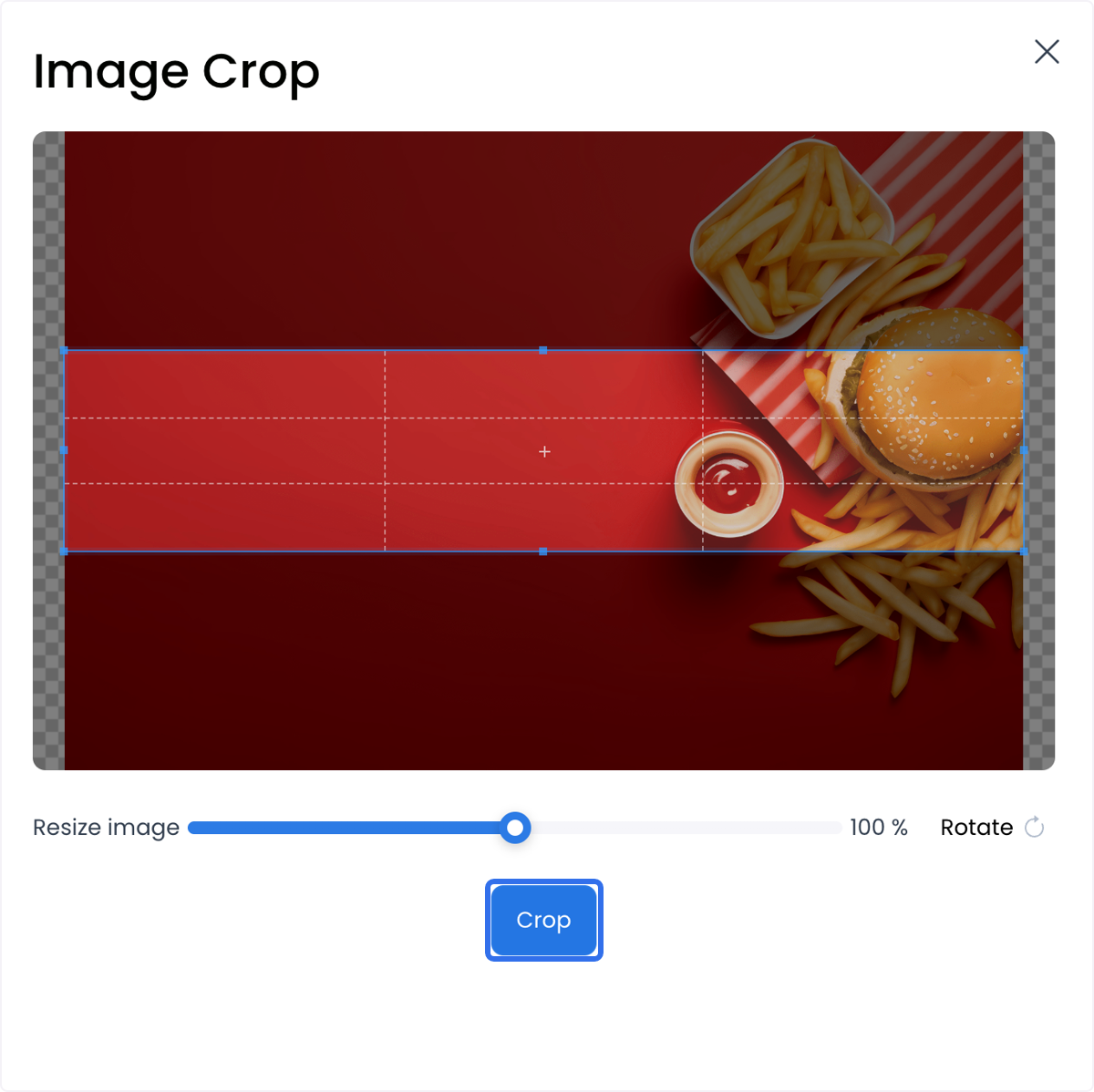
- Prepare an image that fits the placement's recommended aspect ratio. The crop tool helps you prepare the creative, but it is not evidence that the uploaded file meets a server-enforced pixel requirement.
- Treat creating, renaming, enabling, updating, or deleting a banner as a write. Use your approved content and change-management process rather than a live record as a preview surface.
The screenshots are retained as step illustrations. Your Dashboard can show different labels, placement options, or layout. Use the controls and records available in your workspace when completing a change.
Choose a placement
The Dashboard presents six fixed placements. Web placements use a wide recommended crop, and app placements use a square recommended crop.
| Placement | Recommended image size | Scope |
|---|---|---|
| Web home | 1440 × 300 | Web home page |
| Web business listing | 1440 × 300 | Web business listing |
| Web business page | 1440 × 300 | A selected business page |
| App business listing | 300 × 300 | App business listing |
| App business page | 300 × 300 | A selected business page in the app |
| App home page | 300 × 300 | App home page |
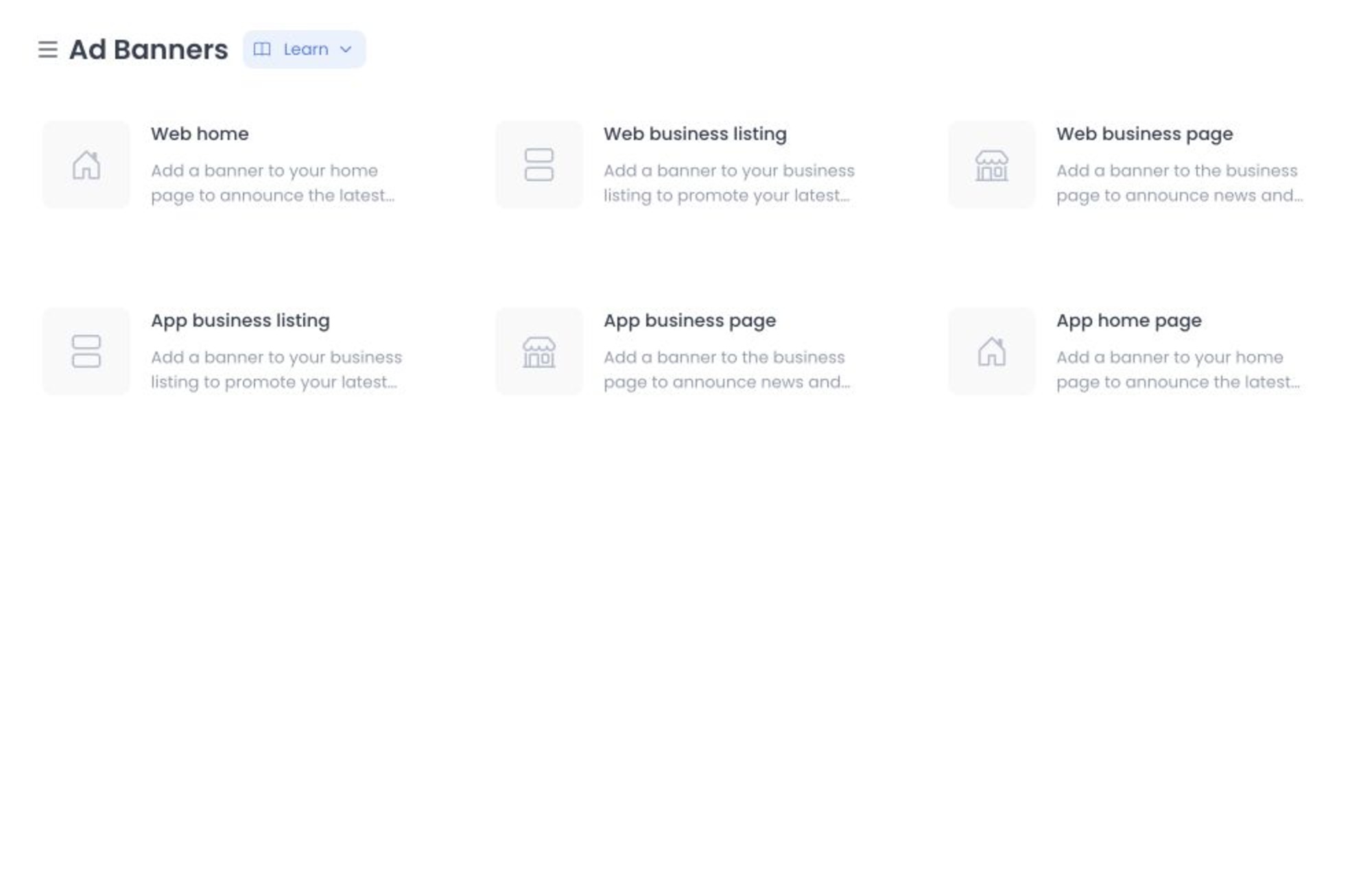
The displayed dimensions guide image cropping for the selected placement. Check the creative in an approved, non-production workflow before relying on its final appearance.
Create or edit a banner
- In the Dashboard, open Marketing and select Ad banners.
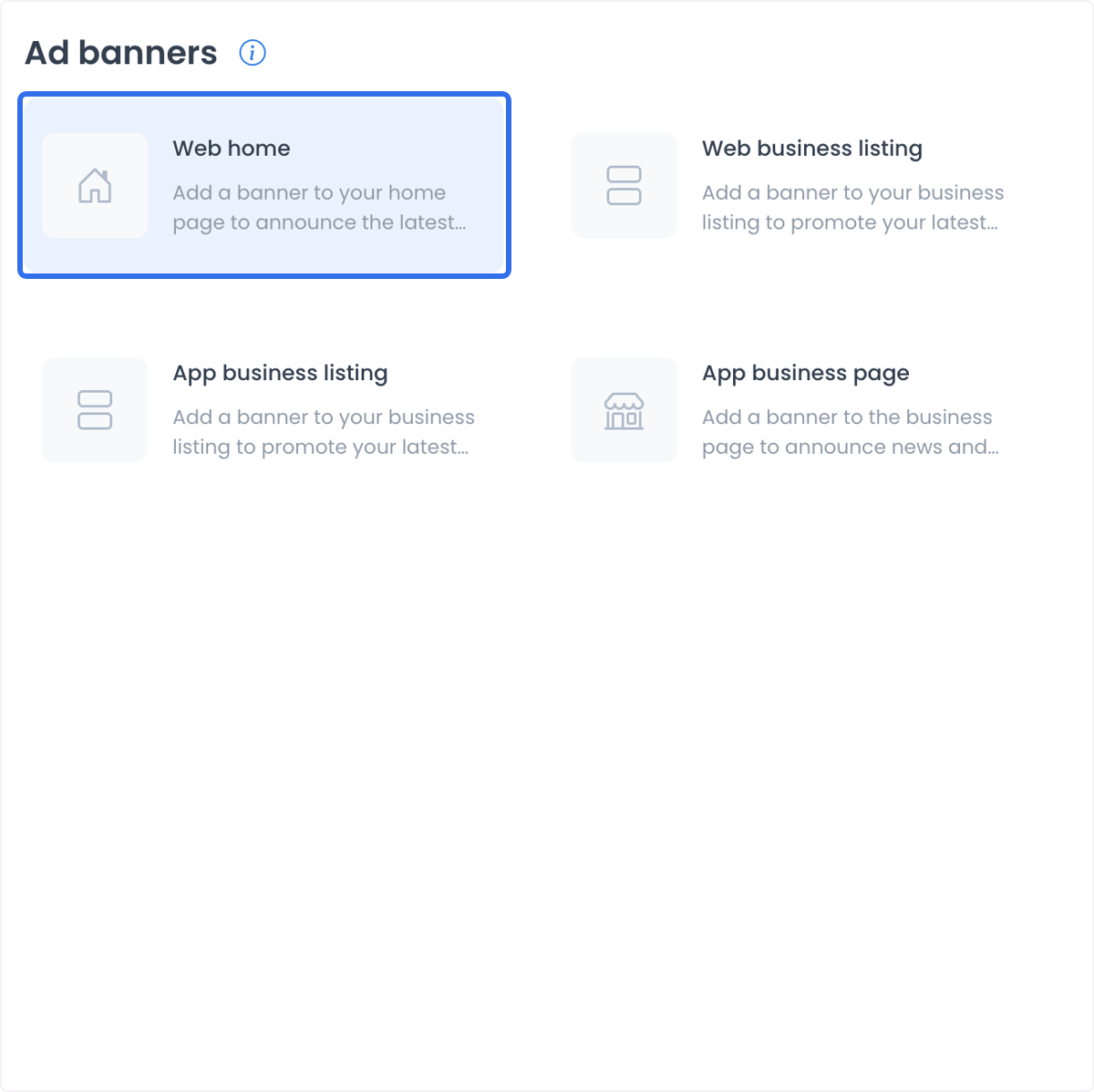
- Select the placement where you want to work. The example below shows the placement cards.
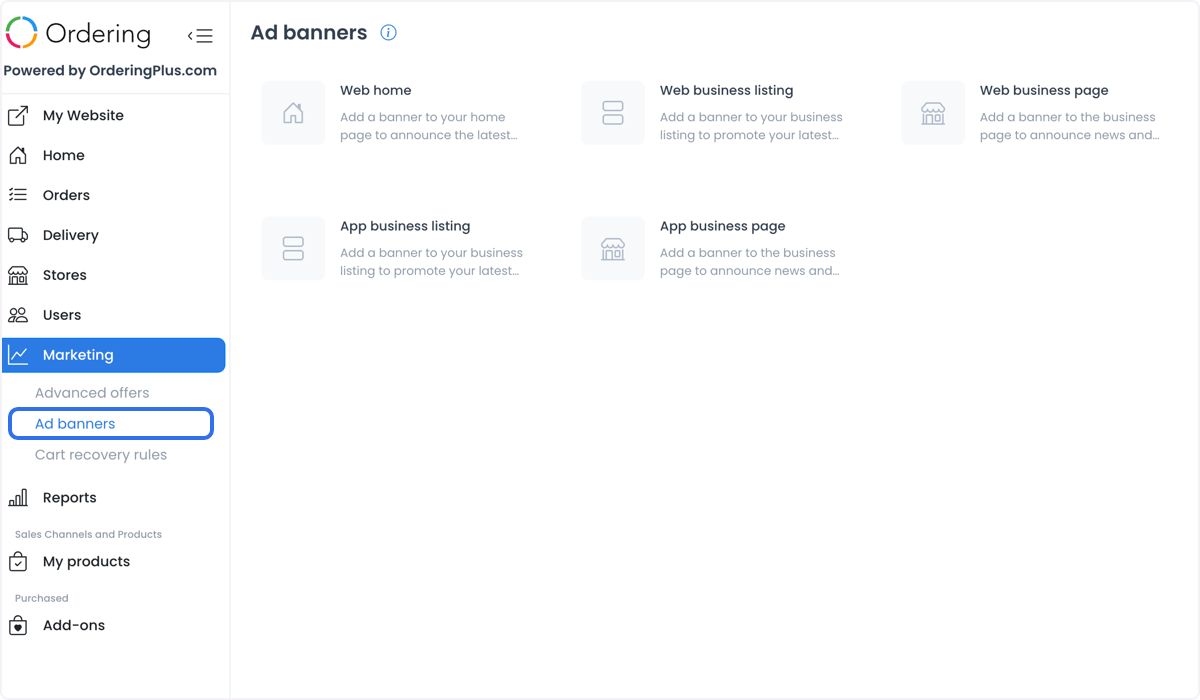
- In the placement panel, select Add banner to start a new record, or select an existing banner to review or edit it.
- Enter a descriptive name. Use a name that helps your team distinguish the creative, placement, and campaign without depending on customer-facing copy alone.
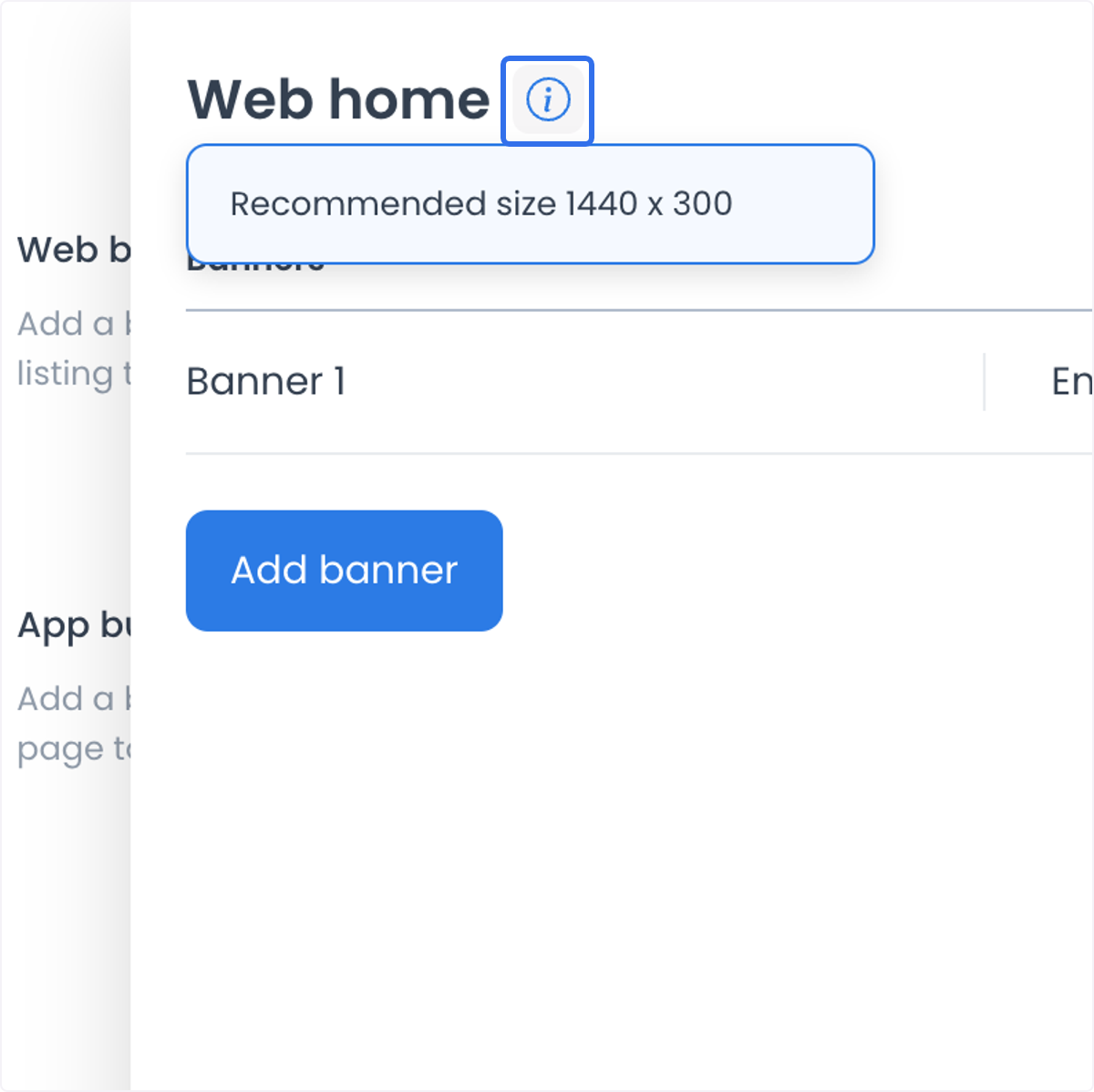
- Open the Images tab and select Add to begin adding an image.
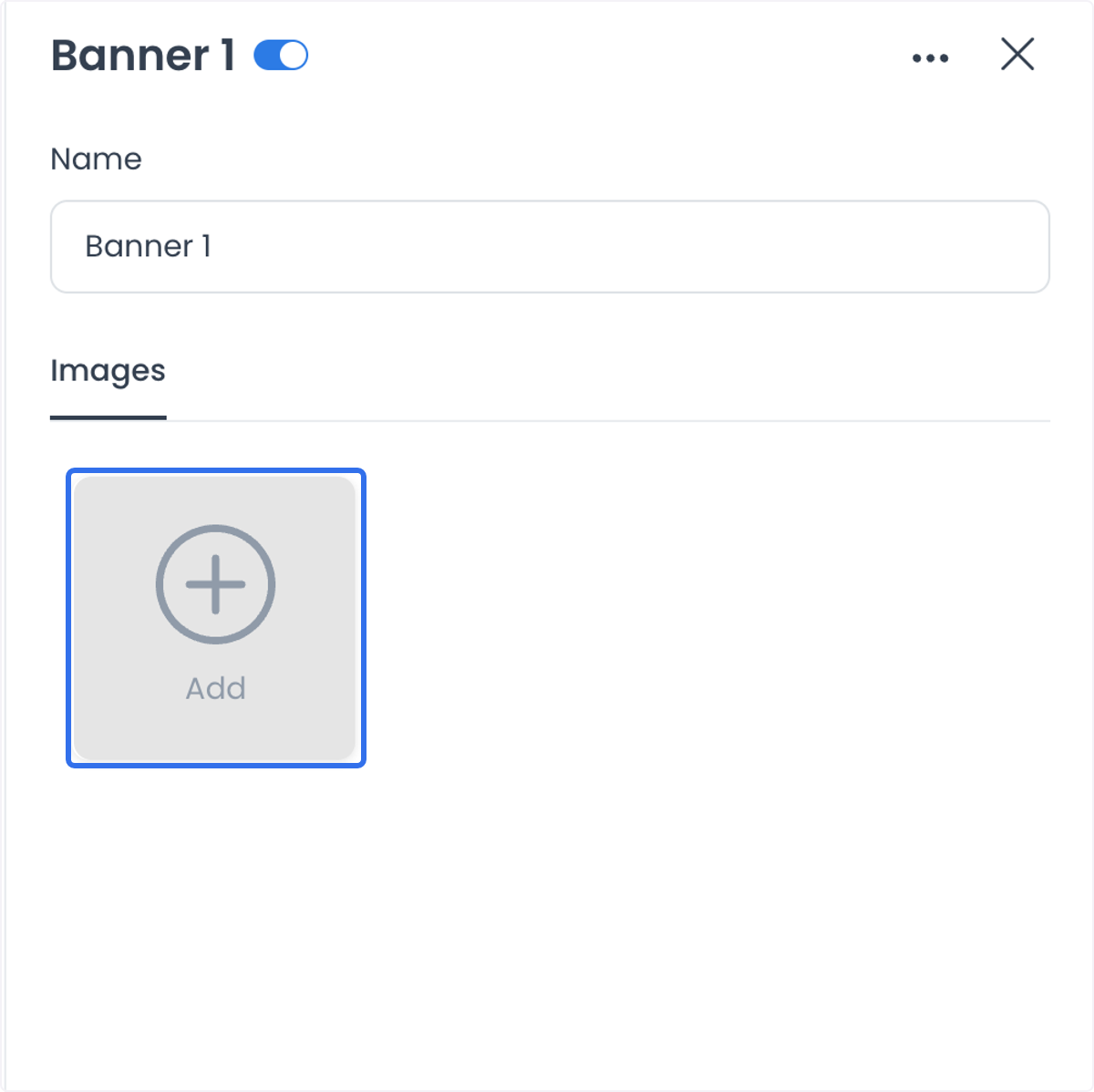
- Select or upload the creative, then adjust its crop for the selected placement. Review the visible crop before saving it.
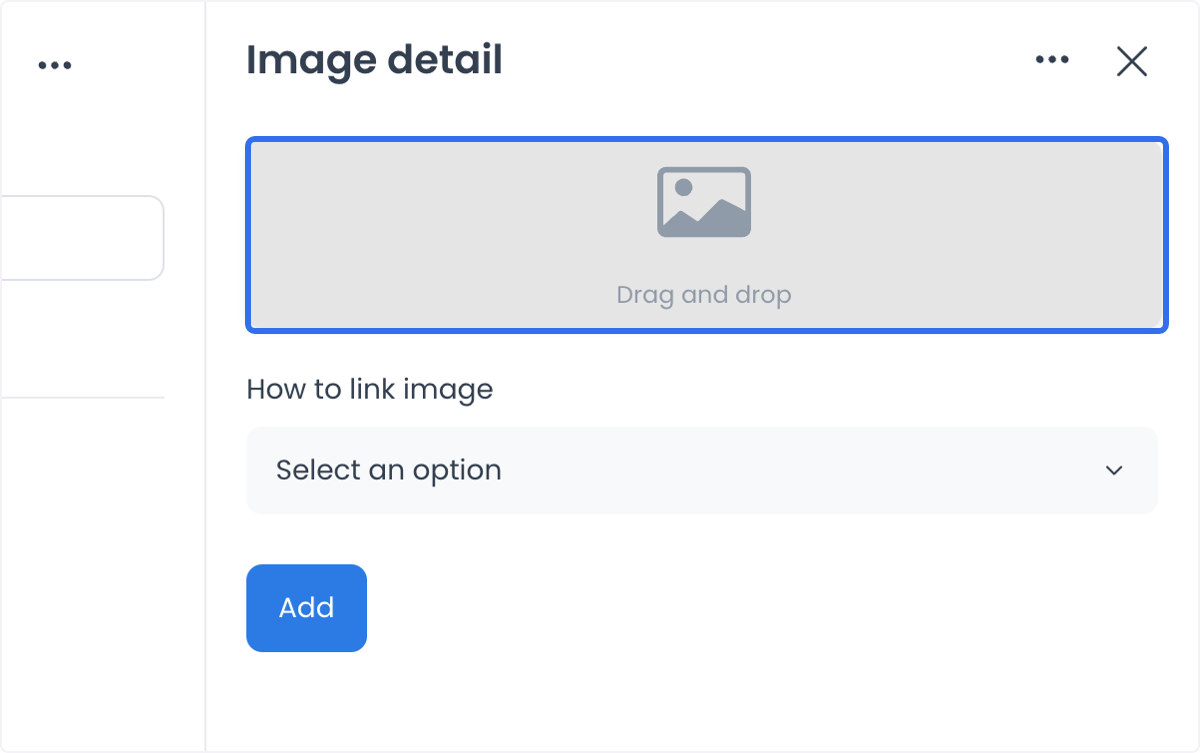
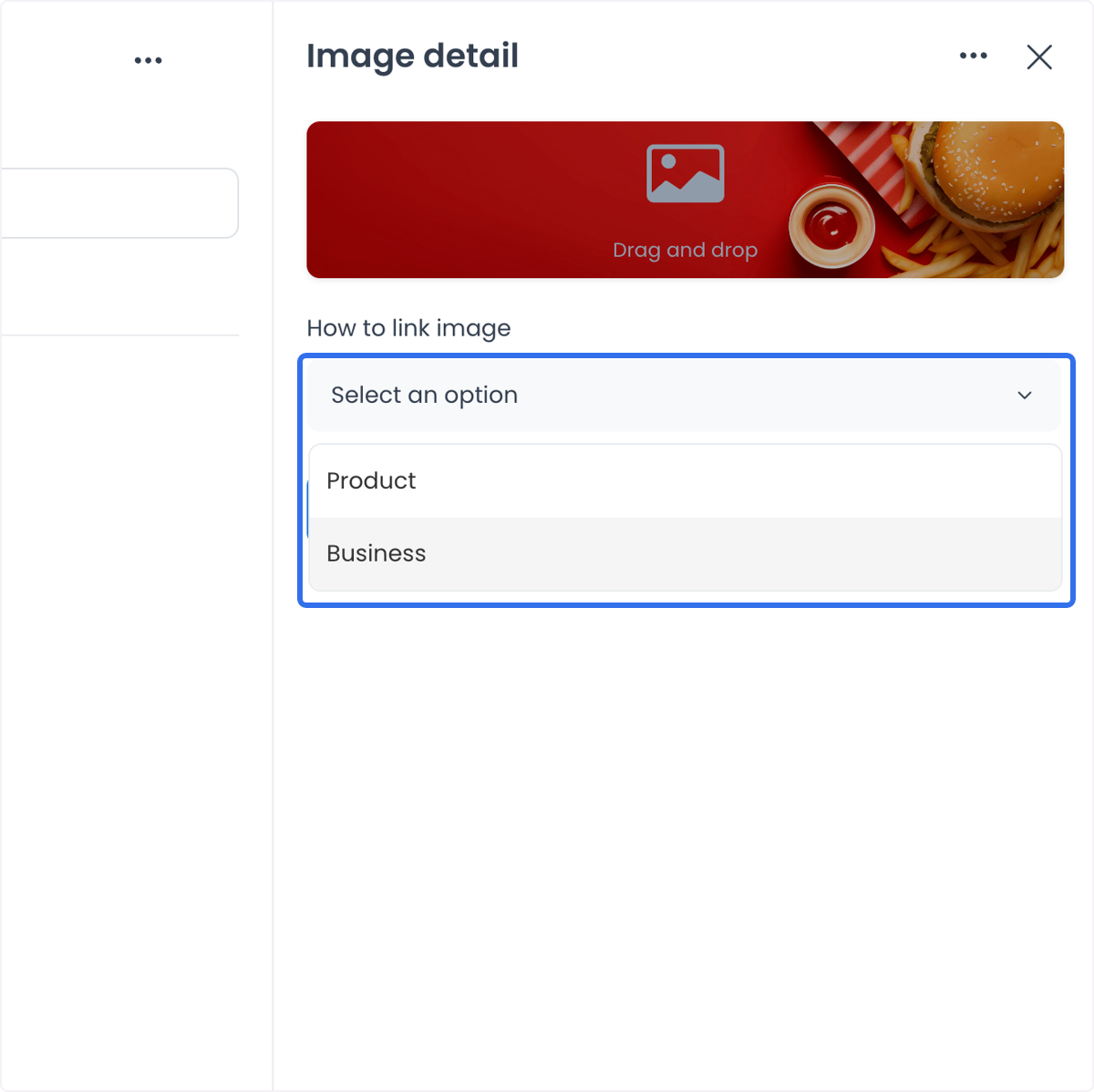
- When the image link settings are available, select the intended destination type, such as Product or Business, then select the relevant record. This configuration expresses the intended destination; it does not prove that a visitor can open it, that the destination remains available, or that a click occurs.
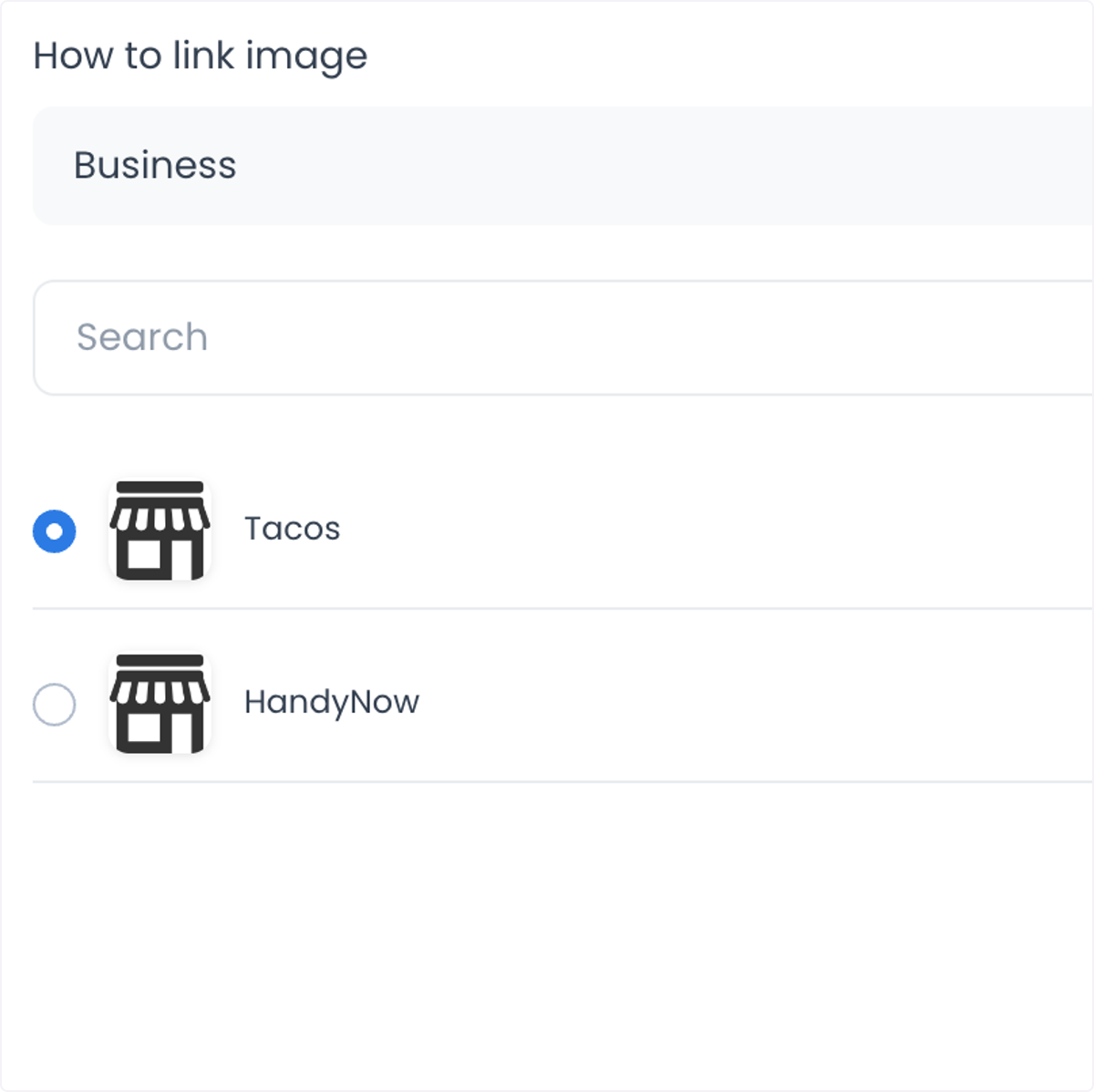
- Review the banner record, image, crop, placement, and configured destination before changing its enabled state. A change to the enabled switch is a write, not a draft preview, and it does not establish customer-facing display or delivery.
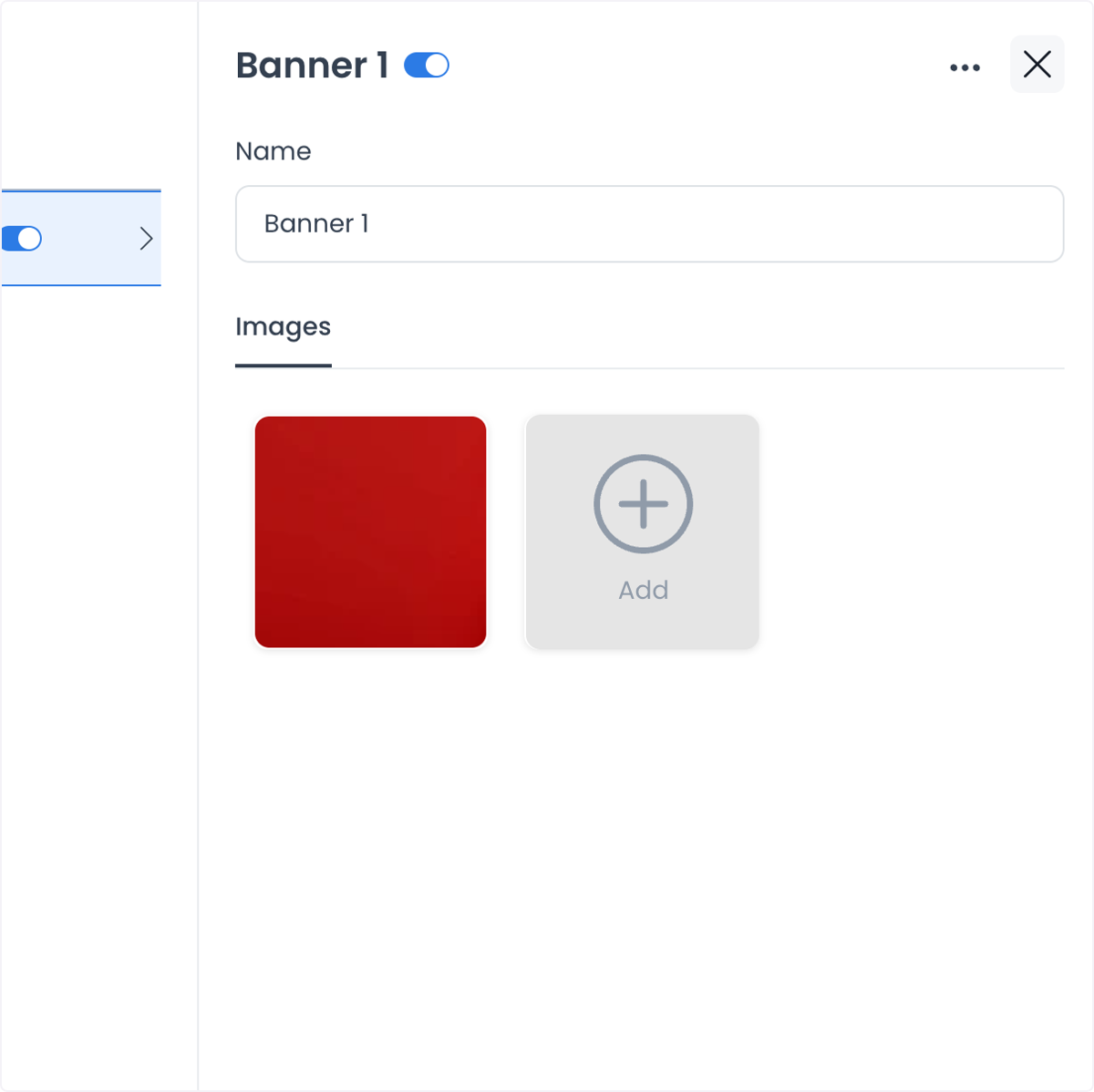
Set business scope and image destination separately
An image's intended destination and a banner's business scope are different settings:
- Image destination associates an image with the selected Product or Business when the link controls are available.
- Business scope is available for Web business page and App business page placements. Those placements can include a Businesses tab for selecting the businesses where the banner applies.
Do not assume that selecting a business for scope also sets an image destination, or that setting an image destination determines where the banner is displayed. Review both settings when the placement supports them.
Review changes before enabling
Use this checklist before you enable or update a banner:
- Confirm the selected placement and, where applicable, the selected businesses.
- Review the image crop at the recommended aspect ratio and confirm that the creative is approved for the relevant channel.
- Confirm that the configured destination is the intended Product or Business and that it is appropriate to reference.
- Check the name, existing images, and enabled state before saving.
- Treat deletion as a destructive action. The Dashboard asks for confirmation, but a confirmed deletion is still a write.
The Dashboard records configuration changes, but it does not make an ad-delivery, availability, visitor-behavior, click-through, conversion, or sales outcome promise. Validate any customer-facing result through an approved test or release process.
Common content uses
Teams can organize banner creative around:
- a current campaign, seasonal message, or separately approved offer;
- a new or featured product, after confirming its listing and availability independently;
- brand messaging that is appropriate for the selected web or app placement;
- complementary products or services, where the destination is configured and reviewed; and
- a business-specific or location-appropriate message for a selected business-page placement, after separately reviewing its scope.
A banner setting does not create a promotion, apply a discount, segment an audience, or guarantee a customer response. Configure and validate those capabilities through their own approved workflows.
Troubleshooting
I cannot find the placement or action I need
Verify your Dashboard role, project access, and workspace configuration with the workspace owner. Do not infer entitlement or availability from a screenshot or another user's workspace.
Why is there no Businesses tab for this banner?
The Businesses tab is available for Web business page and App business page placements. The other placements do not use that business-scope control.
Can I assume the recommended size is enforced during upload?
No. The interface uses the recommended dimensions to guide cropping. Inspect the saved creative in an approved workflow before relying on its final rendering.
The banner is enabled. Can I assume customers can see it or follow its destination?
No. Enabled state records a configuration change. It does not prove rendering, ad delivery, access to the destination, a customer click, or any resulting behavior.
Related guides: Create or edit an ad banner · Cart recovery rules