Ad banners overview
Ad banners is a level-0 source route for customer-facing banner records. Opening it starts authenticated site and banner reads, so it is not a passive or safe documentation surface.
The direct /marketing/ad-banners route and enabled item are level-0 surfaces. Effective sidebar reachability comes from the Marketing parent, which separately requires Pro or Enterprise and excludes read-only administrator, delivery-manager, and business-owner classifications. Records remain project-dependent.
Choose a placement
The page shows six fixed placements. Select one to review the banners assigned to it.
| Placement | Recommended image size | Scope |
|---|---|---|
| Web home | 1440 × 300 | General web home page |
| Web business listing | 1440 × 300 | General web business listing |
| Web business page | 1440 × 300 | A selected business |
| App business listing | 300 × 300 | General app business listing |
| App business page | 300 × 300 | A selected business |
| App home page | 300 × 300 | General app home page |
The two business-page placements let you find and select a business. The Dashboard uses the sizes above to guide image cropping: the web placements are wide and the app placements are square.
The displayed dimensions are a Dashboard crop recommendation, not a server guarantee that every uploaded image has those exact pixels. Verify the finished creative in an approved non-production workflow before relying on its rendering.
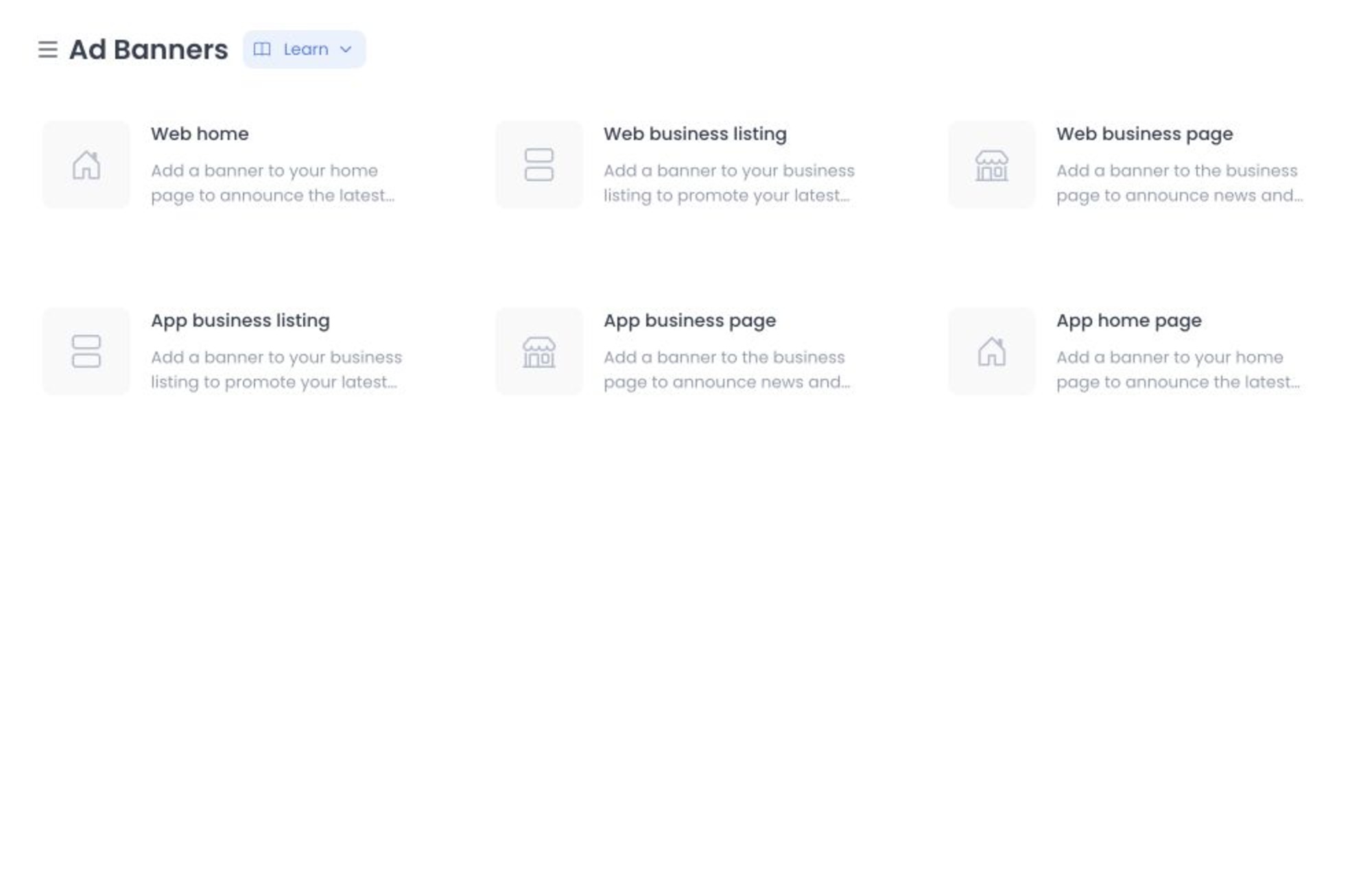
Review a placement safely
Selecting a placement triggers a banner-list request filtered by position. The side panel can expose names, scope, creative, destinations, and enabled state. No live placement, site, business, catalog, media, or destination was opened.
The enabled switches are wired to banner update requests. Source indicates a customer-facing effect class, but no deployed rendering or successful visibility change is claimed. Do not toggle either control for review.
Opening an existing banner can also expose business, site, product, category, or target-link information. Confirm the placement and record before viewing or discussing it, and do not use live creative in training material.
What to do next
To create or change a banner, use Create or edit an ad banner. Adding, changing, or deleting a banner or creative item is a write; it is not documented as a draft-only workflow.
Troubleshooting
Why can’t I find a business selector for this placement?
Business selection is available only for Web business page and App business page. The other four placements are not business-scoped in the current Dashboard interface.
Why should I avoid toggling an enabled switch while reviewing?
The switch sends an update immediately. It can change what customers see, so use an approved test environment or ask the marketing owner to make a deliberate change.
Can I assume the listed size is enforced during upload?
No. The interface uses it for its crop experience, but it is not evidence of a server-side exact-dimension rule.
Related guides: Create or edit an ad banner · Cart recovery rules