Home overview
The Dashboard brings project status, reporting, and operational areas into one workspace. Use it to review the work available to your account, then open the dedicated area for orders, delivery, stores, users, marketing, reports, settings, or products.
Sign in with an eligible Dashboard account. Delivery-only, profile-only, and read-only account types are routed to other pages. More Services is administrator-only, and Visit my Website is hidden from business-owner accounts.
Open Home and review the project status
Select Home in the Dashboard sidebar. The page shows either a setup message or the current project status. Eligible accounts can also see Visit my Website, which opens the preferred customer-facing site in a new tab.
The status, greeting, and available buttons depend on the signed-in account and current project. Use Visit my Website only when you intend to leave the Dashboard.
Read the Home report summary
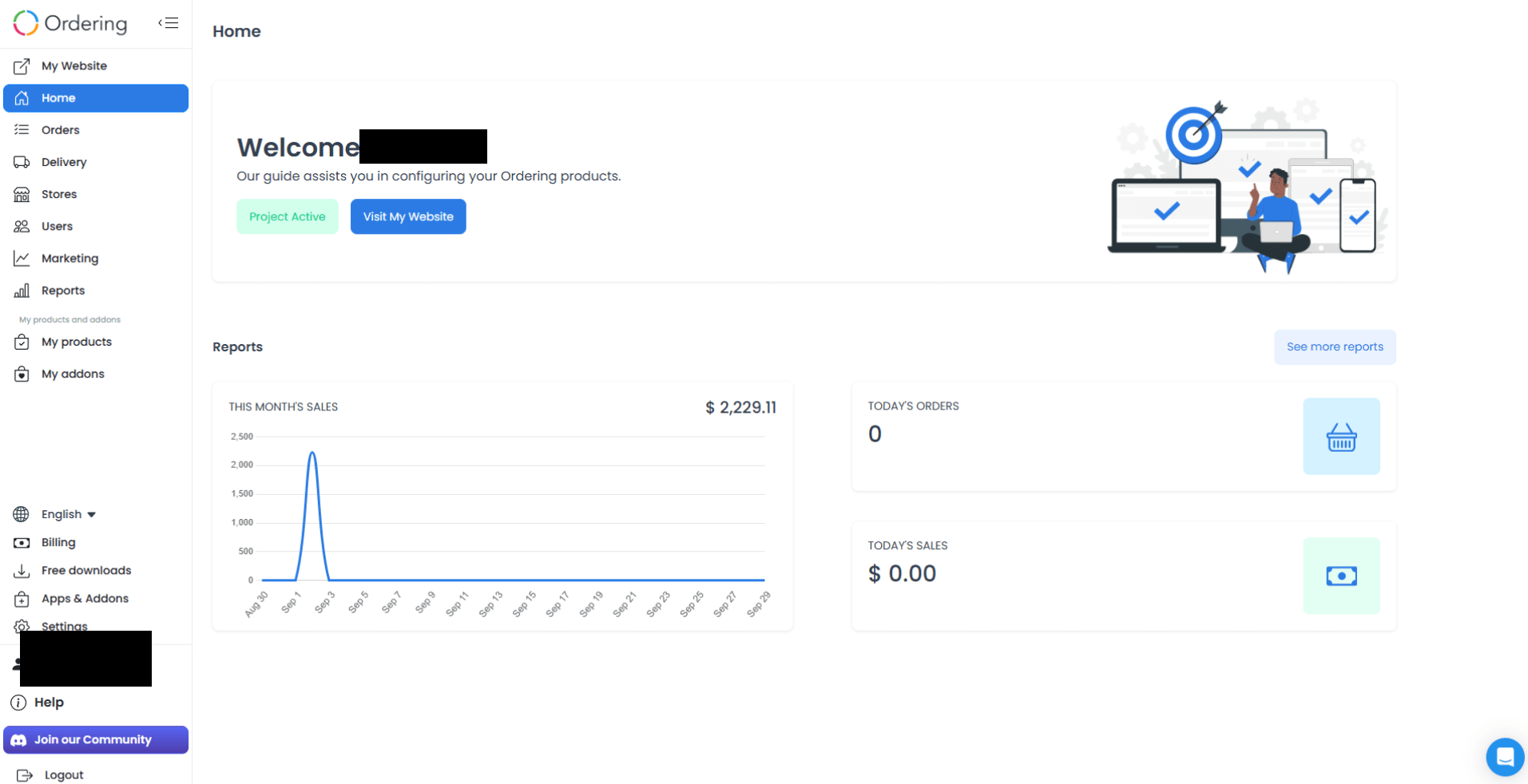
Home can show quick reports for sales, current-day orders, current-day sales, and current-month sales. See more reports opens business analytics, whose access and filters are evaluated separately.
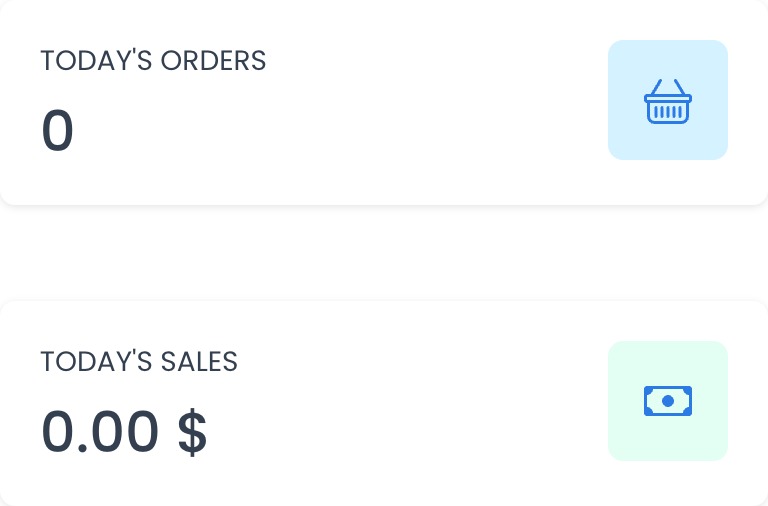
The summary requests order and sales reports for today and the current month. A visible value reflects the response available to the Dashboard; a zero or empty result can reflect no matching values for the project’s local date, loading, or a request error. Use a detailed report when you need its own filters and access rules.
Navigate the Dashboard
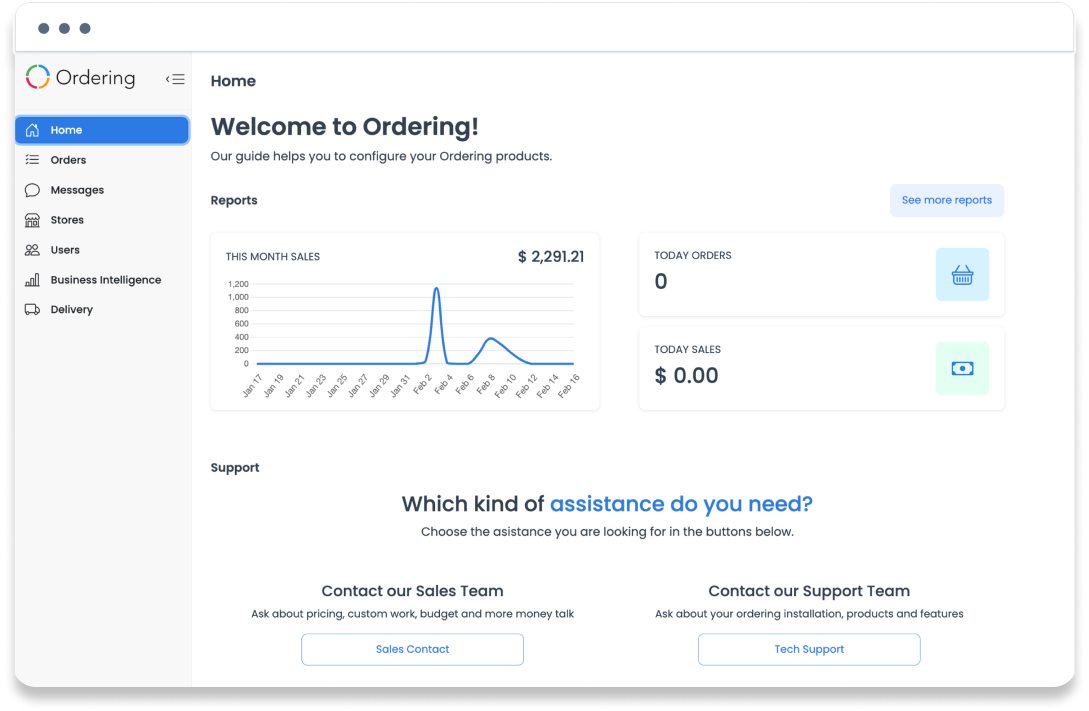
The Dashboard sidebar groups the main operational areas. The exact entries, controls, and data depend on your project configuration and permissions.

Orders
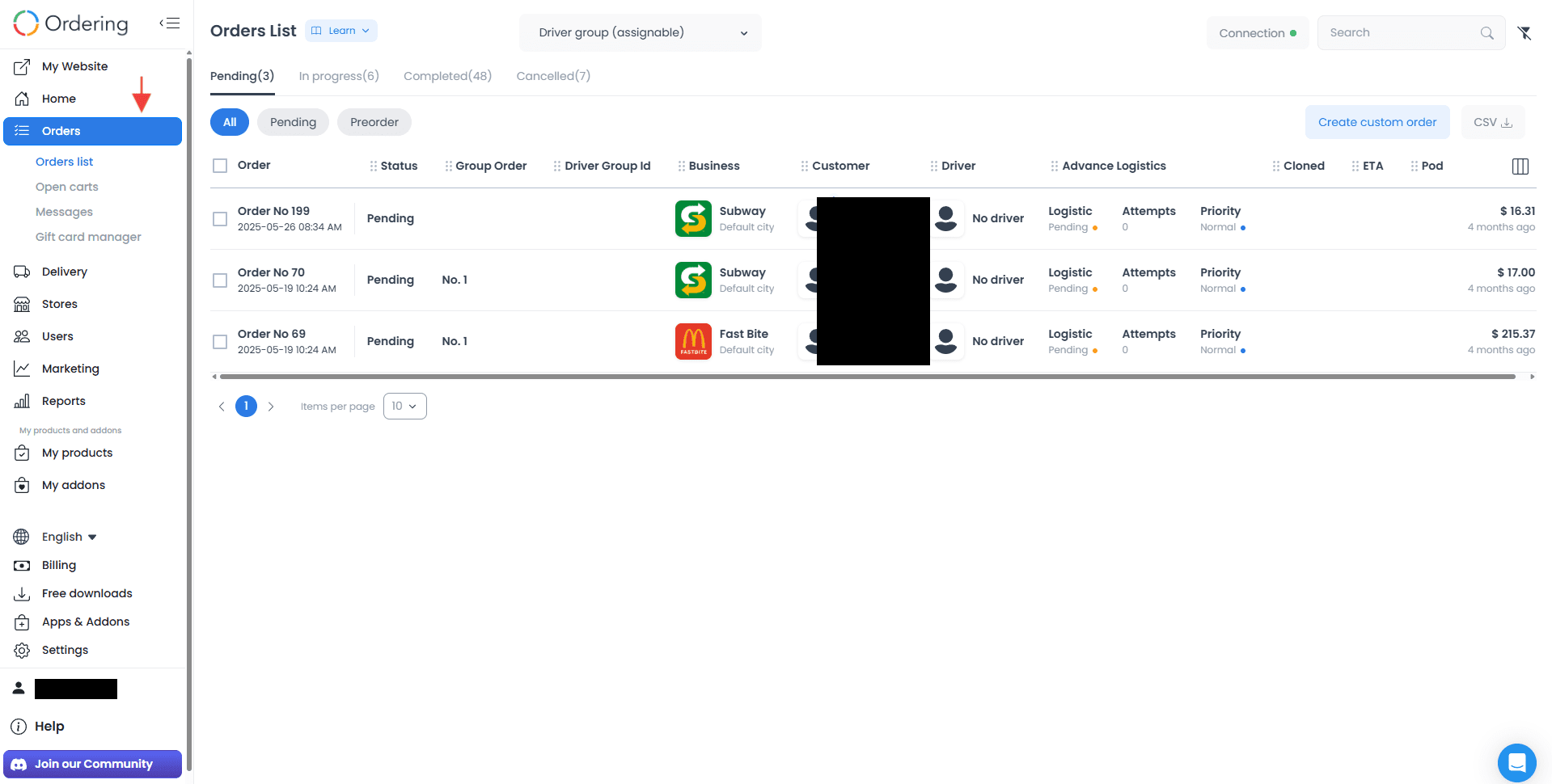
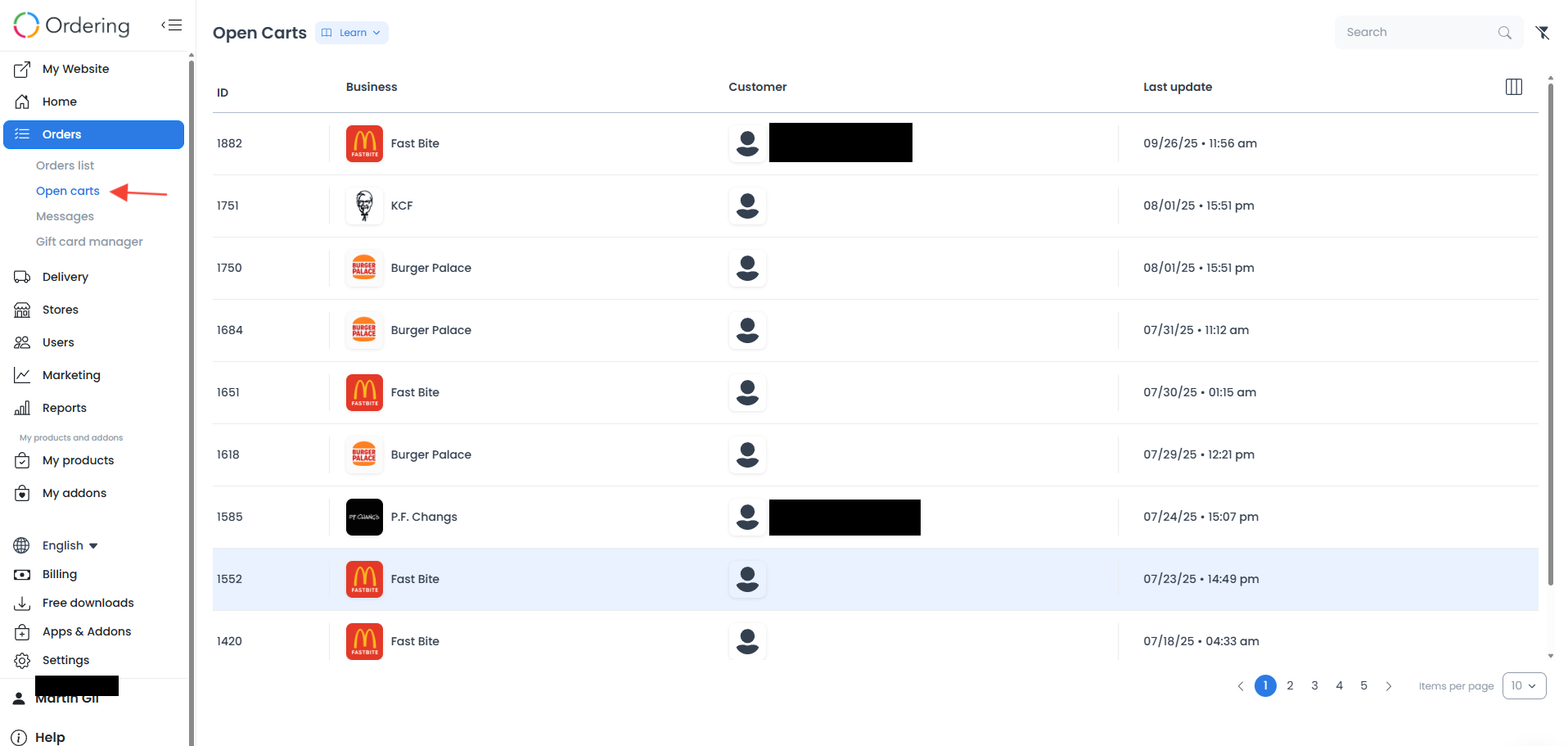
Use Orders to review order lists and, where enabled, open carts, messages, and gift cards. The order list supports reviewing incoming orders and their operational status.
Orders list
Open carts
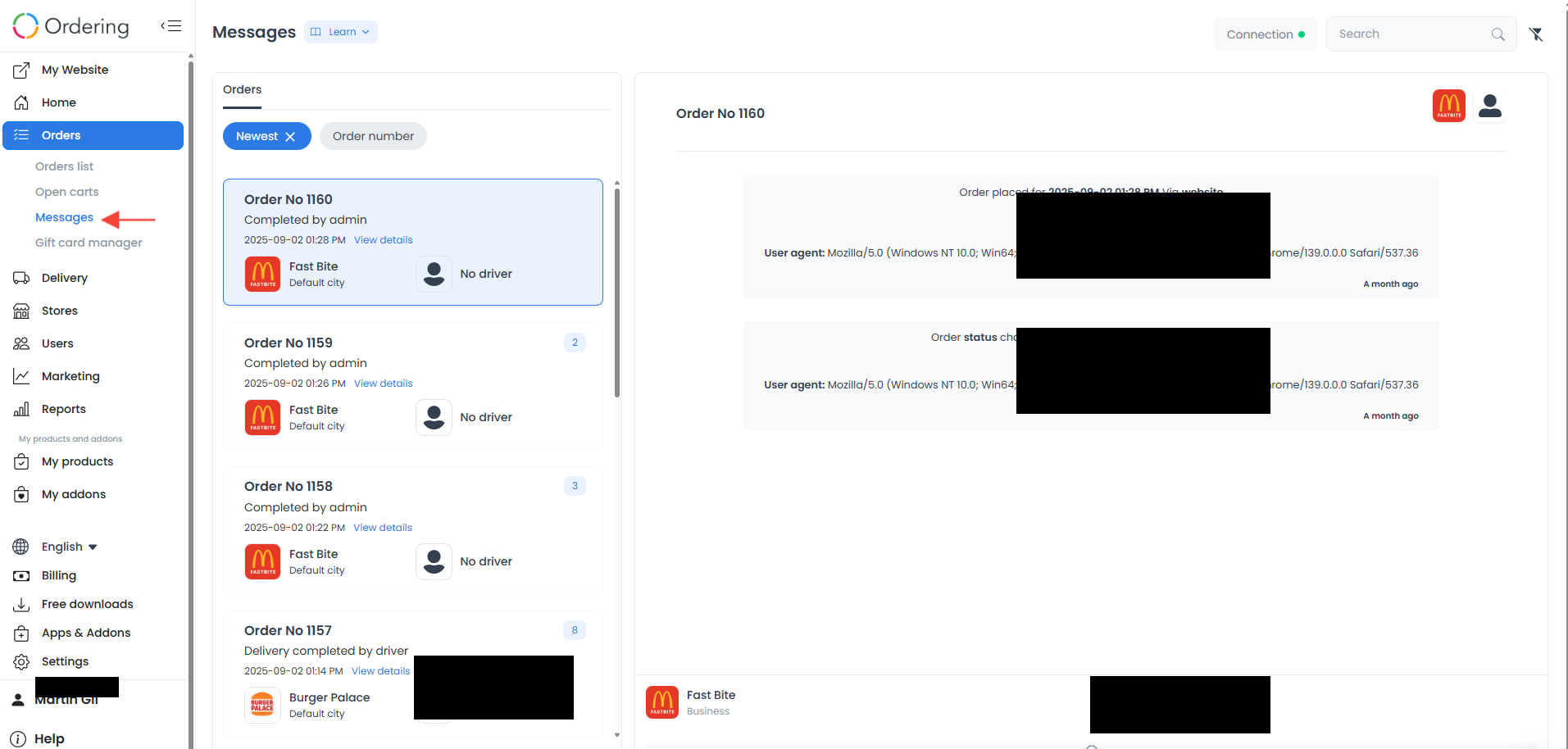
Messages
Use Messages to review order communication among the people involved in an order when the project makes that area available.
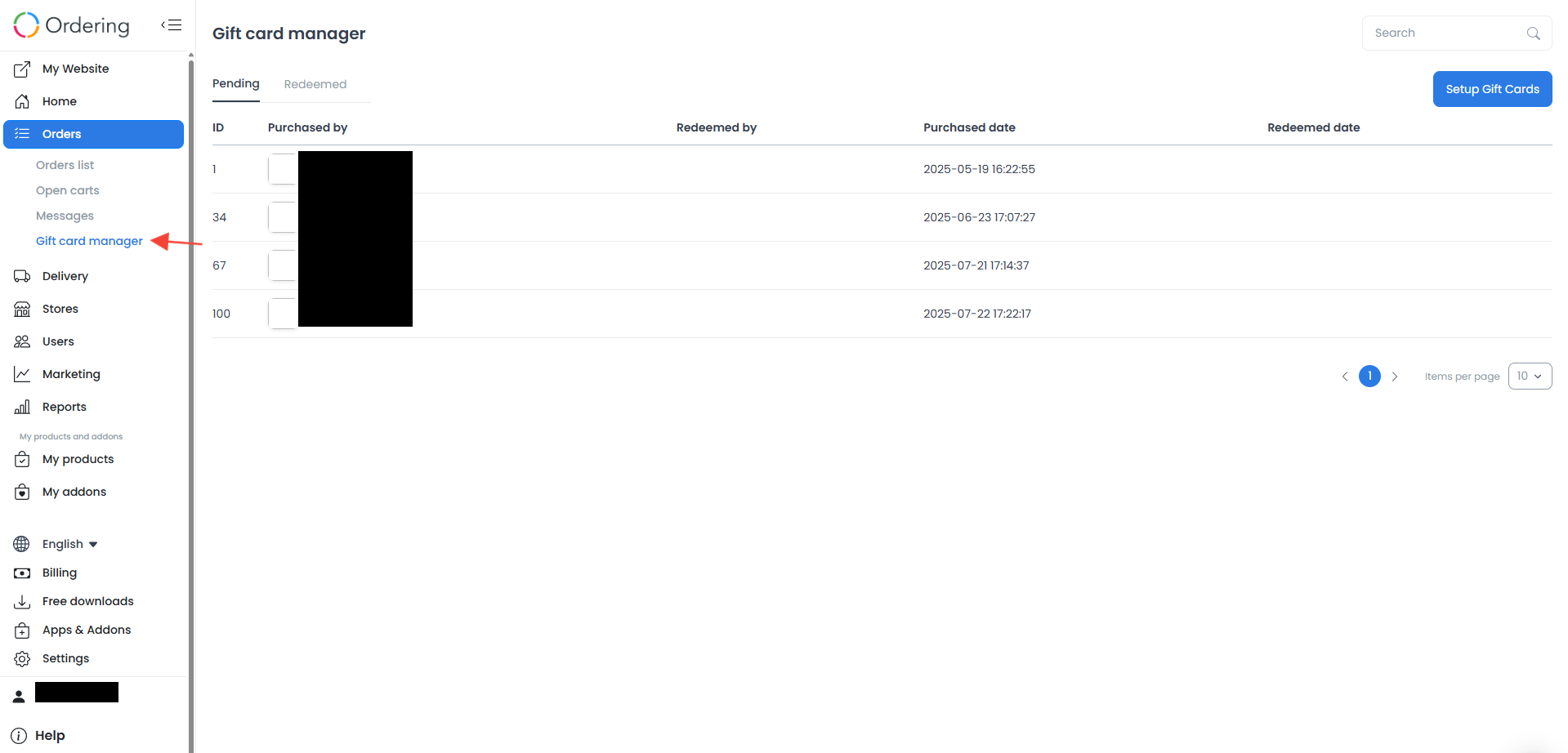
Gift card manager is available only when the relevant feature is configured.
Delivery
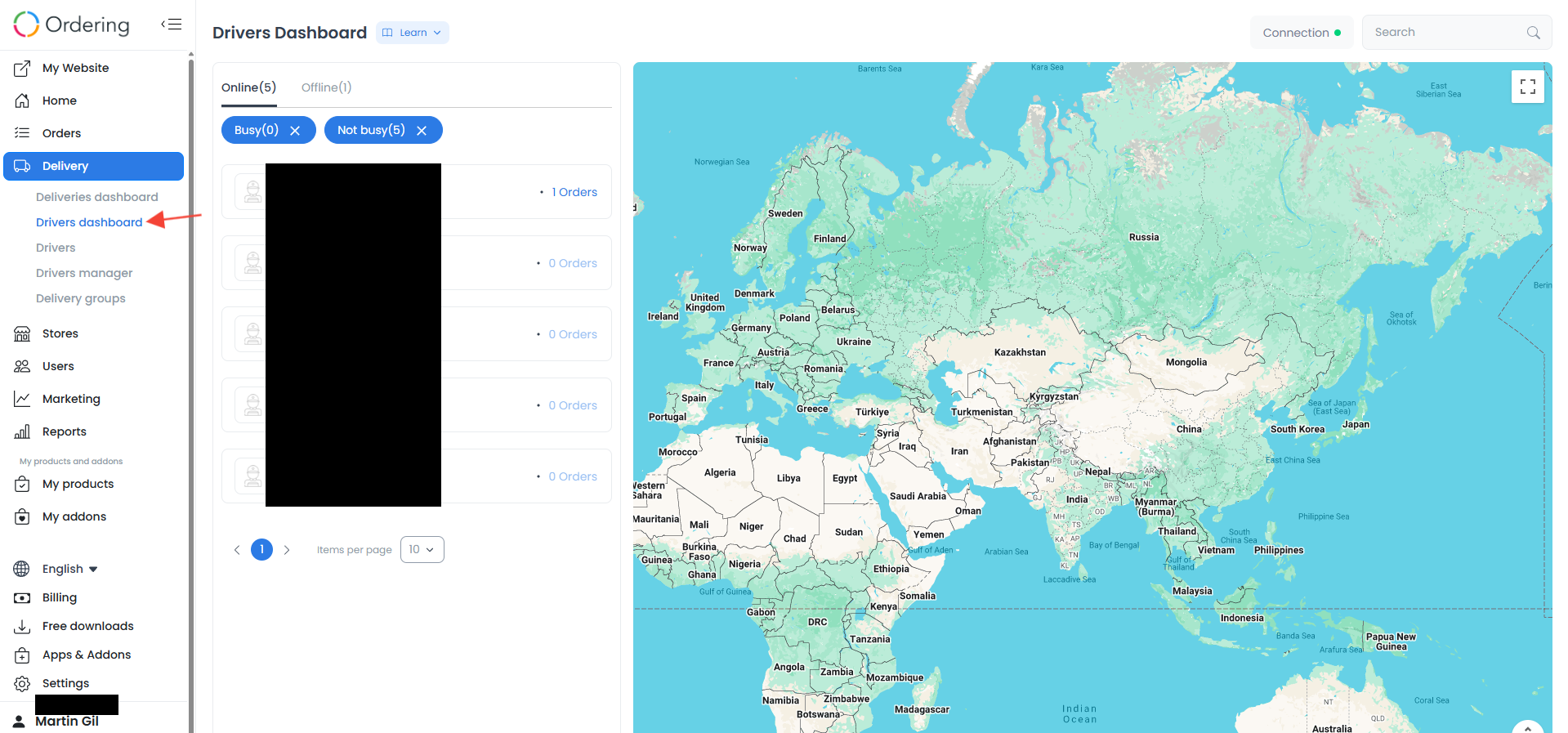
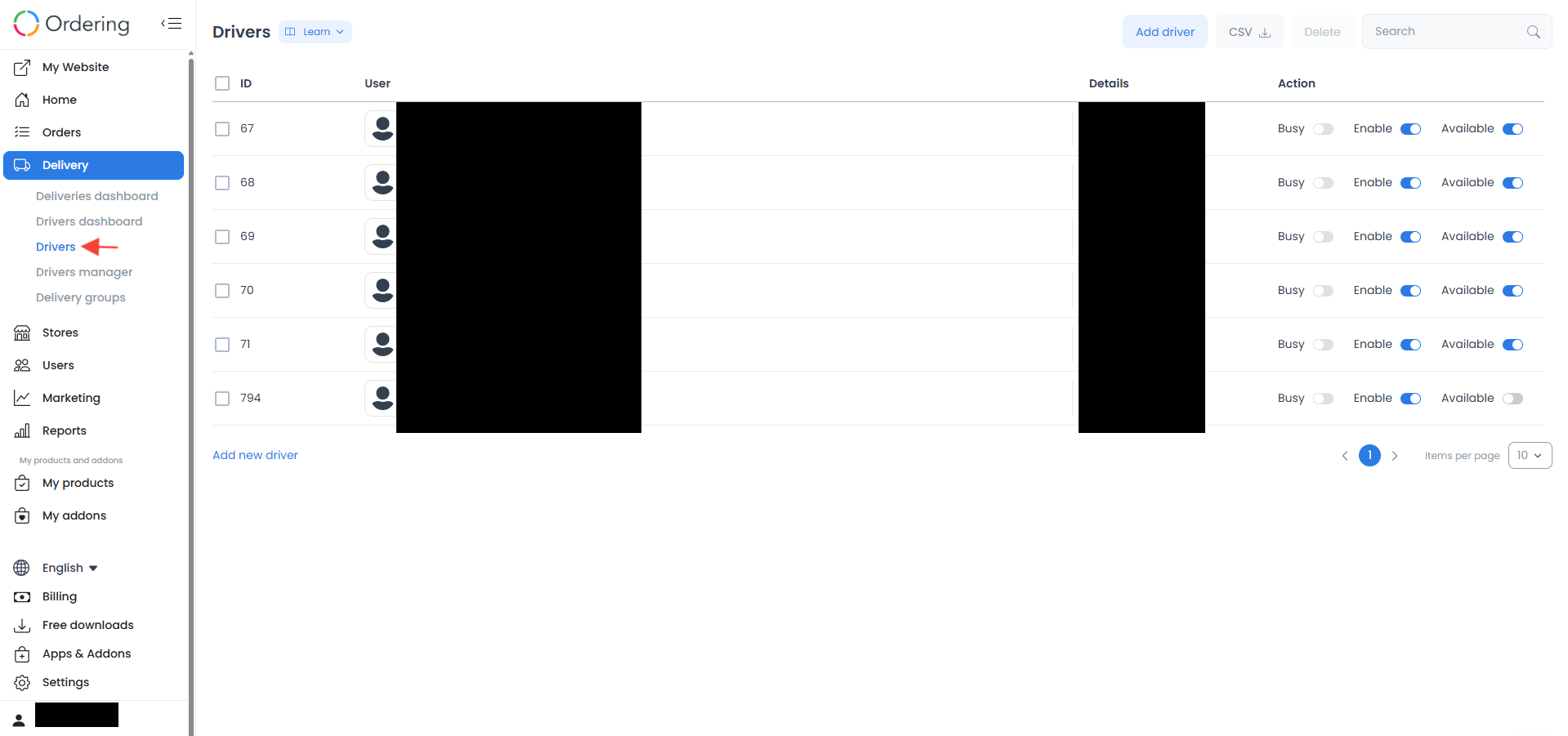
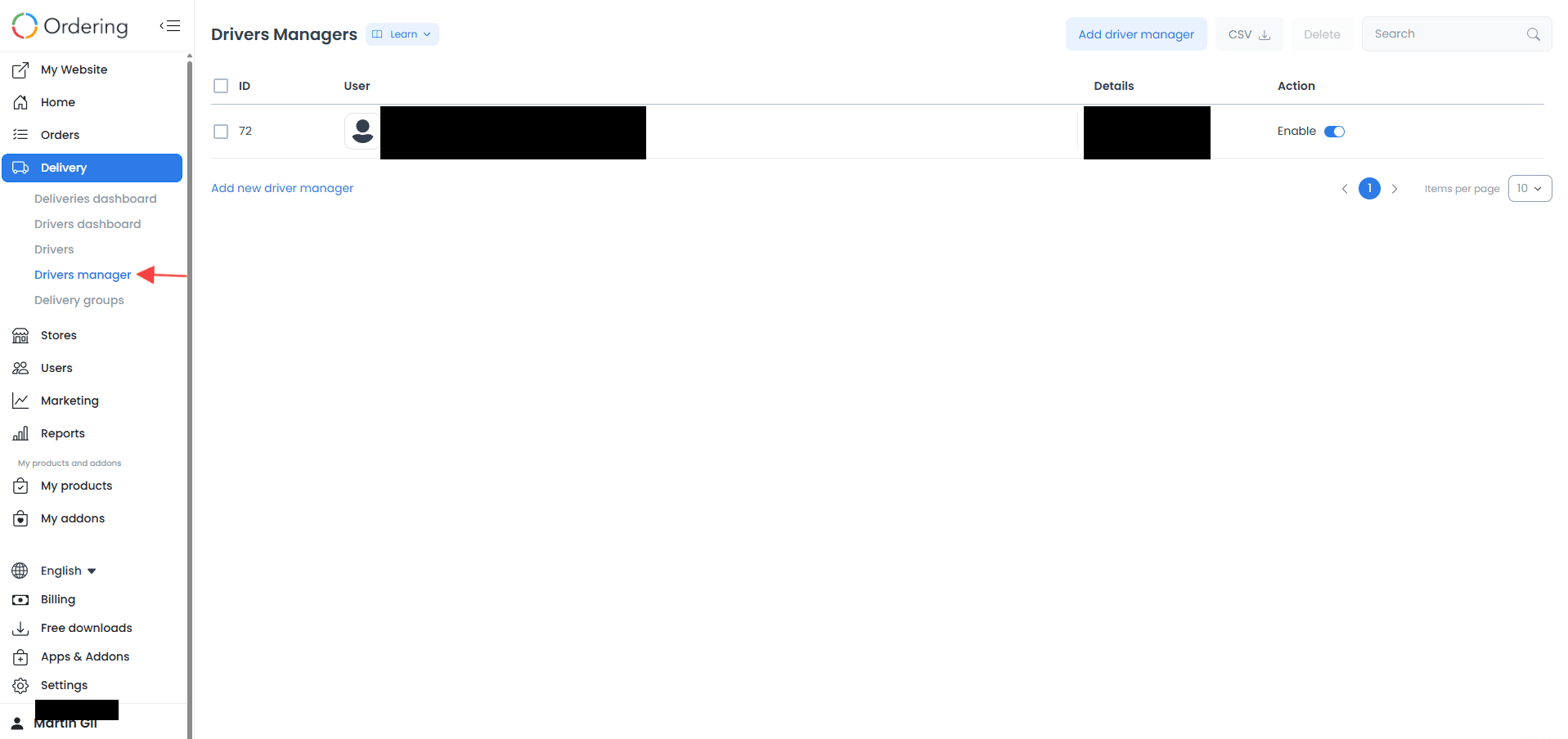
Use Delivery to work with deliveries, drivers, driver managers, companies, and delivery groups. The available views support reviewing assigned and unassigned delivery work in one area.
Deliveries dashboard
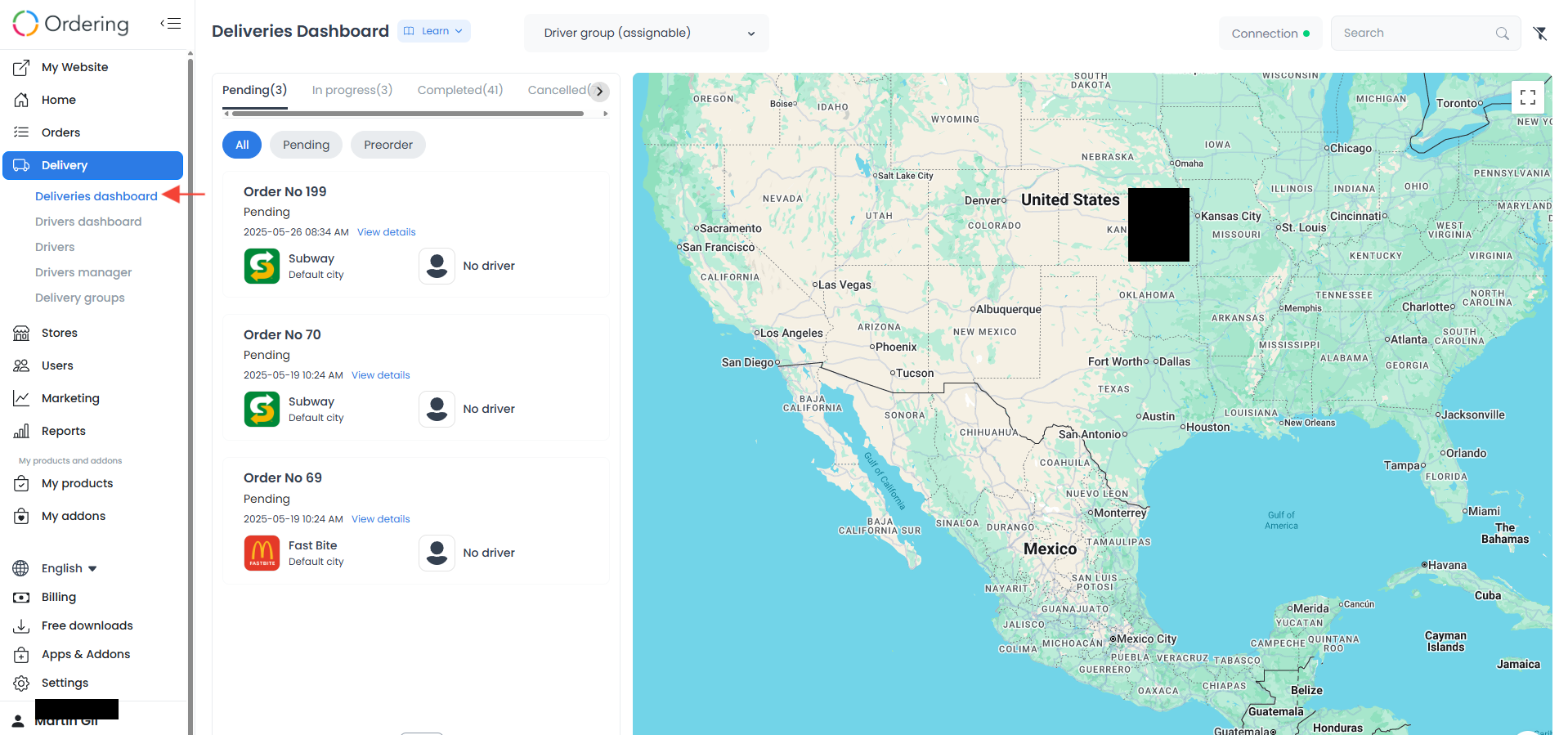
Drivers dashboard
Drivers
Drivers manager
Delivery groups
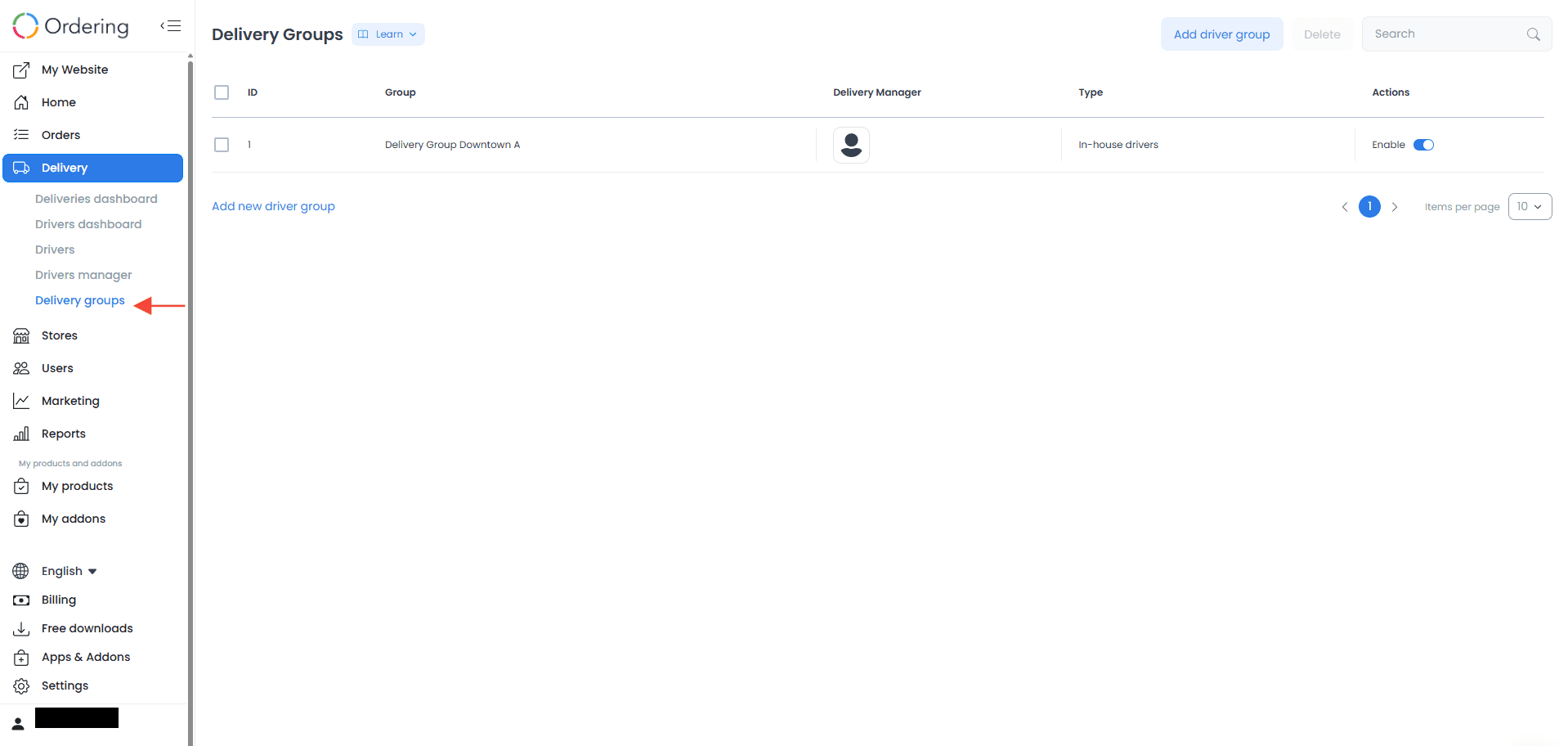
Stores
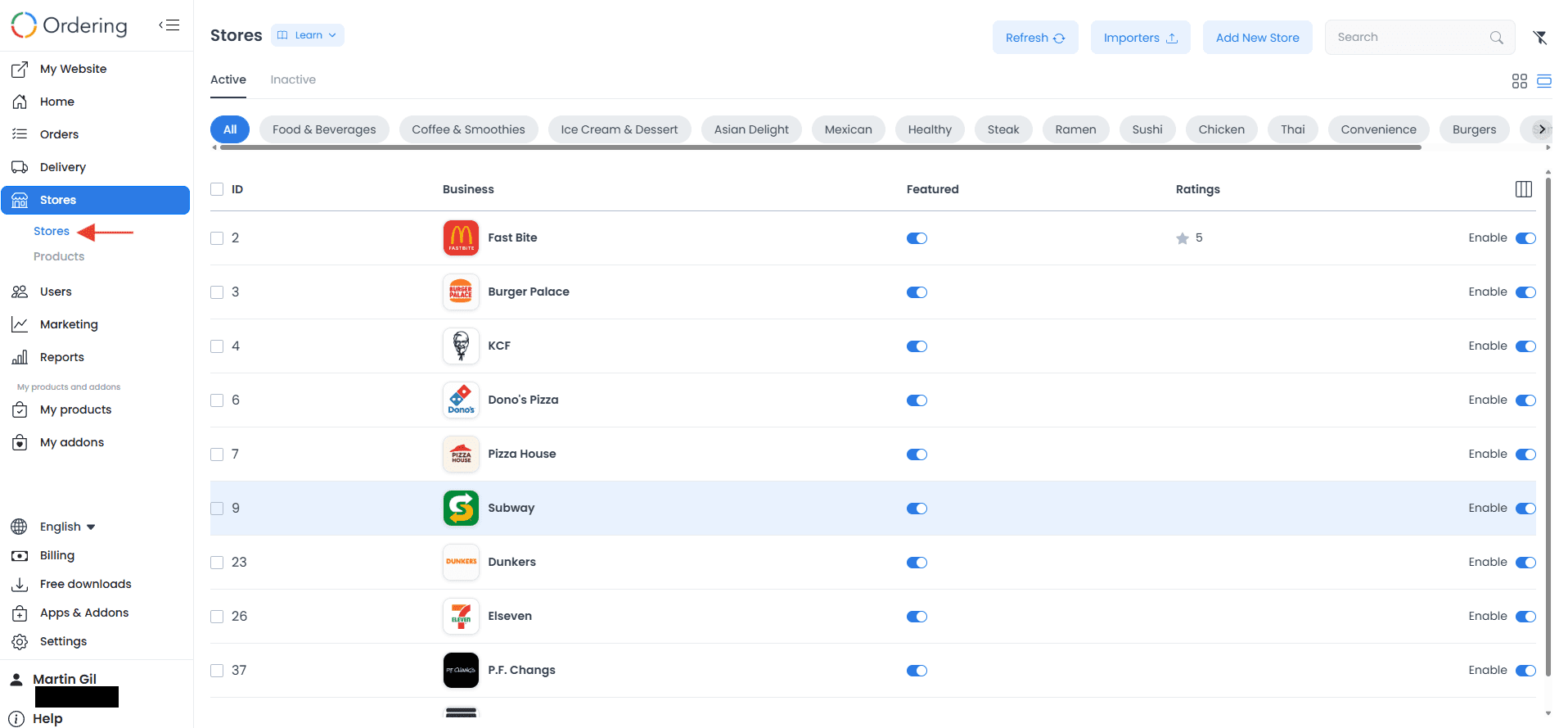
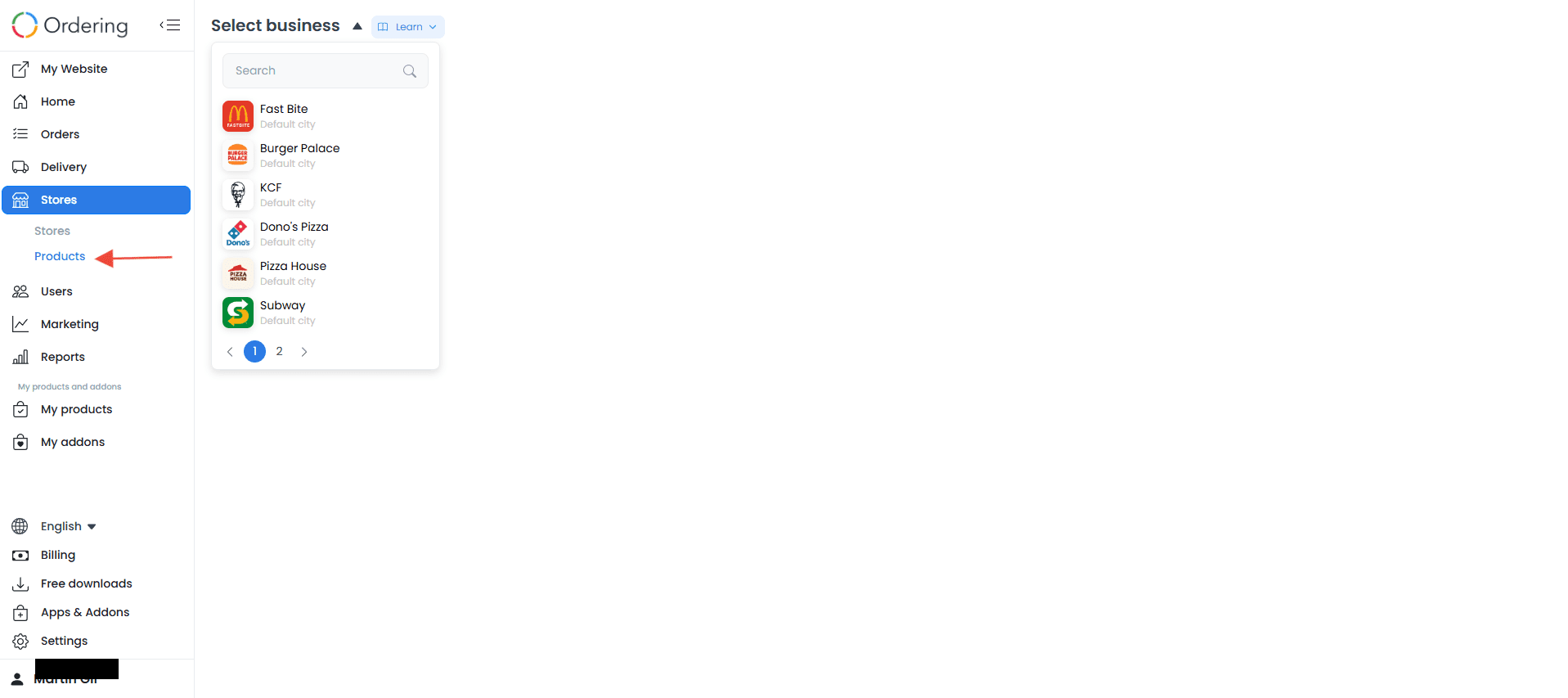
Use Stores to manage stores and the products they offer.
Stores
Products
Users
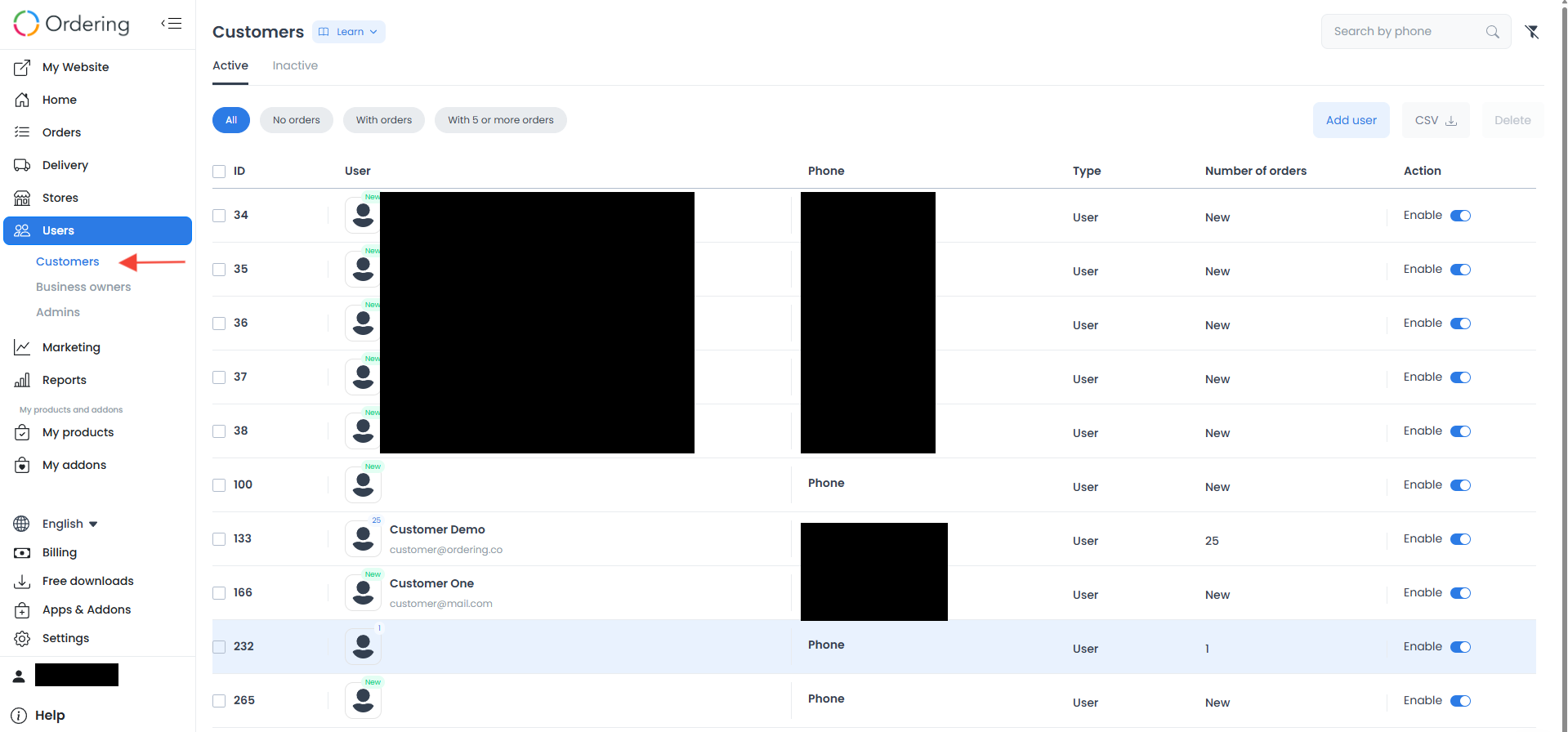
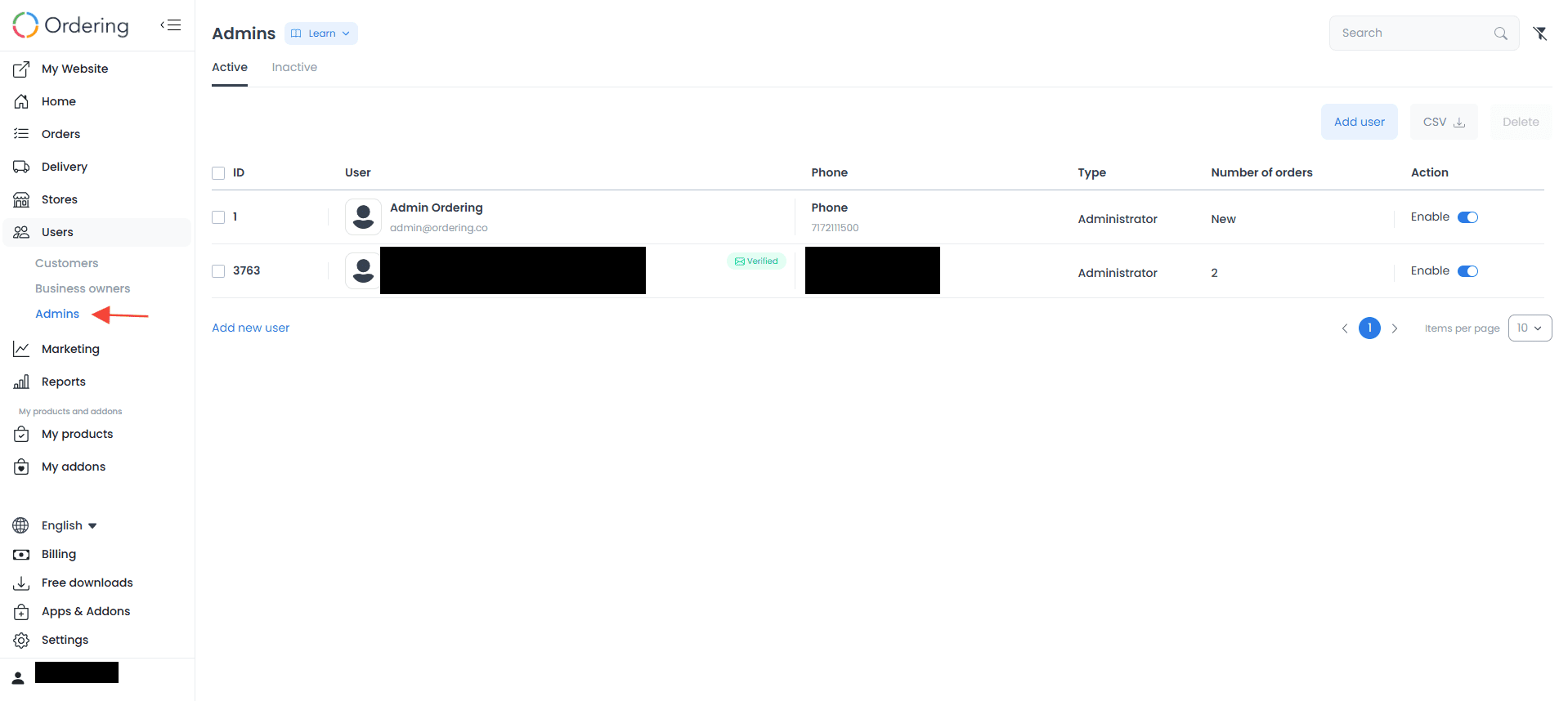
Use Users to manage information for customers, business owners, and administrators according to your permissions.
Customers
Business owners
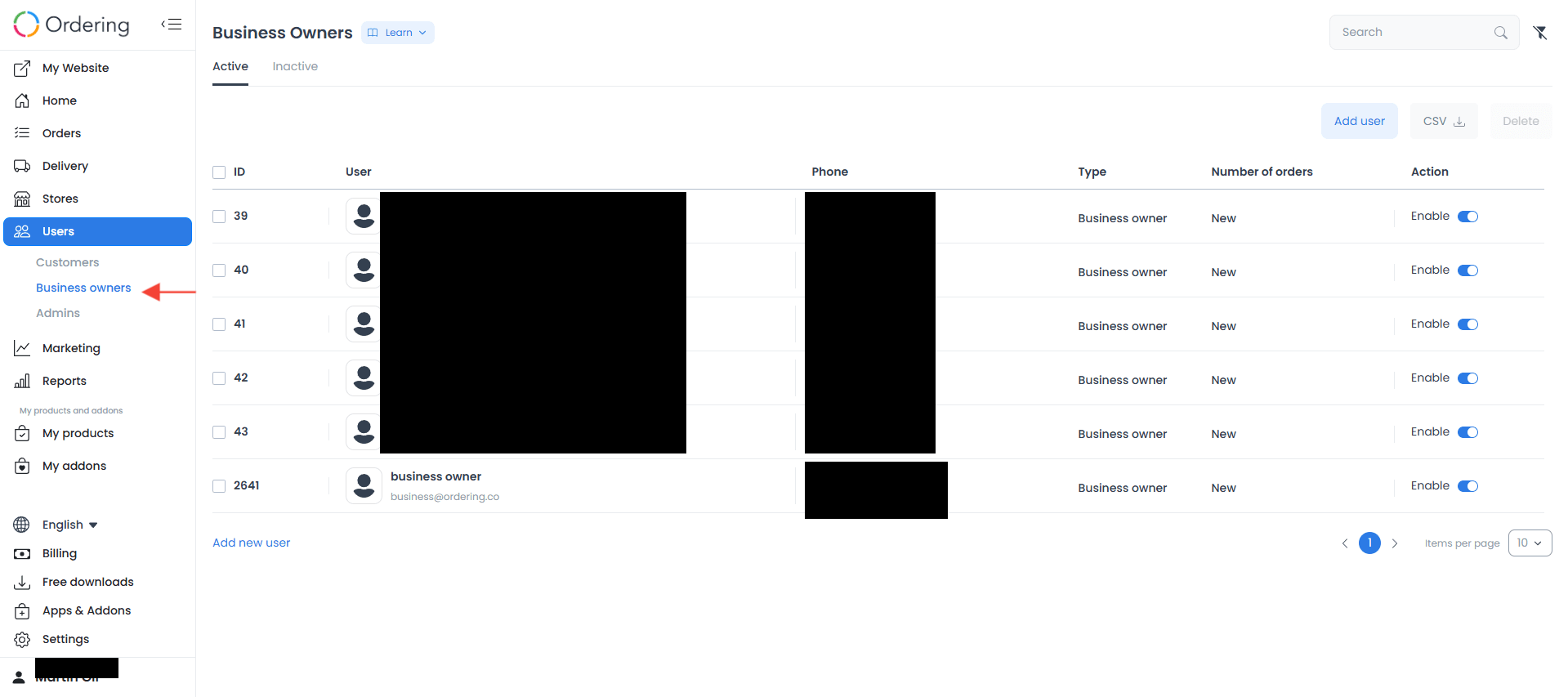
Administrators
Marketing
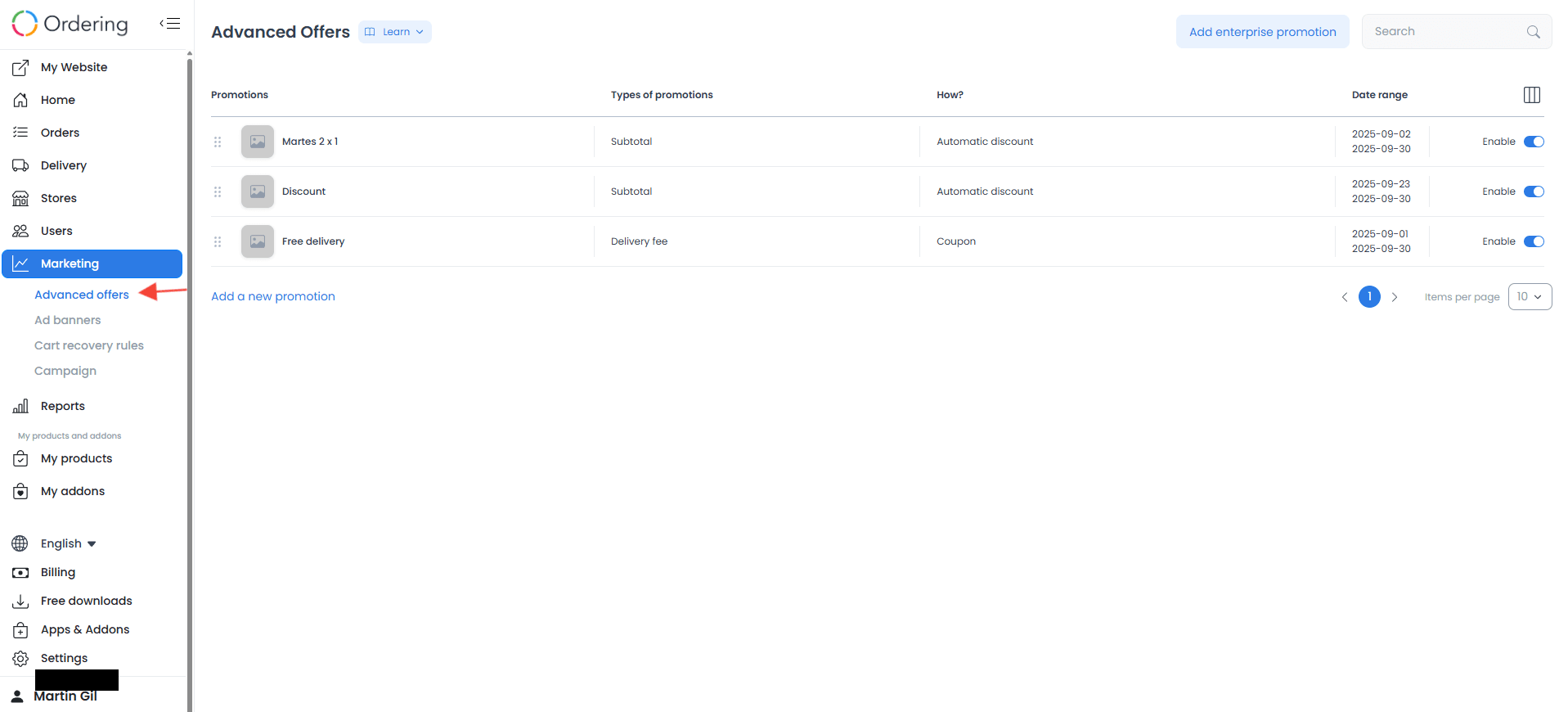
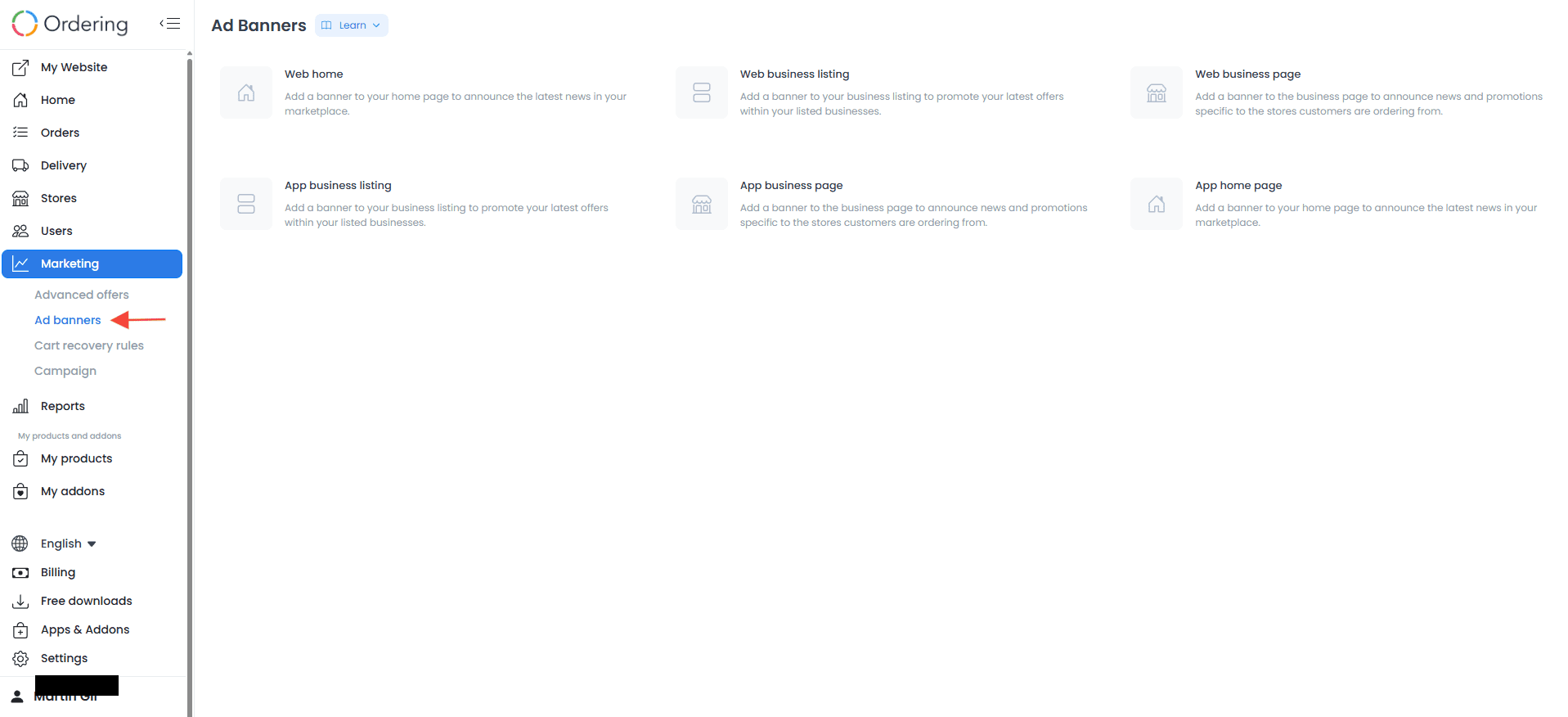
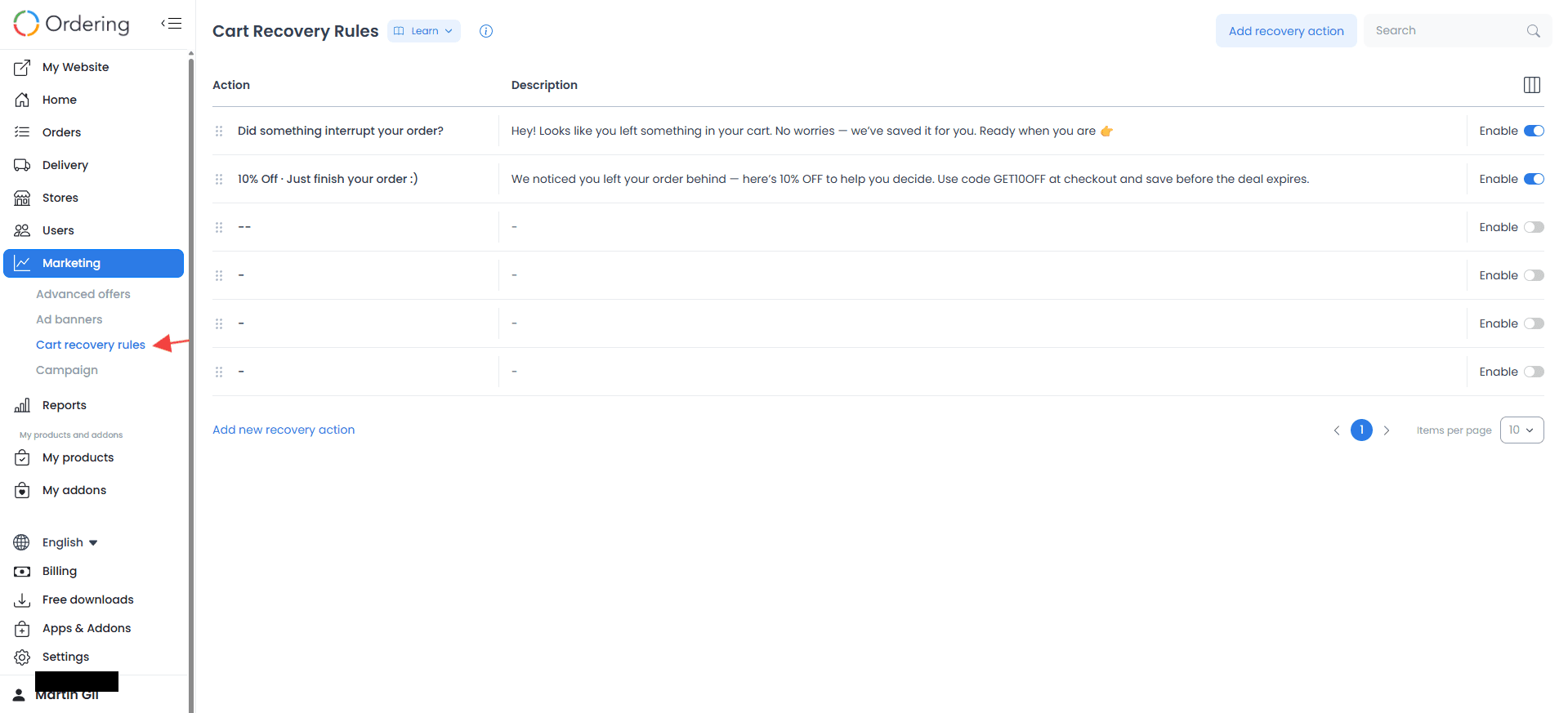
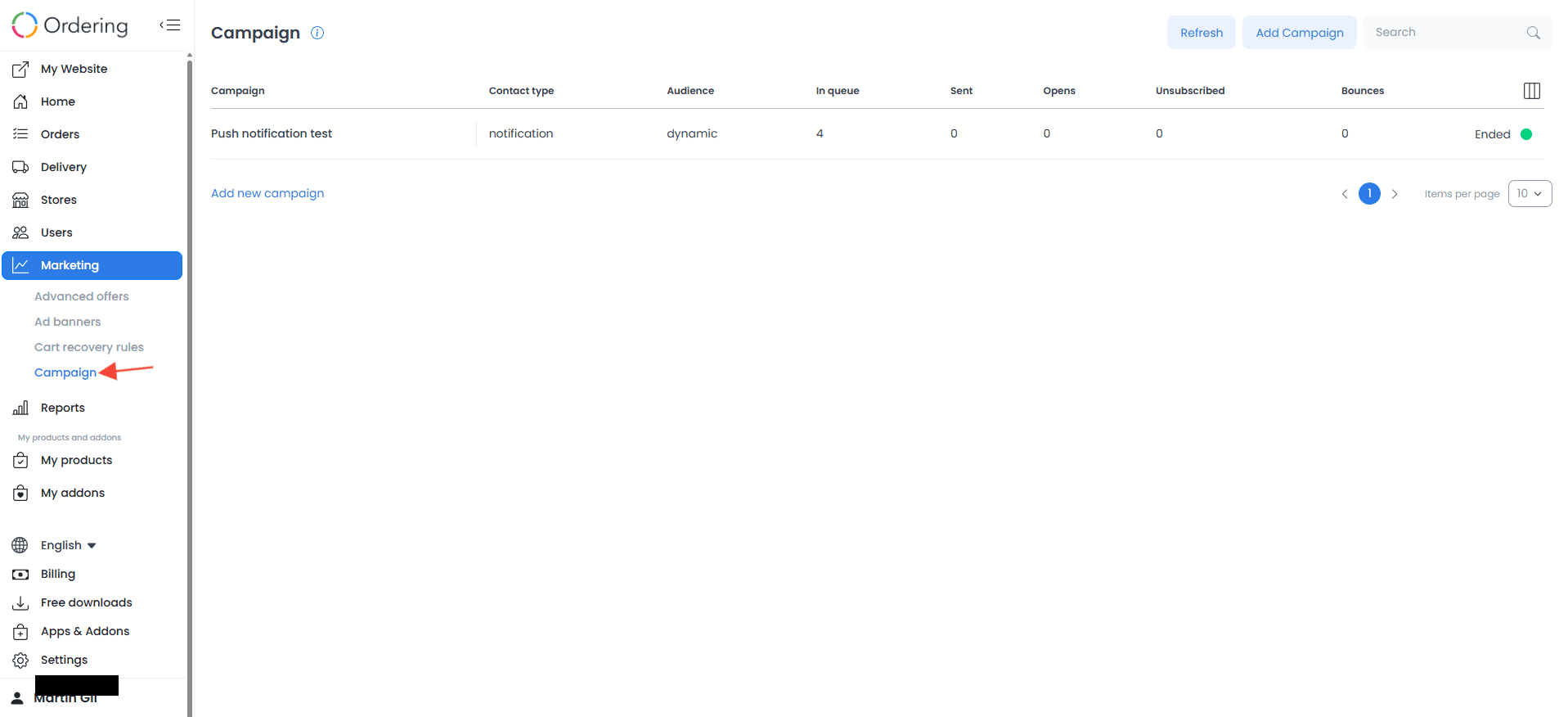
Use Marketing to manage offers, ad banners, cart-recovery rules, and campaigns when they are enabled for the project.
Advanced offers
Ad banners
Cart recovery rules
Campaigns
Reports and business intelligence
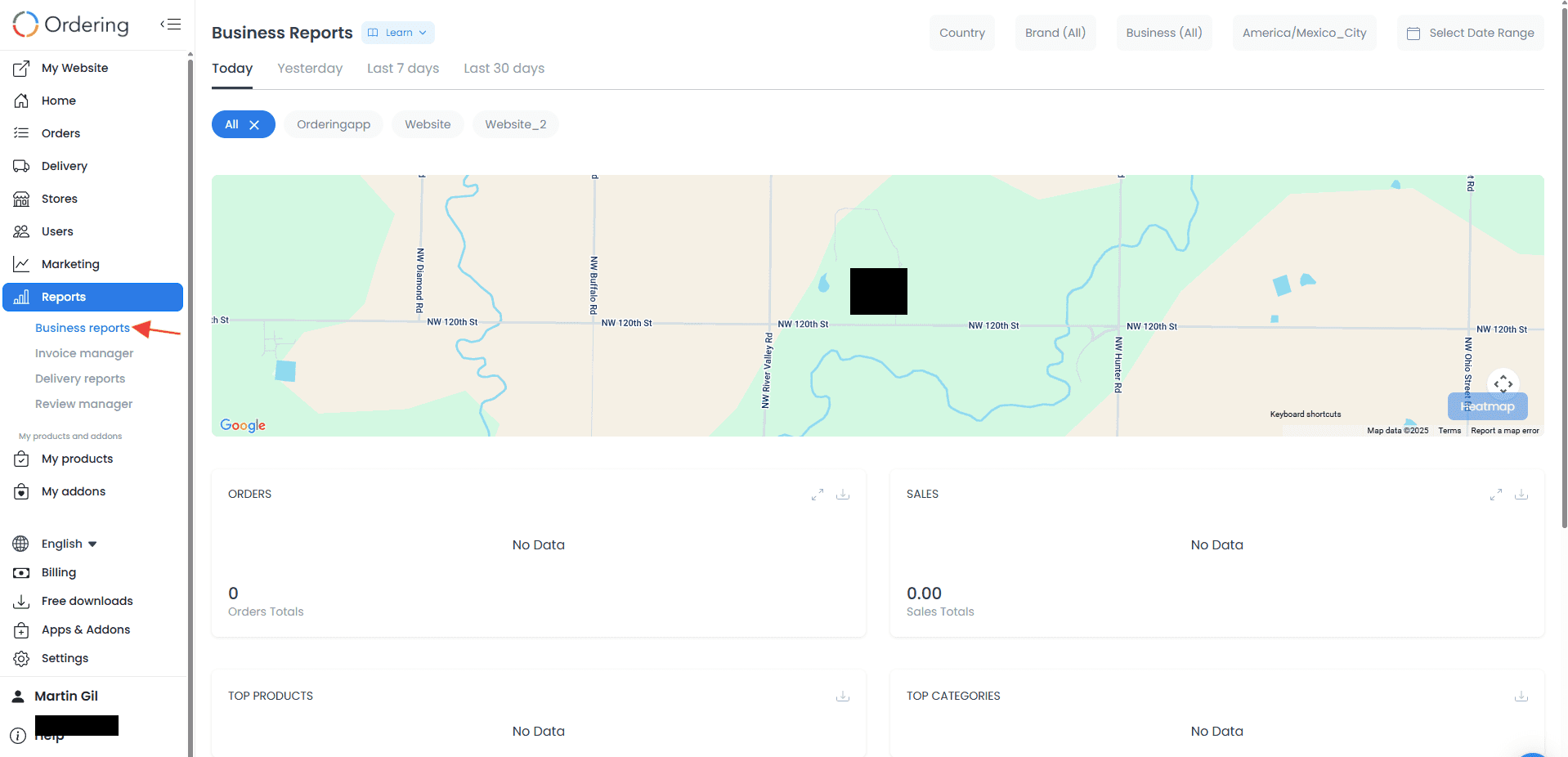
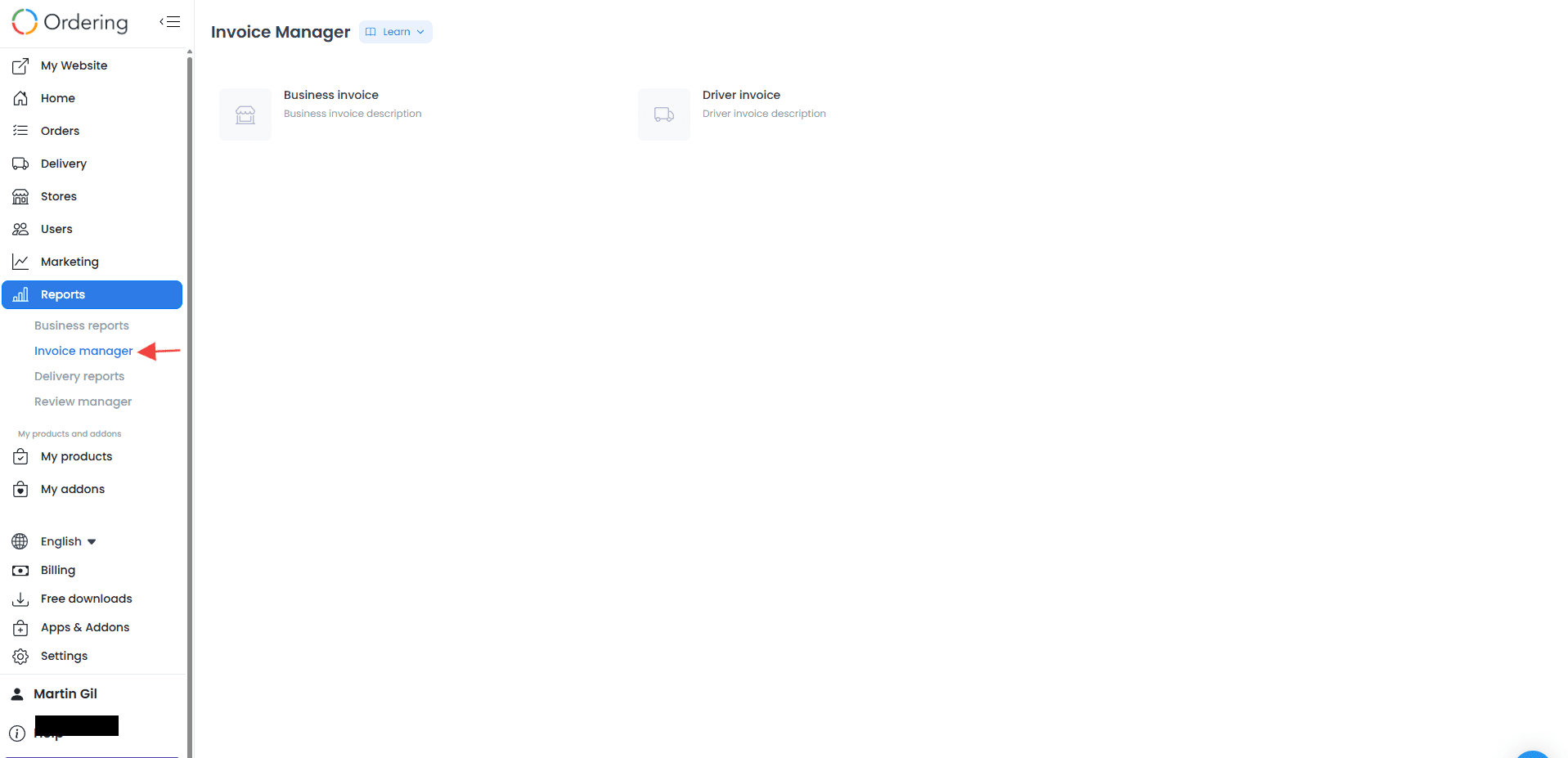
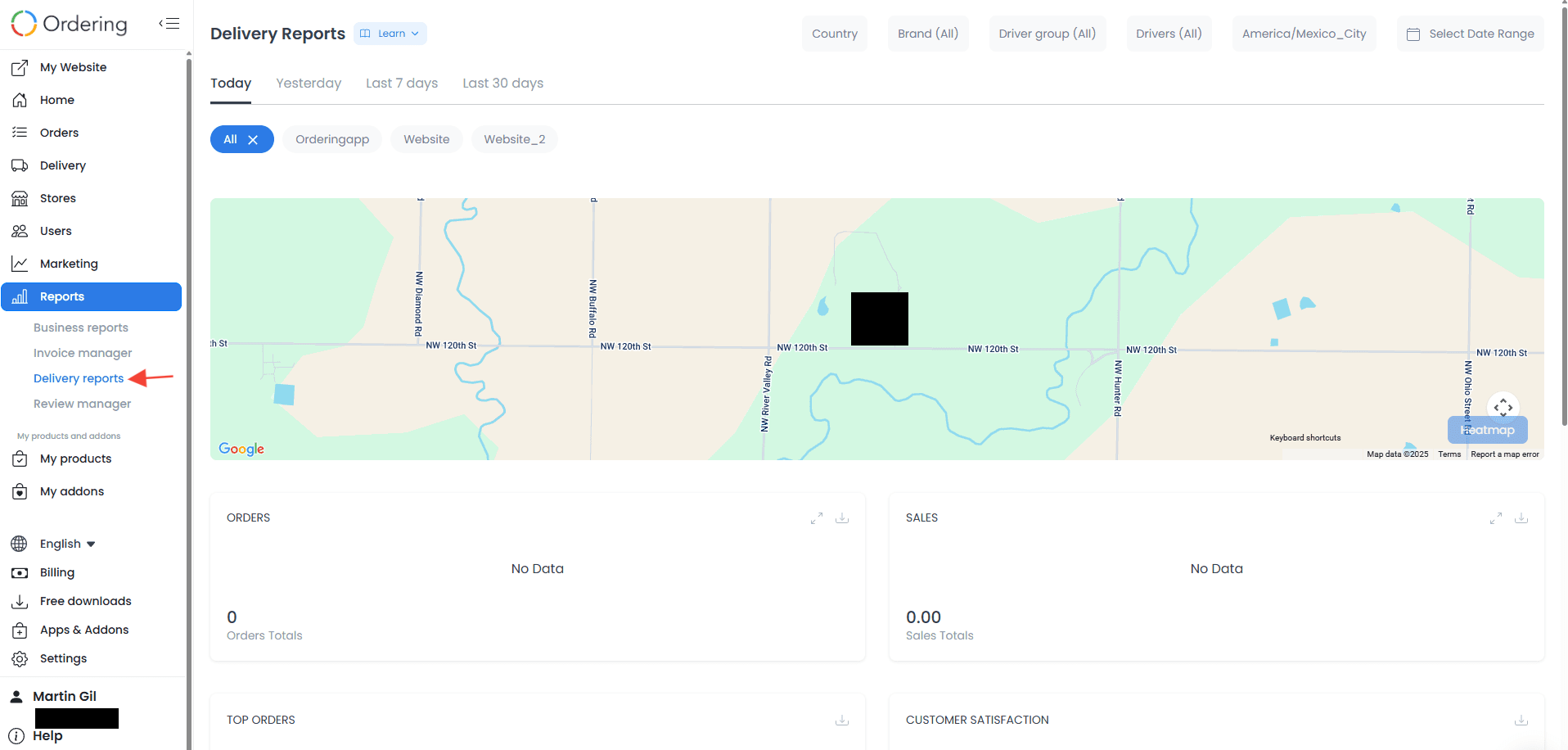
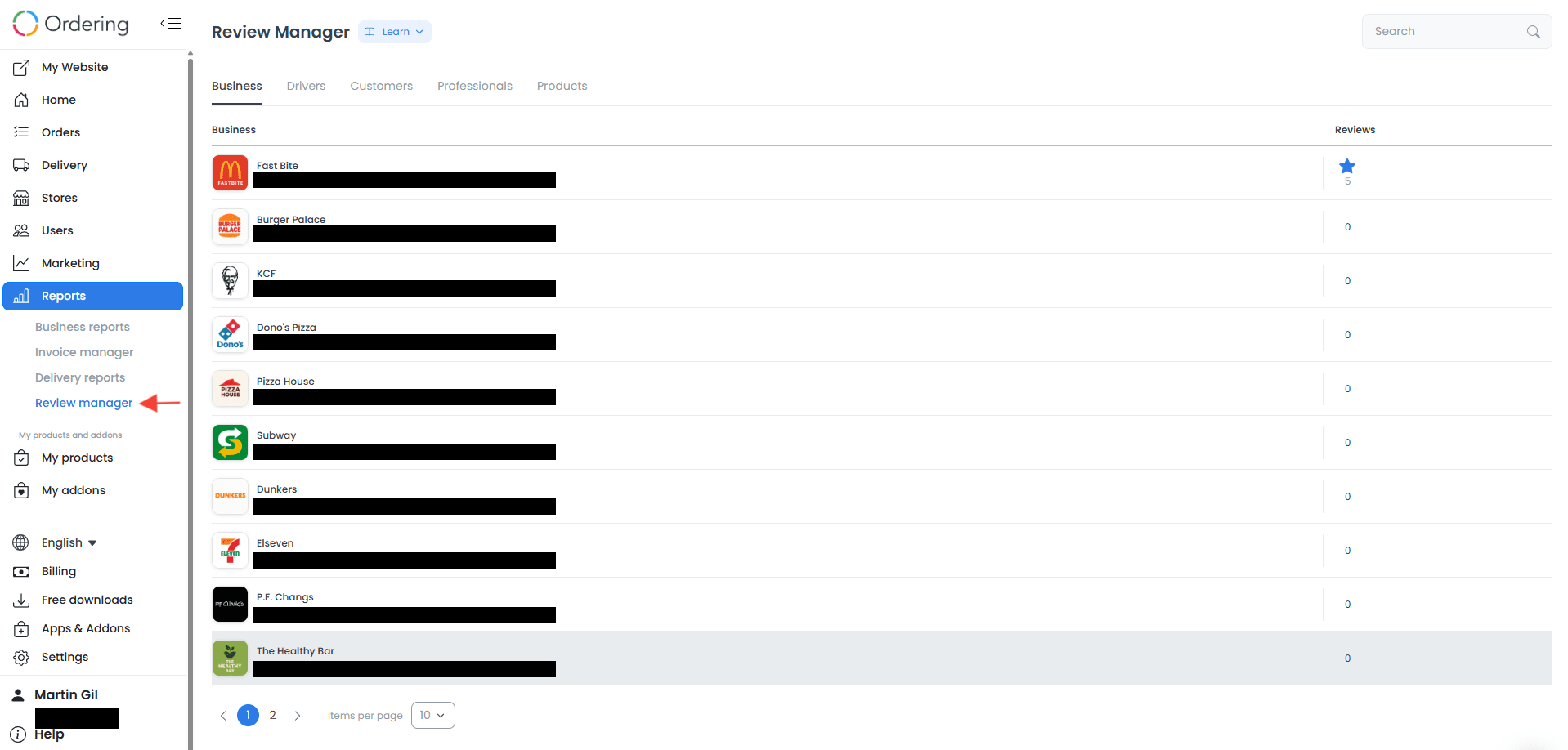
Use Reports and business-intelligence views for detailed business, invoice, delivery, and review information. Access, data, and filters depend on the selected project and report.
Business reports
Invoice manager
Delivery reports
Review manager
Additional sidebar areas
- Multilanguage lets you select from the languages available to the project. Ask an administrator about a language that is not available.
- Settings controls configuration for internal and customer-facing operations. Use the relevant settings guide before saving a change.
- My products lists the apps and products enabled for the project.
- Support opens the available support path for the account.
- Profile identifies the user signed in to the Dashboard.
Practical uses
- Monitor sales and performance: Review daily, weekly, or monthly revenue and use detailed reports to support business decisions.
- Manage orders and deliveries: Review order status, delivery zones, estimated times, and driver assignments where those controls are available.
- Customize your website: Open the storefront from the Dashboard and update colors, logos, text, or layout through the appropriate website workflow.
- Manage users and roles: Create team accounts with the permissions required for their work, and control who can modify each area.
- Run marketing activities: Manage promotions, coupons, discounts, and approved external tools through the controls available to the project.
Troubleshooting
Why do I not see Visit my Website?
The button is not rendered for business-owner accounts. Confirm that you are in the intended project and signed in with the expected account type.
Why are report values empty or zero?
The page requests today’s order and sales reports separately. A zero can mean that the response contained no matching values for the Dashboard’s local date. An unavailable value can also reflect loading or a request error. Confirm the project and your access before relying on the summary.
Why do I not see More Services?
This section is shown only to administrator-level users.
Understanding the Dashboard layout helps you move from the Home overview to the correct operational area while keeping project access and permissions in view.