Help, support, and AI Agents
External destination boundaries
Open the account menu at the bottom of the sidebar and select Help to open the Ordering.co Help Center. Help may be hidden for a business owner in a branded project. Follow the help channel provided by your project in that case.
Eligible administrators also see Share ideas. It opens a separate feedback form. Use your project's support channel when you need help with an existing issue.
Internal support route
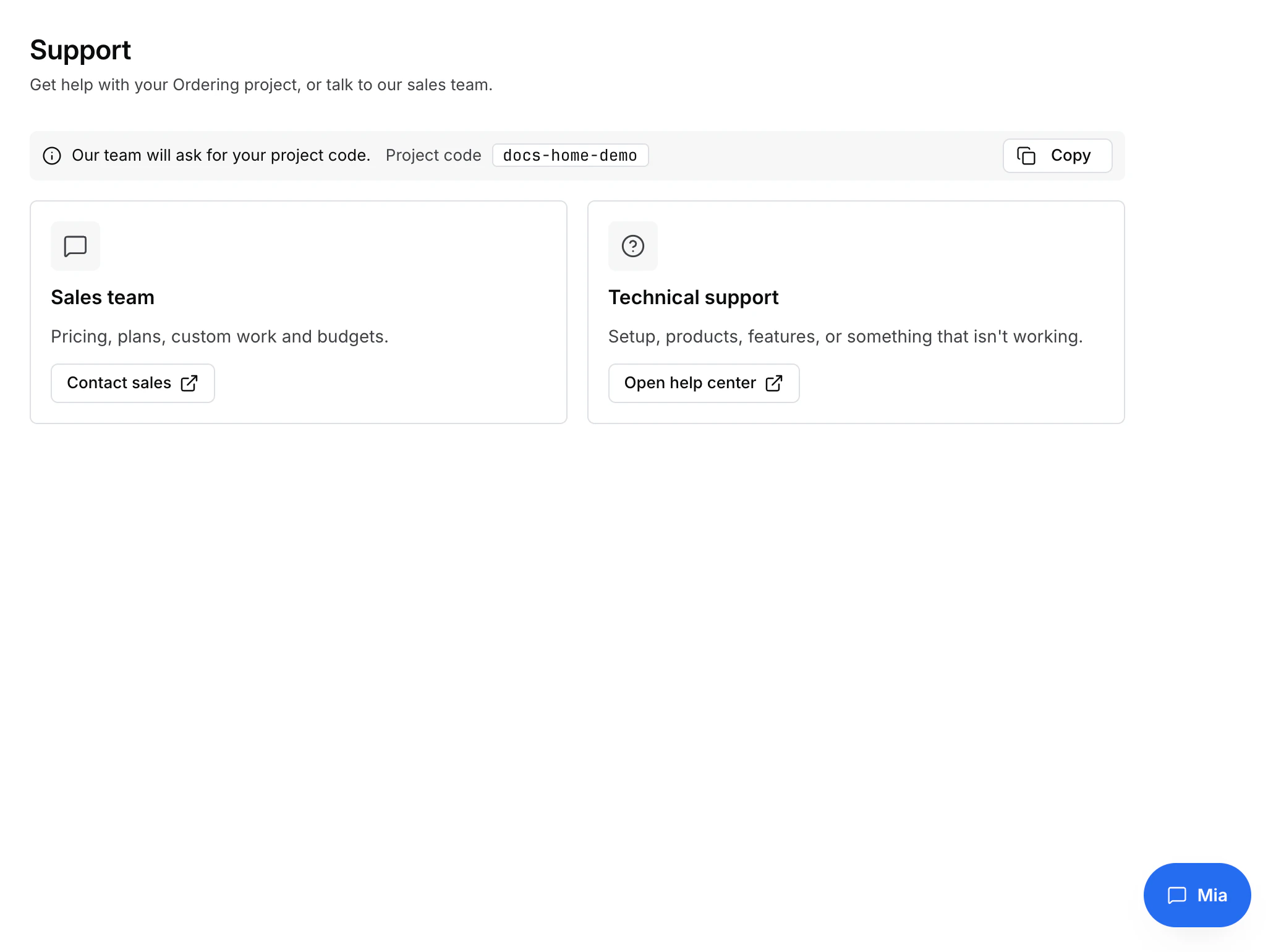
Administrators who open the project's Support page can see and copy the Project code. Contact sales opens the sales contact page, and Open help center opens the documentation. Each link opens a new tab. Copying the code or opening a link does not send a support request.
Request support safely
When you contact support through your project's channel, include the project code, the area of the Dashboard, and what happened. Remove passwords, sign-in codes, customer details, and payment information from any screenshot you share.
Open AI Agents
- As an administrator with edit access, open Grow → AI agents.
- With the AI module enabled, the Dashboard opens AI Dashboard in a new tab and tries to carry over the session for your project. If the project needs an upgrade, the Dashboard can show an upgrade form.
- If the tab does not open, check whether the browser blocked the pop-up. If the destination asks you to sign in, confirm your project and use the account authorized for that product.