Create or edit a Delivery group
Create a Delivery group to connect one or more businesses with either individual in-house Drivers or Driver companies. You can then maintain its businesses, member relationship, manager relationship, and supported delivery settings. Saving a group configuration records settings; it does not prove that a Driver was found, notified, assigned, arrived, or completed a delivery.
Creating, editing, and deleting groups requires authorized Dashboard access. The fields and sections shown in a project can vary with your role and the project's delivery configuration.
Create a Delivery group
- Go to Delivery → Delivery Groups.
- Select Add driver group.
- Complete General.
- Select the businesses in Businesses.
- Complete any supported conditional sections.
- Review every selection, then select Save.
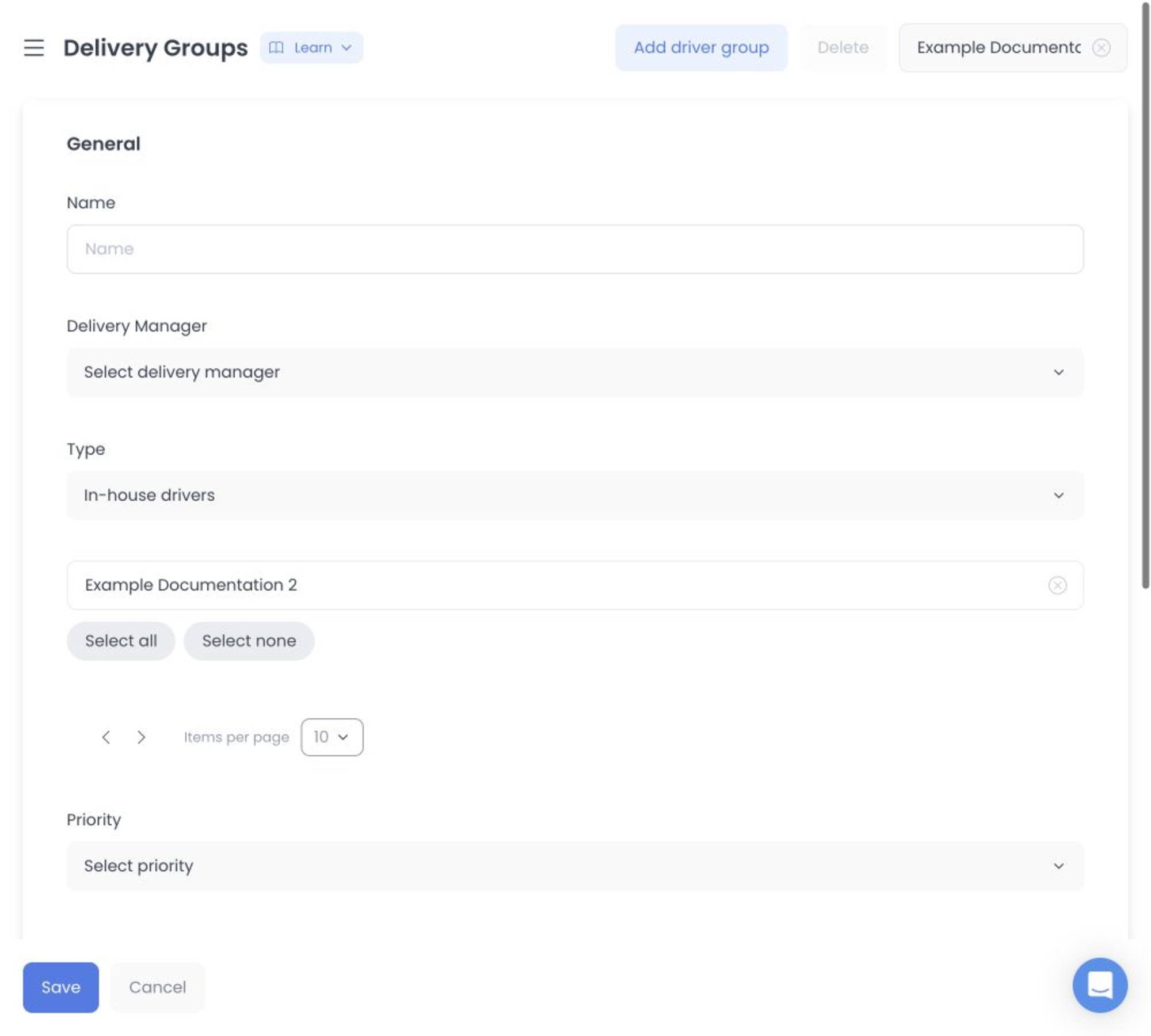
Opening the form does not create a group. The group is created only after you select Save and the Dashboard accepts the request.
Complete General
In General, provide the fields that are available for the group:
- Name is required.
- Driver manager can be available for sessions that can choose a manager. A Driver manager who creates a group can be associated with it automatically instead of seeing this selector.
- Type is In house drivers or Driver companies.
- Drivers or Driver companies selects at least one member for the chosen type.
- Priority can be available as a group operating setting.
- A maximum Driver-availability distance or supported Advanced logistics control can also be available.
Choose the type before choosing members. An In house drivers group needs individual Driver accounts; a Driver companies group needs Driver company records. Changing the type can remove an incompatible member relationship, so review the new selection before saving.
Assign businesses
Open Businesses to select the stores that will use the group. The selector can support Search, individual checkboxes, Select all, Select none, and pagination.
At least one business is required to create a group. The save control can remain unavailable until the group has a name, at least one business, and at least one member for the chosen type.
When you save a changed business selection for an existing group, the selection replaces the group's current business relationship. Removing a business can remove that business's relationship to existing group delivery zones; adding one can associate it with those existing zones. Review the complete selected list before saving.
Use conditional sections carefully
Existing groups can expose additional sections:
- Payment methods can manage the group's allowed payment-method relationship.
- Delivery zones can have their own add, edit, enabled-state, and delete actions.
- Advanced logistics can configure group-order and assignment behavior.
- Logs can show recorded changes to eligible accounts.
The Delivery-zone editor can include a name, shape type, minimum purchase, delivery fee, recipient, and a distance or map/KML geometry, depending on zone type. Map drawing requires the project's Google Maps configuration. Each group, member, business, payment-method, and zone change is a separate saved operation.
Adding, editing, enabling, disabling, or deleting a Delivery zone is a saved change. Do not make exploratory changes in a live group.
Configure Advanced logistics
When Advanced logistics is available, select the order status that begins its evaluation. The available choices can include Accepted by business and Preparation completed. A delivery that remains Pending has not reached either of those trigger states.
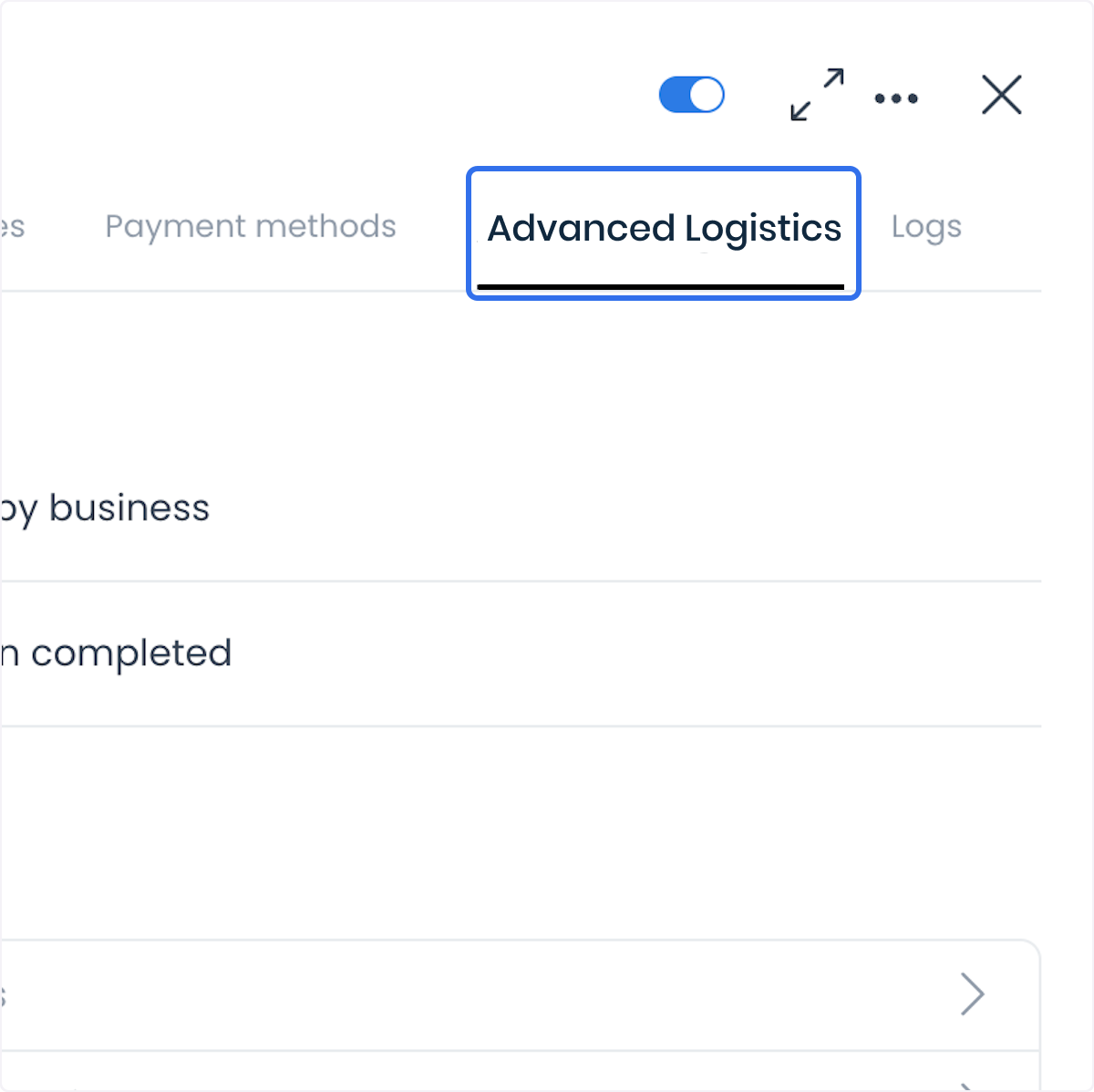
Advanced logistics can evaluate configured Driver and order conditions after the selected trigger is reached. That evaluation is separate from the result: configuring it or reaching a trigger does not establish that an assignment request reached a Driver, that the Driver accepted it, or that the delivery was completed.
Configure Group orders
Use Group orders to define the conditions for combining eligible orders. The configuration can include:
- The status that starts the logistics evaluation.
- The maximum number of orders that can be grouped. Fewer orders can still be grouped.
- The maximum time between orders.
- The maximum distance between pickup businesses.
- The maximum distance between delivery points.
- Optional map-derived distance and time inputs when the project uses Google Maps services.
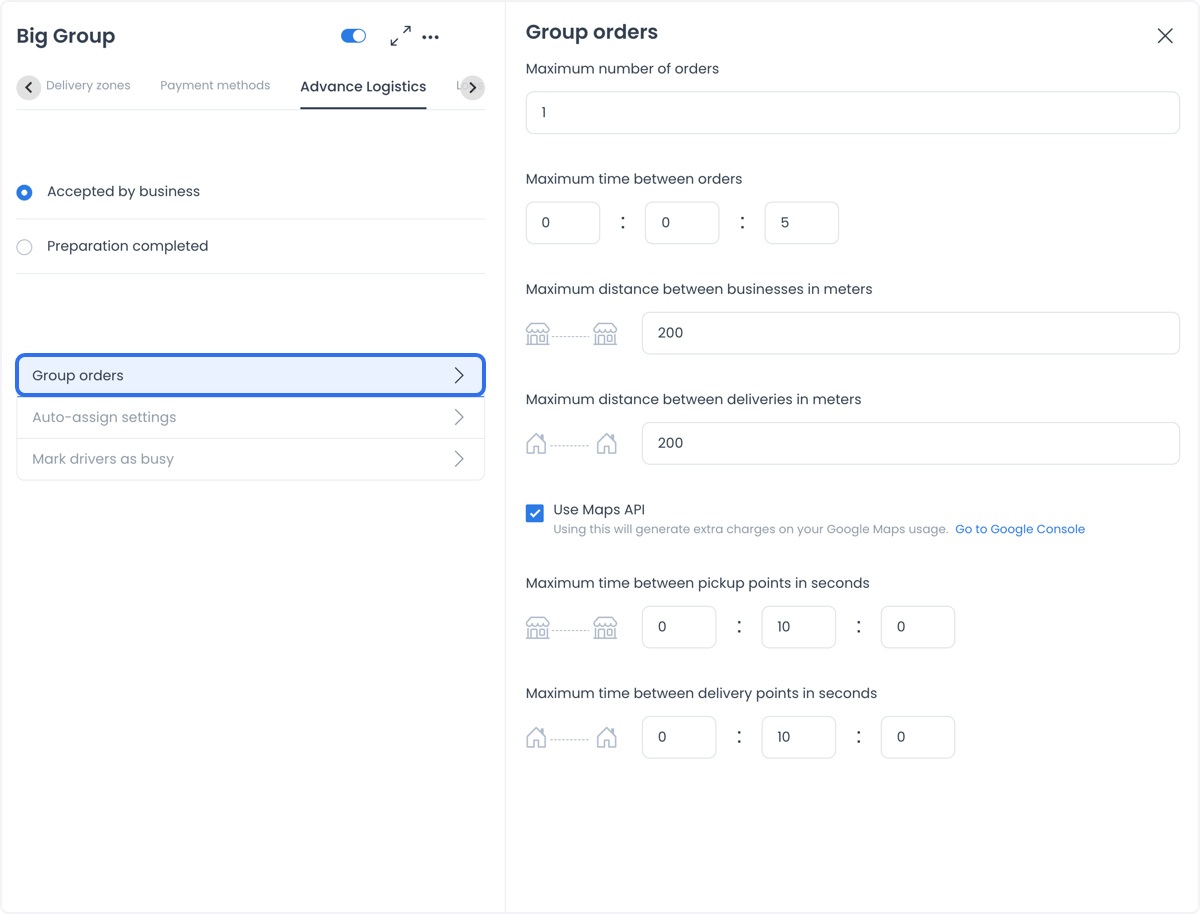
The values in this example are illustrative, not recommended operating values. Map-derived distance or time data is an input to the configured logic; it does not promise a route, traffic outcome, or delivery result.
Choose an assignment method
Use Auto-assign settings to choose a method and its thresholds. Supported methods can include:
- One by one offers an order to one eligible Driver at a time. If a request expires without acceptance, the configured process can continue to another Driver.
- Send to all can offer a request to multiple eligible Drivers, subject to the configured Driver limit and search radius. It does not necessarily notify every Driver or notify them at the same time.
- Nearest available can use a smaller starting radius and a more limited expansion pattern.
- Batch-wise can send requests to a limited batch of Drivers while the radius continues to expand.
- Round robin can offer orders one at a time without requiring the next Driver to be the closest one.
- Custom can expose additional parameters for a project-specific workflow.
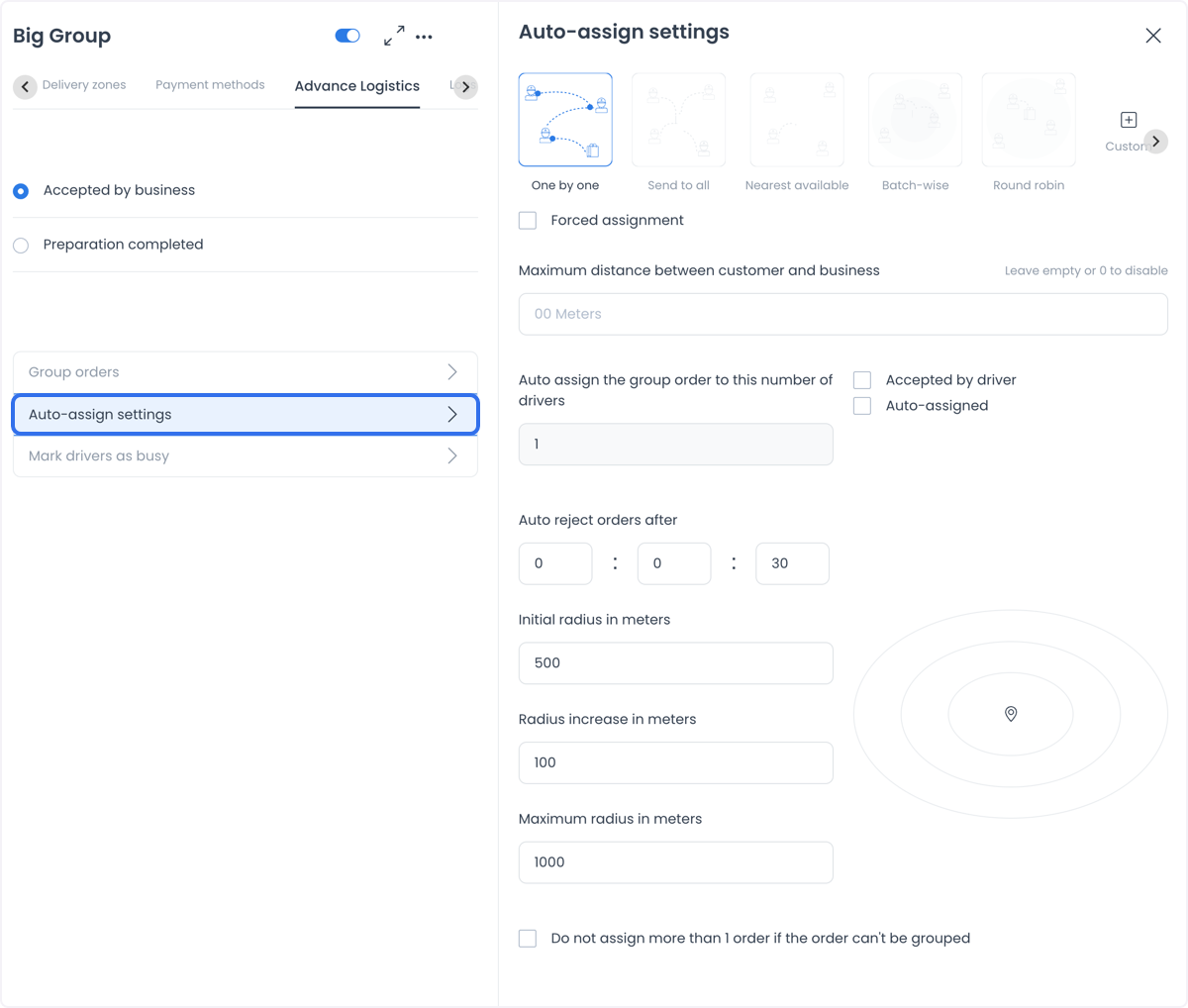
Review each supported setting before saving:
- Forced assignment can allow a request or automatic path outside the configured coverage area.
- The maximum customer-to-business distance can limit which orders enter the logistics evaluation.
- The Driver count limits how many Drivers can receive an assignment request.
- Accepted by driver and Auto-assigned are separate choices; review which behavior your operation requires.
- A setting can allow the operation to use its configured acceptance behavior when only one Driver is available.
- The initial search radius, increase rate, and maximum radius set the bounds for the Driver search.
- If the maximum radius is reached without a Driver, the configured workflow can place the order in a queue or apply its configured handling. This is not proof that a Driver was found.
Set capacity and busy behavior
Use Mark Drivers As Busy to set the available capacity controls. The label can govern a maximum number of orders and, when advanced options are enabled, can expose limits at selected order-status stages.
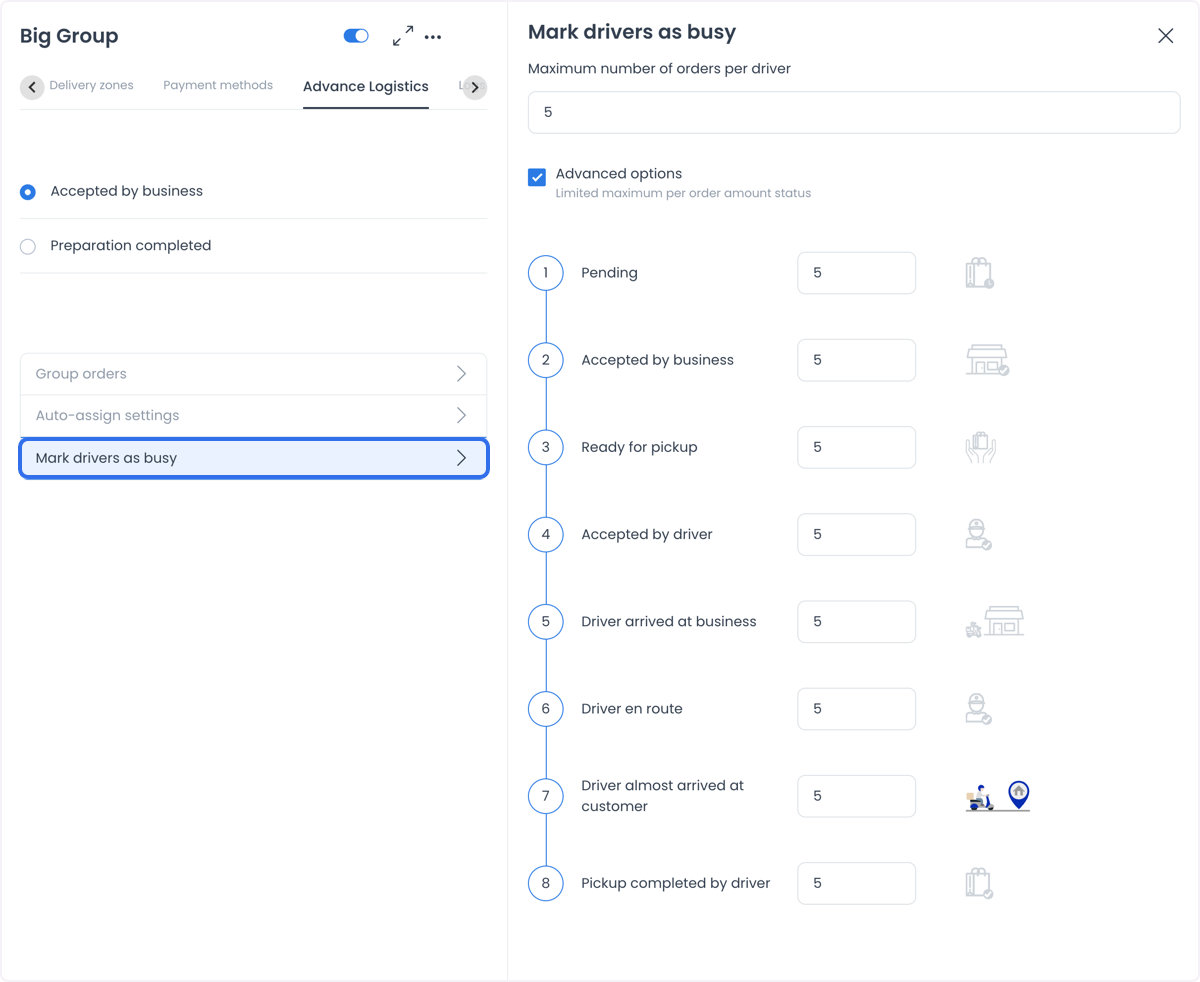
Confirm the scope of the maximum count in your own project before relying on it operationally. Capacity settings are separate from the number of orders configured under Group orders, and they do not guarantee that a Driver can accept another order.
Run a controlled first test
Use a controlled test group and a test order only in a project approved for testing. Do not test on an active customer delivery.
- Create or select the group, then associate the intended Drivers and businesses.
- Choose an assignment method, the trigger status, capacity, acceptance window, and distance settings that match the test.
- If a test requires it, review Forced assignment and the search-radius values before enabling the option.
- Save the group settings.
- Confirm that the test Driver is marked available in the Driver App and has the required location permission.
- Create or open an approved test delivery from a business associated with the group.
- Move the order to the trigger status selected in the group configuration.
- Review the relevant Driver App and order records for the actual result.
An Auto reject orders after value defines the acceptance window. In One by one, a request that expires can move to another eligible Driver under the group configuration. The request expiration does not, by itself, cancel the customer's order.
Troubleshoot an order that was not assigned
Confirm all of the following before making another approved change:
- The business and Driver or Driver company belong to the Delivery group.
- The Driver is available and the group has the intended capacity.
- The order reached the group’s selected trigger status.
- Distance and search-radius settings permit the configured evaluation.
- The acceptance timeout has not expired unexpectedly.
- The order's logistics history shows the result that actually occurred, such as no Driver found or an expired request.
Use the order number and Delivery group in the approved support process when escalation is required. Do not infer the result from a saved setting, a map view, or an assumed notification.
Delete a group
Use the detail delete action or the list's selected-group deletion only when the group is no longer needed. The Dashboard can request confirmation, and some group relationships can prevent deletion.
Before deleting, verify the group type, business assignments, member assignments, and any connected Driver company. Use a controlled test group if you need to practice the deletion flow.
Related guides: Delivery groups · Drivers dashboard · Deliveries dashboard