Create or edit a Delivery group
Create a Delivery group to connect one or more businesses with either individual in-house drivers or Driver companies. After it exists, use its detail sections to maintain its businesses, manager relationship, and any supported delivery settings.
Creating, editing, and deleting Delivery groups is limited by Dashboard access and API authorization. The fields and sections described below can vary by role, Enterprise plan, and auto-assignment configuration.
Create a Delivery group
- Go to Delivery → Delivery Groups.
- Select Add driver group.
- Complete General.
- Select the businesses in Businesses.
- Complete any conditional sections that are available.
- Review the selections, then select Save.
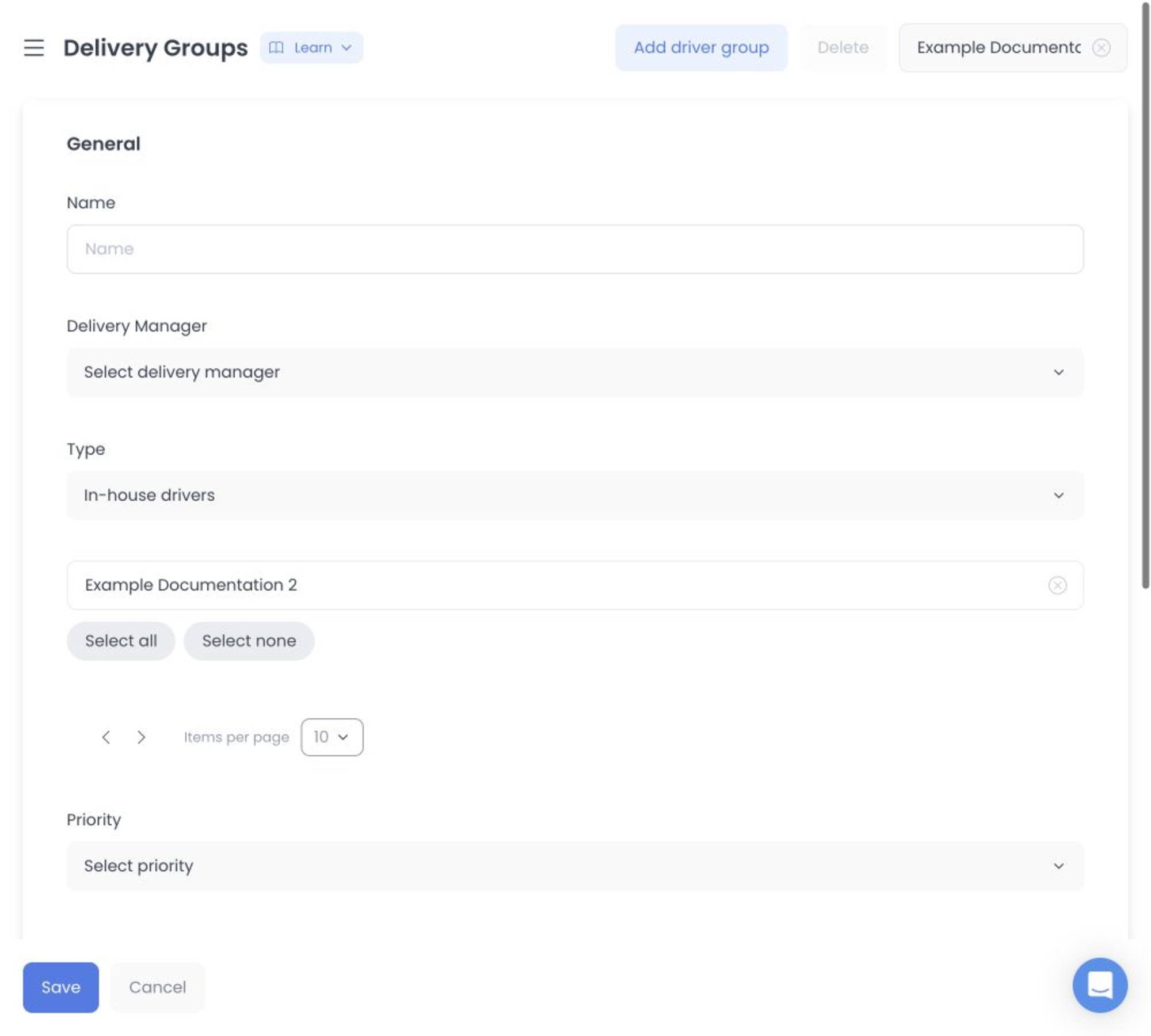
Opening the form does not create a group. The Dashboard creates it only when you select Save and the request succeeds.
This workflow is documented from the current Dashboard and fixed API source. It does not prove that a hosted project serves those revisions. Confirm the fields, sections, and authorization shown in the intended project before preparing any change.
Complete General
In General, provide:
- Name — Required.
- Driver manager — Available for sessions that can choose a manager. A Driver manager creating a group may be assigned automatically instead of seeing this selector.
- Type — Choose In house drivers or Driver companies.
- Drivers or Driver companies — Select at least one member for the type you chose.
- Priority — May be available on Enterprise projects. The choices are Low, Normal, High, and Urgent.
Choose the type before choosing members. An In house drivers group needs drivers; a Driver companies group needs Driver companies. The Dashboard and API validate the selected relationship against the chosen type.
Assign businesses
Open Businesses to select the stores that will use the group. The list supports search, individual checkboxes, Select all, Select none, and pagination.
At least one business is required to create a group. Save remains unavailable until the group has a name, at least one business, and the required driver or Driver-company selection for its type.
When you later change an existing group's businesses, the saved selection replaces the current group/business assignment. Removing a business also removes that business's associations with the group's existing delivery zones; adding a business associates it with each existing group delivery zone. Confirm the full selected list before saving.
Save and validate the new group
After you select Save, the API validates the name, selected businesses, member ids, and other supplied values. It also validates that in-house members are drivers and that selected managers are eligible Driver managers.
If the request is rejected, review the message in the Dashboard, correct the stated value or relationship, and try again. A Driver company can also be rejected when it is a protected plugin-owned system company already assigned to another group.
Edit an existing group
- In Delivery Groups, select the group row.
- Select the section you need, such as General or Businesses.
- Make the supported change.
- Select Save in sections that provide it, then wait for the confirmation.
In General, supported changes can include the group name, Driver manager, maximum driver-availability distance, type, selected drivers or companies, priority, and the available advanced-logistics setting. The Businesses section saves its complete selected-business list explicitly.
Member and business selectors can expose names, contact fields, and delivery relationships. Do not copy those values into support notes or screenshots unless the approved task requires them, and never use live records to rehearse this workflow.
Changing from In house drivers to Driver companies, or the reverse, can remove the incompatible existing member relationship. Review the new member selection and the operational impact before saving.
Use conditional sections carefully
Existing groups can expose additional sections. Do not expect them in every project:
- Payment methods can be available on Enterprise projects. Saving it changes the group's allowed payment-method relationship.
- Delivery zones can be available on Enterprise projects for supported sessions. It has its own add, edit, enabled-state, and delete operations.
- Advanced logistics can be available when the project's auto-assignment configuration supports it.
- Logs can be available in supported sessions to review recorded changes.
The Delivery-zone editor can include a name, shape type, minimum purchase, delivery fee, recipient, and either distance or map/KML geometry, depending on the zone type. Map drawing requires a configured Google Maps API key.
The current source models group, member, business, payment-method, and delivery-zone changes as separate API writes. A successful-looking control state is not evidence that every related write, background effect, or external service completed.
Adding, editing, enabling, disabling, or deleting a Delivery zone saves a separate change. Do not use zone controls as a preview, and do not make test changes in a live group.
Delete a group
Use the group detail's delete action or the list's selected-group deletion only when the group is no longer needed. The Dashboard asks for confirmation, but deletion is destructive and can be rejected for some group relationships.
Before deleting, verify the group type, business assignments, member assignments, and whether a Driver company is connected. Use a controlled test group if you need to practice the process.
Troubleshooting
Why is Save unavailable?
Provide a name, select at least one business, and select at least one driver or Driver company for the chosen type. The button also remains unavailable while there are no pending valid changes.
Why can't I select a Driver company?
Confirm that the group type is Driver companies. Some protected plugin-owned system companies cannot be assigned when they already belong to another group.
Why did a business lose delivery-zone access after I edited the group?
Removing a business from the group's saved business selection removes that business's associations with the group's existing delivery zones. Recheck the full business list before saving assignments.
Why is a conditional section missing?
Payment methods, Delivery zones, Logs, and Advanced logistics depend on the current role, project plan, and configuration. A missing section does not by itself indicate an error.
Related guides: Delivery Groups · Drivers dashboard · Deliveries dashboard