Drivers list
Use Drivers to find Driver account records and access the account controls available to your role. This list manages Driver accounts; it is separate from Drivers dashboard, which is a delivery-monitoring surface, and from the order workflow that assigns a Driver to a delivery.
Authorized administrators, Driver managers, and business managers can have access to Driver records. Sidebar visibility, route access, returned account scope, and individual actions can each be restricted by role, group or business relationship, and project configuration.
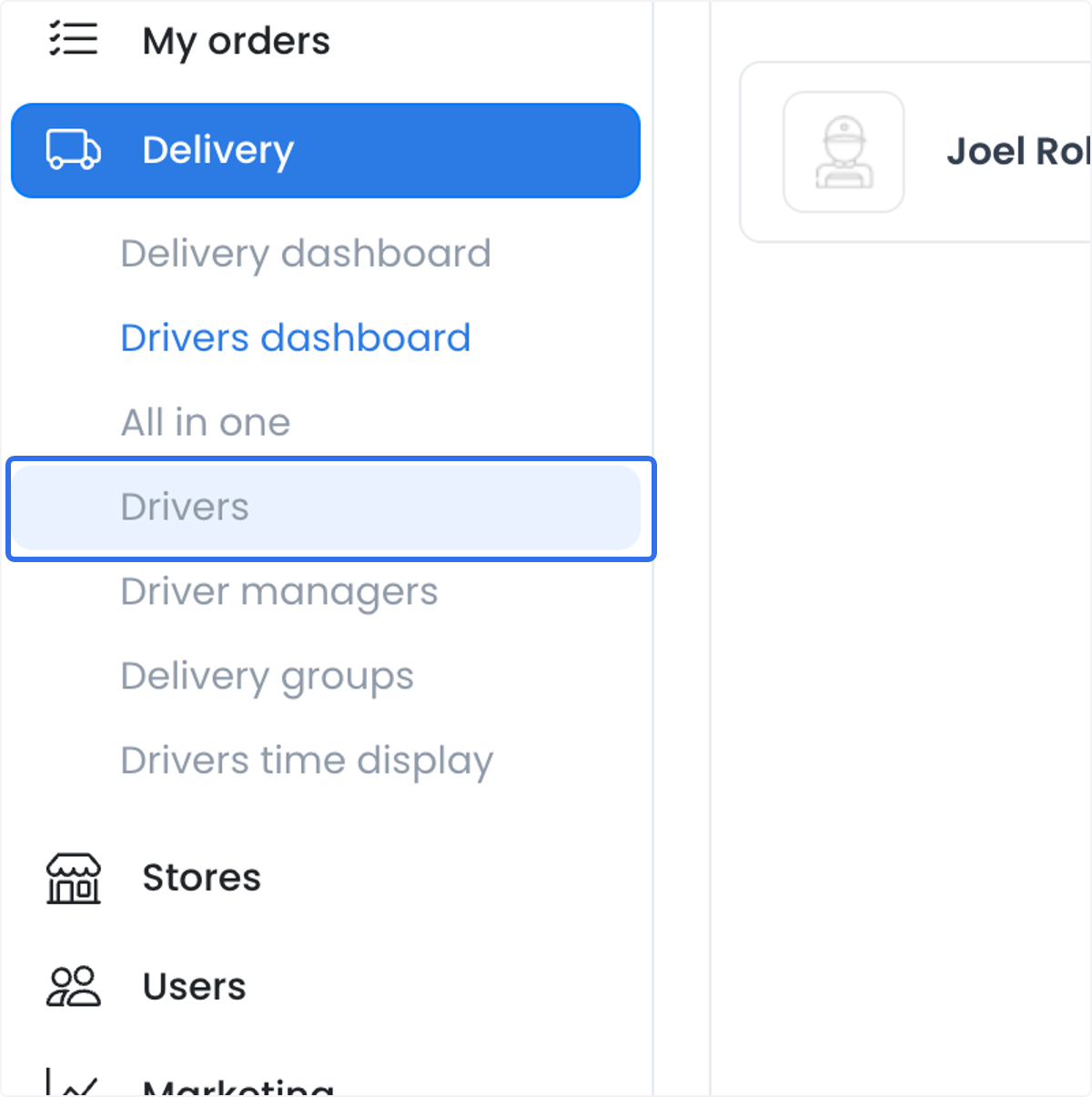
Open Drivers
- In the Dashboard sidebar, open Delivery.
- Select Drivers.
- Use Search or pagination to find the intended account.
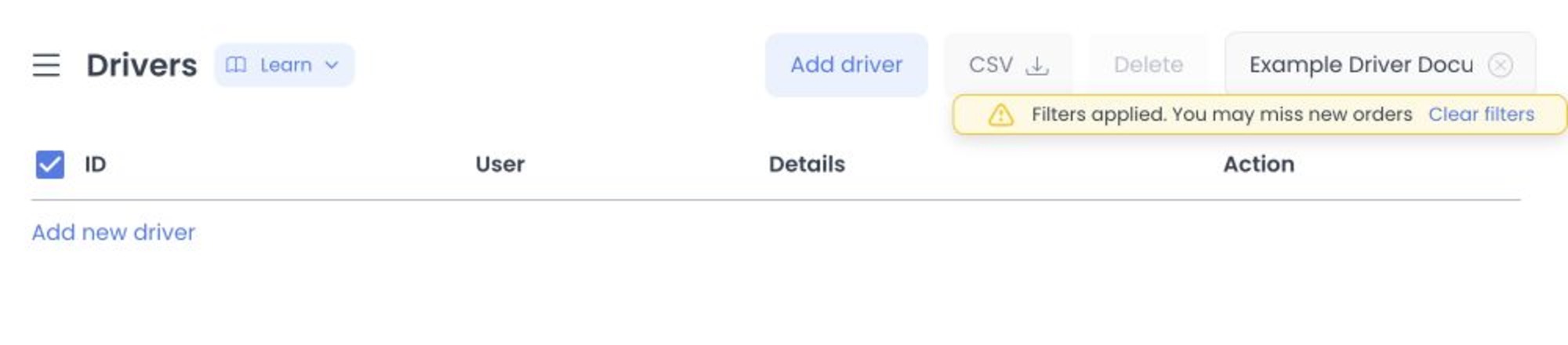
Selecting a Driver opens its account panel. Use only approved identifiers because the list and detail panel can expose personal and operational data.
Find and review a Driver account
The list can support name, email, and phone search plus pagination. It can show:
- Account identifier
- Profile image, name, and email address
- Phone number
- Phone or email verification badges when available
- Busy, Enable, and Available controls
- Page and page-size controls
The header can also expose Add driver, CSV, selection, and deletion actions. Use them only through an approved account-administration workflow. Account creation is covered in Create or edit a driver.
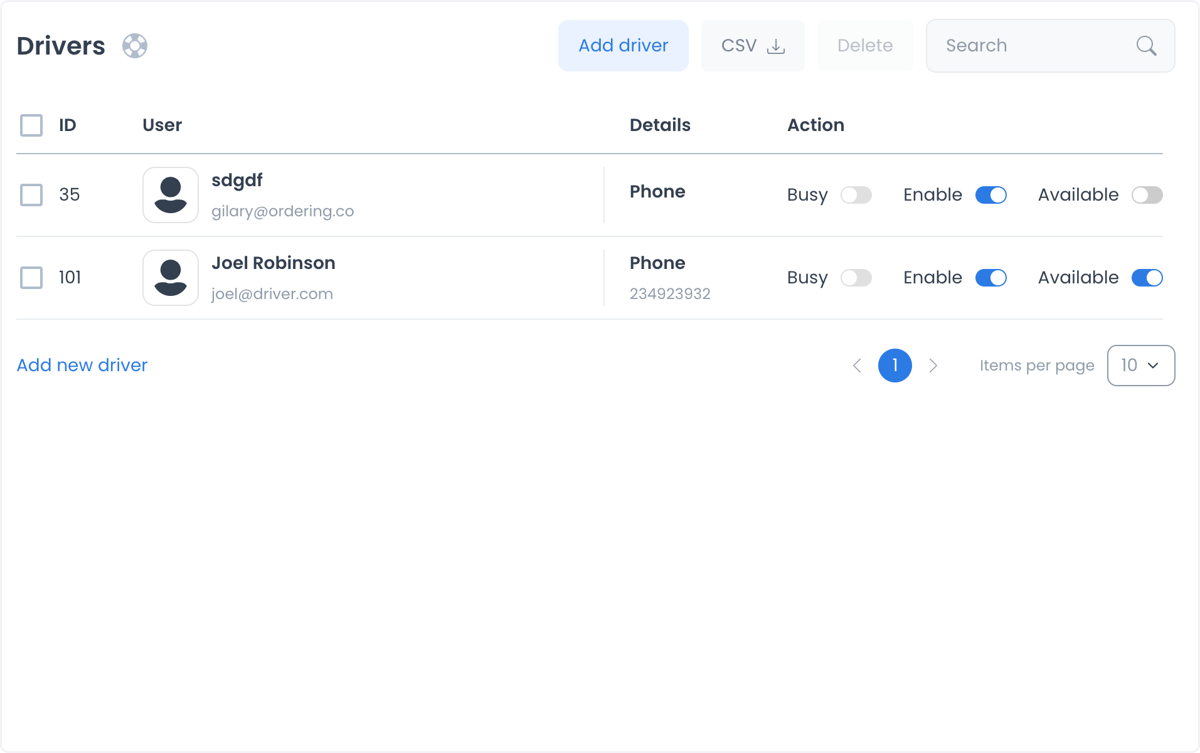
Driver records can contain personal information, verification state, and operational relationships. Do not copy those values into unapproved support notes, screenshots, or test data.
Treat list switches as mutation controls
The row switches are live account changes, not filters or previews.
| Switch | What it changes |
|---|---|
| Enable | Changes the Driver account's enabled state. Disabling can also clear availability. |
| Available | Changes the account's available state. Assigned work, schedule, and configured availability conditions can affect the result. |
| Busy | Changes the account's busy state. Assigned work and schedule conditions can affect the result. |
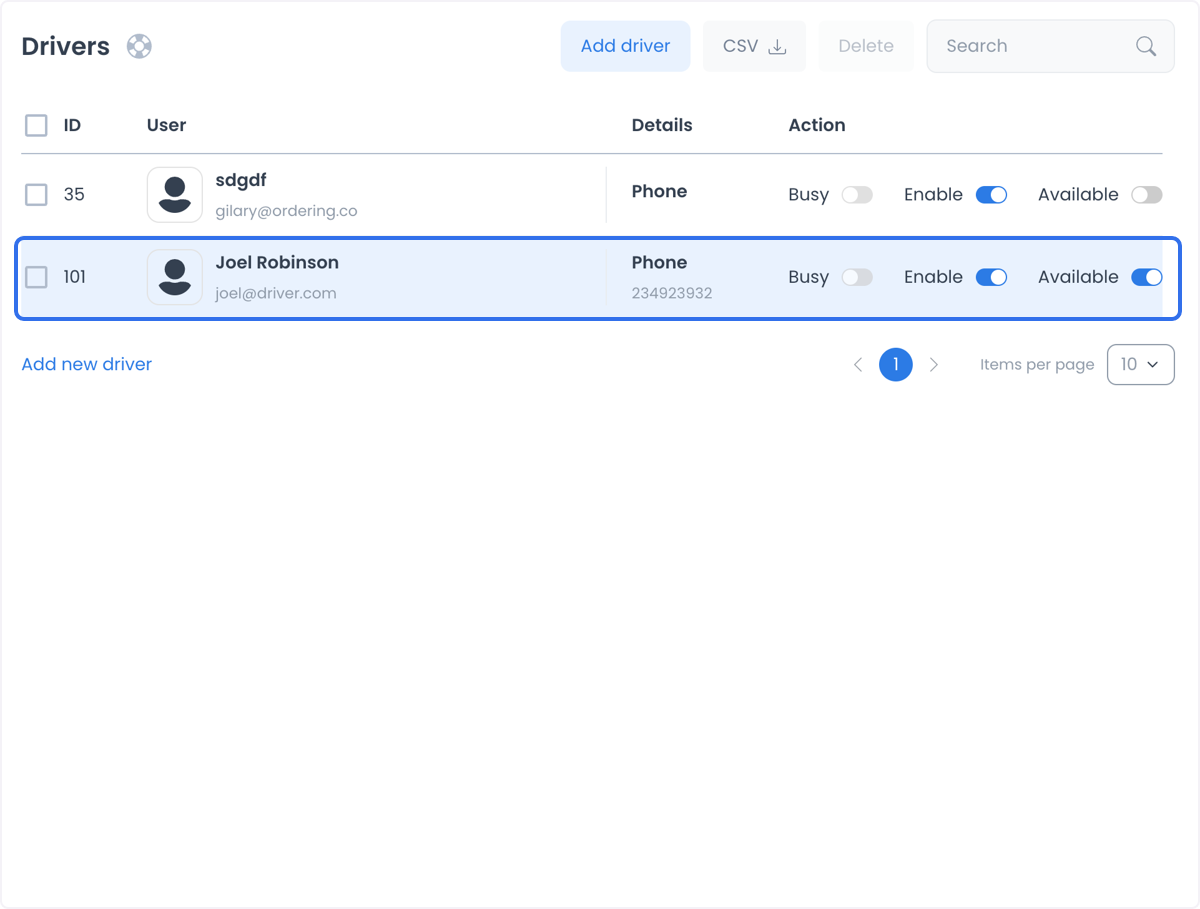
Review the Driver, the intended state, and the approved reason before selecting a switch. A row update or confirmation message does not establish that downstream delivery effects, notifications, or assignments occurred.
An available Driver is not automatically eligible for every order. Order-level assignment performs separate checks for the Driver, business, group relationship, current workload, and caller access.
Open the account panel
The account panel can include these related areas:
| Tab | Use it for |
|---|---|
| Profile | Account information and Driver-specific settings. |
| Driver group | Driver-group membership. |
| Saved places | Account addresses. |
| Schedule | Working hours. |
| Logs, Advanced logs, and Push tokens | Eligible recorded changes and device information. |
Use Create or edit a driver for the profile and related-account procedure. If you move a Driver between groups or operating areas, review the account time zone; update it if the new arrangement requires it rather than expecting a group change to update it automatically.
Use the list to coordinate a fleet
The Drivers list can help an authorized operator maintain a roster, review account state, and prepare a delivery decision. It does not assign orders or prove that a Driver has been notified, accepted work, arrived at a location, or completed a delivery.
Troubleshooting
Why can't I see Drivers in the sidebar?
The Delivery parent, the Drivers item, route access, and actions can use separate access checks. Confirm your role, read-only status, and the project's configuration.
Why can't I find a Driver?
Clear Search, confirm that your role can access the Driver through the applicable group or business scope, and review the enabled state for matching records.
Why did an Available or Busy change fail?
Assigned work, schedule, configured availability rules, or access restrictions can prevent the requested change. Review the Dashboard response and current operational state before deciding whether another approved attempt is appropriate.
Does Available mean the Driver can be assigned to every order?
No. Availability is one account state. Every order has its own assignment eligibility and operational checks.
Related guides: Create or edit a driver · Drivers dashboard · Assign or change a driver