Drivers dashboard
Use Drivers dashboard to review the Drivers returned for your delivery scope, their availability and busy indicators, assigned-order counts, and—when configured—map data. The view supports operational review; it does not directly assign a Driver, update an account, send a notification, or prove that a Driver has completed a delivery.
Administrators and Driver managers can have access to Drivers dashboard. Driver managers can be limited to the enabled Drivers in the groups they manage. Map data requires the relevant project configuration and location data.
Open Drivers dashboard
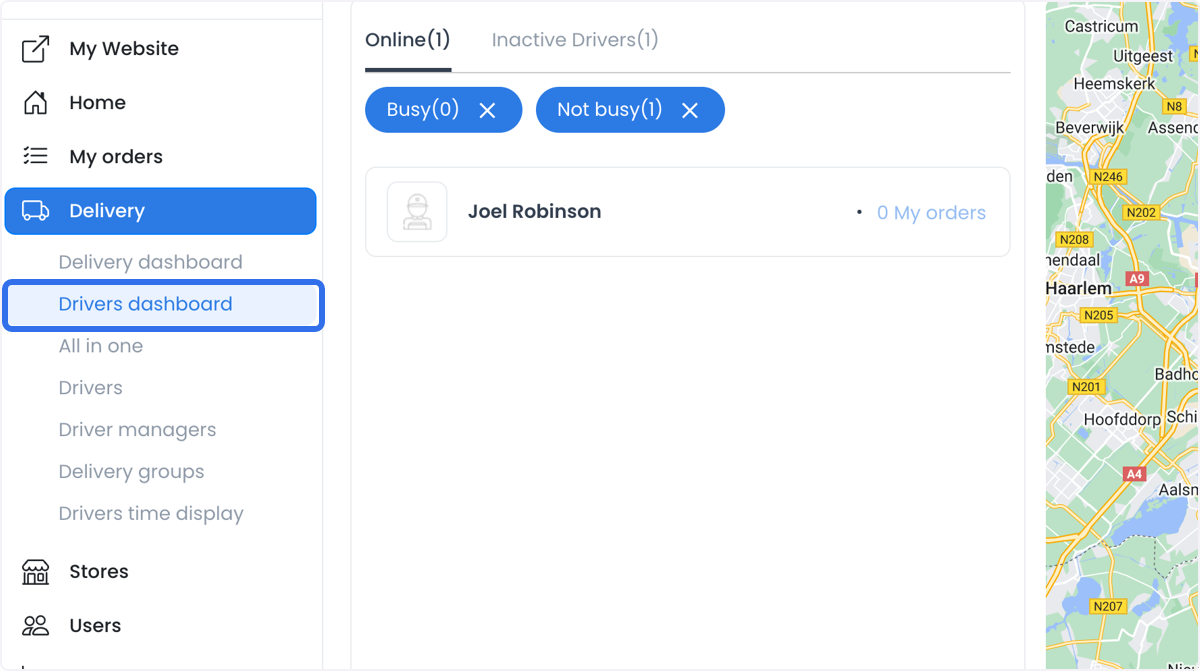
- In the Dashboard sidebar, select Delivery.
- Select Drivers dashboard.
- Start from Online, or switch to Offline to review that subset.
Narrow the Driver list
Use the available controls to focus the list:
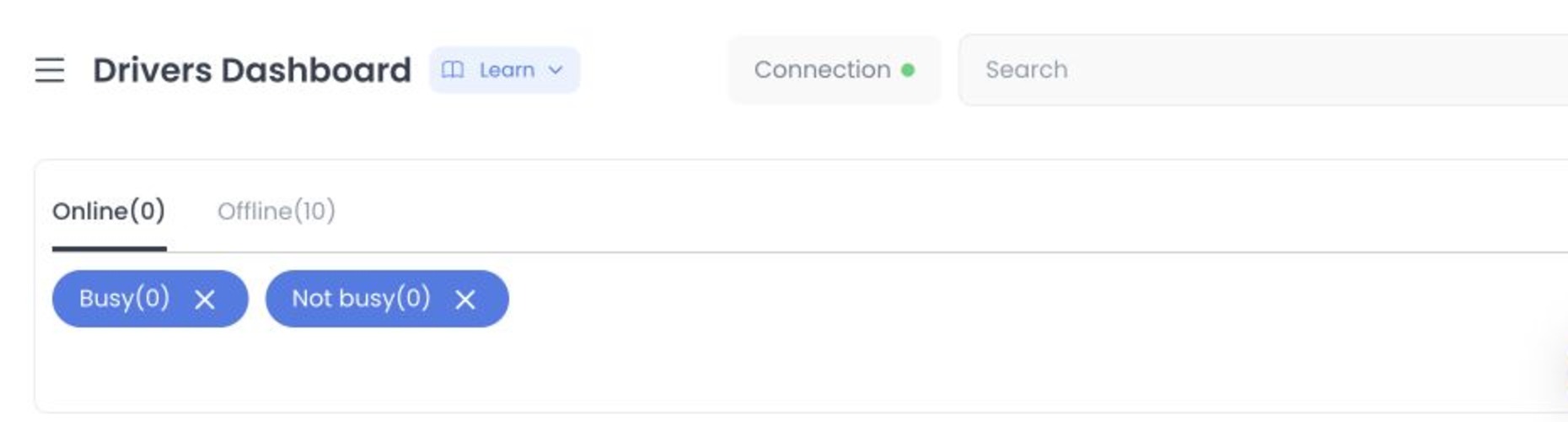
- Online and Offline switch between the returned Driver subsets and show a count.
- Busy and Not busy further narrow the selected subset.
- Search can match a Driver's first name, last name, or cellphone number.
When both Busy and Not busy are cleared, the dashboard intentionally shows no Drivers. Search can show a filter warning and a Clear filters control. Search text may not be retained in the page URL.
Review a Driver's workload
Each Driver card can show the Driver's name, assigned-order count, busy indicator, and qualification indicator. Select a card to focus the map on that Driver and, when available, review locations associated with their active assigned orders.
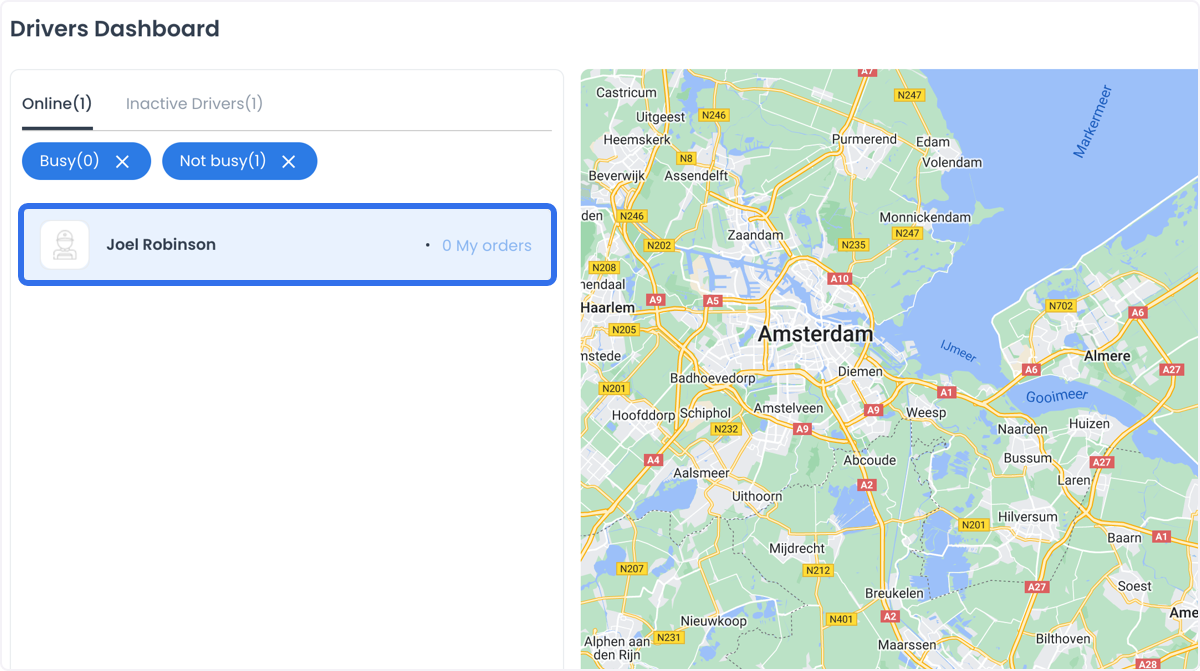
Select the Orders count to open the assigned-orders panel. The count can be unavailable when the Driver has no assigned orders. The panel is a scoped order view, not a Driver-profile editor; order actions in it depend on your access and the order's state.
Use this information to compare workload, investigate a bottleneck, or prepare an approved allocation decision. An assigned-order count, a busy indicator, or an online state does not establish that the Driver is eligible for a particular order or that an order has been accepted.
Use map data safely
When map configuration and data are available, the map can show Drivers in the current subset. Selecting a Driver can add locations associated with that Driver's active delivery orders, including business and customer locations.
Hovering a marker can reveal information such as the Driver name, last-order assignment time, Driver groups, and last-location time. This is sensitive operational data. A marker is a view of available data, not evidence of continuous tracking, Driver arrival, assignment acceptance, or delivery completion.
Driver markers, profile photos, group details, order destinations, and timestamps can be sensitive. Use only synthetic or approved redacted data in shared screenshots and recordings.
Keep monitoring separate from changes
Drivers dashboard does not provide a direct control to change Driver availability, busy status, account details, or order assignment. Use the relevant procedure when you need to make a live change:
- Use Drivers list to manage Driver-account status controls.
- Use Create or edit a driver for the Driver profile, group membership, saved places, and schedule.
- Use Assign or change a driver for an eligible delivery assignment.
The list and map can refresh while the dashboard is open as available Driver, busy, or location data changes. A refreshed view is not proof that a user received a notification or acted on the information.
Use cases and boundaries
Drivers dashboard can help an operator review workload distribution, identify a delivery operation that needs a closer look, and communicate an evidence-based update through the approved process. It cannot make a delivery estimate certain, guarantee a route, or replace the order-level checks required for an assignment.
Troubleshooting
Why is a Driver not listed?
The Driver can be outside the selected Online or Offline subset, excluded by the busy filters or Search, disabled, outside your managed groups, or outside your account's scope. Clear Search and review the current filters.
Why does the map not appear?
The project may need Google Maps configuration, or no permitted location data may be available for the current view. Ask a project administrator to review the map configuration.
Why are no Drivers shown after filtering?
If both Busy and Not busy are cleared, the dashboard shows no Drivers. Select one or both filters again.
Does Online mean the Driver can be assigned immediately?
No. Online is an availability view. The specific order, group relationship, current workload, and assignment rules are checked separately.
Related guides: Deliveries dashboard · Orders overview · View and manage an order · Assign or change a driver