Drivers dashboard
Use Drivers dashboard to monitor enabled drivers, switch between online and offline views, and review their busy status and assigned-order counts. Select a driver to focus the map, or open the driver’s assigned orders when the count is available.
Drivers dashboard is available to administrators and driver managers. Driver managers see enabled drivers in the driver groups they manage. Map availability requires a configured Google Maps API key.
Open Drivers dashboard
- In the Dashboard sidebar, select Delivery.
- Select Drivers dashboard.
- Start from the Online view, or switch to Offline.
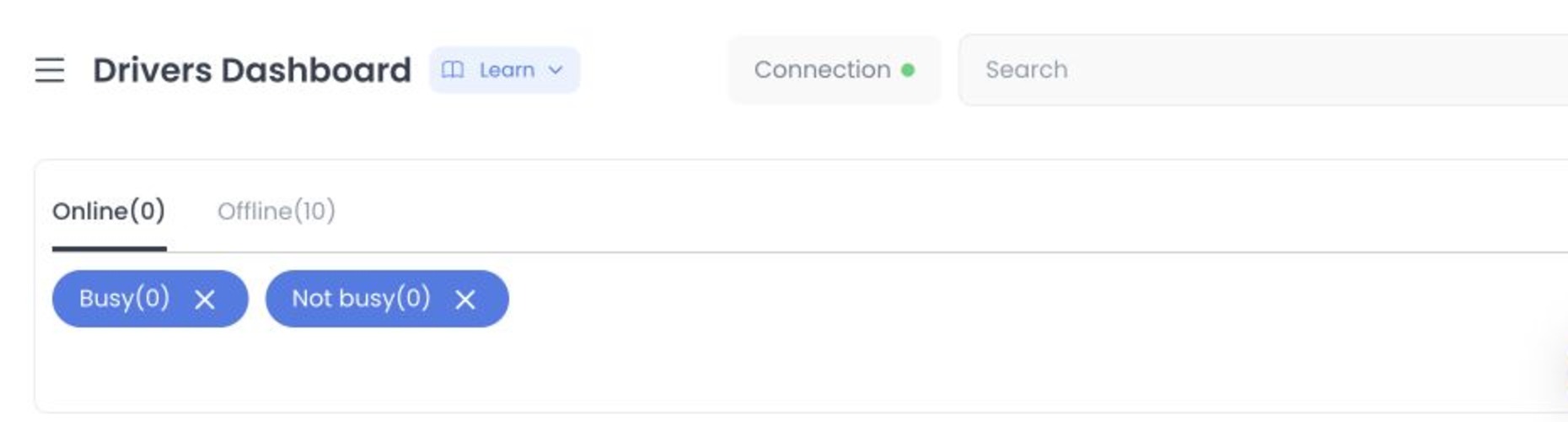
Current source mounts /drivers-dashboard for levels 0 and 5. The Delivery sidebar parent is shown to those levels only when the project is Pro or Enterprise, or the account matches the supported read-only administrator or delivery-manager states; the Drivers Dashboard item separately excludes level 2. The list performs authenticated driver reads and joins driver and location websocket rooms when enabled; neither path was executed for this guide.
Monitor drivers
Use the following controls to narrow the driver list:
- Online and Offline — Switch between enabled drivers that are available and enabled drivers that are not available. Each tab shows a count.
- Busy and Not busy — Further narrow the selected availability view. Both are selected by default; clearing both shows no drivers.
- Search — Search driver first name, last name, or cellphone number.
The current search displays a warning that filters are active and includes Clear filters. Search is not stored in the page URL.
Review a driver
Each driver card can show the driver name, assigned-order count, busy indicator, and qualification indicator. Selecting a card updates the current map selection and can load active assigned-order locations for that driver. The handler does not call a driver-update function, but this source-only review does not classify the resulting authenticated reads as side-effect-free.
Select the Orders count to open the driver’s assigned-order panel. The count is disabled when the driver has no assigned orders. The panel is addressed by ?id=:driverId in the URL and closes back to Drivers dashboard.
Use the map safely
When configured, the map can show drivers in the current Online or Offline view. A selected driver can also load the active delivery orders assigned to that driver so the map can include their business and customer locations.
Hovering a driver marker can reveal the driver name, last-order assignment time, driver groups, and last-location time. The current marker interaction has no update handler, but the underlying driver, assigned-order, map, and websocket reads were not run or declared runtime-safe.
Driver markers, photos, group information, order destinations, and timestamps can be sensitive. Use only synthetic or approved redacted data in shared screenshots and recordings.
Assigned orders and action boundaries
The assigned-orders panel embeds the normal Orders manager, scoped to the selected driver. It is not a driver-profile editor, and actions in that panel can vary by your account access and by each order’s state.
The Drivers dashboard itself does not provide a direct control to assign a driver, change driver availability, change busy status, or update an order. If the assigned-orders panel exposes an order action, follow the relevant order procedure and verify the resulting order in an approved operational record rather than relying on UI state alone.
Operational impact
The list and map can update while open as driver availability, busy status, and location data change. Online indicates an enabled driver marked available; it does not guarantee that the driver is eligible for a particular order.
Verification checklist
- The correct Online or Offline view is selected.
- Busy and Not busy chips reflect the intended subset.
- Search text matches the driver you intend to review.
- The selected driver card matches the driver shown on the map.
- You treat map locations and assigned-order information as sensitive.
Troubleshooting
Why is a driver not listed?
The driver may be disabled, outside the selected Online/Offline and busy filters, outside your managed driver groups, or excluded by Search. Clear Search and review the current filters.
Why does the map not appear?
The project needs a Google Maps API key. Ask a project administrator to review the map configuration.
Why are no drivers shown after filtering?
If both Busy and Not busy are cleared, the dashboard intentionally shows no drivers. Select one or both chips again.
Does Online mean the driver can be assigned immediately?
No. Online means the enabled driver is currently marked available. Assignment eligibility is checked separately for the specific order and operational conditions.
Related guides: Deliveries dashboard · Orders — Overview · View and manage an order · Assign or change a driver