Driver managers
Use Driver managers to manage the accounts that coordinate Delivery groups and Driver operations. This account list is separate from Drivers, which contains Driver accounts, and from Drivers dashboard, which monitors delivery activity.
Driver-manager accounts and their related controls are available to authorized administrators. The fields, related records, and available actions can vary with the account role and the project's configured user fields.
Find a Driver manager
- Select Delivery → Driver managers.
- Use Search or pagination to find the intended account.
- Select the account row to open its details.

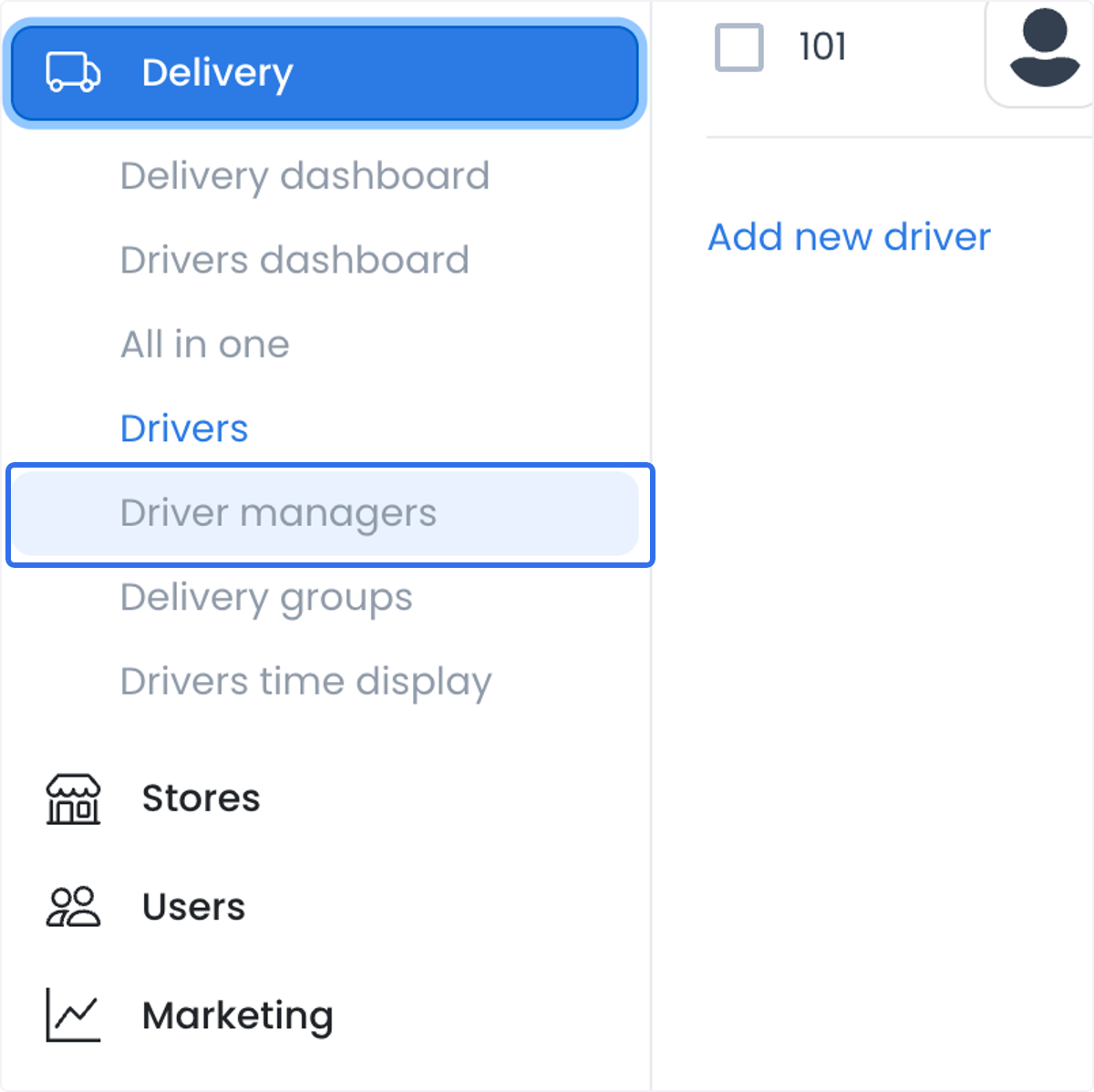
The list can contain names, contact details, profile photos, and delivery relationships. Use only the minimum approved identifier when locating an account, and do not copy account data into unapproved tickets, screenshots, or messages.
Review and update account details
Select a Driver manager to open the detail panel. The panel can include the account's general profile and Saved places. Authorized operators can use it to correct account information or maintain approved saved addresses.
- Select the intended Driver manager.
- Open Profile to review the available account fields.
- Change only the field required for the approved update.
- Select the save or update control when it is available.
- Reopen the account and confirm the expected value.
Fields can include a photo, name, email address, phone number, password, and project-configured account inputs. A saved change can affect account access or a delivery relationship, so do not use a live account to practice the workflow.
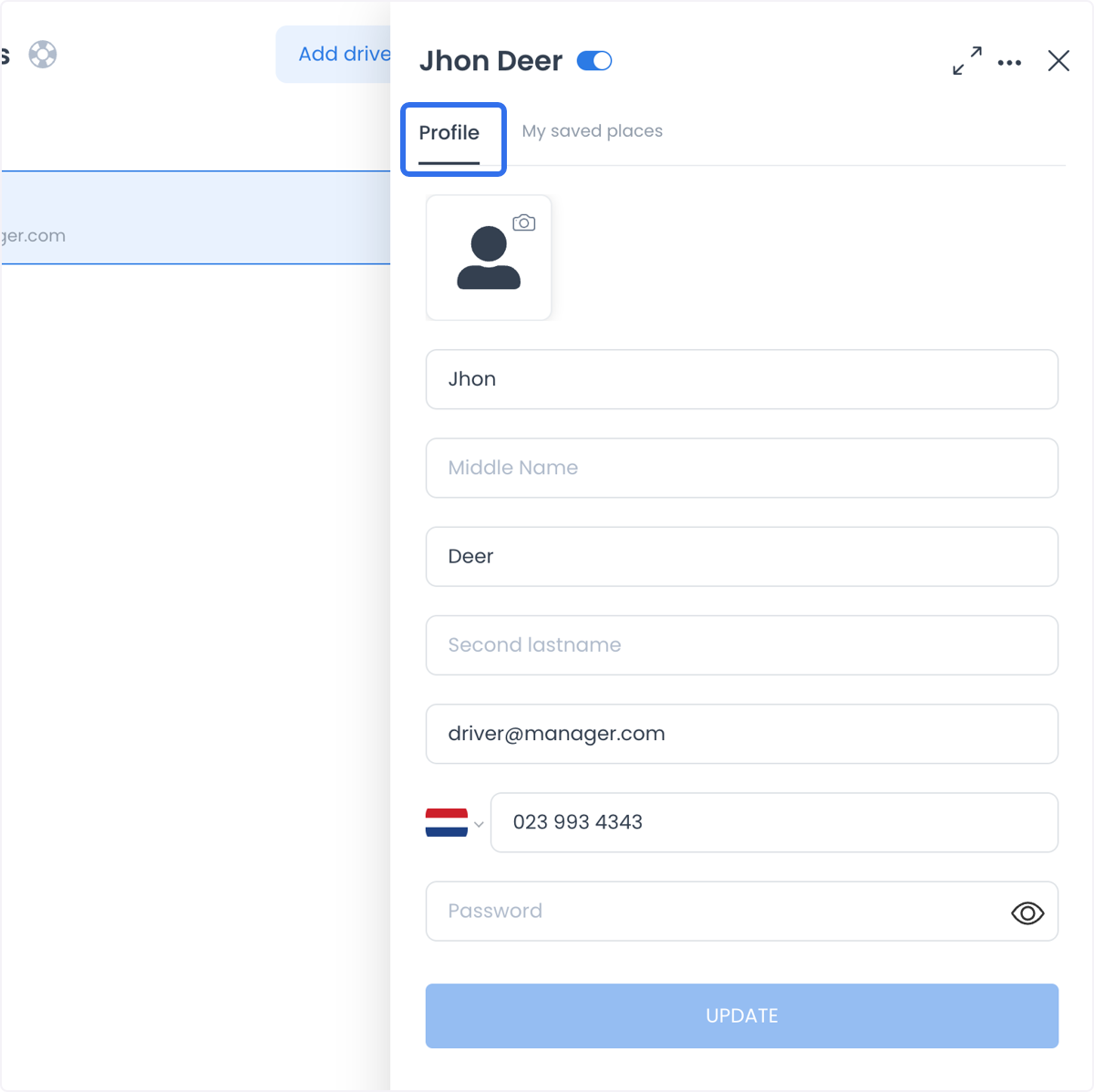
Driver-manager details can contain personal information and access controls. Do not make temporary assignments, credential changes, address changes, or security tests outside an approved operating process.
Manage saved places
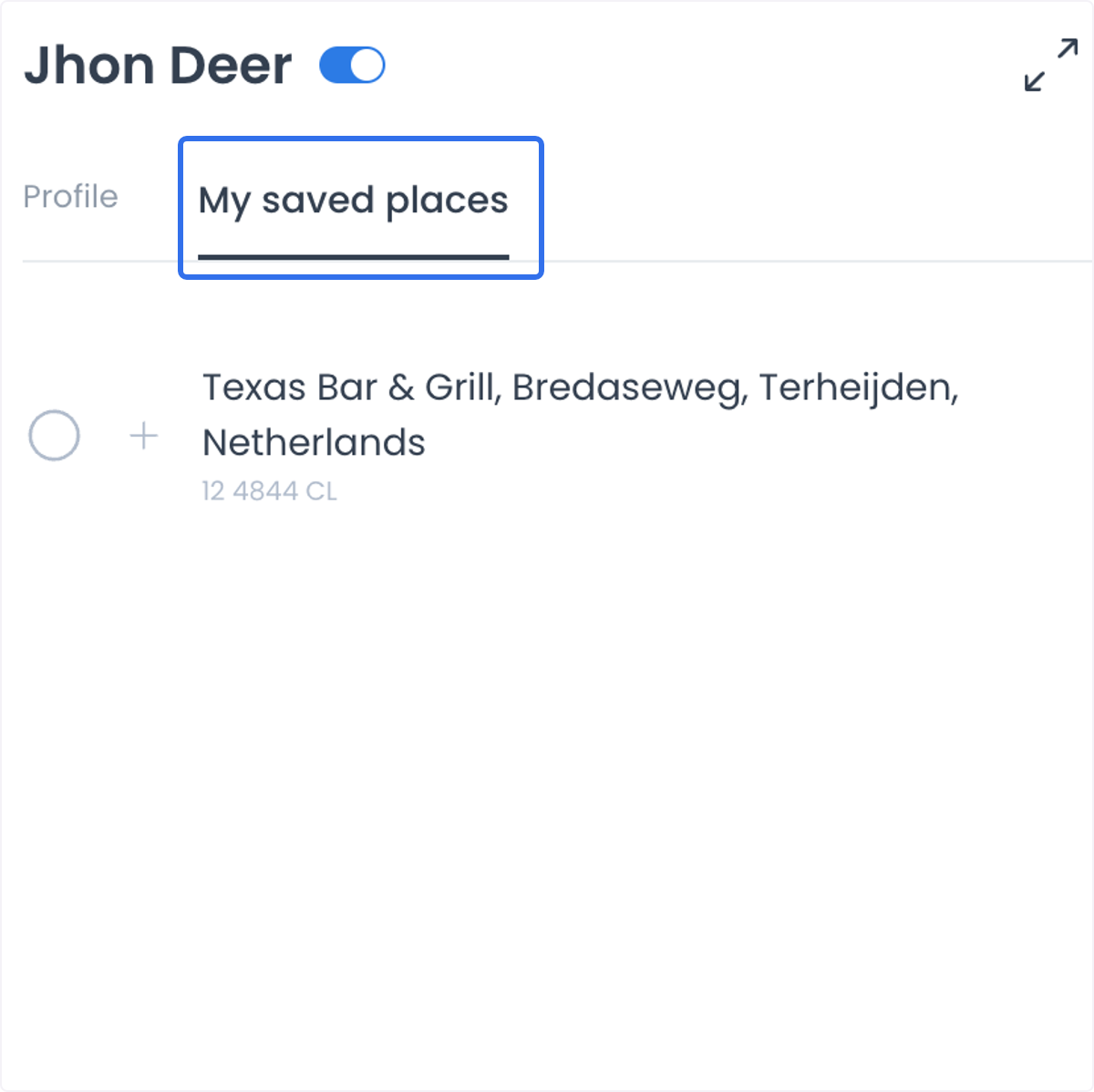
The Saved places section can store frequently used addresses for the account. The project can offer labels such as home, office, or favorites. To add a permitted address:
- Open the intended Driver-manager account.
- Select Saved places.
- Select Add new address when the control is available.
- Enter the approved place name, address, and any required note.
- Save the address, then confirm it belongs to the intended account.
Saved places can help an authorized operator organize known account addresses. They do not establish the Driver manager's current location or a delivery destination. Treat every address as sensitive data.
Add a Driver manager
- In Driver managers, select Add driver manager.
- Enter the required account information for the intended person.
- Review the profile, contact, and access-related fields.
- Select Add only after the account is ready for the approved operating workflow.
- Confirm that the account appears in the list and that the intended role is shown.
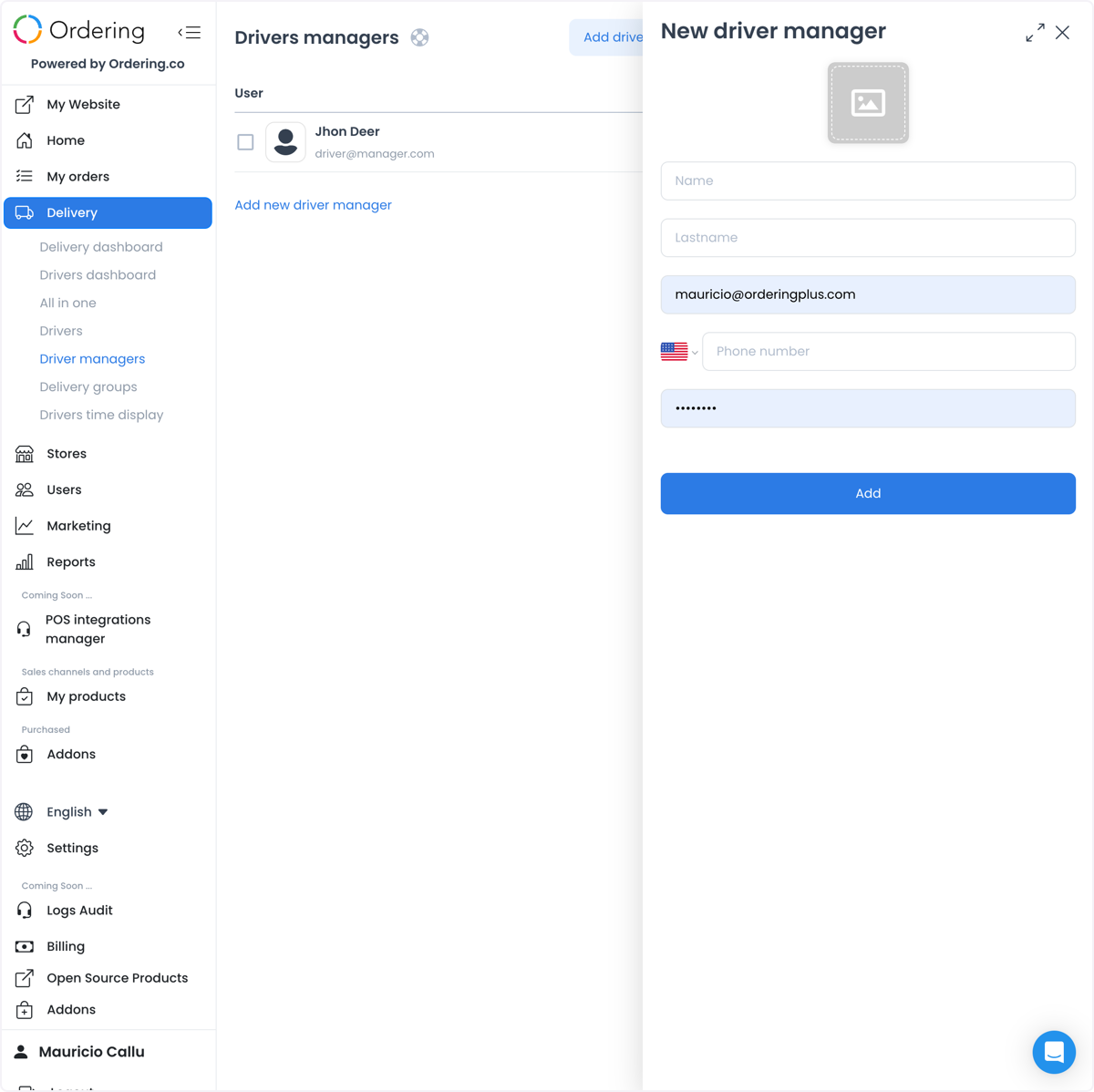
Creating an account prepares an administrator who can work with Delivery groups. It does not create a Driver account, assign a driver to an order, or change the status of an active delivery.
Use the list to support delivery operations
Driver-manager accounts can help a delivery operation keep responsibility and group administration organized as the fleet changes. Use the account record to maintain approved operational information; use the relevant Delivery group and order workflows for group configuration and individual delivery changes.
Troubleshooting
Why can't I open Driver managers?
Your account may not have administrator access, or the project can restrict the navigation item or the requested account. Confirm your role and the intended project's configuration.
Why are the fields different from another project?
Driver-manager forms use project-configured account fields. Required fields, field order, and available controls can differ between projects.
Why can't I save an update?
There may be no valid pending change, a field can require correction, or your account may not have permission for that type of update. Review the Dashboard response before trying another approved change.
Related guides: Drivers list · Delivery groups · Create or edit a Delivery group