Delivery groups
Use Delivery Groups to organize the relationship between businesses and either individual in-house drivers or Driver companies. A group can support an operating policy such as a service area, payment-method rule, priority, or delivery workflow. It does not by itself guarantee route coverage, driver acceptance, a notification, or a completed delivery.
Administrators and Driver managers can have access to Delivery Groups. The groups, detail sections, and actions you see can be limited by your role, group-manager relationship, and the project's delivery configuration. Read-only access can expose a group while preventing changes.
Open Delivery Groups
- In the Dashboard sidebar, select Delivery.
- Select Delivery Groups.
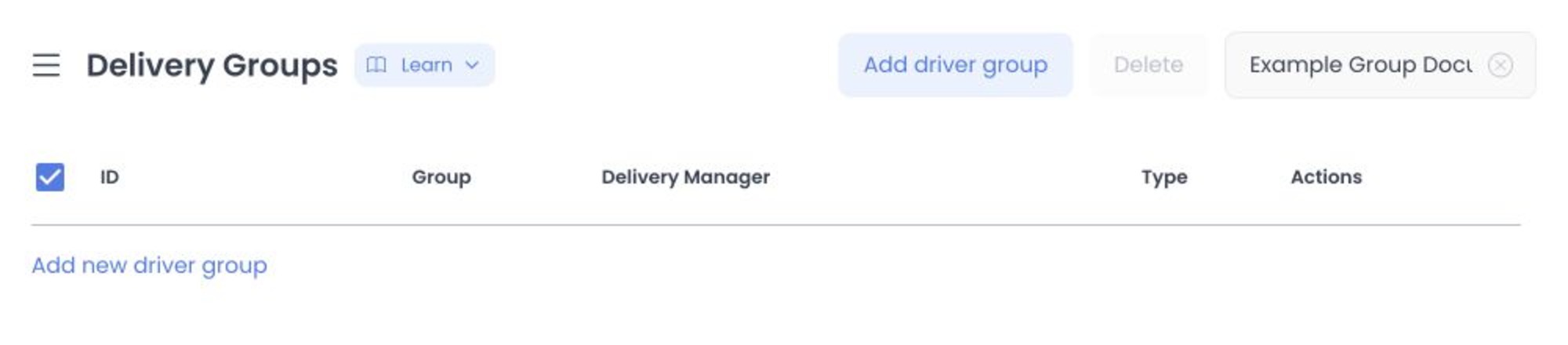
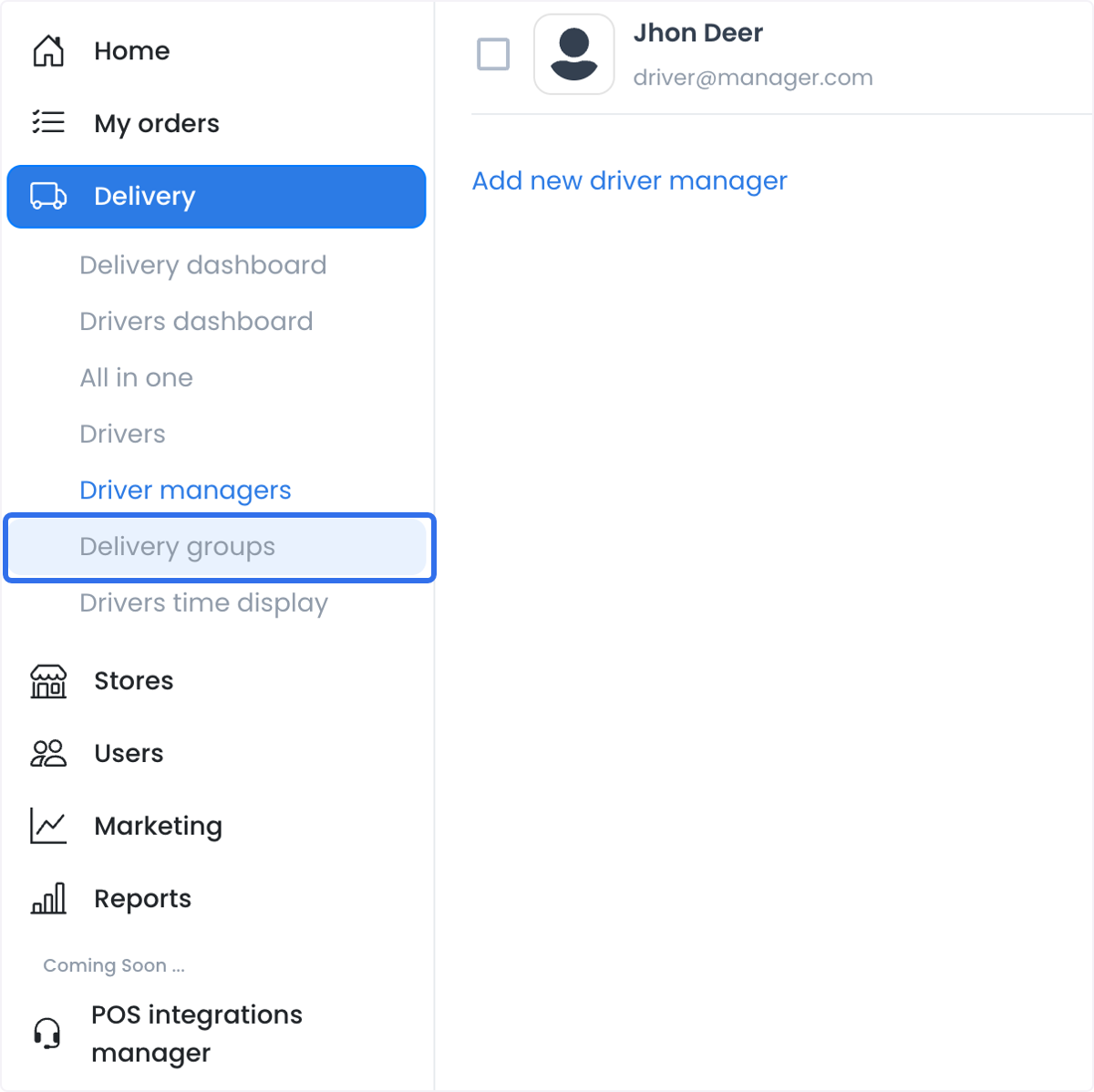
The Dashboard uses Delivery Groups as the page name. Technical integrations can use Driver group or drivergroups for the same group concept.
Review the group list
Each row can show the group identifier, group name, Driver manager, type, and available actions. The group type determines the member relationship:
- In house drivers uses individual Driver accounts.
- Driver companies uses one or more Driver company records.
Select a row to open its detail view. Use Search to find a group by the available name search, and use pagination or page size controls to move through the results. This page does not provide a separate advanced-filter panel.
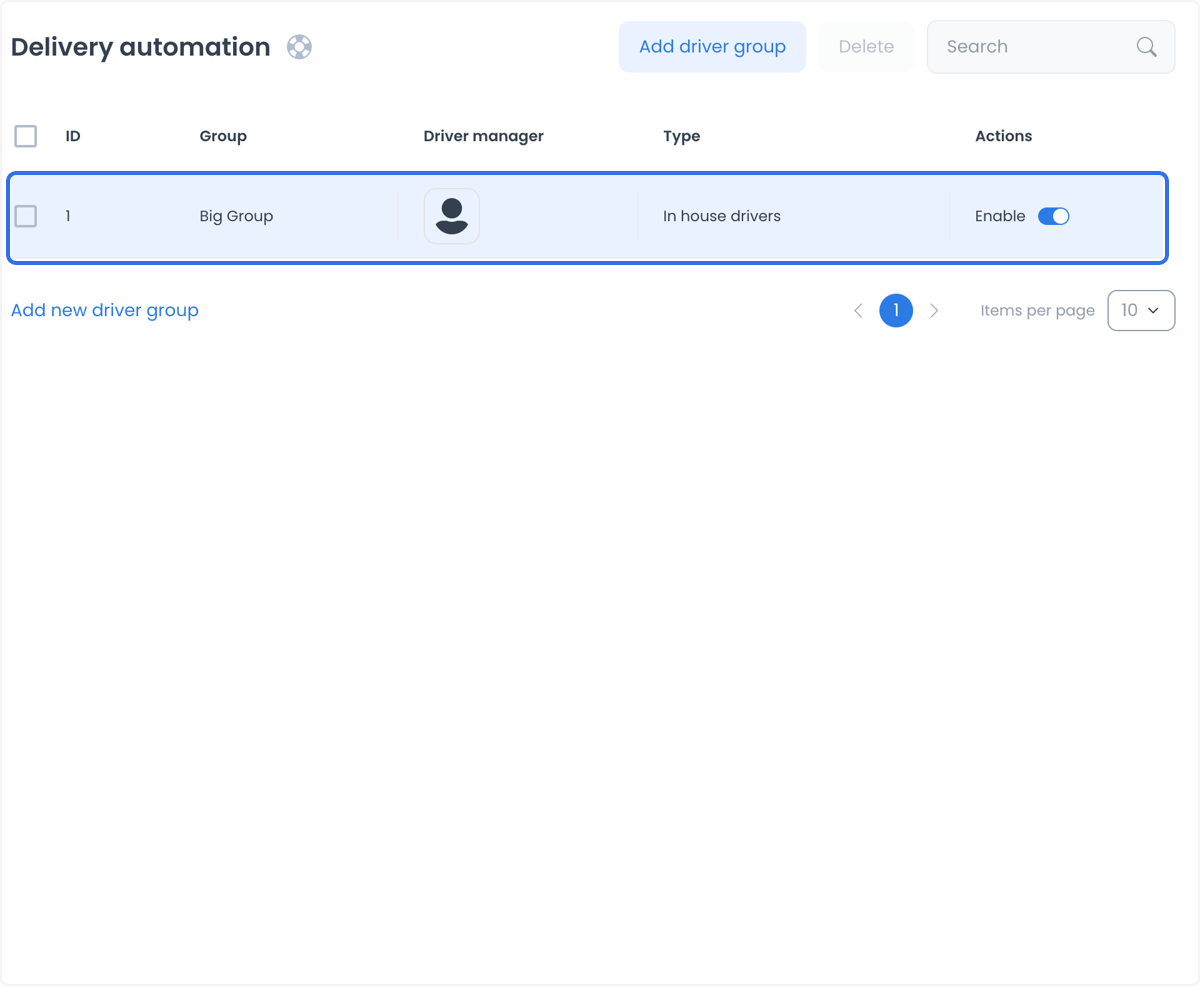
The list can be limited to the groups your account is allowed to access. For example, a Driver manager's view can depend on that manager's relationship to a group.
Understand group relationships
A Delivery group can connect these relationships:
| Relationship | What it controls |
|---|---|
| Businesses | The stores associated with the group. |
| Drivers or Driver companies | The group members, based on the selected type. |
| Driver managers | The authorized managers associated with the group. |
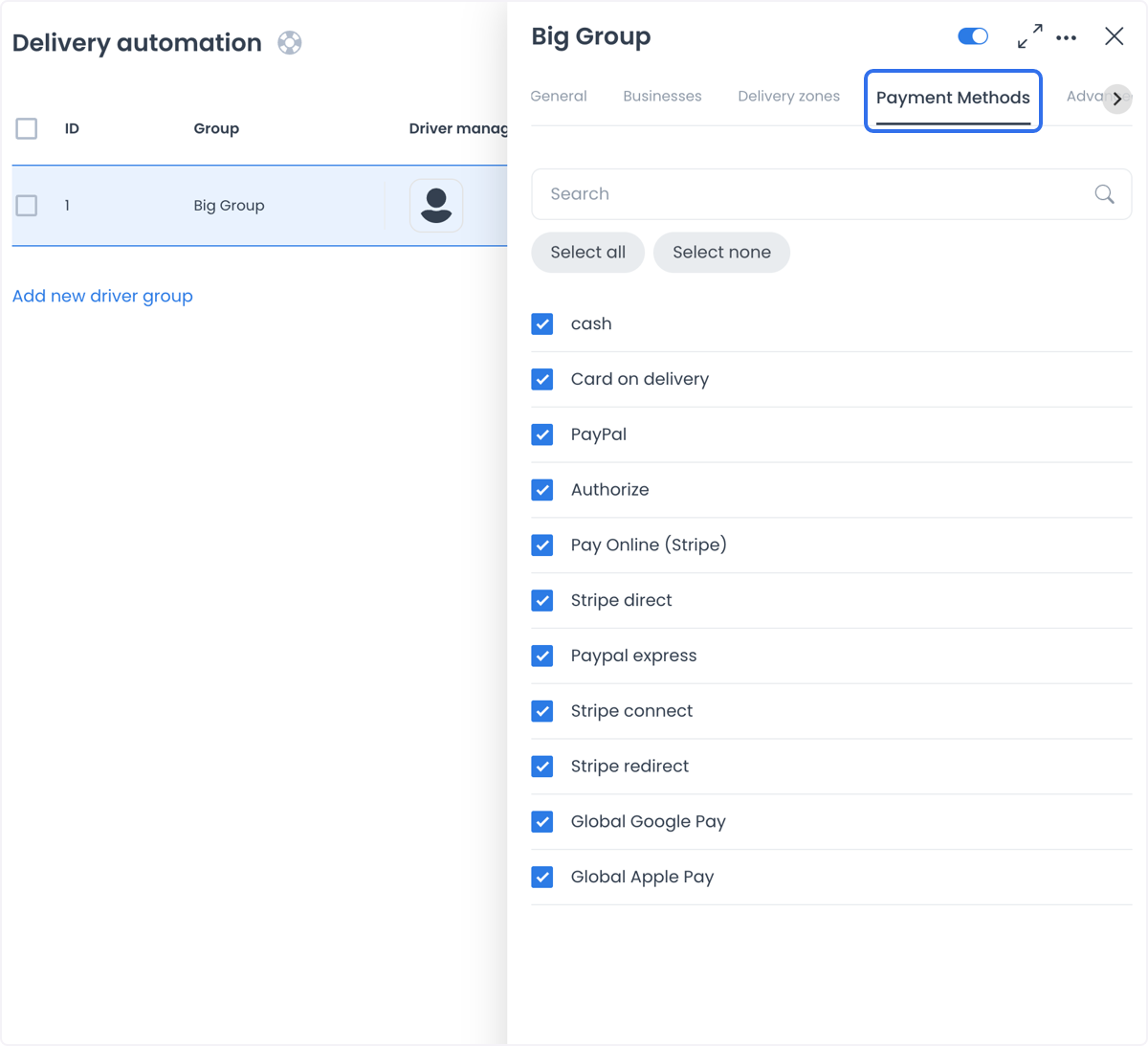
| Payment methods | Conditional payment-method choices for the group. |
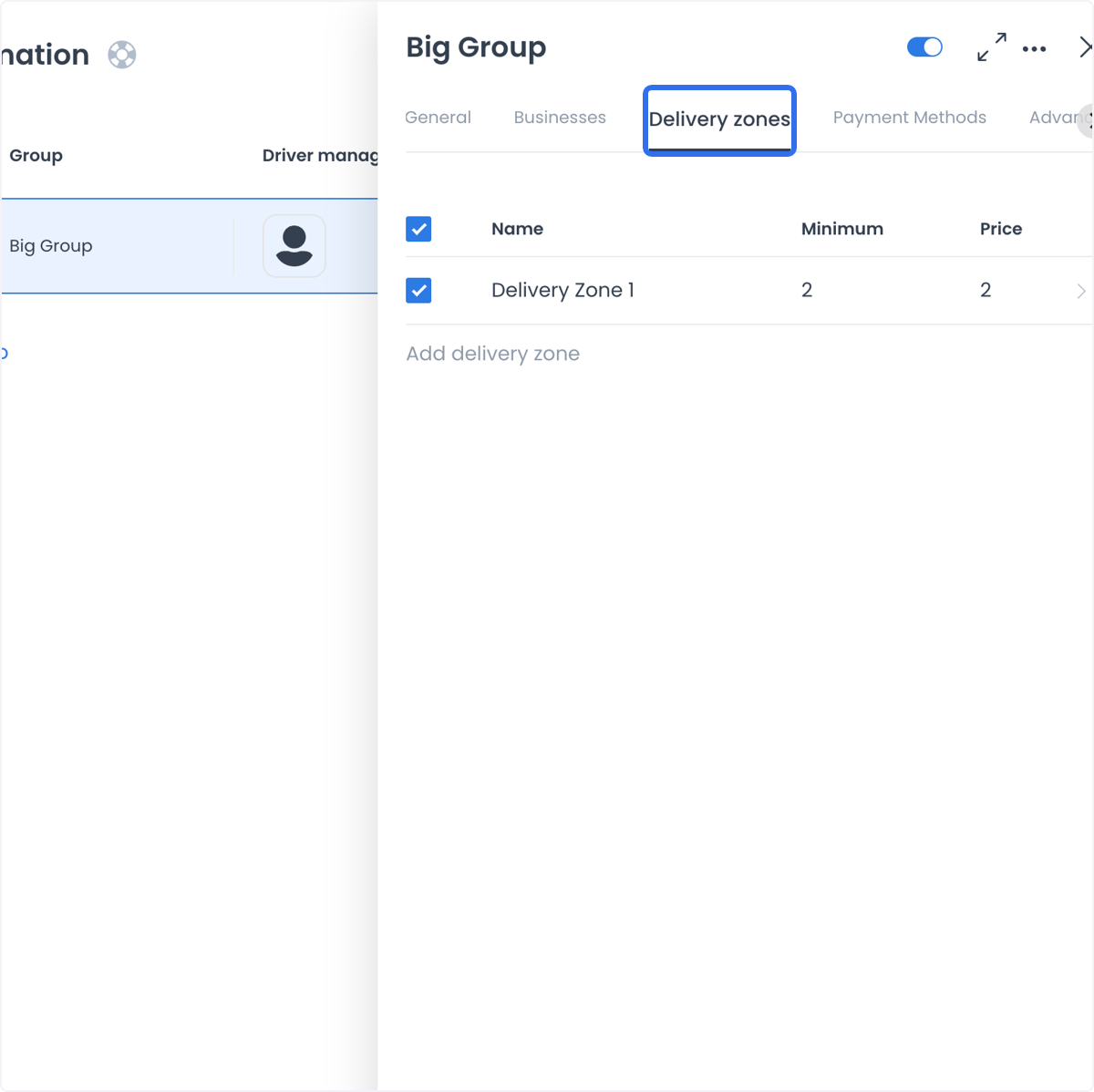
| Delivery zones | Conditional zone records associated with an existing group. |
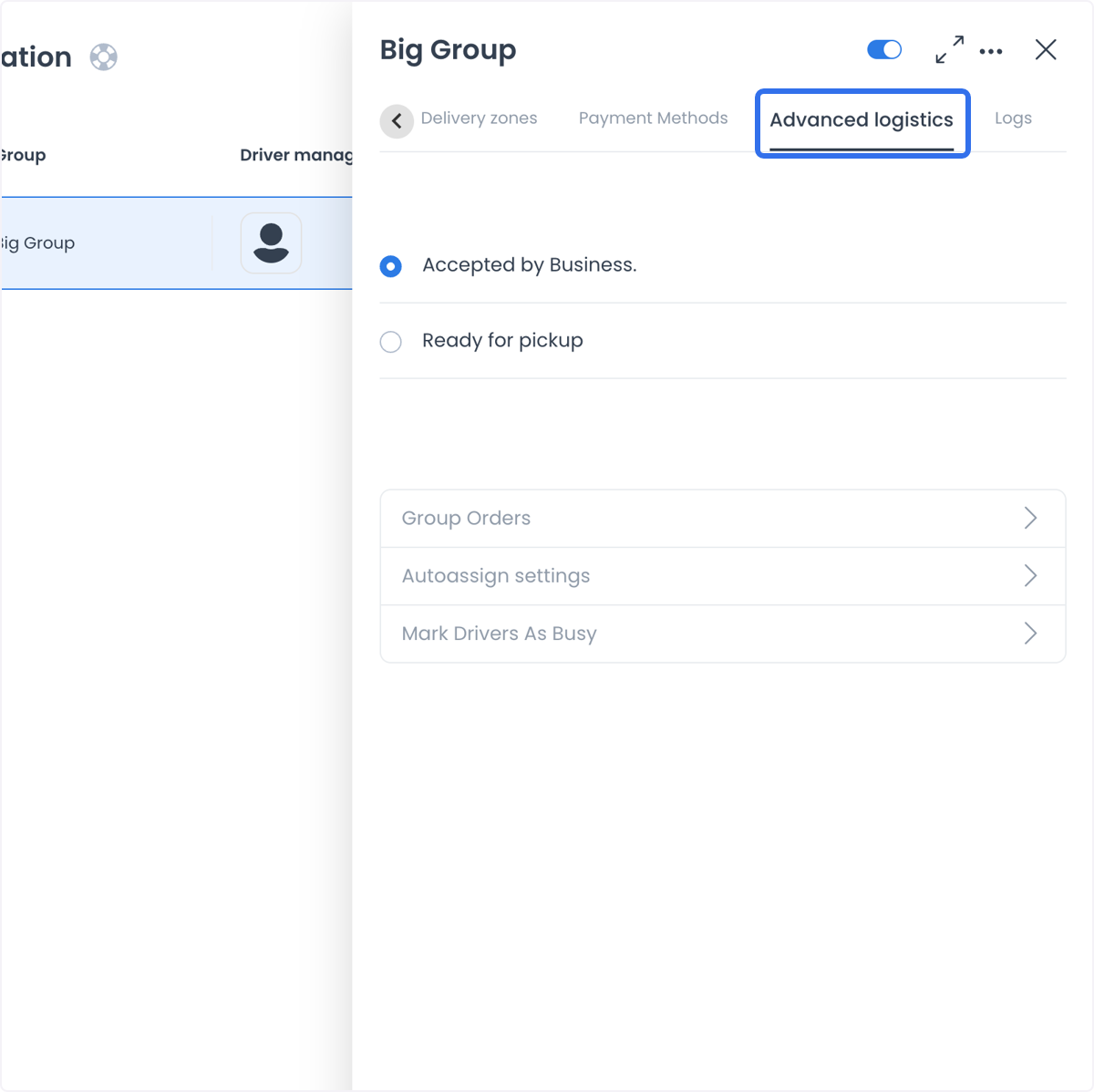
| Advanced logistics | Conditional configuration for group-order and assignment behavior. |
| Logs | Recorded changes available to eligible accounts. |
Use these relationships to define how a delivery operation is organized. Do not infer an order assignment from a group relationship alone; an individual order still has its own status, eligibility, and operational checks.
Open group details
Select a group row, then use the available sections:
- General and Businesses are the core group sections.
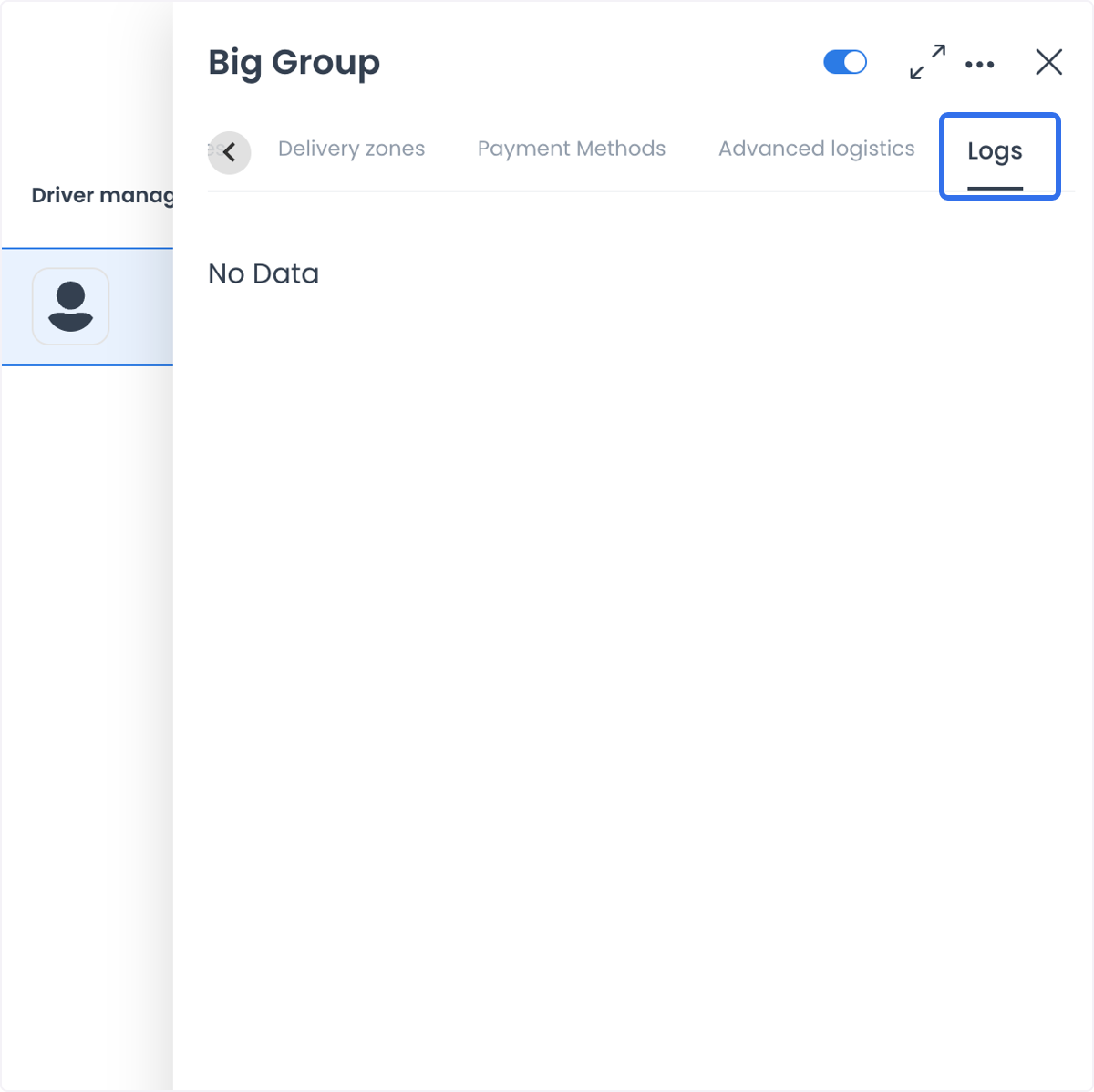
- Payment methods, Delivery zones, and Logs can appear in supported sessions.
- Advanced logistics can appear when the project's auto-assignment configuration supports it.
If a section is not visible, check your account access and project configuration before assuming that the feature or relationship is missing.
Configure a group with intent
The group detail view can expose settings such as its name, maximum Driver-availability distance, Driver manager, type, selected Drivers or Driver companies, priority, and advanced-logistics controls.
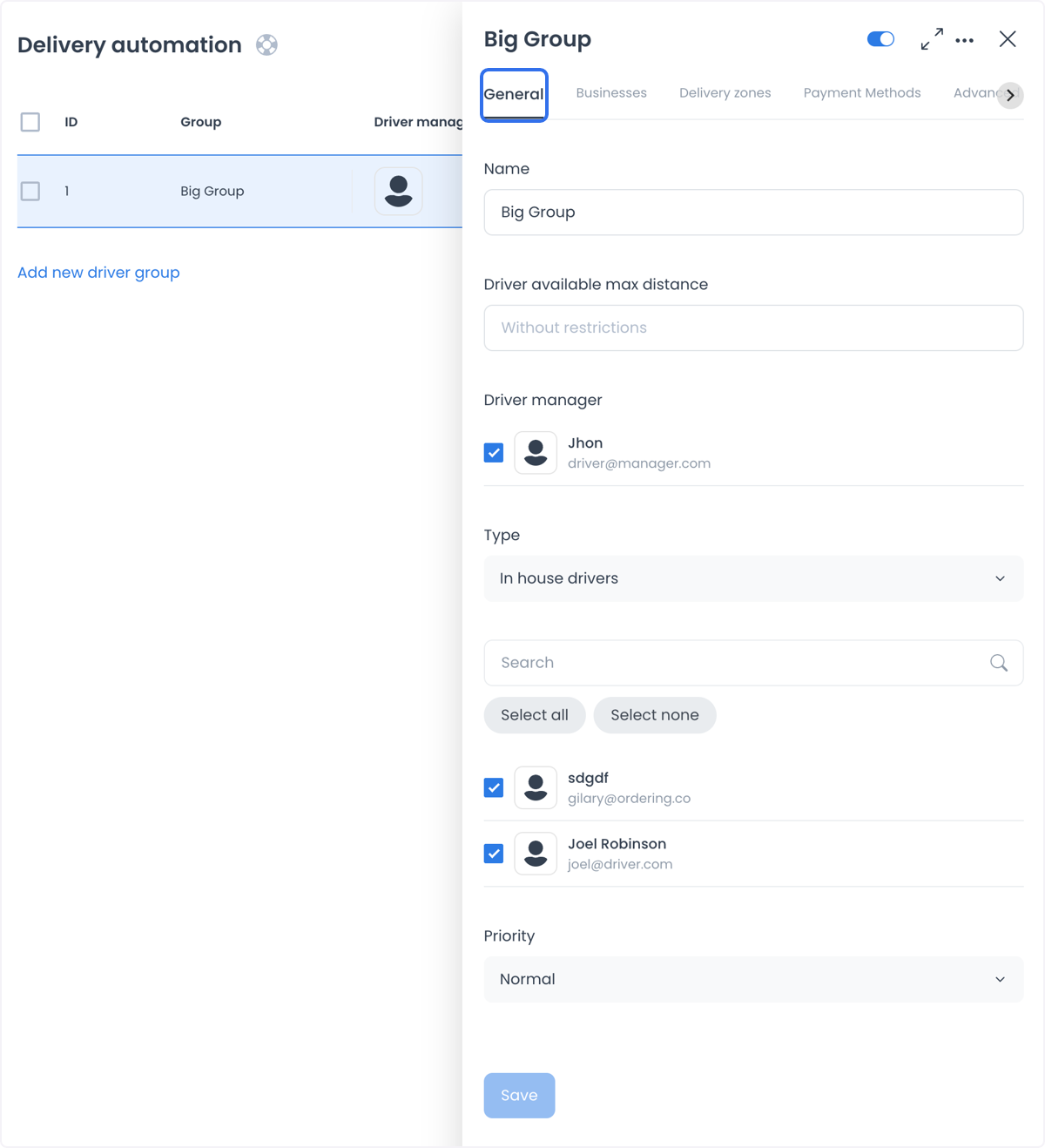
Use a group to support operating patterns such as:
- Separating delivery coverage by geographic area or operating specialization.
- Associating a set of businesses with the drivers or companies intended to serve them.
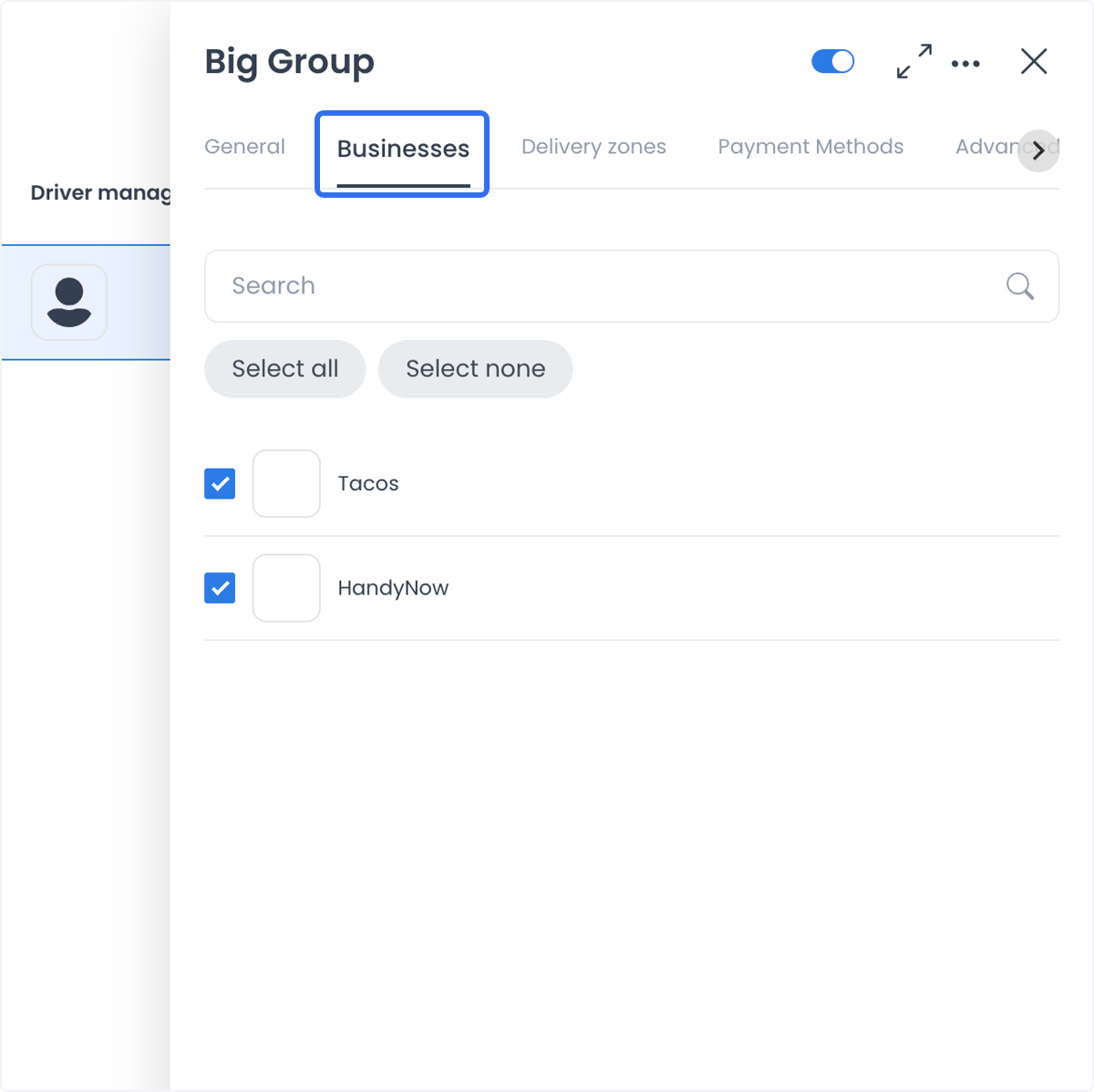
- Applying a payment-method policy to a supported group.
- Establishing a priority policy for a group.
- Reviewing recorded changes when an authorized investigation needs them.
Each setting is an input to the delivery operation. For example, a delivery zone or distance rule can constrain what the system evaluates, but it does not establish a route, a driver's current position, or an outcome for a specific order.
Treat enabled state and deletion as live changes
The enabled switch in a list row updates the group when the request succeeds; it is not a preview or a page-level draft. Deleting a group or using Delete selected is destructive.
Before enabling, disabling, editing, or deleting a group, confirm its name, type, businesses, member relationship, and the intended operational result. A group connected to a protected Driver-company relationship can be unavailable for deletion.
For the complete create and edit procedure, including business selection, zones, and Advanced logistics, see Create or edit a Delivery group.
Troubleshooting
Why can't I find a group?
Clear Search, check the current page, and confirm that your account has access to the group. The group can also be outside the scope returned for your role.
Why don't I see Payment methods, Delivery zones, Logs, or Advanced logistics?
These are conditional sections. Their visibility depends on the project configuration and your role; a missing section does not by itself indicate an error.
Why is an action unavailable?
The Dashboard can restrict the action by role, group-manager relationship, and project configuration. Read-only access can expose a group while preventing changes.
Related guides: Create or edit a Delivery group · Drivers dashboard · Deliveries dashboard