Deliveries dashboard
Use Deliveries dashboard to monitor delivery orders from one workspace. The dashboard brings together the selected delivery queue, order details that are available to your role, and—when configured—map information. It helps you review an operation; it does not by itself assign a driver, send a notification, or prove that an order has been delivered.
Administrators, business managers, and Driver managers can have access to Deliveries dashboard. The deliveries, filters, map data, and actions available to you depend on your role, business or Driver-group scope, and project configuration.
Open Deliveries dashboard
- In the Dashboard sidebar, select Delivery.
- Select Deliveries dashboard.
- Choose the status group you want to review.

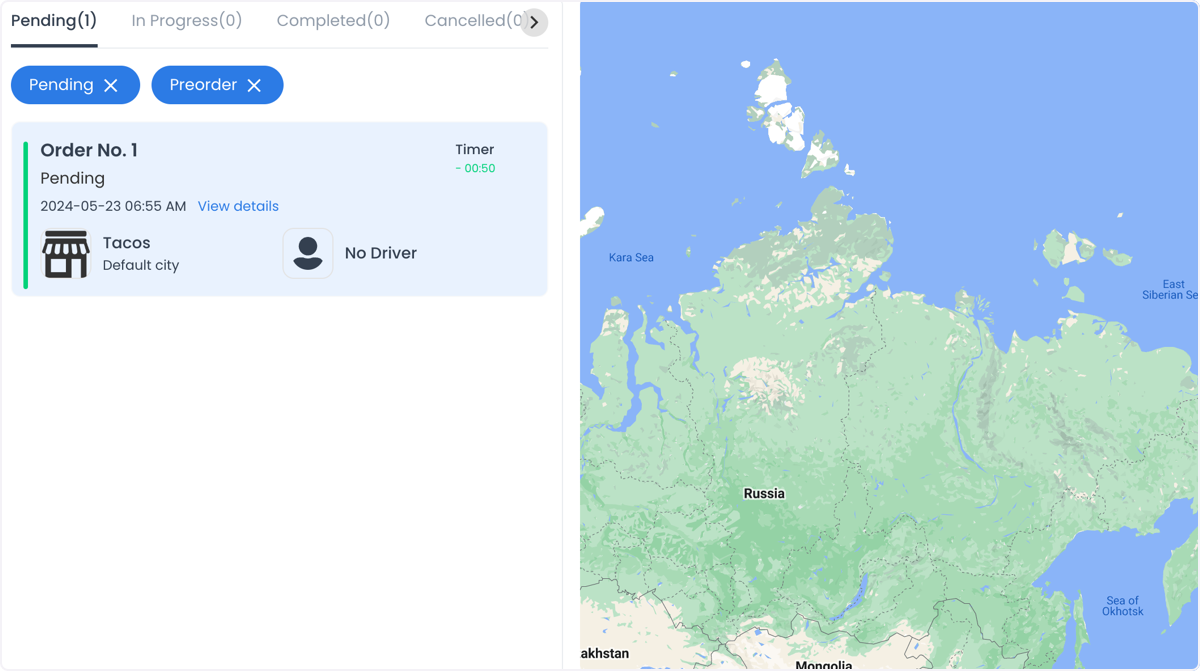
Review the delivery queue
The dashboard can organize the delivery queue into Pending, In progress, Completed, and Cancelled groups. Within the selected group, use the available controls to focus your review:
- Status chips narrow the selected group to one or more operational statuses, or return to All.
- Search finds deliveries using the searchable fields enabled in your project.
- Filters apply additional criteria, then use Accept to apply them.
- Delivery cards can show an order number, current status, order timing, business, and assigned Driver or Driver company.
- Map can show data associated with the selected delivery or available drivers in the current view.
The selected status group can be kept in the page URL. Page and page-size settings can also be retained while you paginate. Search text, status-chip choices, and values entered in the filter dialog may not be retained in the URL.
Search and filter deliberately
- Select the status group that matches the work you need to review.
- Optionally select one or more status chips.
- Use Search when it is available.
- Select the filter icon, set the supported criteria, and select Accept.
- Use Clear filters before returning to a full-queue review.
Available criteria can differ by project and access. Depending on the configured delivery operation, they can include Driver-group, logistics, country, city, currency, administrator, fraud-status, or metafield criteria.
When Search or filters are active, the Dashboard warns that the queue can omit new deliveries. A filtered view is useful for a defined question, but it is not a complete operational queue.
Use the map with the right boundary
Select a delivery card to focus the map on location data associated with that delivery, such as business, customer, or assigned-Driver locations. If no Driver is assigned, the view can show a Drivers online list with drivers returned as available for the current delivery context.
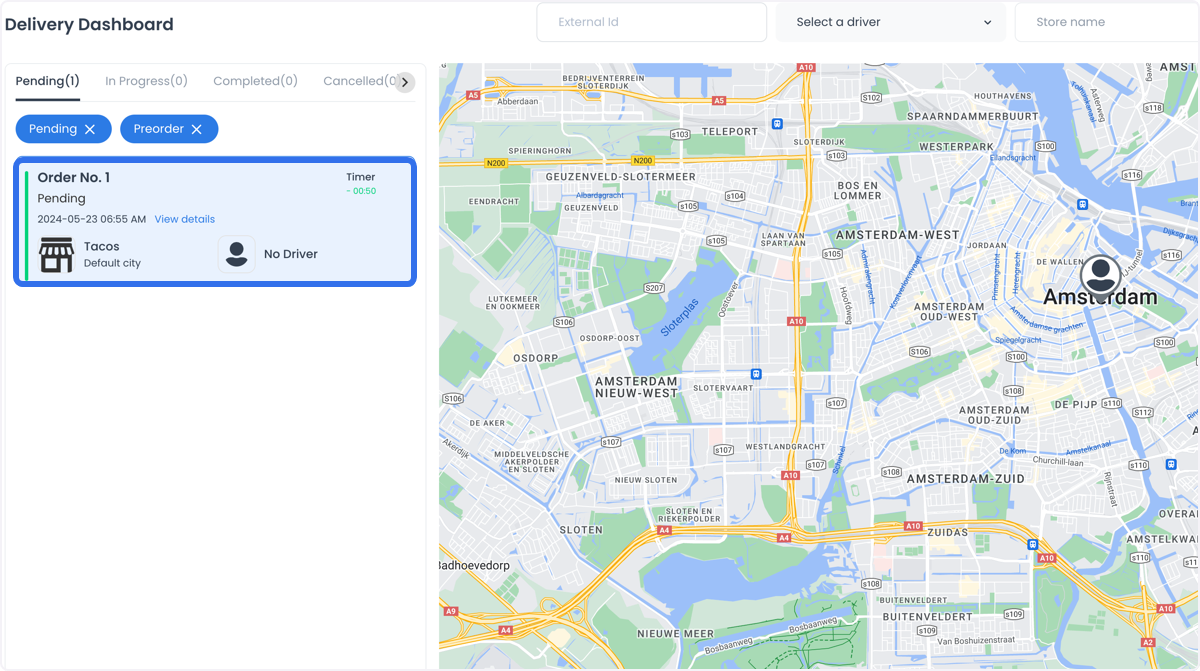
The map requires a configured Google Maps key and the relevant location data. A missing map, a displayed Driver, or a location marker does not establish that a Driver is eligible for assignment, has seen an assignment request, has arrived, or has completed a delivery.
Maps can expose business and customer locations, Driver location data, and delivery information. Use only synthetic or approved redacted data in screenshots, recordings, and support material.
Open an order for details
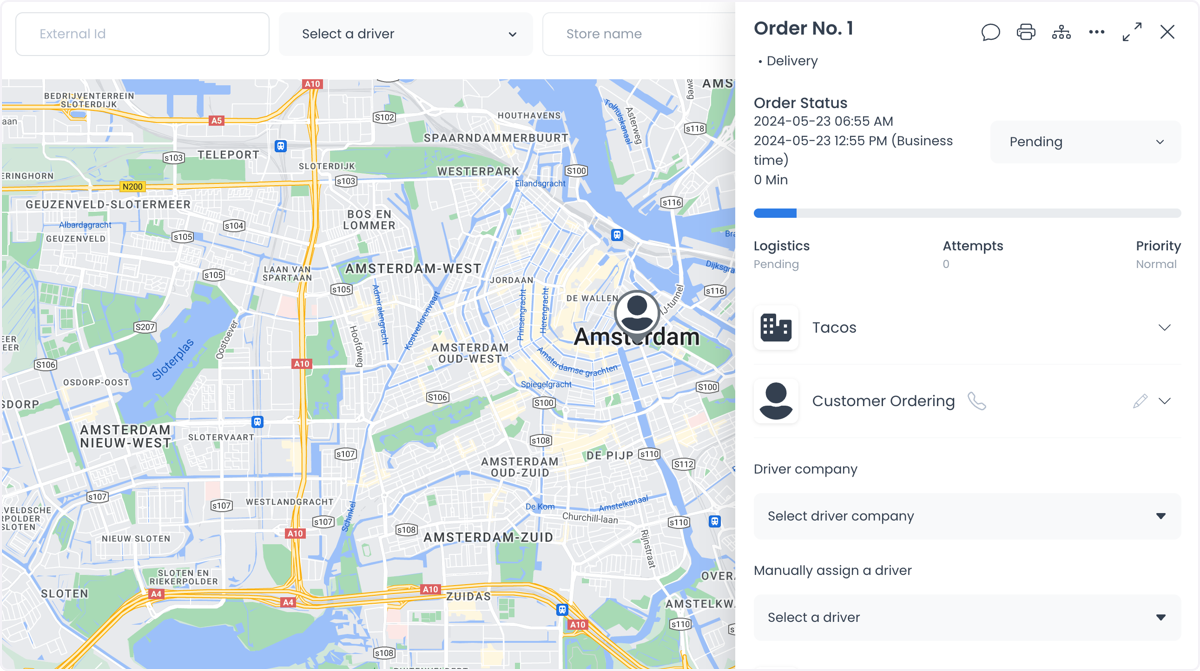
Select View details on a delivery card to open the order detail panel. Use that panel to review the order number, current status, placement time, elapsed time, business, customer, and Driver information that your role may access.
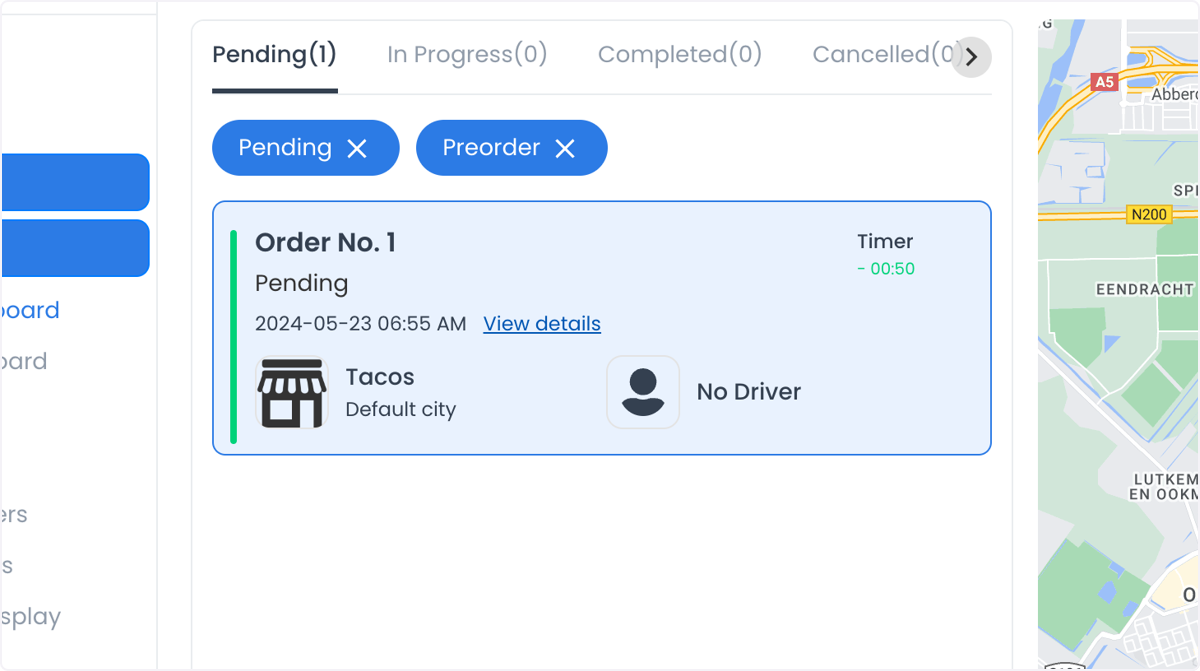
The dashboard's card and map interactions are for monitoring and selection. Driver assignment, status changes, refunds, and other live order actions belong to the detail panel and have their own permissions and checks. For the assignment boundary, see Assign or change a driver.
Use the view to coordinate work
The queue can help an operator compare several delivery orders, identify a delivery that needs a closer review, and prepare an approved response to a delay, address issue, or workload question. Confirm each action in the relevant order workflow. A visible map update, card change, or notification-like UI state is not proof that an external party received information or that a delivery outcome occurred.
Troubleshooting
Why is the map missing?
The project may not have the required Google Maps configuration, or the selected delivery may not have location data available to your session. Ask a project administrator to review the map configuration.
Why are no Drivers shown for an unassigned delivery?
There may be no drivers returned as available for the delivery, the driver's location data may be unavailable, or your access may be scoped away from the relevant drivers. A list of Drivers is not an assignment result.
Why is the queue empty?
The selected status group, status chips, Search text, or another filter can exclude every delivery. Clear filters and confirm the selected group before treating the queue as empty.
Can I assign a Driver from the map?
Use the order-detail assignment workflow instead. The map helps review locations and returned driver data; it does not replace the eligibility checks made for a live assignment.
Related guides: Orders overview · Search and filter orders · View and manage an order · Assign or change a driver