Create or edit a driver
Create and maintain driver accounts from Drivers so the people who operate deliveries have accurate account, group, and schedule information. Account setup is separate from assigning a driver to an order: a complete profile or an available status does not by itself assign the driver or confirm that a delivery will be completed.
You need access to the relevant Driver accounts and an approved account-administration workflow. The fields, tabs, and controls shown in a project can vary with the account role, project configuration, and configured user fields.
Create a driver account
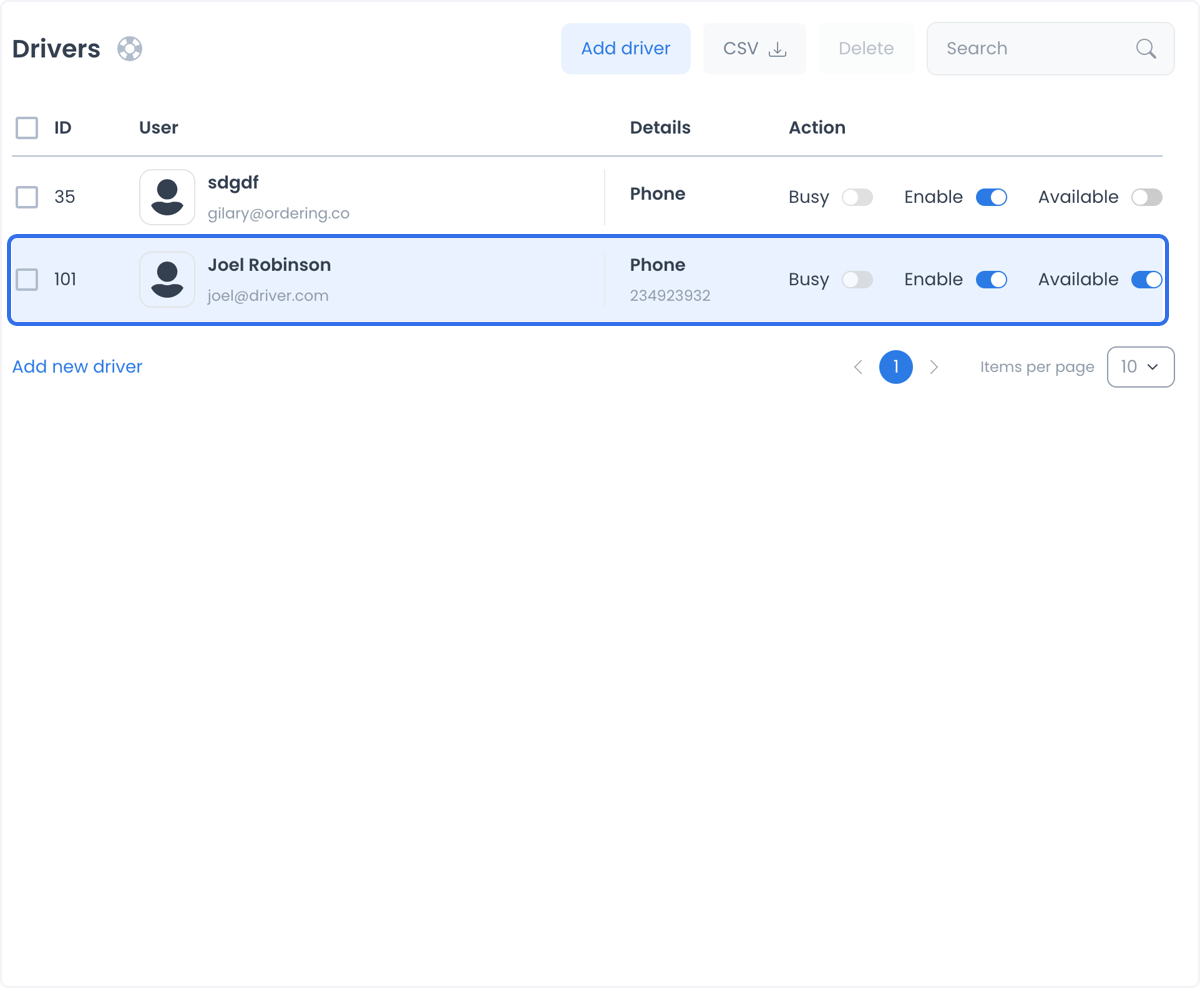
- In the Dashboard, open Delivery → Drivers.
- Select Add driver.
- Enter the required profile information for the intended person.
- If shown, select the appropriate Driver group or groups.
- Review the account carefully, then select Add.
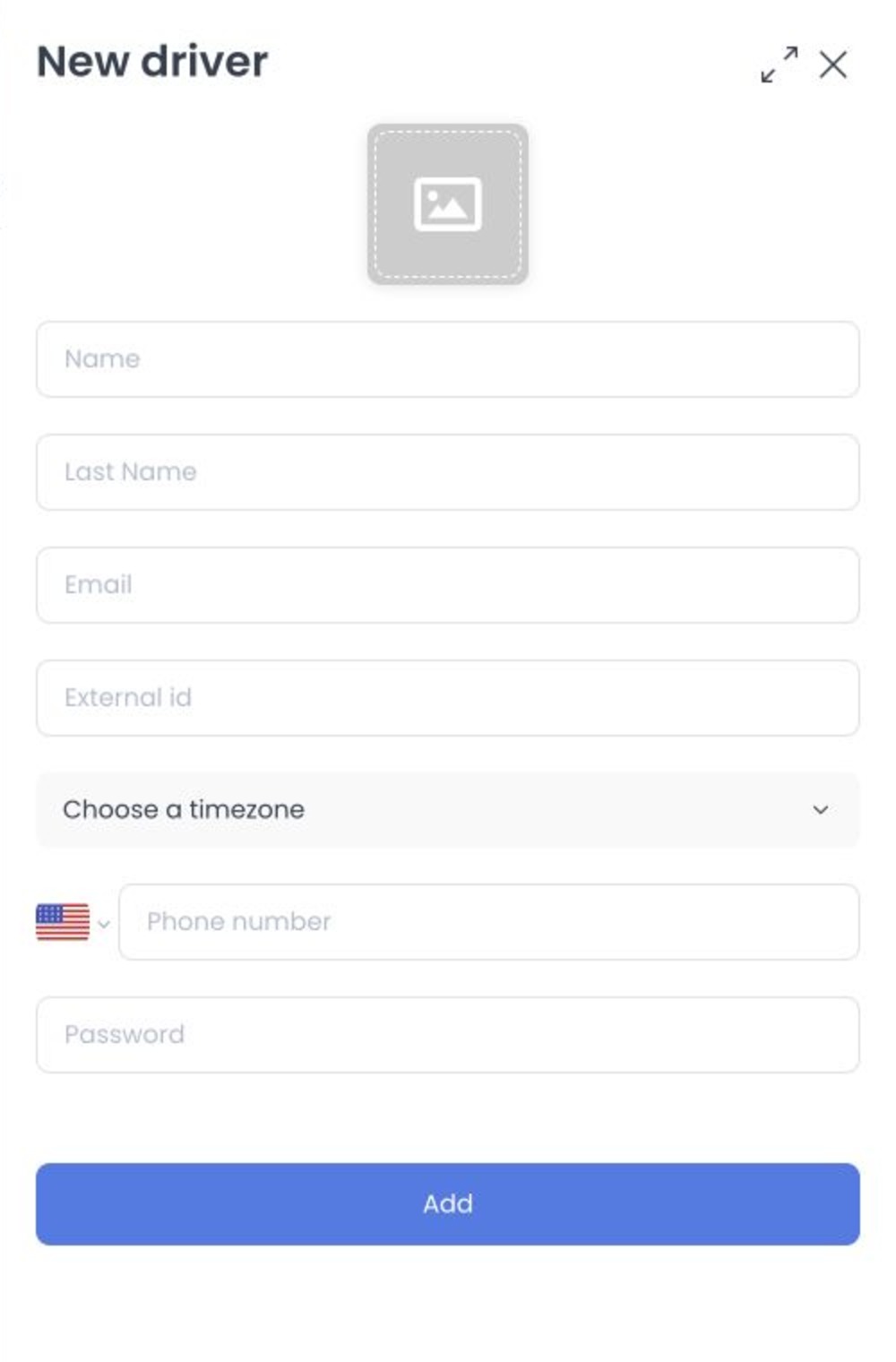
Creating the account is a saved action. Wait for the Dashboard response, then confirm that the intended account appears in Drivers. Do not use a live Driver record as a test account.
Complete the profile
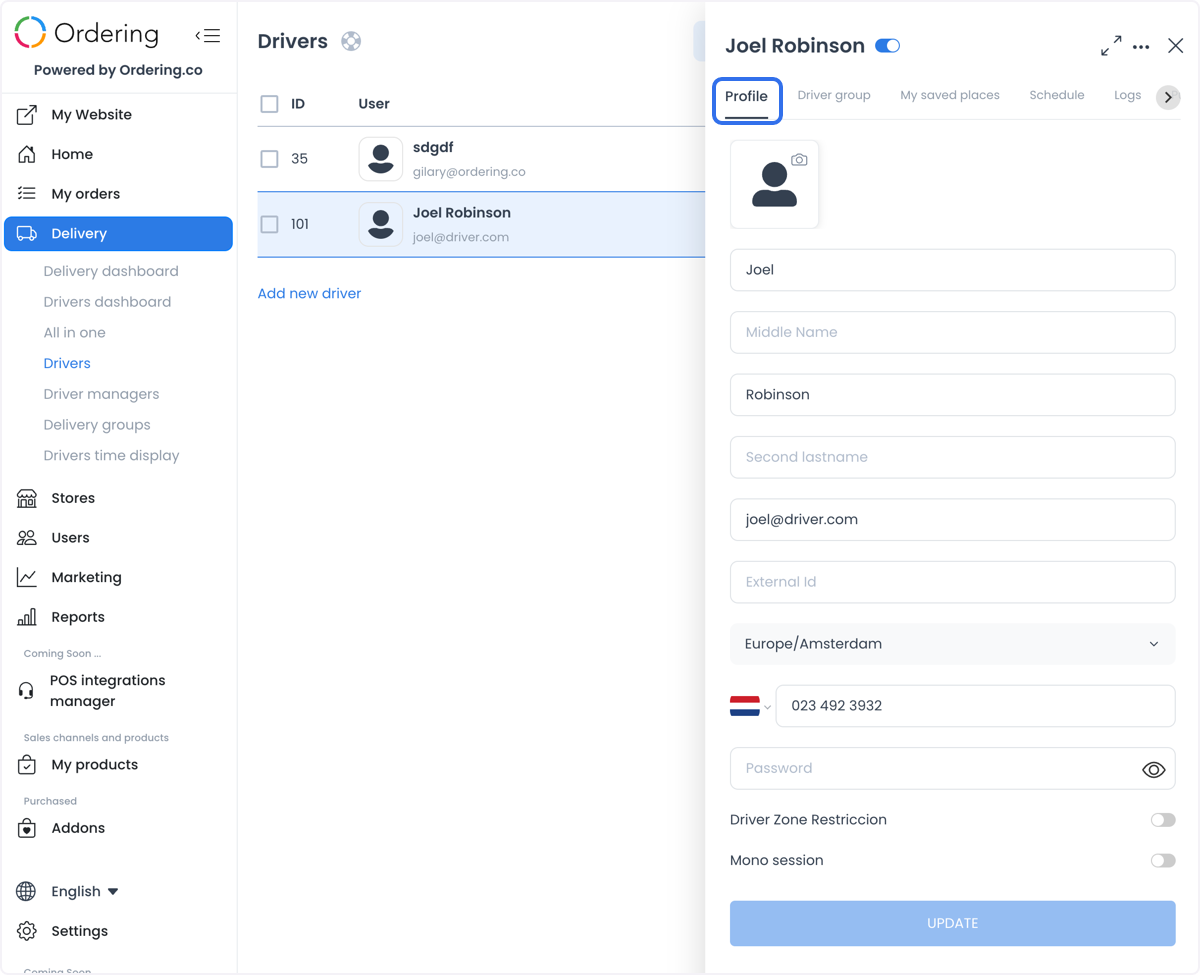
The profile can include contact and account fields such as a photo, name, email address, phone number, password, time zone, and external identifier. Projects can apply different labels, field types, required fields, and validation rules.
Some authorized accounts can also see Driver-specific controls, including Driver Zone Restriction and Mono session. Treat these as access-sensitive settings. Change them only when an approved operating or security process calls for the change.
Profile fields can contain personal and access-related data. Do not copy credentials, contact details, identifiers, verification information, or session settings into unapproved notes, screenshots, or test records.
Edit an existing driver
- Open Delivery → Drivers.
- Find the intended Driver and select the row.
- Keep Profile selected, or choose the related tab you need.
- Change only the fields required for the approved update.
- Select Update when the form provides it.
- Review the response and reopen the account to confirm the saved value.
Most Profile edits remain pending until you select Update. If Update is unavailable, there may be no valid pending change or a field may need attention.
Manage group membership
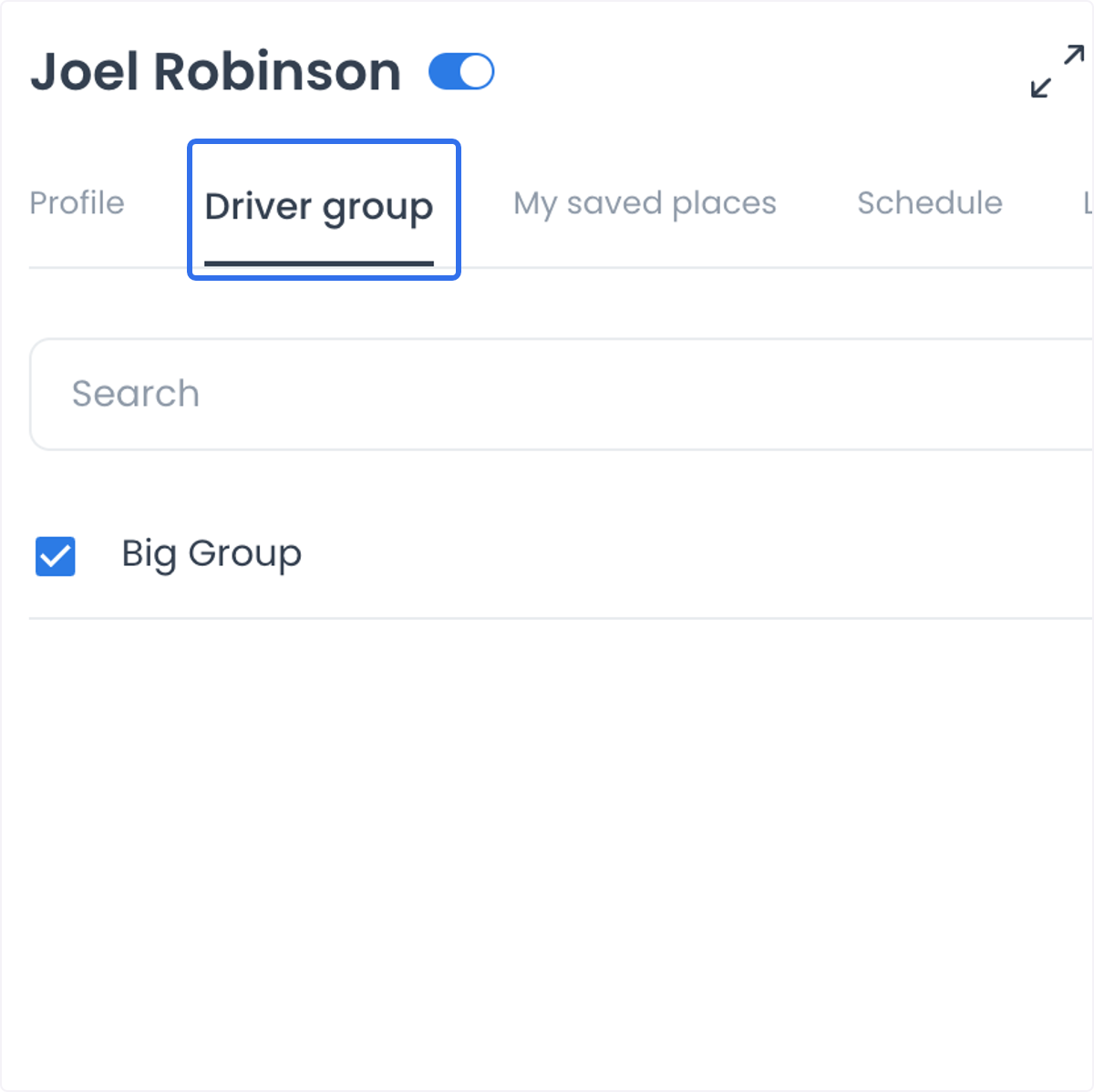
Use the Driver group tab to review or change the groups associated with the Driver. Groups can help organize drivers by operating area, skill, specialization, or another delivery policy. A group relationship supports the configuration of delivery operations; it does not prove that a driver will receive, accept, or complete a particular order.
When creating a Driver as a Driver manager, the project can require at least one permitted group. Confirm the selected Driver and each group before saving. Group membership can affect which delivery work the account is eligible to receive.
Manage saved places and schedules
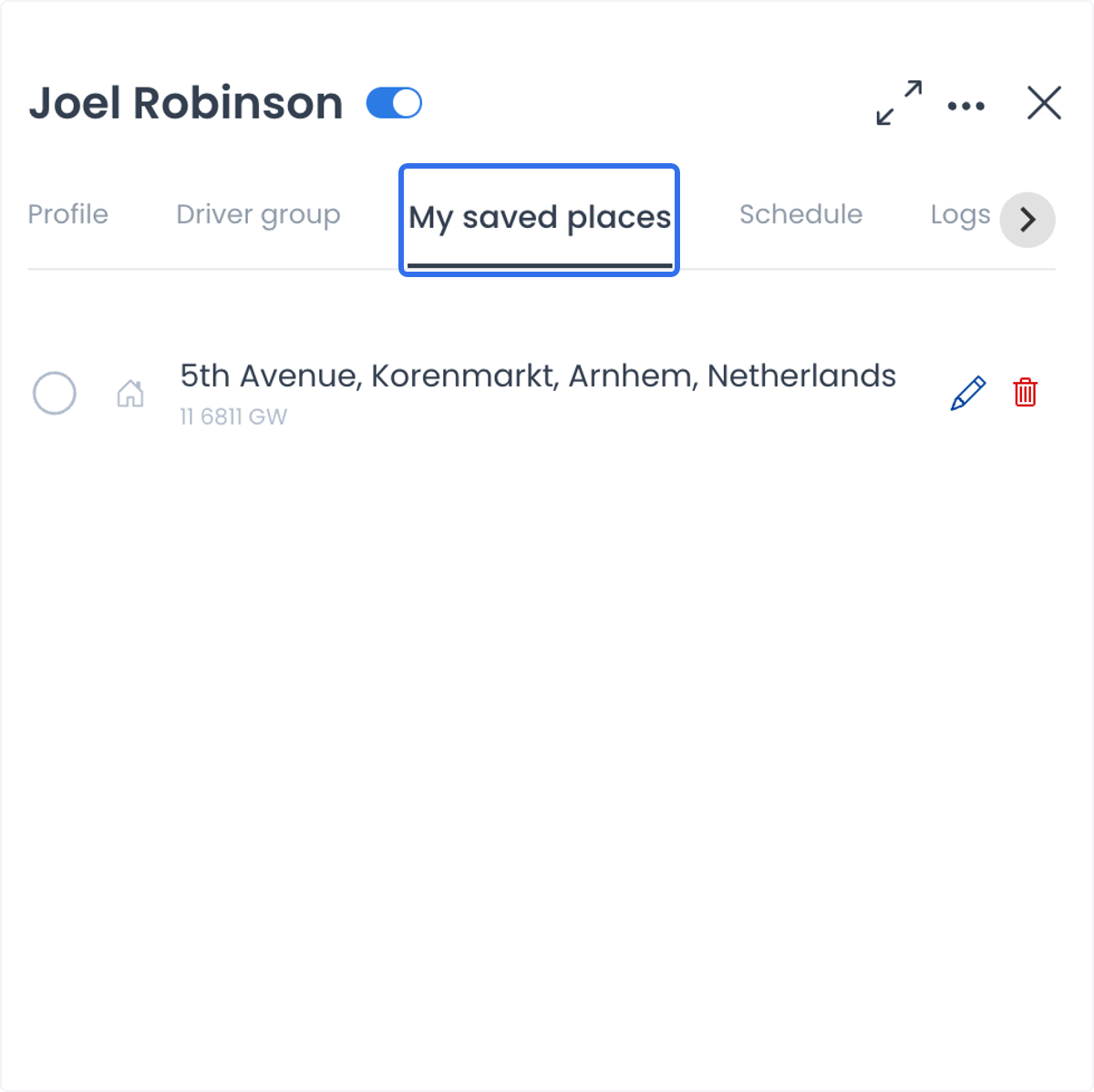
The Saved places tab can store frequently used account addresses, including places categorized as home, office, or favorites. Add or edit an address only when the account owner and your operating policy authorize it. Address data is sensitive and is not evidence of a driver’s current location.
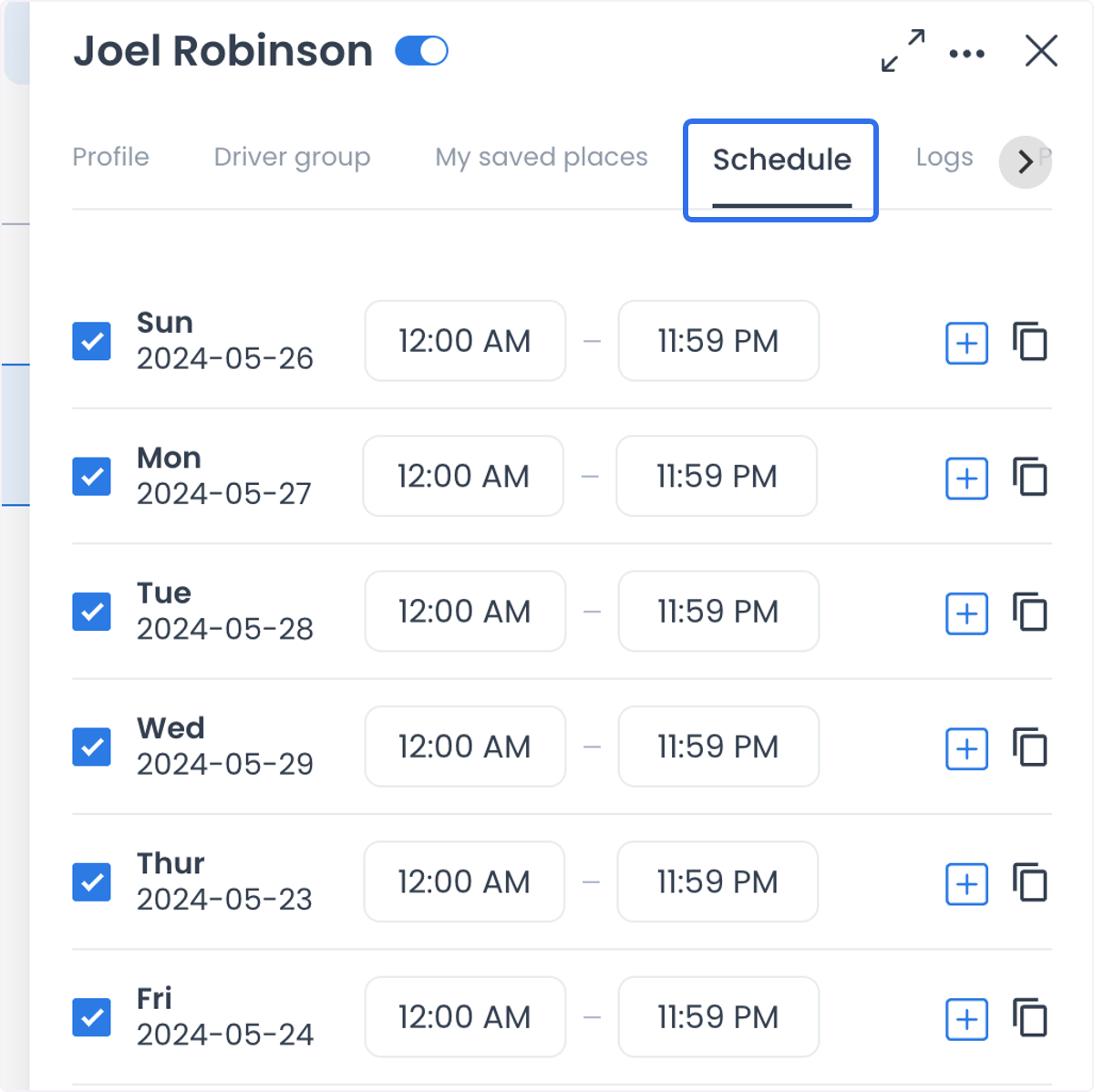
The Schedule tab can define the working hours used for the Driver. A Driver manager can be restricted from changing schedules. Updating a schedule can affect availability checks, but a scheduled time does not guarantee an assignment or a delivery result.
When moving a Driver between groups or operating areas, review the Driver's time zone as well. Update it when the new operating arrangement requires a different time zone; group membership does not necessarily change it automatically.
Review logs and device information
Eligible accounts can expose additional tabs:
| Tab | Use it for |
|---|---|
| Logs | Review recorded account or platform changes. |
| Advanced logs | Review additional recorded changes when your role permits it. |
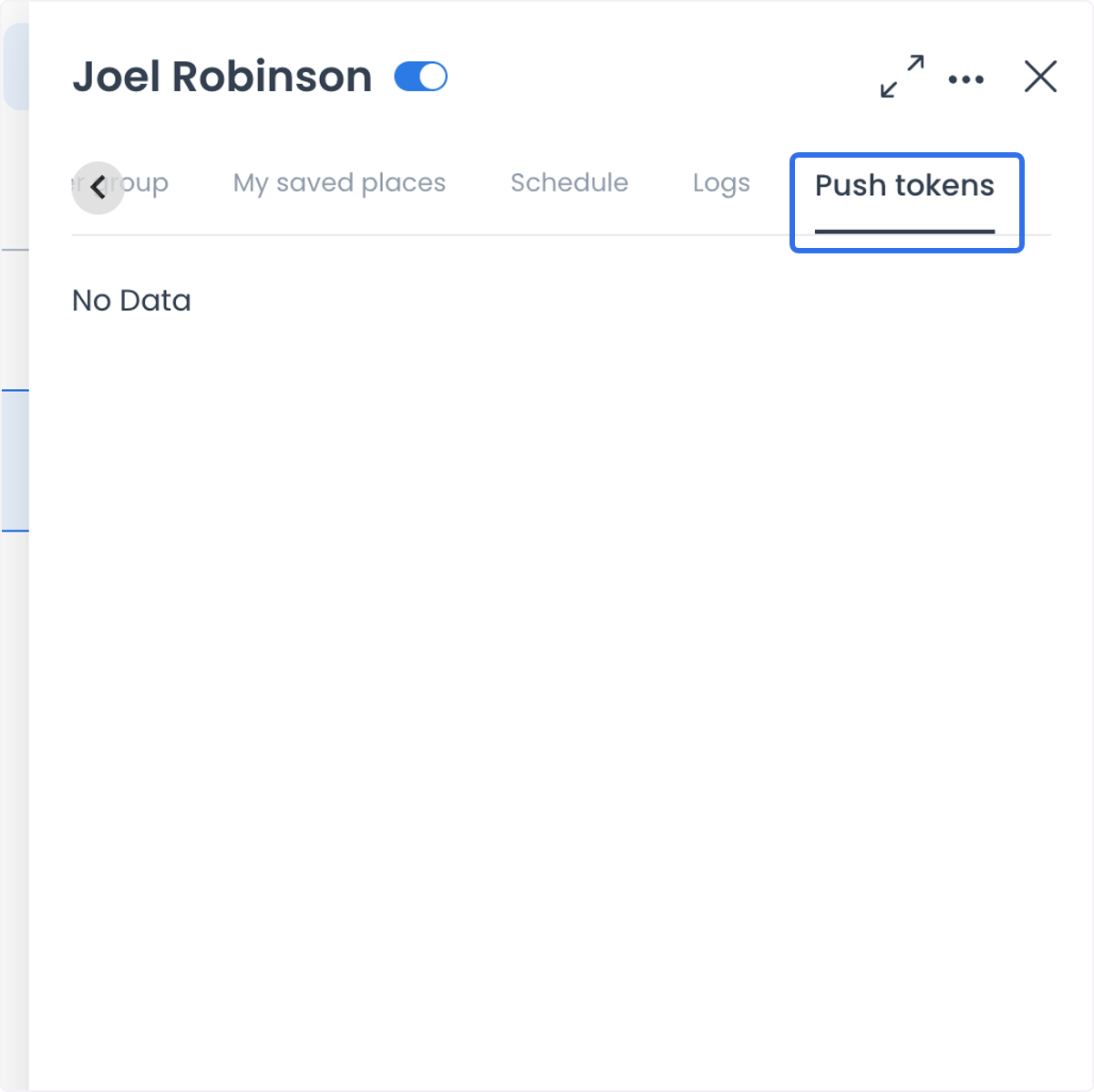
| Push tokens | Review device-token information for the account. |
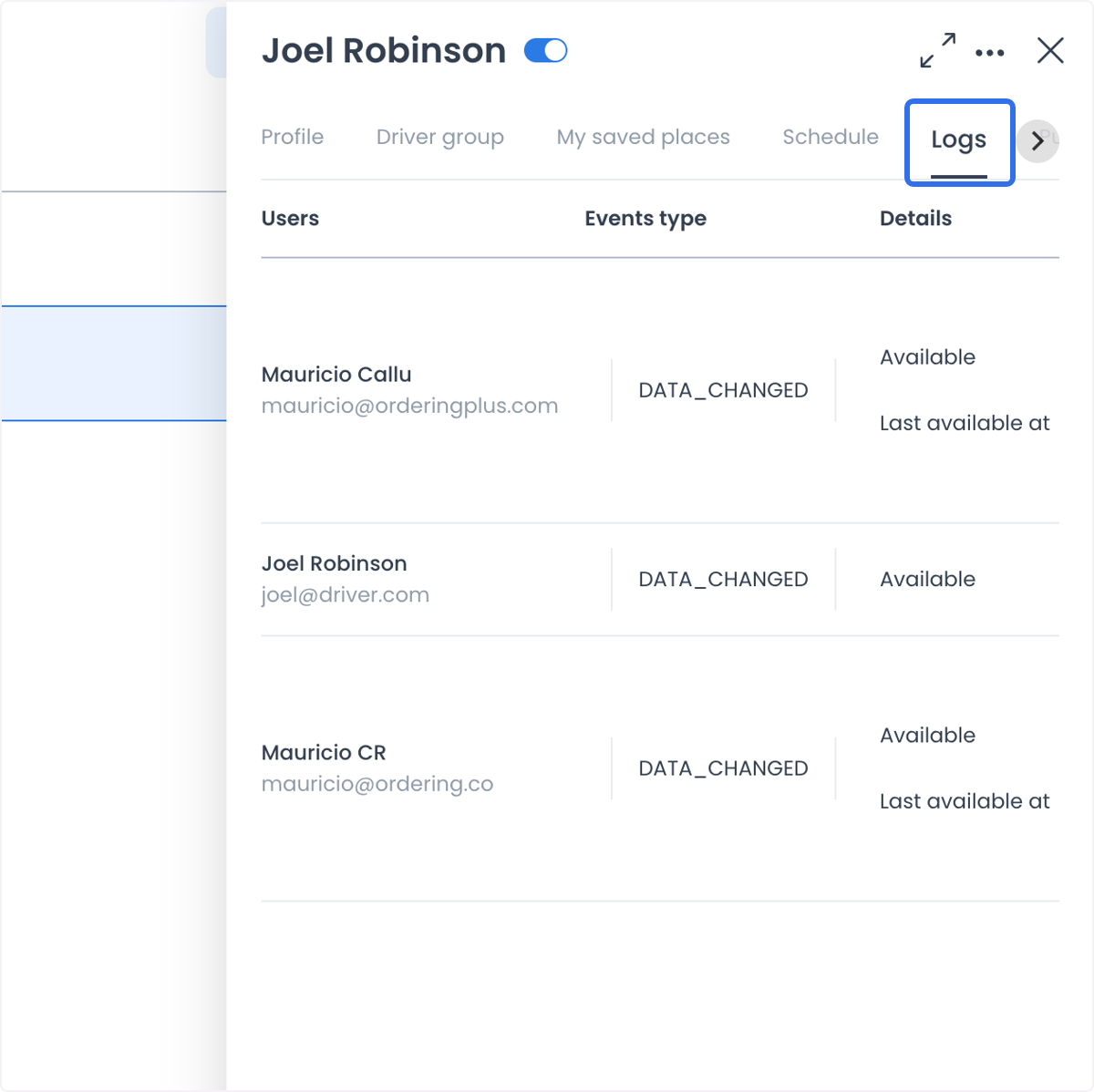
Logs can help an authorized operator investigate a known change. A log entry or device-token record does not confirm that a notification was delivered, read, or acted on.
Understand separate controls
Not every control waits for the Profile form's Update action:
- The account-header Enable switch changes the account's enabled state.
- The Enable, Available, and Busy switches in Drivers are separate account changes.
- The photo control uses a separate image update.
- Driver-group membership uses a separate relationship update.
Review the Driver, the intended change, and the operational impact before using any of these controls. For the separate list switches and their checks, see Drivers list.
Use the account record safely
Accurate Driver profiles, group membership, schedules, and recorded changes can help an operator coordinate a delivery fleet. Use those records to prepare an approved operational decision, not as evidence that a task has been allocated, a driver is at a location, or a delivery has occurred.
Troubleshooting
Why are fields or tabs missing?
The account can show a different set of configured user fields, role-based controls, or project-specific settings. Confirm your access and the project's configuration before assuming a field is unavailable.
Why can't I change a schedule or Driver Zone Restriction?
Your role may not permit the change, the Driver manager may be restricted from scheduling, or the setting may require an administrator-controlled workflow.
Why is Update unavailable?
There may be no valid pending change, the form may still be saving, or a required field may need correction. Resolve the visible validation message before trying again.
Why can't the Driver become available?
The account can be affected by assigned work, its schedule, or configured availability checks. Review the current schedule and delivery workload; availability alone does not establish eligibility for every order.
Related guides: Drivers list · Drivers dashboard · Assign or change a driver