Create or edit a Driver
Use Add driver to prepare a Driver-account request, or select an existing Driver from the Drivers list to reach its update form. These account requests are separate from order assignment and the Drivers dashboard.
The route and UI source apply role and read-only gates. Fields, groups, tabs, and controls also depend on plan, configuration, and the project's configured user fields; API source applies its own caller and relationship validation.
Add a Driver
- Open Drivers from the Dashboard delivery area.
- Select Add driver.
- Enter the required account information shown in your project.
- Review the intended account and select Add only in an approved account-administration workflow.
The current form sets the Driver role in its request and uses the user-registration contract. Its client success branch updates local list state; that branch alone is not proof of deployed persistence.
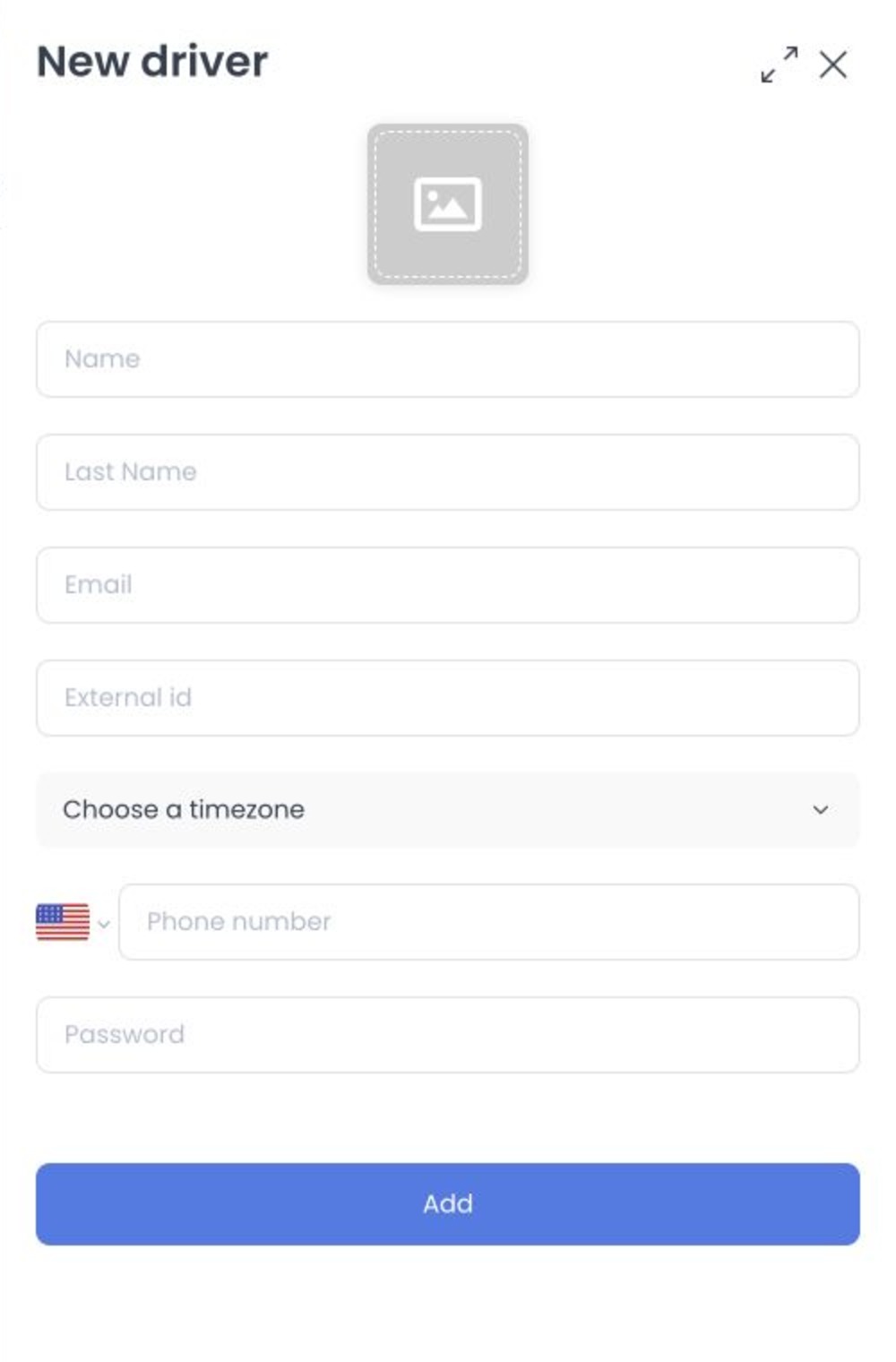
Fields when creating a Driver
The contact fields follow your project's configured checkout/customer-field rules. Their labels, input types, visibility, and required status can differ between projects.
The form can also show:
- A profile photo upload
- Password
- External Id and Timezone for eligible Enterprise projects
- Driver-group selection for a driver manager
The form normalizes email input and contains email and phone validation. API source also validates submitted account fields. This article intentionally omits credential and security implementation details.
Current client and API source require a Driver manager to submit at least one permitted Driver group when creating a Driver. No group membership was read or changed for this review.
API source contains project Driver-sign-up settings that can influence the submitted account's initial enabled state. Do not infer a deployed default from this source-only article.
Edit a Driver profile
- Open Drivers and select the intended Driver row.
- Keep Profile selected.
- Change only the account fields you intend to update.
- Select Update.
- Review the returned result or error, then use the approved operational system to verify the account.
Most Profile changes remain pending until you select Update. The button is unavailable until there is a supported pending change.
Depending on the project, Profile can include configured contact fields, password, timezone, External Id, and these Enterprise controls:
- Driver Zone Restriction
- Mono session
Driver Zone Restriction is restricted in API source to administrator-controlled updates. Mono session is an access-sensitive setting; follow the approved security policy rather than changing it for documentation or testing.
Some projects can also show a License plate field. It is project-specific and should not be expected in every Driver account.
Profile fields can affect account access and verification state. Do not change credentials, contact identifiers, verification controls, or session-related settings for documentation or testing.
Understand separate mutation controls
Not every Driver control waits for Update:
- The Enable switch submits a user update from the account header.
- Enable, Available, and Busy switches submit separate user updates from Drivers list.
- The photo control uses a separate image/update path.
- Driver-group membership uses a separate relationship-management path.
Review the Driver name and intended result before using any of these controls. For the operational conditions and possible rejections of Available or Busy changes, see Drivers list.
Other account tabs
The account panel can include the tabs below. Their availability depends on role, plan, and configuration.
| Tab | What it is for |
|---|---|
| Driver group | View or reach group-membership mutation controls; bulk selection has a confirmation branch in current source. |
| Saved places | Review account addresses. |
| Schedule | Update working hours. Changes remain pending until you select Update; a driver manager can be restricted from changing schedules. |
| Logs | Review eligible Enterprise account logs. |
| Advanced logs | Review eligible administrator-level logs. |
| Push tokens | Review eligible Enterprise device-token information. |
Do not use this account guide as a procedure to delete a Driver, make bulk changes, manage credentials/tokens, or troubleshoot operational order assignments. Those workflows can affect access, devices, or active deliveries.
Verify safely
- Confirm that the selected Driver account is the intended person before saving.
- Treat a client confirmation as provisional until the approved operational system shows the intended account state.
- If an authorized workflow changed groups or schedule, verify the intended Driver and relationship before relying on it.
- Use Drivers dashboard only under approved operational access; this article did not retrieve live availability.
Troubleshooting
Why are fields missing from the form?
Contact fields follow the project’s configured validation fields. Enterprise-only and project-specific controls appear only when the corresponding plan or setting is enabled.
Why can't I change Driver Zone Restriction or a schedule?
Driver Zone Restriction is restricted to administrators. Schedule updates can be disabled for driver managers by project configuration, and read-only accounts cannot update it.
Why is Update unavailable?
There is no supported pending change, or the form is saving. Make the intended change and resolve any field-validation message before trying again.
Why can't the Driver become Available?
The Driver may have in-progress assigned orders, be outside their working schedule, or fail configured availability checks. Review the account’s schedule and current delivery workload.
Related guides: Drivers list · Drivers dashboard · Assign or change a driver