All in one delivery view
All in one brings a Driver panel, an Orders workspace, and map context together in the Ordering.co Dashboard. Use it to organize a delivery review and decide what to inspect next. A visible panel, status, map marker, or configured control is not by itself proof of a Driver's work, location accuracy, dispatch acceptance, delivery, notification receipt, or physical handoff.
Availability depends on your role, read-only state, and project configuration. The Dashboard can place All in one under Delivery or Orders. Route authorization and a visible navigation item are separate checks, so the absence or presence of one does not prove the other.
Open the workspace
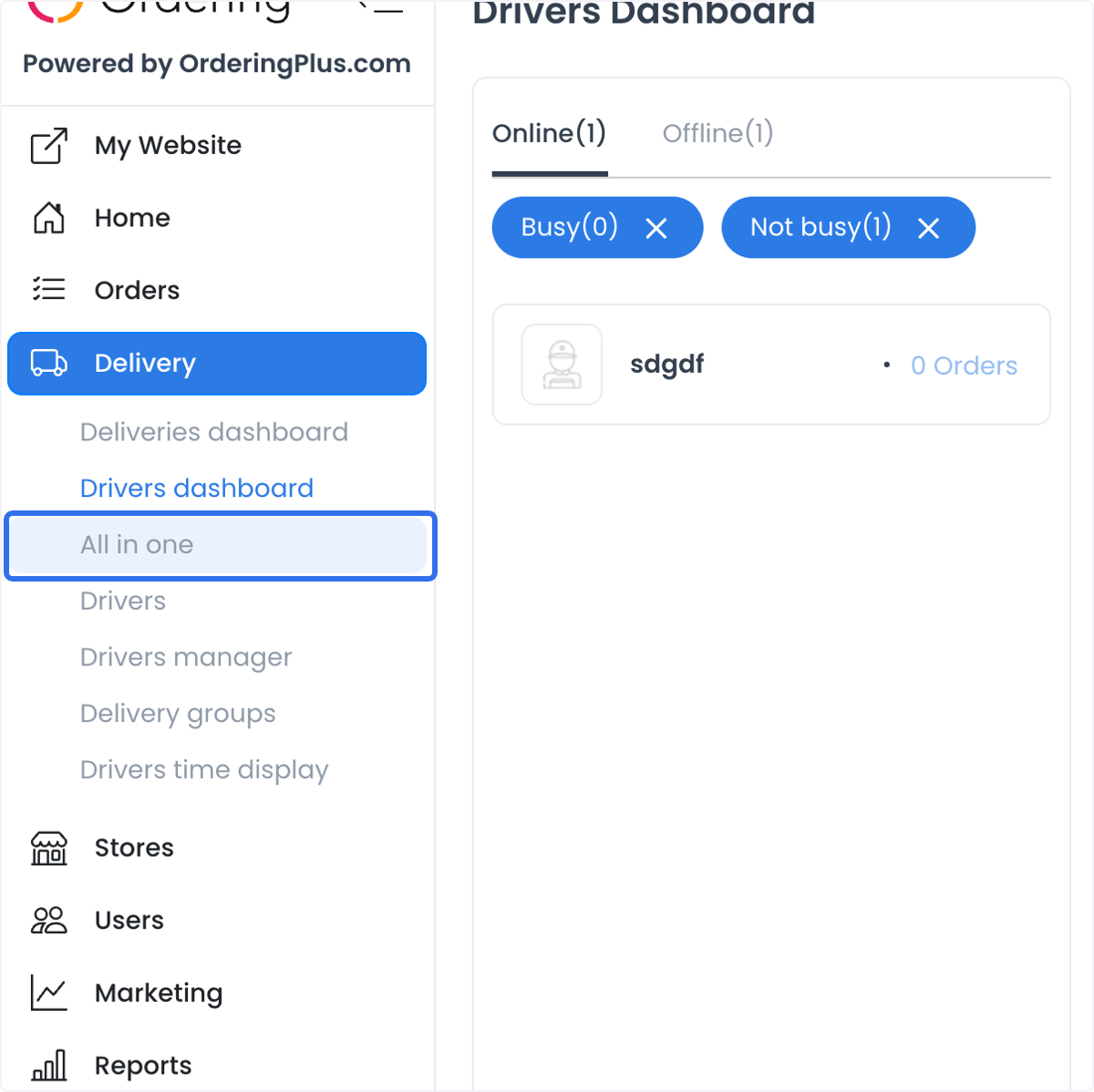
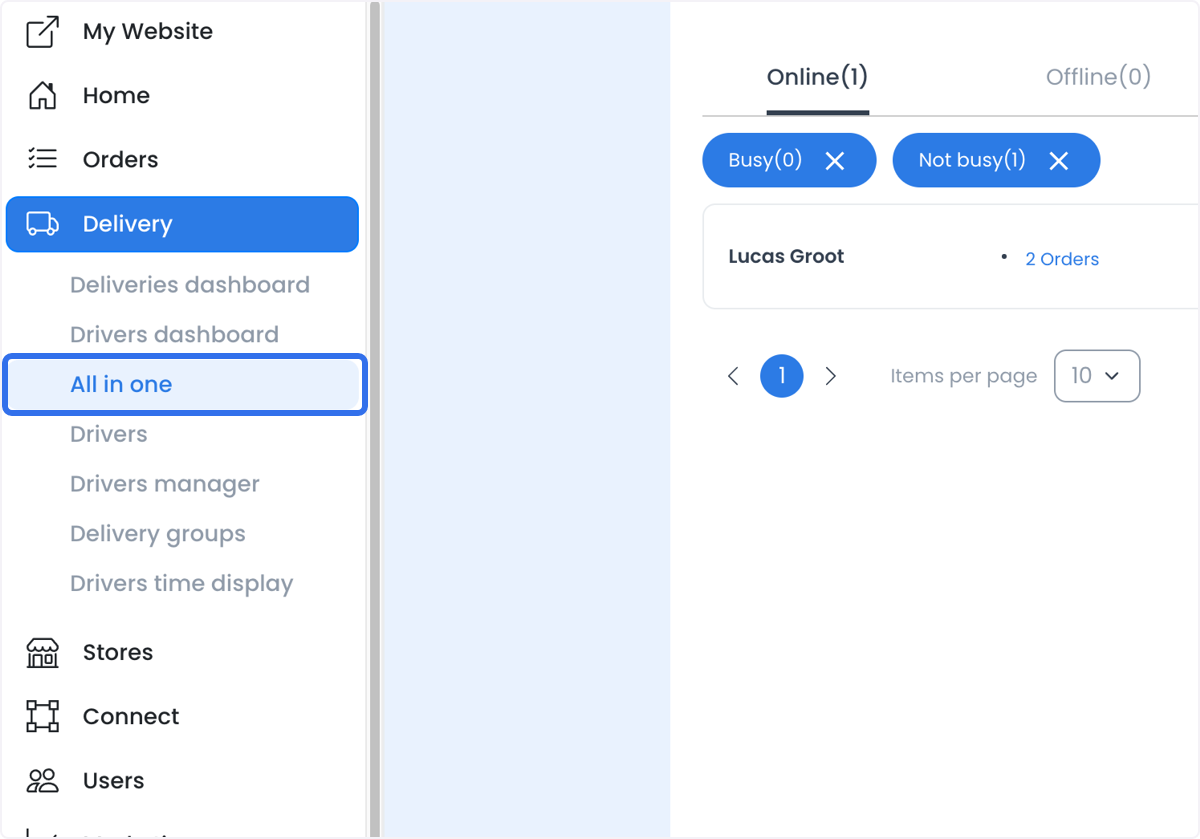
- In the Dashboard sidebar, open Delivery or Orders, according to the placement available to your account.
- Select All in one.
- Use the Driver and order controls to narrow the operational context before you select an item.
Review Driver status and availability
The compact Driver area can show Driver identity, location data, enabled, available, busy, online, or offline state, group membership, an assigned-order count, and a photo when those fields are returned. It can help you choose which Driver or order details to inspect next.
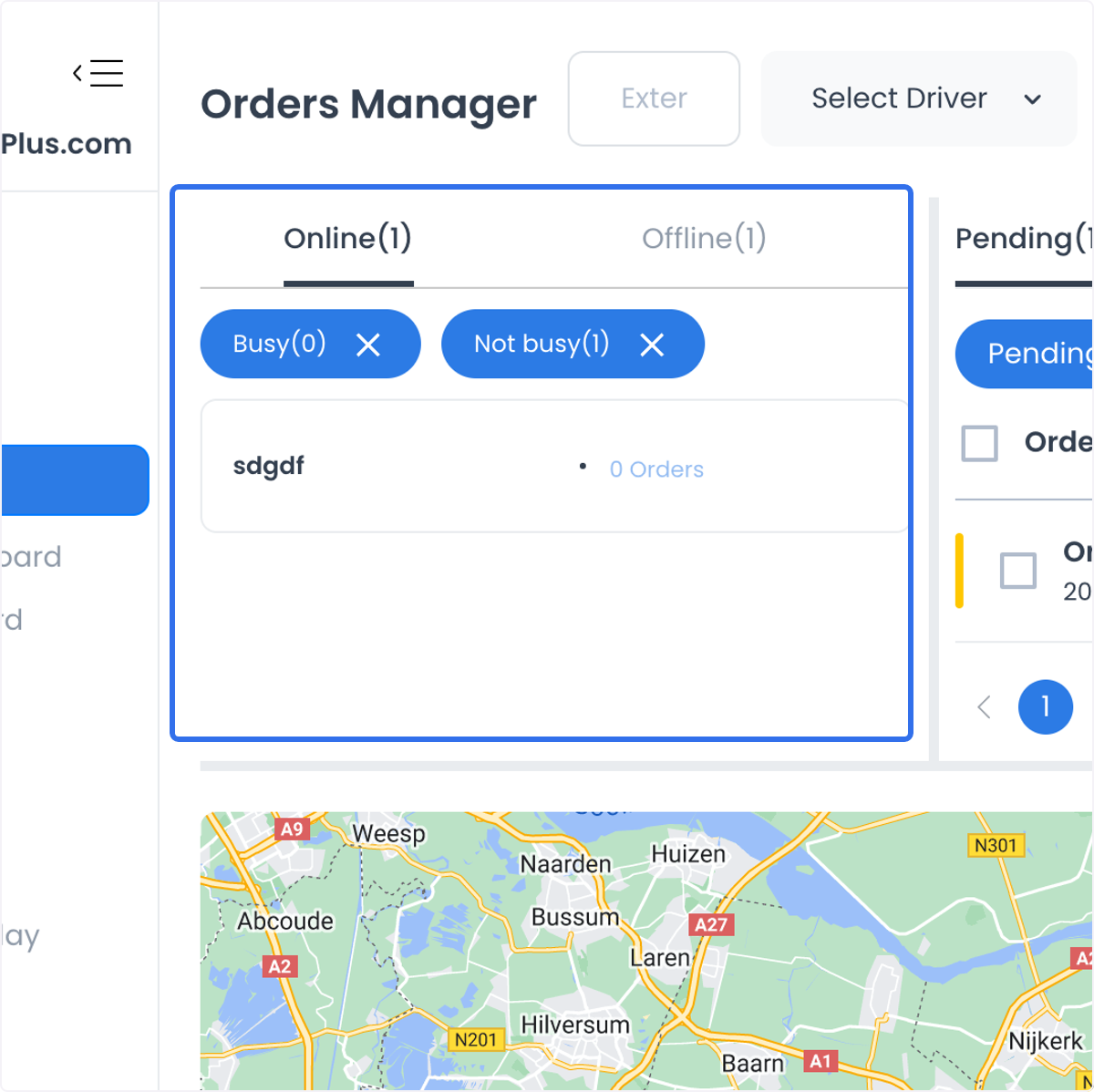
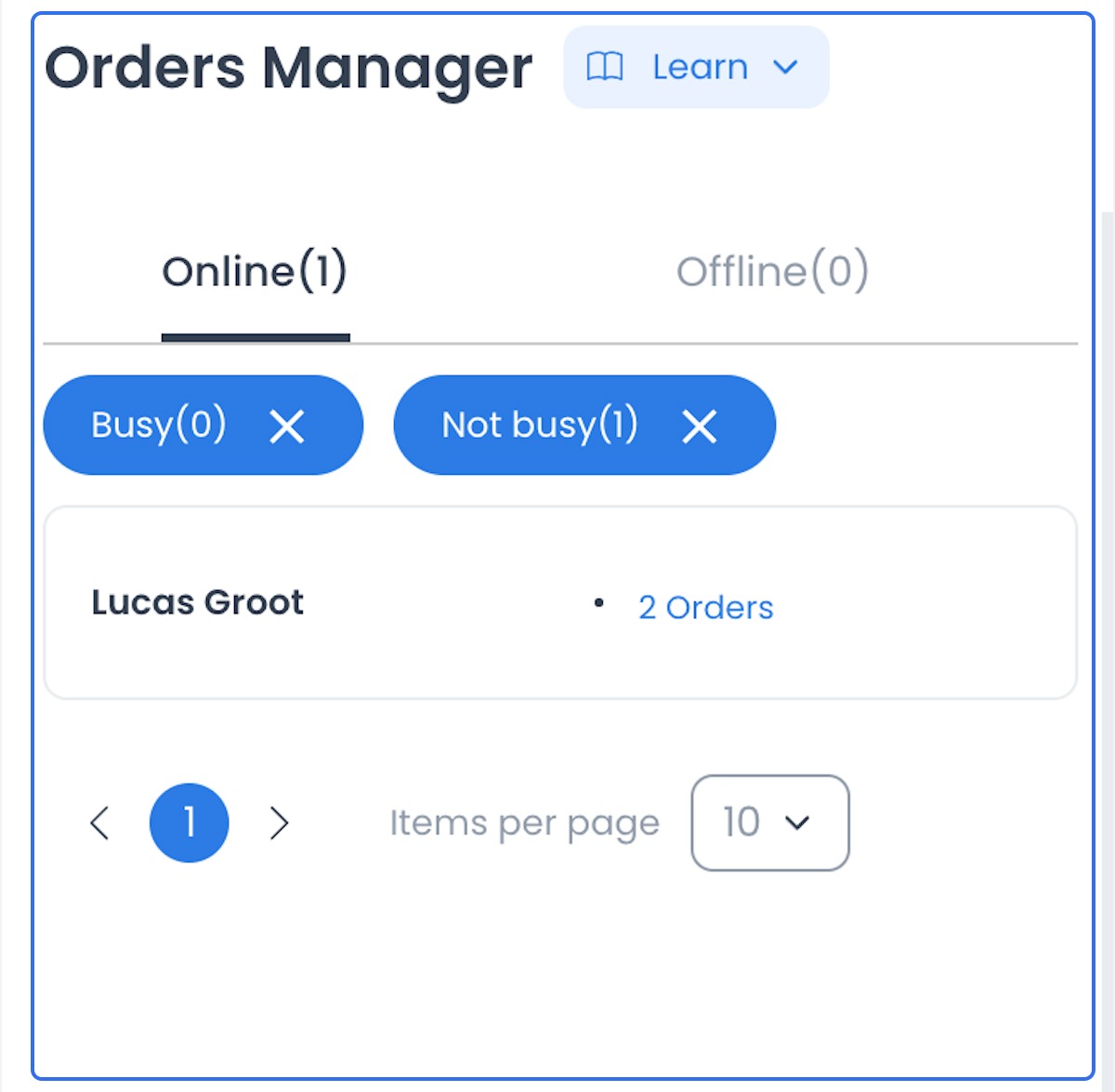
Treat these as displayed operational states, not proof that a Driver is signed in, reachable, doing work, available to accept a new task, or physically near a customer. Driver identities, locations, contact details, workload, and group membership can be personal or operational data. Do not copy them from a live workspace into training or support materials.
Review orders and their displayed status
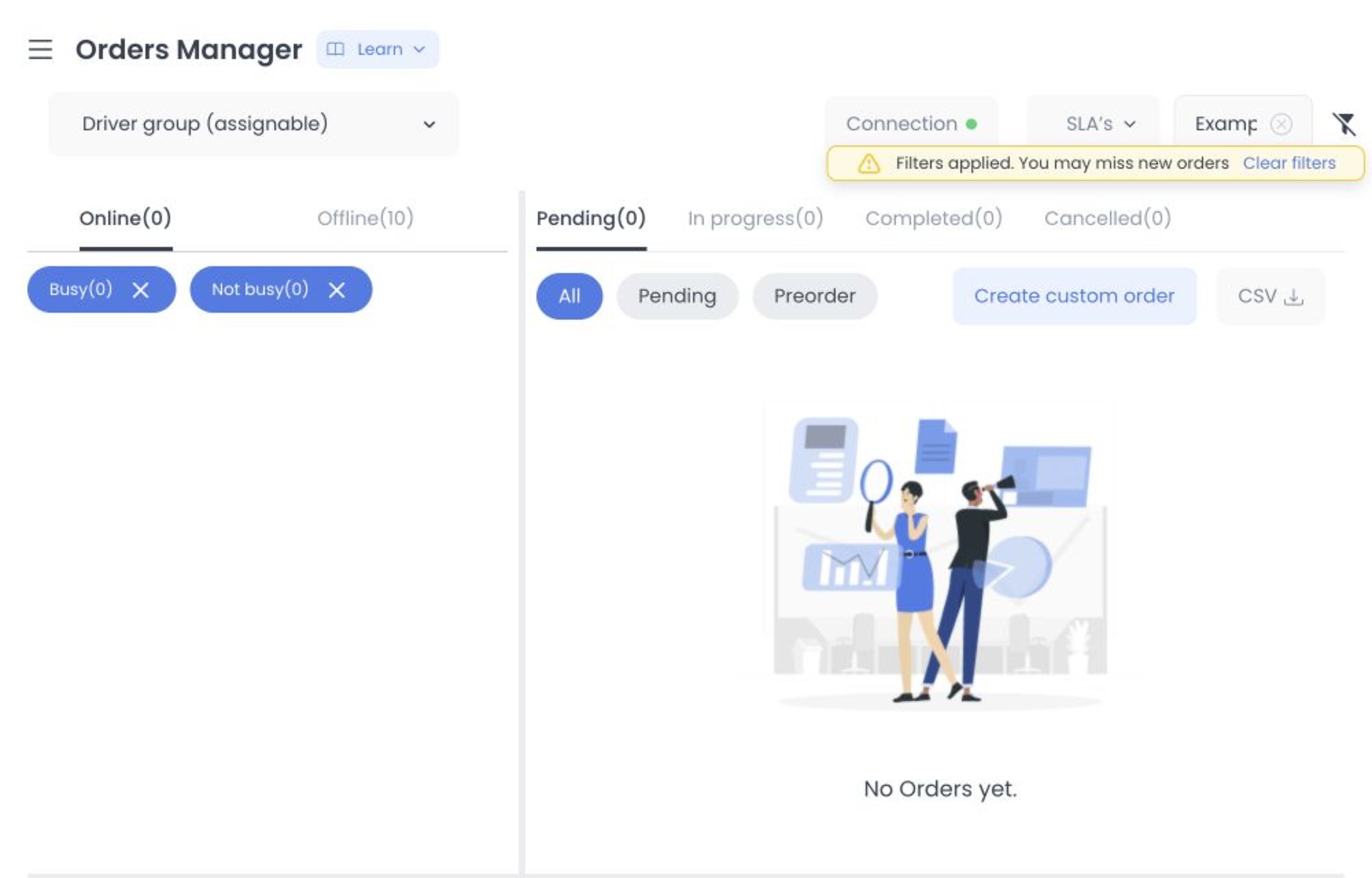
The Orders workspace can organize current order rows into status groups such as Pending, In progress, Completed, and Cancelled. It can also provide more specific status filters, Search, Filter, Driver state filters, business or group filters, and supported bulk controls. Some configurations show Create custom order for manual or special-case entries.
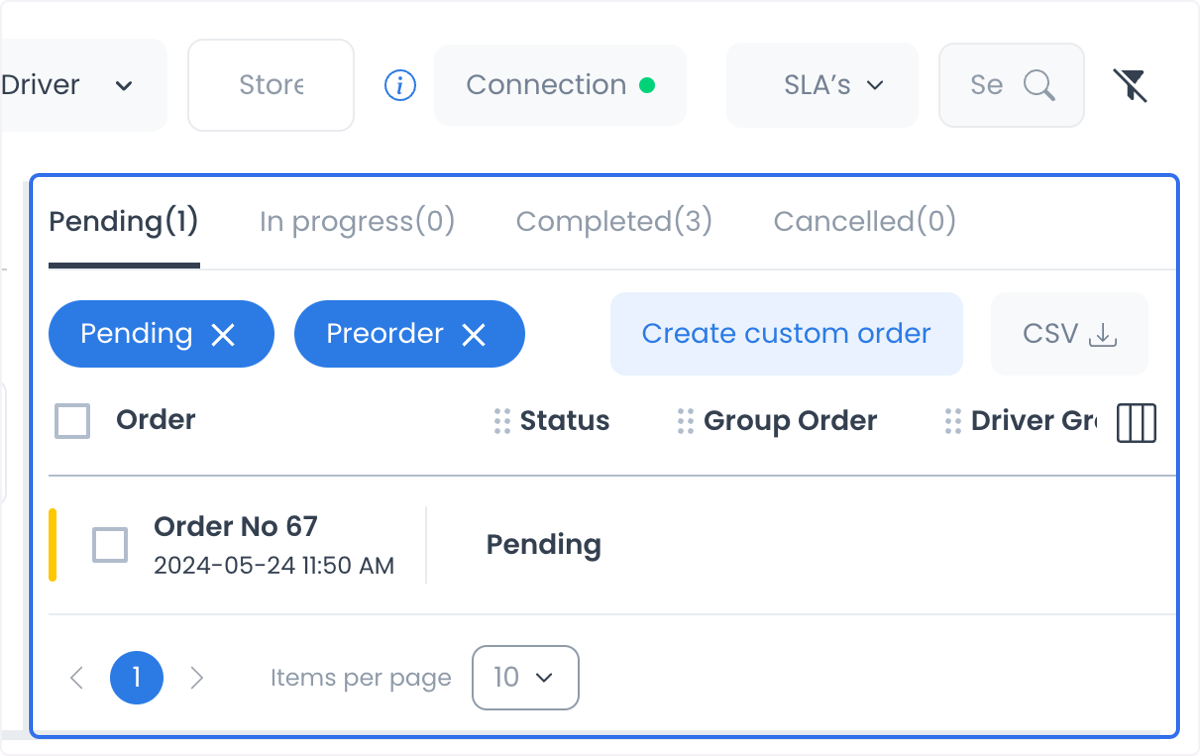
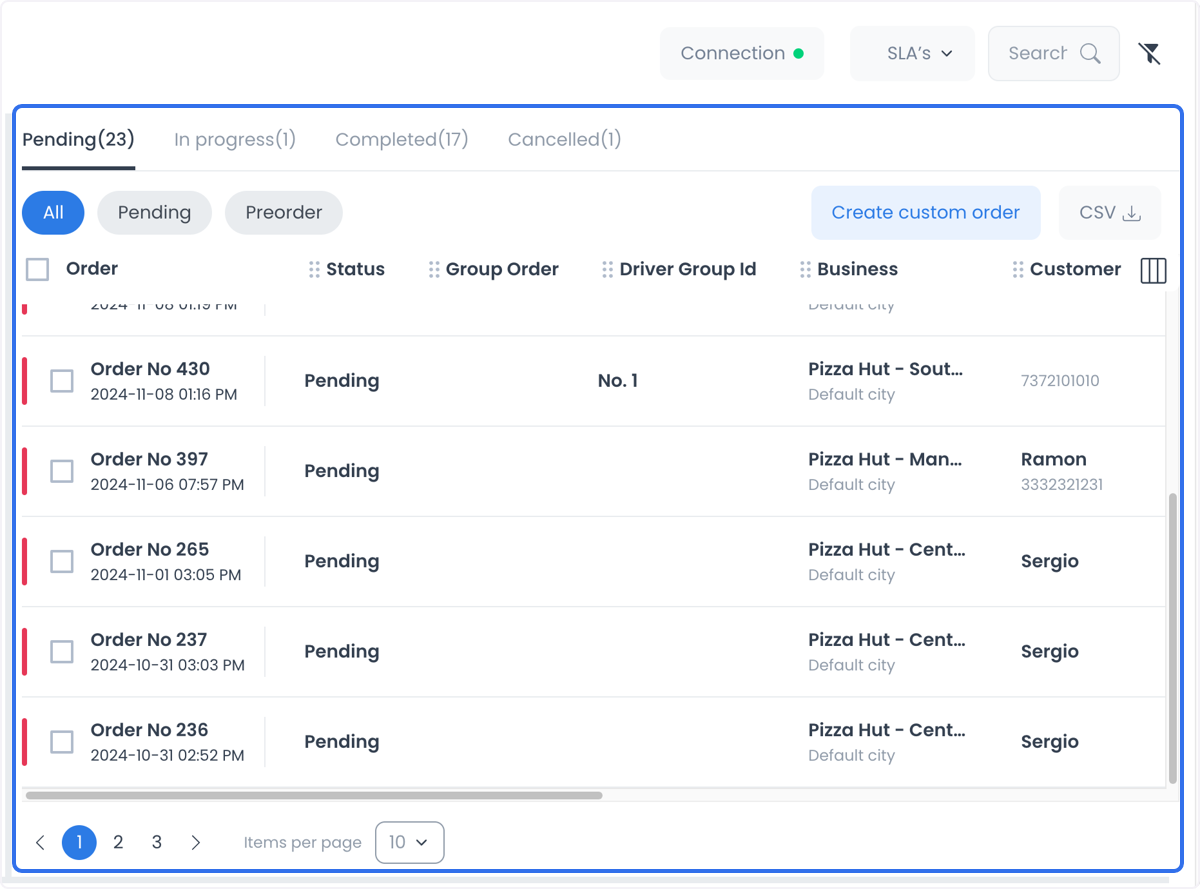
Open an order to review the details made available to your account, including its order history and any displayed Driver assignment. A status label, timestamp, or color indicator is a displayed data point. It does not independently establish that a dispatch was accepted, a Driver performed work, an ETA is accurate, a notification reached a recipient, or a physical delivery occurred.
Dispatch, assignment, and mutable controls
The shared order-detail and multi-order controls can expose assignment, status, custom-order, bulk-action, and message surfaces. Those controls can submit operational writes. Selecting an order or map marker can change local focus, while an assignment or status action is a separate request that can be rejected or have additional operational consequences.
Before assigning a Driver, changing a status, creating a custom order, or sending a message, confirm the order, intended Driver, and action in the authoritative operational workflow. A click, an updated local view, or a visible map marker does not prove that the requested change, dispatch, notification, or downstream delivery outcome succeeded.
For an approved delivery action, follow Assign and manage a delivery. This page does not turn a display state into confirmation of a real-world event.
Use the map as context, not as proof
The map can focus on a selected Driver or selected order and can display location information associated with available order, Driver, customer, or business data.
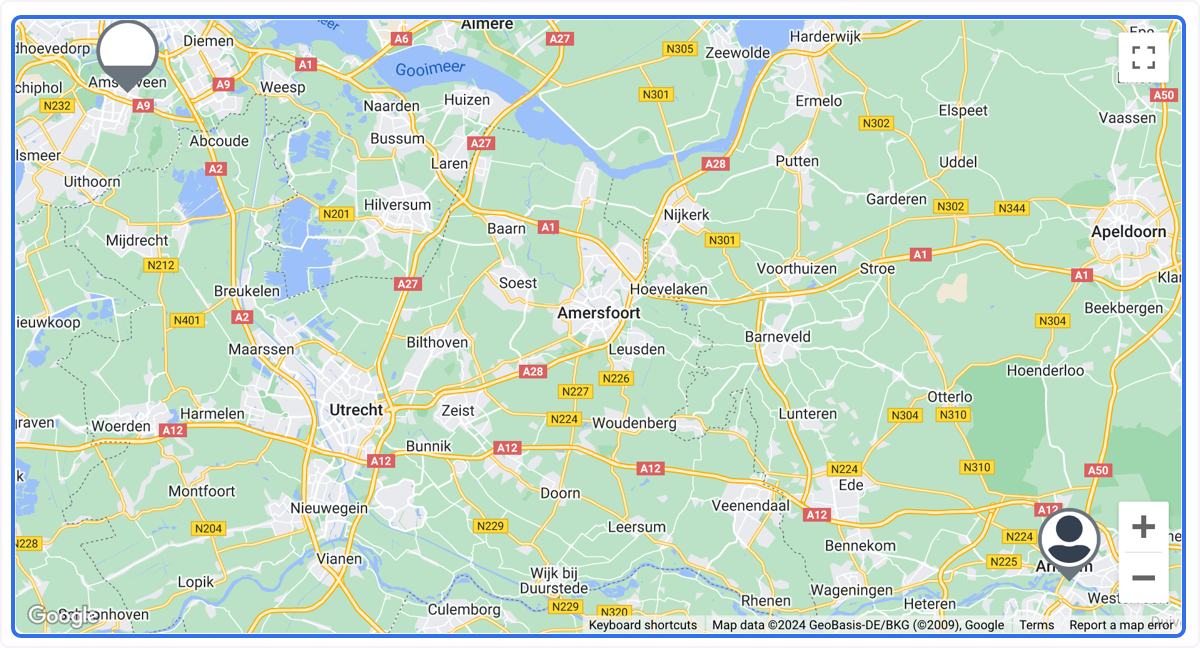
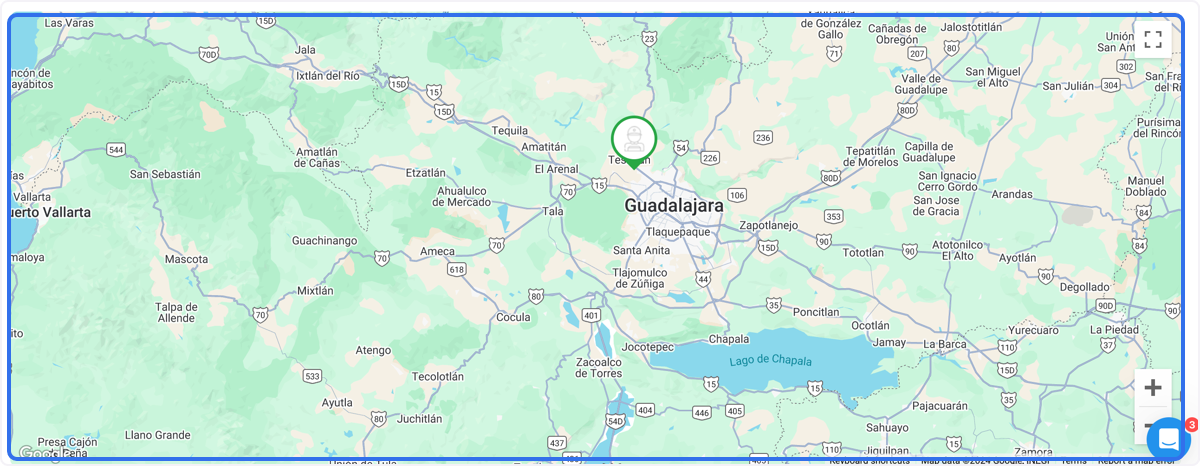
A visible marker can help an operator decide what to check next, but it does not guarantee an accurate or current location, continuous tracking, route quality, Driver proximity, actual movement, arrival, delivery progress, or customer receipt. Map availability and data completeness depend on the configured project and returned records; check the relevant operational records before you act.
Separate delay, ETA, notifications, and the physical outcome
Priority styling, delay indicators, timing controls, status groups, timestamps, and an ETA when one is shown can support triage. Review the current order details and your authoritative operational records before acting on them. Do not treat any one of these display signals as a guaranteed estimate or outcome.
- A displayed availability state does not prove actual work or readiness to accept a dispatch.
- A selected assignment does not prove that the Driver received, accepted, or performed the work.
- A location or map marker does not prove position accuracy, arrival, route progress, or delivery.
- A status such as Completed does not prove physical handoff, receipt, or customer satisfaction.
- A visible status or order update does not prove that a notification was sent, delivered, or read.
Use the workspace to coordinate a review. Use the relevant approved order, dispatch, notification, and delivery records to confirm each event and outcome.
Use the combined view for operational review
All in one can help you:
- Keep Driver context, order context, and a map in one review surface.
- Compare displayed workloads and status groups before opening the appropriate details.
- Identify orders that may need closer review because of their displayed priority, timing, or status.
- Use configured location and schedule information as inputs to a dispatch or route decision.
- Organize manual or special-case order work when the applicable controls are available.
The workspace supports coordination; it does not replace the authoritative confirmation for an assignment, ETA, notification, or physical delivery result.
Choose the right delivery view
- Use Deliveries dashboard when a delivery order is the starting point and you need delivery-focused cards and map context.
- Use Drivers dashboard when fleet monitoring is the starting point.
- Use All in one when you need both contexts together and the combined workspace is available to your account.
All three views can contain refresh or realtime paths. A refreshed display changes the information shown, not proof that a Driver worked, a location is current, a notification was received, or a delivery occurred. Changing a local selection is separate from the order-detail controls that can make an operational change.
Troubleshooting
Why is All in one not available?
The sidebar and route apply separate role, read-only, and configuration conditions. Ask an administrator to confirm the intended access policy for the project.
Why is the map missing or incomplete?
Check that the selected item has the relevant location data and that the project's map configuration is available. A partial or absent map does not reveal the accuracy, recency, or physical state of a delivery.
Can I assign a Driver directly from the map?
Selecting a map marker changes focus. Assignment and status writes are exposed through separate order-detail controls and remain subject to authorization and request validation.
Does a Completed status prove that the customer received the order?
No. It is a displayed order status. Confirm the physical delivery outcome and any customer-facing communication through the authoritative delivery process and records.
Related guides: Delivery overview · Deliveries dashboard · Drivers dashboard · Assign and manage a delivery