All in one delivery view
All in one combines a driver panel, an Orders workspace, and map context on one page. Current Dashboard source mounts the page at /all-in-one and composes it from the shared order-management and driver-list controllers.
The route source allows administrator, business-manager, and driver-manager levels. Current source has two separate sidebar placements: Delivery → All in one for non-read-only administrator or driver-manager accounts on Enterprise, and Orders → All in one for a read-only administrator, driver manager, or business owner when the project is neither Pro nor Enterprise. Route authorization and either visible navigation path are distinct gates.
Open All in one
- In the Dashboard sidebar, select Delivery or Orders, according to the source-visible placement for your account and project.
- Select All in one when that item is available.
- Use the driver and order controls to narrow the operational view before selecting any item.
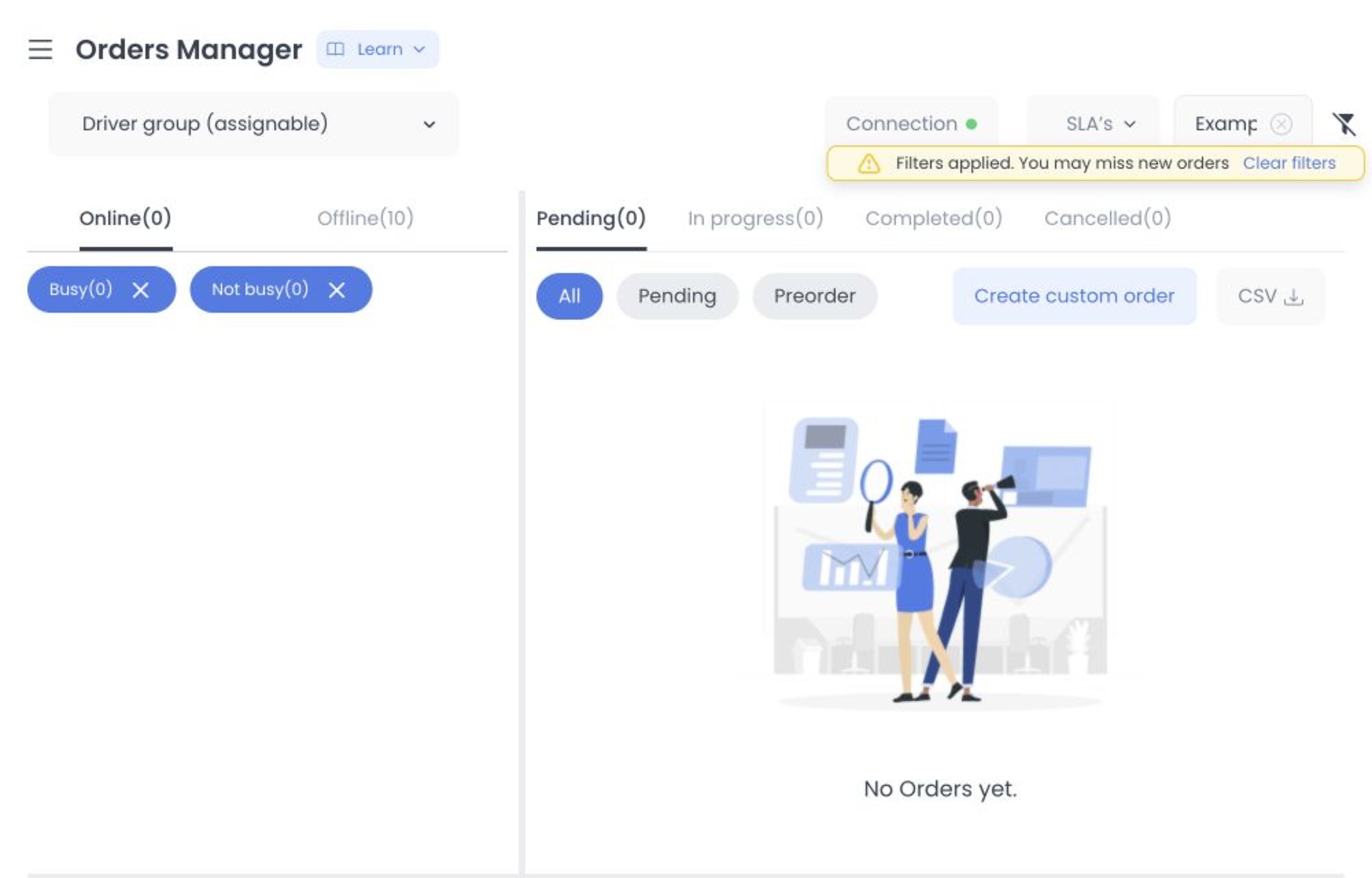
Understand the workspace
The current UI source uses the Orders manager heading and supplies these areas:
- A compact driver manager, whose requested fields include driver identity, location, enabled/available/busy state, groups, assigned-order count, and photo.
- The Orders workspace, with status groups, more specific status filters, Search, Filter, and supported bulk controls.
- A map, which can focus on the selected driver or selected order.
Selecting an order changes local focus and can add its ID to the URL. The source also mounts shared order-detail and multi-order controls; selecting those controls can submit operational writes and is outside this review workflow.
Request and realtime boundaries
The page's controllers contain authenticated order, driver, business, group, and supporting-data reads. They also join driver-related websocket rooms and listen for batch driver-location and driver-change events while eligible source states are active. These paths can expose live operational and location data; GET and websocket activity are not presumed side-effect-free.
The map source receives the configured Google Maps key and selected order or driver locations. This review did not open the route, contact the map provider, join a websocket room, or retrieve any order, driver, customer, or location record.
Use the workspace safely
Source-visible data classes include driver locations, customer and business addresses, contact details, order data, and workload. Shared order controls include assignment, status, messaging, and other mutation surfaces.
Use only synthetic or approved redacted data for screenshots, demonstrations, and training. Do not use a live order, map marker, assignment selector, status control, bulk action, or message composer merely to explore the page.
For an approved operational action, confirm the order in the authoritative operational system and follow Assign and manage a delivery. This source-only article does not establish that a deployed request or downstream effect succeeded.
How it differs from the other delivery views
- Use Deliveries dashboard when the delivery order is the starting point and you need delivery-focused cards and map context.
- Use Drivers dashboard when fleet monitoring is the starting point.
- Use All in one when you need both contexts together and your project provides the combined workspace.
All three source views contain realtime or refresh paths. Changing the local selection is separate from the mutation controls inside order detail, but this review did not exercise either path.
Troubleshooting
Why is All in one not available?
The sidebar and route apply separate plan, role, and read-only conditions. The absence of a sidebar item does not by itself prove deployed route availability. Ask an administrator to confirm the intended project policy.
Why is the map missing or incomplete?
The current source passes a configured Google Maps key and available location fields to the map. Provider availability and deployed data completeness were not tested.
Can I assign a driver directly from the map?
The inspected map selection handler changes focus; assignment and status writes are exposed through separate order-detail controls and remain subject to API validation. No deployed control was tested.
Related guides: Delivery overview · Deliveries dashboard · Drivers dashboard · Assign and manage a delivery