Set up a WhatsApp bot in Connect
Use Connect → WhatsApp bots as an administrator with editing access. These bots guide ordering with buttons and a webview. For the AI Agent product, see Create a WhatsApp AI agent.
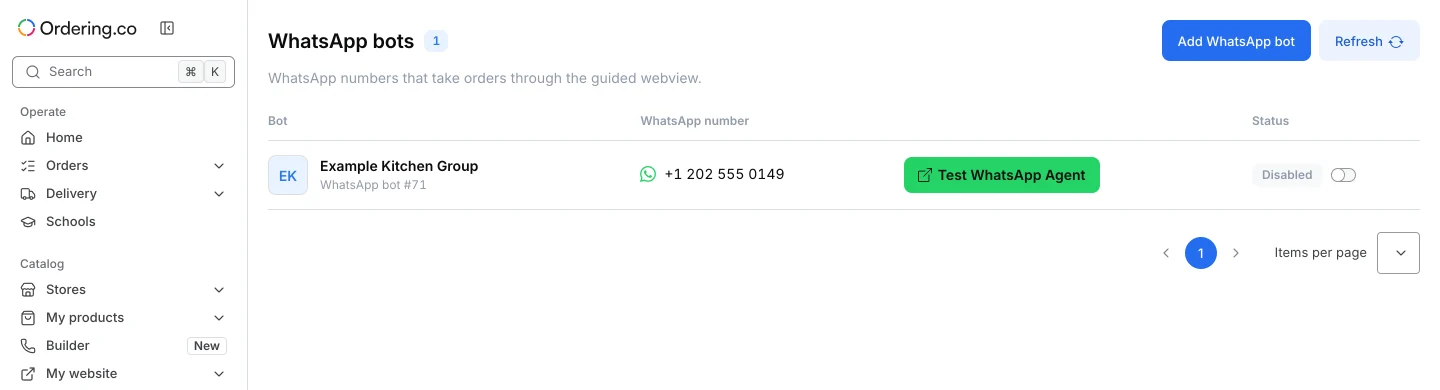
Review bots and choose a brand
The list shows each bot’s brand or identifier, connected number when available, and enabled state. Select a row to review its settings, or choose Add WhatsApp bot. Select the intended brand, branch selection, and language. Changing the brand on an existing bot asks for confirmation and resets its active conversations.
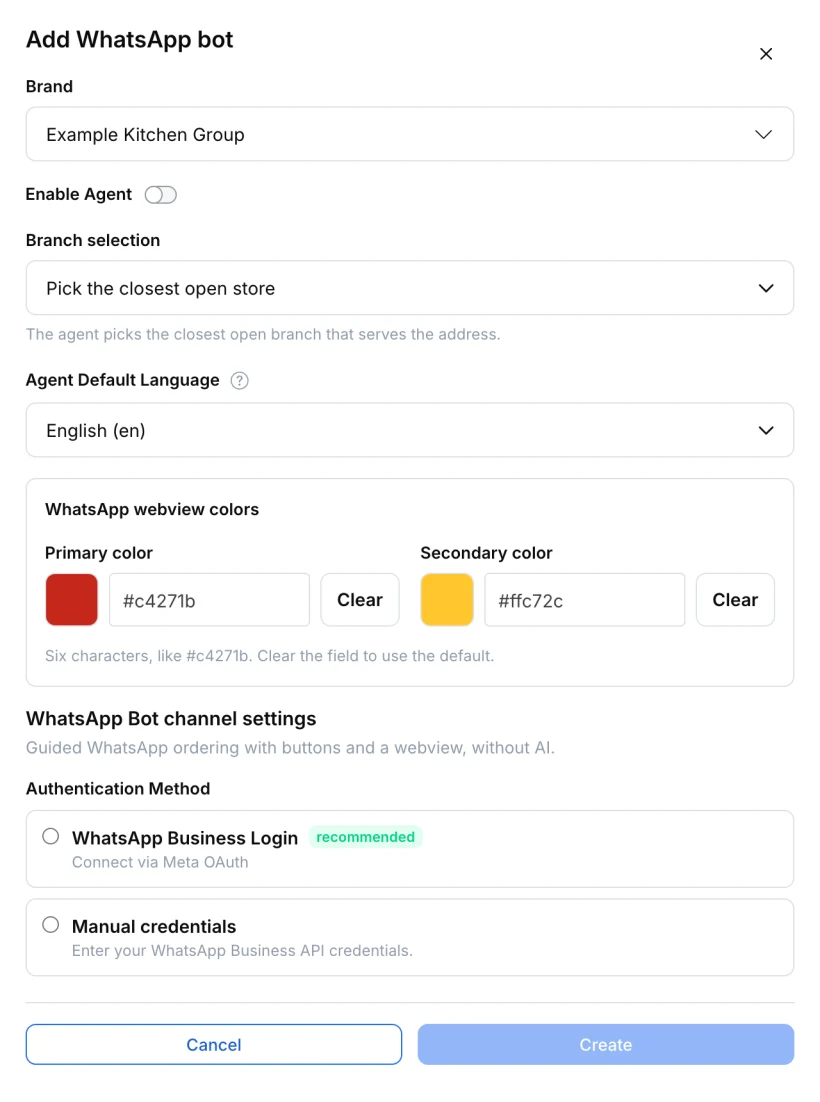
Connect the WhatsApp number
Choose WhatsApp Business Login to continue with the Meta sign-in offered by the form. Alternatively, choose Manual credentials and enter the approved account and phone-number details. Complete the connection before enabling the bot. Keep access tokens, PINs, and connection links private.
Enable and test the bot
After the expected number appears, use the available Enabled control. For an approved test number, select Test WhatsApp Agent. The test dialog offers an external WhatsApp link and QR code for opening that chat. Check the number before opening the chat. Sending a message is a separate action in WhatsApp.